CIS Construction Industry Scheme
 2:32
2:32How do I add a CIS subcontractor who's got a reference number?
Steps to add a pre-verified CIS subcontractor using their verification reference number.
 3:52
3:52How do I add a new un-verified CIS subcontractor?
Step-by-step guide to adding and verifying a new unregistered CIS subcontractor in your system.
 1:49
1:49How do I reverify an existing CIS subcontractor?
Steps to reverify a CIS subcontractor when payment or verification is over two years old.
 2:07
2:07How do I change the details of an existing CIS subcontractor?
Steps to remove and update CIS subcontractor details, then re-verify with HMRC.
 2:04
2:04How do I change my subcontractor's CIS deduction percentage?
Steps to update a subcontractor's CIS tax deduction percentage in payroll settings.
 5:27
5:27How do I pay CIS subcontractors hourly, by timesheet hours?
How to set up and pay CIS subcontractors hourly using timesheets and HMRC verification.
 5:12
5:12How do I pay CIS subcontractors hourly, by self-reported hours?
How to set up and pay CIS subcontractors hourly using their self-reported hours.
 3:48
3:48How do I pay CIS subcontractors, by invoiced "CIS labour"?
How to pay CIS subcontractors invoiced for CIS labour using payroll and tax settings.
 4:50
4:50How do I pay CIS subcontractors for invoiced materials, etc?
How to pay CIS subcontractors for invoiced qualifying and other expense claims.
 2:30
2:30How do I get my CIS "Payment and Deduction statement"?
How to access and download your CIS Payment and Deduction statements for tax purposes.

1. How do I add a CIS subcontractor who's got a reference number?

 2:32
2:32
"How do I add a CIS subcontractor who's got a reference number?"
When you're adding a pre-verified CIS subcontractor, it's likely that you'll already have a copy of their 11-13 digit CIS verification reference number. Usually it's for when you're moving a CIS subcontractor over from a previous payroll system.
To add a pre-verified CIS subcontractor:
- First, select the CIS subcontractor on: "Menu", then "People"
- Then tap: "Pay", "Pay settings", then "Employment type"
- Set them as a: "CIS subcontractor"
- Next, tap: "Tax", "Tax settings", then "CIS subcontractor type"
- Select the subcontractor type that applies. Sole trader is the most common.
- For subcontractors that your company's previously verified with HMRC, you'll find their 11-13 digit verification reference number on their past CIS monthlies.
- So next, tap: "Previously verified", and select: Yes
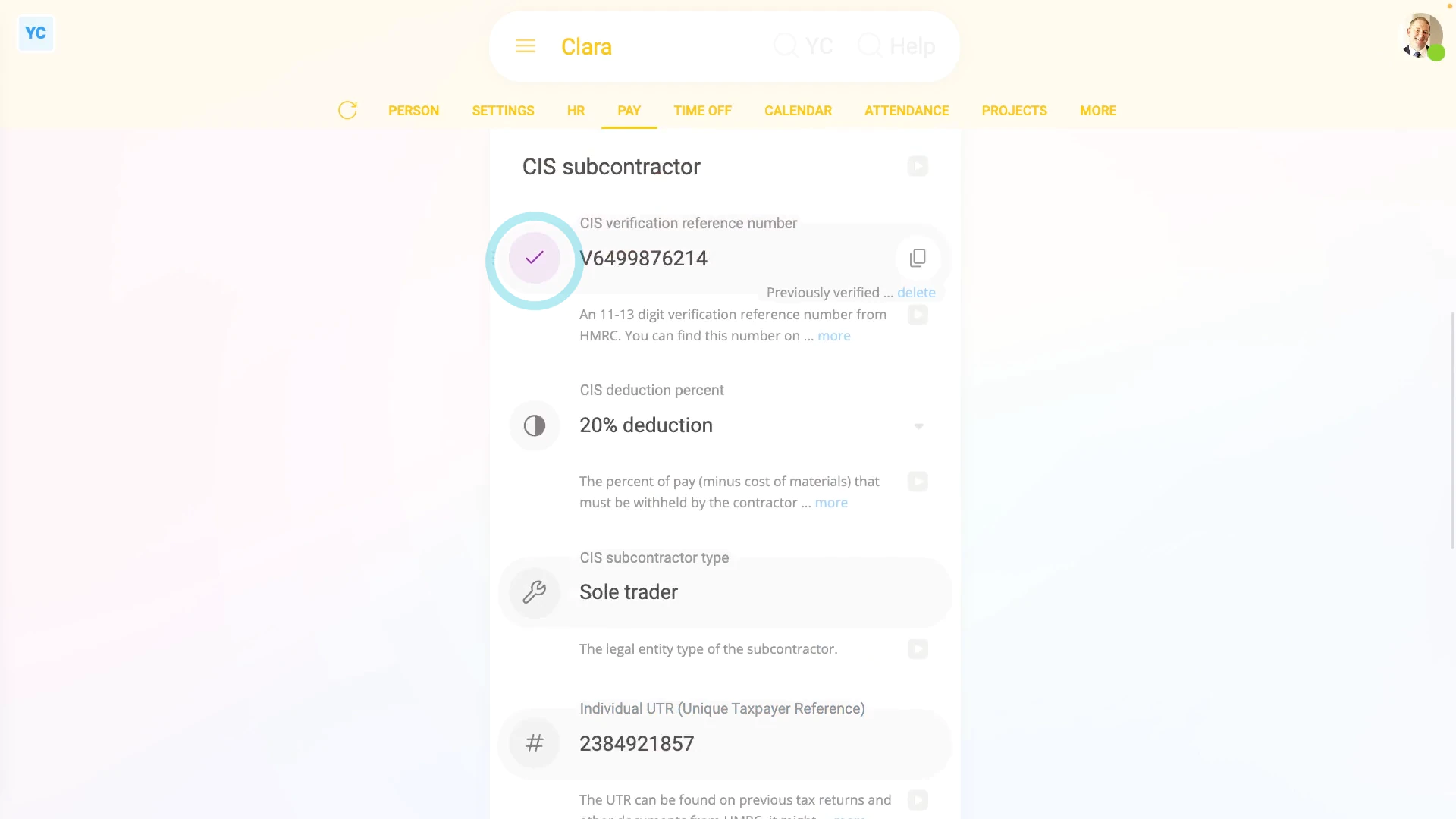
- Next, enter their: "CIS verification reference number"
- After that, tap: "CIS deduction percent", and select the rate that HMRC gave you. 20% is the most common.
- Then tap: "UTR (Unique Taxpayer Reference)", and enter the subcontractor's UTR.
- Then tap: Save
- And finally, you'll see a purple tick showing that your new CIS subcontractor has been successfully added.
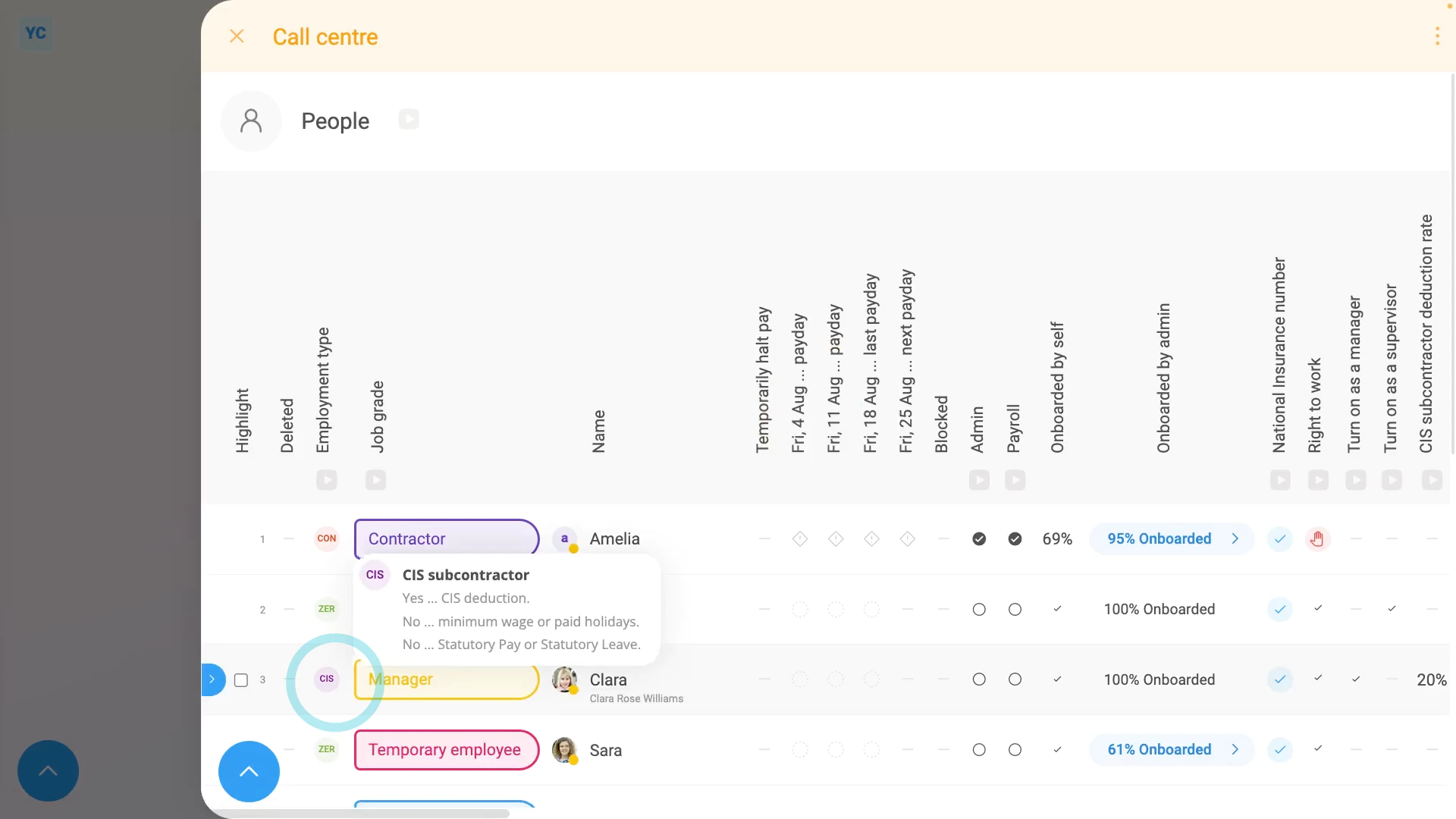
To open a payroll group's "People" report, to see CIS subcontractor status for many subcontractors:
- First, select the payroll group on: "Menu", then "Payroll groups"
- Then tap: "Pay", then "People"
- Near the beginning of the row, you'll see the letters "CIS" marking each of your subcontractors.
- And finally, when you scroll across, you'll see their percentage value in the CIS column.

To learn more:
- About adding a subcontractor that's never been verified by you before, watch the video on: Adding an un-verified CIS subcontractor
 Adding an un-verified CIS subcontractor
And that's it! That's everything you need to know about adding pre-verified CIS subcontractors!
2. How do I add a new un-verified CIS subcontractor?
 3:53
3:53
"How do I add a new un-verified CIS subcontractor?"
When you hire a new CIS subcontractor, either as a person or a company, your first step is to add them as a person.
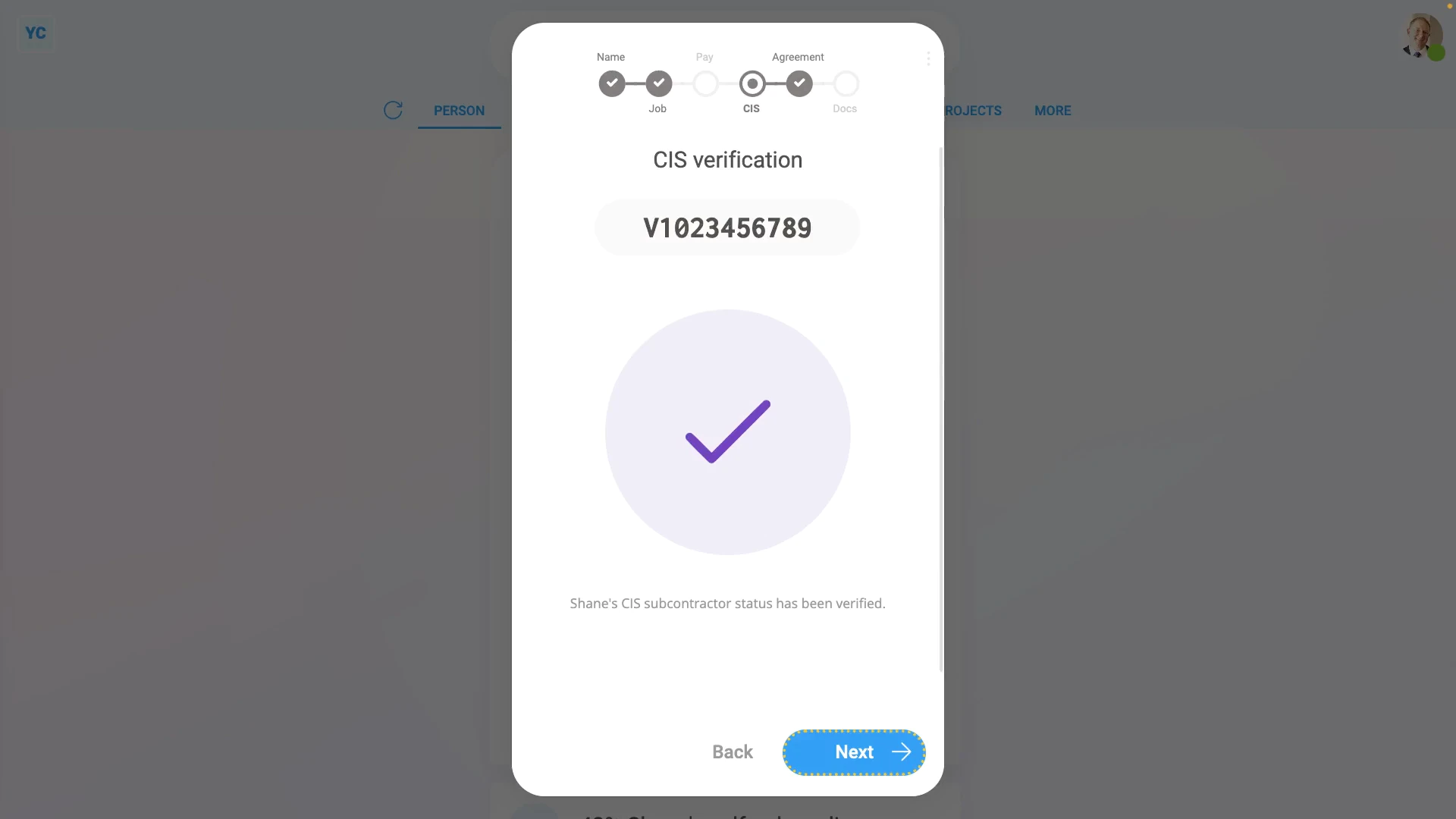
To add a person (or company) as a CIS subcontractor:
- First, tap: "Menu", "People", then "Invite a person"
- Once it's open, tap Add a new person, and enter the subcontractor's email and tap: Invite
- Next, fill in the subcontractor's name.
- And set the "Employment type" to: "CIS subcontractor"
- Then set the "Payroll group" to the same payroll group used by your other CIS subcontractors, and tap: Next
- Set any of the "Job settings" if you wish, and tap: Next
- You're welcome to set a "Rate amount", but for CIS subcontractors it's optional, as you may be paying them per job.
- Then tap: Next
- Select the subcontractor type.
- In the example, because you're doing a new CIS subcontractor, set "Previously verified" to: "No"
- Then fill in the other details.
- Then tap Set address and type in your CIS subcontractor's address.
- Then tap Next and then: Verify CIS
- A request for a new 11-13 digit CIS verification reference number is now sent to HMRC.
- It usually takes about 10 seconds for HMRC to finish processing your request and send back your: "CIS verification reference number"
- Once you receive the CIS verification reference number on behalf of the person (or company), it can then be used by them while working with your company. It can also be used by them while working as a CIS subcontractor for any other company.
- Verifying a CIS subcontractor sets the deduction rate to 20% if the person (or company) is registered with HMRC, or 30% if not registered.
- Once HMRC responds, you'll see a purple check with the person (or company's) CIS verification reference number above it.
- And finally, after you tap your way through the remaining steps, and tap Close, your new CIS subcontractor is all ready.
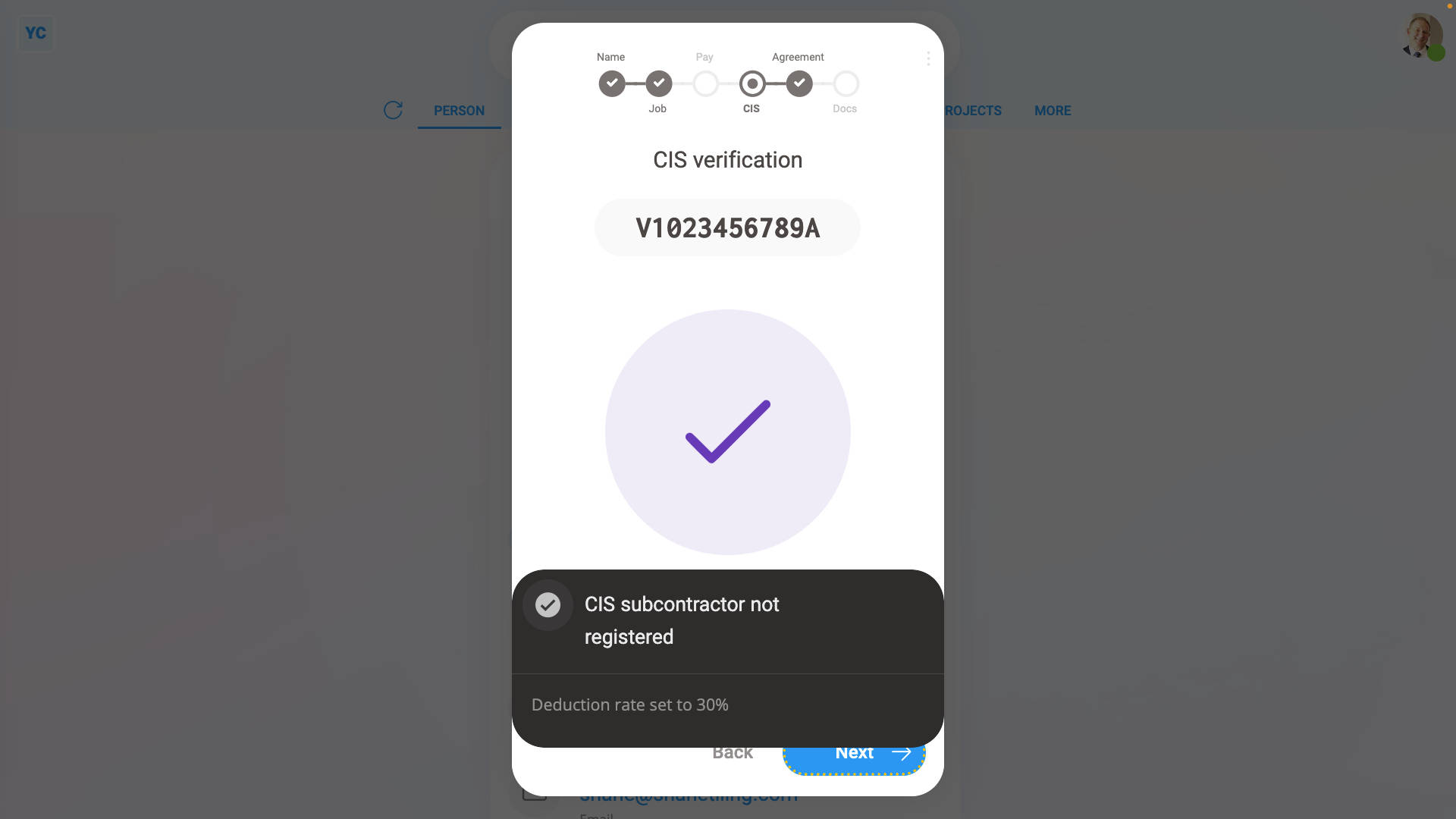
Sometimes, once HMRC responds, you may see a popup saying "CIS subcontractor not found by HMRC". Which means:
- That your CIS subcontractor wasn't found in HMRC's database, so your CIS subcontractor can't yet get the lower 20% deduction rate.
- Your CIS subcontractor can still work for you, and you can still pay them, but ask your CIS subcontractor to register themselves with HMRC.
- Until your CIS subcontractor's registered, their CIS subcontractor deductions are set to the higher 30% rate.
- Once HMRC's received their registration, HMRC contacts you (the employer) and asks you to set them to the lower 20% rate.
- CIS subcontractors can register for CIS on the Government Gateway website.
- Your CIS subcontractor can also register by calling the CIS helpline number (that you can search for on Google).
And that's it! That's everything you need to know about adding a CIS subcontractor that isn't registered!
3a. How do I reverify an existing CIS subcontractor?
 1:49
1:49
"How do I reverify an existing CIS subcontractor?"
If a subcontractor hasn't been paid or verified by your company in the last two years, HMRC requires that your company reverify the subcontractor.
When a subcontractor requires reverification, when you're about to pay them you'll see a warning message.
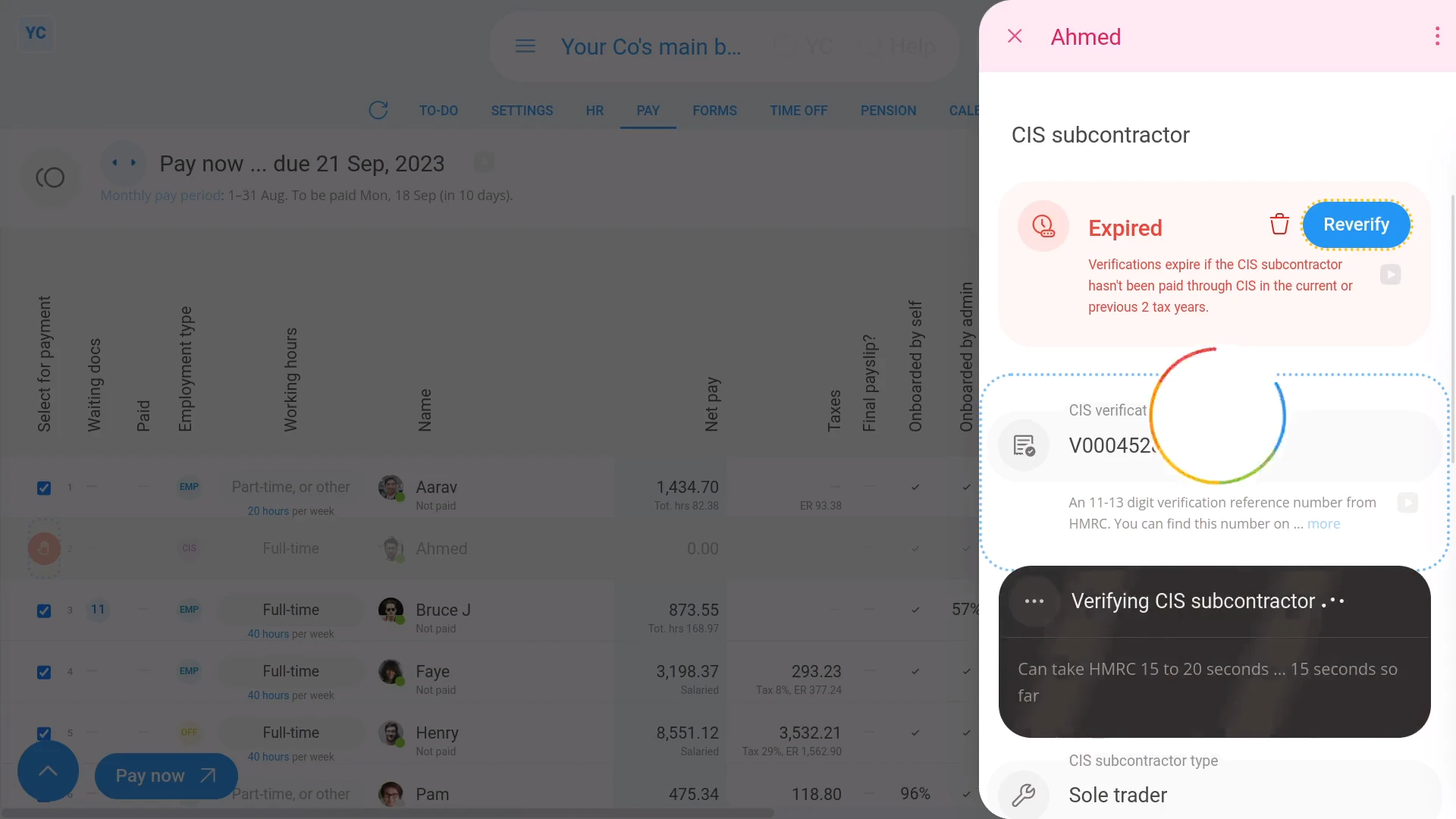
To reverify an expired CIS subcontractor:
- First, select the payroll group on: "Menu", then "Payroll groups"
- Then tap: "Pay", then "Process payroll"
- For any CIS subcontractor that's ready to be paid, but needs to have their CIS reverified, you'll see an orange warning circle:
- Tap the orange warning circle to open that CIS subcontractor's details for reverification.
- Next, look through their details to make sure you don't have any changes to make to their UTR or deduction percent, etc.
- If there's no changes to make, then tap: Reverify
- It usually takes about 10 seconds for HMRC to finish processing your reverification request.
- During the reverification process, there won't be any change to the CIS subcontractor's CIS verification reference number.
- All it does is reconfirm, with HMRC, that your company still has a working relationship with the CIS subcontractor.
- And finally, once HMRC responds, you'll see a purple tick showing that the reverification has been completed.
And that's it! That's all you need to do to reverify a CIS subcontractor!
3b. How do I change the details of an existing CIS subcontractor?
 2:06
2:06
"How do I change the details of an existing CIS subcontractor?"
The most common reason to remove a CIS verification is changing a person from a sole-trader to a company.
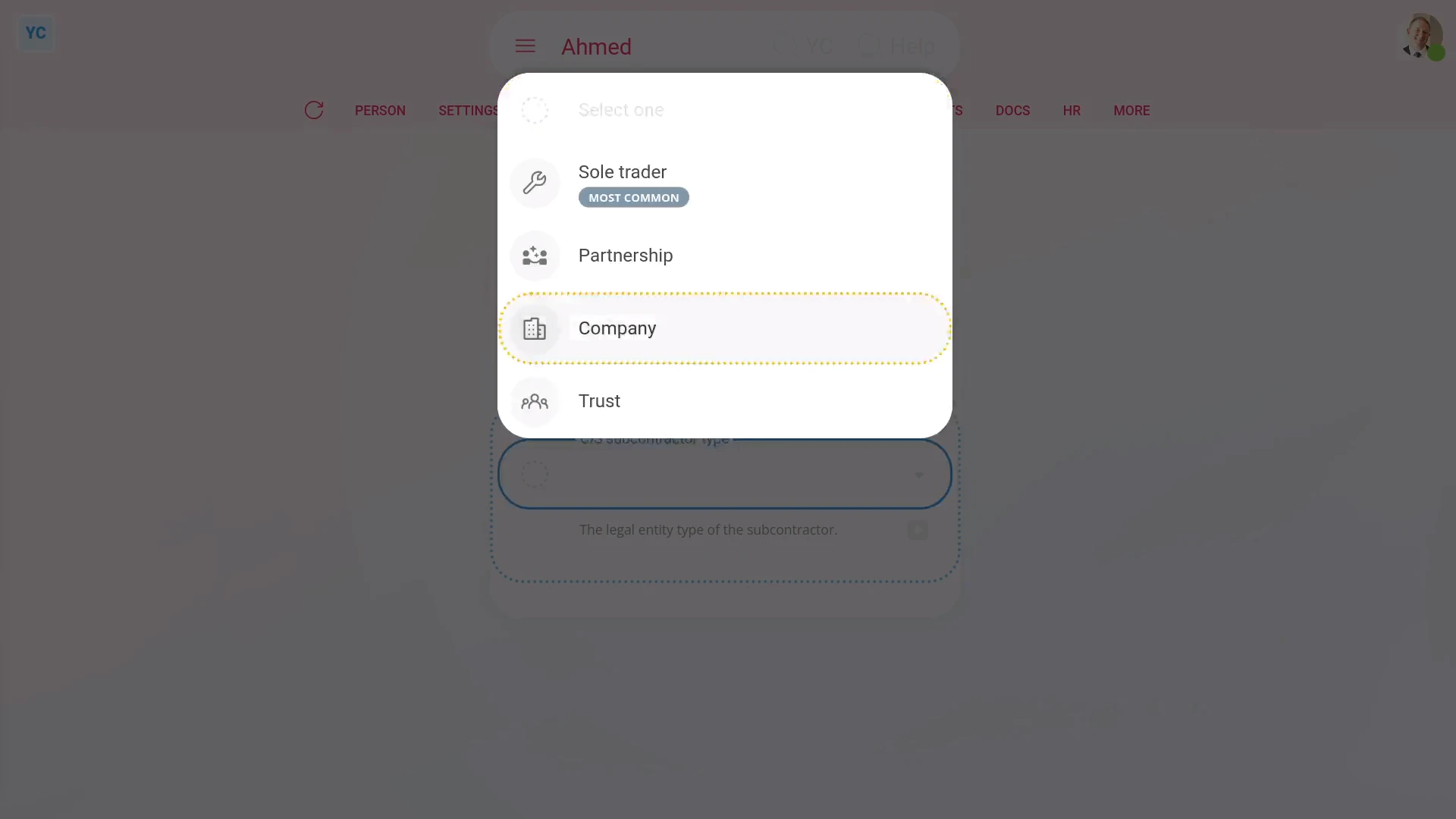
To remove a person's existing CIS verification, and then re-verify them with some of their details changed. For example, changing them to a company:
- First, select the person on: "Menu", then "People"
- Then tap: "Tax", then "Tax settings"
- And scroll down to the purple tick.
- Next, hover your mouse over the purple tick, and tap the rubbish bin image, and then tap: Yes ... remove
- Once it's removed, all their previous verification details are temporarily hidden. You can now select the CIS subcontractor type again.
- Next, set "Previously verified". In the example, you can set it to: "No"
- And enter the person's company UTR, company name, and registration number.
- Then tap Save to re-verify them with HMRC.
- It usually takes about 10 seconds for HMRC to finish processing your verification request.
- Included in the result from HMRC is their new: "CIS verification reference number"
- Their new number can be used by them while working with your company. It can also be used by them while working as a CIS subcontractor for any other company.
- Verifying a CIS subcontractor sets the deduction rate to 20% if the person (or company) is registered with HMRC, or 30% if not registered.
- And finally, once finished, you'll see the purple tick. You'll also see a blue highlight around their new CIS verification reference number, showing that their verification has been completed.
And that's it! That's all you need to do to change a CIS subcontractor's details!
3c. How do I change my subcontractor's CIS deduction percentage?
 2:04
2:04
"How do I change my subcontractor's CIS deduction percentage?"
The CIS deduction percentage is the amount of CIS tax that's deducted from most payments you make to a CIS subcontractor.
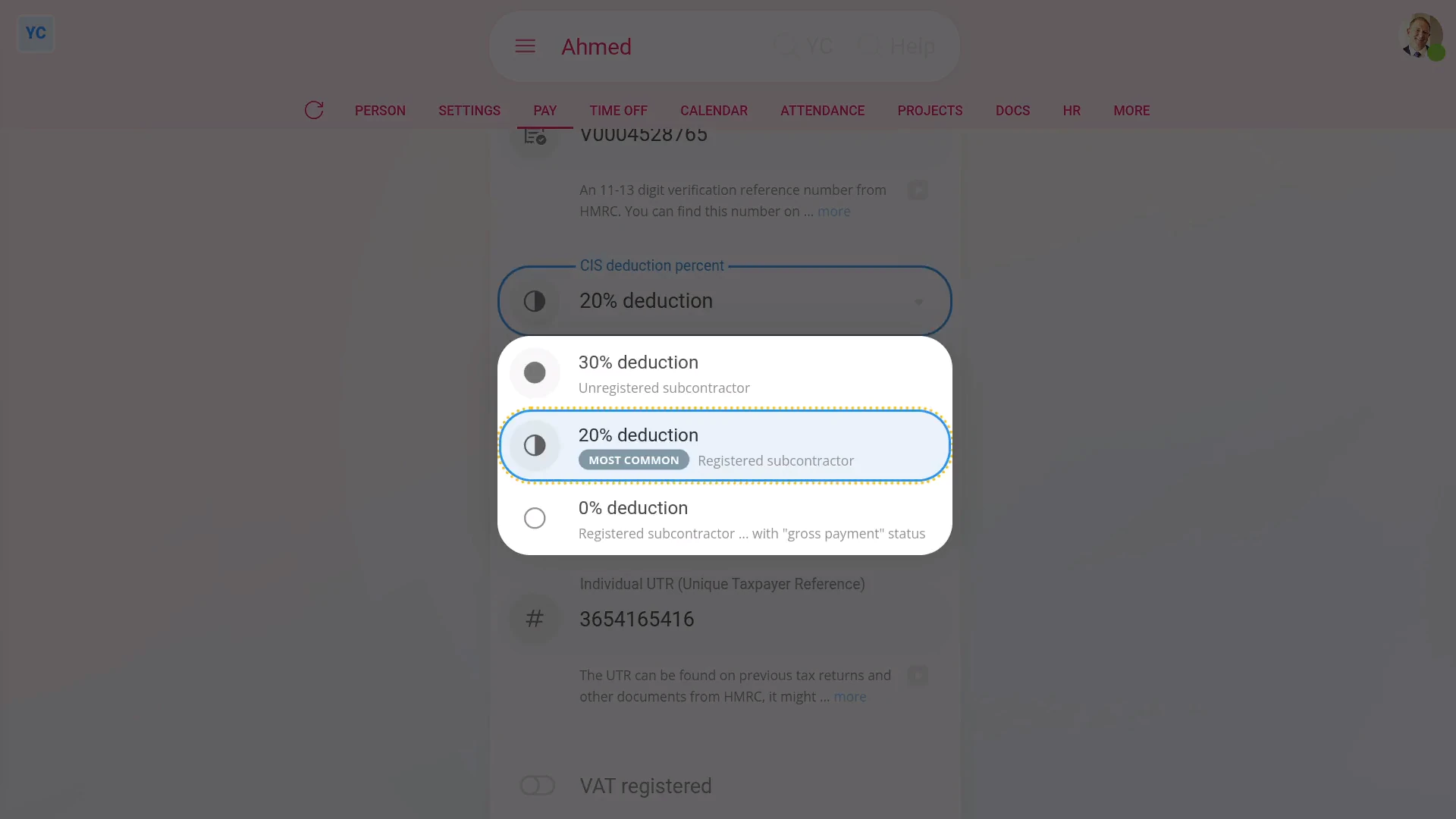
To change a subcontractor's CIS deduction percent:
- First, select the CIS subcontractor on: "Menu", then "People"
- Then tap: "Tax", "Tax settings", then "CIS deduction percent"
- Change it to the new percentage that HMRC's requested you to set it to.
- Then tap: Save
- And finally, all current and future payslips paid to the CIS subcontractor are now set to deduct with the new CIS deduction percent.
You may notice:
- That the CIS deduction percentage is automatically set when you first add or re-verify a CIS subcontractor.
- The percentage that it's set to is based on an instruction sent by HMRC. Commonly, HMRC sets it to 20%.
- In most circumstances, you shouldn't have any reason to change it.
- However, on rare occasions, you may get a notice from HMRC asking you to change the CIS deduction percentage for one of your CIS subcontractors.
Keep in mind that:
- The CIS deduction percentage sets the CIS tax amount that's deducted from every payment you make to a CIS subcontractor.
- The only exception that doesn't have a CIS tax deduction are "Qualifying CIS expenses" paid to the CIS subcontractor.
- Changing the CIS deduction percentage instantly applies to all current and future payslips filed.
- Any payslips that have already been filed remain unchanged, and use the previous CIS deduction percentage.
And that's it! That's all you need to do to change a subcontractor's CIS deduction percent!
4a. How do I pay CIS subcontractors hourly, by timesheet hours?
 5:28
5:28
"How do I pay CIS subcontractors hourly, by timesheet hours?"
The easiest, and most flexible way to pay CIS subcontractors is to pay them hourly, based on their submitted timesheets.
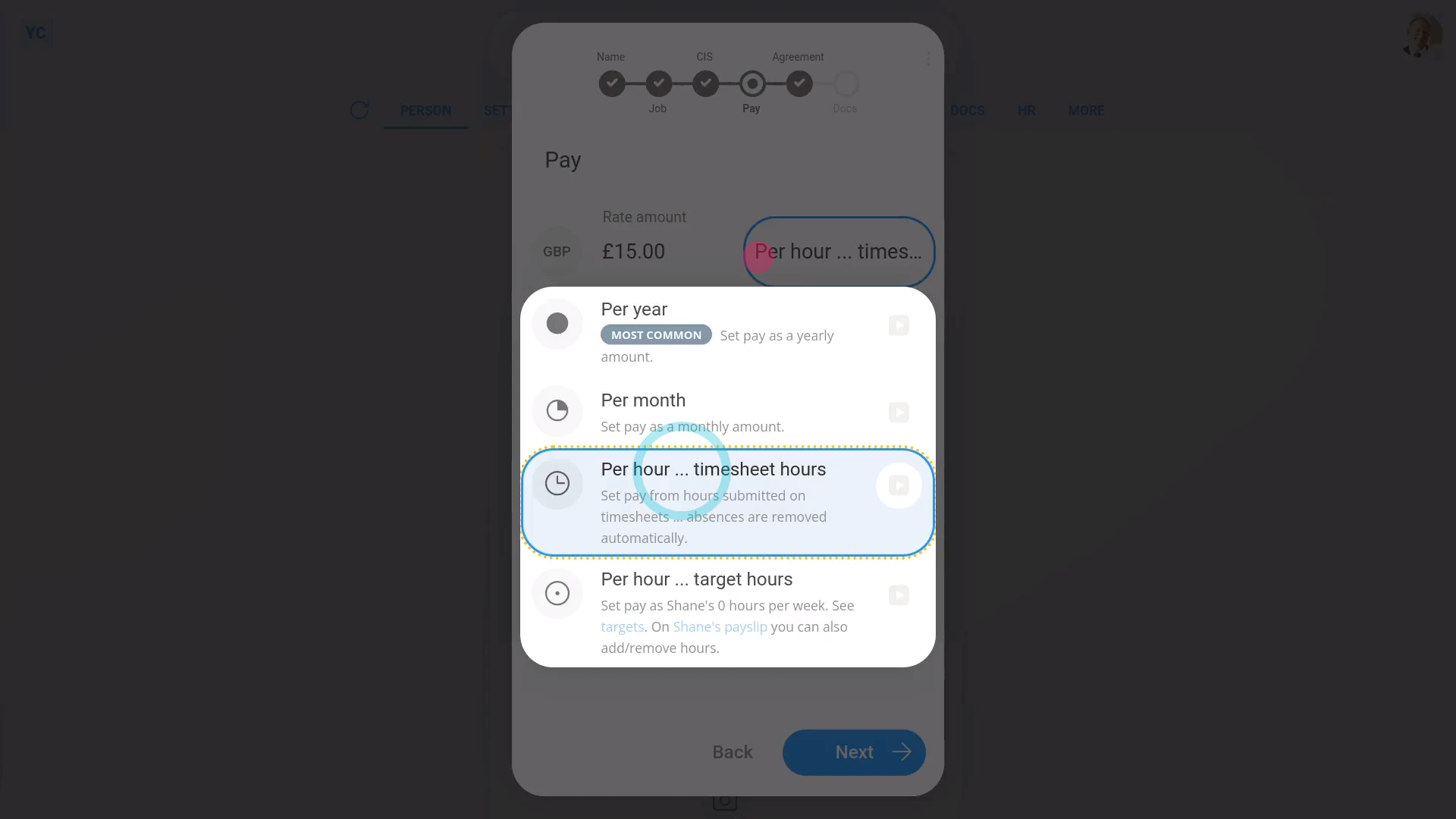
To set up a CIS subcontractor for hourly pay, based on timesheets, and to then pay them:
- First, tap: "Menu", "People", then "Invite a person"
- Once it's open, tap Add a new person, and enter the subcontractor's email and tap: Invite
- Next, fill in the subcontractor's name.
- And set the "Employment type" to: "CIS subcontractor"
- Then set the "Payroll group" to the same payroll group used by your other CIS subcontractors, and tap: Next
- Set any of the "Job settings" if you wish, and tap: Next
- Next, select: "CIS subcontractor type"
- In the example, because you're doing a new CIS subcontractor, set "Previously verified" to: "No"
- Then fill in the other details.
- And tap Set address and type in your CIS subcontractor's address.
- Then tap Next and then: Verify CIS
- A request for a new 11-13 digit CIS verification reference number is now sent to HMRC.
- It usually takes about 10 seconds for HMRC to finish processing your request and send back your: "CIS verification reference number"
- Once you receive the CIS verification reference number on behalf of the person (or company), it can then be used by them while working with your company. It can also be used by them while working as a CIS subcontractor for any other company.
- Verifying a CIS subcontractor sets the deduction rate to 20% if the person (or company) is registered with HMRC, or 30% if not registered.
- Once HMRC responds, you'll see a purple check with the person (or company's) CIS verification reference number above it.
- Next, set their "Rate amount", and check that it's set to: "Per hour ... clocked-in timesheets"
- Then tap: Next
- Now, after you tap your way through the remaining steps, your new CIS subcontractor is 100% complete with admin onboarding.
- Over the coming days, your new CIS subcontractor can now set their timesheet hours normally.
- Their timesheet hours are set with each tap of "Start", "Go on break" and "Finish" on the work-time menu.
- Alternatively, to set their timesheet hours yourself, as an admin, you can tap: "Attendance", then "Timesheet"
- And then add time by dragging the green sliders, and tap: Save
- Once you've set all of their timesheet times, you're now ready to pay the CIS subcontractor.
- To open the CIS subcontractor's payslip and pay them, tap: "Pay", then "Payslip"
- And finally, tap Go to "Process payroll" to complete the CIS payslip filing to HMRC.
To learn more:
- About paying CIS subcontractors who are using their own time tracking system, watch the video on: Paying CIS hourly from hours worked
- Alternatively, to learn about paying for an invoiced money amount of CIS labour, watch the video on: Paying invoiced CIS labour
Keep in mind that:
- It's fine for a single payroll group to have some CIS subcontractors using timesheets, and others using a system for tracking their hours.
- And still others invoicing for a money amount of CIS labour.
- Any combination of the three payment methods works, and you can switch from one to another with any CIS subcontractor, at any time.
- Also remember, that CIS subcontractors don't get paid for holidays, and sick days off, etc.
- Which makes daily timesheets a reliable and flexible way to pay for work actually done.
If a feature's not showing:
- If the "Per hour ... clocked-in timesheets" option isn't showing, it means your org hasn't turned on the timesheets feature yet.
- To turn on the timesheets feature, watch the video on: Turning on timesheets
And that's it! That's all you need to do to pay CIS subcontractors hourly, based on their submitted timesheets!
4b. How do I pay CIS subcontractors hourly, by self-reported hours?
 5:14
5:14
"How do I pay CIS subcontractors hourly, by self-reported hours?"
Sometimes your CIS subcontractors have their own time tracking system, and all you need to enter is their total hours worked.
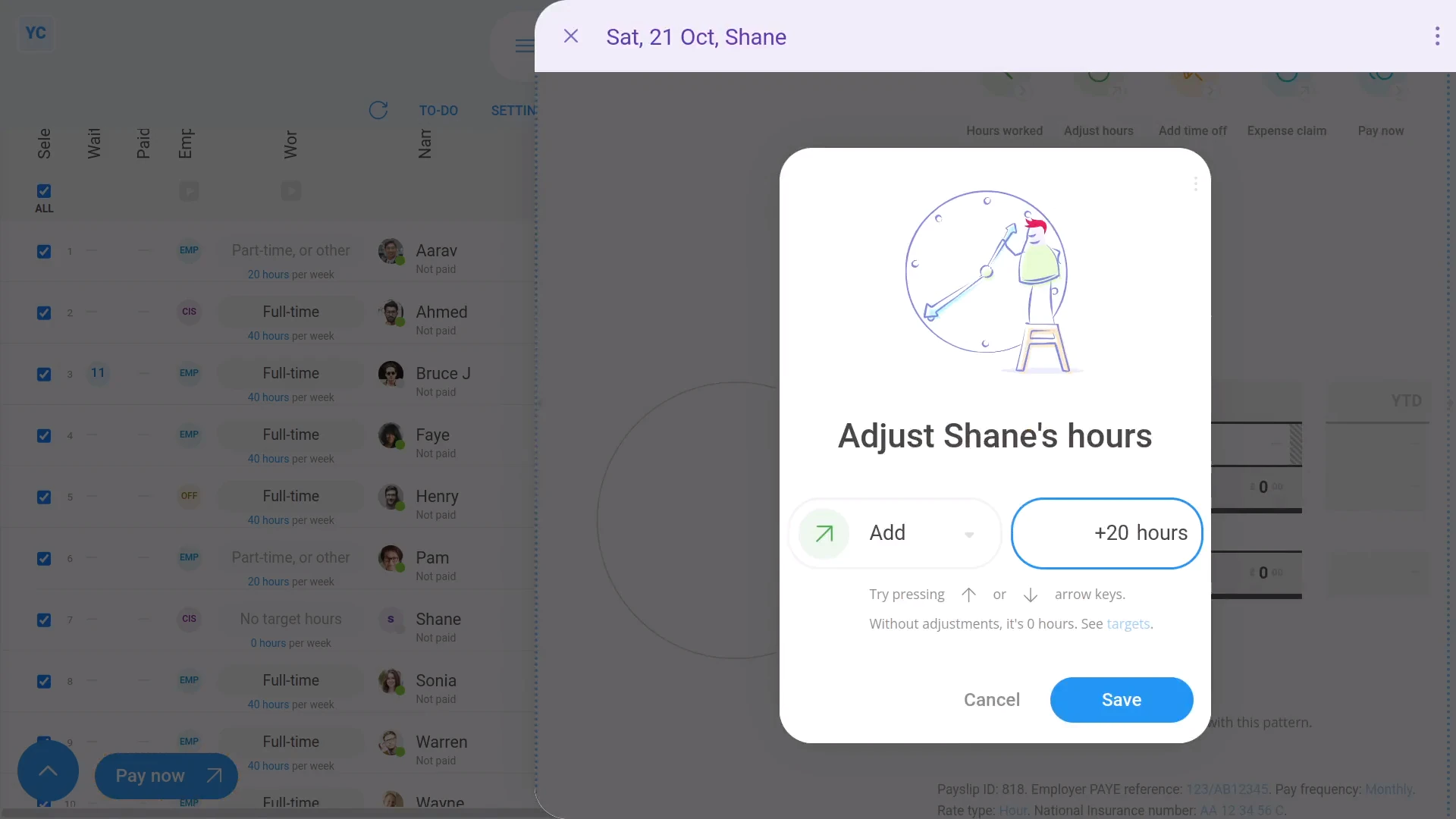
To set up a CIS subcontractor for hourly pay, based on hours worked from their own time tracking system, and to then pay them:
- First, tap: "Menu", "People", then "Invite a person"
- Once it's open, tap Add a new person, and enter the subcontractor's email and tap: Invite
- Next, fill in the subcontractor's name.
- And set the "Employment type" to: "CIS subcontractor"
- Then set the "Payroll group" to the same payroll group used by your other CIS subcontractors, and tap: Next
- Set any of the "Job settings" if you wish, and tap: Next
- Next, select: "CIS subcontractor type"
- In the example, because you're doing a new CIS subcontractor, set "Previously verified" to: "No"
- Then fill in the other details.
- And tap Set address and type in your CIS subcontractor's address.
- Then tap Next and then: Verify CIS
- A request for a new 11-13 digit CIS verification reference number is now sent to HMRC.
- It usually takes about 10 seconds for HMRC to finish processing your request and send back your: "CIS verification reference number"
- Once you receive the CIS verification reference number on behalf of the person (or company), it can then be used by them while working with your company. It can also be used by them while working as a CIS subcontractor for any other company.
- Verifying a CIS subcontractor sets the deduction rate to 20% if the person (or company) is registered with HMRC, or 30% if not registered.
- Once HMRC responds, you'll see a purple check with the person (or company's) CIS verification reference number above it.
- Next, set their "Rate amount", and set it to: "Per hour ... fixed targets"
- Then tap: Next
- Now, after you tap your way through the remaining steps, your new CIS subcontractor is 100% complete with admin onboarding.
- Over the coming days, your new CIS subcontractor can track their hours worked through their own time tracking system.
- Then on payday, get their total hours worked.
- To pay them, select the payroll group that the CIS subcontractor works in: "Menu", then "Payroll groups"
- Then tap: "Pay", then "Process payroll"
- You may need to jump forwards one payday if your CIS subcontractor's join date was set to today.
- Once you find your new CIS subcontractor on "Process payroll", tap the zeros in the "Net pay" column.
- And type in the number of hours you'd like to add for the CIS subcontractor to be paid.
- Now you'll see their amounts for "Net pay" and "CIS deduction" for the hours you entered.
- To pay the payslip, tap: Go to "Process payroll"
- And finally, once everything's checked, tap: Process payroll
To learn more:
- About paying CIS subcontractors using timesheets, watch the video on: Paying CIS hourly by timesheets
- Alternatively, to learn about paying for an invoiced money amount of CIS labour, watch the video on: Paying invoiced CIS labour
Keep in mind that:
- It's fine for a single payroll group to have some CIS subcontractors using timesheets, and others using a system for tracking their hours.
- And still others invoicing for a money amount of CIS labour.
- Any combination of the three payment methods works, and you can switch from one to another with any CIS subcontractor, at any time.
And that's it! That's all you need to do to pay CIS subcontractors hourly, based on their hours worked from their own time tracking system!
4c. How do I pay CIS subcontractors, by invoiced 'CIS labour'?
 3:48
3:48
"How do I pay CIS subcontractors, by invoiced "CIS labour"?"
Sometimes your CIS subcontractors, rather than giving you their total hours worked, instead give you an invoice for their: "CIS labour"
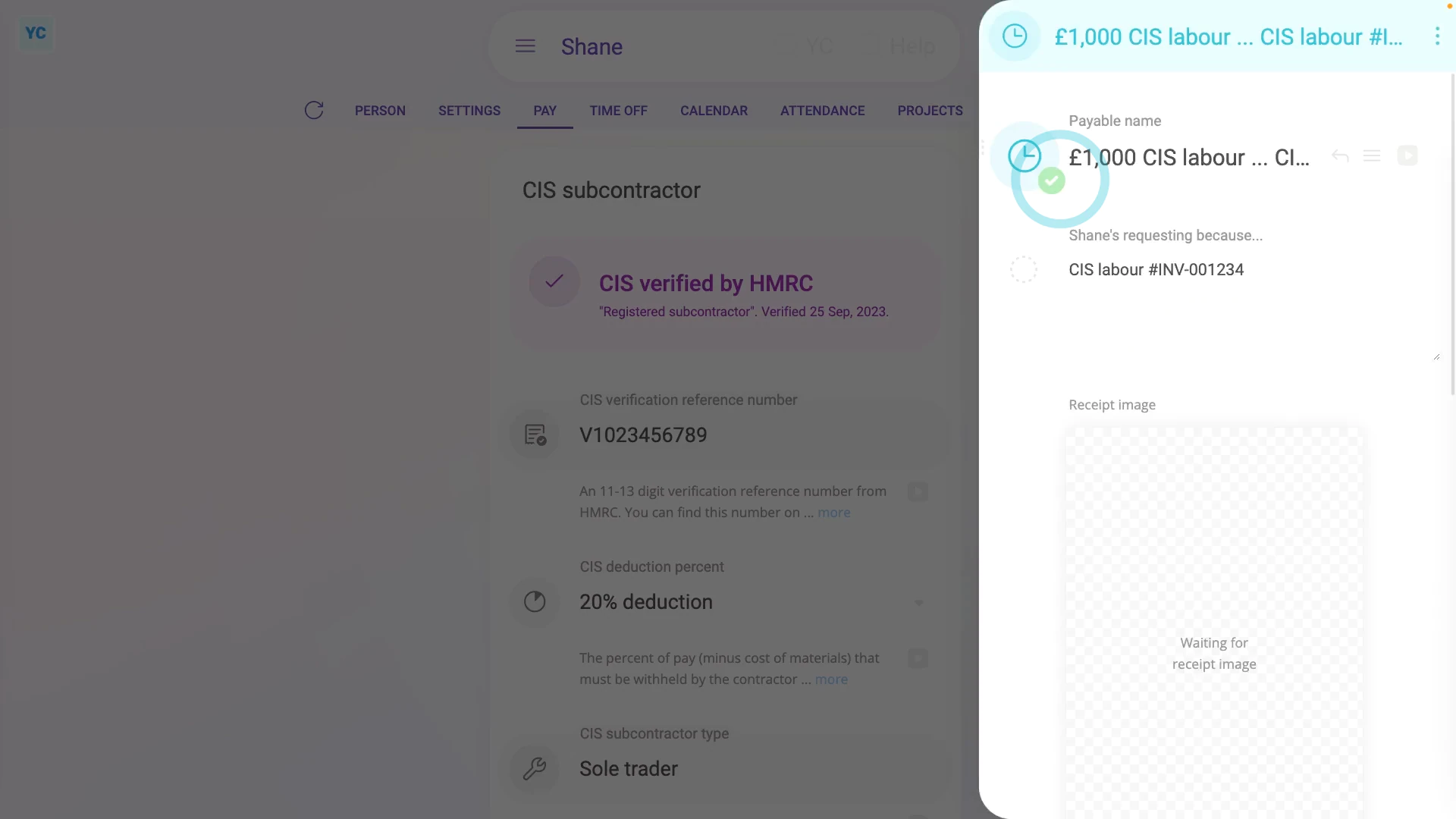
To pay a CIS subcontractor for their invoiced "CIS labour":
- First, select the CIS subcontractor on: "Menu", then "People"
- Then tap: "Tax", then "Tax settings"
- And, if it's your first time to pay them, check the CIS subcontractor's been: "CIS verified by HMRC"
- Then to pay the CIS subcontractor, tap: "Pay", then "Add expense claim"
- And select: "CIS labour"
- Type in the money amount on the invoice and tap: Next
- Type in any notes to go along with the expense claim. For example, you could enter the invoice number. Then tap: Next
- And because you're entering the "CIS labour" expense claim as an admin, you'll see that it's been automatically approved.
- Next, to see their "CIS labour" expense claim on the CIS subcontractor's payslip, tap the arrow (at the top).
- And scroll down to see the gross amount that the CIS subcontractor charged.
- You'll also see the CIS deduction that you'll pay to HMRC in a few weeks.
- And you'll see the "Net pay" amount that the CIS subcontractor gets paid into their bank account.
- Normally you'll wait until payday to pay it, but to pay the payslip now, tap: Go to "Process payroll"
- Once everything's checked, tap: Process payroll
- Now that it's filed, if you go to the payroll group's "To-do" tab.
- And open the upcoming "HMRC taxes" task that comes after the payday for the payslip you recently filed.
- And finally, you'll see that the "CIS deduction" of "£200" is all queued up, and ready for payment to HMRC.
You may notice:
- That sometimes your CIS subcontractors are VAT registered, and add a VAT amount to their invoices.
- If the CIS subcontractor is VAT registered: only enter the amount before VAT is added (remove the VAT if you need to).
- However, if the CIS subcontractor isn't VAT registered: VAT shouldn't appear, so use the amount from the invoice.
To learn more:
- About paying CIS subcontractors who are using their own time tracking system, watch the video on: Paying CIS hourly from hours worked
- Alternatively, to learn about paying CIS subcontractors using timesheets, watch the video on: Paying CIS hourly by timesheets
Keep in mind that:
- It's fine for a single payroll group to have some CIS subcontractors using timesheets, and others using a system for tracking their hours.
- And still others invoicing for a money amount of CIS labour.
- Any combination of the three payment methods works, and you can switch from one to another with any CIS subcontractor, at any time.
And that's it! That's all you need to do to pay CIS subcontractors, based on their invoiced CIS labour!
4d. How do I pay CIS subcontractors for invoiced materials, etc?
 4:50
4:50
"How do I pay CIS subcontractors for invoiced materials, etc?"
Sometimes your CIS subcontractors, in addition to invoicing you for their "CIS labour", also invoice you for "Qualifying CIS expenses", and: "Other expenses"
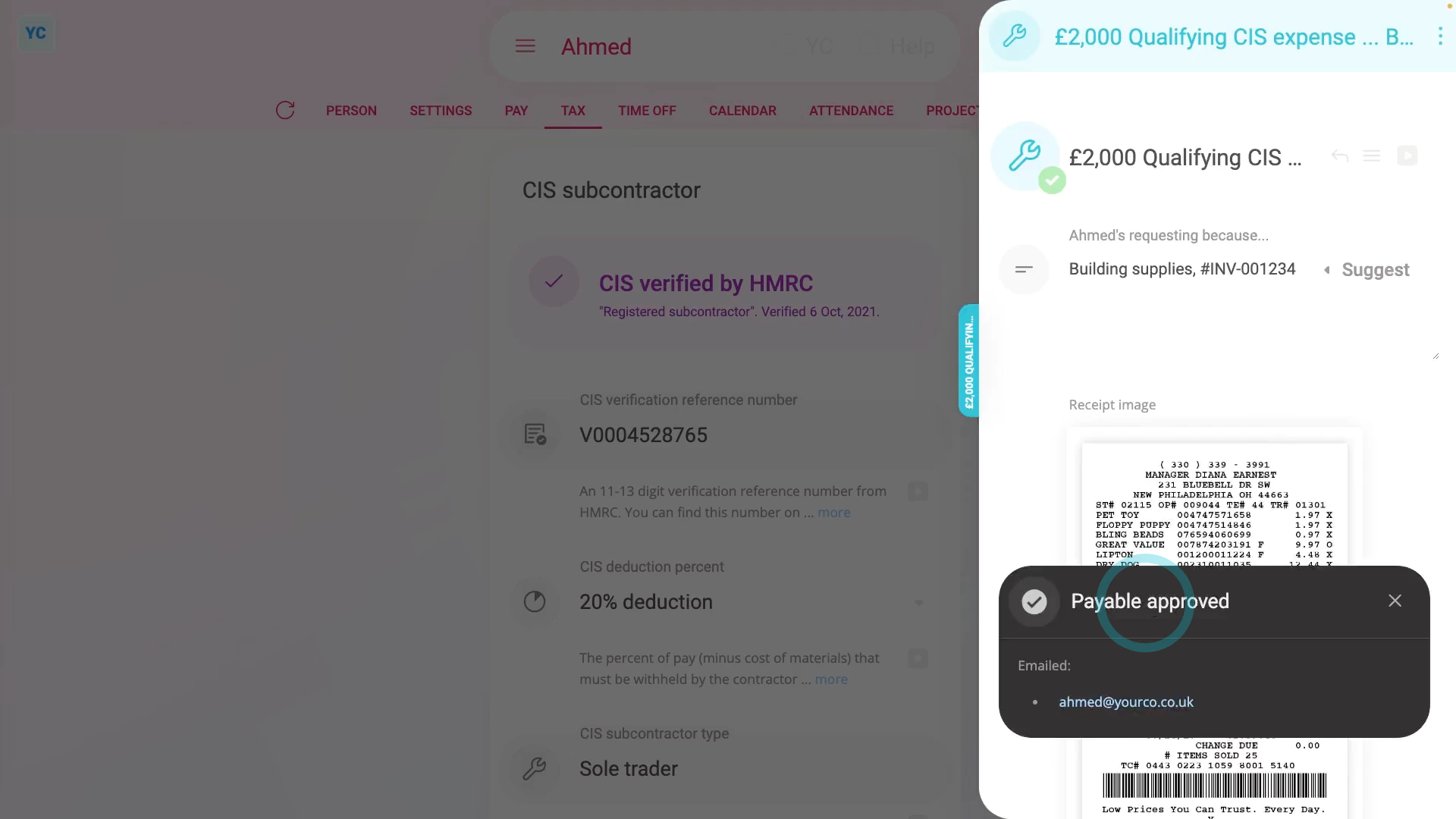
To pay a CIS subcontractor for their invoiced "Qualifying CIS expenses" and "Other expenses":
- First, select the CIS subcontractor on: "Menu", then "People"
- Then tap: "Tax", then "Tax settings"
- And, if it's your first time to pay them, check the CIS subcontractor's been: "CIS verified by HMRC"
- Qualifying CIS expense: To pay the CIS subcontractor for their invoiced "Qualifying CIS expenses", tap: "Pay", then "Add expense claim"
- And select: "Qualifying CIS expense"
- If you've got an image, like a receipt, that you'd like to include, you can upload, or take a photo of it.
- Then tap: Next
- Type in the money amount on the invoice and tap: Next
- And select the category of "Qualifying CIS expense" from the list.
- Type in any notes to go along with the expense claim. For example, you could enter the invoice number. Then tap: Next
- And finally, because you're entering the "Qualifying CIS expense" expense claim as an admin, you'll see that it's been automatically approved.
- Other expenses: To pay the CIS subcontractor for their invoiced "Other expenses", tap: "Pay", then "Add expense claim"
- And select: "Other expense"
- Again, if you've got an image, like a receipt, you can upload, or take a photo of it.
- Then tap: Next
- Type in the money amount and tap: Next
- And select the category of "Other expenses" from the list.
- Type in any notes. Then tap: Next
- And again, because you're an admin, it's automatically approved.
- Payslip: Next, to see their "Qualifying CIS expenses" and "Other expenses" expense claims on the CIS subcontractor's payslip, tap the arrow (at the top).
- Then scroll down to see the "Other expenses" that the CIS subcontractor invoiced.
- And scroll down further to see the "Qualifying CIS expenses" that the CIS subcontractor invoiced.
- Then to proceed with payment, scroll to the bottom, and tap: Go to "Process payroll"
- And finally, on payday, the CIS subcontractor receives payment for their invoiced expenses. In addition, the CIS subcontractor also receives their CIS "Payment and Deduction statement" or PDS, as an email.
You may notice:
- That sometimes your CIS subcontractors are VAT registered, and add a VAT amount to their invoiced "Qualifying CIS expenses" and: "Other expenses"
- If the CIS subcontractor is VAT registered: only enter the amount before VAT is added (remove the VAT if you need to).
- However, if the CIS subcontractor isn't VAT registered: include VAT (if any) in the amount.
Keep in mind that:
- For "Qualifying CIS expenses", only materials purchased to fulfil a particular construction contract can be included in the invoice. Qualifying CIS expenses may include:
- Materials the subcontractor's paid for directly.
- Manufacturing or prefabricating materials.
- Equipment which is now unusable (sometimes called "consumable stores").
- Plant hired for the job.
- And consumable items such as fuel needed for plant and equipment (including if plant wasn't hired).
Also remember that:
- "Other expenses" are mostly going to be subsistence and travel costs.
- Any subsistence and travelling expenses (including travel fuel costs) must be recorded separately from: "Qualifying CIS expenses"
And that's it! That's everything you need to know about paying a CIS subcontractor for their invoiced "Qualifying CIS expenses" and "Other expenses"!
5. How do I get my CIS 'Payment and Deduction statement'?
 2:30
2:30
"How do I get my CIS "Payment and Deduction statement"?"
As a CIS subcontractor, you're automatically emailed a CIS "Payment and Deduction statement" every time you're paid. In other words, if you're paid weekly, you'll get a CIS PDF emailed weekly.
Once the email arrives, scroll down to open the PDF attachment.
In the PDF you'll see the CIS tax deduction for your current payday.
Keep in mind that:
- It's highly recommended that you keep a copy of each PDF.
- You'll need a year's worth of CIS PDFs to complete your personal tax-return (at the end of the tax year, in April).
In addition, 1st Money also stores a copy of every person's CIS: "Payment and Deduction statements"
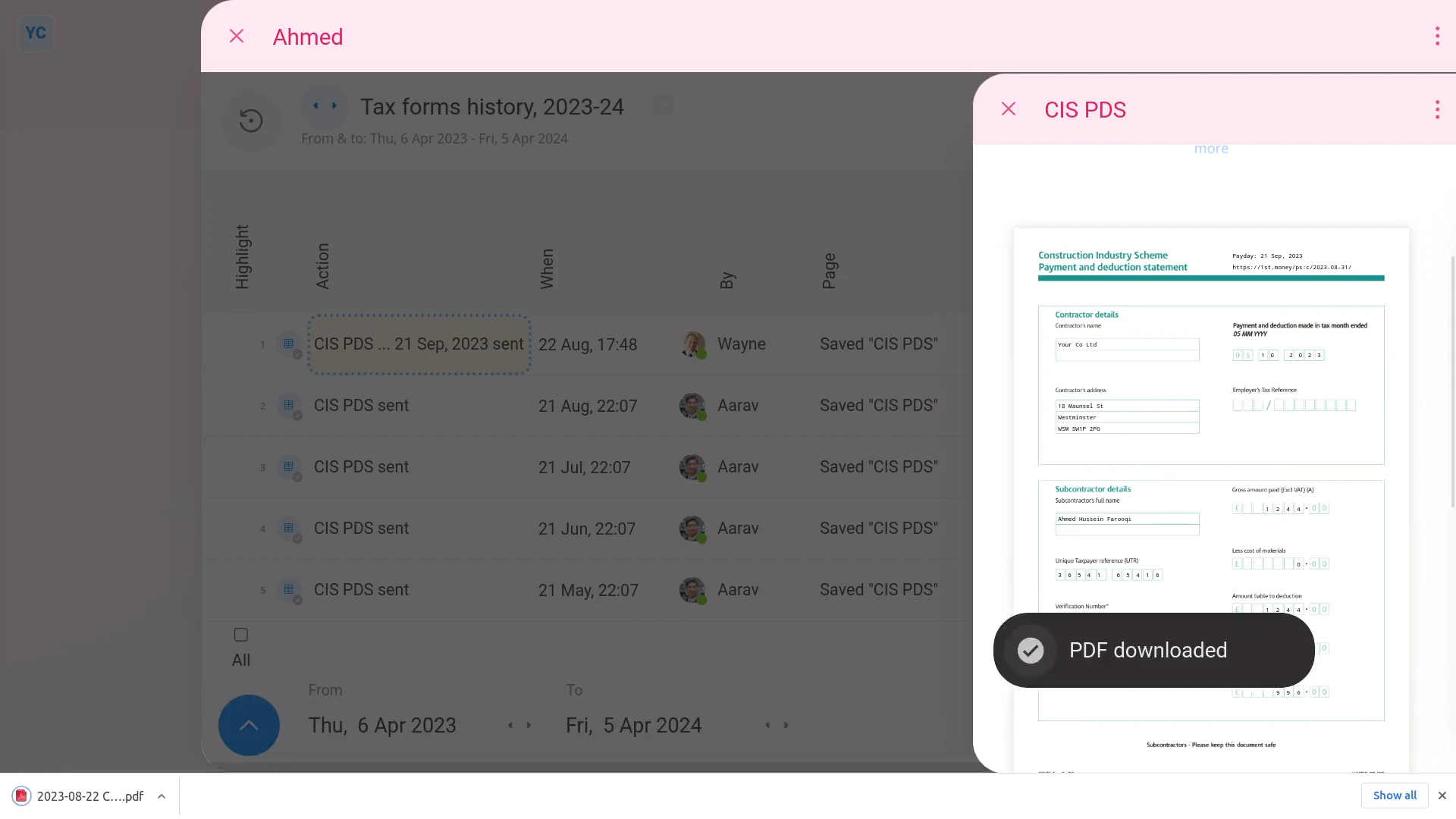
To see and download a stored copy of a person's CIS "Payment and Deduction statements":
- First, select the person on: "Menu", then "People"
- Then tap: "Tax", then "Tax forms sent"
- You'll now see the last couple of years of the person's CIS: "Payment and Deduction statements"
- In some cases, you may be wanting to complete your personal tax-return, and may need to download a full tax year's worth of CIS: "Payment and Deduction statements"
- To only show statements from the most recent tax year, first open the bottom menu:
- Then tap: Dates
- Then select: Tax year
- And then select the tax year you'd like to download statements for.
- Next, tap any row to see a single statement for a single payday.
- To download a single CIS "Payment and Deduction statement" without the cover page, first hover your mouse over the preview, and turn off: Cover page
- Then tap the round "Download" button:
- The cover page is optional and can be left turned on if you prefer. Whatever you set the cover page setting to, your selection is remembered when you go to download your next PDF.
- Once the PDF is downloaded, you can see all your CIS numbers for that single payday.
- And finally, you can continue opening each statement in the list to download more.
And that's it! That's all you need to do to download your CIS "Payment and Deduction statements"!
6. How do I send the 'CIS monthly'?
 4:13
4:13
"How do I send the "CIS monthly"?"
The "CIS monthly" is used to declare any tax deductions you've made on payments to your CIS subcontractors. It needs to be submitted to HMRC by the 19th of every month.
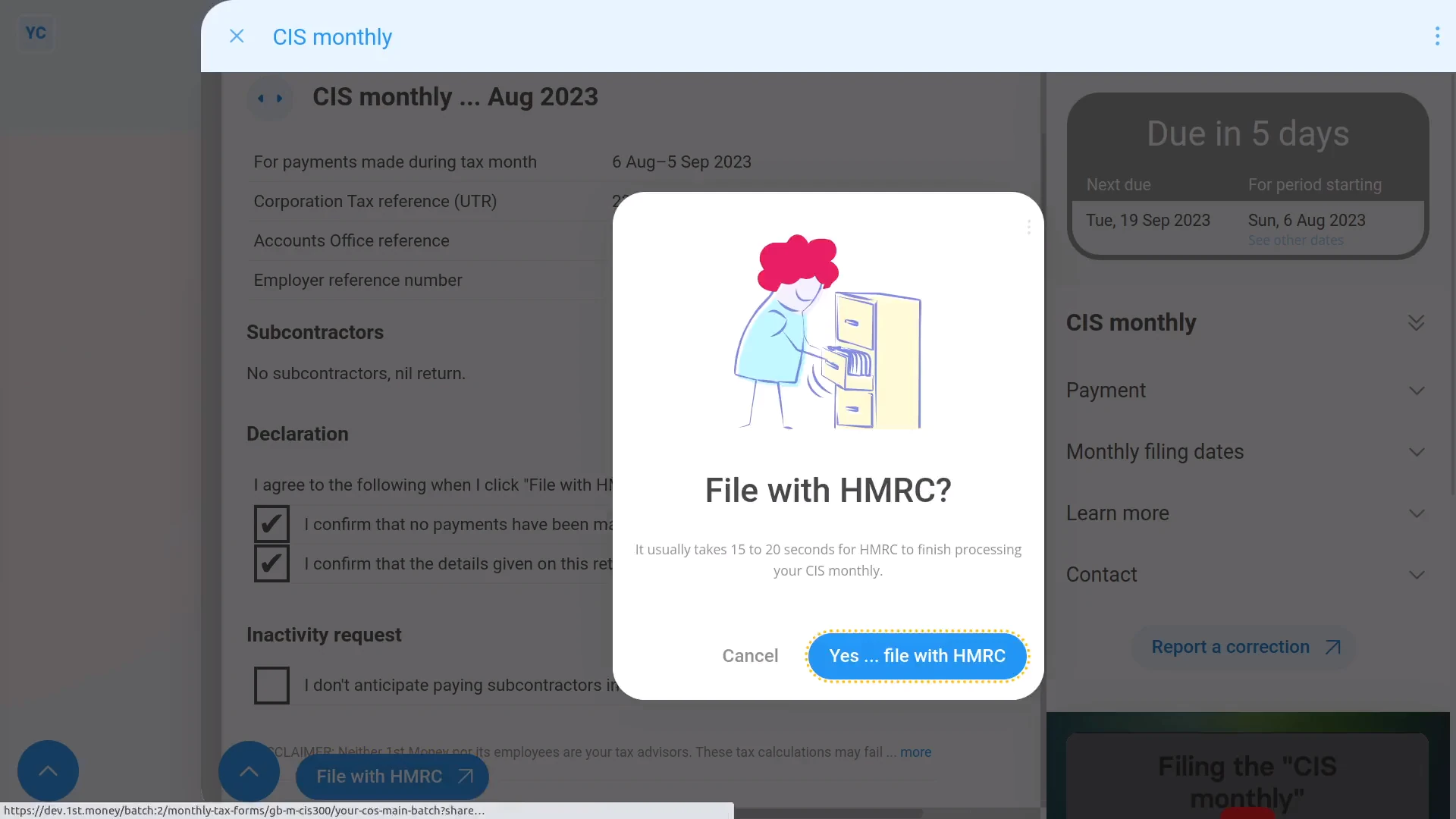
To send a payroll group's "CIS monthly" as a "nil return":
- First, select the payroll group on: "Menu", then "Payroll groups"
- Then on the "To-do" tab, tap the upcoming: "CIS monthly"
- Check the details are correct.
- In some cases, you'll be sending a "nil return", if there hasn't been any CIS payments in the month.
- When you're ready, tap: File with HMRC (at the bottom)
- Then: Yes ... file with HMRC
- It usually takes about 10 seconds for HMRC to finish processing your CIS monthly.
- While you're waiting for HMRC to respond, you can review the notes about "Payment", "Monthly filing dates", and more.
- Once HMRC responds, you'll see a green tick to show it's been filed. You'll also see the confirmation receipt from HMRC.
- And finally, if you ever need a confirmation receipt in the future, tap the tick on the "To-do" tab.
Keep in mind that:
- Sometimes you go to a payroll group and there's no mention of "CIS monthly" in the "To-do" tab. If so, it means that the payroll group doesn't have any CIS subcontractors.
- It could also mean that the reminders have been turned off for six months.
- You only have to send a payroll group's "CIS monthly" if the payroll group has CIS subcontractors.
- Also keep in mind that you may sometimes need to send a: "nil return"
- A "nil return" filing is still required for any month where the payroll group does have CIS subcontractors. But didn't make any CIS payments in that month.
To learn more:
- About turning off the reminders for six months, watch the video on: Stop CIS monthly reminders
Sometimes, you may find you've got more CIS payments to make for the tax month, even after you've filed your: "CIS monthly"
Any additional CIS payments still need to be filed with HMRC. Which is done through an amendment filing of your: "CIS monthly"
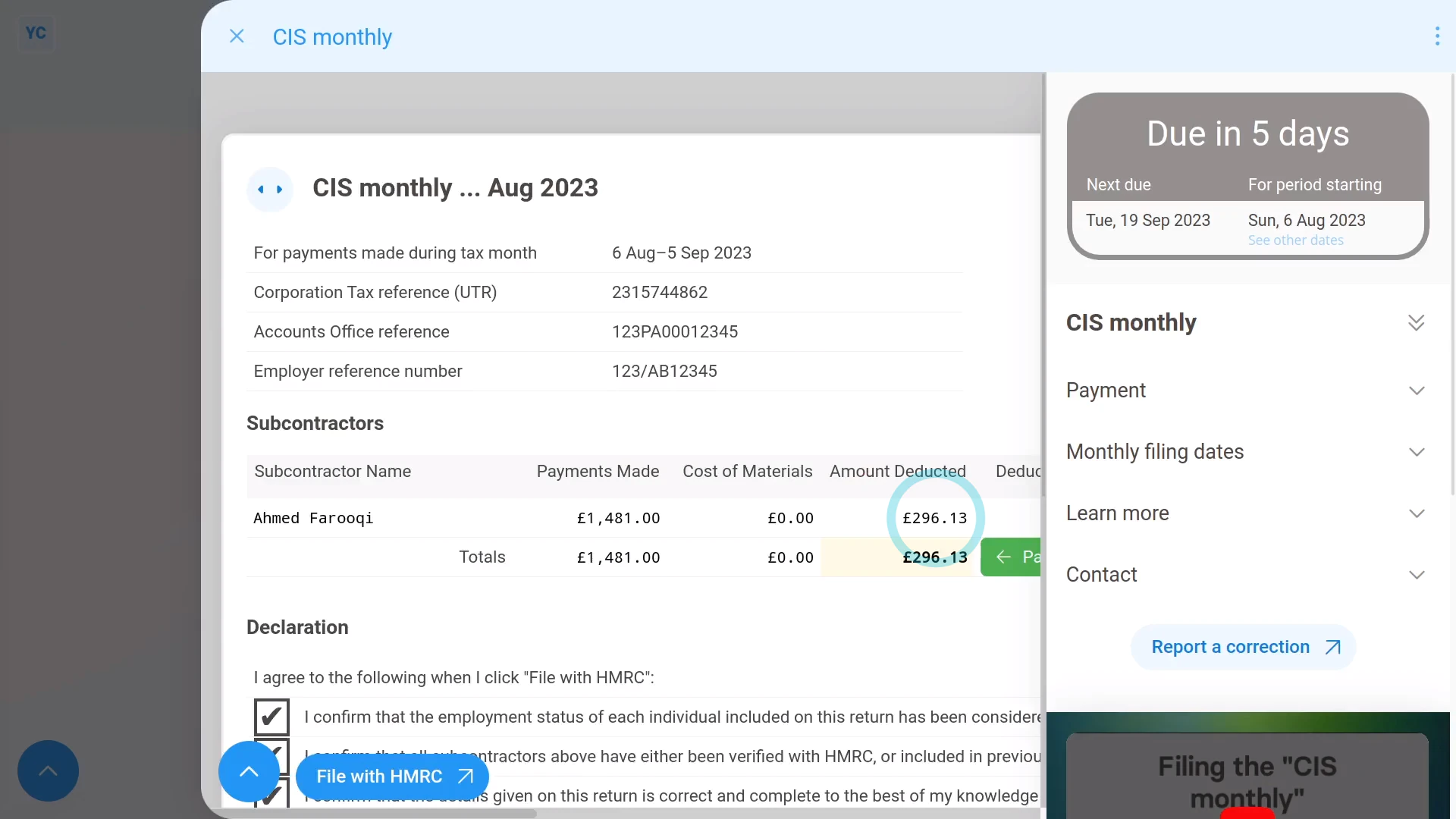
To make an amendment filing of a payroll group's "CIS monthly":
- First, select the payroll group on: "Menu", then "Payroll groups"
- Then on the "To-do" tab, find the upcoming: "CIS monthly"
- Next, hover your mouse over the row and tap the "Redo" link.
- The "CIS monthly" now loads with your up-to-date CIS payments for the month.
- You'll see a listing of each of your CIS subcontractors that you've made a CIS payment to, listed on one-row each.
- When you're ready, tap: File with HMRC (at the bottom)
- Then: Yes ... file with HMRC
- Like before, it usually takes about 10 seconds for HMRC to finish processing your CIS monthly.
- And finally, as usual, you'll see a green tick to show it's been filed with HMRC.
Also remember that:
- Changes of the "CIS monthly" can be made at any time two months before the end of the tax month. Changes can also be made up to nine months after the end of the tax month.
- Which still means that you've got to send something by the 19th of every month, even if it's a: "nil return"
- But you can later resend further CIS amendments, even months afterwards.
- Whenever you resend the "CIS monthly" with changes, HMRC only stores the latest sent CIS filing for that tax month.
And that's it! That's all you need to do to send your "CIS monthly"!
How do I turn off the CIS monthly reminders for the next 6 months?
 2:04
2:04
"How do I turn off the CIS monthly reminders for the next 6 months?"
Sometimes your construction orders dry up, and you know that you won't be making any payments to your CIS subcontractors for the next six months.
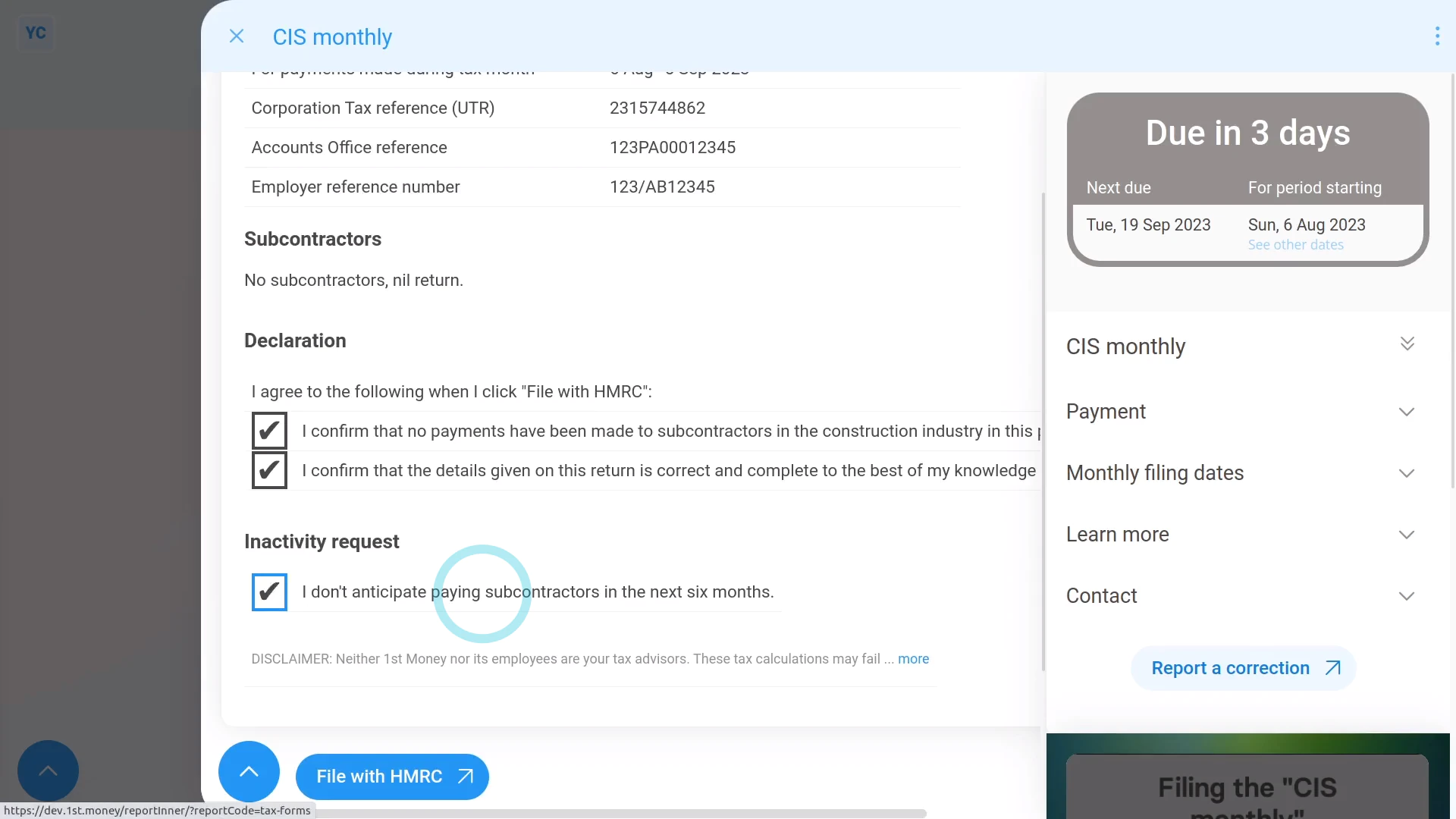
To stop getting reminders to send a payroll group's CIS monthly to HMRC for six months:
- First, select the payroll group on: "Menu", then "Payroll groups"
- Then on the "To-do" tab, tap the upcoming: "CIS monthly"
- Check the details are correct.
- In most cases, you'll be sending a "nil return", if there hasn't been any CIS payments in the month.
- Then tick the last box on the form, where it says: "I don't anticipate paying subcontractors in the next six months."
- And when you're ready, tap: File with HMRC (at the bottom)
- Then: Yes ... file with HMRC
- It usually takes about 10 seconds for HMRC to finish processing your CIS monthly.
- Because you've ticked the last box on the form, once it's sent, you won't be reminded again for six months.
- Once HMRC responds, you'll see a green tick to show it's been filed. You'll also see the confirmation receipt from HMRC.
- And finally, back on the "To-do" tab, you'll see that there's no more reminders to send the "CIS monthly" for the next six months.
Keep in mind that:
- After six months, the "CIS monthly" automatically returns back onto your payroll group's "To-do" tab.
- And, even though you won't be getting reminders, at any time you can still decide to pay any of your CIS subcontractors.
- If you do pay a CIS subcontractor, your "CIS monthly" automatically shows up again on your payroll group's "To-do" tab.
And that's it! That's all you need to do to turn off a payroll group's CIS monthly reminders for six months!
www.1st.money/uk/help/CIS_Construction_Industry_Scheme/