Org

 4:03
4:03How do I create a new org and set the name and logo?
Create and customize new orgs with name, logo, contact info, and preview settings easily.
 1:30
1:30How do I change which day each week starts on?
Set your org's week start day in settings to change calendar and report views accordingly.
 1:56
1:56How do I make changes from org charts?
Admins can update managers and other details directly from org charts in the admin menu.
 1:16
1:16How do I save an org chart to a PDF?
Steps to save an org chart as a privacy-friendly PDF in landscape layout.
 3:02
3:02How do I use assessment metrics?
How to view, edit, add, and update assessment metric scores for your organization's people.
 2:52
2:52How do I use job grades?
Job grades visually organize employees by color without affecting pay or permissions.
 2:02
2:02How do I use suggested departments?
Set and manage your org's official department names for consistency and easy assignment.
 1:56
1:56How do I use suggested divisions?
How to set and use standardized suggested division names in your organization.
 2:00
2:00How do I use suggested job titles?
How to set and manage standardized suggested job titles for your organization.
 2:18
2:18How do I use the "History ... actions" report?
Guide on using the "History ... actions" report to track user activities in your org.
 2:07
2:07How do I use the "History ... log ins" report?
Shows recent org logins with details, filters, and requires admin view permissions.
 6:03
6:03If I don't need payroll anymore, how do I close my org?
How to close or decommission your 1st Money payroll org in four different ways.
 2:46
2:46What org charts can admins see?
Admins with full permissions can view and manage Management, Payroll, and Location org charts.

1. How do I create a new org and set the name and logo?

 4:03
4:03
"How do I create a new org and set the name and logo?"
Setting your org's name, logo, and contact details are important steps to creating a new org. Feel free to make as many orgs as you want.
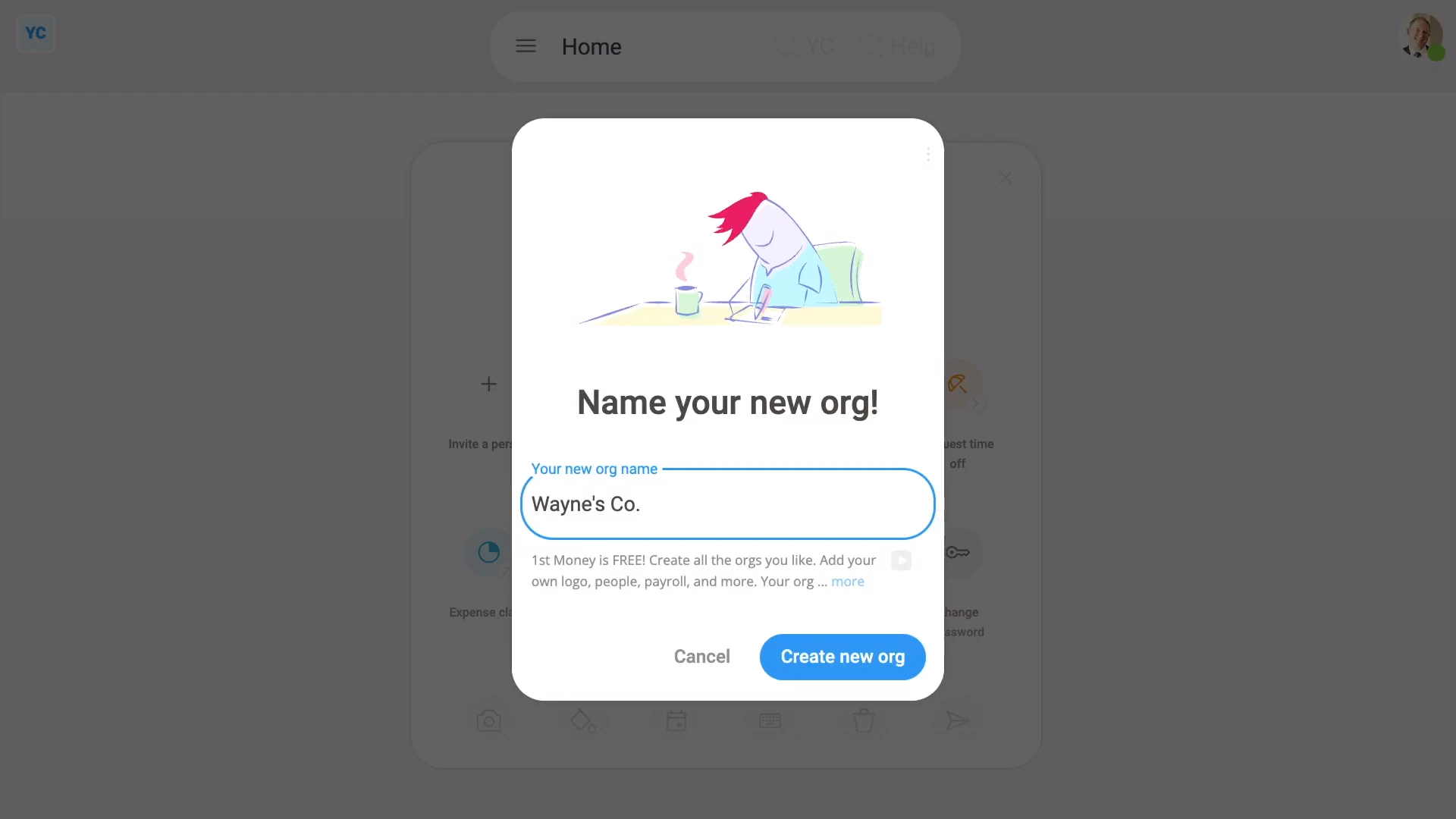
To create a new org:
- First, tap: "Menu", then "Orgs"
- Then tap: Set up another org
- Type in the name of your new org.
- Then tap: Create new org
- And finally, your new org's been created, and you've now been automatically switched into it.
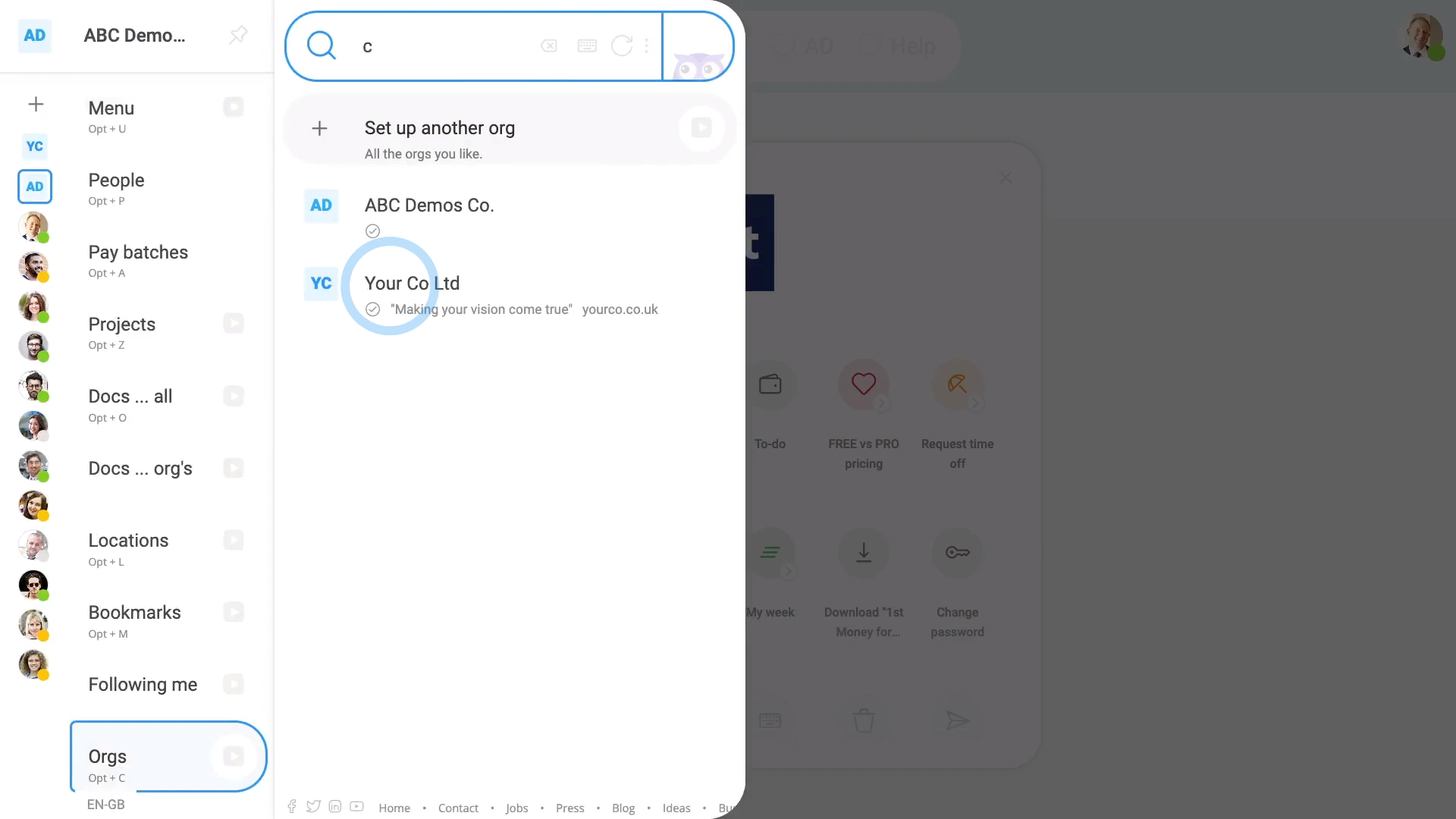
To switch back to your previous org:
- First, tap: "Menu", then "Orgs"
- And finally, tap your previous org.
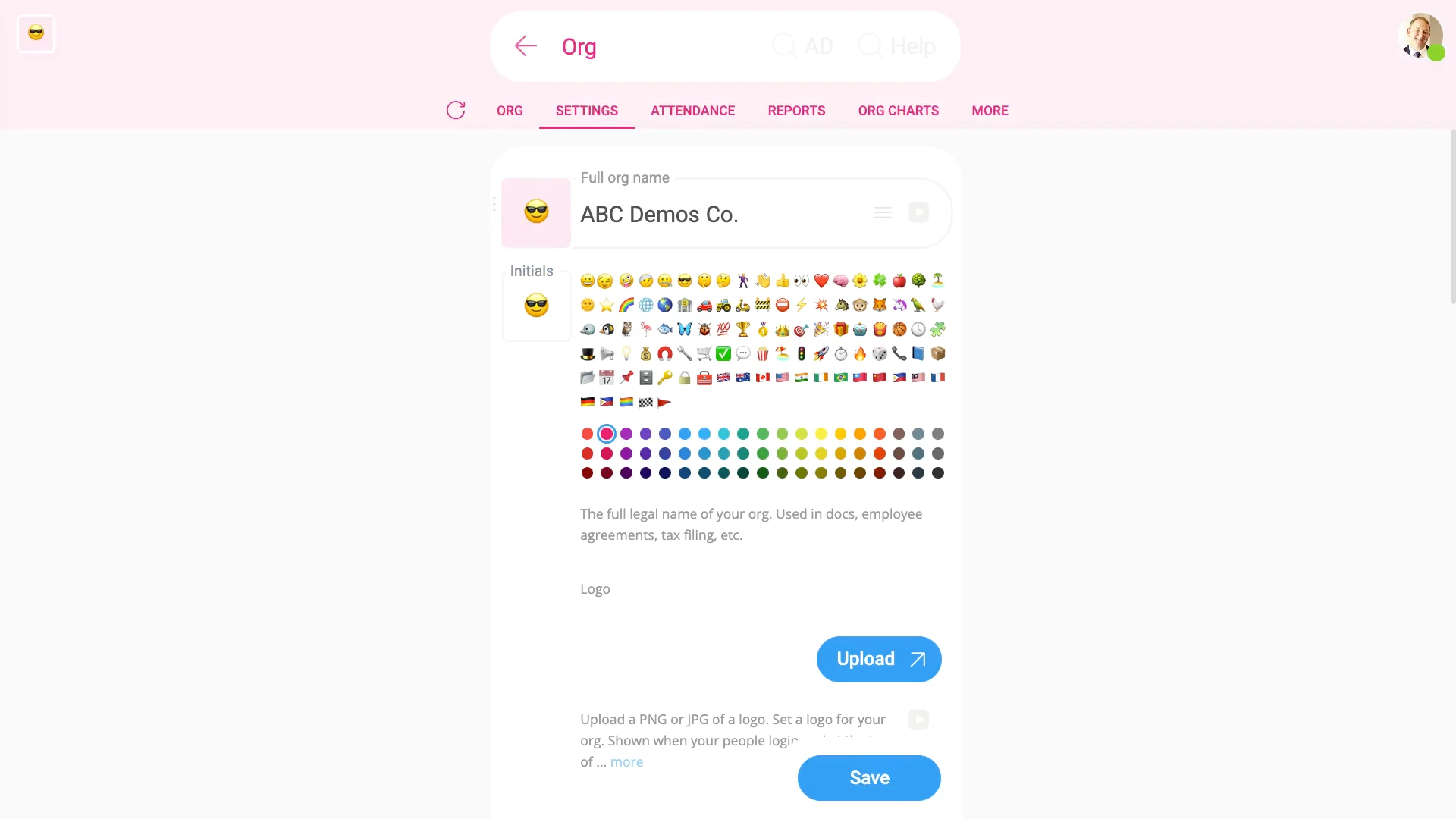
To set your new org's appearance options:
- First, on your home screen, tap: Org
- Then go to: "Settings", then "Org settings"
- Next, tap the square, and pick your preferred colour.
- You can select a picture of your choice.
- Or you can instead type in any two letters of your choice.
- Next, to upload your org's logo, tap: Upload
- You can upload any size logo. Read the notes to understand the best logo image size.
- Next, optionally, type in your: "Slogan"
- And then type in your: "Website domain"
- Next, to type in your org's postal address, tap Set address, and type in your address.
- Next, you can add up to five org phone numbers, each with their own optional label.
- And finally, tap: Save

You may notice:
- Your uploaded org logo shows on your home screen (when your people first log in).
- It's also shown on your letterhead (on PDFs, docs, and some tax submissions), and it's shown on some system emails to your people.
For advanced usage:
- The same logo is shown on both light, and dark themes, so uploading an image as a transparent png is recommended.
To see how your new org now looks:
- First, tap: Preview letterhead
- Now you'll get an idea of how your org looks for PDFs and documents.
- To see how your org looks in emails, tap: "Settings", then "Default email signature"
- Then tap: See your sig (at the bottom)
- You'll see a preview of how your email signature now looks (at the bottom).
- And finally, tap "Menu", then "Home" to see how your new org looks to people when logging in.
With a few seconds work, you've now got a beautifully set up org. And every doc or email that you send is now nicely presented.
Keep in mind that:
- Everyone can make their own new orgs. You don't have to have any kind of admin permissions to make your own org.
- There's no limit to the number of orgs you can create. 1st Money is free!
- And your newly created orgs stay private. No one else can see your orgs until you invite them.
And that's it! That's everything you need to know about setting your org's appearance!
How do I change which day each week starts on?
 1:30
1:30
"How do I change which day each week starts on?"
Some people, or cultures, prefer that their week starts on a Sunday, Monday, or some other day of the week.
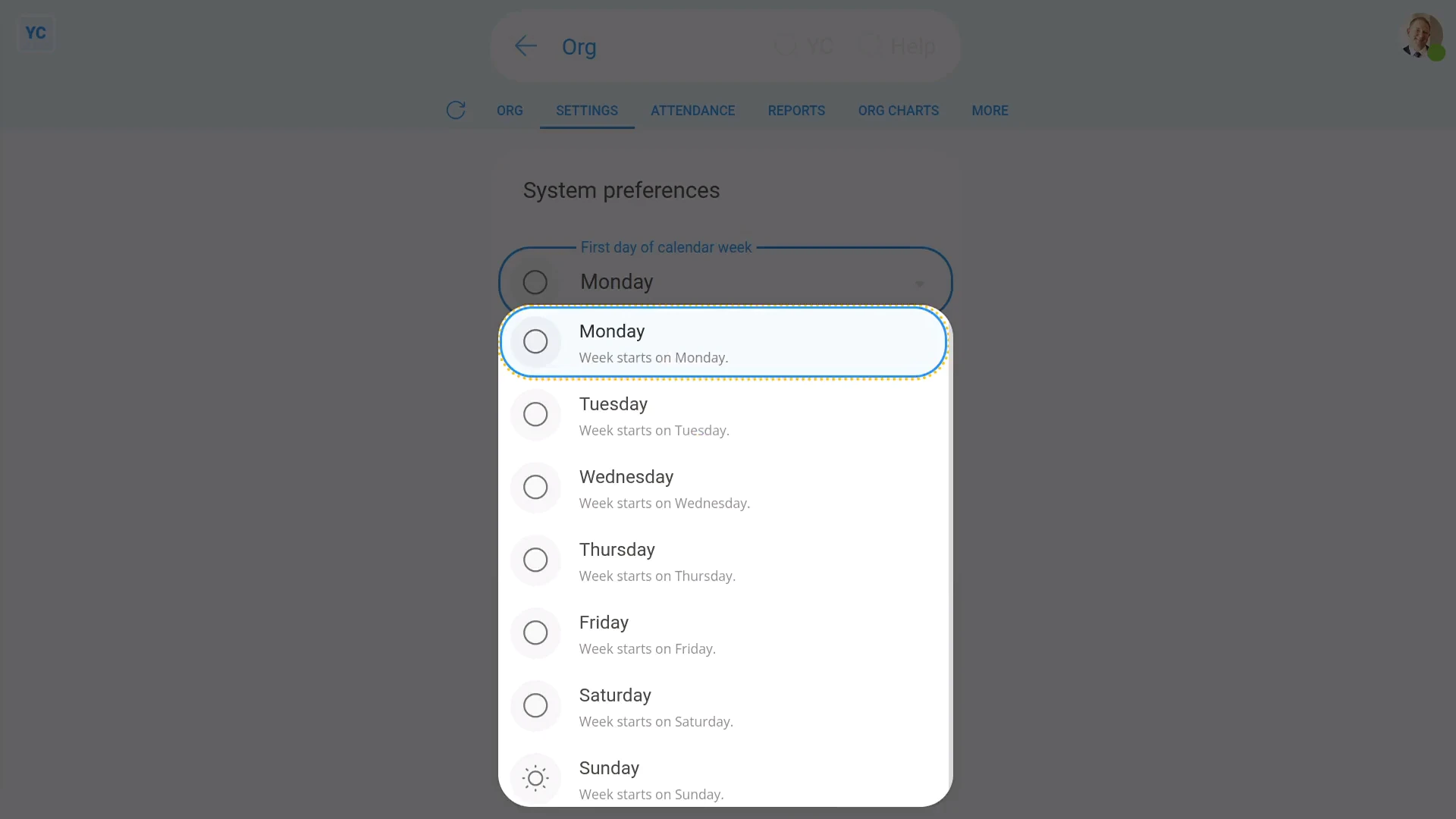
To set which day appears as your org's first week day:
- First, go to your org on: "Menu", then "Orgs"
- Then tap: "Settings", "System preferences", then "Calendar week's first day"
- Select which day you'd like each week to start on.
- And finally, tap: Save
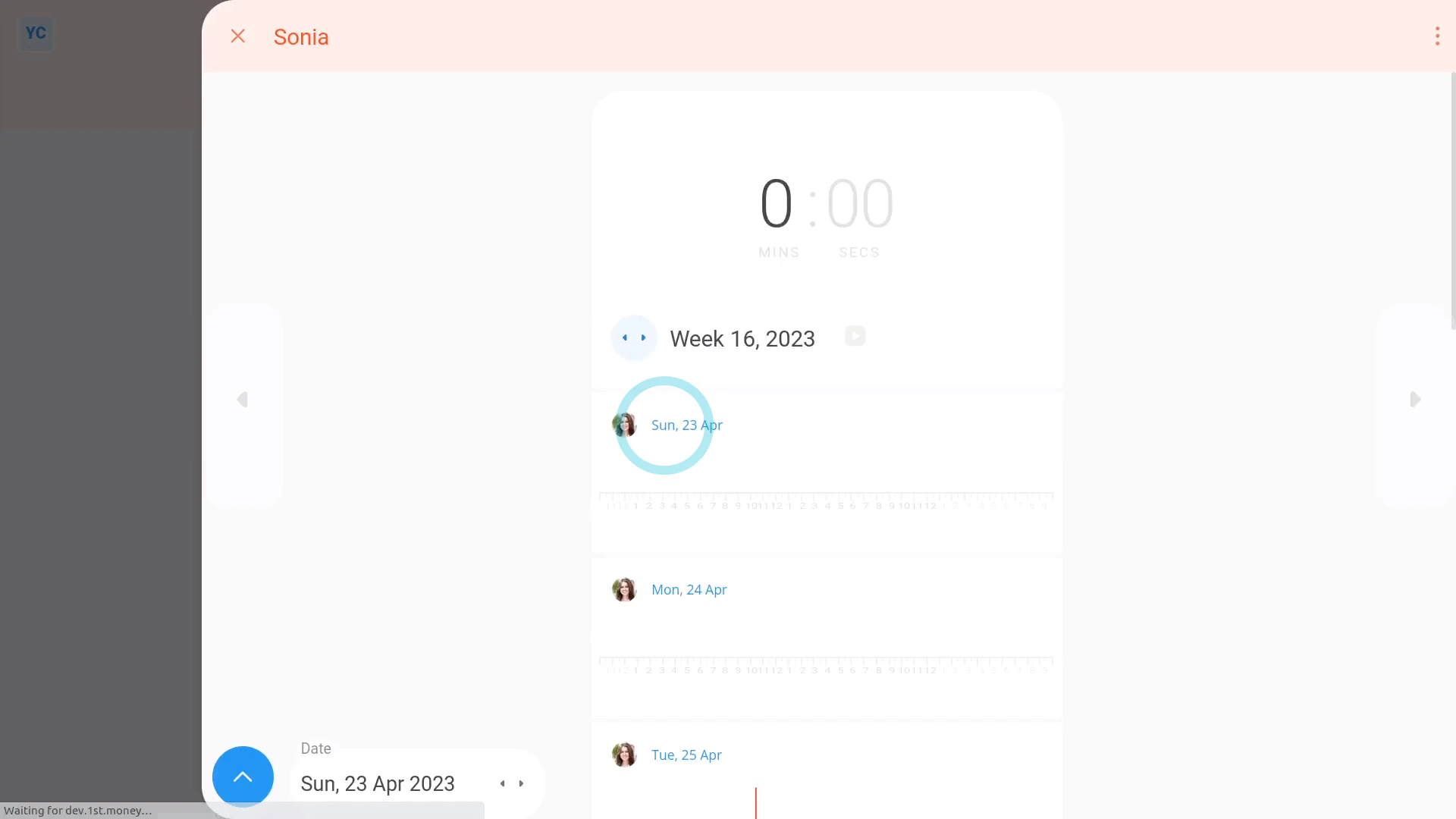
To see how setting a week's starting day looks:
- First, as you visit each of the following, you'll notice that everything now starts on your selected day of the week.
- Including all calendars.
- All "Timelines ... weekly" reports.
- All "Hours weekly" reports.
- And finally, even all target hours per week.
Keep in mind that:
- The "day each week starts on" setting applies equally to every person in your org.
- It can't be set differently for each person.
- Also, the "day each week starts on" setting is purely visual and doesn't affect paydays or pay, in any way.
And that's it! That's everything you need to know about changing which day each week starts on!
How do I make changes from org charts?
 1:56
1:56
"How do I make changes from org charts?"
If you're an admin, org charts are a great place to review your org's layout, and make changes.
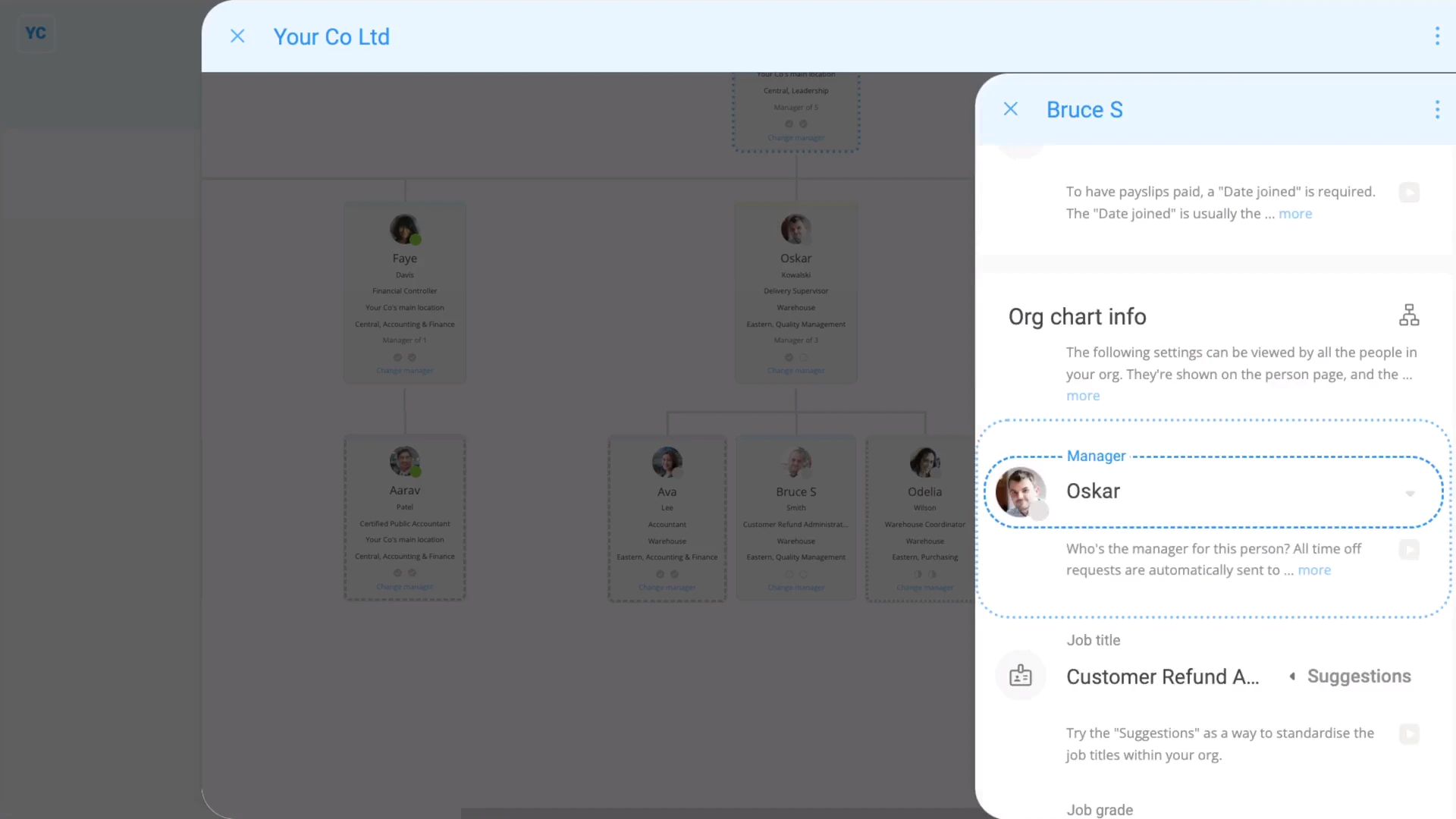
To change a person's manager from your "Management" org chart:
- First, go to your org on: "Menu", then "Orgs"
- Then tap: "Org charts", then "Management"
- Once it's open, find the person you'd like to change manager for.
- And tap: Change manager
- Once it slides out on the right, select the person's new manager.
- And finally, your org chart instantly updates, and you'll see that the person's now been moved under their new manager.
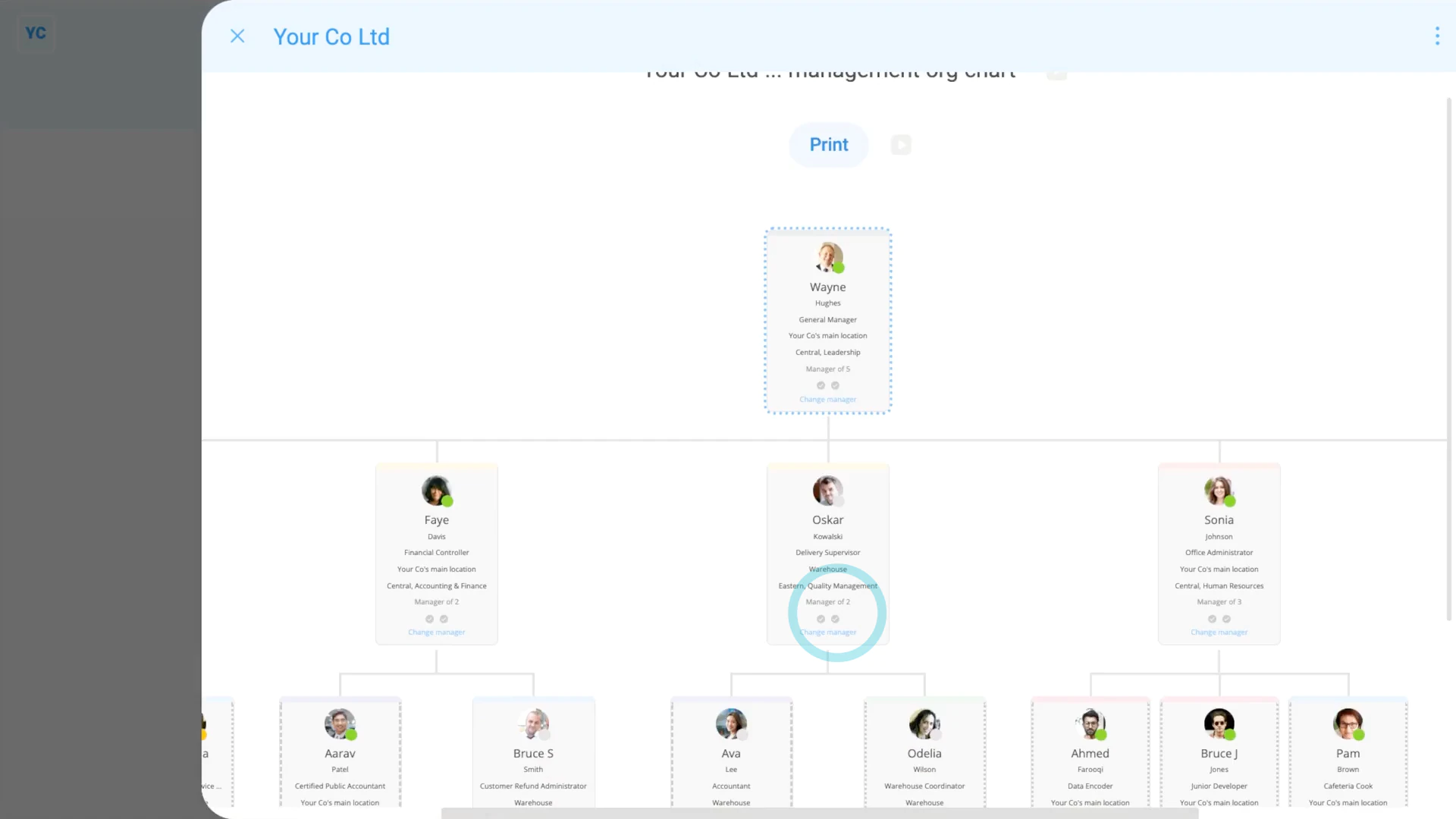
To change other info from any org chart:
- As an admin, you can tap almost any info on your org charts, and make changes.
- For example, if you tap the job grade colour, it takes you to the person's "Job grade" setting.
- And if you tap the permission circles, it takes you to the person's permission settings.
- Feel free to tap around and make as many changes as you like, until things look the way you want.
Keep in mind that:
- The same tap and change approach also works for the "Payroll" and "Location" org charts.
And that's it! That's everything you need to know about making changes from org charts!
How do I save an org chart to a PDF?
 1:16
1:16
"How do I save an org chart to a PDF?"
Sometimes it's helpful to save a PDF copy of an org chart, so you can print it and put it on the wall.
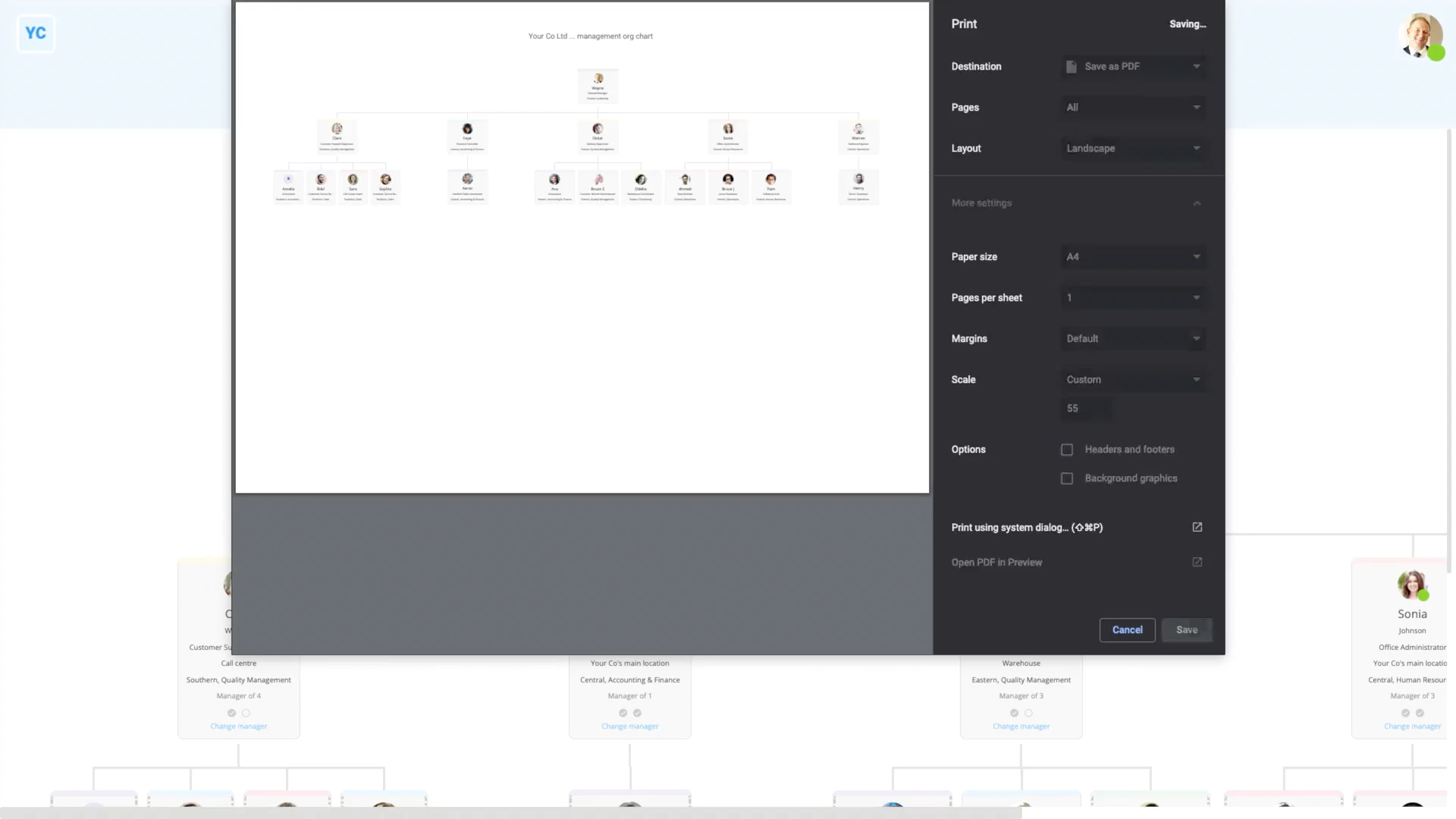
To save a PDF of any org chart:
- First, go to your org on: "Menu", then "Orgs"
- Then tap: "Org charts", then "Management"
- Then tap: Print (at the top)
- The first thing you'll notice is that in the print version, people's last name, location, permissions, and other info is hidden. The info hiding is to maintain people's privacy.
- In the print settings, set "Destination" to: "Save as PDF"
- Next, set "Layout" to: "Landscape"
- Next, tap "More settings" and set "Scale" to: "Customise"
- Then shrink the size until it fits for you.
- Untick: "Headers and footers"
- Then tap: Save
- And finally, you'll have a nice looking PDF of your org chart.
And that's it! That's everything you need to know about saving an org chart to a PDF!
How do I use assessment metrics?
 3:02
3:02
"How do I use assessment metrics?"
Assessment metrics are a way to rate your org's people with scores ranging from 0 to 100%.
Each person can see, but not change, their own scores. However, org admins can both see, and also change everyone's scores.
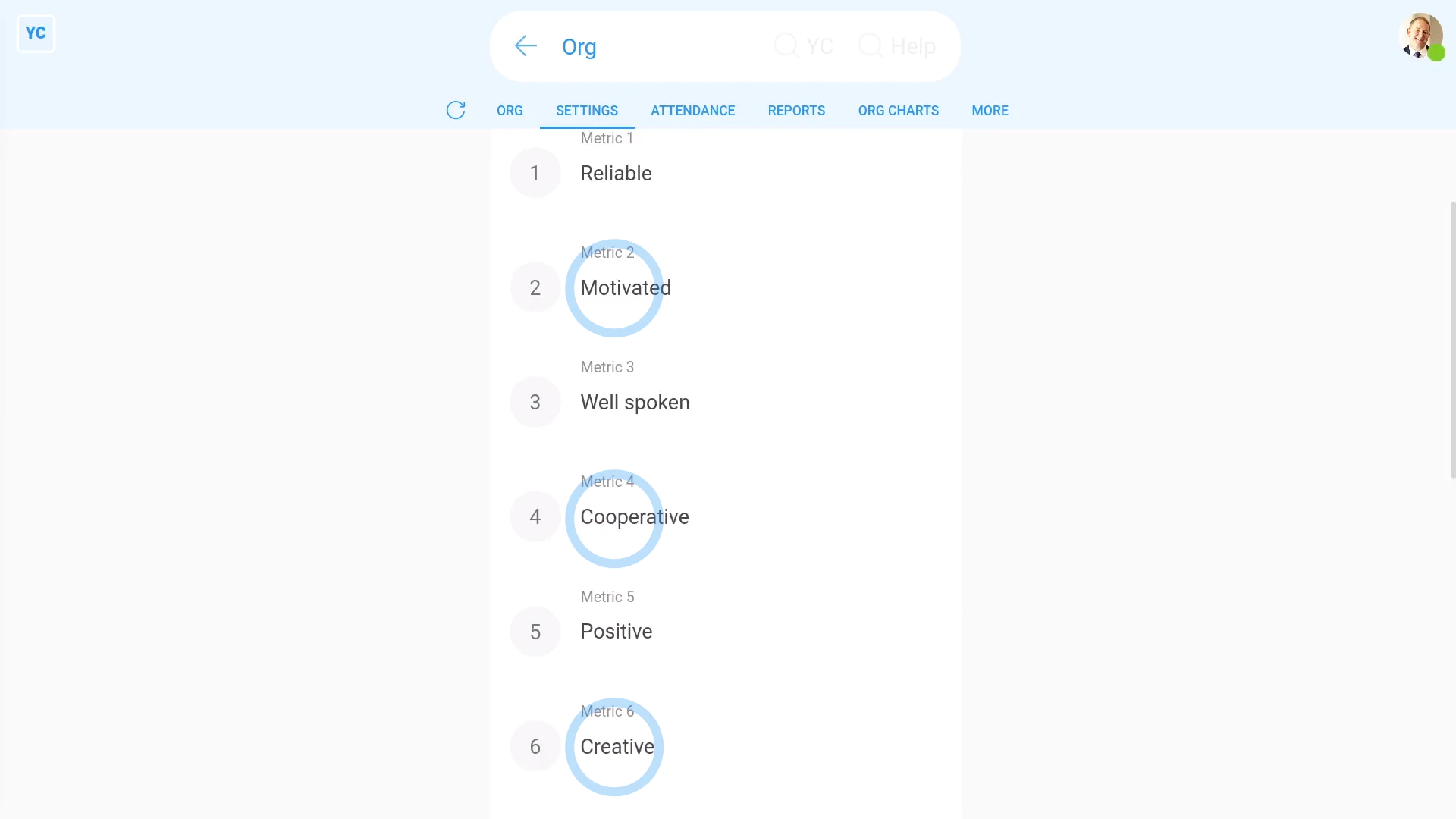
To change your org's existing assessment metrics:
- First, go to your org on: "Menu", then "Orgs"
- Then tap: "HR", then "Assessment metrics"
- You'll now see all the existing assessment metrics.
- You're welcome to change the assessment metrics names to match the needs of your org.
- Then tap: Save
- And finally, you can always come back later to add more.
Keep in mind that:
- Changing the name of an assessment metric is going to change the name for everyone in your org.
- However, the percentages that had previously been saved is going to remain the same.
To add a new assessment metric:
- First, go to your org on: "Menu", then "Orgs"
- Then tap: "HR", then "Assessment metrics"
- Scroll down and find an empty assessment metric slot.
- And type in the name of your new assessment metric.
- Then tap: Save
- And finally, to see your new assessment metric, scroll to the top and tap See yours, and then tap: Suggest
Also remember that:
- Even if you've got "Full org admin" permissions, you still can't change your own assessment metrics.
- Ask another org admin to change it for you.
To see and update assessment metrics on your org's "People" report:
- First, to open your org's "People" report, first tap: "HR", then "People"
- Once it's open, you'll see a list of people.
- You may prefer to tap the tick boxes (at the start of any row).
- With the highlight turned on, it's easier to keep track of rows as you scroll across.
- When you scroll across, you'll see a grid of scores for each person and each metric.
- You'll notice that any recent assessment metric changes have already shown up.
- You can now tap the empty assessment metric for each person, and set a percentage value, one-by-one.
- And finally, once you tap Save, the assessment metric instantly updates.
You may notice:
- Assessment metrics are an optional feature.
- Assessment metrics have no effect on people's pay, permissions, or anything else.
And that's it! That's everything you need to know about using assessment metrics!
How do I use job grades?
 2:52
2:52
"How do I use job grades?"
Job grades are an optional way to categorise your org's people into labelled colour groupings.
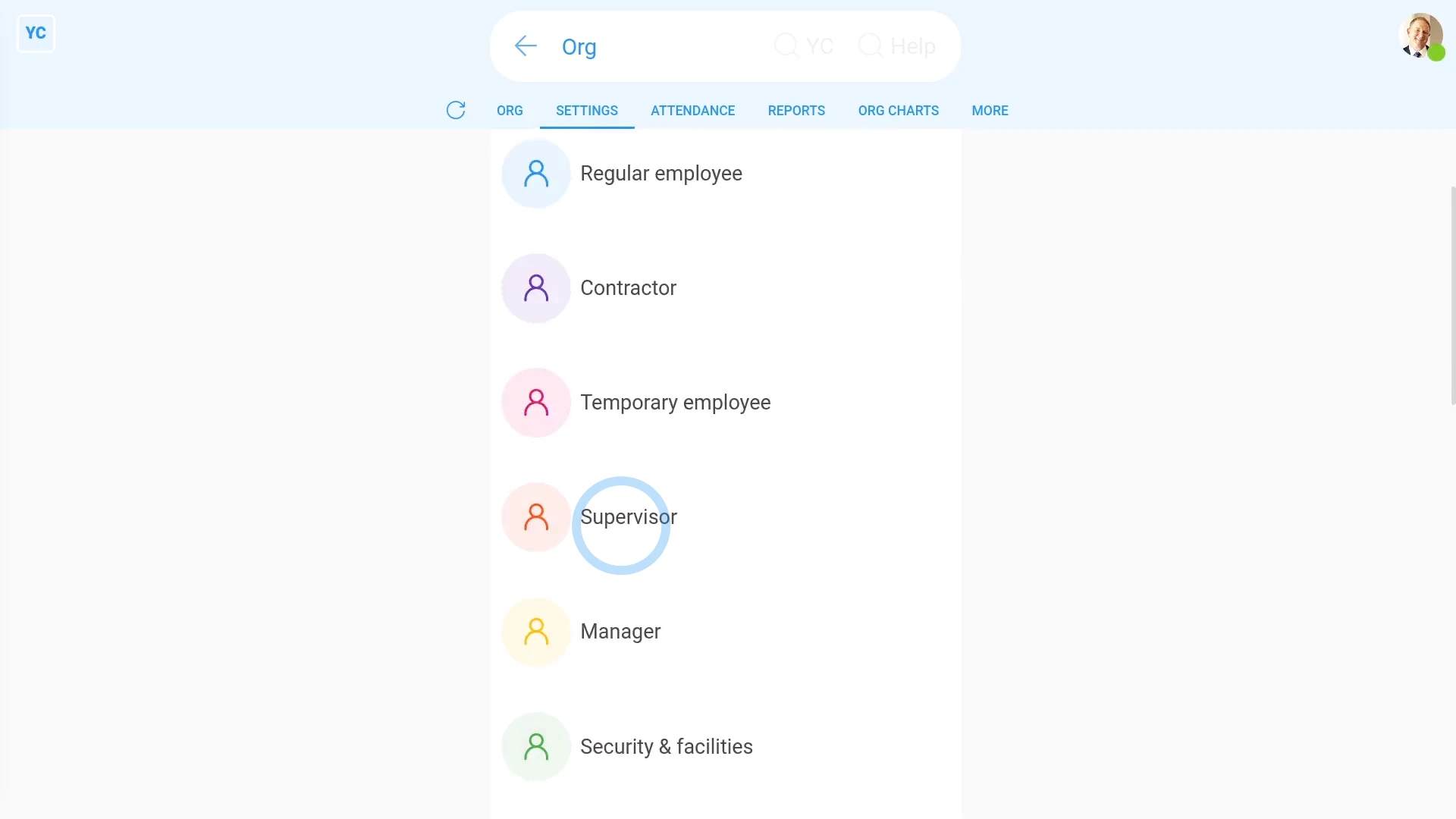
To change your org's existing job grades:
- First, go to your org on: "Menu", then "Orgs"
- Then tap: "HR", then "Job grades"
- You'll now see all the existing job grades.
- You're welcome to change the name and colour of the existing job grades to match the needs of your org.
- You may decide to organise job grades by employment type, such as regular employees, contractors, or managers.
- Or you may decide to organise job grades by job function, such as security clearance, location, customer function, or anything else.
- Then tap: Save
- And finally, you can always come back later to add more.
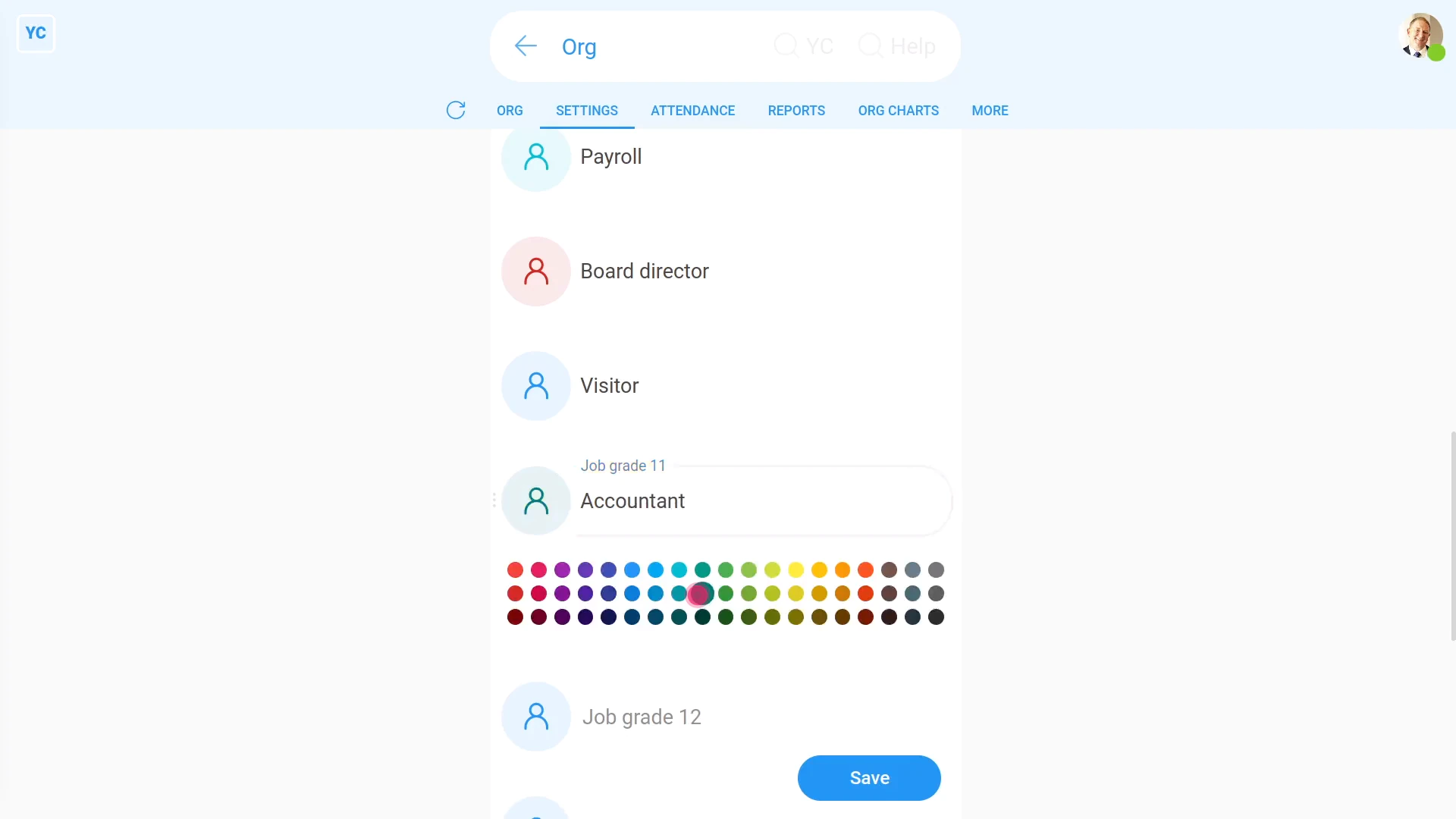
To add a new job grade:
- First, go to your org on: "Menu", then "Orgs"
- Then tap: "HR", then "Job grades"
- Scroll down and find an empty job grade slot.
- And type in the name of your new job grade.
- Then tap the circle to set the colour.
- Next, once you're happy with the new name and colour, tap: Save
- And finally, to see your new job grade, scroll to the top and tap See yours, and then tap: Suggest
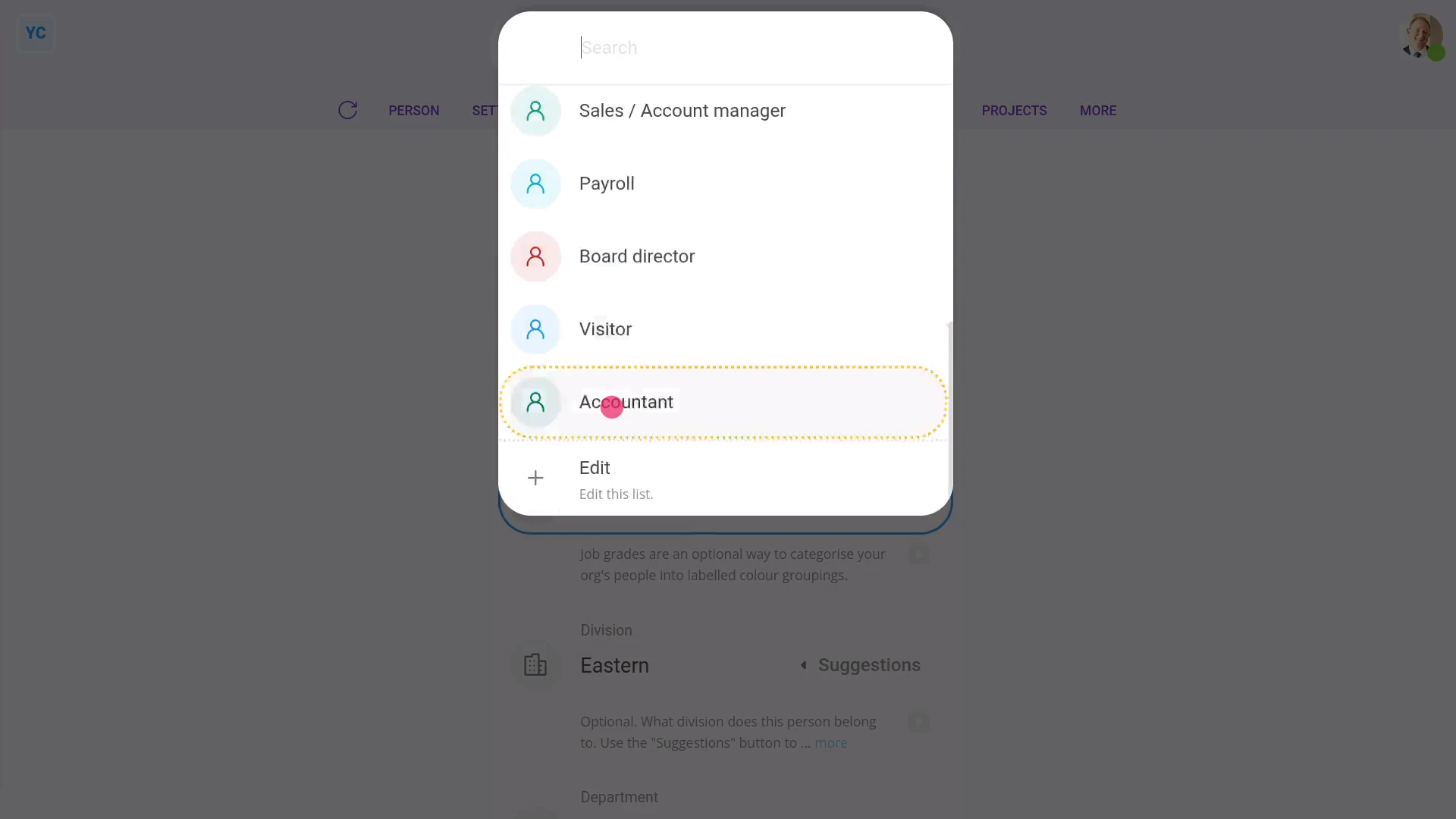
To set another person's job grade:
- First, select the person on: "Menu", then "People"
- Then tap: "Settings", "Job settings", then "Job grade"
- Then select their new job grade.
- Then tap: Save
- And finally, you'll see the top bar change to the new job grade colour.
Keep in mind that:
- You'll see the new job grade colour, both on the person top bar, and on org charts.
- Also remember that job grades are a purely visual feature to help you organise your people.
- Job grades have no effect on people's pay, permissions, or anything else.
And that's it! That's everything you need to know about using job grades!
How do I use suggested departments?
 2:02
2:02
"How do I use suggested departments?"
Suggested departments are a way to standardise the department names used in your org. Rather than having inconsistent spellings or capitalization of department names, instead set your org's official list once. Then your admins can pick department names from the list.
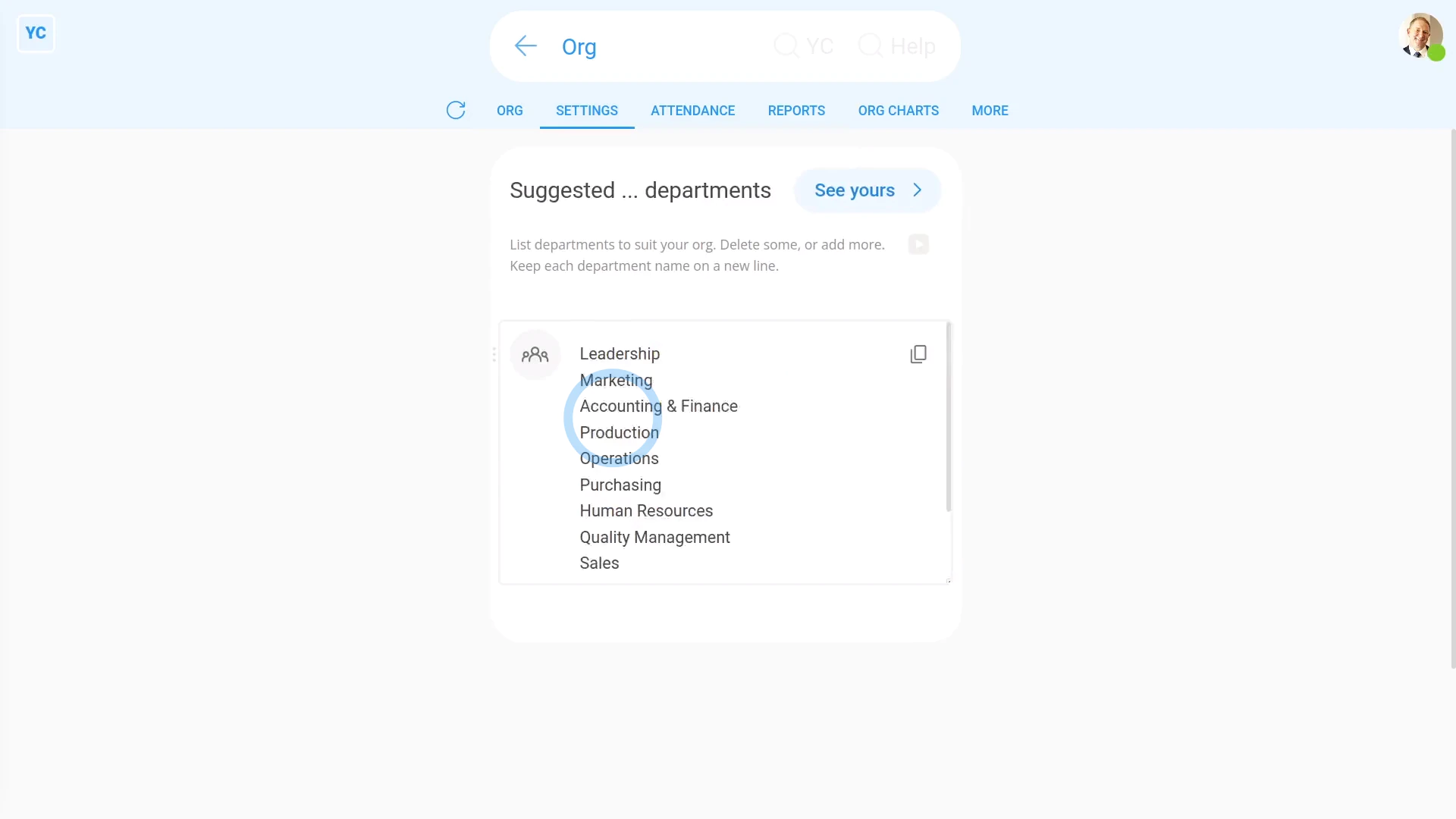
To change your org's existing suggested departments:
- First, go to your org on: "Menu", then "Orgs"
- Then tap: "Settings", then "Suggested ... departments"
- You'll now see a list of the default department names.
- Next, delete out all the existing default department names.
- Then type in the department names that your org would actually use.
- And check that each department name is on a different line.
- Once you're happy with your list of suggested department names, tap: Save
- And finally, to see your new suggested departments, scroll to the top and tap See yours, and then tap: Suggest
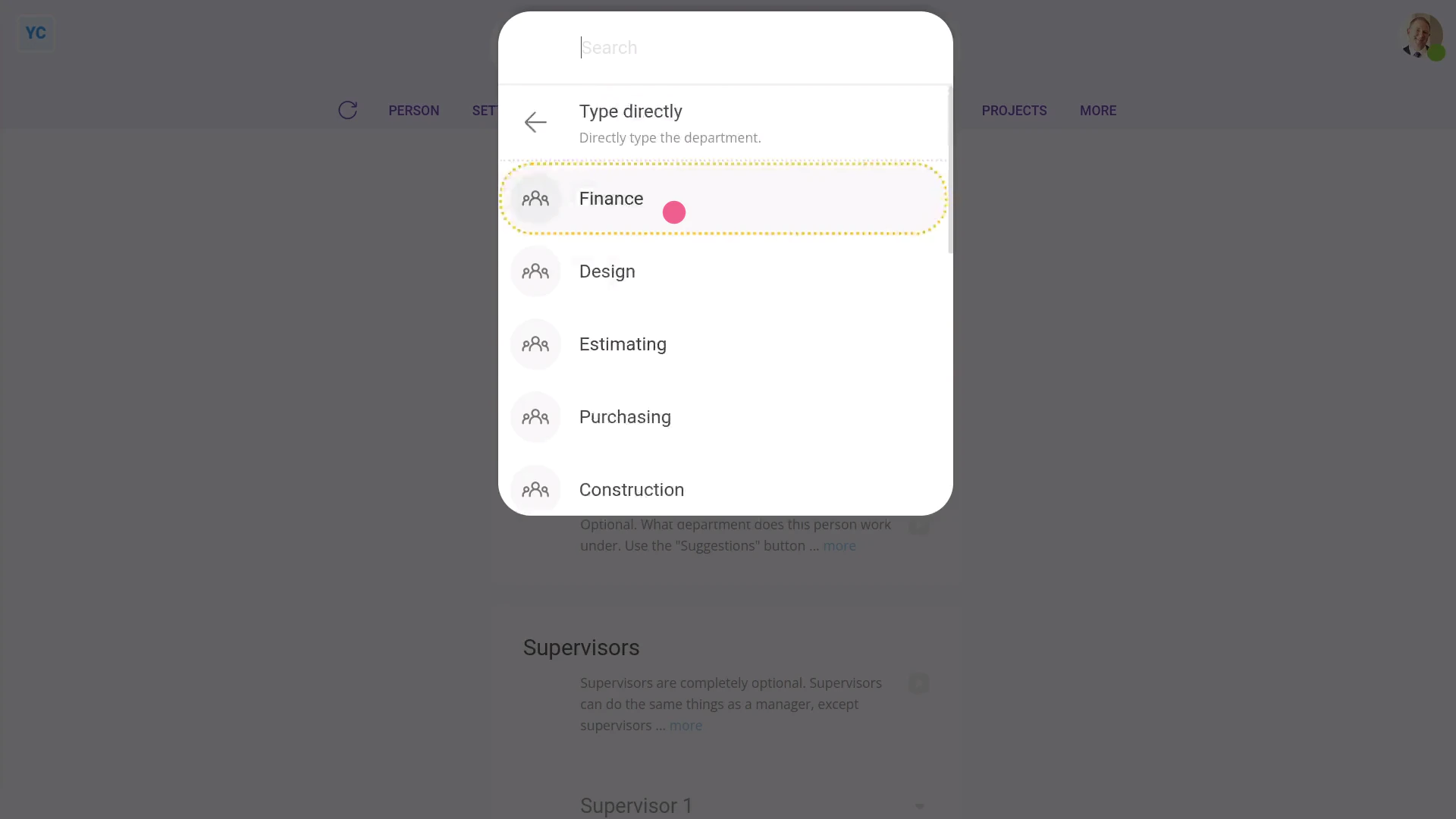
To set another person's department:
- First, select the person on: "Menu", then "People"
- Then tap: "Settings", "Job settings", then "Department"
- Then next to "Department", tap Suggest, and select their new department.
- And finally, tap: Save
Keep in mind that:
- Changes to a person's department are applied instantly.
- And departments can always be seen by everyone inside your org.
- Also, departments have no effect on people's pay, permissions, or anything else.
And that's it! That's everything you need to know about using suggested departments!
How do I use suggested divisions?
 1:56
1:56
"How do I use suggested divisions?"
Suggested divisions are a way to standardise the division names used in your org. Rather than having inconsistent spellings or capitalization of division names, instead set your org's official list once. Then your admins can pick division names from the list.
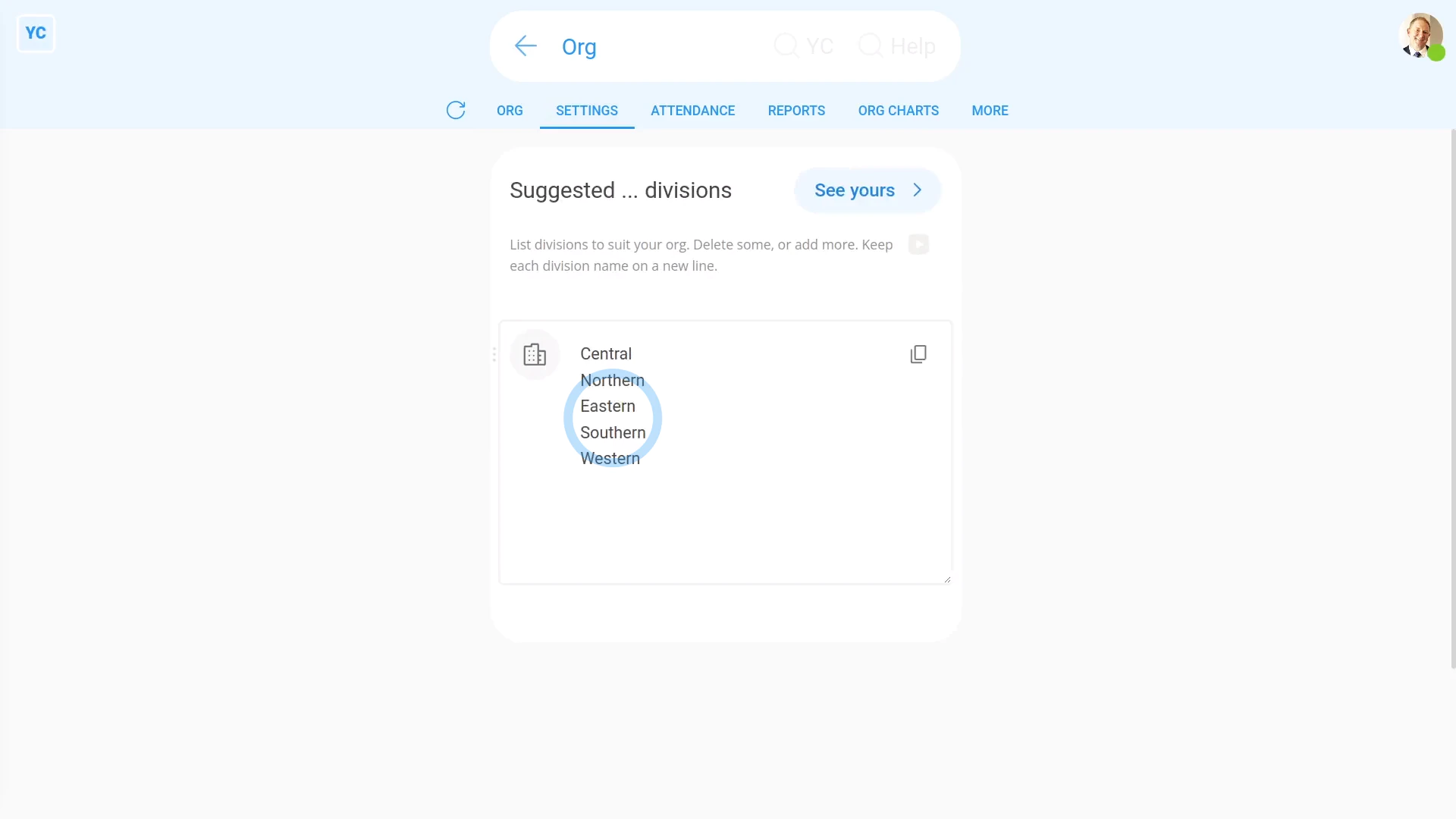
To change your org's existing suggested divisions:
- First, go to your org on: "Menu", then "Orgs"
- Then tap: "Settings", then "Suggested ... divisions"
- You'll now see a list of the default division names.
- Next, delete out all the existing default division names.
- Then type in the division names that your org would actually use.
- And check that each division name is on a different line.
- Once you're happy with your list of suggested division names, tap: Save
- And finally, to see your new suggested divisions, scroll to the top and tap See yours, and then tap: Suggest
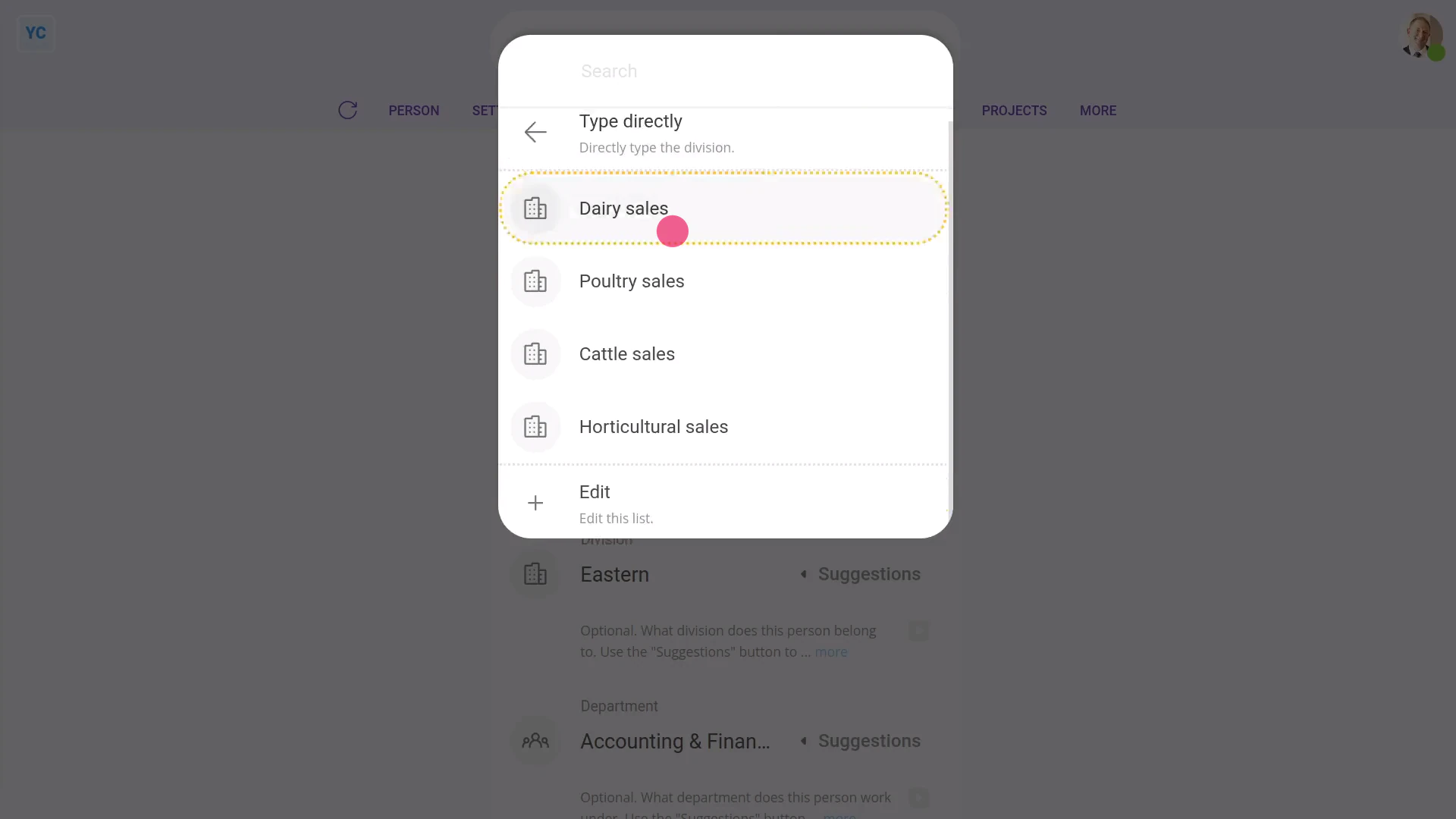
To set another person's division:
- First, select the person on: "Menu", then "People"
- Then tap: "Settings", "Job settings", then "Division"
- Then next to "Division", tap Suggest, and select their new division.
- And finally, tap: Save
Keep in mind that:
- Changes to a person's division are applied instantly.
- And divisions can always be seen by everyone inside your org.
- Also, divisions have no effect on people's pay, permissions, or anything else.
And that's it! That's everything you need to know about using suggested divisions!
How do I use suggested job titles?
 2:00
2:00
"How do I use suggested job titles?"
Suggested job titles are a way to standardise the job titles used in your org. Rather than having inconsistent spellings or capitalization of job titles, instead set your org's official list once. Then your admins can pick job titles from the list.
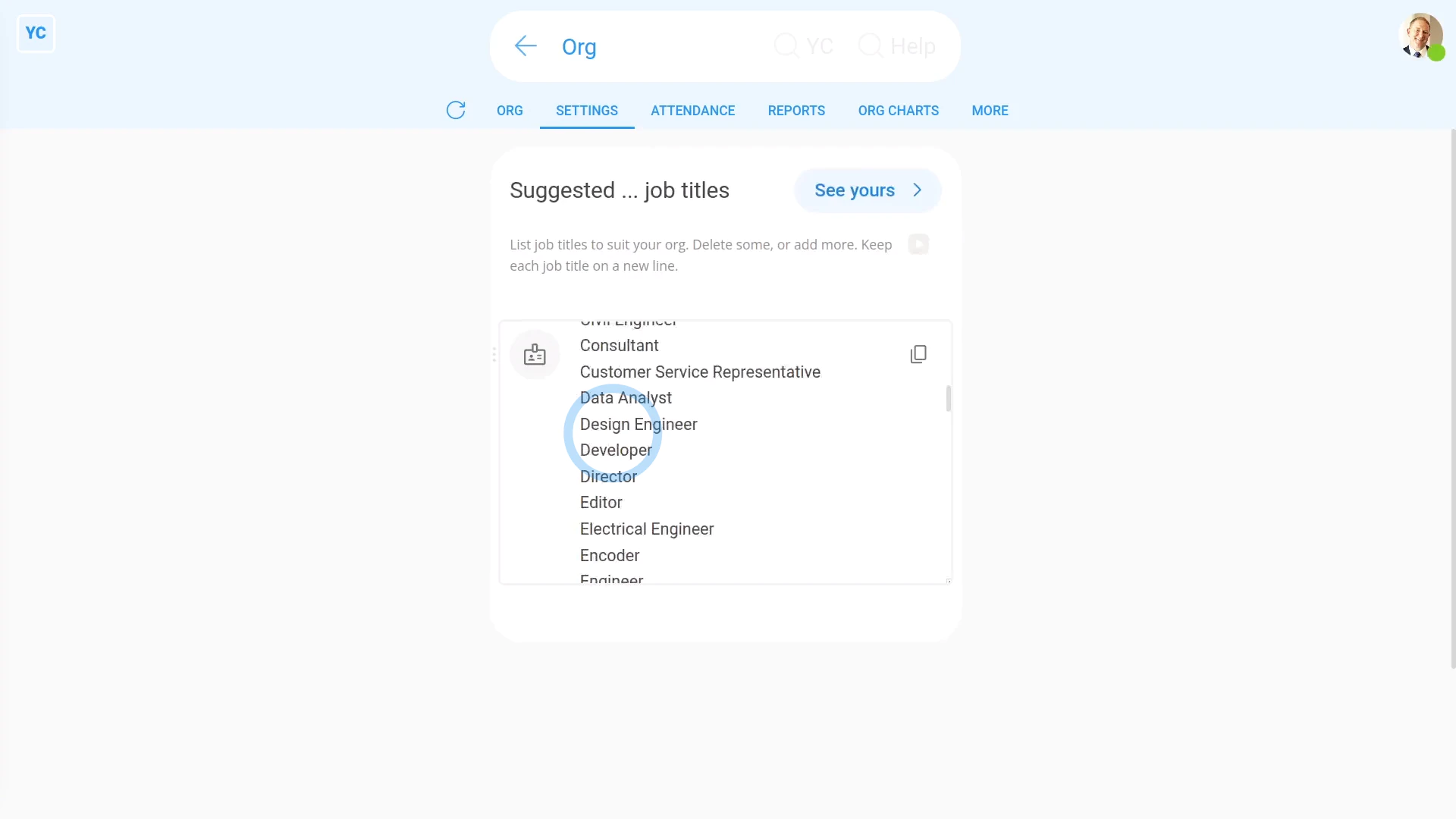
To change your org's existing job titles:
- First, go to your org on: "Menu", then "Orgs"
- Then tap: "Settings", then "Suggested ... job titles"
- You'll now see a list of hundreds of the most common job titles.
- Next, delete out all the existing default job titles.
- Then type in the job titles that your org would actually use.
- And check that each job title name is on a different line.
- Once you're happy with your list of suggested job titles, tap: Save
- And finally, to see your new job title, scroll to the top and tap See yours, and then tap: Suggest
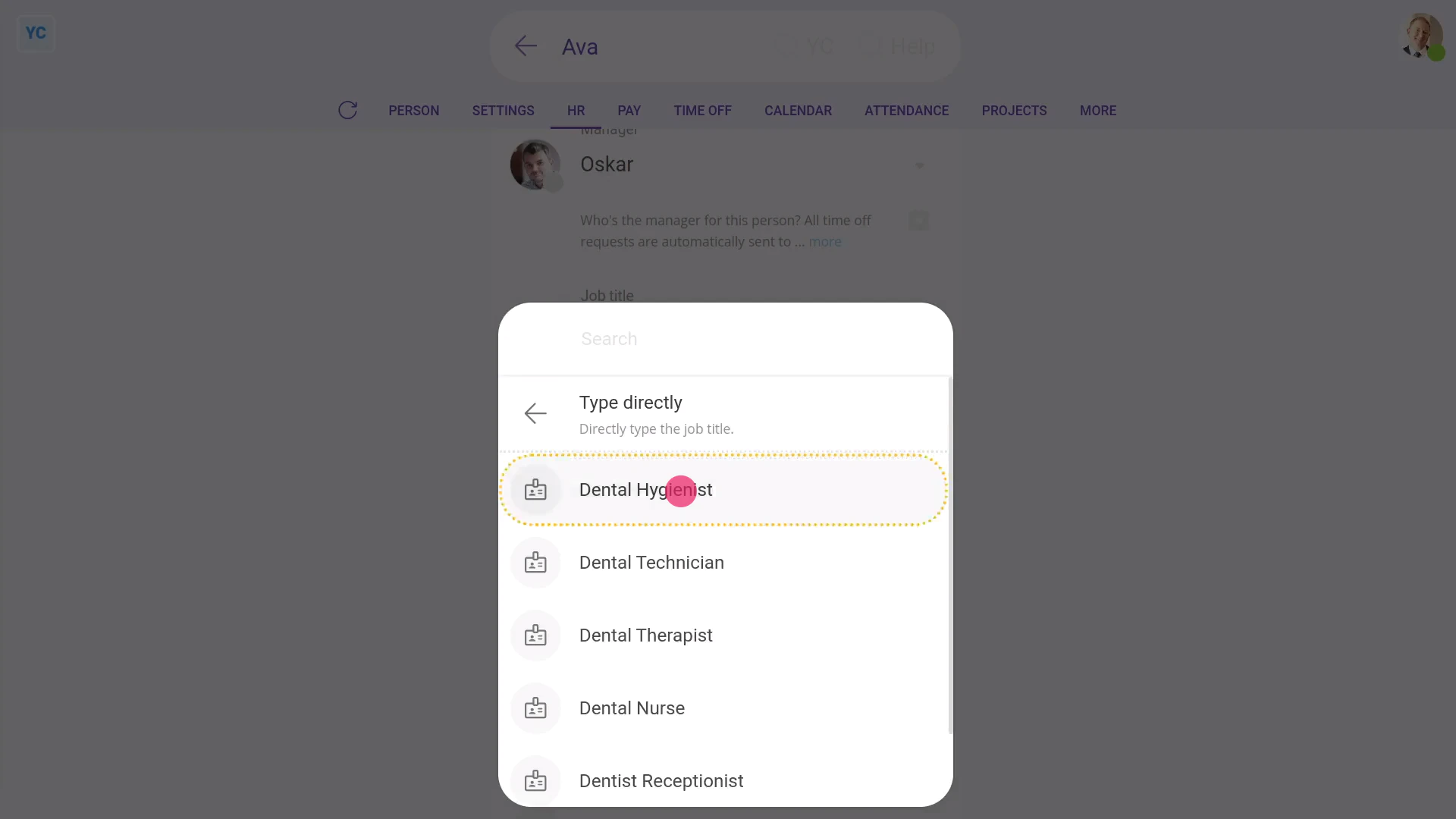
To set another person's job title:
- First, select the person on: "Menu", then "People"
- Then tap: "Settings", "Job settings", then "Job title"
- Then next to "Job title", tap Suggest, and select their new job title.
- And finally, tap: Save
Keep in mind that:
- Changes to a person's job title are applied instantly.
- And job titles can always be seen by everyone inside your org.
- Also, job titles have no effect on people's pay, permissions, or anything else.
And that's it! That's everything you need to know about using suggested job titles!
How do I use the 'History ... actions' report?
 2:18
2:18
"How do I use the "History ... actions" report?"
The "History ... actions" report shows you who's been doing what in your org, including creates, saves, deletes, un-deletes, and log ins.
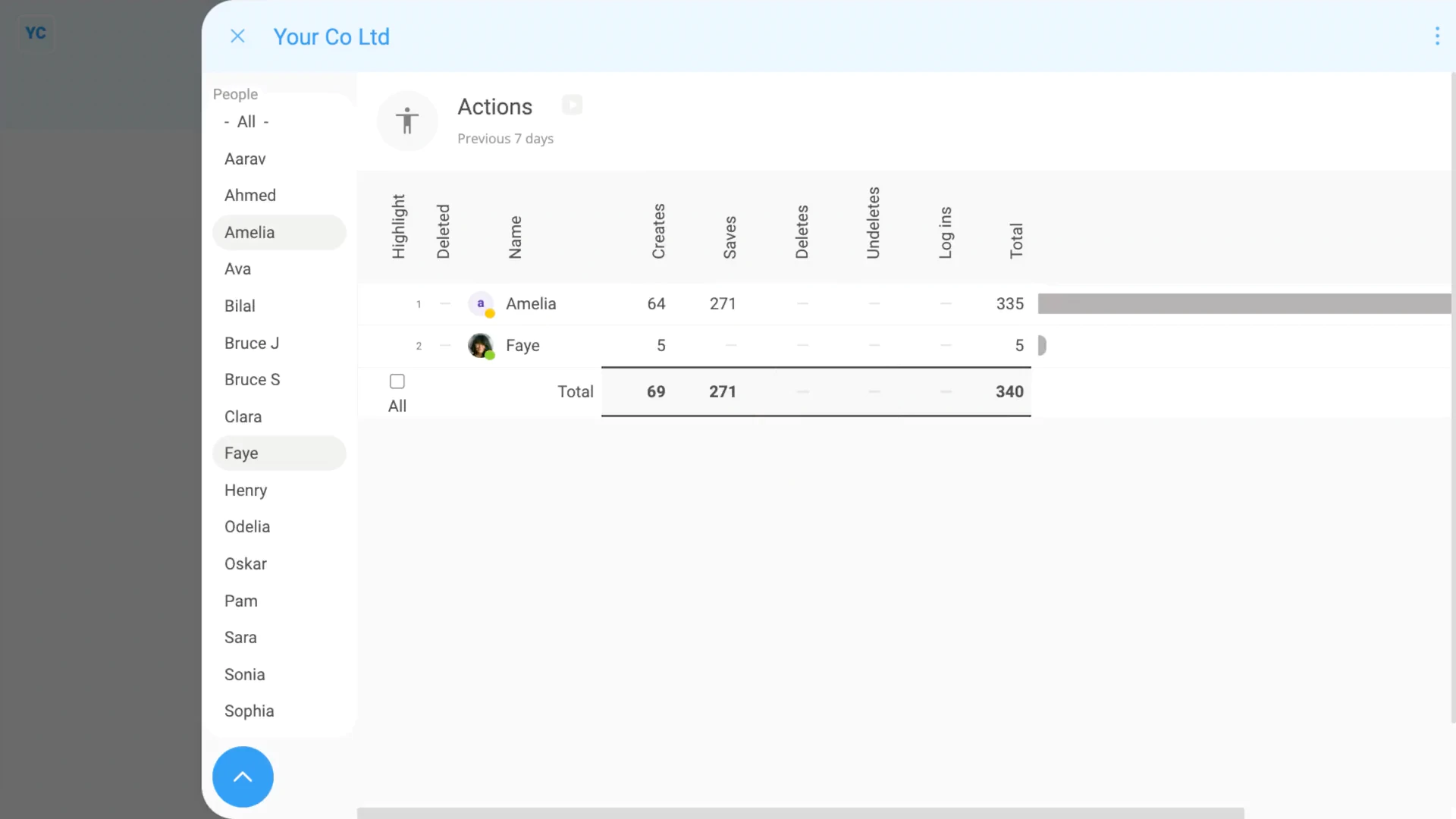
To see an "History ... actions" report:
- First, go to your org on: "Menu", then "Orgs"
- Then tap: "History", then "Actions"
- At first, you'll see a pie chart showing all actions by everyone in your org, over the last 30 days.
- When you hover your mouse over the pie chart, you'll see the numbers of each person's actions, by action type. The numbers help you to quickly see who's doing what.
- Then when you tap any pie chart segment, it slides out on the right, showing a drill-through to all the actions the person did.
- When you tap a person's pie segment, in the history list you see the most recent 25 of their actions.
- You can tap through to more pages of results (at the bottom of the page). More pages of results lets you see all of the person's actions over the last 30 days.
- When you tap a row, you'll see even more details.
- To only see actions that happened in the last 7 days, tap:
" Show settings", "Dates", then "Previous 7 days" - To see any actions from only a set of selected people, tap:
" Show settings", then "Show people" - Then Ctrl + tap the people you want to see actions for.
- To see a table of numbers instead of a pie chart, tap:
" Show settings", then "Show grid" - And finally, to see a count of only one type of action, like "Saves", tap:
" Show settings", "Actions", then "Saves"
There's a lot of settings that you can adjust, to help you find exactly the info you're looking for.
Keep in mind that:
- The "History ... actions" report is only available to people with at least "View org admin" permissions.
And that's it! That's everything you need to know about using "History ... actions" reports!
How do I use the 'History ... log ins' report?
 2:07
2:07
"How do I use the "History ... log ins" report?"
The "History ... log ins" report shows you who's been logging in to your org recently.
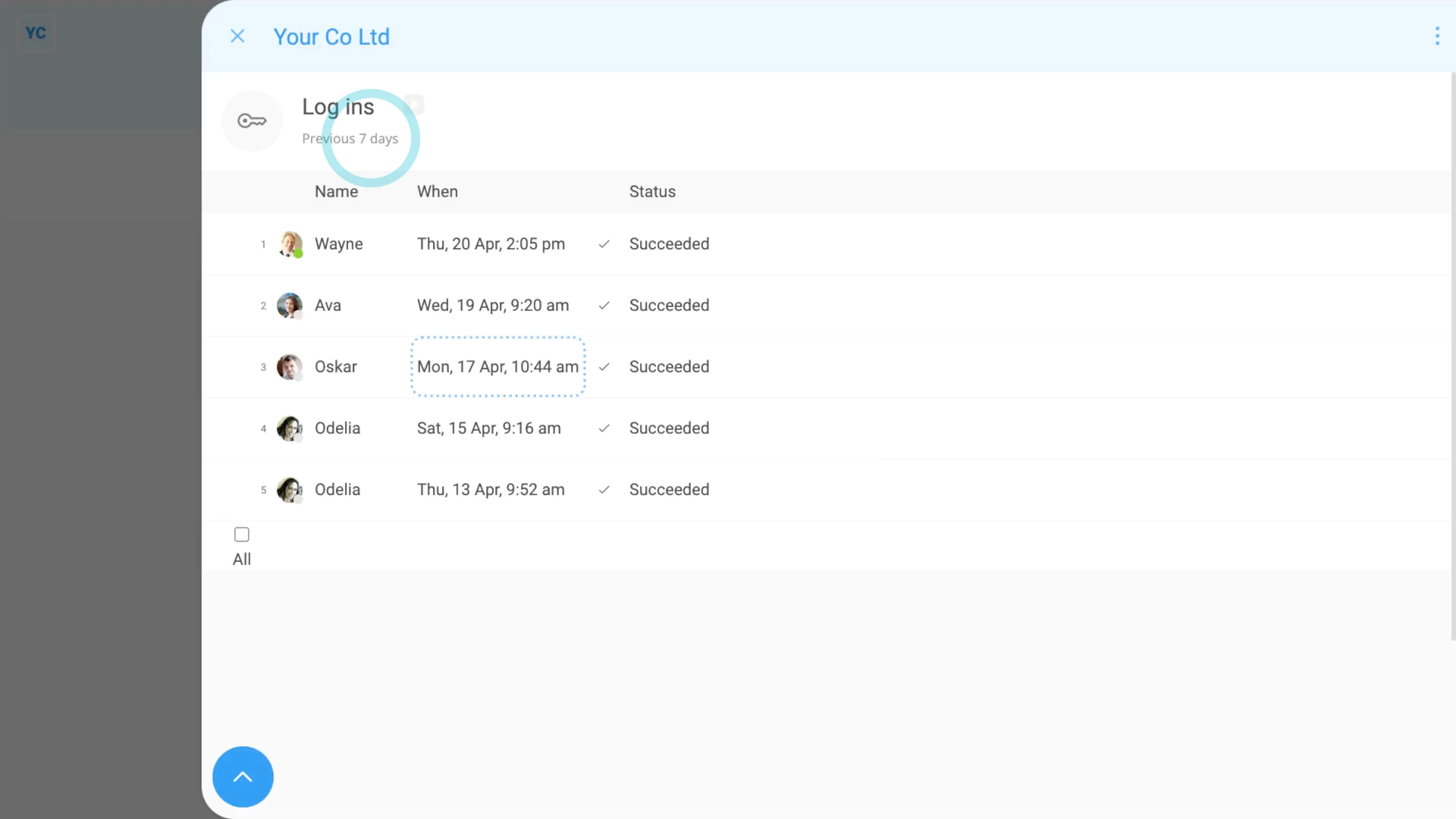
To see a "History ... log ins" report:
- First, go to your org on: "Menu", then "Orgs"
- Then tap: "History", then "Log ins"
- Once it opens, you'll see a list of all the log ins by everyone in your org.
- By default, the log ins are from the last 30 days, with the most recent listed (at the top).
- And when you hover your mouse over each row, you'll see additional details about the device and browser that each person connected through.
- To only see log ins that happened in the last 7 days, tap:
" Show settings", "Dates", then "Previous 7 days" - To see any log ins from only a set of selected people, tap:
" Show settings", then "Show people" - Then Ctrl + tap the people you want to compare.
- And finally, when you tap any row, it slides out on the right, showing even more details.
Keep in mind that:
- The "History ... log ins" report is only available to people with at least "View org admin" permissions.
For advanced usage:
- You can think of a login as being each time a person is asked to enter their password.
- The person might log in through a browser on their laptop, and also log in through the app on their phone.
- The log ins shows up as two different login rows because the person entered their password each time.
- If, on the login screen, a person turns on Keep me logged in, the person won't be asked for their password for 30 days.
- In which case, you might not see an entry in the "History ... log ins" report, for the person, for another 30 days.
And that's it! That's everything you need to know about using "History ... log ins" reports!
If I don't need payroll anymore, how do I close my org?
 6:03
6:03
"If I don't need payroll anymore, how do I close my org?"
If you don't need 1st Money's payroll anymore, there's four ways you can decommission and close your entire org.
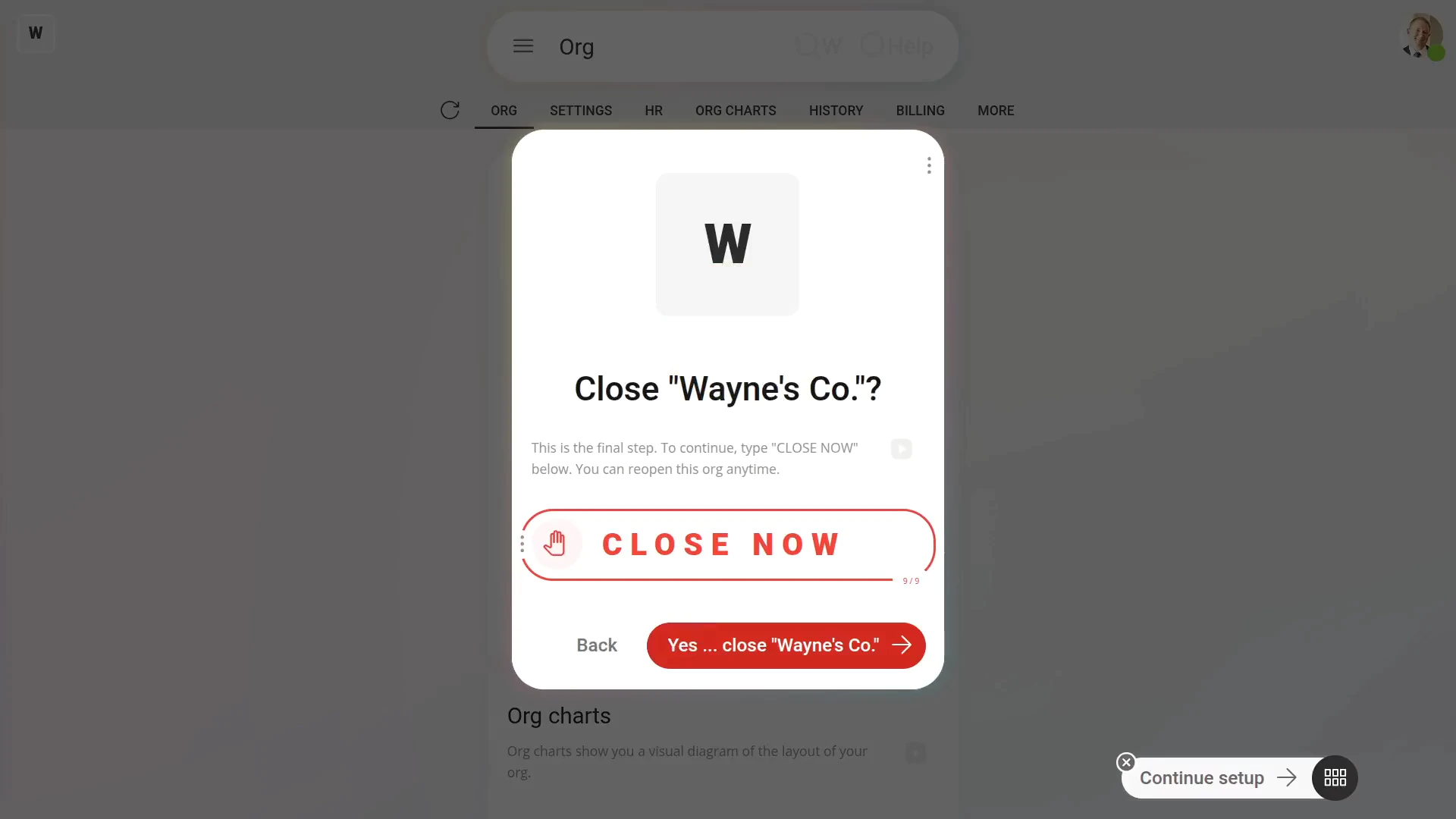
To close your org when there's been no tax submissions:
- First, go to your org on: "Menu", then "Orgs"
- Then tap: "More", then "Decommission & close org"
- And if there's been no tax submissions, tap: Yes ... close
- You're now on the final screen in closing your org. Next, type: "CLOSE NOW"
- Once you've typed it correctly, the close button becomes active, and then tap: Yes ... close
- And now your org is now closed.
- Now, when you tap the items in the side menu, after you reload, you'll see that it's all crossed out.
- However, you can still get back to your closed org.
- And you can still create new orgs.
- To create a new org, tap: "Menu", then "Orgs"
- And finally, tap: Set up another org
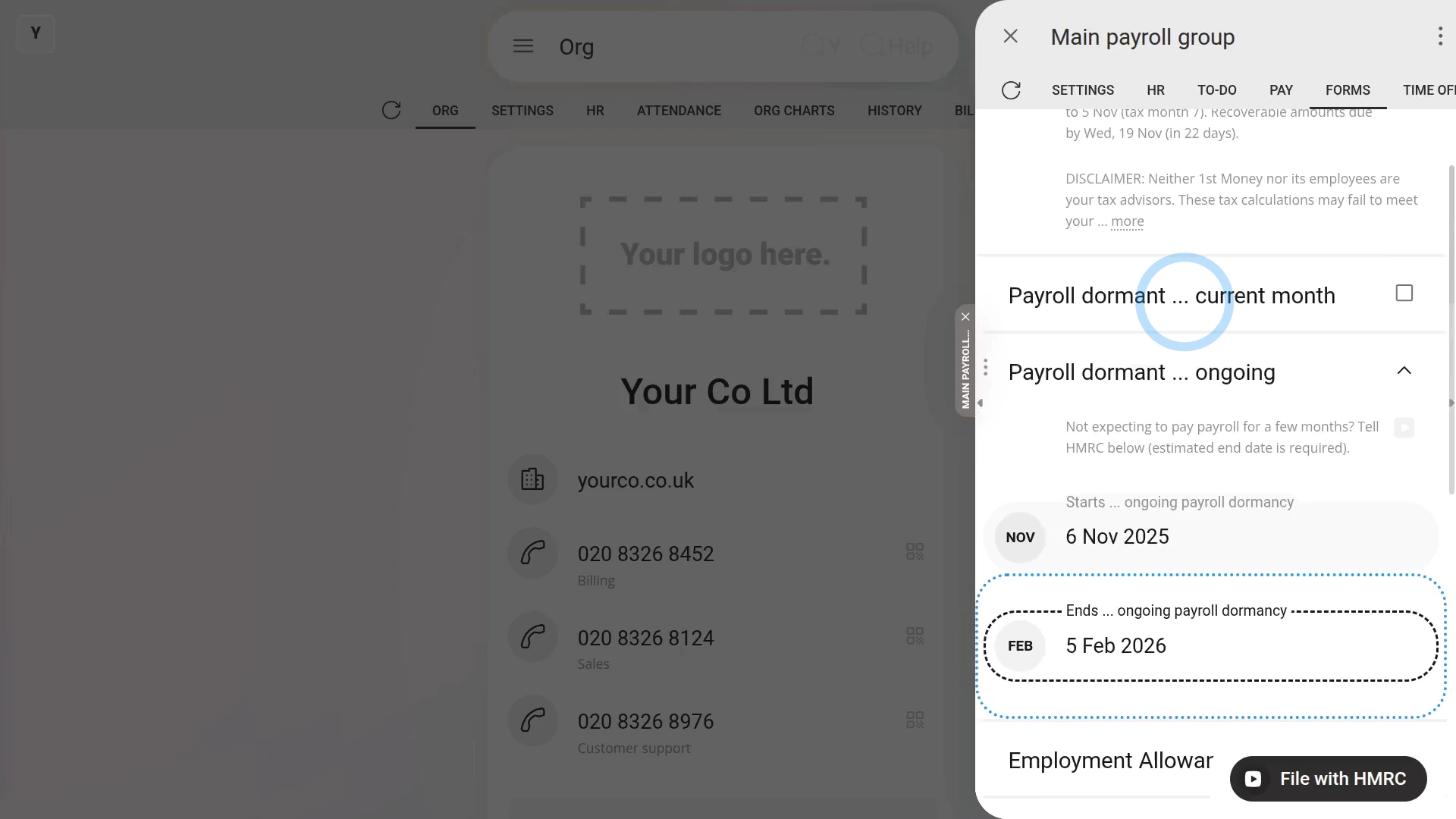
To instead go payroll dormant, or if you don't have any payroll to pay for a few months:
- First, go to your org on: "Menu", then "Orgs"
- Then tap: "More", then "Decommission & close org"
- And select: Going payroll dormant
- Once it slides out on the right, you'll see a list of dates.
- Select the date that you'd like to remain "payroll dormant" until.
- If you want to immediately start being "payroll dormant", also tick the box: Payroll dormant ... current month (above)
- Then check that the dates match the period that you don't expect to have any payroll payments.
- And finally, if you're all ready to send it to HMRC, tap: File with HMRC (at the bottom)
Keep in mind that:
- None of the "payroll dormant" steps actually close your org. What the "payroll dormant" steps do is inform HMRC that there's no payroll being paid for a few months.
- Also, if you've got more than one active payroll group, you'll need to repeat the "payroll dormant" steps for each of your payroll groups.
- To learn more about not having any payroll to pay for the next few months, watch the video on: EPS: Going payroll dormant
 EPS: Going payroll dormant
To instead switch to a different payroll provider, and stop using 1st Money:
- First, go to your org on: "Menu", then "Orgs"
- Then tap: "More", then "Decommission & close org"
- And select: Switching payroll provider
- And tap: Yes ... close
- You're now on the final screen in closing your org. Next, type: "CLOSE NOW"
- Once you've typed it correctly, the close button becomes active, and then tap: Yes ... close
- And now your org is now closed.
- Importantly, for your org that you've closed, you can still look up any info, and download any PDFs.
- However, you can't make any changes, or add other people, until your org's re-opened.
- At any time that you want to start using your org again, to re-open it, tap: Re-open (at the bottom)
- And then tap: Yes ... re-open
- And finally, everything's open and you can make changes again.
Also remember that:
- Selecting the "Switching payroll provider" option, closes your org, but doesn't end the employment of any of your people. It also doesn't send any notifications to HMRC.
- Which makes it easier for you to resume your payroll with your new payroll provider.
- You also won't need to do any extra steps to cancel any 1st Money payments or subscriptions. Once you stop using 1st Money, your card automatically won't be charged anymore.
To instead tell HMRC that you're no longer an employer, and close your business:
- First, go to your org on: "Menu", then "Orgs"
- Then tap: "More", then "Decommission & close org"
- And select: Closing my business
- Before continuing, you'll be advised that closing your org first requires the following steps, including.
- Terminating all employees. Running final pay. Stopping employment for all your payroll groups. And sending your final EPS to HMRC.
- It's highly recommend that you do all the "stopping employment" steps now, as shown if you watch the video on: EPS: Stop being an employer
- Once you've gone and done all those "stopping employment" steps, including submitting an EPS to let HMRC know that you're no longer an employer.
- Now, when you tap: "More", then "Decommission & close org"
- You'll see that the message has changed, and your org's ready to be closed.
- Next, tap: Yes ... close
- You're now on the final screen in closing your org. Next, type: "CLOSE NOW"
- Once you've typed it correctly, the close button becomes active, and then tap: Yes ... close
- And finally, your org's now closed.
Bear in mind that:
- Your org can stay dormant and unused for up to three years, but you can still look up any info, and download any PDFs.
- 1st Money is required to store your payroll records for three years.
- To read more about record storage, go to GOV.UK.
And that's it! That's everything you need to know about four ways to close your entire org!
What org charts can admins see?
 2:46
2:46
"What org charts can admins see?"
If you're logged in as a person who's got "Full org admin" and "Full payroll admin" permissions, you can see all three org charts. However, admins can also see additional org chart info that's normally hidden to others.
To open your org's org charts:
- First, go to your org on: "Menu", then "Orgs"
- And finally, tap: Org charts
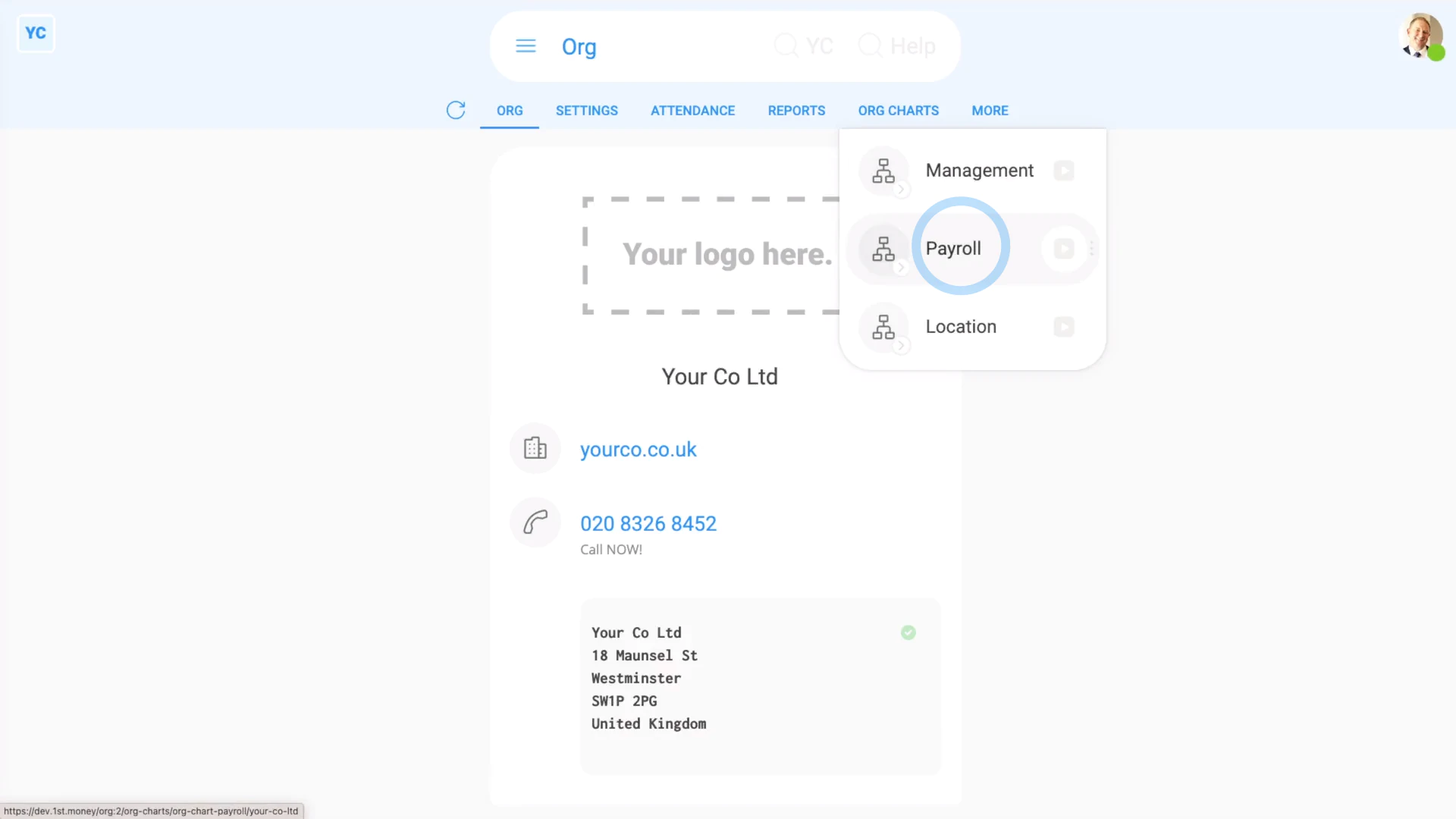
Your org's three org charts are:
- First, "Management"
- Second, "Payroll"
- And finally, "Location"
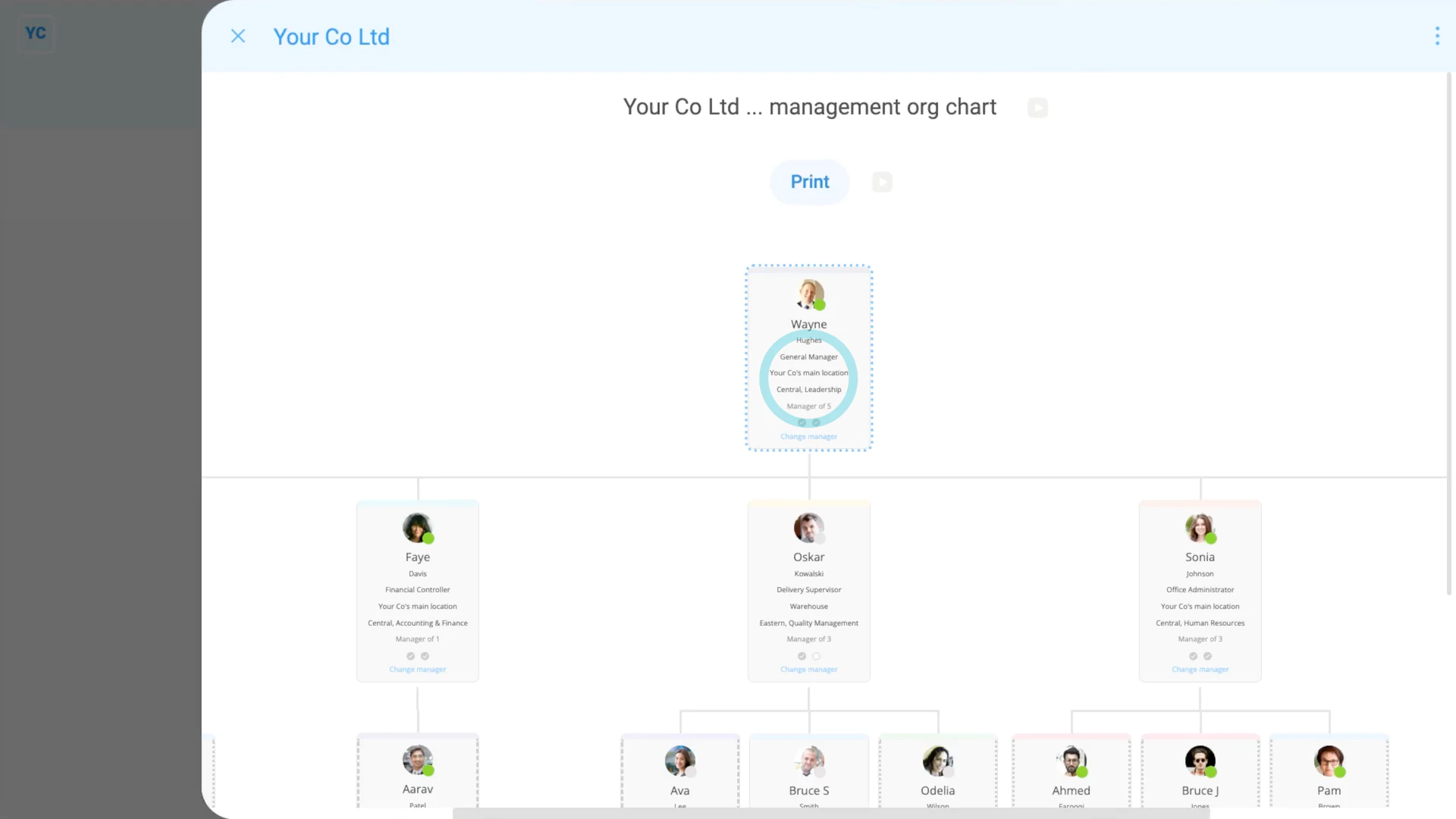
To see your "Management" org chart:
- First, tap: "Org charts", then "Management"
- Inside the "Management" org chart, admins can see people's full name, job title, and location.
- Admins also see division, department, how many people the person manages, and their permissions.
- And finally, when an admin taps on a person in an org chart, the admin can then see that person's contact info.
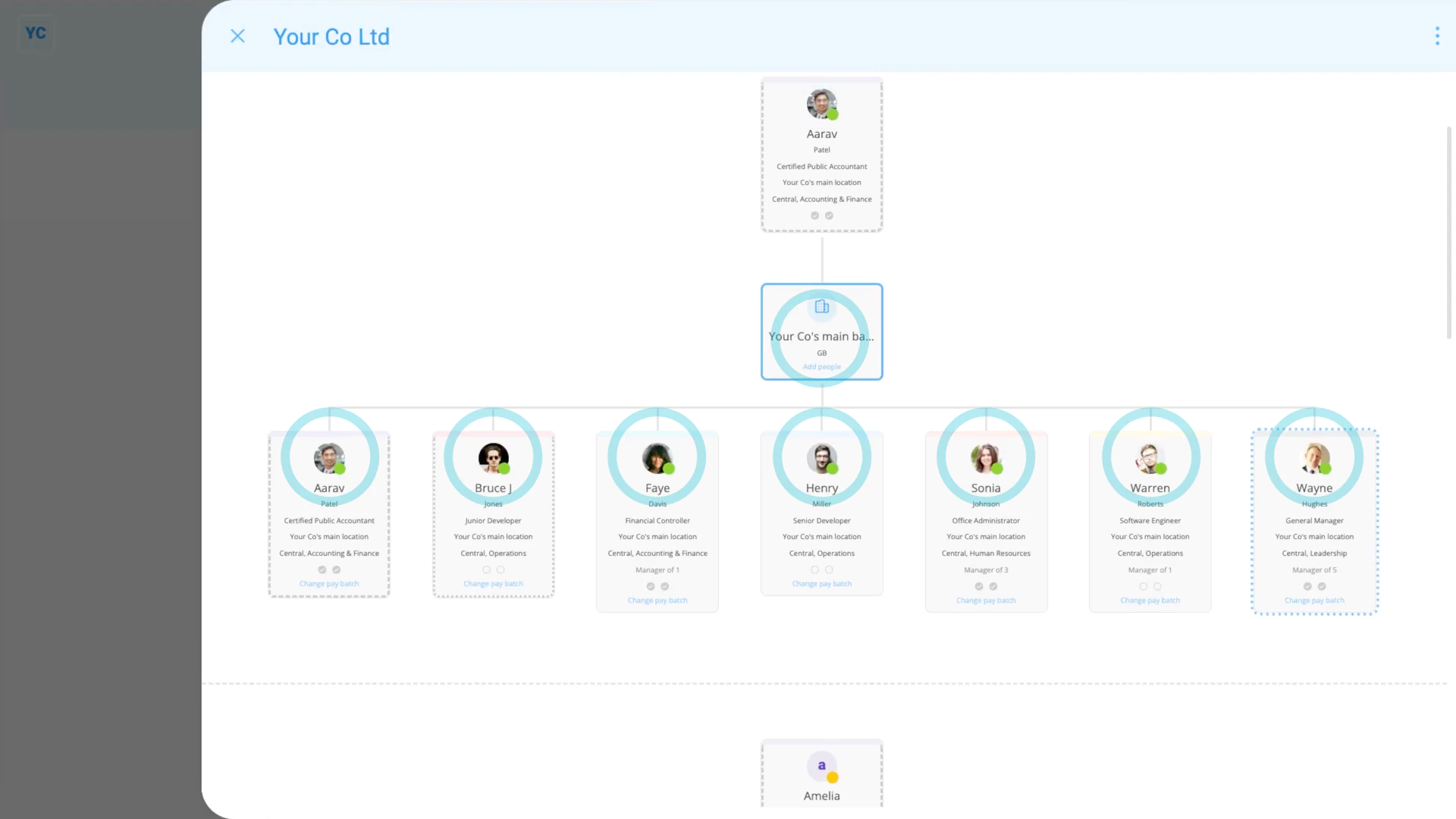
To see your "Payroll" org chart:
- First, tap: "Org charts", then "Payroll"
- Inside the "Payroll" org chart, payroll admins can see who belongs to each payroll group.
- Payroll admins can also see who each payroll group's payday person is, shown above it.
- When you scroll to the bottom, you'll see a list of the people, if any, who aren't connected to any payroll group yet.
- And finally, you can tap Set payroll group to put them into a payroll group.
Keep in mind that:
- Only payroll admins can see the "Payroll" org chart.
To see your "Location" org chart:
- First, tap: "Org charts", then "Location"
- Inside the "Location" org chart, org admins can see who belongs to each location.
- When you scroll to the bottom, you'll see a list of the people, if any, who aren't connected to any location yet.
- And finally, you can tap Set location to put them into a location.
To learn more:
- About how contact info is kept private on org charts, watch the video on: Management org chart
- Also, to learn how to print an org chart, watch the video on: Org chart PDFs
And that's it! That's everything you need to know about which org charts can be seen by admins!
Which info that I've set in one org, also shows in my other orgs?
 1:47
1:47
"Which info that I've set in one org, also shows in my other orgs?"
A limited set of your info you've set in one org, is also linked to all the other orgs that you've joined. The purpose of the info linking is to save you time, and keep things consistent, as you update your info between your orgs.
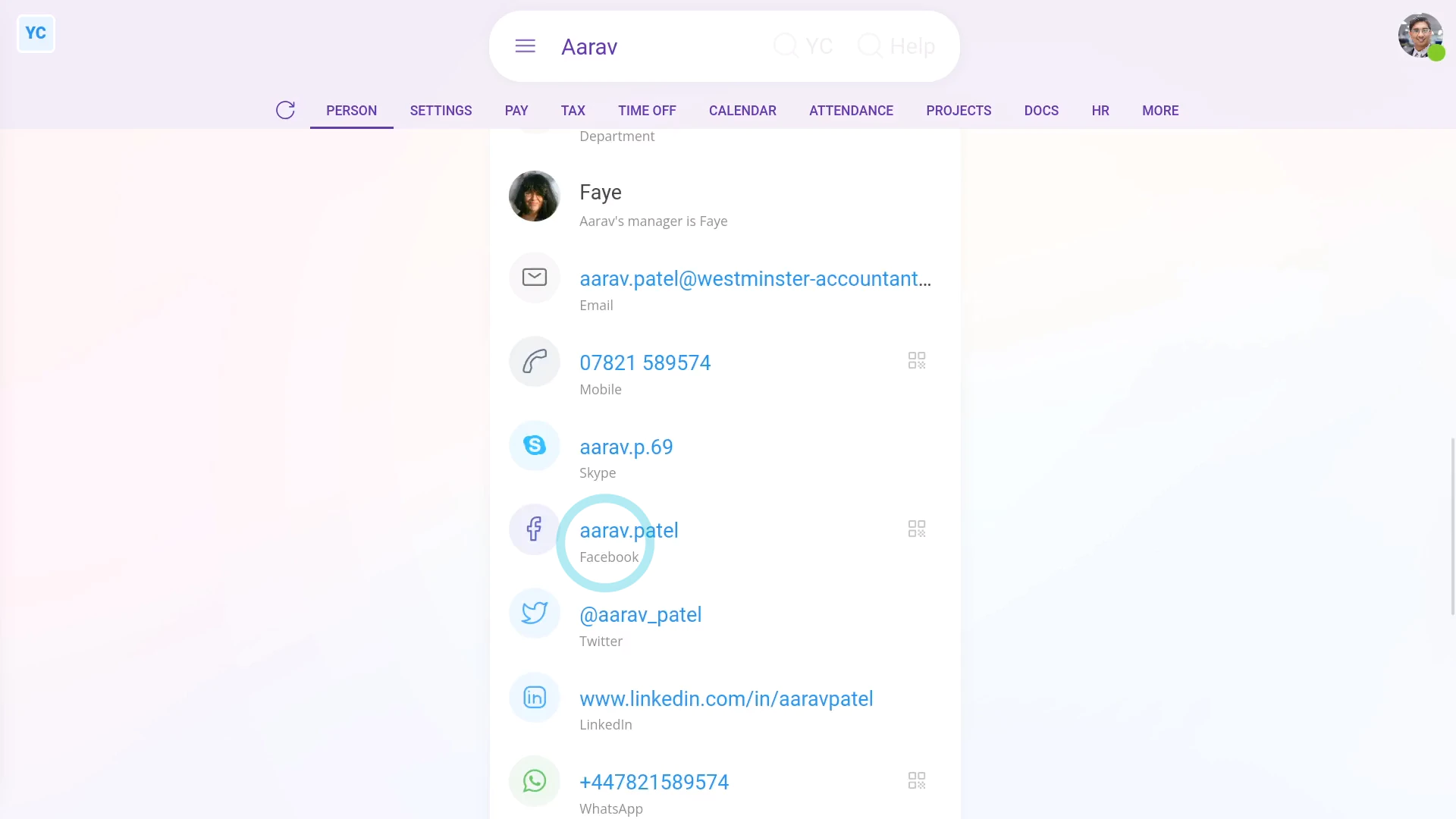
To understand what info is linked between your orgs:
- First, the following items are linked between all the other orgs that you've joined.
- Your name and nickname.
- Your mobile number.
- Your social contacts.
- An encrypted copy of your login password.
- Your home and postal address.
- Your payday bank account info.
- Your external tax agent info (which only affects accountants).
- Your doc PIN and signature image.
- And finally, your decided language setting.
Keep in mind that:
- Because the info's linked, if you update any of it in one org, it's also updated elsewhere. Your changes are automatically shown as updated in all the other orgs that you've joined.
For advanced usage:
- If you don't want to link any info between your orgs, instead, when you join each org, sign up using a different email.
- Using a different signup email keeps each org separated, and not linked.
And that's it! That's everything you need to know about what info is linked between all other orgs that you've joined!
Who can see the management org chart, and what info is shown on it?
 2:18
2:18
"Who can see the management org chart, and what info is shown on it?"
A limited version of the management org chart can be seen by everyone in your org. Even if you're logged in as a person who's got "No org admin" and "No payroll admin" permissions. You can still always see a limited version of the management org chart.
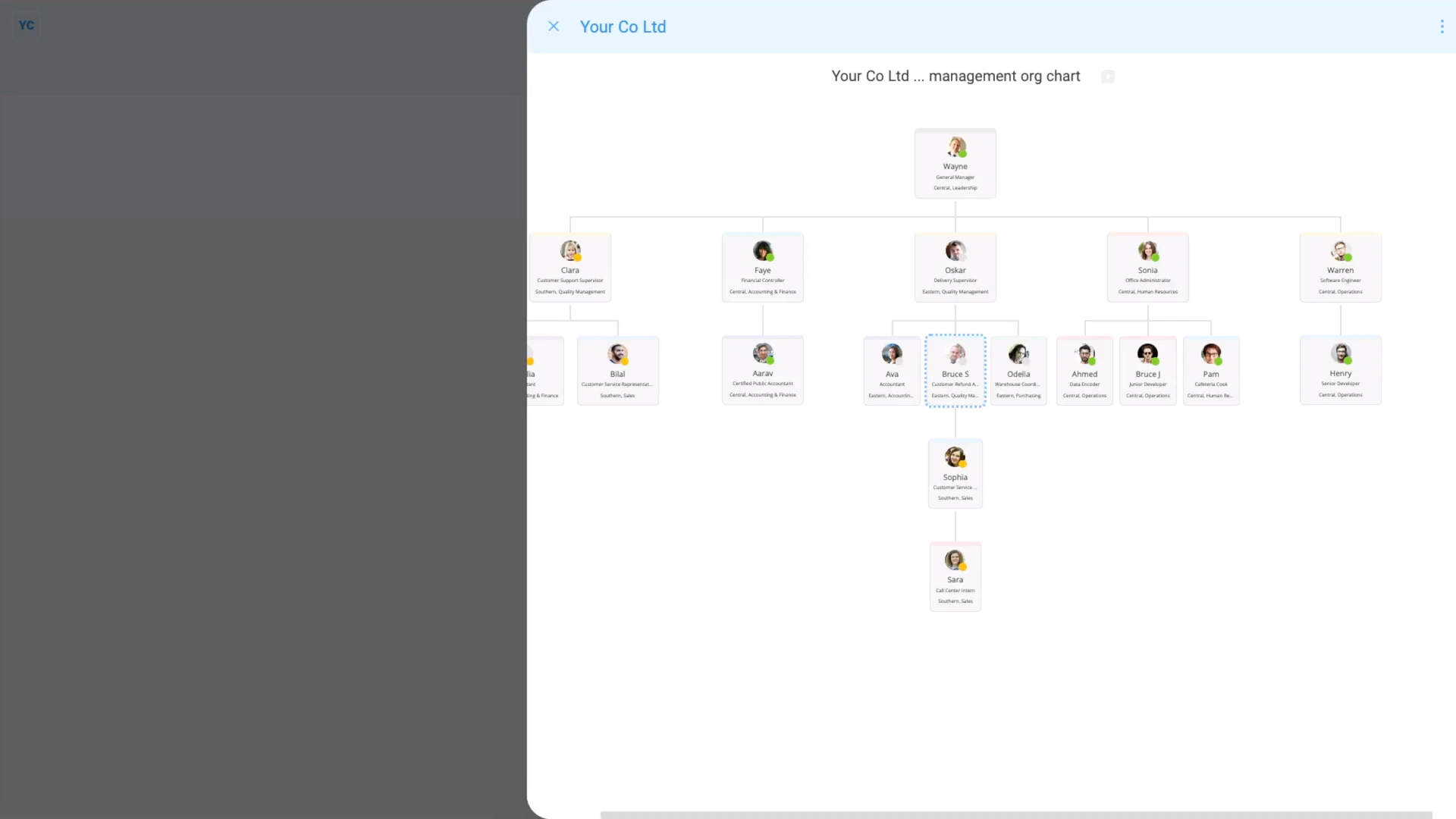
To open your org's management org chart:
- First, go to your org on: "Menu", then "Orgs"
- Then tap: "Org charts", then "Management"
- And finally, people with no permissions can only see the management org chart, and not any other org charts.
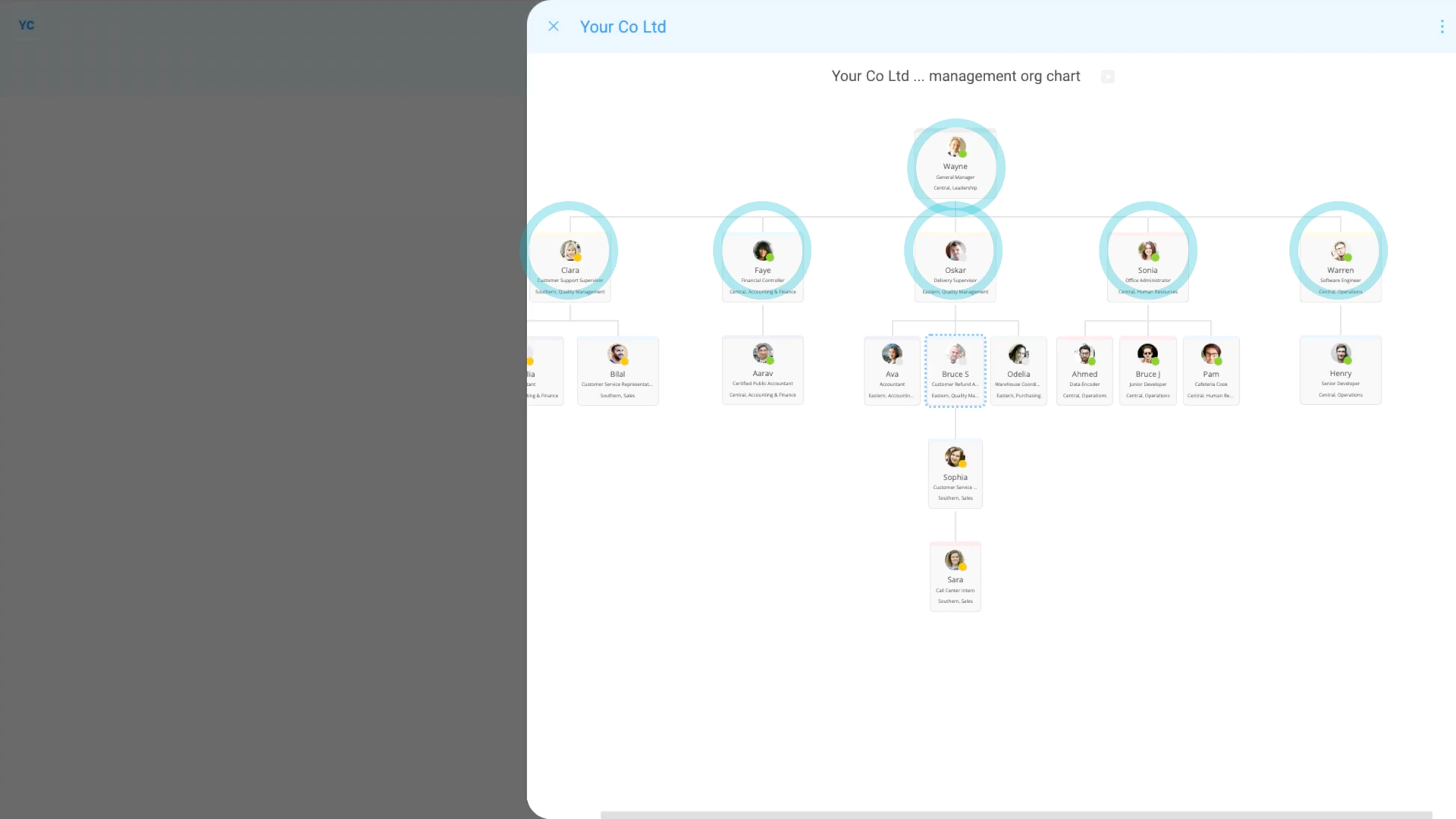
Inside your management org chart, a person with no permissions:
- Can only see people's job titles, divisions, departments, and who's manager of who.
- When a person with no permissions taps on most people, the person never sees other people's full names.
- And never sees their contact info. All the person with no permissions sees is the job title, division, department, and manager.
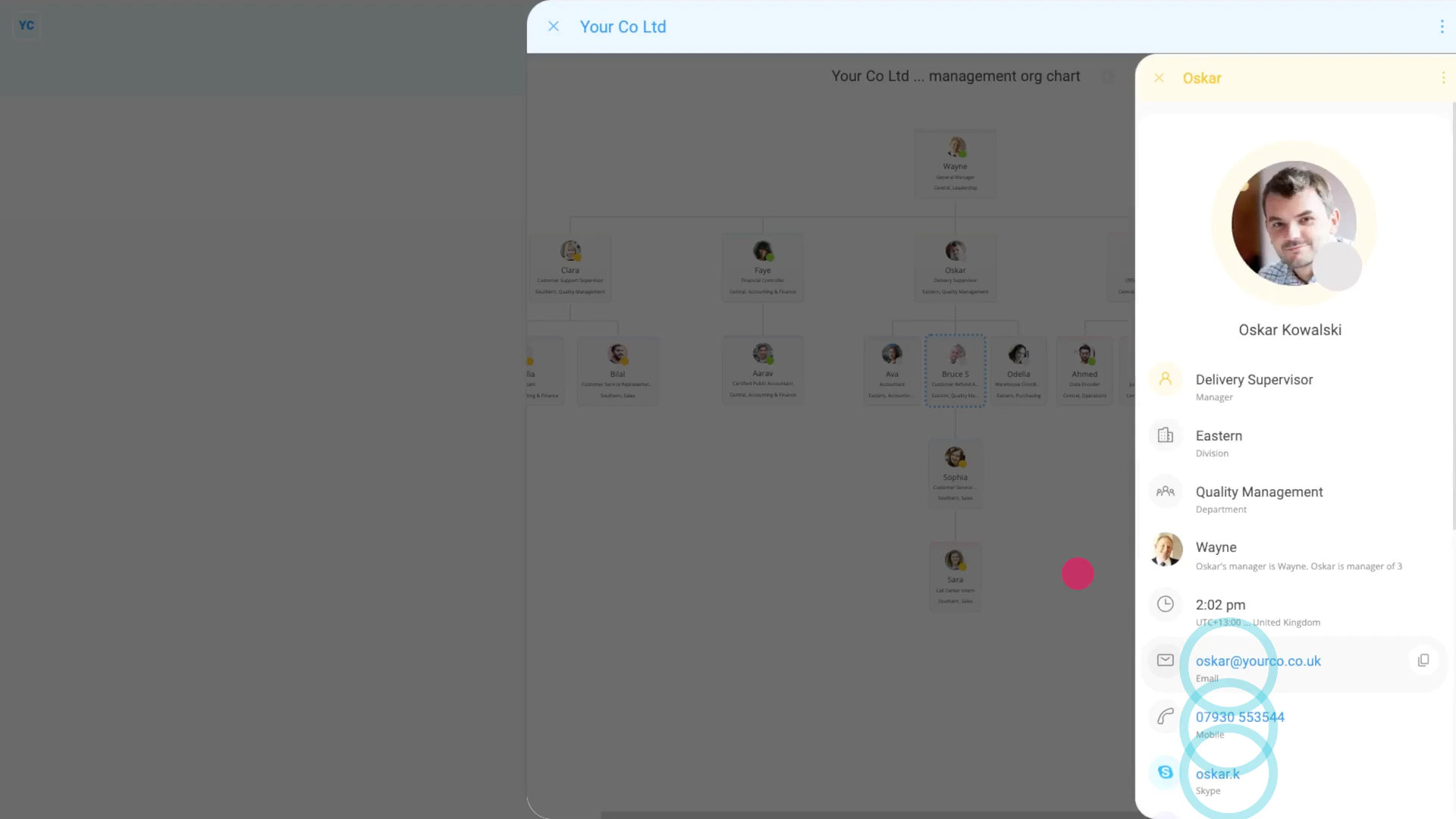
A notable exception (for a person with no permissions):
- Is for them to see contact details for themselves.
- And for people directly one layer above, or in other words, their direct manager.
- And for people directly one layer below, or in other words, anyone that's directly managed by them.
You may notice:
- If you tap more than one layer up or down, it still blocks access to contact info.
- If you tap people either side (under the same manager), it also blocks access to contact info.
- Because of contact info blocking, even in very big orgs, you can still maintain good privacy.
- And do so, while still providing reasonably limited access to each person's manager and managee contact info.
And that's it! That's everything you need to know about who can see org charts!
www.1st.money/uk/help/Org/