How do I use job grades?

 2:52
2:52
"How do I use job grades?"
Job grades are an optional way to categorise your org's people into labelled colour groupings.
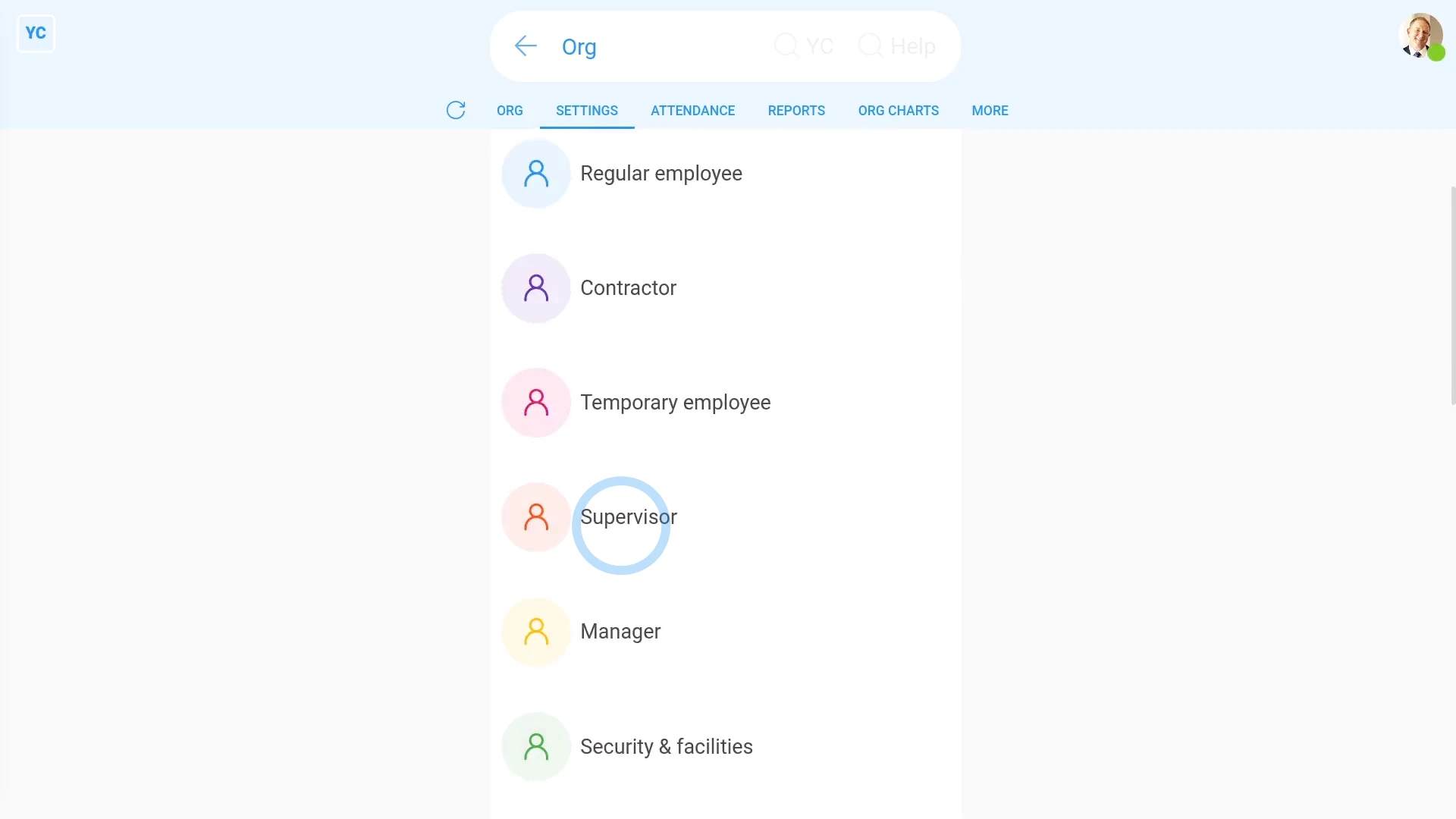
To change your org's existing job grades:
- First, go to your org on: "Menu", then "Orgs"
- Then tap: "HR", then "Job grades"
- You'll now see all the existing job grades.
- You're welcome to change the name and colour of the existing job grades to match the needs of your org.
- You may decide to organise job grades by employment type, such as regular employees, contractors, or managers.
- Or you may decide to organise job grades by job function, such as security clearance, location, customer function, or anything else.
- Then tap: Save
- And finally, you can always come back later to add more.
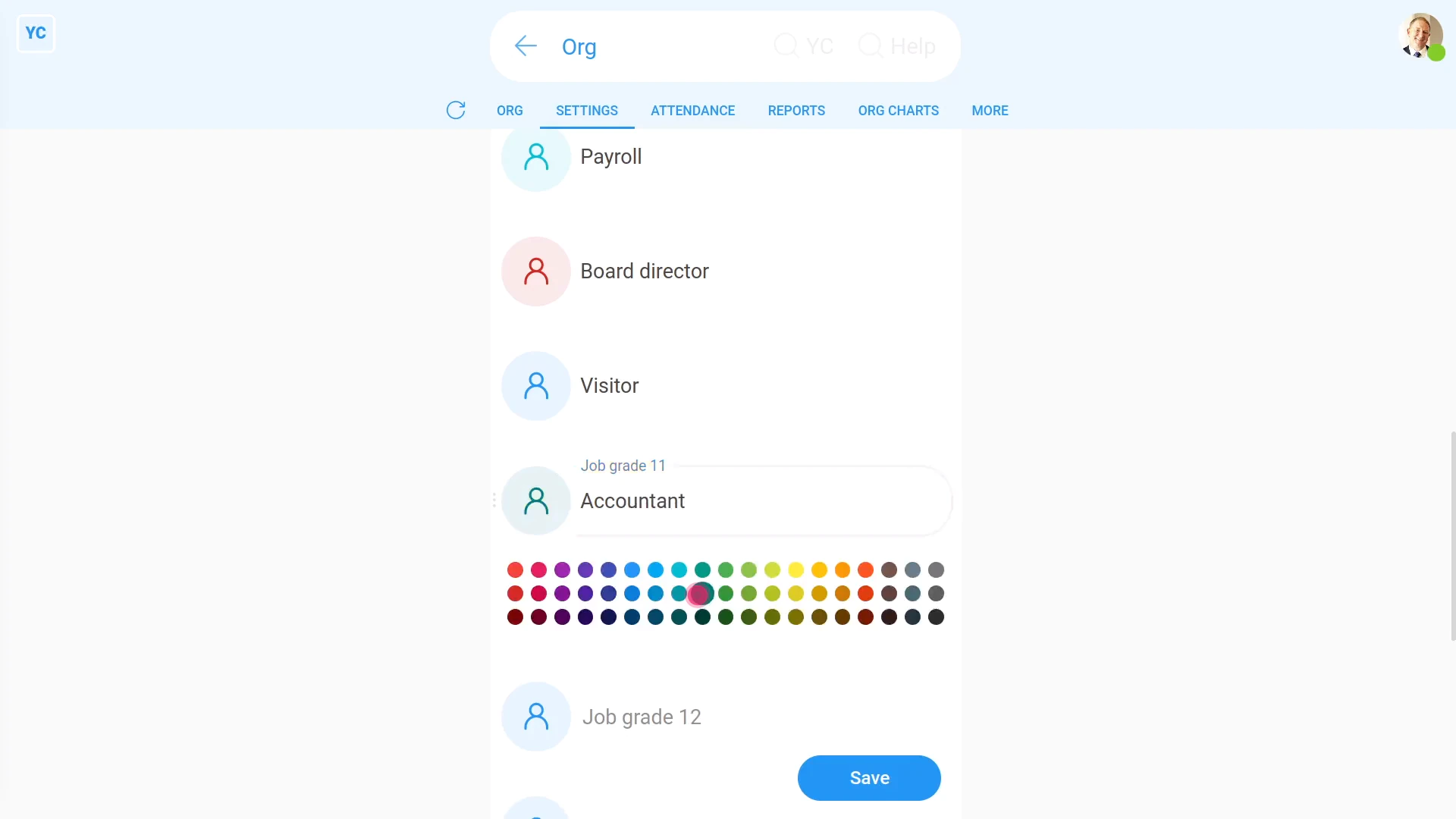
To add a new job grade:
- First, go to your org on: "Menu", then "Orgs"
- Then tap: "HR", then "Job grades"
- Scroll down and find an empty job grade slot.
- And type in the name of your new job grade.
- Then tap the circle to set the colour.
- Next, once you're happy with the new name and colour, tap: Save
- And finally, to see your new job grade, scroll to the top and tap See yours, and then tap: Suggest
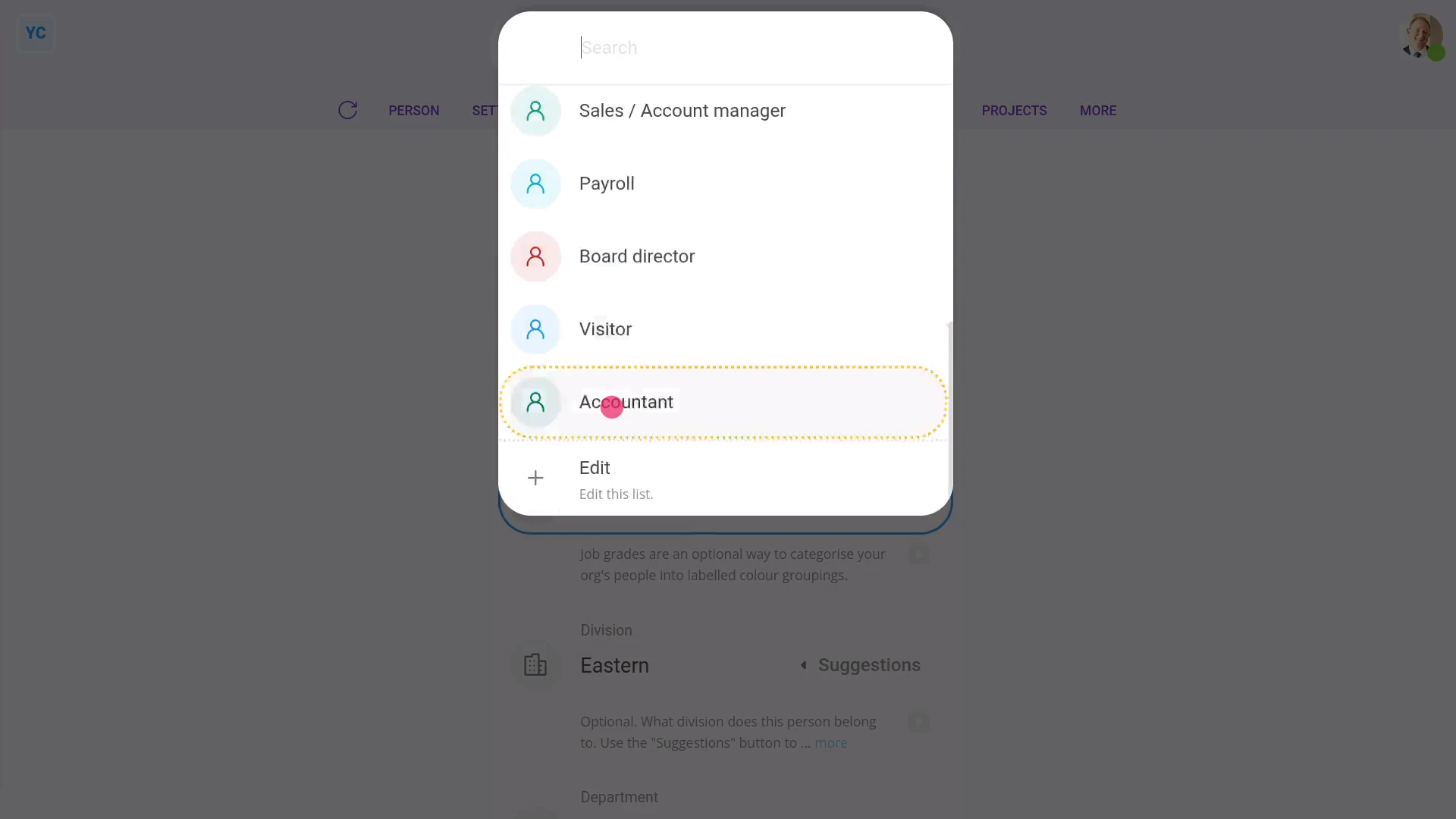
To set another person's job grade:
- First, select the person on: "Menu", then "People"
- Then tap: "Settings", "Job settings", then "Job grade"
- Then select their new job grade.
- Then tap: Save
- And finally, you'll see the top bar change to the new job grade colour.

Keep in mind that:
- You'll see the new job grade colour, both on the person top bar, and on org charts.
- Also remember that job grades are a purely visual feature to help you organise your people.
- Job grades have no effect on people's pay, permissions, or anything else.
And that's it! That's everything you need to know about using job grades!
www.1st.money/uk/help/Org/How_do_I_use_job_grades