4. How do I clock-in and clock-out on TimeSpot?

 3:35
3:35
"How do I clock-in and clock-out on TimeSpot?"
With only one tap, you can clock-in and clock-out your timesheet times on a TimeSpot device.
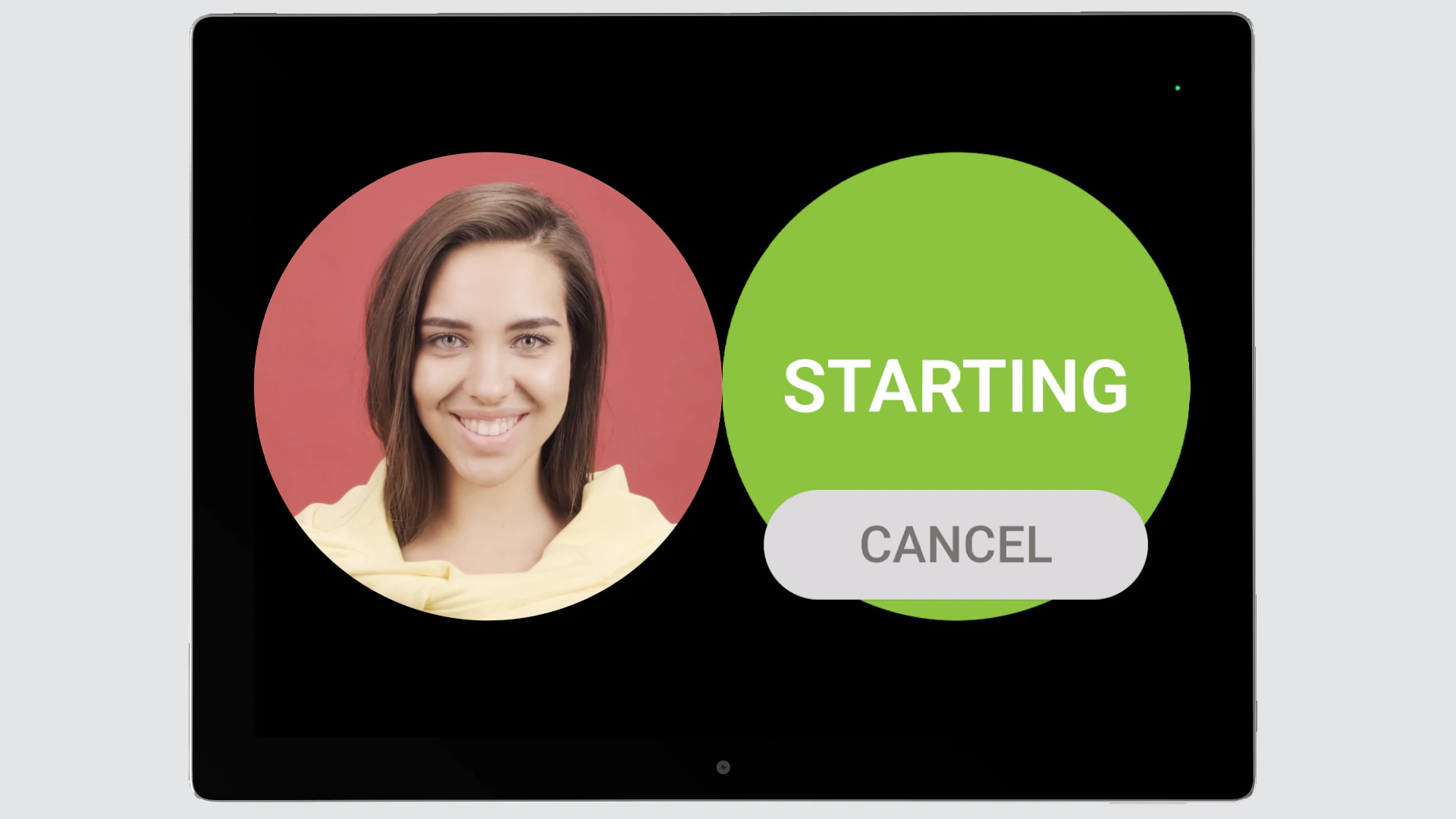
To clock-in or clock-out timesheet times on a TimeSpot device:
- First, tap the circle that matches your name.
- It then automatically counts down from 3-2-1 and takes a photo.
- You'll now be shown a confirmation that you're either starting or stopping your timesheet time, and you can tap Cancel if it's wrong.
- And finally, a few seconds later, it automatically returns to the start screen, ready for the next person.

You may notice:
- That if TimeSpot can't find a complete face in the photo it's taken, the clock-in or clock-out is automatically cancelled with a "No face found" warning.
- Clock-in or clock-out timesheet times are never sent to 1st Money if there isn't a complete face found in the photo.
- The reason for taking a photo during clock-in or clock-out is to verify each person's identity, to reduce timesheet fraud.
For advanced usage:
- There may be times you feel that TimeSpot gets it wrong.
- For example, if it thinks you're stopping, when you're expecting to be starting, or vice versa.
- If that happens, it might be that it failed to properly register a previous clock-in or clock-out.
- If that's the case, it's best to tap Cancel, and go to your org admin.
- Your org admin can then open your timesheet and manually correct any missing clock-ins or clock-outs.
Also remember that:
- All clock-in and clock-out times are always recorded with the precision of 1st Money's server time.
- Because it's always based on the server time, it still correctly records clock-ins, even if your smartphone or tablet's time is incorrect.
- It also means that, there's less chance for confusion or timesheet fraud, no matter which country or timezone you're clocking-in from.
Keep in mind that:
- The clock-in and clock-out photos are visible to people who process your payroll on the "Hours worked" report.
- Payroll admins can look through each timesheet in the pay period, to verify that the expected person's face is showing in each photo.
- The photos are also visible to your managers and supervisors, and also to yourself, when you open your timesheet for that day.
- However, the TimeSpot photos are only stored for six months. After six months, the photos are automatically deleted, but all clock-in and clock-out timesheet times remain saved.
You may also notice:
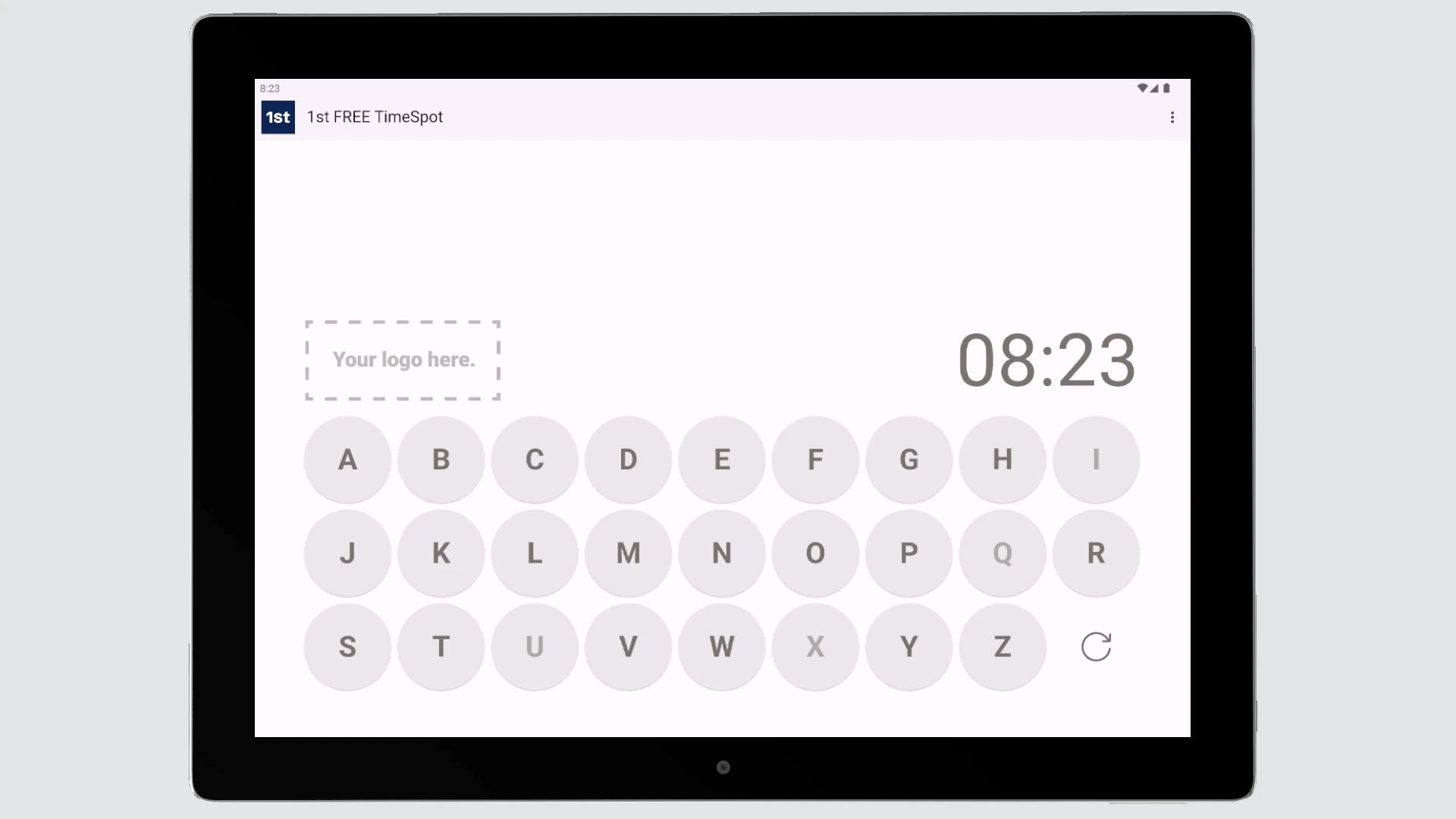
- That if the number of people listed on a TimeSpot device is greater than 30, then it automatically shows a keyboard instead.
- When the keyboard shows, tap the first letter of your name.
- You'll then see a circle for all the people whose name starts with that letter, including yourself.
- In keyboard mode, TimeSpot can handle the clock-ins and clock-outs of thousands of employees.
If a feature's not showing:
- If the location or TimeSpot features aren't showing, it means your org hasn't turned on the timesheets feature yet.
- To turn on the timesheets feature, watch the video on: Turning on timesheets
 Turning on timesheets
And that's it! That's everything you need to know about clocking-in and clocking-out timesheet times on a TimeSpot device!
3. How do I add or remove the people listed on my TimeSpot devicesHow do I add people from different locations to a single TimeSpot
www.1st.money/help/TimeSpot/4._How_do_I_clock-in_and_clock-out_on_TimeSpot