2. How do I set up a new TimeSpot device?

 3:04
3:04
"How do I set up a new TimeSpot device?"
Adding a TimeSpot device to each of your workplace entrances allows your people to clock-in and clock-out timesheet time more reliably.
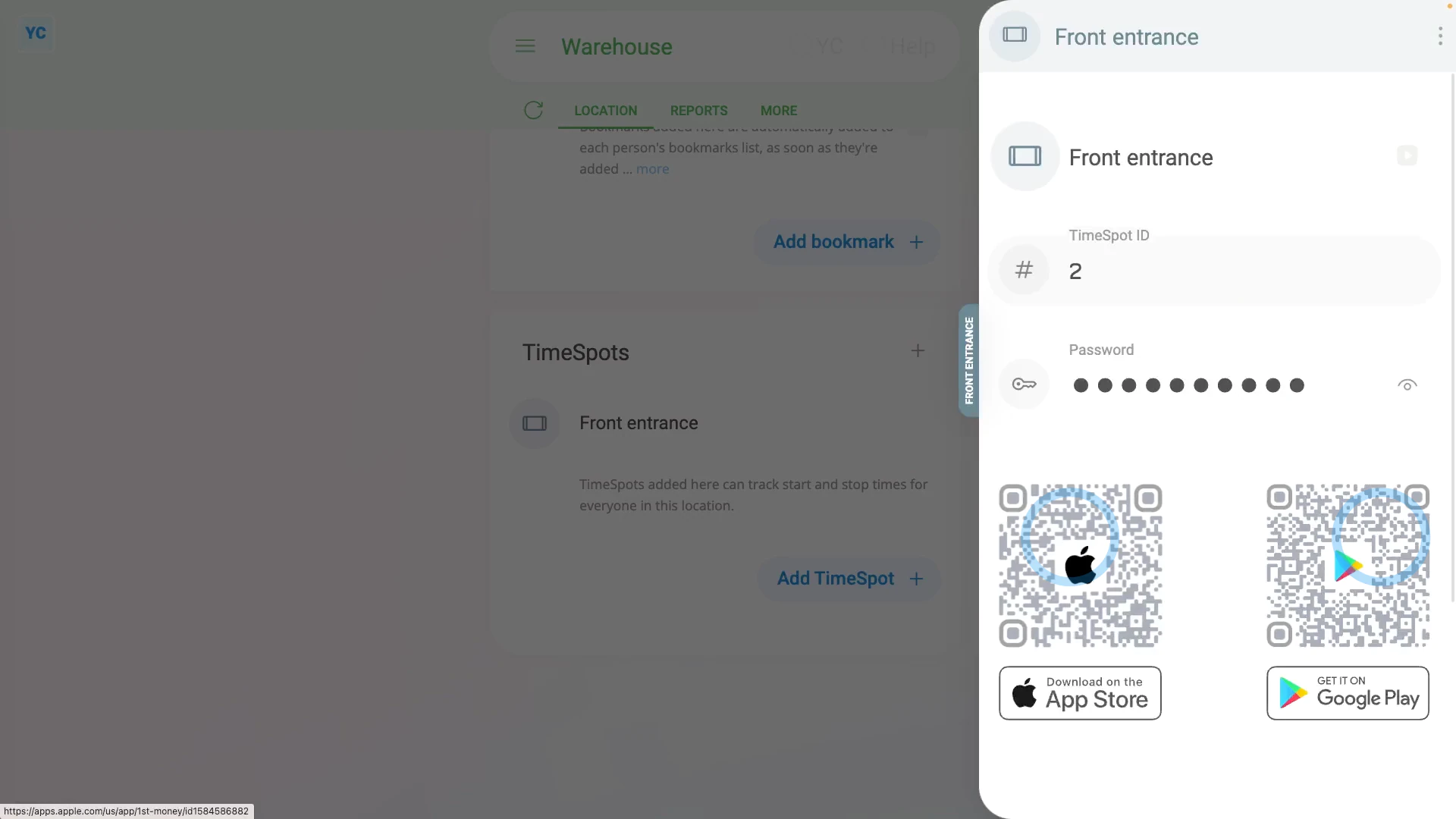
To install a new TimeSpot device:
- First, select the location on: "Menu", then "Locations"
- Then tap: "More", then "TimeSpots"
- And then tap: "New TimeSpot"
- Once it slides out on the right, you'll see a new TimeSpot ready to be set up.
- Type in the new TimeSpot's name.
- Then to see the TimeSpot's existing password, tap the "Show password" button:
- You're welcome to change the password to something easier, as long as it's at least 8 characters long.
- Then tap: Save
- Now when you scroll down the location page to the "TimeSpots" heading, you'll see your new TimeSpot listed.
- To download the TimeSpot app to your iOS or Android smartphone or tablet, open the TimeSpot, and scan one of the barcodes.
- Alternatively, tap one of the barcodes, and then send the page link to your smartphone or tablet.
- And finally, once you've got the app store page open on your smartphone or tablet, tap: Install
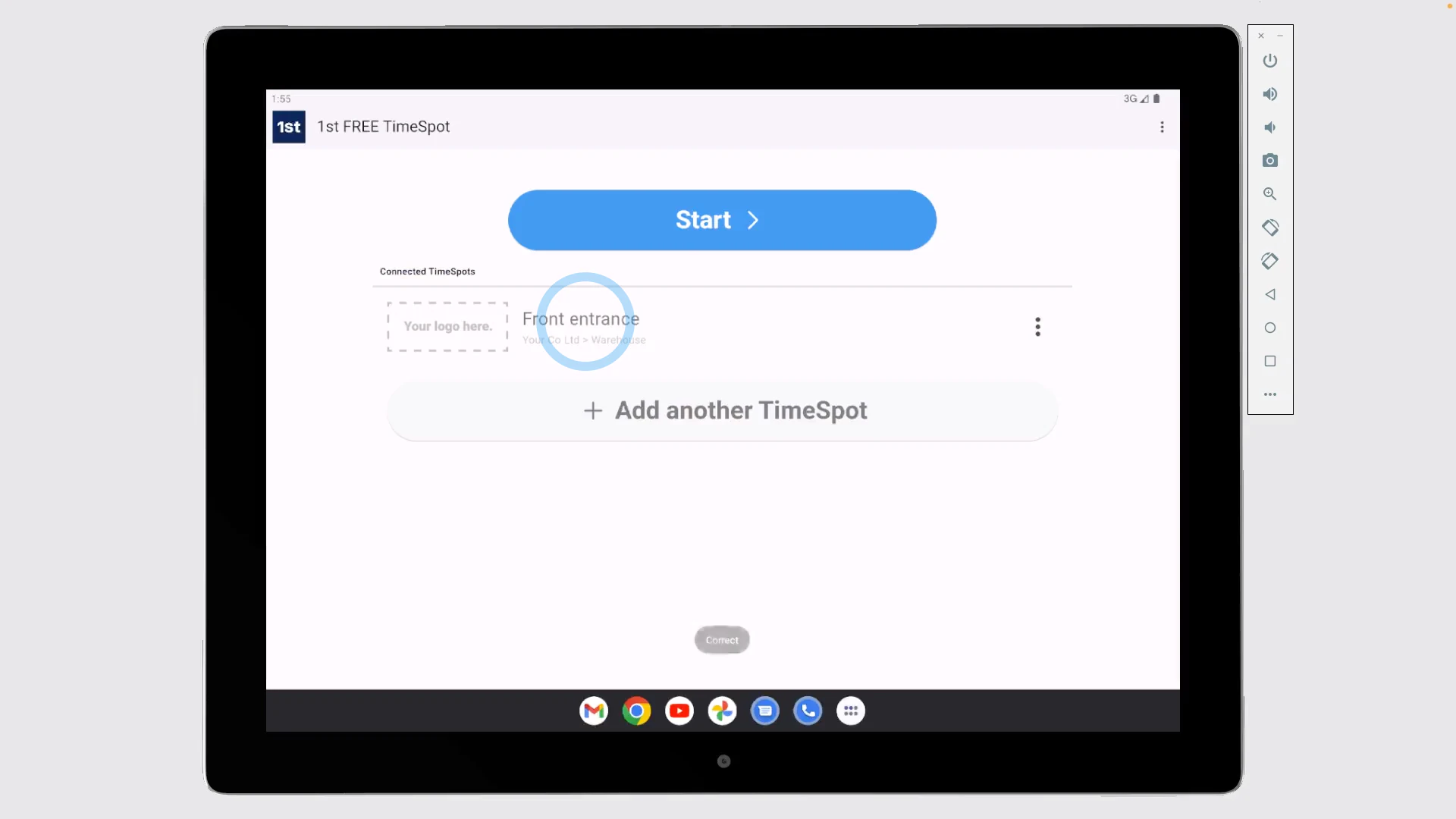
To connect a TimeSpot device with its ID and password:
- First, open the TimeSpot app on your iOS or Android smartphone or tablet.
- Then tap: Setup
- Type in the "TimeSpot ID" and "Password", and tap: Save
- You'll now see your newly connected TimeSpot included in the list.
- Next, to have it ready for your people to try, tap: Start
- And finally, you'll be ready for your people to make use of the TimeSpot to clock-in and clock-out timesheet time.

Keep in mind that:
- You can connect as many TimeSpot locations as you like to a single TimeSpot device.
- Each with their own ID and password, and each with their own associated list of people.
- You can even connect TimeSpot locations from different orgs.
If a feature's not showing:
- If the location or TimeSpot features aren't showing, it means your org hasn't turned on the timesheets feature yet.
- To turn on the timesheets feature, watch the video on: Turning on timesheets
 Turning on timesheets
To learn more:
- About adding or removing people to a new TimeSpot, watch the video on: Adding people to a TimeSpot
And that's it! That's everything you need to know about setting up a new TimeSpot device!
1. How and where do I physically position my TimeSpot devices3. How do I add or remove the people listed on my TimeSpot devices
www.1st.money/uk/help/TimeSpot/2._How_do_I_set_up_a_new_TimeSpot_device