How do I allow microphone access?
To allow us to access your microphone:
1. Chrome microphone
- First, tap the padlock.
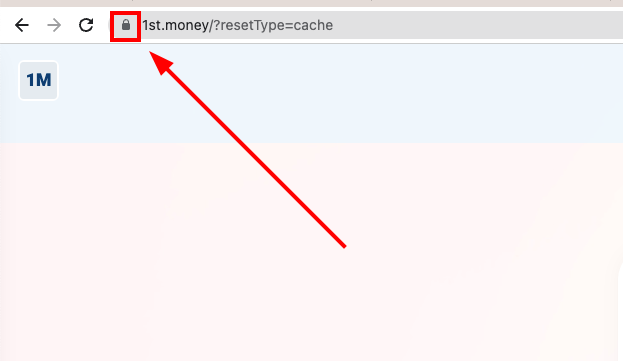
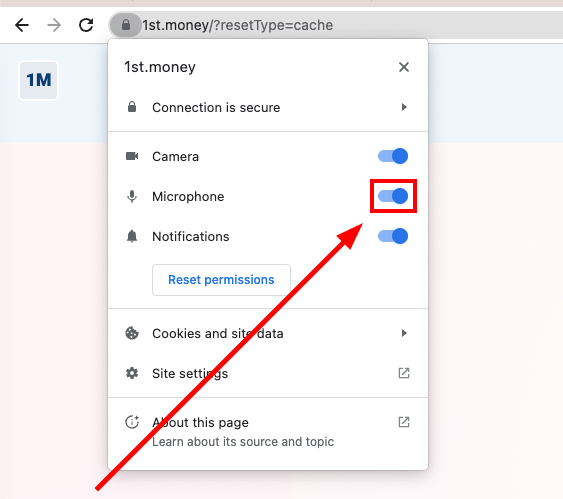
- Then turn on: "Microphone"
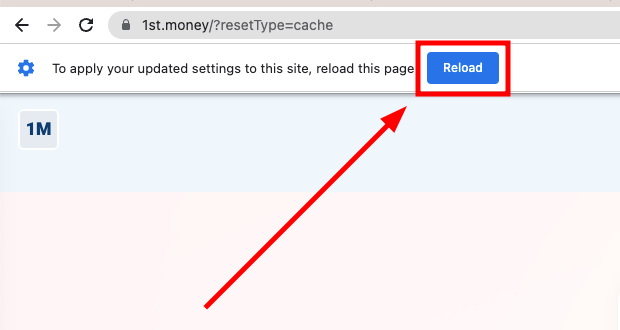
- And finally, tap: Reload
2. Microsoft Edge microphone
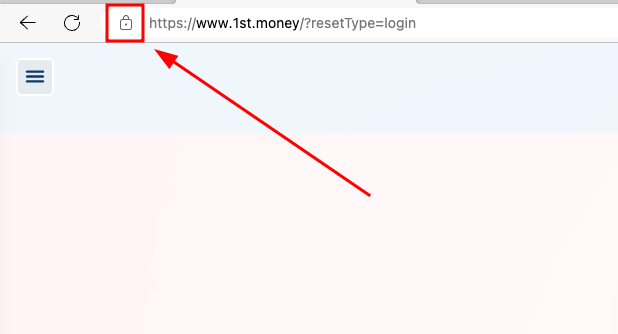
- First, tap the padlock.
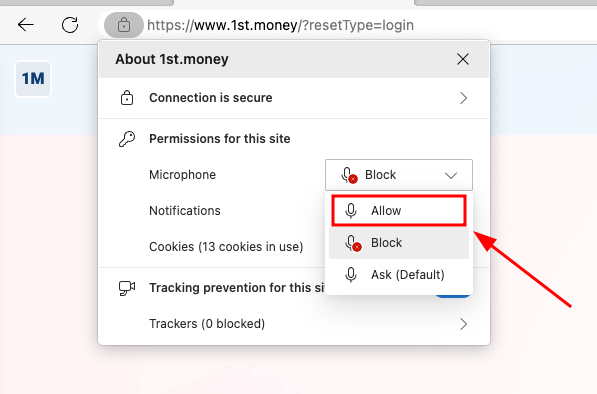
- Then for: "Microphone", tap: Block > Allow
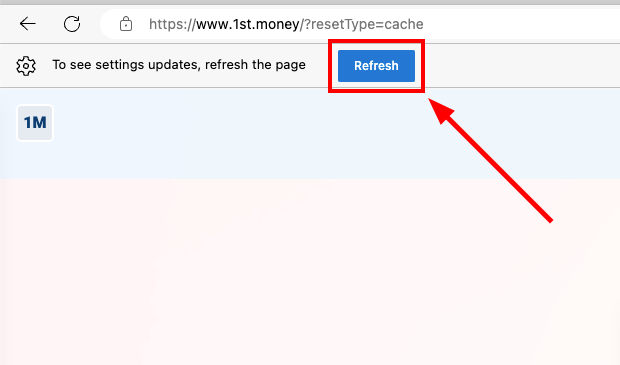
- And finally, tap: Refresh
3. Safari microphone
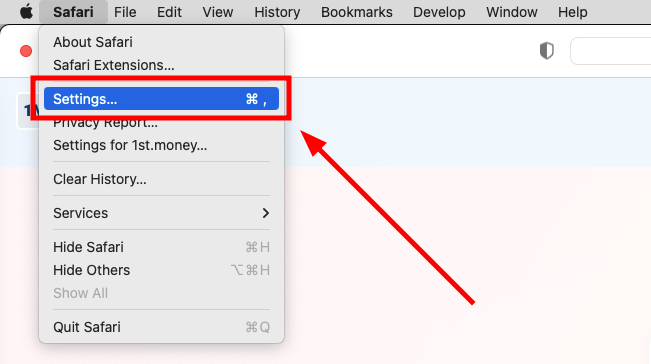
- First, tap: Safari > Settings
- Then go to: Websites > Microphone
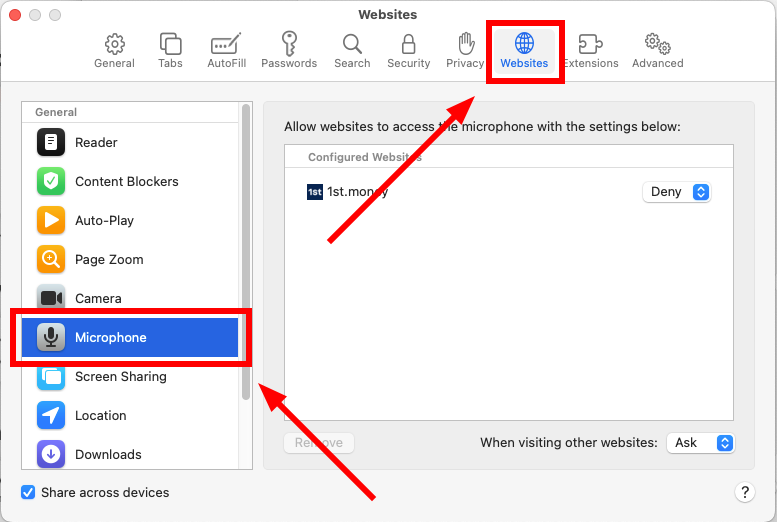
- On "1st.money", tap: Deny > Allow
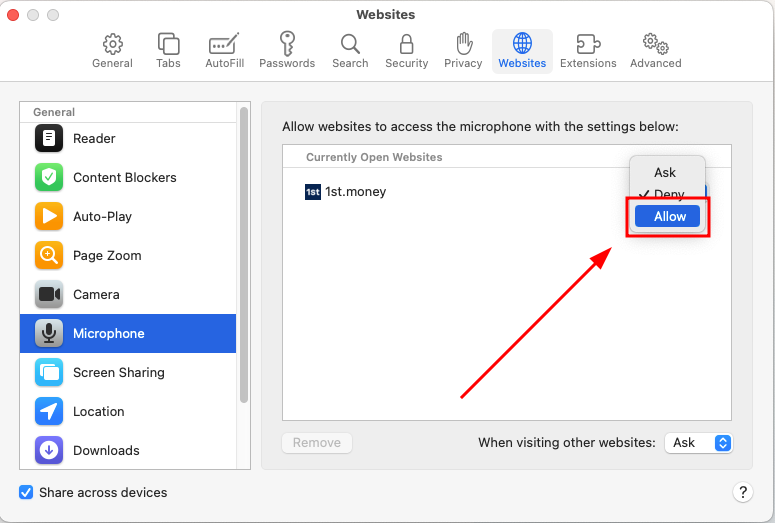
- And finally, reload: "1st.money"
4. iPhone microphone
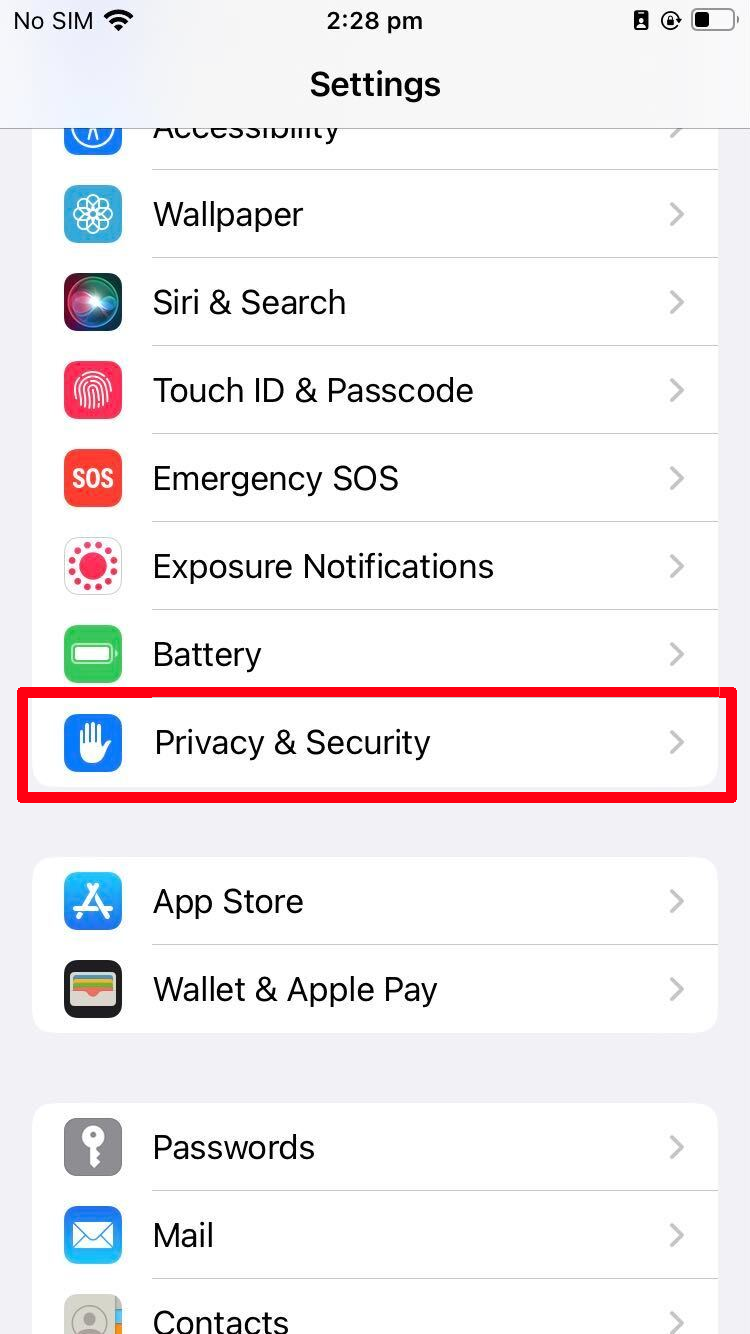
- First, open: "Settings"
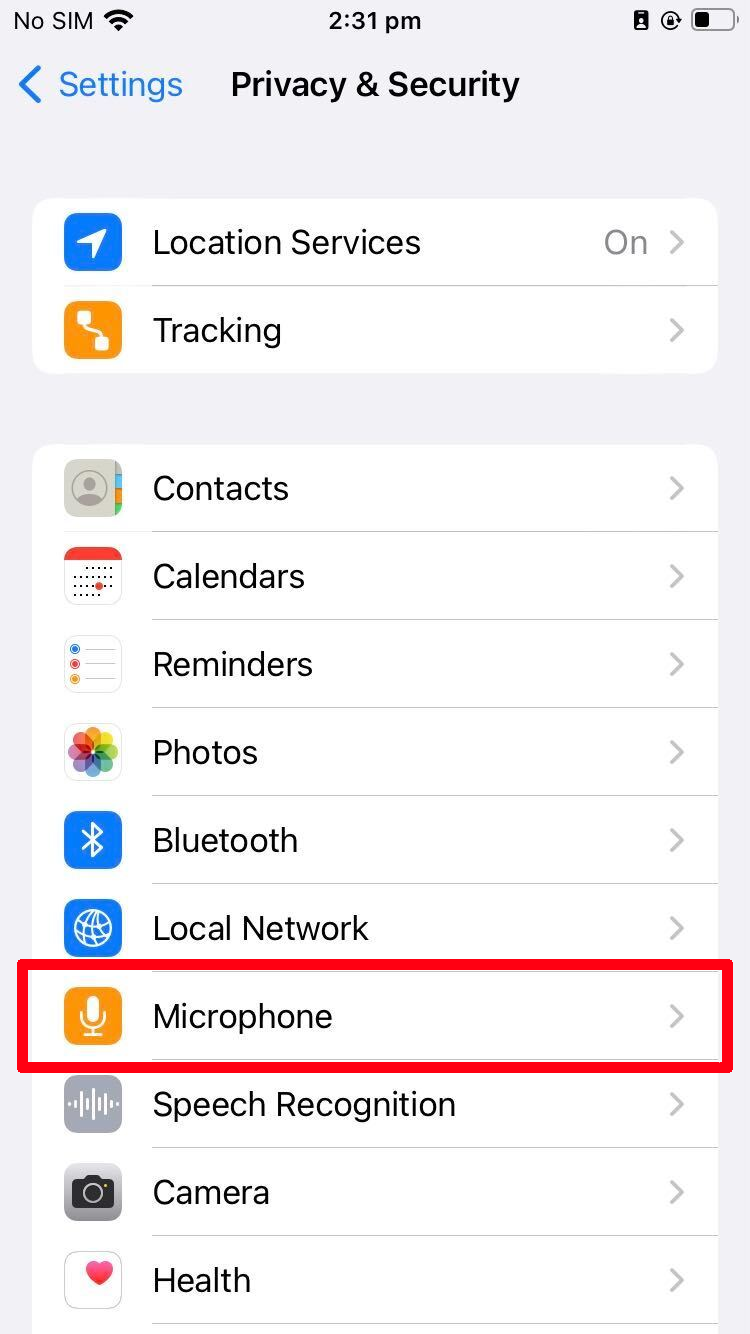
- Scroll down and tap: Privacy & Security
- Then go to: Speech Recognition
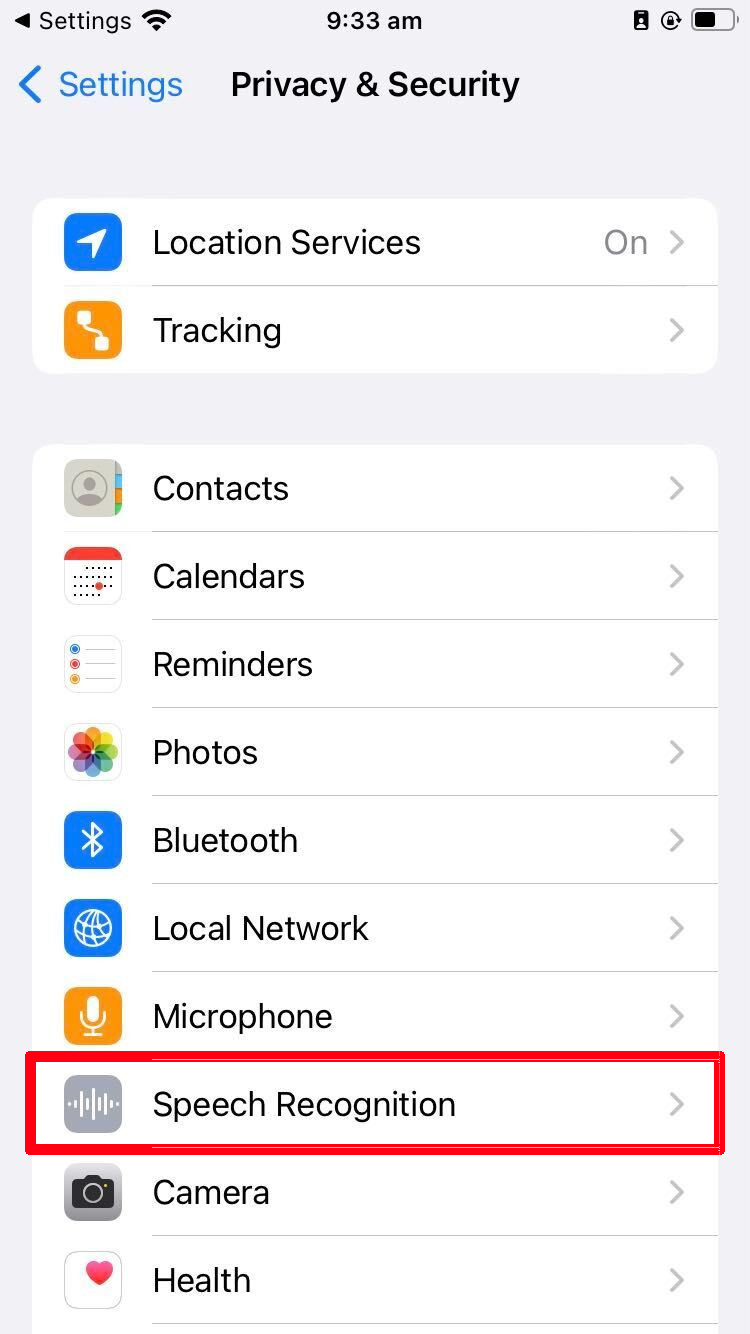
- Turn on: "1st Money"
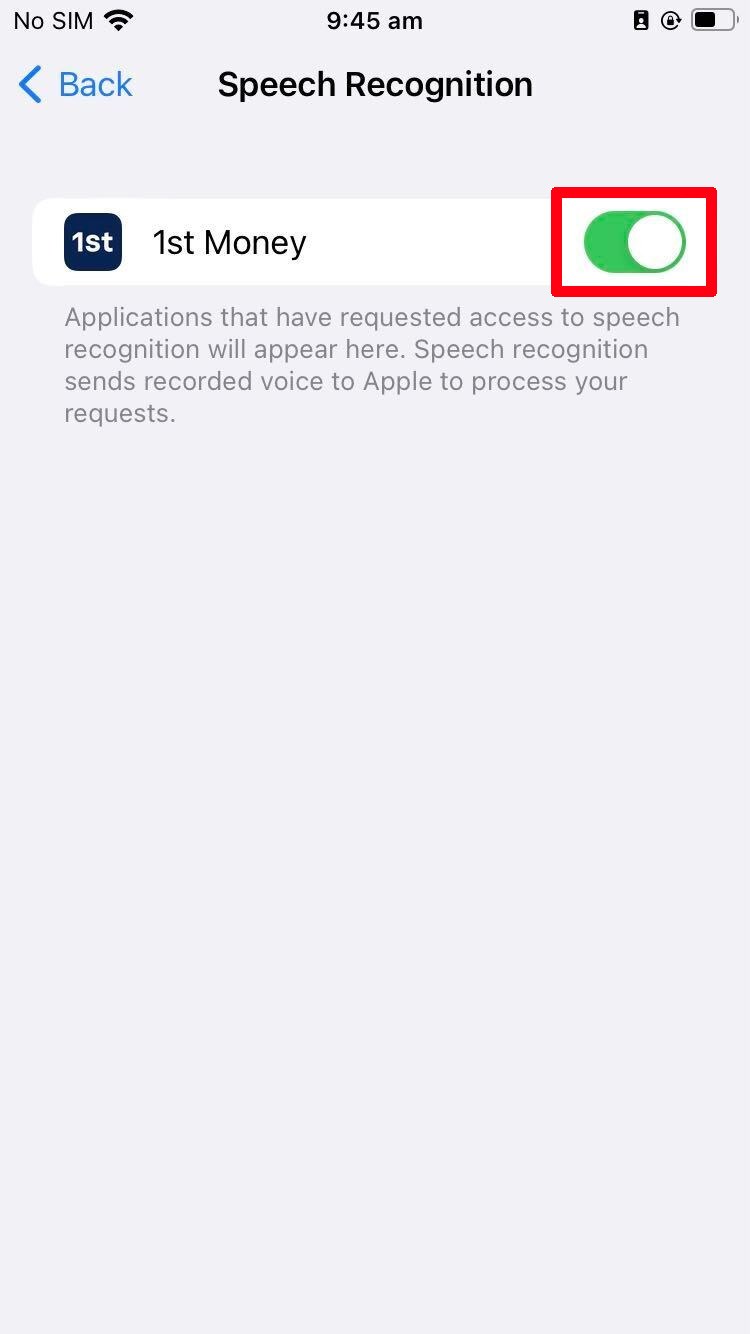
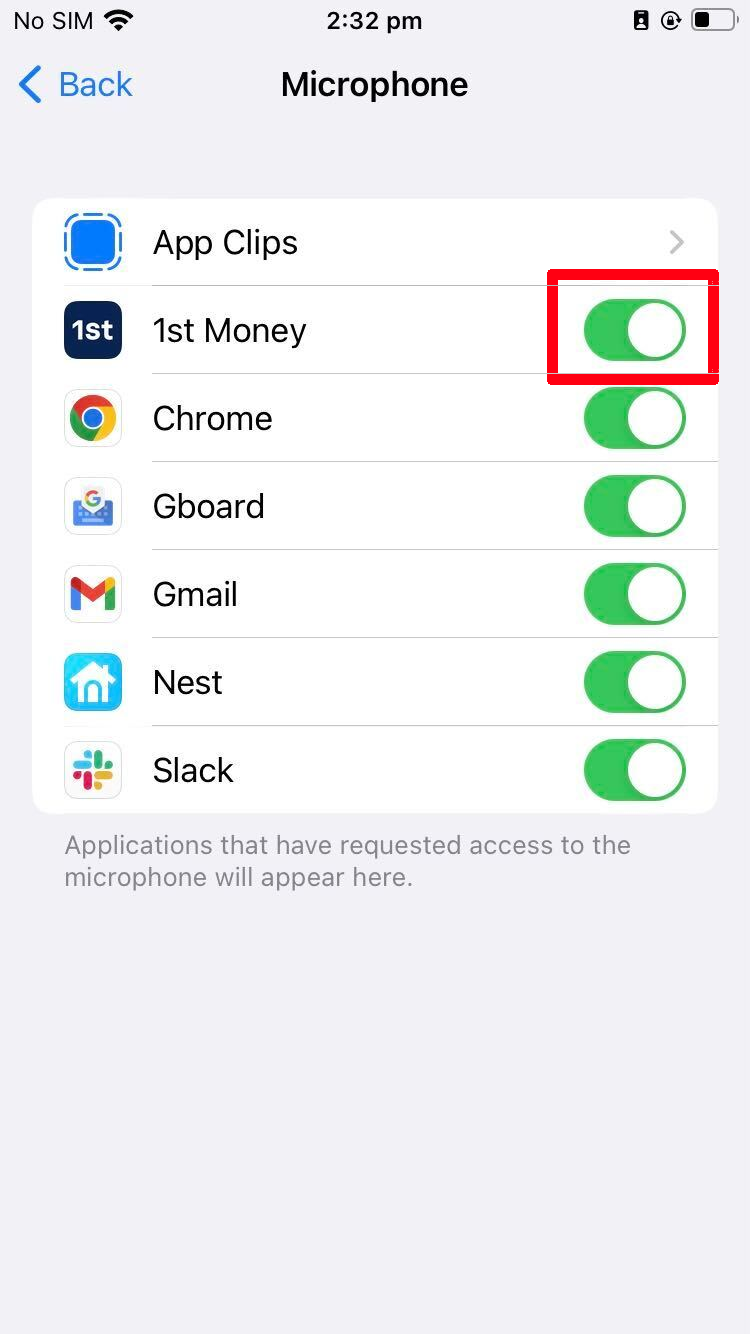
- Then go back to: Privacy & Security > Mirophone
- And finally, turn on: "1st Money"
5. Android microphone
- First, open: "Settings"
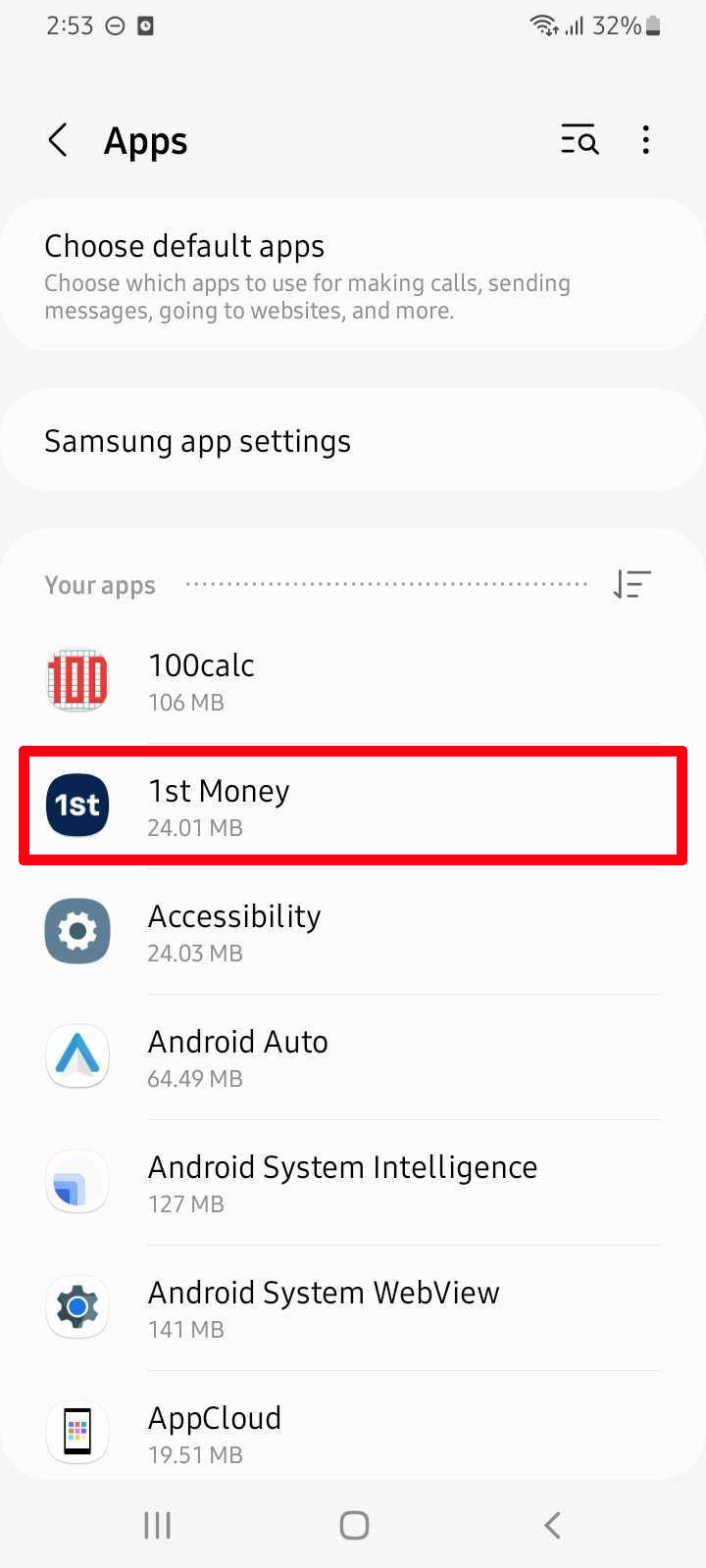
- Scroll down and tap: Apps
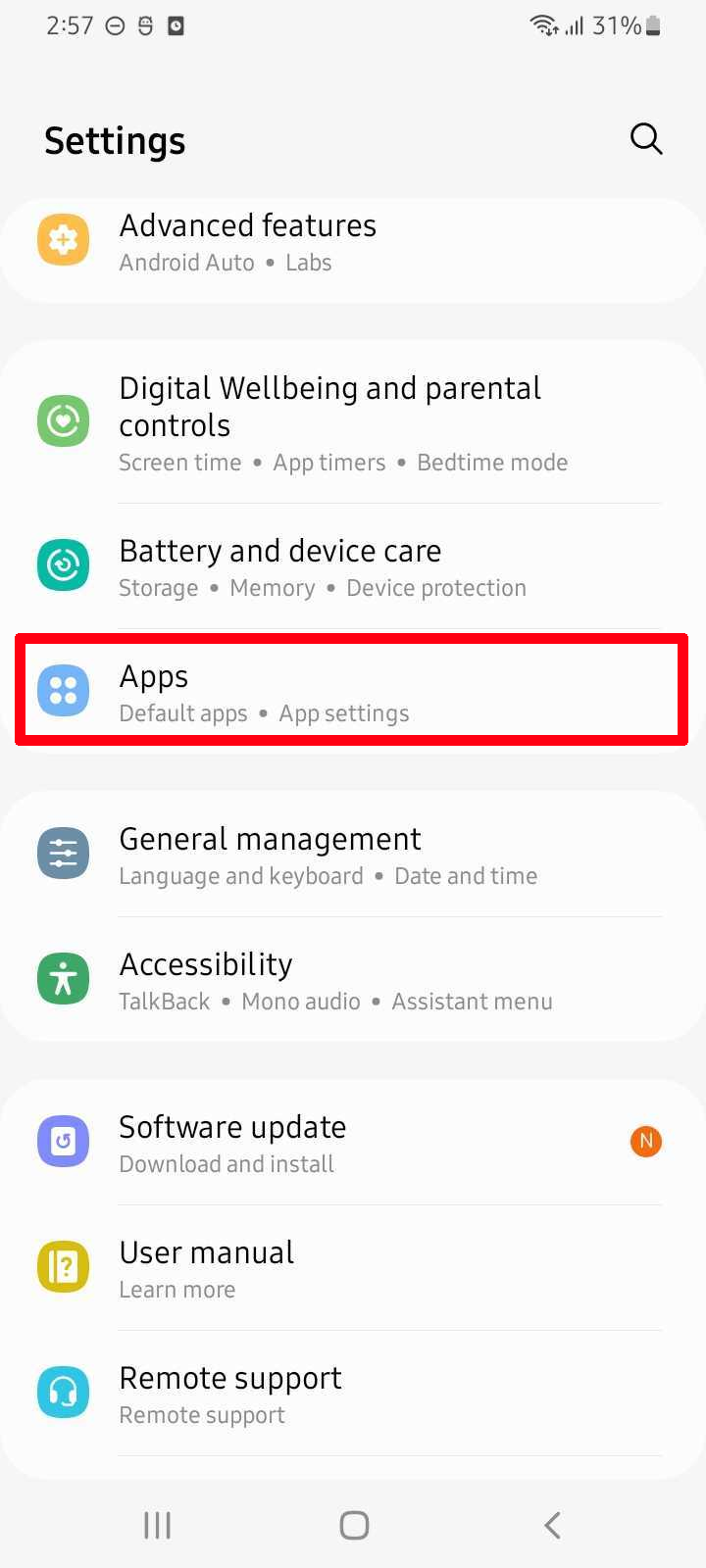
- Then tap: 1st Money
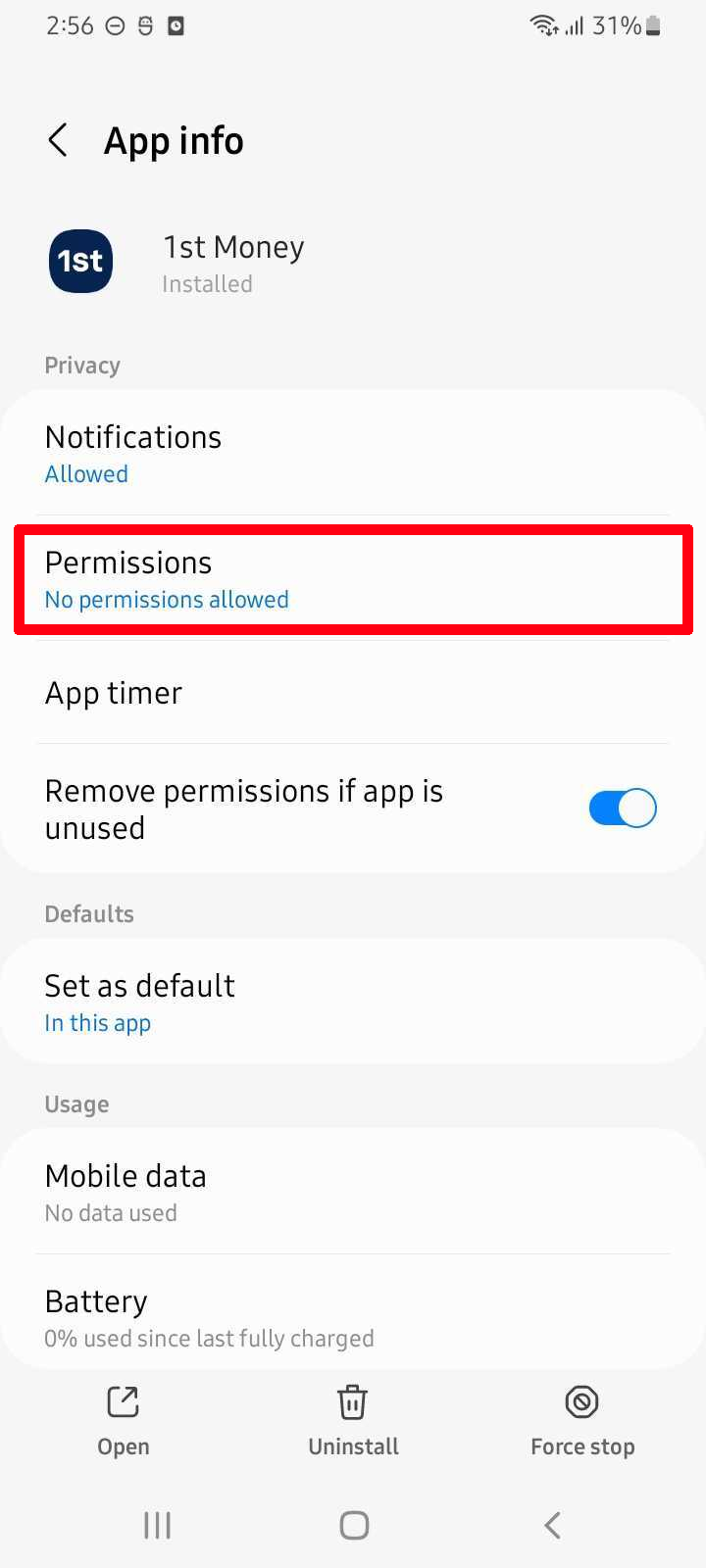
- Then tap: Permissions
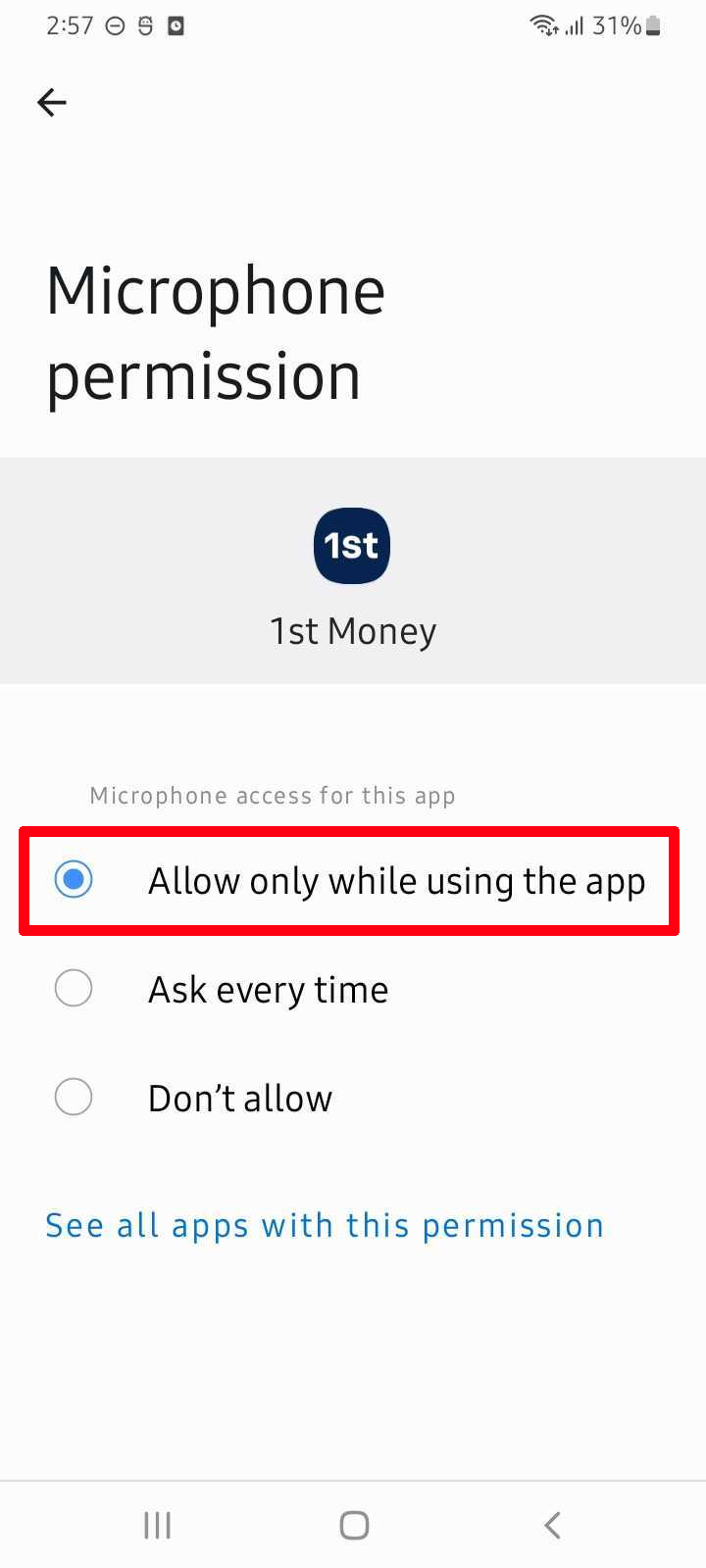
- And finally, tap: Microphone > Allow only while using the app
www.1st.money/uk/help/7._Other/How_do_I_allow_microphone_access