2. How do I create a project?
 2:17
2:17
"How do I create a project?"
Before people can clock-in timesheet time for individual projects, first the project needs to be created.
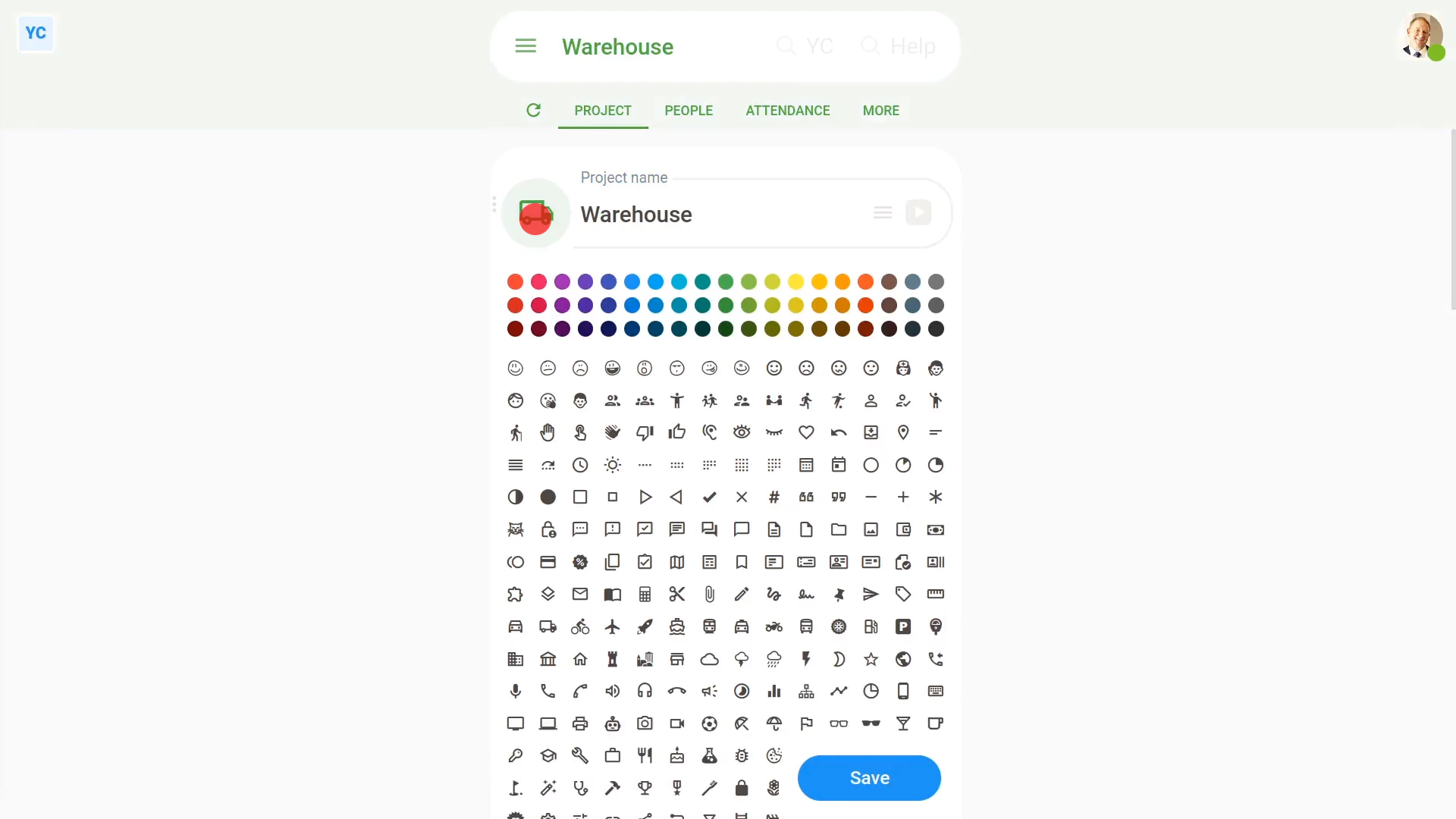
To create a new project:
- First, tap: "Menu", "Projects", then "New project"
- Once it's open, type in the name of your new project.
- Optionally, you can also tap the circle and set the list colour and image.
- And finally, tap: Save
Sometimes you may also want to add notes to your project, like instructions on how to do tasks, etc.
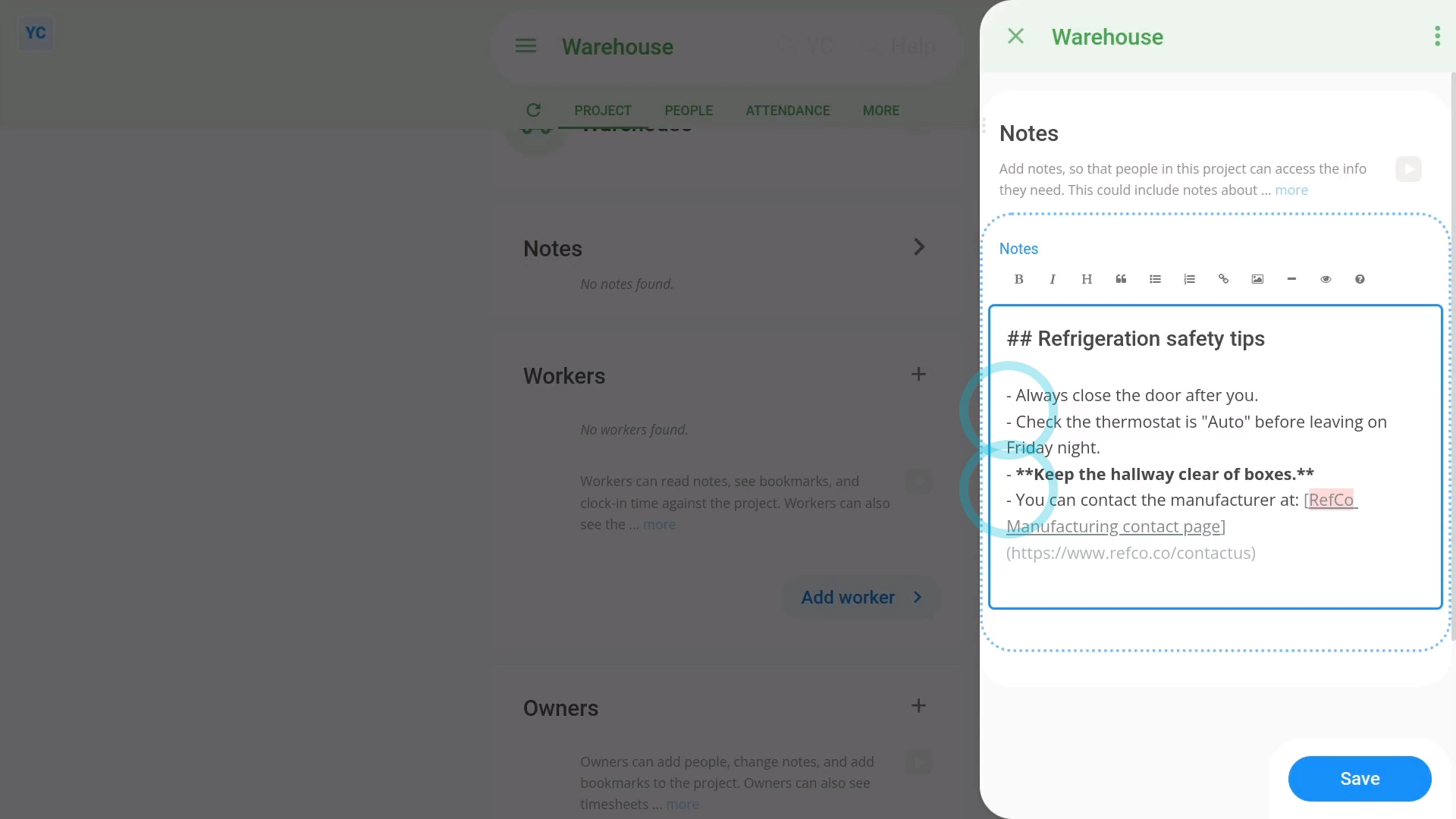
To add notes to a project:
- First, scroll down to the "Notes" heading, and tap the "Edit" button:
- Once it slides out on the right, type out the notes you'd like to share with the project's people.
- You can format your notes using Markdown, including: bold text, and bullet lists.
- To learn more about formatting with Markdown, tap the question mark button:
- Once you've finished typing your notes, tap: Save
- And finally, once it's saved, you'll now see your notes shown on the main page for your new project.

Keep in mind that:
- Anyone who's been added to a project can see all the notes of that project.
- However, only people who've got "Full org admin" permissions can create, make changes, or add people to a project.
- You can type in as many notes as you want, and you can keep coming back anytime, to add more notes.
- Even pages of notes is fine.
If a feature's not showing:
- If "Projects" isn't showing in the menu, it means your org hasn't turned on the timesheets feature yet.
- To turn on the timesheets feature, watch the video on: Turning on timesheets
 Turning on timesheets
To learn more:
- About how to add workers to a project, so the workers can clock-in timesheet time, watch the video on: Workers in projects
And that's it! That's everything you need to know about creating a project!
www.1st.money/uk/help/Projects/2._How_do_I_create_a_project