5. How do I copy paste a payday into my accounting package?
 2:07
"How do I copy/paste a payday into my accounting package?"
Your payday debits and credits are ready for entering into your accounting package as soon as your paystubs are all paid for the day.
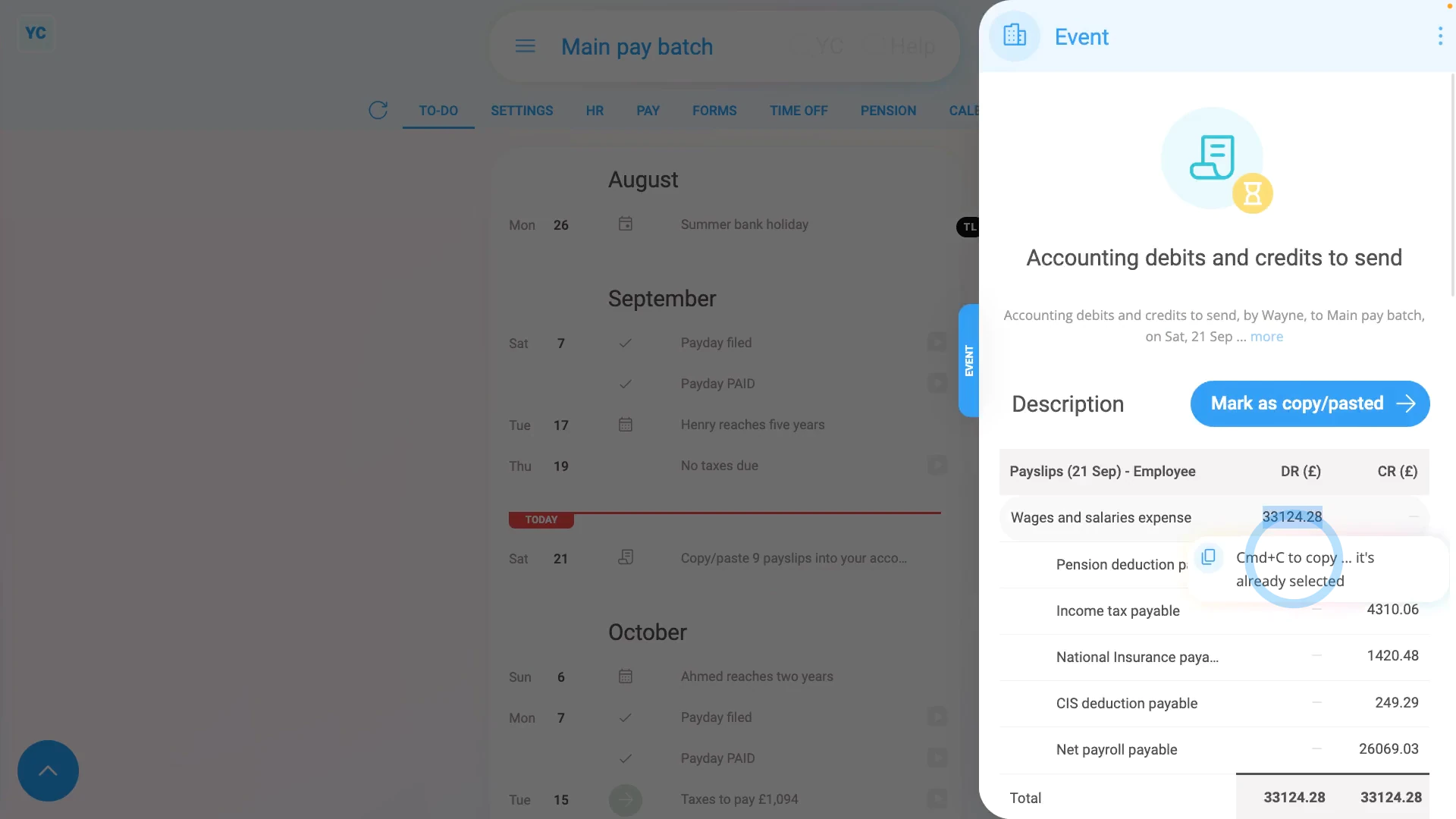
To copy/paste a payroll group's payday debits and credits into your accounting package:
- First, select the payroll group on: "Menu", then "Payroll groups"
- Then tap: "To-do"
- As long as you've filed some paystubs sometime today, the links show, and you can tap the gray "Copy/paste paystubs" reminder link.
- Next, hover your mouse over the first debit or credit in the set.
- Then press control-C to copy, then paste it into your accounting package as a debit or credit.
- Continue copy/pasting each number in the set until all the debits or credits are copy/pasted.
- Once the entire set is done, tap: Mark as copy/pasted
- And finally, when you tap back off to the "To-do" tab, you'll see that it's now marked as completed with a check.

Keep in mind that:
- If, later in the same day, you pay some additional paystubs, the gray "Copy/paste paystubs" reminder link automatically reappears.
- And you'll see a new set of debits and credits.
- The new set of debits and credits includes the money amounts of the additional paystubs you paid, and not the paystubs earlier in the day.
You may notice:
- Copy/pasting transactions into accounting each payday can be tedious and prone to errors.
- If your accounting package is one that's supported by 1st Money, then get it connected and you'll never have to copy/paste again.
To learn more:
- About connecting an accounting package such as QuickBooks, watch the video on: Connect to QuickBooks
 Connect to QuickBooks
And that's it! That's everything you need to know about copy/pasting your payday debits and credits!
4. How do I change the default chart of accountsHow do I resend my accounting to a different accounting package
www.1st.money/help/Accounting/5._How_do_I_copy_paste_a_payday_into_my_accounting_package