4. How do I process payroll?

 4:40
4:40
"How do I process payroll?"
Your payroll group's "To-do" list is there to remind you of when it's time to process payroll.
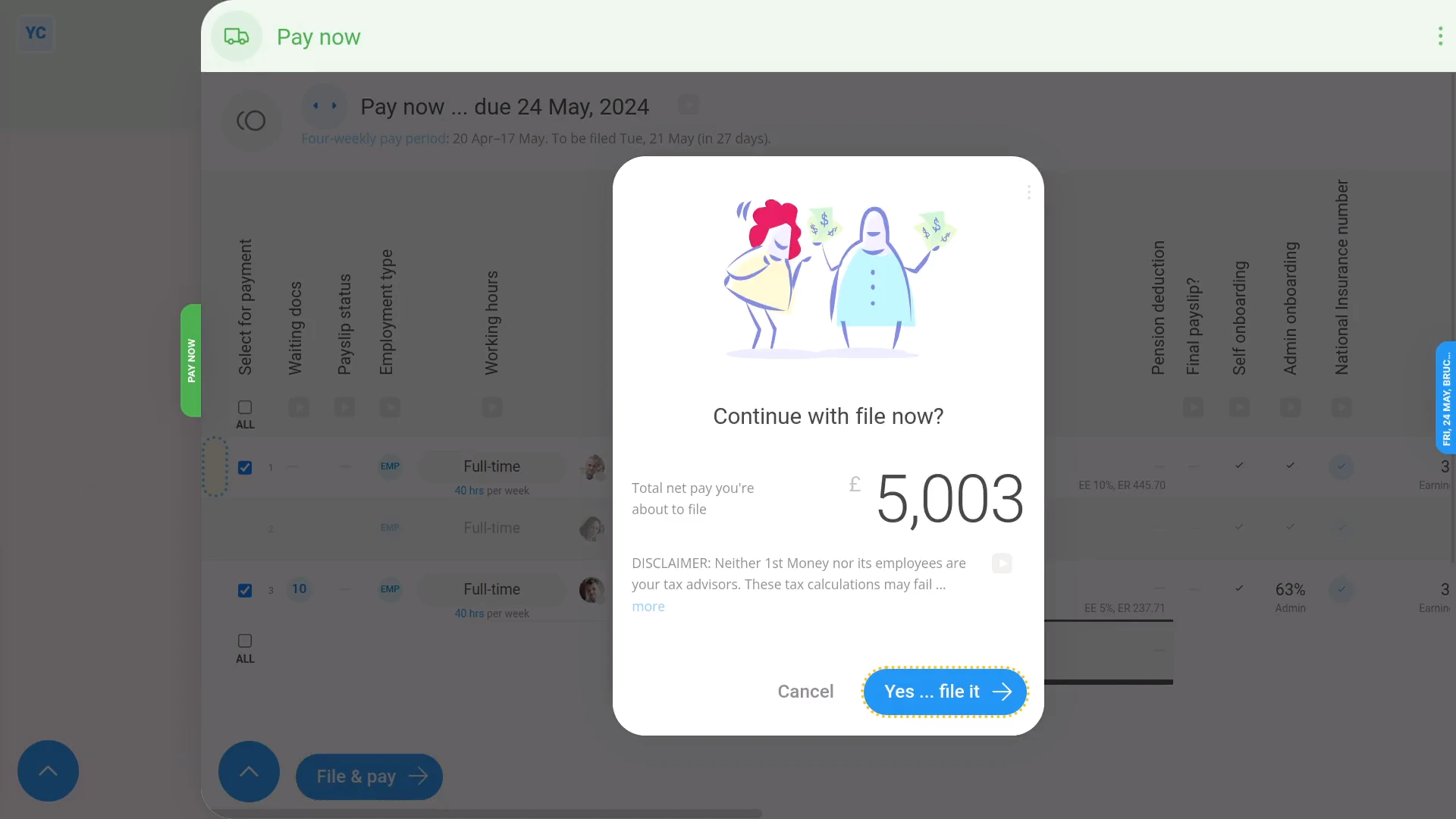
To process payroll, and file & confirm payslips:
- First, select the payroll group on: "Menu", then "Payroll groups"
- Then on the "To-do" tab, tap the upcoming: "Payday"
- Once the "Payday" is open, you'll see details about each payslip, like net pay, taxes, and more.
- To see even more details about any payslip, tap the "See payslip" button: (at the start of any row)
- Sometimes you may have a reason to skip a person for now, and pay them later. To skip paying a payslip for now, turn off the row.
- Then when you're ready, tap: Process payroll
- You'll now see the total amount of net pay you're about to pay your people.
- And finally, tap: Yes ... process it
Immediately after filing payslips, 1st Money sends details of the filed payslips to confirm with HMRC.
Once HMRC's confirmed the payslips you filed, you can make your Payroll Payments.
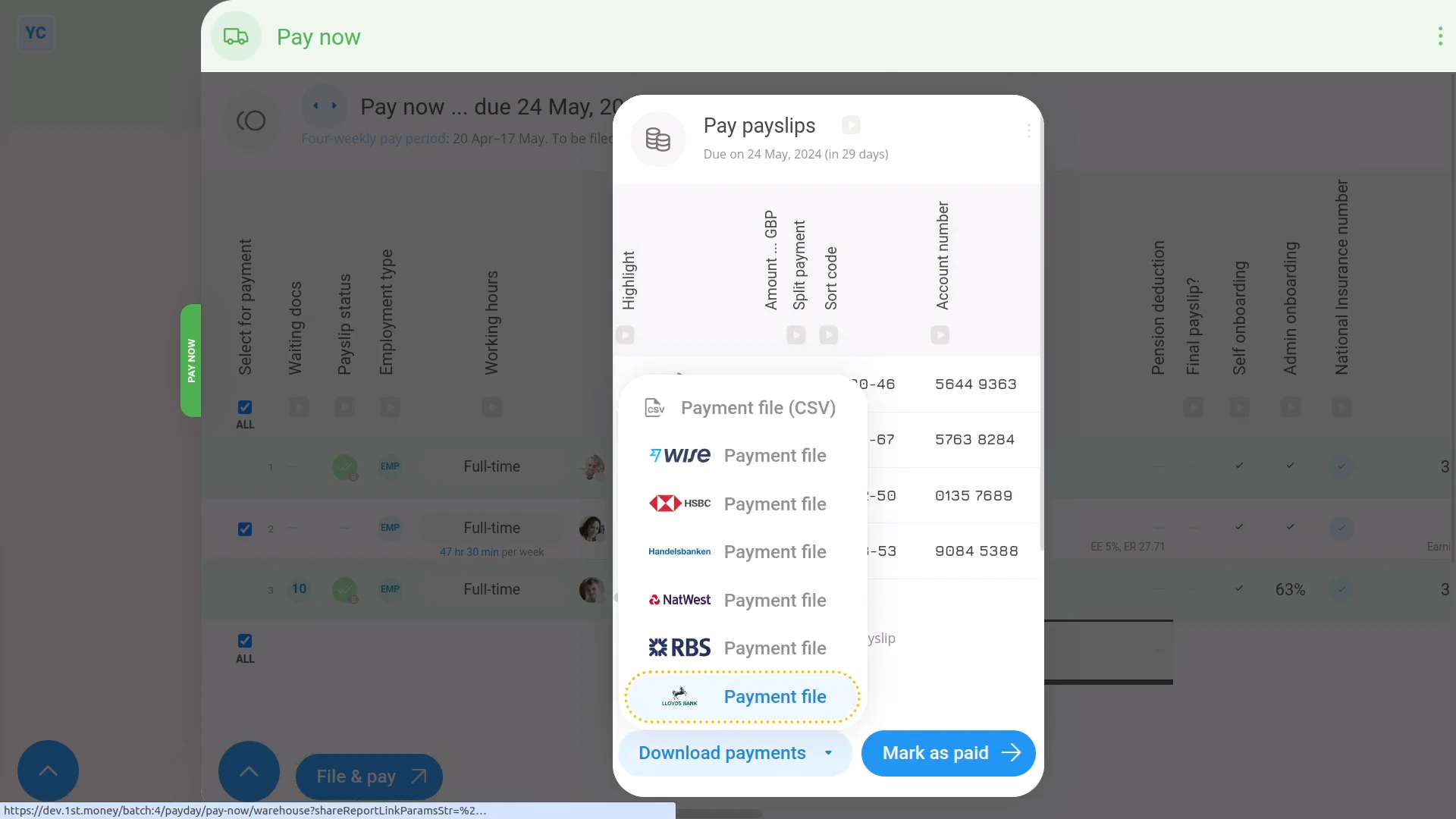
To make your Payroll Payments in bulk:
- First, tap: Download payments
- Then tap the bank you use, and a payment file's downloaded.
- The payment file has all the payments to be paid for the payday.
- Next, upload the payment file CSV to your banking software.
- And finally, you'd tap Continue to finish paying the payday.
To make Payroll Payments one at a time:
- First, you won't need to tap: Download payments, since you're not making payments in bulk.
- Instead, open your banking software, and make the payment to each person, one-by-one.
- To see the amount you need to pay for each person, tap: Close
- And copying the amount from the "GBP" column.
- There's also columns for the "Name", "Sort code" and "Account number" of each person you're paying.
- And finally, once you've finished making all the payments, tap: Mark as paid
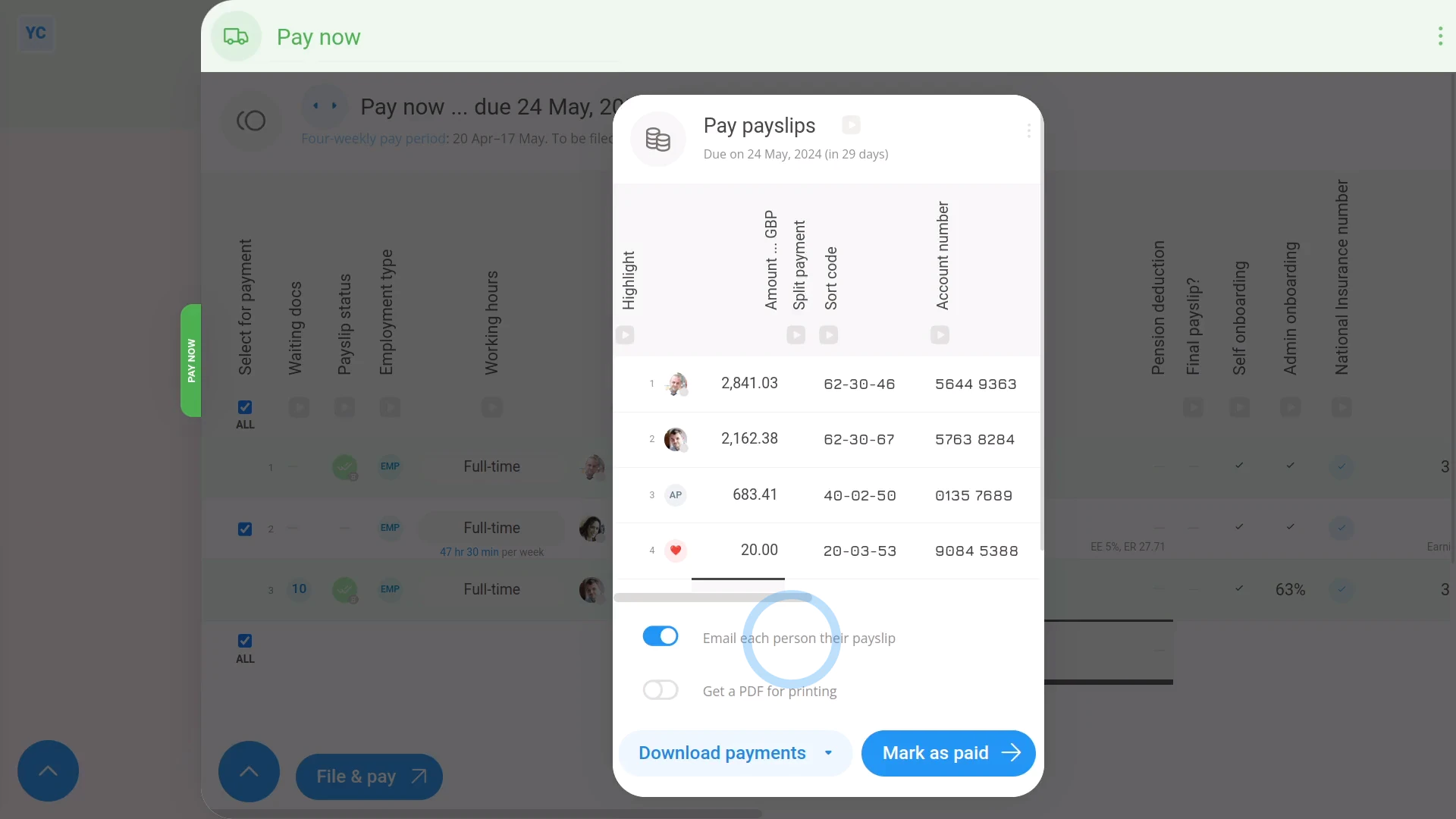
To finish and send emails:
- First, by default, each person gets emailed a PDF of their payslip.
- You can also get an email with a PDF of everybody's payslips, in case you'd like to print them. However, it's off by default.
- But you can always turn any of the payday emails on or off if you'd like.
- And finally, tap: Mark as paid
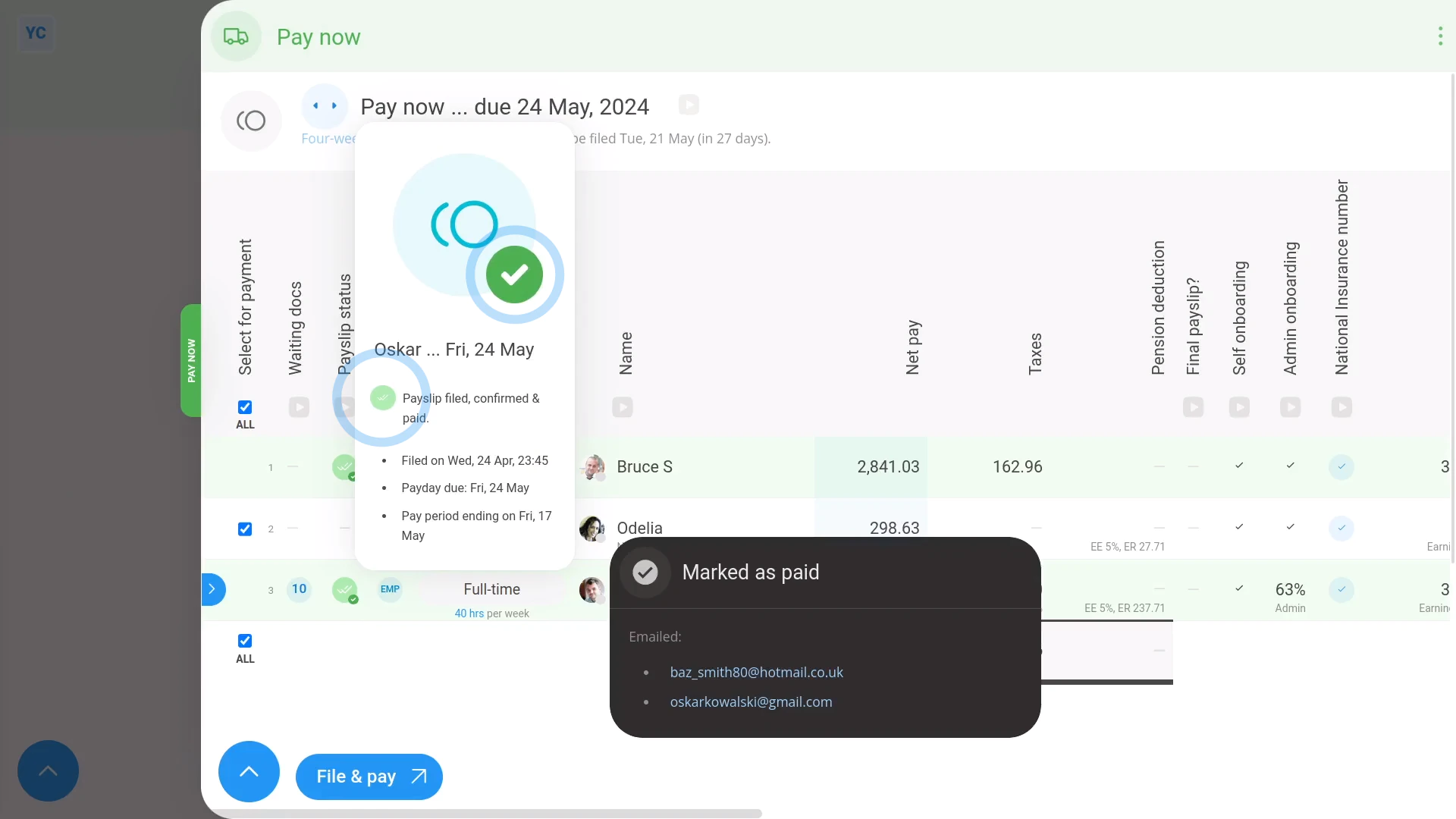
To confirm that a payslip has been filed with HMRC:
- First, find the "Payslip status" column with the two green ticks.
- Then hover your mouse over each green tick:
- If you see an hourglass status , it means HMRC is still receiving your payslip submission.
- Once HMRC accepts the payslips, the hourglass status changes to a green tick:
- To see even more "Tax Filing" details, tap the tick status:
- And finally, you'll see who made the submission, how many payslips were submitted, and much more.

For advanced usage:
- To see the actual submission that was sent to HMRC, scroll down further, and tap Show details, or: Show XML
- HMRC calls the "Tax Filing" of filed payslips a "Full Payment Submission", or FPS.
Keep in mind that:
- If you ever want to refresh the status, tap the three dots: (in the top-right corner)
- Then tap: Reload
Also remember that:
- 1st Money doesn't make any bank transactions to your people.
- You've got to make the payments by hand or in bulk using the Download payments feature and uploading the downloaded file to your bank.
- Either way, once you've completed the bank payments, tap Mark as paid in 1st Money to mark the payday as paid.
 Paying a payroll tax payment
And that's it! That's everything you need to know about what happens when you process payroll!
3. How do I see a list of the upcoming tasks for my payroll group5. How do I see payslips that've already been filed
www.1st.money/uk/help/Payroll_groups/4._How_do_I_process_payroll