Locations
 2:41
2:41How do I create a location?
Instructions for creating and managing a location to group people by workplace.
1. How do I create a location?

 2:41
2:41
"How do I create a location?"
A location groups people together based on where the people physically work. Once people are grouped into a location, you can share notes with each of those people.
To create a new location:
- First, tap: "Menu", "Locations", then "New location"
- Once it's open, type in the name of your new location.
- Optionally, you can also tap the circle and set the list colour and image.
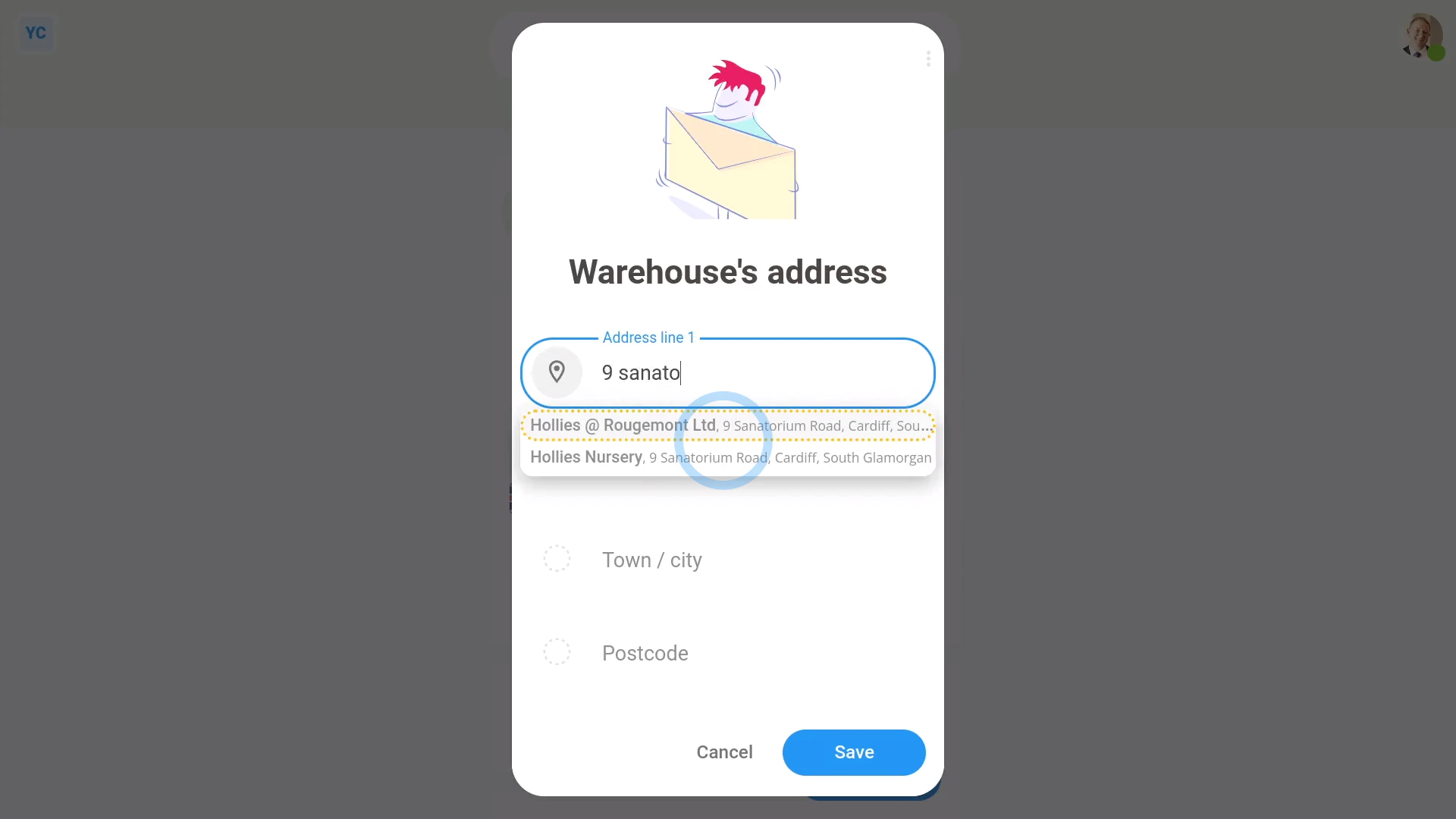
- Next, tap: Set address
- And type your location's address. As soon as you start typing, it automatically suggests similar addresses.
- Once you've tapped on your address, it fills everything else in for you, but you can still type in your own changes.
- Once you're ready, tap: Save
- Once it's saved, you'll see the full address with a matching map preview.
- And finally, optionally, you can also add notes to your location. For example, notes on Wi-Fi or fire exits.
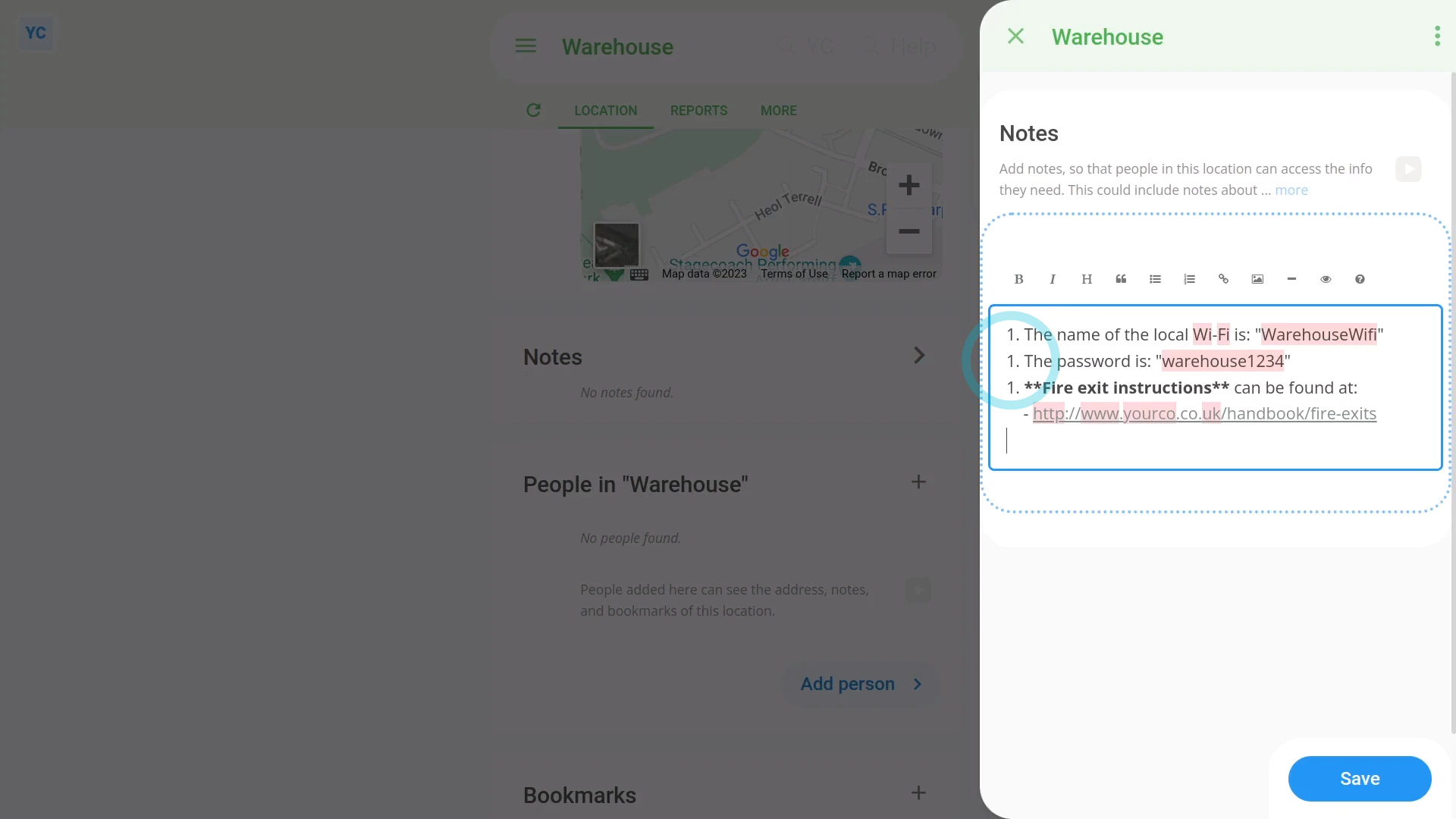
To add notes to a location:
- First, select the location on: "Menu", then "Locations"
- Then scroll down to the "Notes" heading, and tap the "Edit" button:
- Once it slides out on the right, type out the notes you'd like to share with the location's people.
- You can format your notes using Markdown, including: bold text, and bullet lists.
- To learn more about formatting with Markdown, tap the question mark button:
- You can type in as many notes as you want. Even pages of notes is fine. Once you've finished typing your notes, tap: Save
- And finally, once it's saved, you'll now see your notes shown on the main page for your new location.

Keep in mind that:
- Anyone who's added to a location can see all the notes of that location.
- Only people who've got "Full org admin" permissions can create, make changes, or add people to a location.
If a feature's not showing:
- If "Locations" isn't showing in the menu, it means your org hasn't turned on the timesheets feature yet.
- To turn on the timesheets feature, watch the video on: Turning on timesheets
 Turning on timesheets
To learn more:
- About how to add people to a location, watch the video on: Adding people to a location
And that's it! That's everything you need to know about creating a location!
2. How do I add people to a location or set a person's location?
 2:22
2:22
"How do I add people to a location or set a person's location?"
There's three ways to add people to a location.
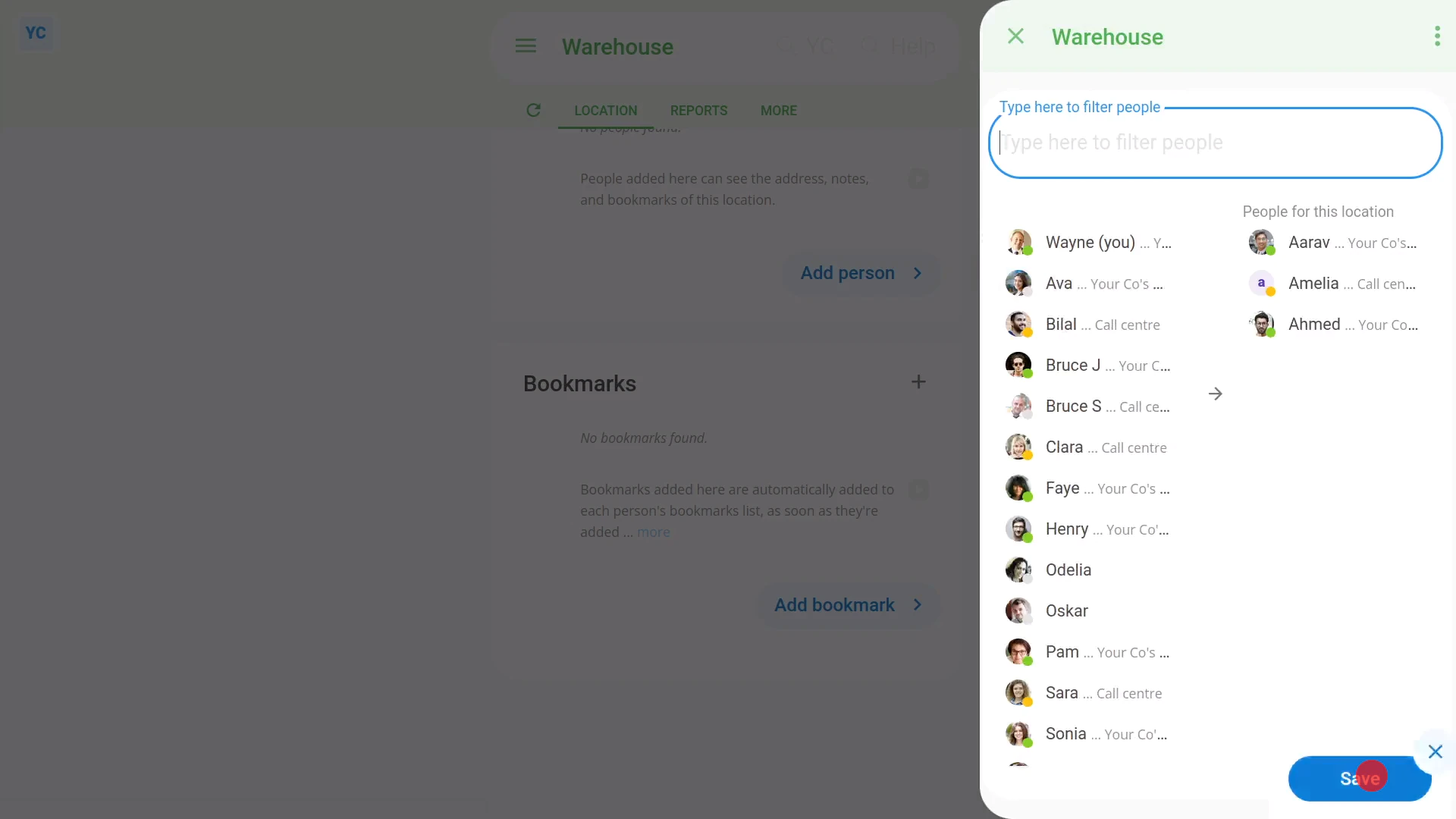
To add lots of people to a location, all in one go:
- First, select the location on: "Menu", then "Locations"
- Once it's open, scroll down and tap: Add people
- Once it slides out on the right, tap each person you want to add.
- Then tap: Save
- And finally, now you'll see the people you selected are all added to the location.
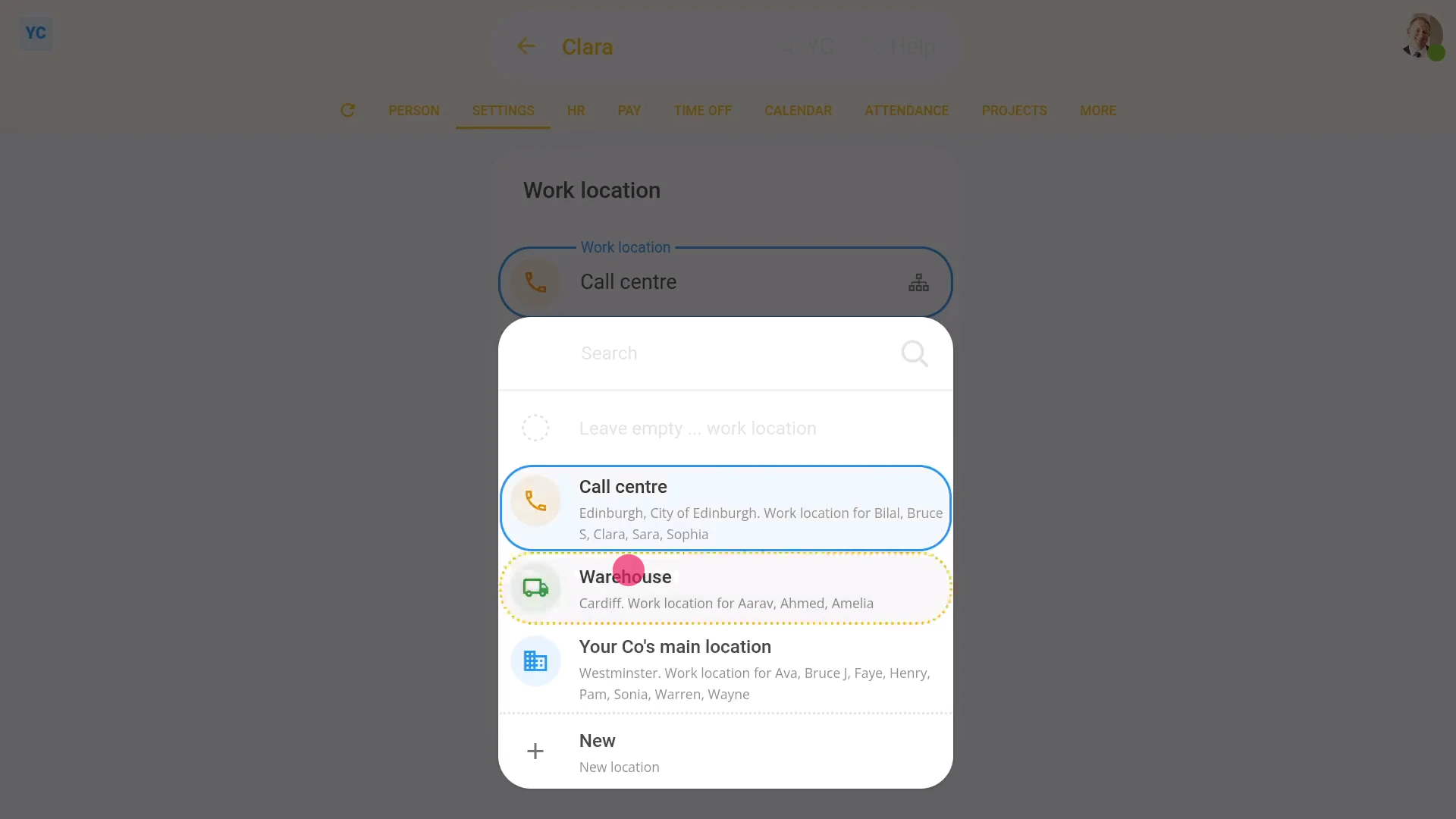
To set only one person's location:
- First, select the person on: "Menu", then "People"
- Then tap: "Settings", then "Location"
- Next, select the location you'd like to set for the person.
- Then tap: Save
- And finally, the location for the person is now set.
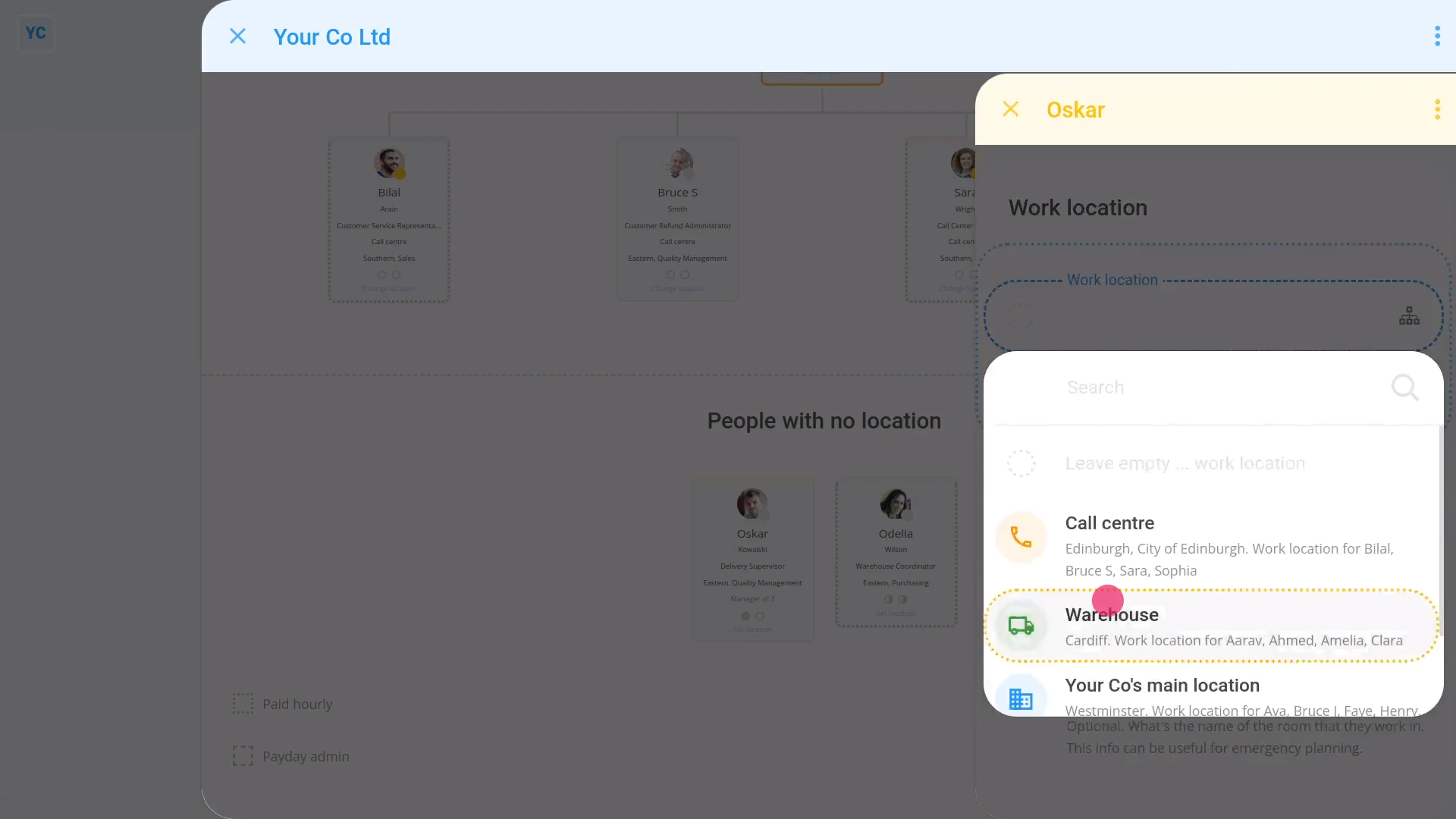
To set a person's location from an org chart:
- First, go to your org on: "Menu", then "Orgs"
- Then tap: "Org charts", then "Location"
- Once it slides out on the right, you'll see a visual map of everybody grouped by their location.
- On each person, you'll see a "Change location" link. Tap the link to change location for an existing person.
- Alternatively, when you scroll to the bottom, you may see the heading: "People with no location"
- If you tap the "Set location" link on one of the people, you can select a location for them.
- Now, once it's saved, you'll see that the person's been moved out of the "People with no location" list.
- And finally, the person's been moved under the location you selected.
Keep in mind that:
- Only people who've got "Full org admin" permissions can add or move people between locations.
If a feature's not showing:
- If "Locations" isn't showing in the menu, it means your org hasn't turned on the timesheets feature yet.
- To turn on the timesheets feature, watch the video on: Turning on timesheets
And that's it! That's everything you need to know about adding a person to a location!
How do I delete or un-delete a location?
 2:22
2:22
"How do I delete or un-delete a location?"
If you no longer need a location, you're welcome to delete it whenever you like.
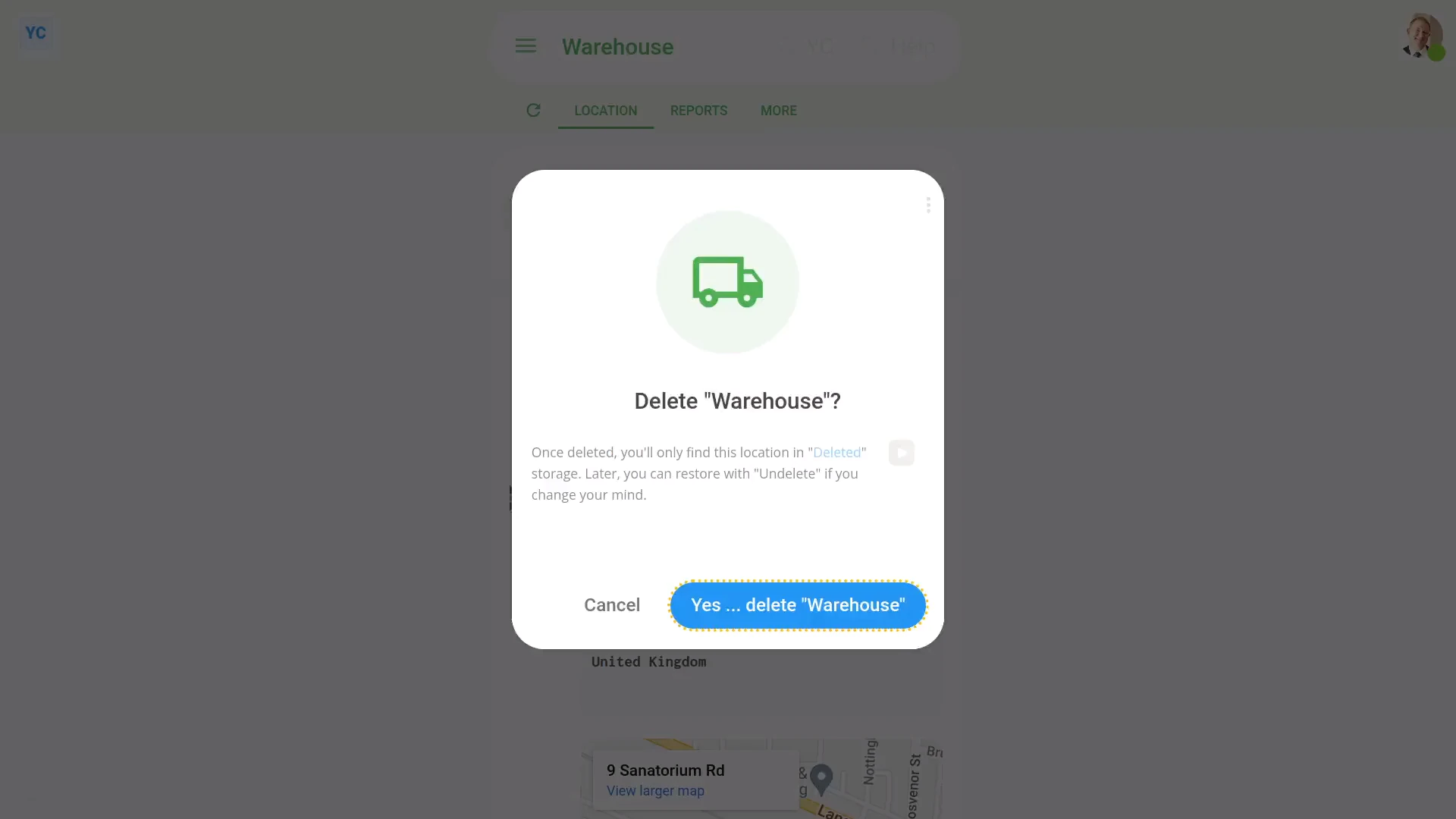
To delete a location:
- First, select the location on: "Menu", then "Locations"
- Then once the location's open, tap More, then: Delete
- And then tap: Yes ... delete
- Before deleting, if there's still people in the location, you'll be asked to move people out.
- To move everyone over to another location, tap: See "Move all"
- Then select the location to move everyone over to.
- And then tap: Yes ... move all
- Now, the people have all been moved, and the location's now deleted.
- The location's also locked, so it can't be changed anymore.
- And finally, if you change your mind and want the location back again, tap Un-delete, and it's immediately un-deleted.
If it's been a while since you deleted a location, and you want to un-delete it, you'll first need to find it in the: "deleted bin"
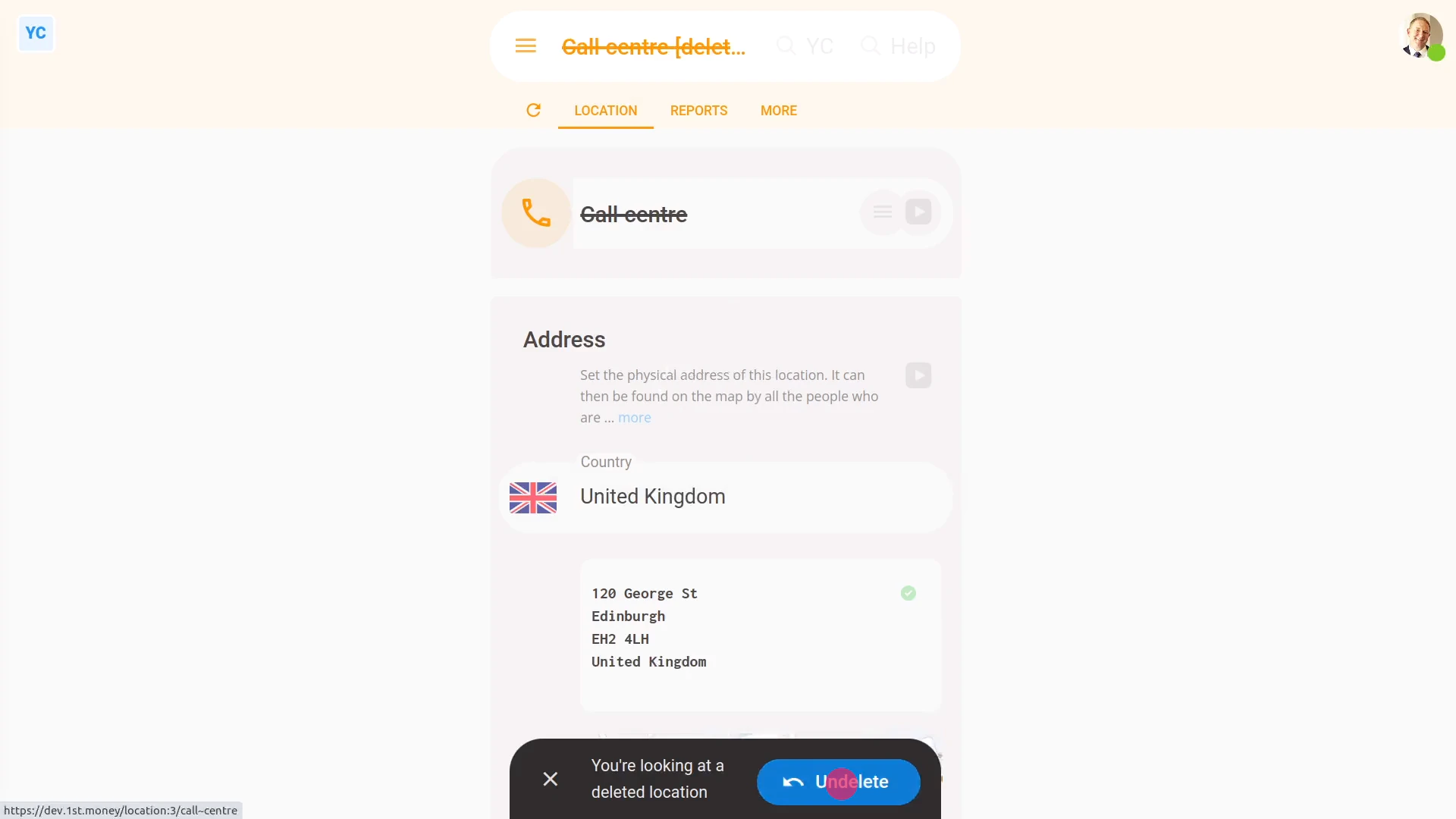
To un-delete a location from your "deleted bin":
- First, tap: "Menu", then "Deleted bin"
- Next, you'll see a category for most of the kinds of items that can be deleted. Tap: Locations
- And then tap the location you'd like to un-delete.
- Next, tap: Un-delete (at the bottom)
- And finally, the previously deleted location is immediately un-deleted.
Keep in mind that:
- Whenever you un-delete a location, you'll still have to add the people back in again after it's un-deleted.
- Also keep in mind that only people who've got "Full org admin" permissions can delete or un-delete locations.
- And remember that all deletes and un-deletes are always permanently recorded in: "History"
- That means any admin can always look back in time, and see who did any delete, and when the delete was done.
If a feature's not showing:
- If "Locations" isn't showing in the menu, it means your org hasn't turned on the timesheets feature yet.
- To turn on the timesheets feature, watch the video on: Turning on timesheets
And that's it! That's everything you need to know about deleting or un-deleting a location!
www.1st.money/uk/help/General/Locations/