EPS Employer Payment Summary
 2:56
2:56How do I open the EPS monthly?
How to open and manage your payroll group's EPS monthly for HMRC reporting.
 1:49
1:49How do I tell HMRC I'm going payroll dormant for a few months?
How to notify HMRC of dormant payroll periods using EPS monthly submission.
 2:37
2:37How do I tell HMRC I'm claiming Employment Allowance?
How to notify HMRC of your Employment Allowance claim via EPS monthly payroll submissions.
 1:49
1:49How do I tell HMRC I've got recoverable amounts?
How to report recoverable statutory pay amounts to HMRC to reduce National Insurance payments.
 3:20
3:20How do I tell HMRC that I'm turning on the Apprenticeship Levy?
How to activate and report Apprenticeship Levy to HMRC when your wage bill exceeds £3 million.
 1:52
1:52How do I tell HMRC about changes to my company's bank account?
How to update your company's bank account details with HMRC via the EPS monthly form.
 2:51
2:51How do I let HMRC know I've stopped being an employer?
How to notify HMRC you've stopped being an employer and finalize your payroll submissions.
1. How do I open the EPS monthly?

 2:56
2:56
"How do I open the EPS monthly?"
Sending the EPS monthly to HMRC is your way of letting HMRC know about any changes that've happened in your business over the last month.
To open your payroll group's EPS monthly:
- First, select one of the three ways to open your payroll group's EPS monthly.
- The first way:
Is when you get an email reminder, on the 17th of the month, to send your EPS monthly. - The email is automatically sent to the payroll group's payday person if it's detected that your business has changes to send to HMRC.
- Then from the email, tap: See "EPS monthly"
- The second way:
Is to select the payroll group on: "Menu", then "Payroll groups" - And then from the To-do tab, scroll down, and tap: "EPS monthly"
- However, you'll only see "EPS monthly" if it's detected that your business has changes to send to HMRC.
- The third way:
Is useful when the changes you're sending to HMRC haven't been detected. - To open "EPS monthly" when your changes haven't been detected, select the payroll group on: "Menu", then "Payroll groups"
- Then tap: "Forms", then "EPS monthly"
- Once the EPS monthly is open, you'll see that it contains seven headings.
- Every time you open the EPS monthly, it automatically scans all your settings and ticks any headings that are due to be sent to HMRC.
- In some cases, none of the seven headings are ticked.
- If none are ticked, you probably don't need to send the EPS monthly to HMRC for that month.
- Sometimes, however, when it first opens, you'll find some sections have been automatically ticked.
- Only the sections that you allow to remain ticked are sent to HMRC.
- To force a section to be sent, or to not be sent, you can always tap that section's heading to close or open that section.
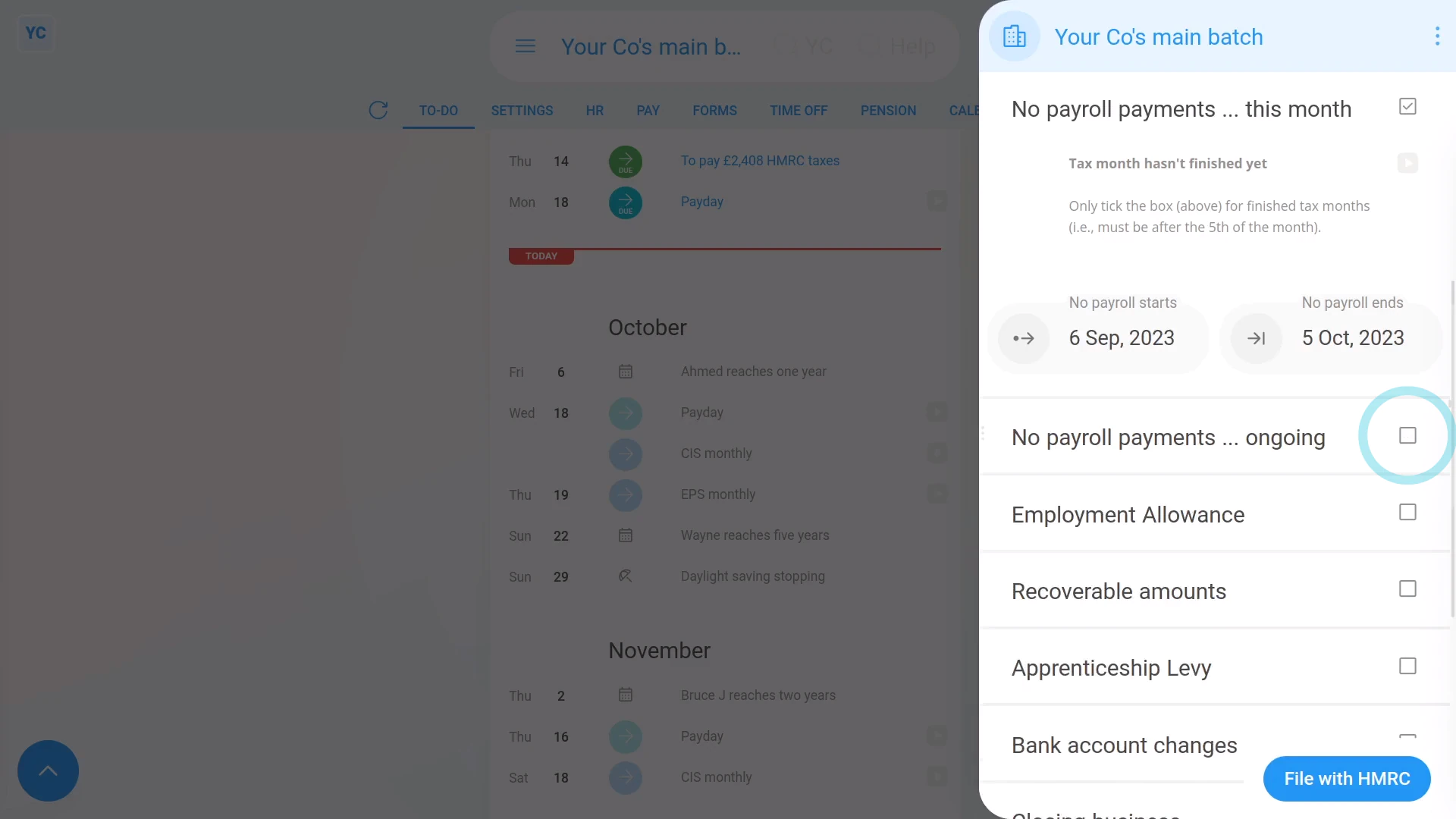
- If there's any section you don't want sent to HMRC, be sure to tap it closed, so it switches back to an empty tick box:
- And finally, if you're all ready to send it to HMRC, tap: File with HMRC (at the bottom)

Keep in mind that:
- The EPS doesn't need to be sent each month. If your business doesn't have any changes for that tax month, there's no need to send it.
- The tax month is always the 6th of the month to the 5th of the next month.
- However, if your business does have changes, the payroll group's payday person gets an email reminder on the 17th of the month. Your EPS is then due by the 19th of the month.
And that's it! That's all you need to do to open your payroll group's EPS monthly!
2. How do I tell HMRC I'm going payroll dormant for a few months?
 1:49
1:49
"How do I tell HMRC I'm going payroll dormant for a few months?"
Letting HMRC know that you've got no payroll payments for a few months helps you avoid penalties or owing extra taxes.
To tell HMRC that you don't expect to have any payroll payments for a few months:
- First, select the payroll group on: "Menu", then "Payroll groups"
- Then tap: "Forms", then "EPS monthly"
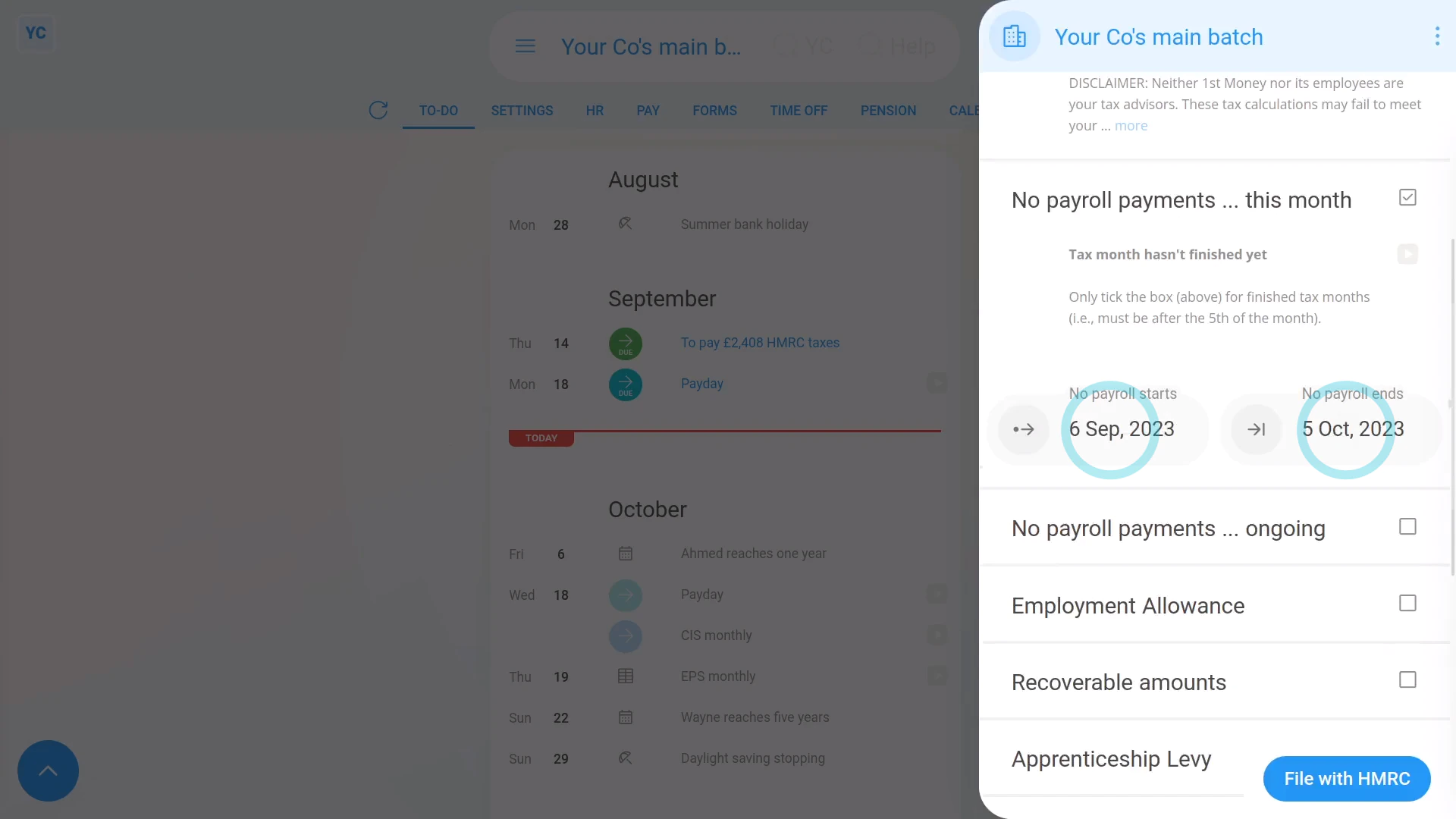
- Once the EPS monthly is open, tick: "Payroll dormant ... current month"
- Check that the dates match the period that you don't expect to have any payroll payments.
- If you expect to not have any payroll payments for even longer than one month, also tick: "Payroll dormant ... ongoing"
- Then select the month that matches the last date you don't expect to pay payroll until.
- And finally, if you're all ready to send it to HMRC, tap: File with HMRC (at the bottom)
You may notice:
- Sometimes you may open the EPS monthly and find some sections are already ticked.
- The sections are ticked because 1st Money automatically detects that you didn't have any payroll payments, and ticks the boxes for you.
- Sometimes it may be wrong. For example, if you actually did have payroll payments, but paid them elsewhere, not in 1st Money.
- If it's wrong, untick that section back to an empty tick box and that section won't be sent to HMRC.
- If unticking that section means that every section is now unticked, then the EPS doesn't need to be sent for that tax month.
And that's it! That's everything you need to know about telling HMRC when you've got no payroll payments!
3. How do I tell HMRC I'm claiming Employment Allowance?
 2:37
2:37
"How do I tell HMRC I'm claiming Employment Allowance?"
Letting HMRC know you're claiming Employment Allowance helps you pay less employer National Insurance.
To tell HMRC you're claiming Employment Allowance:
- First, select the payroll group on: "Menu", then "Payroll groups"
- Then tap: "Forms", then "EPS monthly"
- Once the EPS monthly is open, scroll down to the "Employment Allowance" heading.
- If you've never claimed Employment Allowance before, or it's the start of a new tax year, you'll see there's a: "New claim to file"
- If there's any changes you need to make to your Employment Allowance claim, tap the "Employment Allowance" settings link.
- Make any changes you want to, and save your changes.
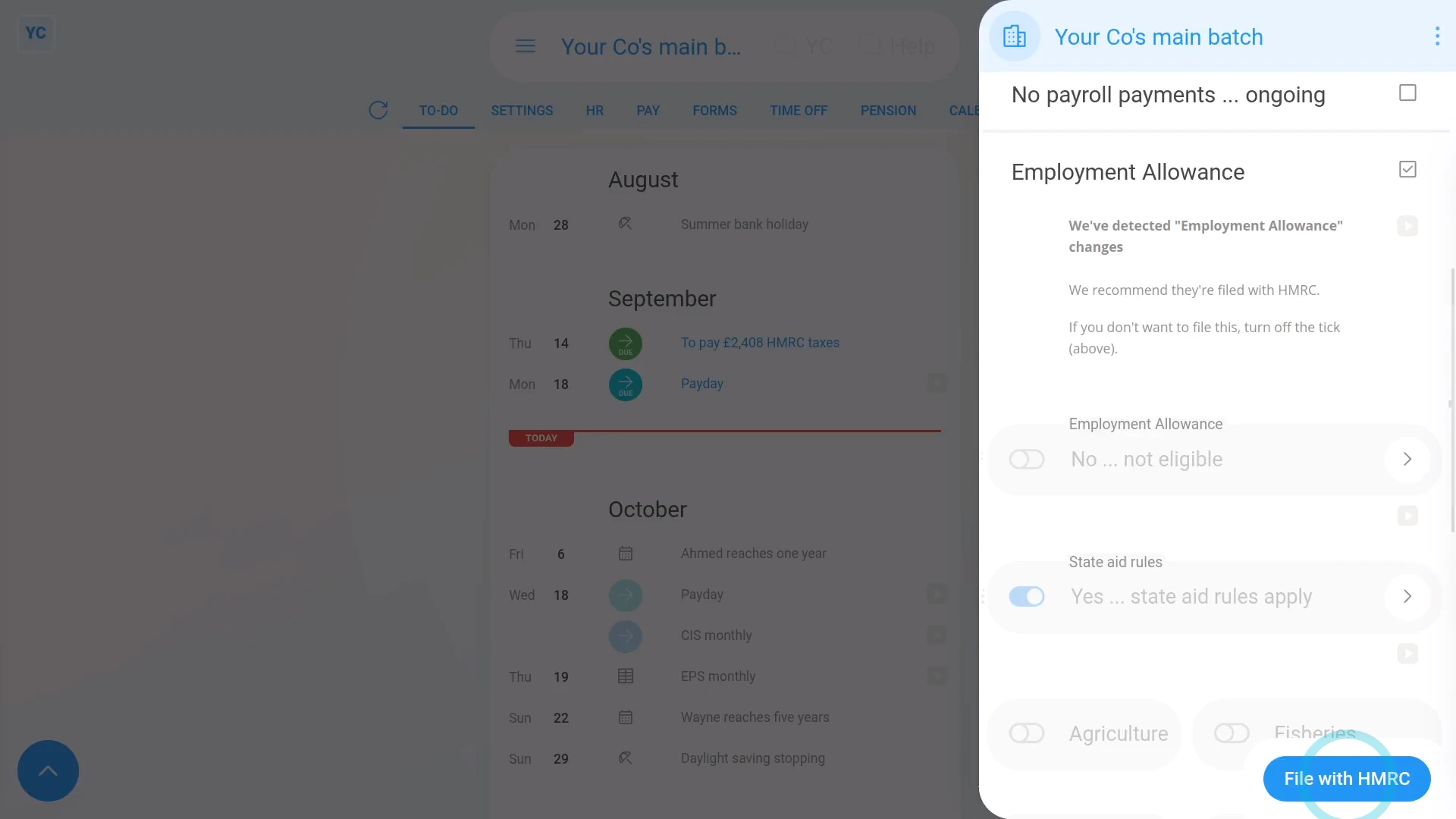
- You'll now see a preview of all your payroll group's "Employment Allowance" settings that are ready to be sent through to HMRC.
- And finally, to send it to HMRC, tap: File with HMRC (at the bottom)
Keep in mind that:
- If you're eligible for Employment Allowance, 1st Money automatically ticks "Employment Allowance" on the first EPS of the tax year or whenever there's a change.
- Once you've claimed Employment Allowance, HMRC remembers your claim for the rest of the tax year.
- You probably can't claim Employment Allowance if your company only has one employee and that employee's a director.
- If your Employment Allowance claim is rejected by HMRC, you'll get the rejection message from HMRC forwarded to you, letting you know why.
You may notice:
- Employer National Insurance amounts in 1st Money are still calculated even if you're claiming Employment Allowance.
- However, when you pay taxes to HMRC, you'll only pay the amount that's left after claiming Employment Allowance.
- To learn more about paying taxes to HMRC, watch the video on: Paying a payroll tax payment
 Paying a payroll tax payment
For advanced usage:
- To tell HMRC you're no longer claiming Employment Allowance, go to "Employment Allowance", and set it to: "No ... not eligible"
- And submit your EPS monthly to HMRC.
And that's it! That's everything you need to know about telling HMRC about changes to your Employment Allowance!
4. How do I tell HMRC I've got recoverable amounts?
 1:49
1:49
"How do I tell HMRC I've got recoverable amounts?"
Letting HMRC know about your "Recoverable amounts" from Statutory Pay helps you pay less National Insurance. In particular, it applies when your people claim statutory pay, like maternity pay, etc.
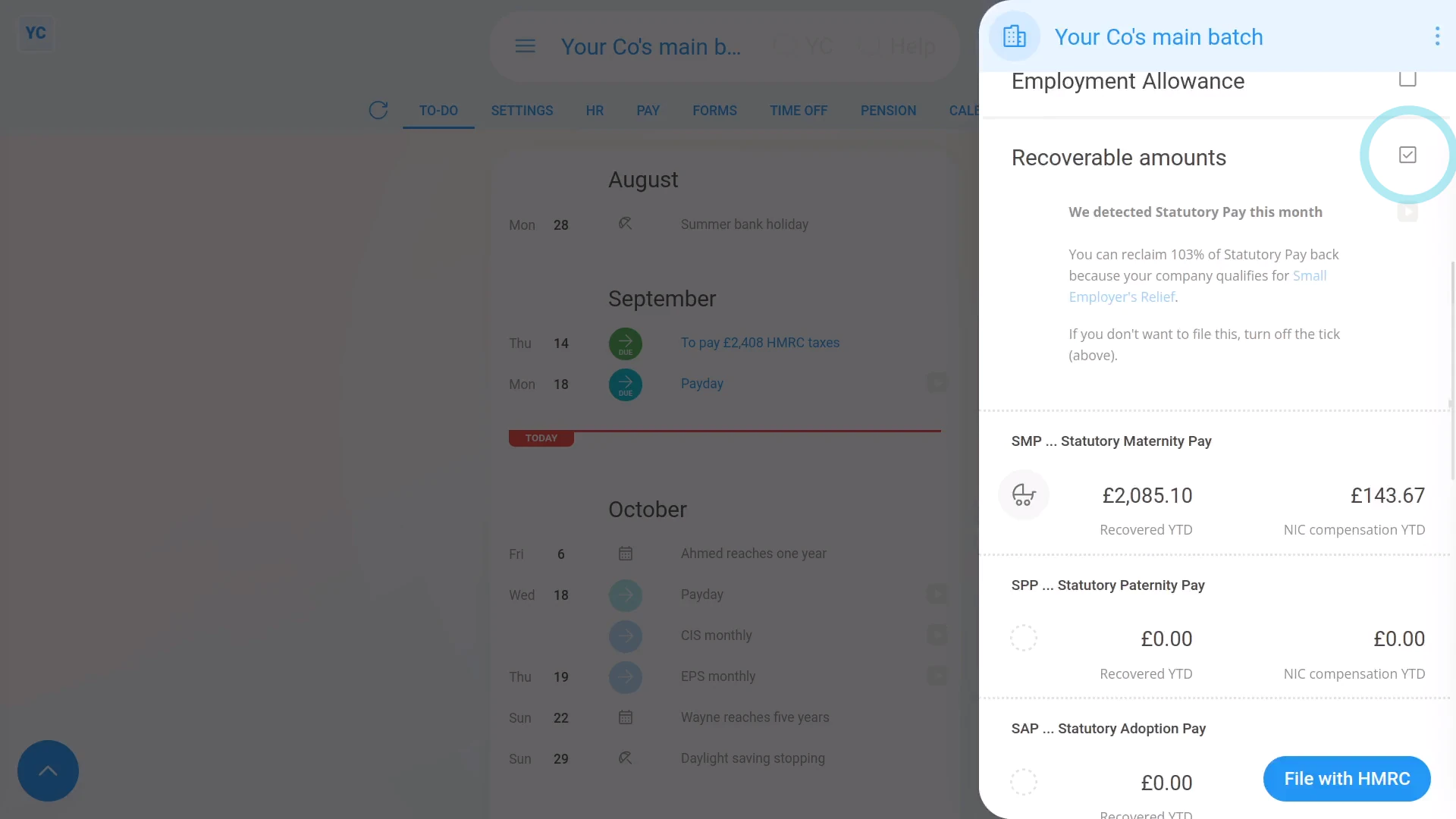
To tell HMRC about your Recoverable amounts for a tax month:
- First, select the payroll group on: "Menu", then "Payroll groups"
- Then tap: "Forms", then "EPS monthly"
- Once the EPS monthly is open, if there's "Recoverable amounts" to claim, the heading is already ticked and expanded.
- You'll then see the calculation of the tax month's recoverable amounts, based on how much Statutory Pay you've paid your people.
- Check the amounts that've been automatically detected.
- And finally, if you're all ready to send it to HMRC, tap: File with HMRC (at the bottom)
Keep in mind that:
- Whenever your people get Statutory Pay, you can usually reclaim at least 92% back from HMRC.
- You can sometimes even reclaim 109% back if your business qualifies for: "Small Employers' Relief"
- If you know you've received CIS payments, you can also manually reclaim your CIS deductions.
- 1st Money can't do it for you automatically. You'll have to enter the "CIS deductions YTD" yourself, every month.
And that's it! That's everything you need to know about telling HMRC about your recoverable amounts!
5. How do I tell HMRC that I'm turning on the Apprenticeship Levy?
 3:20
3:20
"How do I tell HMRC that I'm turning on the Apprenticeship Levy?"
The Apprenticeship Levy setting is something you need to turn on once your "annual wage bill" reaches £3 million per year for all your payroll groups, or connected companies.
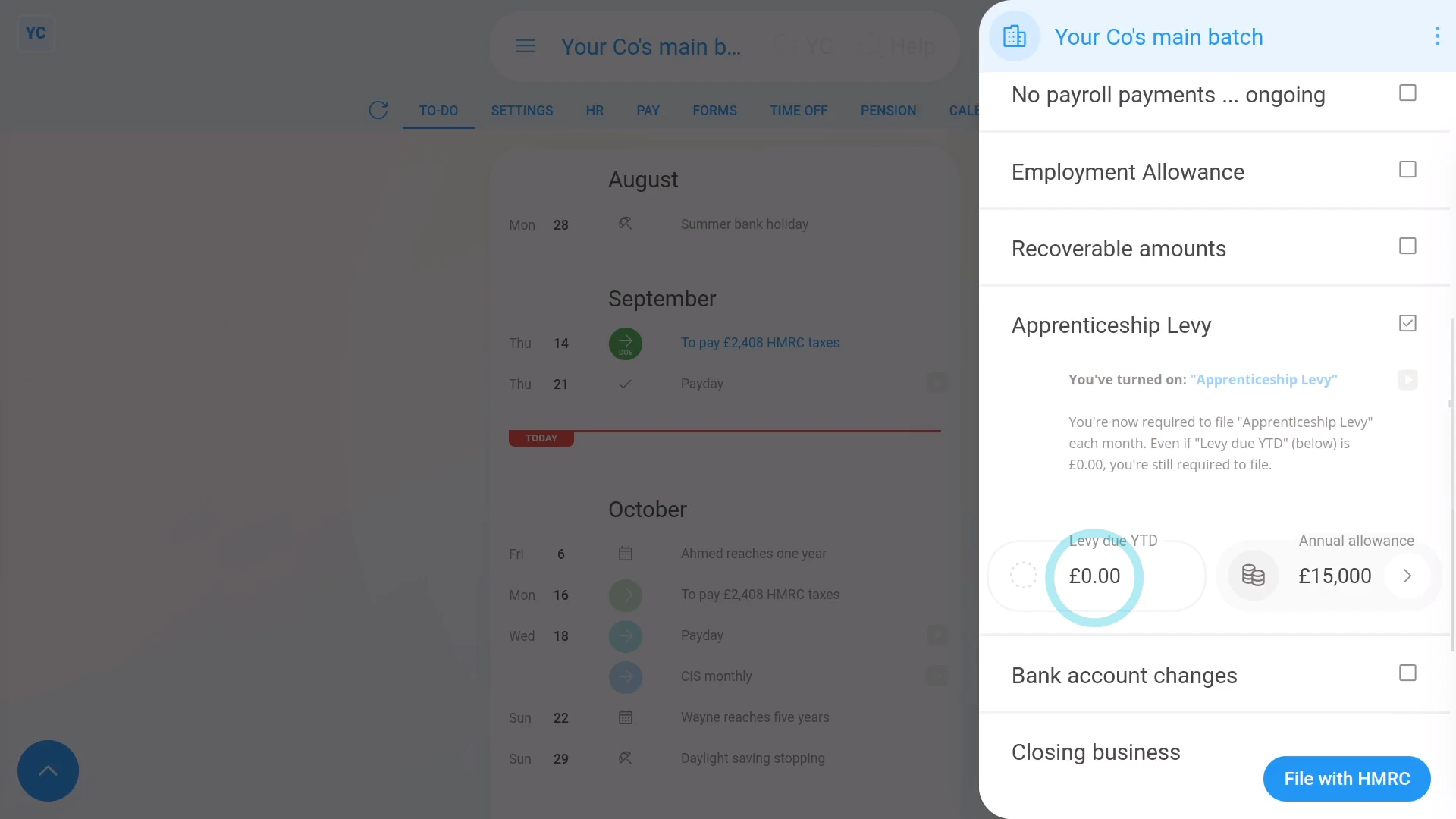
To tell HMRC that you've turned on a payroll group's Apprenticeship Levy:
- First, select the payroll group on: "Menu", then "Payroll groups"
- Then tap: "Forms", then "EPS monthly"
- Once the EPS monthly is open, tick Apprenticeship Levy.
- If it says that it's "currently turned off", tap the Apprenticeship Levy settings link.
- And set Apprenticeship Levy to: "Yes ... paying Apprenticeship Levy"
- You only need to turn it on if your "annual wage bill" is more than £3 million per year for all your payroll groups, or connected companies.
- From now on 1st Money automatically calculates your: "Levy due YTD"
- Also, if you want to change the default £15,000 "Annual allowance" tap the "Edit" button:
- Then drag the slider, and tap: Save
- And finally, if you're all ready to send it to HMRC, tap: File with HMRC (at the bottom)
For advanced usage:
- Apprenticeship Levies are a tax that large employers pay direct to HMRC once their "annual wage bill" reaches £3 million per year.
- The amount of levy you pay is half a percent of the part of your company's "annual wage bill" that's over £3 million per year.
- Which means that the half a percent of the part that's under £3 million per year, is the allowance.
- In other words, you get a maximum allowance of £15,000, which you can decide to split between your payroll groups, or connected companies.
- HMRC's definition of a connected company includes any entity that's using the same: "Employer PAYE reference"
- In most cases, if it's your only payroll group, apply the full £15,000 "Apprenticeship Levy allowance" to the current payroll group.
- Then each month when your Apprenticeship Levy amount is calculated, the following happens.
- First, half a percent of the value of the month's "wage bill" is calculated.
- Then one month's worth (1/12th) of your "Apprenticeship Levy allowance" is deducted.
- The remaining amount becomes that month's Apprenticeship Levy, to be paid to HMRC.
Keep in mind that:
- Once you turn on Apprenticeship Levy, you'll have to file Apprenticeship Levy every month, even if the "Levy due YTD" is £0.00.
- Also, if you're using the entire "Apprenticeship Levy allowance" of £15,000 in one of your other payroll groups, or connected companies, drag the slider for the current payroll group, and set it to £0.
- If you overpay, or underpay, when you reach the end of the tax year, HMRC balances out your final calculation with a refund or payment request.
And that's it! That's everything you need to know about telling HMRC that you've turned on a payroll group's Apprenticeship Levy!
6. How do I tell HMRC about changes to my company's bank account?
 1:52
1:52
"How do I tell HMRC about changes to my company's bank account?"
Keeping HMRC updated with changes to your company's bank account details allows them to always have the correct account to send any tax refunds to.
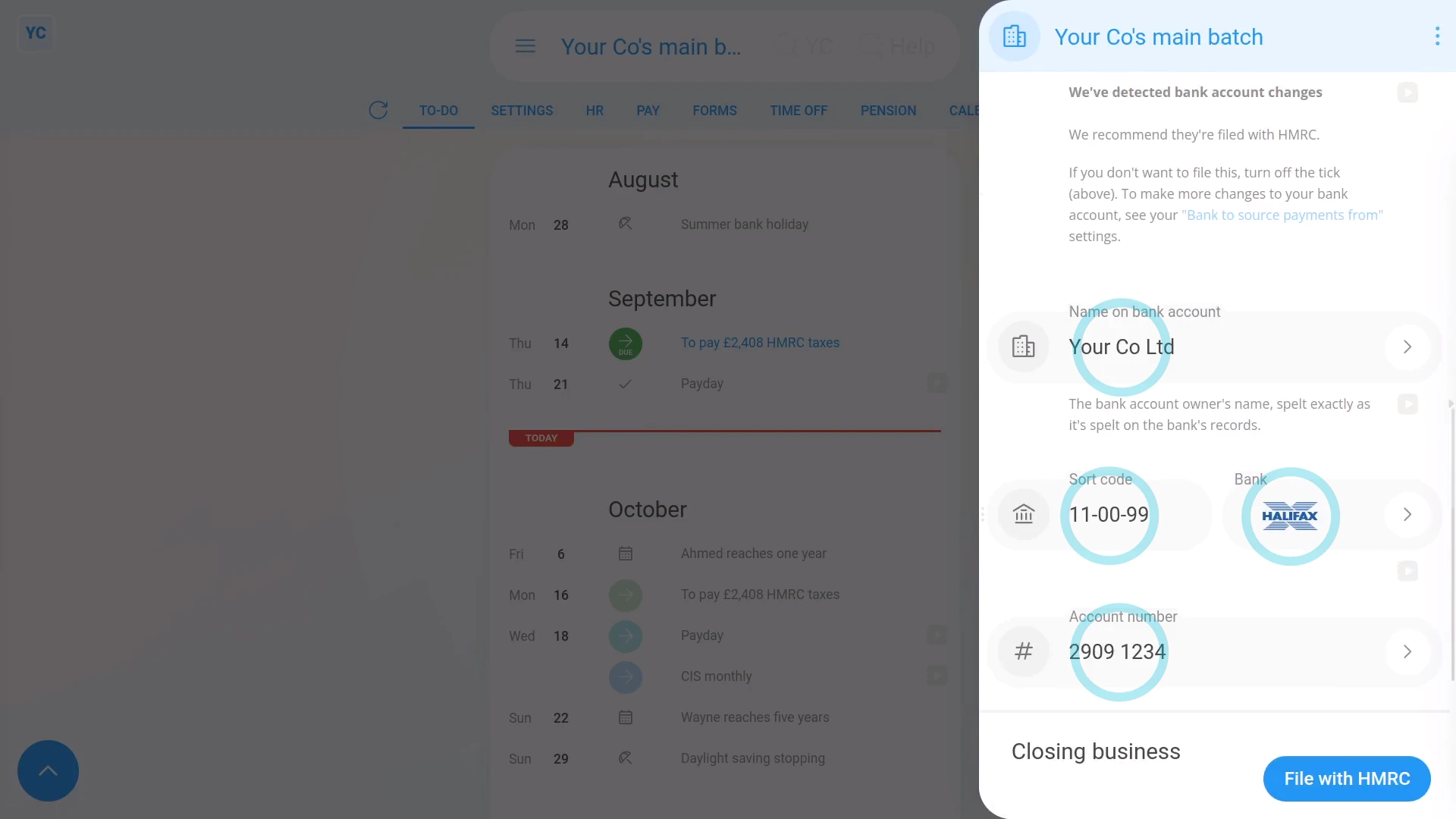
To tell HMRC about changes to your company's bank account details:
- First, select the payroll group on: "Menu", then "Payroll groups"
- Then tap: "Forms", then "EPS monthly"
- Once the EPS monthly is open, if there's already "Bank account changes" to send, the heading is already ticked and expanded.
- However, in some cases, you may not have updated the payroll group's bank account details yet.
- To update the payroll group's bank account details, tap the "Bank account changes" heading to expand it.
- If it says that there's "no changes detected", then tap the "Bookkeeping bank account" link.
- Make your changes to the banking details, and tap: Save
- Check the new banking details that've been automatically detected.
- If there's any further changes to make, you can tap any "Edit" button:
- And finally, if you're all ready to send it to HMRC, tap: File with HMRC (at the bottom)
Keep in mind that:
- Changes to the details of your "Bookkeeping bank account" are automatically detected, including when you set them for the first time.
- Anytime there's a change detected, you'll be prompted to re-send them to HMRC on the next EPS.
- HMRC uses the payroll group's details to know where to pay tax refunds.
And that's it! That's everything you need to know about telling HMRC about changes to your bank details!
7. How do I let HMRC know I've stopped being an employer?
 2:51
2:51
"How do I let HMRC know I've stopped being an employer?"
When you've stopped being an employer, HMRC needs to know that it's your final EPS submission and that you won't be paying any more payroll.
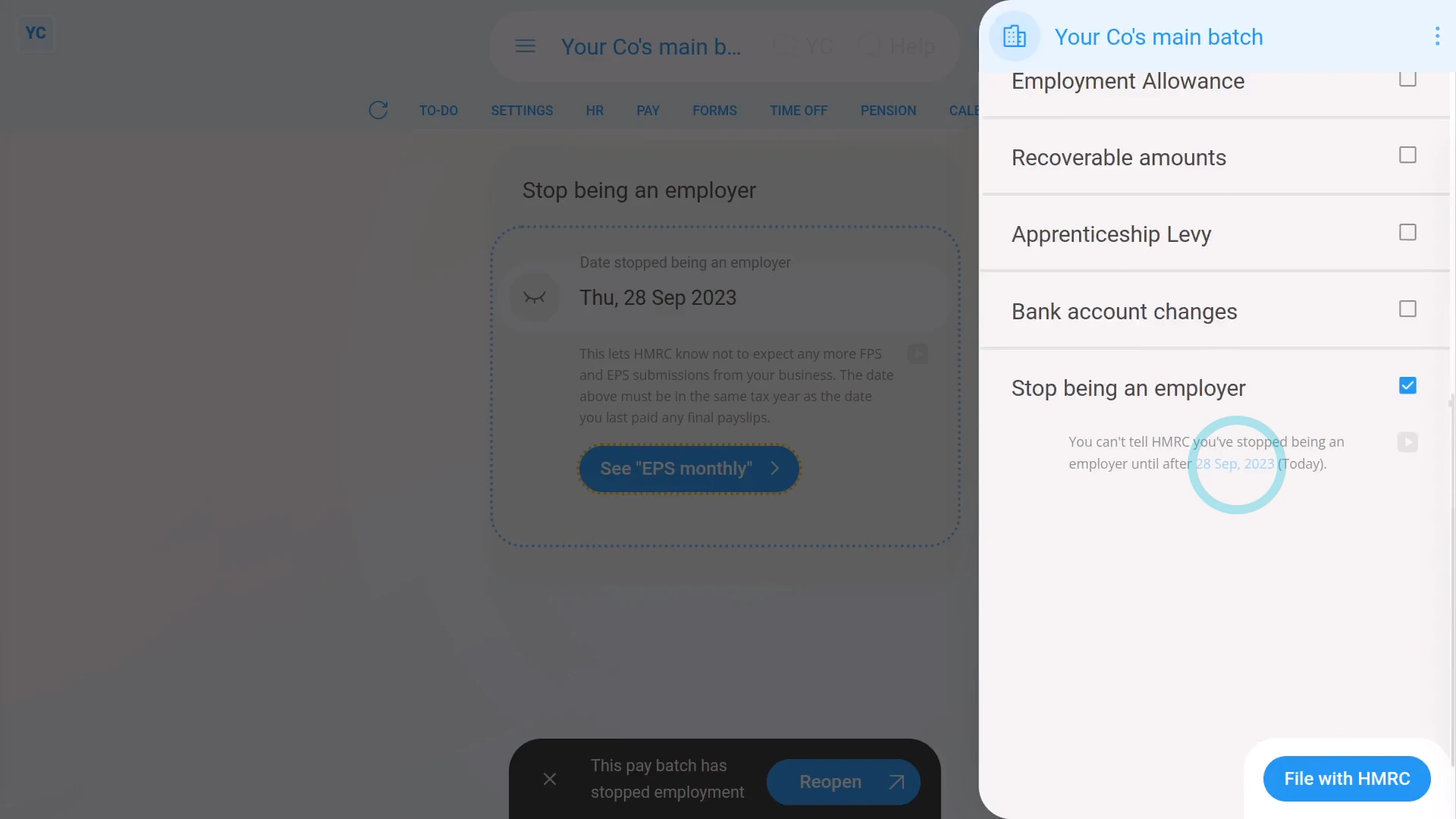
To tell HMRC that you've stopped being an employer:
- First, select the payroll group on: "Menu", then "Payroll groups"
- Then tap: "Forms", then "EPS monthly"
- Once the EPS monthly is open, tick: "Stop being an employer"
- Then tap: Stop being an employer
- The EPS is now temporarily hidden, and you'll be taken to the "Stop being an employer" page.
- Pick the date you expect to pay payroll for the last time, and tap: Save
- You may still have employees who haven't had their employment ended. If so, you'll now be taken through a number of steps to end their employment.
- The steps include sending all your current employees their final payslips and P45s.
- As soon as the final payslips are filed, you'll see the payroll group automatically get marked as: "stopped employment"
- And when you tap back to the main page, you'll see the "Date stopped being an employer" has been saved.
- Next, when you tap See "EPS monthly" and scroll down, you'll see that "Stop being an employer" is now ticked automatically, with the "stopped employment" date you entered.
- And finally, if you're all ready to send it to HMRC, tap: File with HMRC (at the bottom)
Keep in mind that:
- Any time that you want to become an employer again, all you need to do is to start paying payslips again.
- As soon as HMRC receives a submission of payslips from you, HMRC automatically marks you as an active employer again.
- Until that time comes, you can remain dormant, as an employer, for as long as you want.
For advanced usage:
- If you ever want to remove the payroll group from the list, you can always delete it. You can find "Delete" in the "More" menu.
- If you later need it back, you can then un-delete it from the: "Deleted bin"
- All your data, like paydays, and payments made are still stored.
And that's it! That's everything you need to know about stopping being an employer!
8. How do I send the EPS monthly to HMRC?
 2:09
2:09
"How do I send the EPS monthly to HMRC?"
Once you've reviewed all the sections of the EPS monthly, you'll be ready to send it to HMRC.
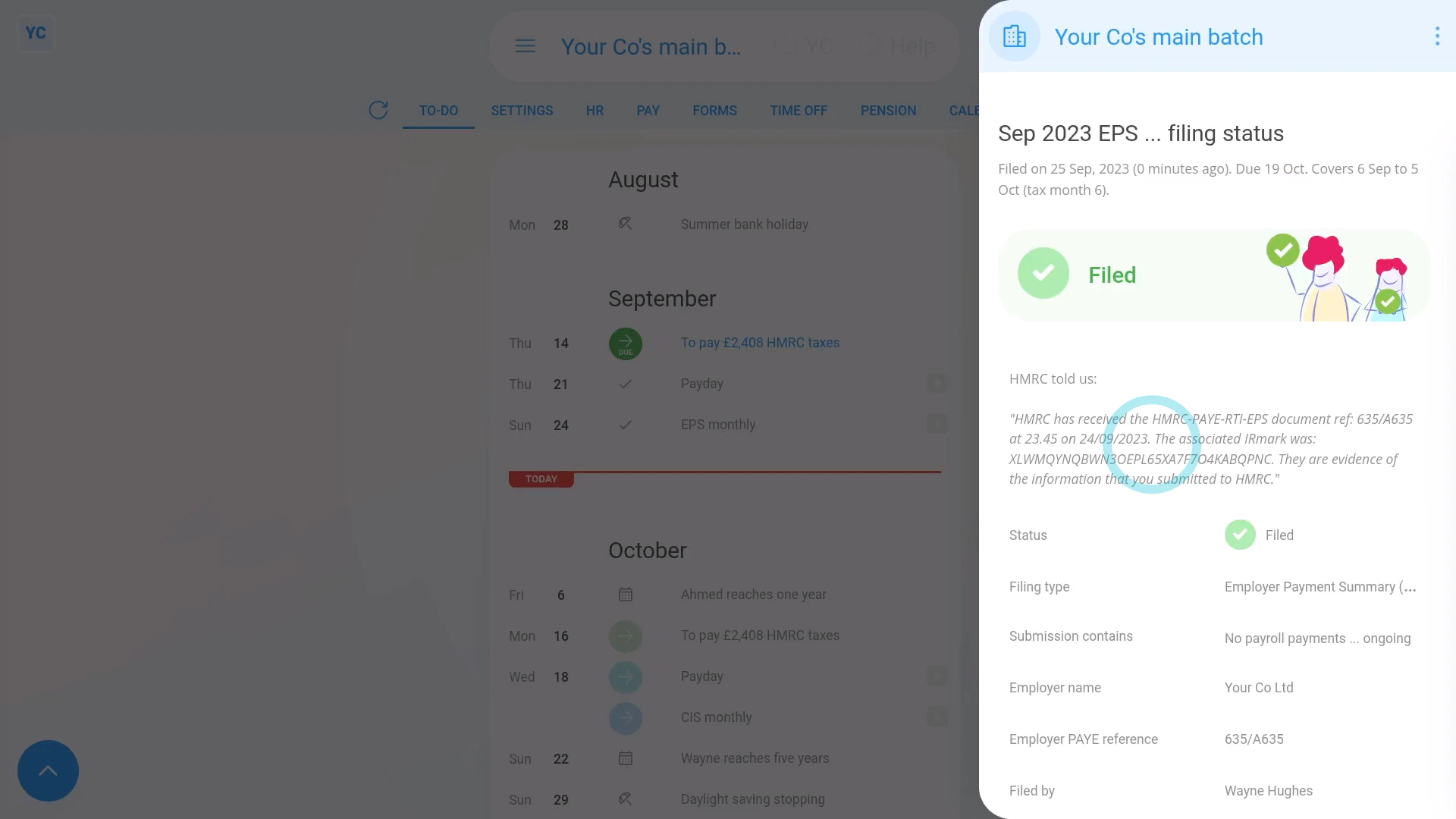
To send an EPS monthly to HMRC:
- First, select the payroll group on: "Menu", then "Payroll groups"
- Then tap: "Forms", then "EPS monthly"
- Once the EPS monthly is open, make all your changes.
- Then once you're all ready to send it to HMRC, tap: File with HMRC (at the bottom)
- It usually takes about 10 seconds for HMRC to finish processing your EPS and send back your confirmation receipt.
- The confirmation receipt can be used at any time if you ever need to prove to HMRC that you did send the EPS.
- Once it's finished, you'll see your confirmation receipt.
- Then back on your To-do list, you'll also see the tick that confirms that the EPS was filed successfully.
- Also, if ever, in the future, you need to see the confirmation receipt again, you can tap the tick.
- And finally, you'll see the stored confirmation receipt details again.
Keep in mind that:
- The EPS doesn't need to be sent each month. If your business doesn't have any changes for that tax month, there's no need to send it.
- The tax month is always the 6th of the month to the 5th of the next month.
- However, if your business does have changes, the payroll group's payday person gets an email reminder on the 17th of the month. Your EPS is then due by the 19th of the month.
To learn more:
- About making further changes to an EPS that's already been sent to HMRC, watch the video on: EPS: Changing a sent EPS
And that's it! That's everything you need to know about sending an EPS monthly to HMRC!
How do I change an EPS after it's already been sent to HMRC?
 2:36
2:36
"How do I change an EPS after it's already been sent to HMRC?"
Sometimes you may want to send changes or updates to an EPS that's already been sent to HMRC.
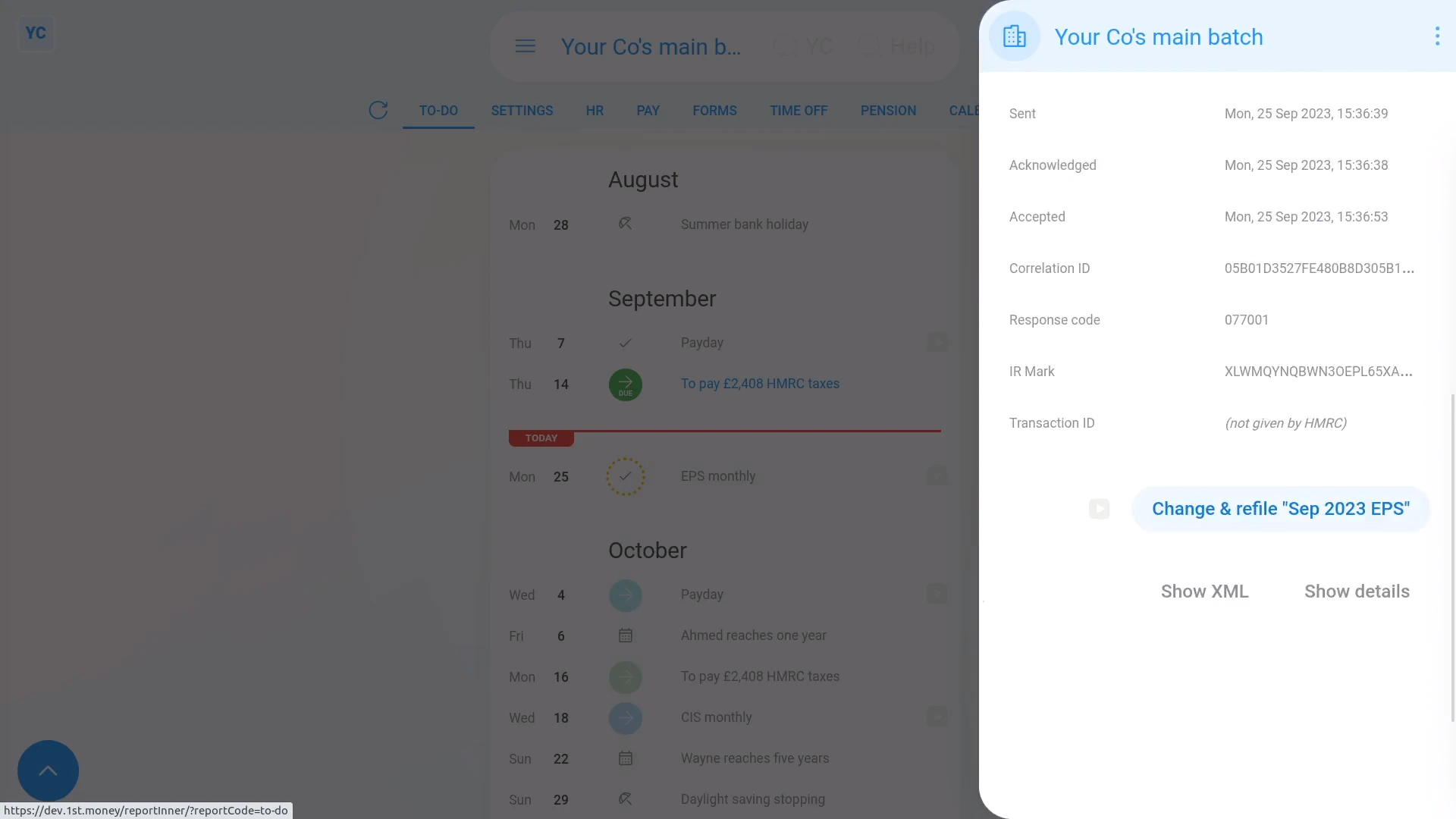
To change or update an EPS that's already been sent to HMRC:
- First, select the payroll group on: "Menu", then "Payroll groups"
- Once it's open, check you're on the To-do tab.
- Then tap the tick by the submitted EPS that you'd like to change.
- Once it slides out on the right, scroll down and tap: Change & refile EPS
- It takes you to the EPS monthly page where you can set your additional changes.
- Then once you're all ready to send it to HMRC, tap: File with HMRC (at the bottom)
- As usual, it takes about 10 seconds for HMRC to finish processing your EPS and send back a confirmation receipt.
- Once it's finished, you'll see your confirmation receipt.
- Then back on your To-do list, you'll also see an additional "EPS monthly" row with a tick.
- And finally, the additional row confirms that the EPS was again sent successfully.
Keep in mind that:
- You don't have to re-enter every section.
- Suppose you originally sent both banking and other changes. Then say, you later wanted to further update only the banking. In which case, resend the banking section only. The other changes are still kept by HMRC, and not overwritten.
- Also, you can't change an EPS after the 19th of the month. In other words, an EPS for the tax month ending on the 5th, has a 14-day change window.
- You're free to resend as many EPS changes as you want during the 14 day change window. Once it's the 19th of the month, however, the EPS is locked by HMRC.
- Also keep in mind, some changes, like changing bank account details, can instead be sent in next month's EPS.
For advanced usage:
- The exception to the 14-day change window is the "March EPS", which is the last EPS of the tax year.
- The "March EPS" doesn't get locked for 12 months, so you can make more changes during those months.
And that's it! That's everything you need to know about changing an EPS that's already been sent to HMRC!
www.1st.money/uk/help/Payroll/EPS_Employer_Payment_Summary/