UK payroll
 4:45
4:45How do I decide my payrolling benefits setting, and do my P11D?
Choose payrolling benefits to simplify tax on benefits and reduce P11D filings with HMRC.
 2:38
2:38How do I enter a National Insurance number and make sure it's valid?
Steps to enter and verify a National Insurance number for payroll with HMRC.
 1:48
1:48How do I set a person's National Insurance category letter?
Instructions for setting a person's National Insurance category letter to apply contribution discounts.
 2:08
2:08How do I set a person's UK tax code?
How to set and update a UK person's tax code to ensure correct income tax deductions.
 1:47
1:47How do I set a person's secondment?
How to set and manage a person's secondment tax settings in the system.
 2:43
2:43How do I set up an HMRC tax connection for a company?
Steps to set up and verify your company's HMRC tax connection for payroll submissions.
 3:02
3:02How do I set up my HMRC tax connection as an external tax agent?
How to set up an HMRC tax connection as an external tax agent for payroll submissions.
 6:11
6:11What are a person's "Opening amounts", and how do I set them?
Opening amounts are previous payroll tax data set when switching systems mid-tax year.
 2:06
2:06What are the advanced tax settings?
How to set and use the four advanced tax settings for payroll in HMRC compliance.
 3:22
3:22What if I've not gotten my Employer PAYE reference yet?
How to manage payroll if you haven't received your Employer PAYE reference from HMRC yet.
 4:06
4:06What tax settings do I need to set for a UK apprentice?
How to set UK apprentice pay rate and tax settings including NI category H for employers.

How do I decide my payrolling benefits setting, and do my P11D?

 4:45
4:45
"How do I decide my payrolling benefits setting, and do my P11D?"
Payrolling benefits is HMRC's new, and recommended approach to simplifying the tax administration of benefits-in-kind.
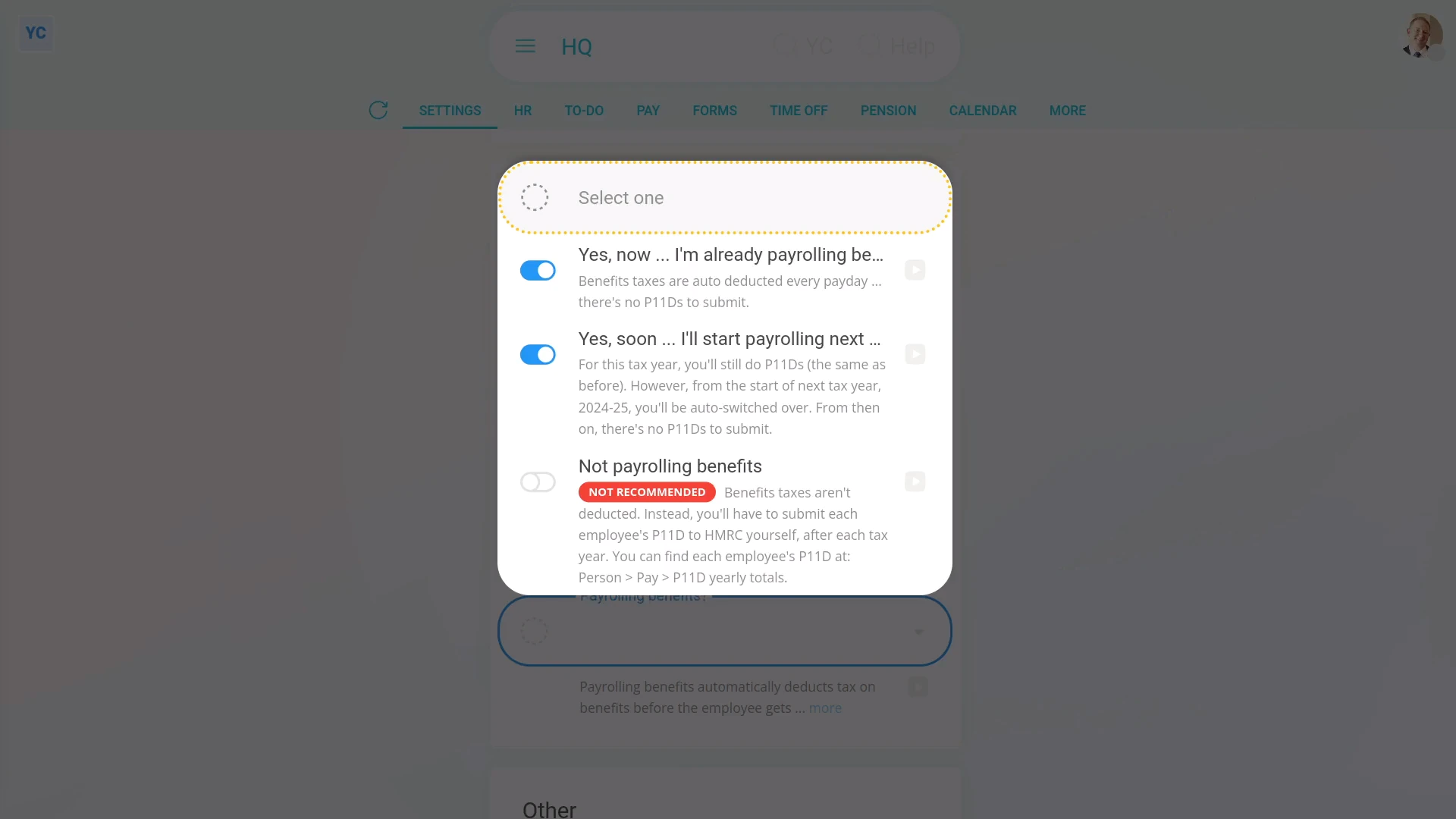
To set a payroll group's "Payrolling benefits" option:
- First, select the payroll group on: "Menu", then "Payroll groups"
- Then tap: "Settings", then "Advanced"
- Then scroll down to the "Payroll" heading.
- And tap: "Payrolling benefits?"
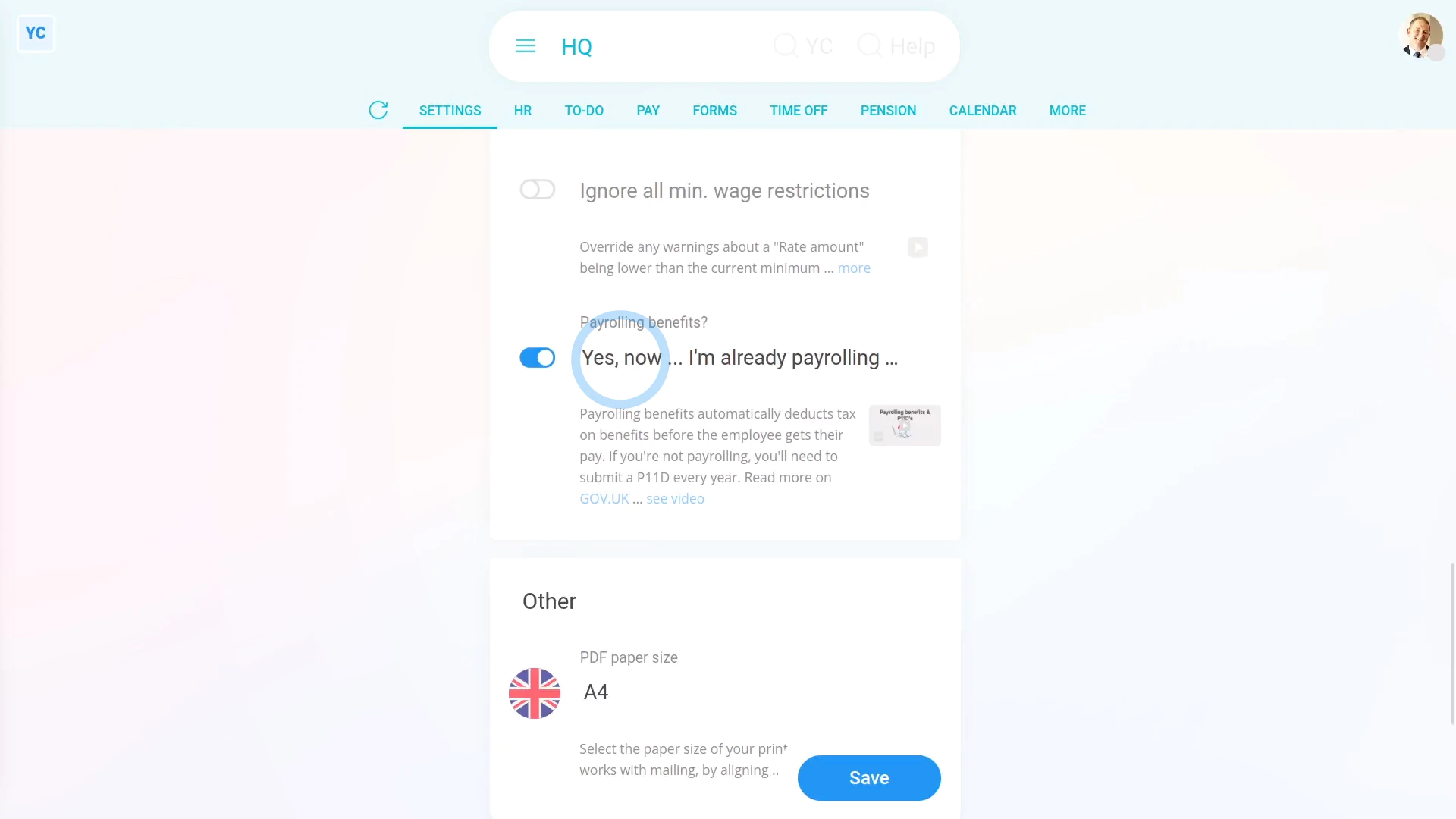
- If you're a new company, or you've already switched to "Payrolling benefits", select the "Yes, now" option.
- Some established companies may've been doing P11D's the old way, but would like to be auto-switched to the new way.
- If you'd like to be auto-switched to the new way, when it reaches the end of the current tax year, select the "Yes, soon" option.
- Otherwise, if you want to keep doing it the old way forever, select the "Not payrolling benefits" option.
- In most cases, however, it's best to select the recommended "Yes, now" option.
- But if you're still not sure, tap the "more" link, and then the blue "GOV.UK" link to read more on HMRC's website.
- And finally, tap: Save
By saying "Yes" to payrolling benefits:
- All the payroll group's payslips automatically deduct taxes on benefits before the person gets their pay.
- The auto-deductions mean you won't have to submit a P11D for each person, when you reach the end of each tax year.
- You'll still have to do a P11D(b), but more on that later.
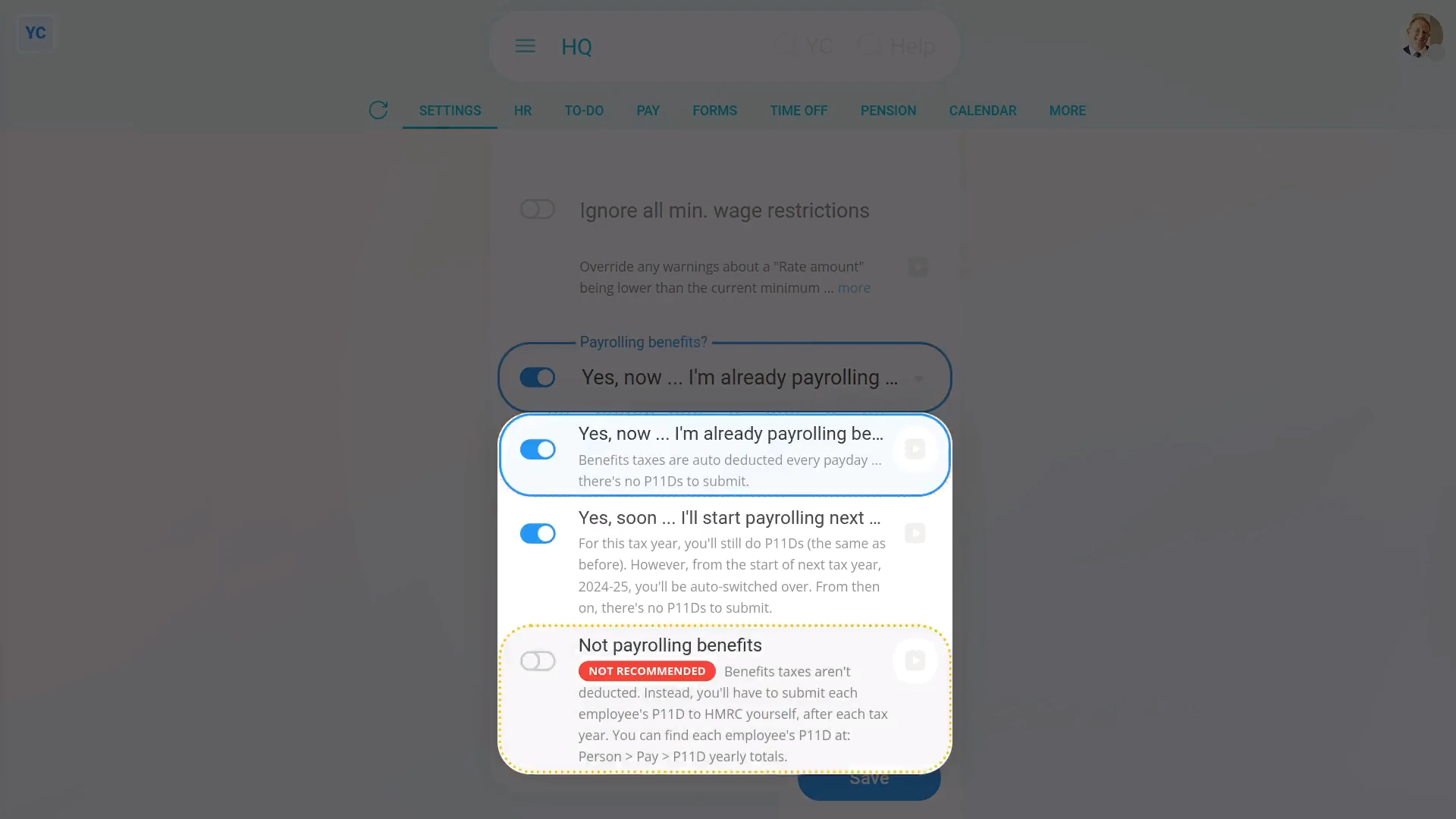
By saying "No" to payrolling benefits:
- You'll need to do both the P11D(b).
- And, when you reach the end of each tax year, you'll also need to submit a P11D for each person.
- Alternatively, you could get your accountant to do it for you.
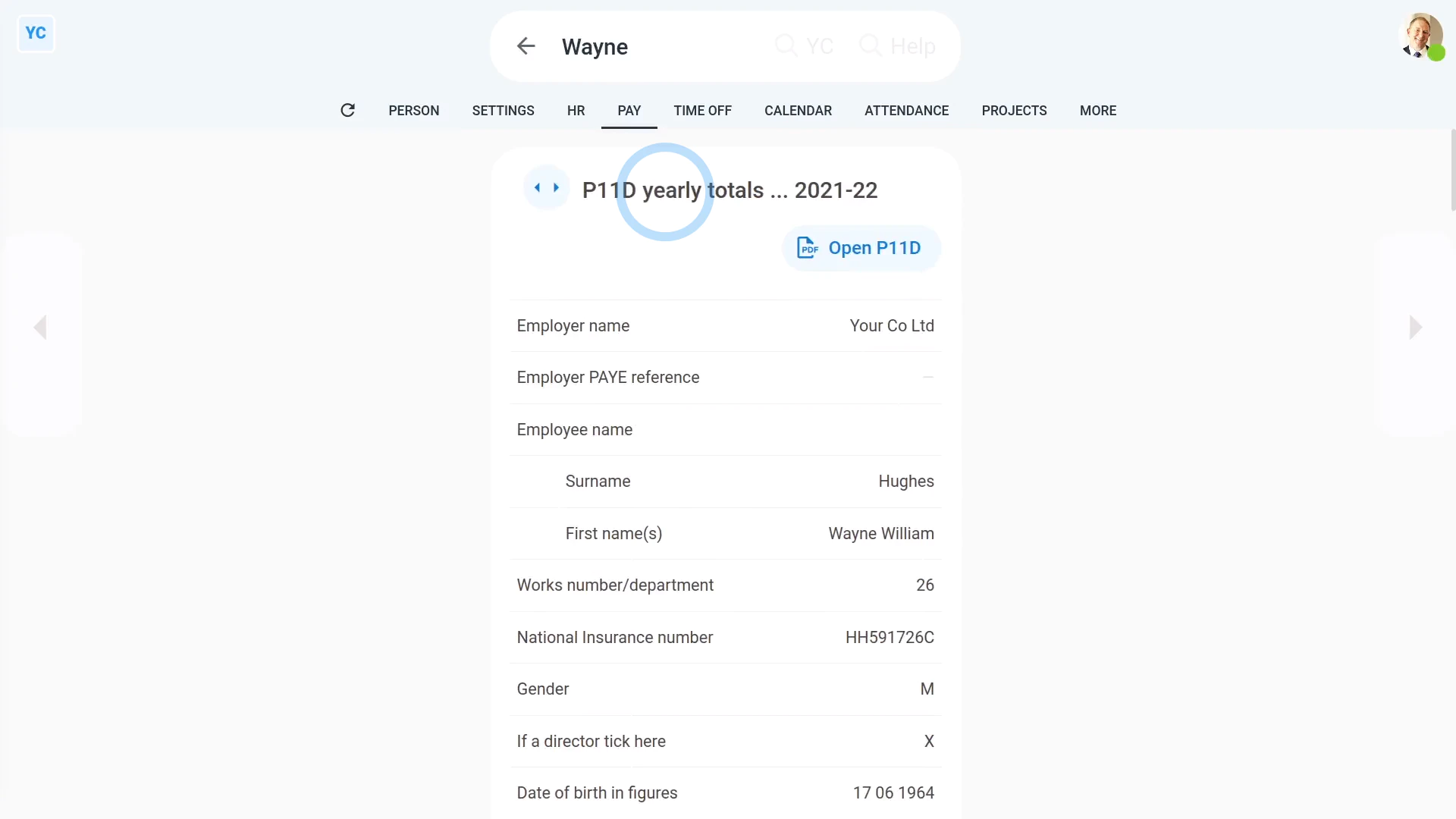
To see a person's end of year P11D numbers:
- First, select the person on: "Menu", then "People"
- Then tap: "Tax", then "P11D yearly totals"
- Keep in mind that the "P11D yearly totals" tab only shows for people who are in a payroll group that's set to: "Not payrolling benefits"
- The "P11D yearly totals" gives you all the numbers you'll need to fill in each person's P11D.
- Before you start copying numbers, be sure you've picked the correct tax year.
- You can tap the buttons to go forward, or back, a year.
- Then to submit your P11D's:
Tap: HMRC PAYE Online - You'll first need to log in with your HMRC Government Gateway account.
- Once you're logged in, you can send your "expenses and benefits returns" using HMRC's PAYE Online.
- And finally, if you need to know more, search on Google, or ask your accountant.
Whether you say "Yes" or "No" to "Payrolling benefits", you'll still have to submit one P11D(b) for each payroll group, when you reach the end of each tax year. To make it easier, you can use the prepared yearly totals.
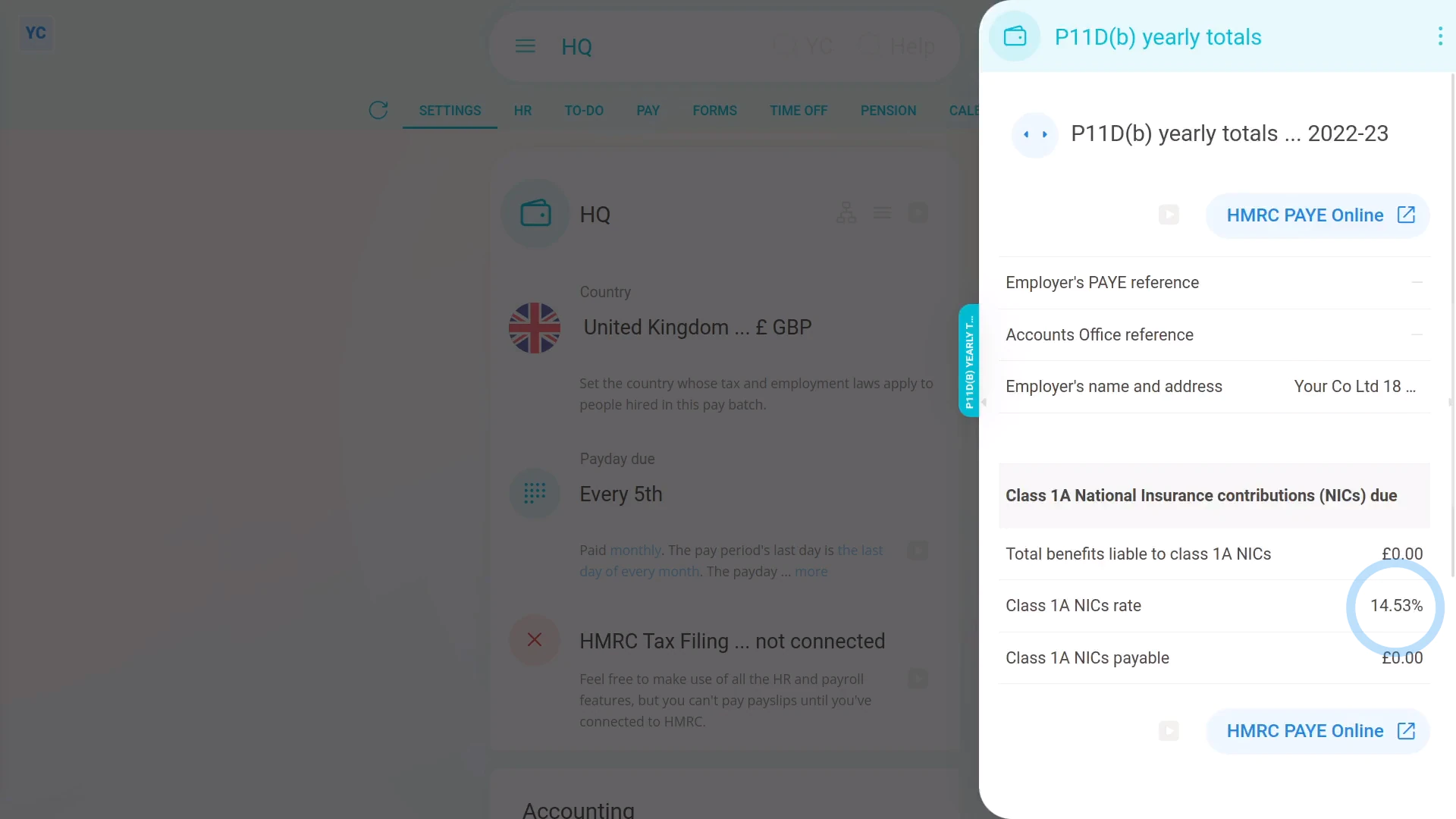
To see a payroll group's P11D(b) prepared yearly totals:
- First, select the payroll group on: "Menu", then "Payroll groups"
- Then tap: "Forms", then "P11D(b) yearly totals"
- The "P11D(b) yearly totals" gives you all the numbers you'll need to fill in each payroll group's P11D(b).
- Before you start copying numbers, be sure you've picked the correct tax year.
- You can tap the buttons to go forward, or back, a year.
- To submit your P11D(b):
Tap: HMRC PAYE Online - You'll first need to log in with your HMRC Government Gateway account.
- Once you're logged in, you can send your "expenses and benefits returns" using HMRC's PAYE Online.
- And finally, if you need to know more, search on Google, or ask your accountant.

Keep in mind that:
- Regardless of whether you say "Yes" or "No" to "Payrolling benefits", every payroll group needs to submit the P11D(b).
- It's an important choice because you can't change the "Payrolling benefits" setting once payslips are filed for the payroll group in the tax year.
And that's it! That's everything you need to know about choosing your payrolling benefits setting, and doing your P11D's!
How do I enter a National Insurance number and make sure it's valid?
 2:38
2:38
"How do I enter a National Insurance number and make sure it's valid?"
National Insurance numbers help HMRC keep track of the identity of each tax payer.
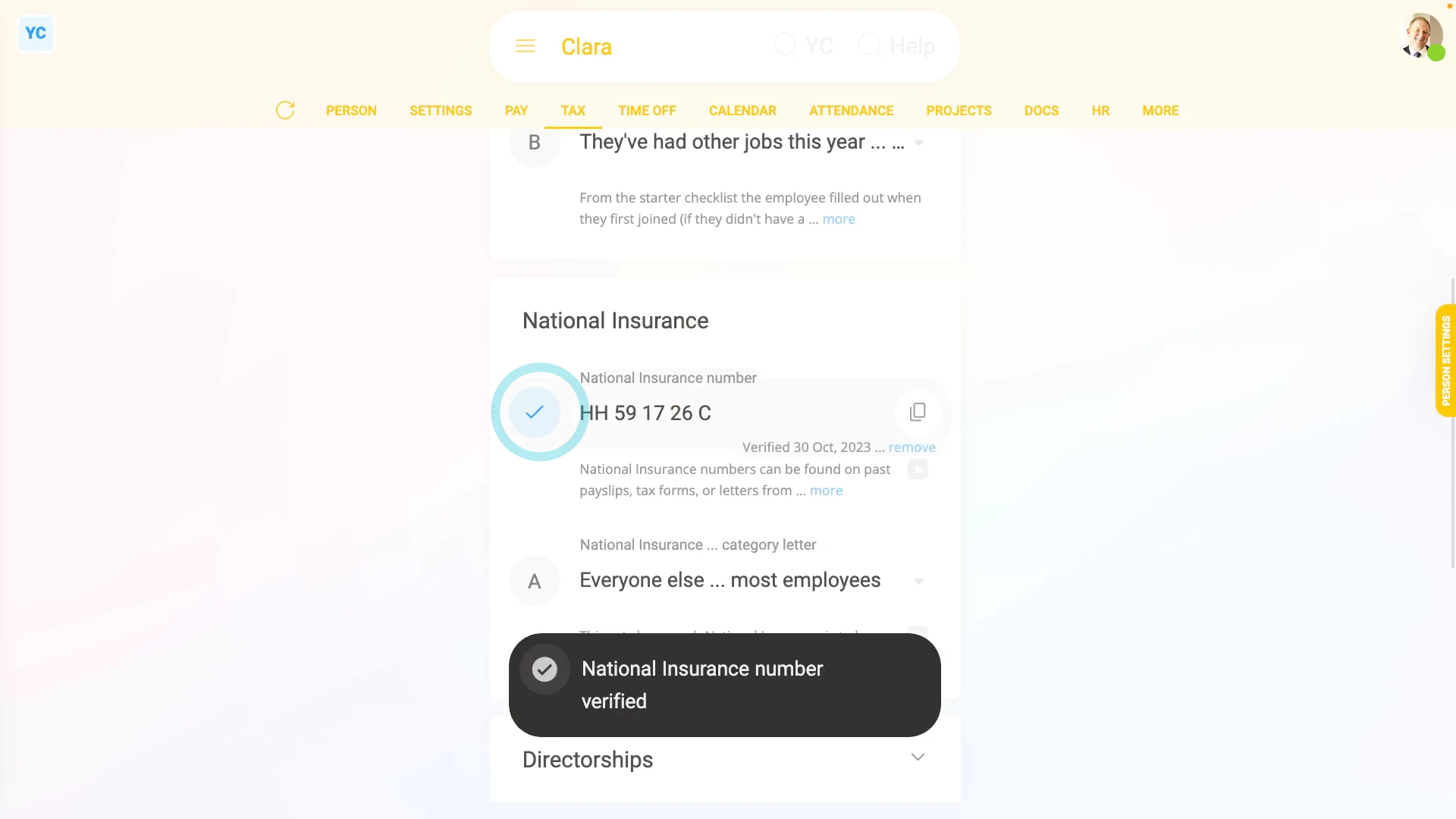
To enter a National Insurance number for a person:
- First, select the person on: "Menu", then "People"
- Then tap: "Tax", then "Tax settings"
- Then enter their: "National Insurance number"
- Then once you tap Save, 1st Money first confirms that you've entered all HMRC's required info about the person.
- The required info includes: name, address, legal gender, date of birth, and payroll ID.
- If you're missing some of the required info, you'll get a warning that something's missing.
- To fix the warning, tap the item that's missing.
- Type in their missing info.
- Then tap: Save
- Now, to try again, tap: Verify NI
- Their National Insurance number is now verified by HMRC again.
- It usually takes about 10 seconds for HMRC to finish processing your verification request.
- As part of the verification, the person's name, address, legal gender, date of birth, and payroll ID are all sent to HMRC.
- And finally, once HMRC's finished verifying, you'll see the confirmation message, and the person's National Insurance number is now verified with a blue tick.
Keep in mind that:
- The person's National Insurance number can often be found on their past payslips, tax forms, or letters from HMRC.
- Also, a person's National Insurance number verification only has to be done once.
For advanced usage:
- It's possible to pay a person without a verified National Insurance number.
- However, on payday, the payroll admin sees a red warning saying that the National Insurance number hasn't been verified.
- But the red warning doesn't stop the person's pay from being processed.
- However, for each payday that their National Insurance number hasn't been verified, a reminder email is automatically sent to the person receiving the pay.
And that's it! That's all you need to do to verify a person's National Insurance number with HMRC!
How do I set a person's National Insurance category letter?
 1:48
1:48
"How do I set a person's National Insurance category letter?"
The National Insurance category letter turns on discounts to the person's National Insurance contributions.
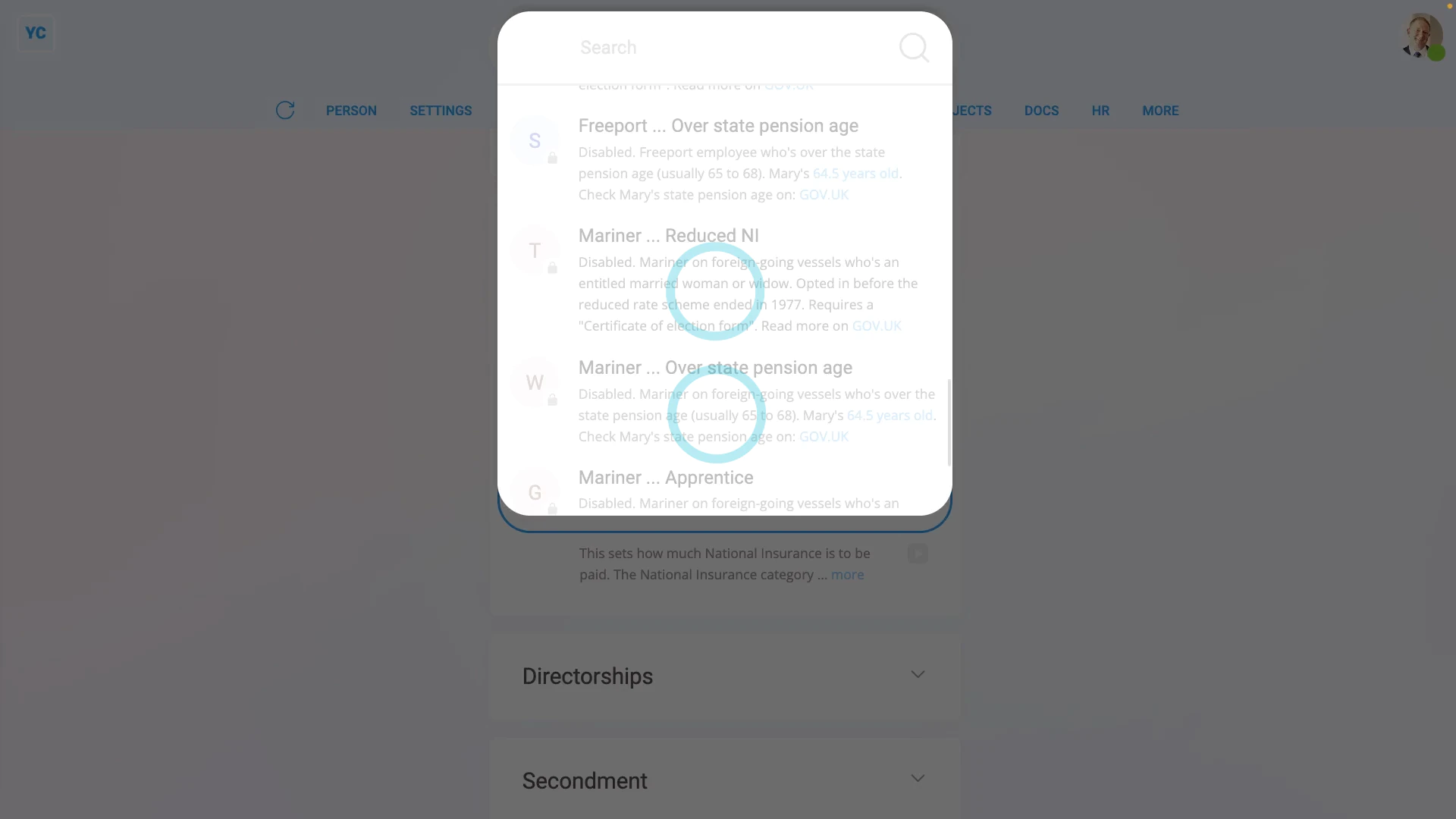
To set a person's National Insurance category letter:
- First, select the person on: "Menu", then "People"
- Then tap: "Tax", then "Tax settings"
- Then scroll down to the "National Insurance" heading.
- And tap: "National Insurance ... category letter"
- Currently, HMRC's published about 20 different NI category letters, each with their own discounts.
- If you're interested, you can read more about each by reading their notes.
- You could also tap the links to read more on HMRC's website.
- You'll see some category letters are greyed out (at the bottom), and can't be selected.
- The greyed out rows are category letters that aren't available for the person, based on the person's gender, age, or other info.
- For most people, the letter to select is "A", which is the full National Insurance rate with no discount.
- And finally, tap Save, and you're done.
Keep in mind that:
- If you're ever not sure which letter to select, set it to letter: "A"
- Sometimes, when you look through the list, you may find more than one category letter that matches the person.
- When more than one category letter matches a person, it's up to the employer to pick only one.
And that's it! That's everything you need to know about setting a person's National Insurance category letter!
How do I set a person's secondment?
 1:47
1:47
"How do I set a person's secondment?"
Secondment is where a person's temporarily sent to work in an overseas branch of their company.
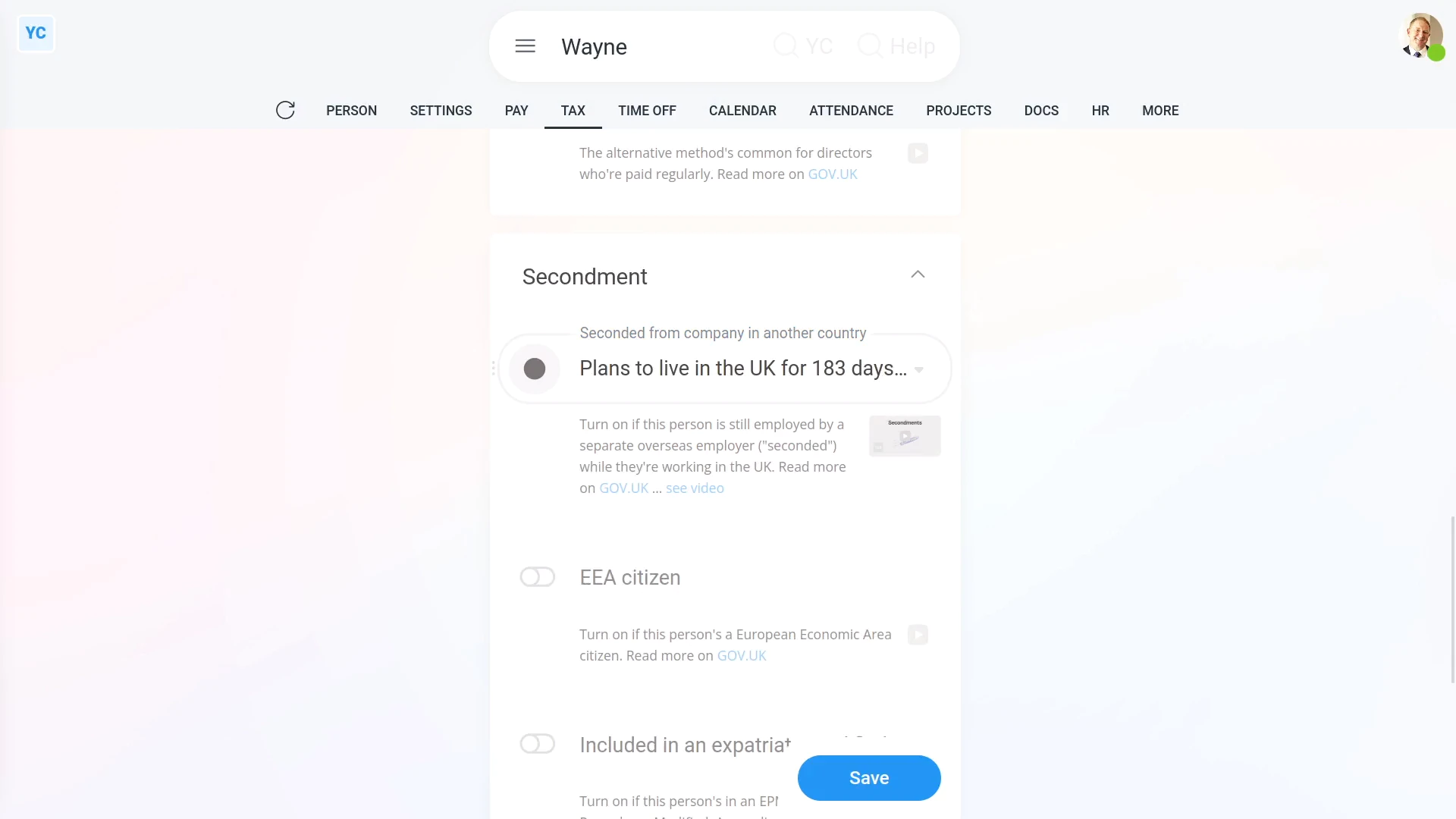
To set a person's secondment settings:
- First, select the person on: "Menu", then "People"
- Then tap: "Tax", then "Tax settings"
- Next, scroll down and tap the "Secondment" heading, to see its three settings.
- Select the option that best fits the person's situation for: "Seconded from company in another country"
- If you're not sure which option to select, tap the GOV.UK link, to read more.
- If the person's a European Economic Area citizen, and can show you their passport, turn on: "EEA citizen"
- Again, if you're not sure, read more on the GOV.UK link.
- Where the person's in an EPM6 (Employment Procedures Modified, Appendix 6) scheme, turn on: "Included in an EPM6 scheme"
- Like before, if you're not sure, read more on the GOV.UK link.
- And finally, tap: Save
Keep in mind that:
- Secondments are usually for a person to exchange experience and skills, or to replace other workers.
- Secondments are usually done by large companies with branches in more than one country.
- Secondment means the person pays UK income tax on their UK earnings.
And that's it! That's everything you need to know about entering a person's secondment settings!
How do I set a person's UK tax code?
 2:08
2:08
"How do I set a person's UK tax code?"
Before a UK person can be paid, you first have to enter their UK tax code.
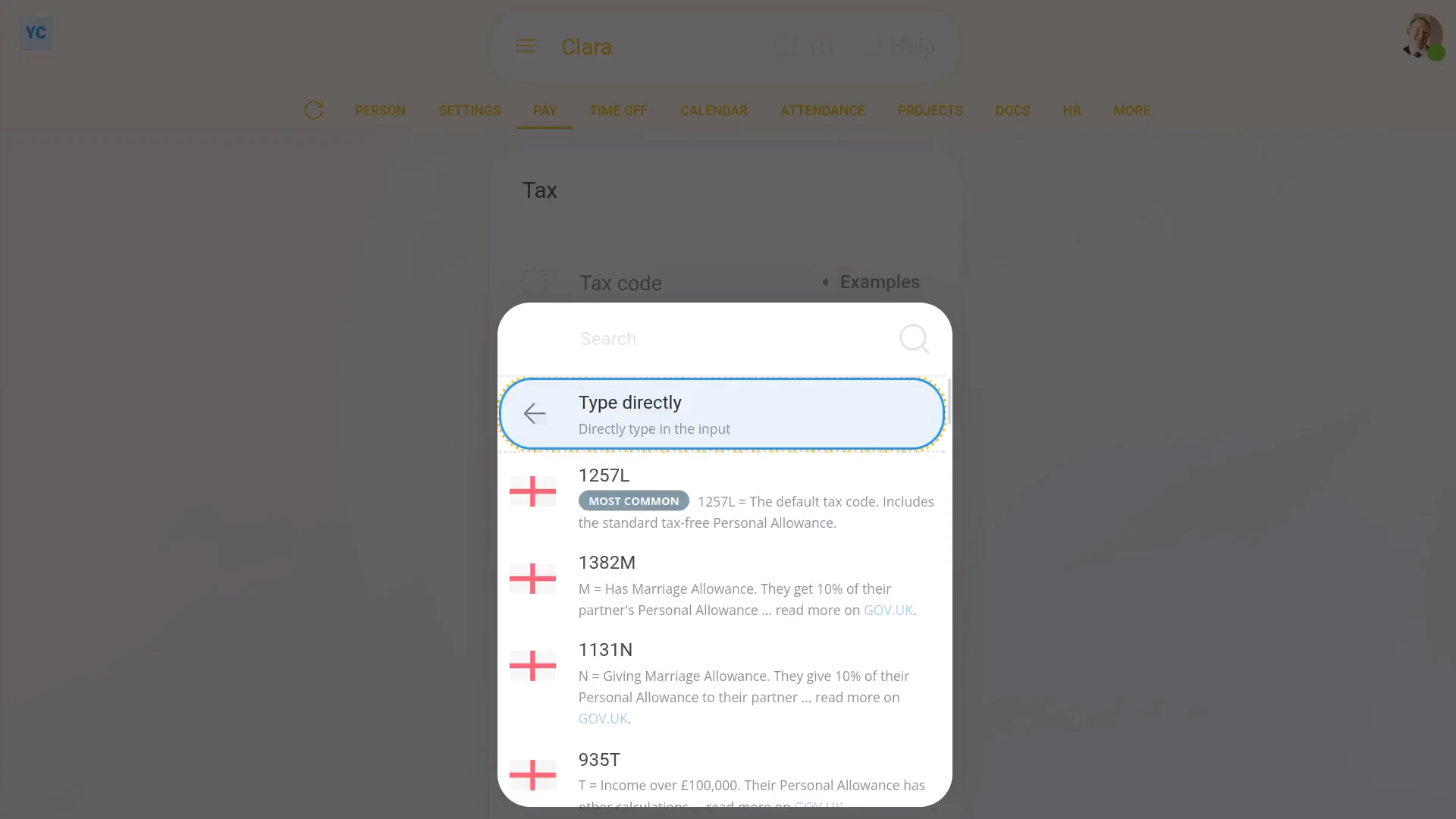
To set a UK person's tax code:
- First, select the person on: "Menu", then "People"
- Then tap: "Tax", then "Tax settings"
- If you already have the person's tax code from their P45, type it in the box.
- Or instead, tap Examples, and select a tax code from the list.
- For whatever tax code you enter, you'll see that the note explaining what the new tax code letters mean is automatically updated.
- And finally, tap: Save
Keep in mind that:
- All UK tax codes are two to seven characters long, and are set by HMRC.
- Tax codes affect how much income tax is deducted from a person's pay.
- If the tax code's wrong, the amount deducted may be too much or too little tax.
For advanced usage:
- You can find a person's UK tax code on past payslips, tax forms, or letters from HMRC.
- If a person can't find their tax code, or their situation's changed, ask them to call HMRC on: 0300 200 3300
- Also, occasionally HMRC may send a change to a person's tax code, through an: "HMRC notice"
- If HMRC sends an "HMRC notice", the person's tax code is automatically updated. You won't have to do anything.
- Any time a person's tax code is automatically updated from an "HMRC notice", two emails are sent. One email to the person, and the other email to their payroll group's payday person.
 HMRC notices
And that's it! That's everything you need to know about setting a person's UK tax code!
How do I set up an HMRC tax connection for a company?
 2:43
2:43
"How do I set up an HMRC tax connection for a company?"
Before sending filed payslips to HMRC, you first need an "HMRC Tax Filing" connection. There's two ways to connect. There's the company connection, or the external tax agent connection.
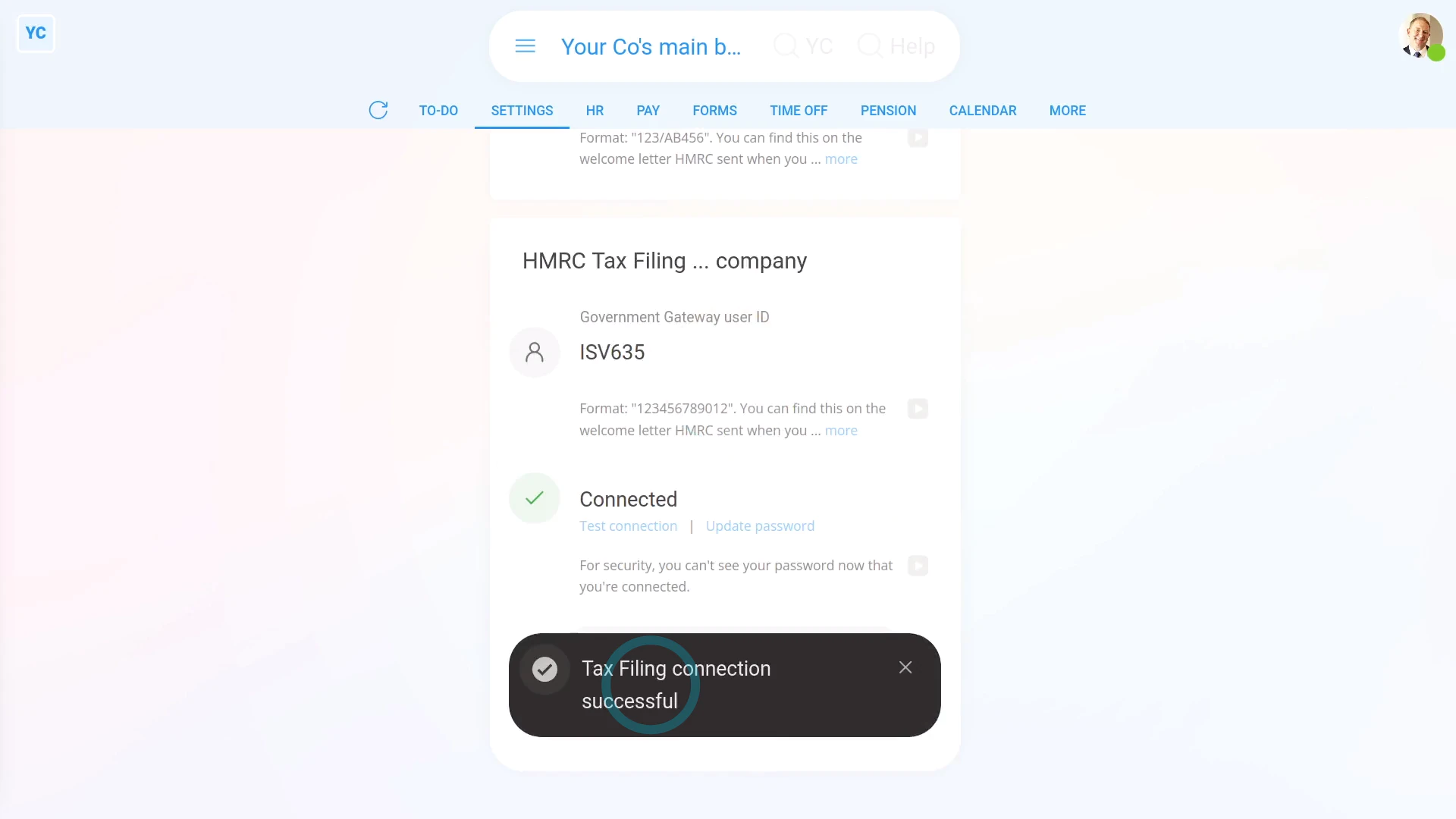
To set up your company connection to HMRC:
- First, select the payroll group on: "Menu", then "Payroll groups"
- Then tap: "Settings", then "HMRC tax connection"
- Now type in your: "Accounts Office reference"
- You can find it on the welcome letter HMRC sent when you first registered as an employer.
- Also type in your: "Employer PAYE reference"
- It's also found on the welcome letter, in your Government Gateway account, or on other letters and emails from HMRC.
- Next, type in your company's: "Government Gateway user ID"
- And then your company's: "Government Gateway password"
- Then tap: Save
- All your details are now being checked by HMRC. In a few seconds you'll see the confirmation message.
- Once you get the confirmation message, your payroll group's all connected to HMRC.
- And finally, you're now ready to submit payroll each payday. You won't have to set your connection details again.
Keep in mind that:
- To pass verification, make sure all four HMRC details are entered correctly.
- Your "HMRC Tax Filing" connection is used for all your payday FPS and monthly EPS submissions. It's also used for verifying National Insurance numbers.
- If you've got more than one payroll group, you'll need to set the connection steps again, for each of your other payroll groups as well.
- If multiple payroll groups all belong to the same company, you can reuse the exact same ID and password for each payroll group.
- Also, if you're choosing between a company connection, or an external tax agent connection, it's recommended to pick the company connection.
- The advantage with a company connection is when your external tax agent, like your accountant, is off sick.
- If your accountant's off sick, other people in your org can always fill in and still do your HMRC submissions.
To learn more:
- About setting up your HMRC tax connection as an external tax agent, watch the video on: HMRC external tax agent connection
And that's it! That's everything you need to know about setting up an HMRC tax connection as a company!
How do I set up my HMRC tax connection as an external tax agent?
 3:02
3:02
"How do I set up my HMRC tax connection as an external tax agent?"
Before sending filed payslips to HMRC, you first need an "HMRC tax connection". There's two ways to connect. An external tax agent connection, or a company connection.
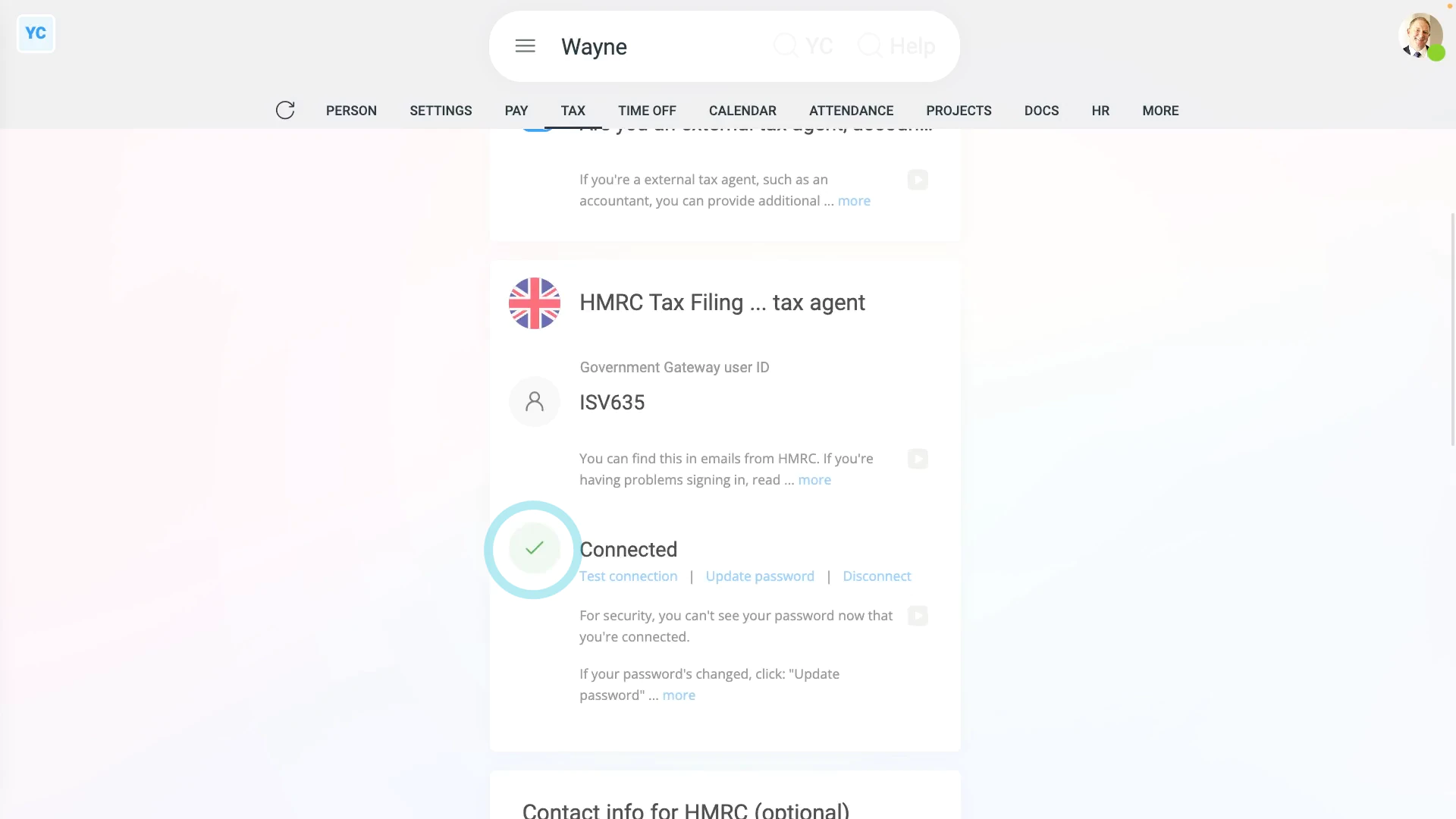
To set up your external tax agent tax connection to HMRC:
- First, open yourself on: "Menu", then "Me"
- Then tap: "Tax", then "External tax agent"
- And turn on: "Are you an external tax agent, accountant, or bookkeeper?"
- Next, scroll down to the "HMRC tax connection ... tax agent" heading.
- To learn how to set up the required logins, see the "GOV.UK" links.
- Then type in your: "Government Gateway user ID"
- And then your external tax agent: "Government Gateway password"
- And tap: Save
- All your details are then checked by HMRC.
- And in a few seconds you'll get a confirmation message.
- Once you get the confirmation message, you'll see a green check confirming that you're all connected to HMRC.
- And you're now ready to submit payroll for your client companies each payday. And you won't have to set your connection details again.
- If you ever need to check the connection, you can tap the "Test connection" link.
- If you ever need to update your password, you can tap the "Update password" link.
- And if you want to delete your connection, you can tap the "Disconnect" link.
- Optionally, you can also store your contact details to be sent with HMRC submissions.
- The contact details help HMRC know who to go to if HMRC has questions.
- And finally, as an external tax agent, you're now ready to send filed payslips to HMRC on behalf of any of your client companies.
Keep in mind that:
- Only the person, themselves, can set up their own external tax agent connection to HMRC.
- Other users, including admins, can't see the external tax agent page, on behalf of another person.
- Also, if you're choosing between a company connection, or an external tax agent connection, it's recommended to pick the company connection.
- The advantage with a company connection is when your external tax agent's off sick.
- If your external tax agent's off sick, other people in your org can always fill in and still do your HMRC submissions.
To learn more:
- About setting up your HMRC tax connection as a company, watch the video on: HMRC Tax Filing company connection
And that's it! That's all you need to do to set up your HMRC tax connection as an external tax agent!
What are a person's 'Opening amounts', and how do I set them?
 6:11
6:11
"What are a person's "Opening amounts", and how do I set them?"
A person's "Opening amounts" are a set of pay and tax numbers that were sent to HMRC by your previous payroll system through the payday FPS.
You only need to set a person's "Opening amounts" if you're switching from your previous payroll system, to 1st Money, partway through the tax year.
To see some people's "Opening amounts" automatically entered by "Import people":
- First, select your org on: "Menu", then "Orgs"
- Then tap: "More", then "Import people"
- You're now on step 1, so tap: Choose File
- Next, select your latest payday FPS file.
- Now, on step 2, if you scroll across, you can see all the "Opening amounts" for each person.
- Once you're ready, tap Import ticked, and: Yes ... do it
- Now to see a person's "Opening amounts", select a person on: "Menu", then "People"
- Then tap: "Tax", then "Opening amounts"
- And finally, you'll see all the person's "Opening amounts" have been automatically entered by: "Import people"
To set a person's "Opening amounts" by hand:
- First, select the person on: "Menu", then "People"
- Then tap: "Tax", then "Opening amounts"
- You'll now see that there's a few different sections.
- Opening amounts:
The first section has two "Opening amounts" for Income Tax from your previous payroll system. - For people that've been paid in another payroll system, the "Taxable pay this employment" and "Income tax this employment" are required by HMRC.
- Without them, the person's Income Tax would be calculated incorrectly.
- Year-to-date NI categories:
The second section has pay and tax numbers for each National Insurance category the person's had so far in the tax year, in their current employment. - Before you can set any of the numbers, you'll first need to set the person's: "NI category letter"
- Now that the category's set, you can enter the next six numbers for the first category.
- "LEL earnings" refers to NI taxable earnings that're below the Lower Earnings Limit (LEL).
- "LEL-PT earnings" refers to NI taxable earnings that're between the Lower Earnings Limit (LEL) and the Primary Threshold (PT).
- "PT-UEL earnings" refers to NI taxable earnings that're between the Primary Threshold (PT) and the Upper Earnings Limit (UEL).
- The exact amount of the limits and thresholds can change based on the tax year, you can find the current amounts on GOV.UK.
- Next, if the person's had more than one National Insurance category in the tax year, set the person's: "2nd NI category letter"
- And you can now enter the next six numbers for their second category.
- Most of the time, there'll only be one National Insurance category for a person.
- Year-to-date student loans:
The third section is for any student loans or postgraduate loans the person's paid so far in the tax year, in their current employment. - Include the total of any Plan 1, Plan 2, Plan 4, and Plan 5 student loans in the "Total student loan repayments" box.
- Year-to-date statutory payments:
The fourth section is for any statutory pay the person got for maternity, paternity, adoption, shared parental leave, or parental bereavement. Sick pay isn't included. - Only include statutory pay the person got so far in the tax year, in their current employment.
- Advanced:
The final section is for the last three advanced settings. - "Total benefits taxable by PAYE" is only for company benefits in kind that have Income Tax paid on them, like a company car or private medical insurance.
- "Total employee pension deductions" are for all the pension contributions the person's made so far in the tax year. Don't include any amounts from previous employments or any pension contributions the employer made.
- "Total employer Class 1A NI" is for National Insurance the employer paid for company benefits in kind, like a company car or private medical insurance.
- And finally, once everything's all set, tap: Save
Keep in mind that:
- "Opening amounts" are only for the current tax year, and only for the person's current employment.
- Each payday the "Opening amounts" are sent to HMRC in the payday FPS to tell them how much tax the person's paid in the tax year.
- Usually the "Opening amounts" are entered automatically by "Import people" when you upload your payday FPS file, but you can also set them by hand.
- The recommended way to set opening amounts is by uploading a payday FPS file in the "Import people" process.
- Setting "Opening amounts" by hand is only recommended if the "Import people" process doesn't work for you.
You may notice:
- All the "Opening amounts" are wiped back to zero when the new tax year starts on every April 6th.
- HMRC doesn't want you to include any amounts from previous tax years, or from other employments.
- If you've always been with 1st Money and never migrated from a previous payroll system, all the "Opening amounts" are zero.
- If you've migrated from a previous payroll system but have started a new tax year, all the "Opening amounts" are zero from now on.
To also learn more:
- About setting opening amounts for the payroll group, watch the video on: Payroll group opening amounts
And that's it! That's everything you need to know about setting a person's "Opening amounts"!
What are the advanced tax settings?
 2:06
2:06
"What are the advanced tax settings?"
There's four advanced tax settings that occasionally you may need to set.
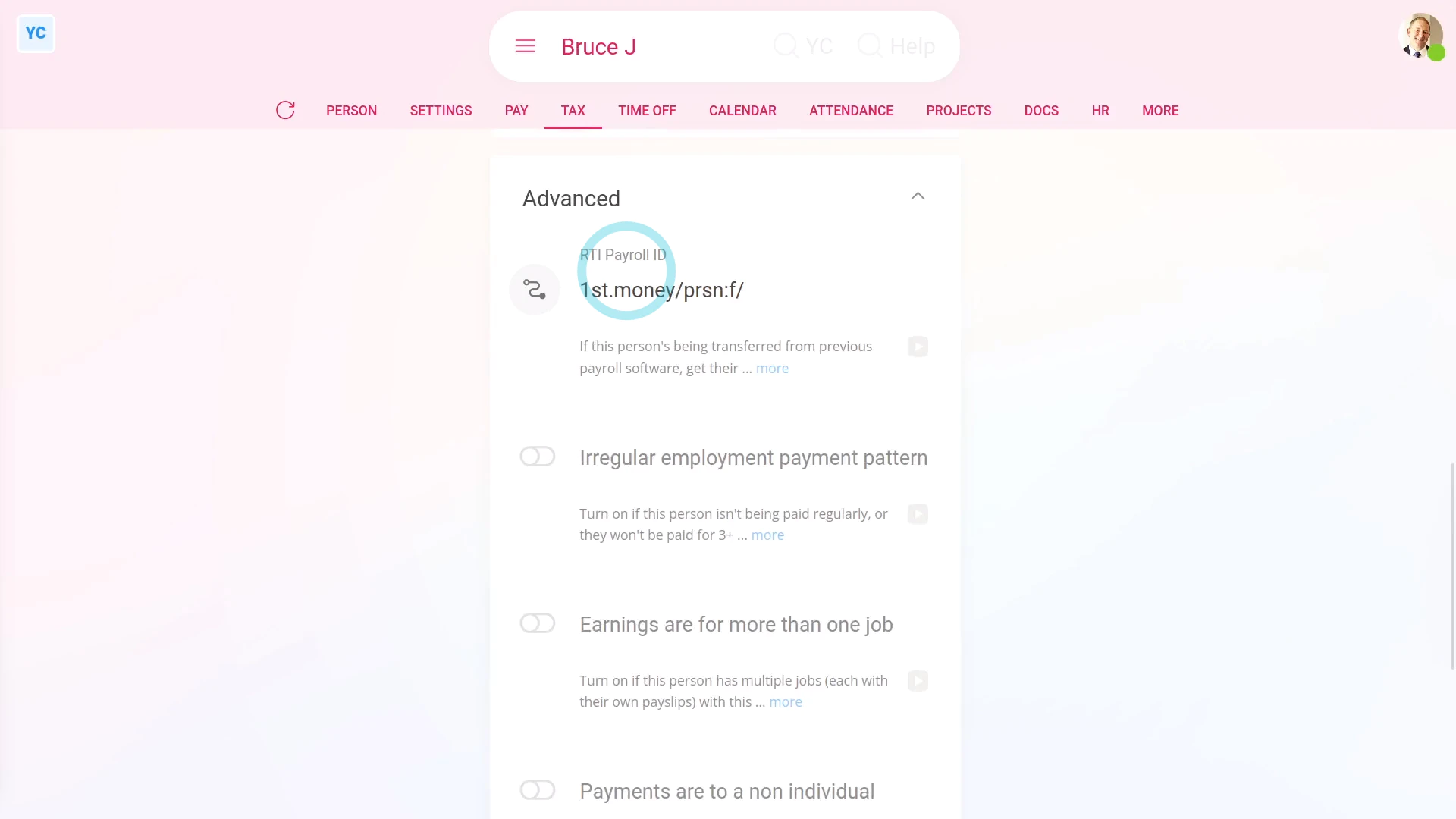
To set a person's advanced tax settings:
- First, select the person on: "Menu", then "People"
- Then tap: "Tax", then "Tax settings"
- Then scroll down and tap the heading "Advanced", to show its contents.
- The first advanced tax setting is: "RTI Payroll ID"
- It must always have something in it, and must never be empty.
- If you've migrated the person over from another payroll platform, HMRC requires you to enter the "RTI Payroll ID" used on the other platform.
- Maintaining the same "RTI Payroll ID" allows HMRC to match up their records, throughout the tax year, from both platforms.
- Next, is "Irregular employment payment pattern" which is for when the person isn't being paid regularly.
- Including when you won't be paying them for 3 months, or more. Like, for casual employees, or when on long-term sick leave.
- Check out the HMRC link, to learn more.
- Next, is "Earnings are for more than one job" which is for when the person's got multiple jobs.
- But only for when those multiple jobs are each within a single company, or with associated businesses.
- See the HMRC link, to learn more.
- Last is "Payments are to a non individual" which is for when Payroll Payments aren't made to the person.
- Instead, Payroll Payments are made in the name of: "a personal representative, trustee or corporate organisation"
- And finally, tap the HMRC link, to learn more.
Keep in mind that:
- It's rare that you'll ever have to set any of the advanced tax settings, but the settings are there if you need them.
And that's it! That's everything you need to know about advanced tax settings!
What if I've not gotten my Employer PAYE reference yet?
 3:22
3:22
"What if I've not gotten my Employer PAYE reference yet?"
Sometimes, as a newly registered employer, you've reached payday, and you've still not gotten your Employer PAYE reference number from HMRC yet.
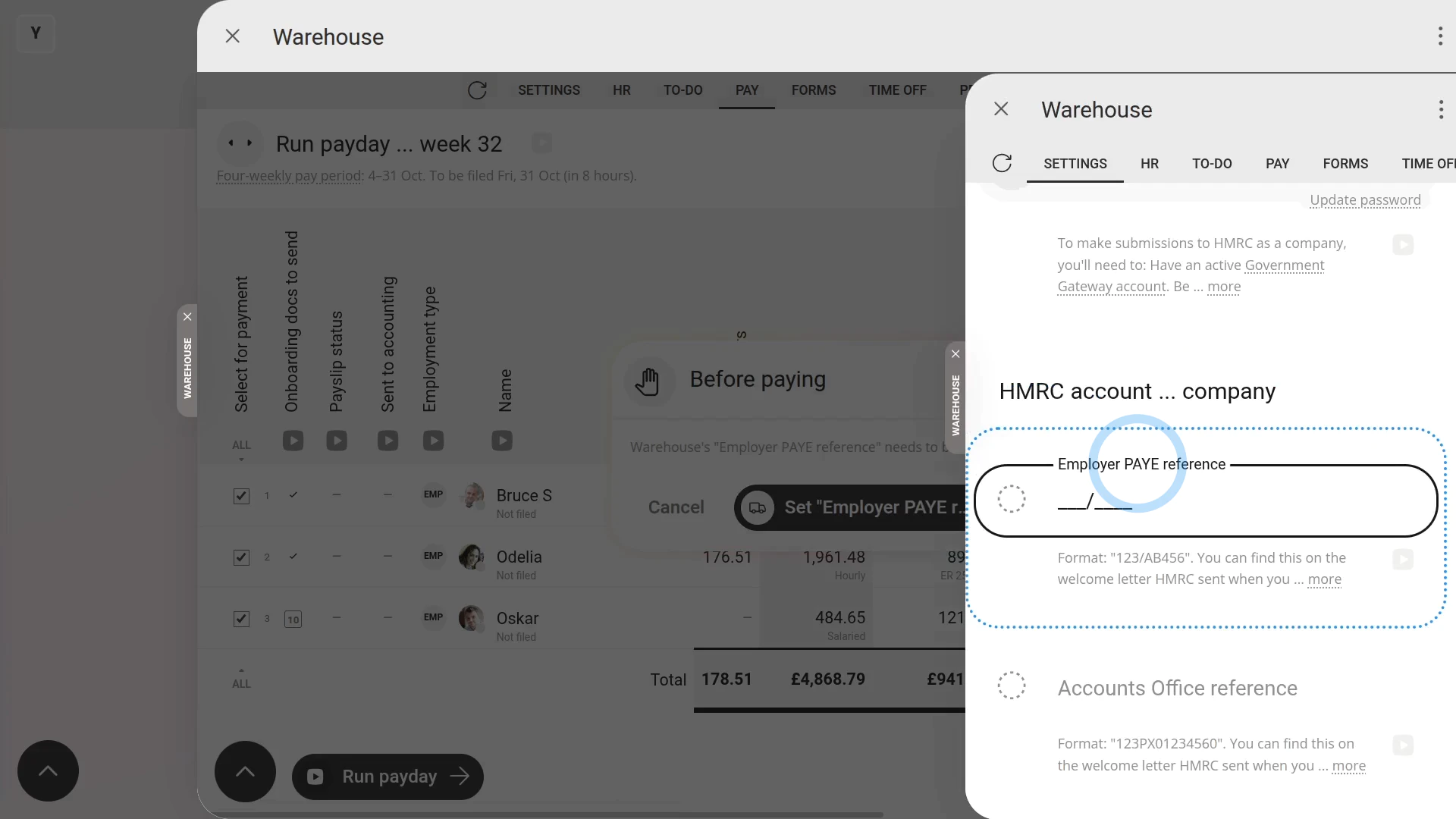
To meet your obligations on payday if you've still not gotten your Employer PAYE reference number:
- First, select the payroll group on: "Menu", then "Payroll groups"
- Then on the "To-do" tab, tap the upcoming: "Payday"
- Once the "Payday" is open, you'll see details about each payslip, like net pay, taxes, and more.
- Then tap: Process payroll
- However, because you've not entered your Employer PAYE reference number, you'll get a warning.
- And when you tap through, it highlights the "Employer PAYE reference" which you've got no way of filling in.
- Usually, it's because you're still waiting for your Employer PAYE reference number to be posted from HMRC to your mailing address.
- If so, the best path forward may be to tap back to the payday.
- And for now, take a note of the numbers in the "Net pay" column, and pay your people manually, outside of 1st Money.
- Using the "To be filed" date as your payment deadline.
- Then later, perhaps in a few weeks, you can return, once you get your Employer PAYE reference number from HMRC.
- When you return, you still tap Process payroll, even though you've already paid them weeks earlier.
- Then tap through and set your newly received "Employer PAYE reference" number, and: "Accounts Office reference"
- And then tap: Test connection
- If everything connects correctly with HMRC, your details are saved, and the payday automatically reloads.
- And finally, you're ready to tap Process payroll and tap through all the normal payday steps.
Keep in mind that:
- To receive an Employer PAYE reference number, you'll need to contact HMRC directly.
- HMRC has instructions on their "Register as an employer" page.
- However, in some cases, it can take up to 2-3 weeks for your Employer PAYE reference number to be posted from HMRC to your mailing address.
- And there doesn't seem to be any way to hurry the number delivery up.
- And unfortunately, HMRC won't allow your payroll tax calculations to be submitted without it.
- Also reassure your people that there's still proper payslips on their way, but that it may be a few weeks late.
To learn more:
- About setting up your HMRC tax connection as a company, watch the video on: HMRC Tax Filing company connection
And that's it! That's everything you need to know about paying a payday if you've still not gotten your Employer PAYE reference!
What tax settings do I need to set for a UK apprentice?
 4:06
4:06
"What tax settings do I need to set for a UK apprentice?"
If you employ a UK apprentice, you can pay them the standard apprentice hourly rate, which is lower than the National Minimum Wage.
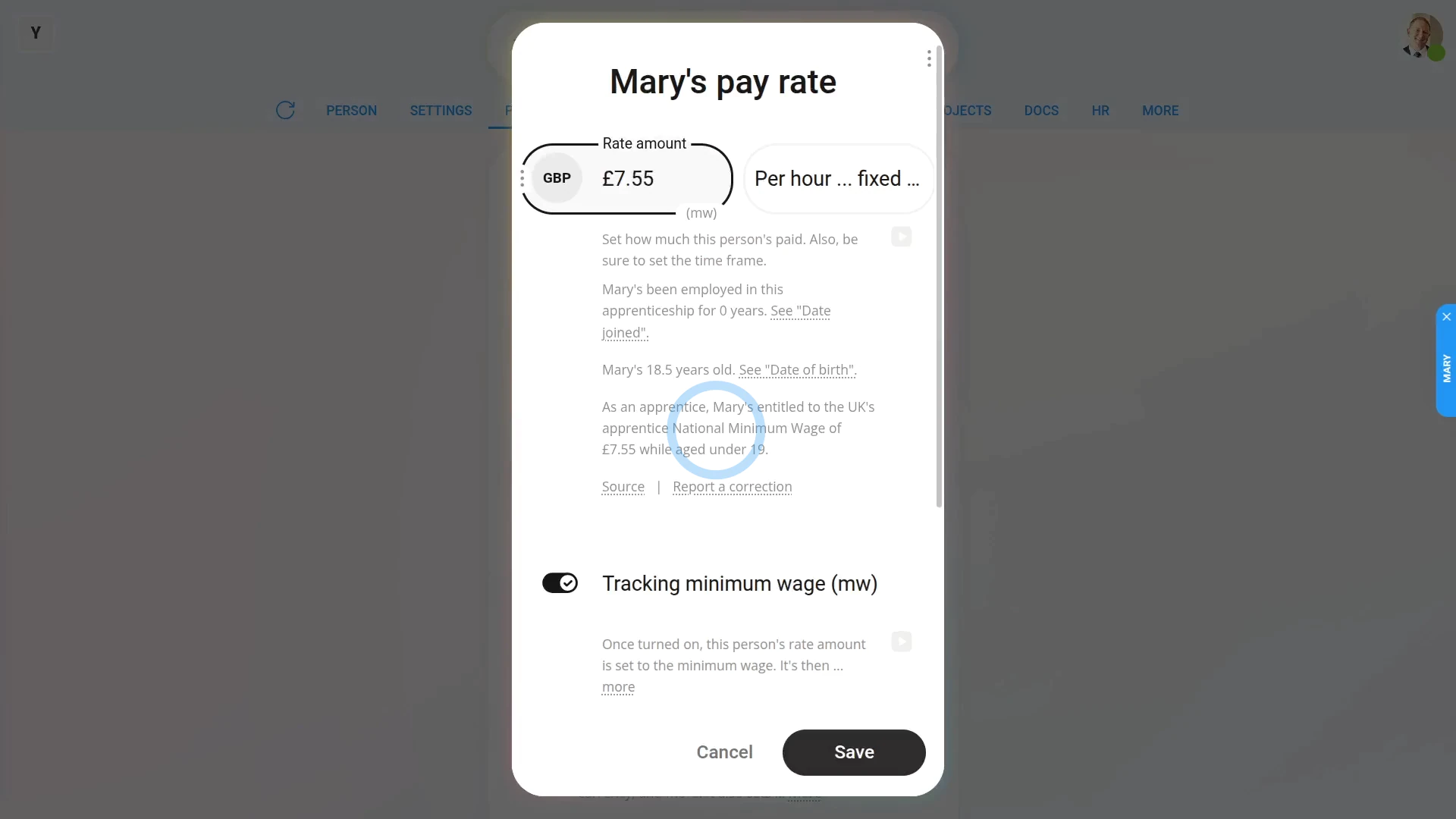
To set a person's UK apprentice hourly rate and tax settings:
- First, select the apprentice on: "Menu", then "People"
- Then tap: "Pay", then "Pay settings"
- Then tap the person's rate amount, or if no rate amount is set yet, tap: Set rate
- Next, select a "Per hour" rate. You can select whichever of "fixed targets" or "clocked-in timesheets" you prefer.
- And then turn on: Tracking minimum wage
- Minimum wage tracking requires the person's "Date of birth" to be set.
- If it's not set, you'll get a warning.
- To set their "Date of birth", tap the "Set it now" link and set it.
- Then tap: Save
- Now that their "Date of birth" is set, tap Set rate again.
- Set it to "Per hour" again.
- Then turn on: Tracking minimum wage
- Additionally, turn on: Also tracking apprentice min. wage
- When you're ready, tap: Save
- And you'll now see their rate amount shows the letters: "(mw)"
- The "(mw)" indicates that their rate amount is now locked to the apprentice minimum wage, and is set to auto-update from year-to-year, from now on.
- To understand how their apprentice minimum wage rate was calculated, tap it to open again, and read the notes and links.
- If you later decide to pay them higher than apprentice minimum wage, you can turn off "Tracking minimum wage" anytime.
- And finally, you're now free, again, to set them to whatever higher pay rate you want.
Keep in mind that:
- Apprentices are entitled to the apprentice rate if their age is under 19. Or their age is 19, or over, and it's the first year of their apprenticeship.
- So turning on "Tracking apprentice minimum wage" doesn't only auto-update the person's hourly pay rate, from year-to-year.
- It also checks the person's age every payday and how long since their join date. For example, the person may turn 18 part way through the year, or go past one year since joined way through the year.
- Once "Tracking apprentice minimum wage" is turned on, 1st Money automatically checks both for you, and updates the person's pay rate for you.
- It's updated both when the government releases new apprentice minimum wage rules, and whenever the person's age or tenure changes.
- Think of it as set and forget!
In most cases, you'll also want to set the apprentice's NI category letter. After which, you, as the employer, won't have to pay the apprentice's National Insurance contributions.
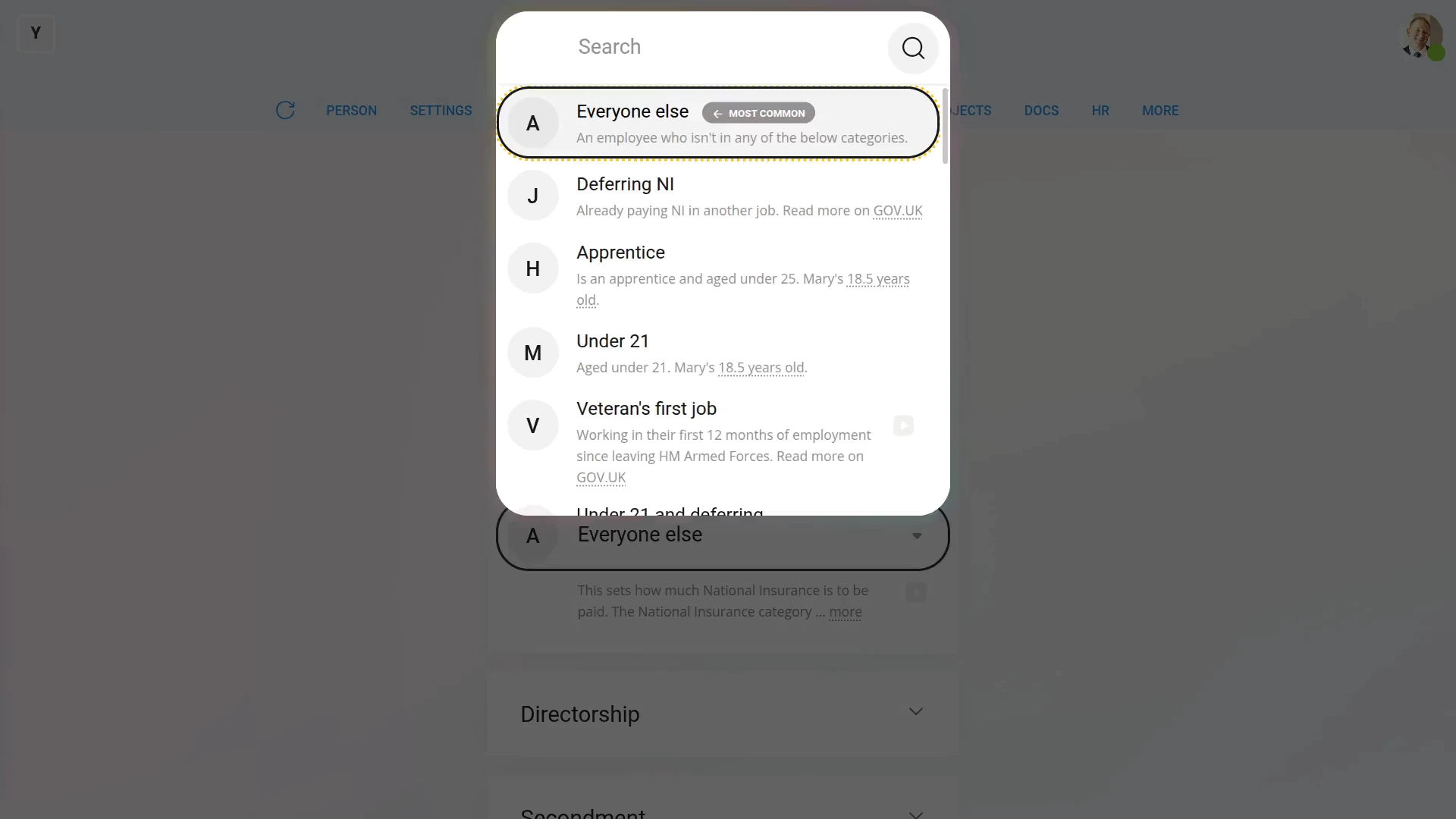
To set a person's National Insurance category letter:
- First, select the person on: "Menu", then "People"
- Then tap: "Tax", then "Tax settings"
- Then scroll down to the "National Insurance" heading.
- And tap: "National Insurance ... category letter"
- For an apprentice, the letter to select is: "H"
- And finally, tap Save, and you're done.
You may notice:
- If the apprentice is over age 25, the "H" category letter may be greyed out, in which case, select a different category.
To learn more:
- About NI category letters, watch the video on: The NI category letter
- To learn more about apprentices, see HMRC's page on Employing an apprentice.
And that's it! That's everything you need to know about pay rate and tax settings for a UK apprentice!
What tax settings do I need to set for a UK veteran?
 2:51
2:51
"What tax settings do I need to set for a UK veteran?"
If you employ a UK veteran, you may get tax relief from the government for the first 12 months after the veteran starts their first job.
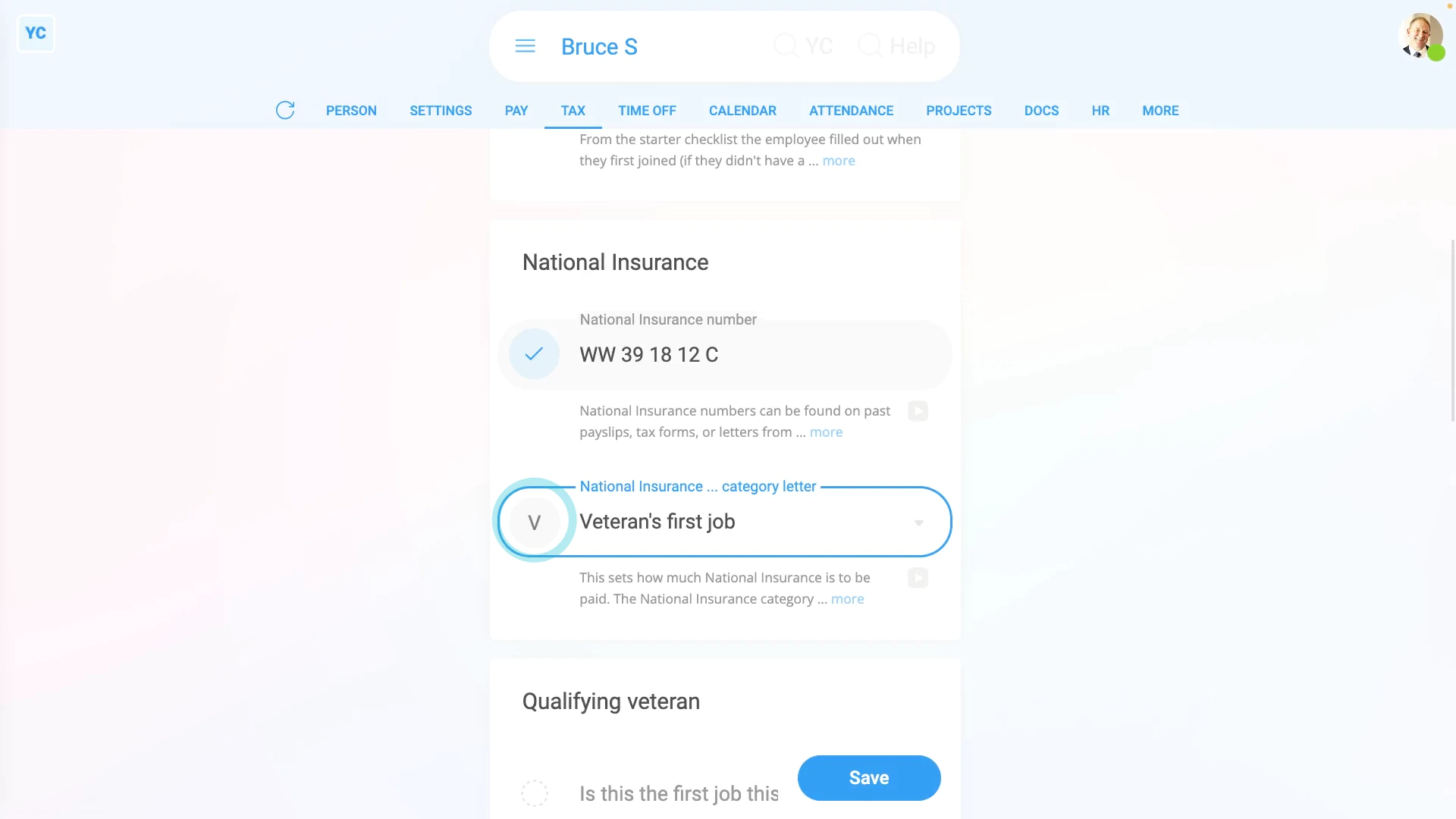
To set a person's UK veteran tax settings:
- First, select the veteran on: "Menu", then "People"
- Then tap: "Tax", then "Tax settings"
- Then scroll down to the "National Insurance" heading.
- Next, to decide if the veteran qualifies.
- Find out if it's their first job since leaving the armed forces.
- If "Yes", then set their "National Insurance category letter" to: "V"
- Otherwise, find out when, after leaving the armed forces, their "first job start date" was.
- If it's not yet been 12 months since their "first job start date", then also set their "National Insurance category letter" to: "V"
- In all other cases, if it's been over 12 months since their "first job start date", set their "National Insurance category letter" to something else.
- If you've set their "National Insurance category letter" to: "V"
- You'll see a new heading appear, called: "Qualifying veteran"
- Next, select if it's their "first job as a veteran", or if the veteran's: "had another job"
- Then if the veteran's "had another job", enter their: "Date of first civilian employment"
- Next, upload, or take a photo of a document that shows their armed forces employment.
- And finally, after you've uploaded the document, your changes are now auto-saved.
Examples of an approved document to upload, include:
- Their discharge papers.
- Their identification card, which shows their time in the armed forces.
- Their letter of employment, or contract with the armed forces.
- Or their P45, from leaving the armed forces.
Keep in mind that:
- A UK veteran includes any person that's ever served in any regular branch of the British Armed Forces.
- Including: the Royal Navy, the British Army, and the Royal Air Force.
- And that the qualifying period begins on the first day of the veteran's first civilian employment, since leaving the armed forces.
- The qualifying period ends 12 months later.
- Their tax relief could mean that the employer doesn't have to pay any employer National Insurance for the veteran's first 12 months.
And that's it! That's everything you need to know about tax settings for a UK veteran!
Where do I put the leaving date, pay, and tax from a previous job?
 3:27
3:27
"Where do I put the leaving date, pay, and tax from a previous job?"
When setting the pay for a new person, there's three things from their previous job that you may need to enter. Their previous leaving date, their previous pay, and their previous tax, but for the current tax year only. All three come from the person's P45.
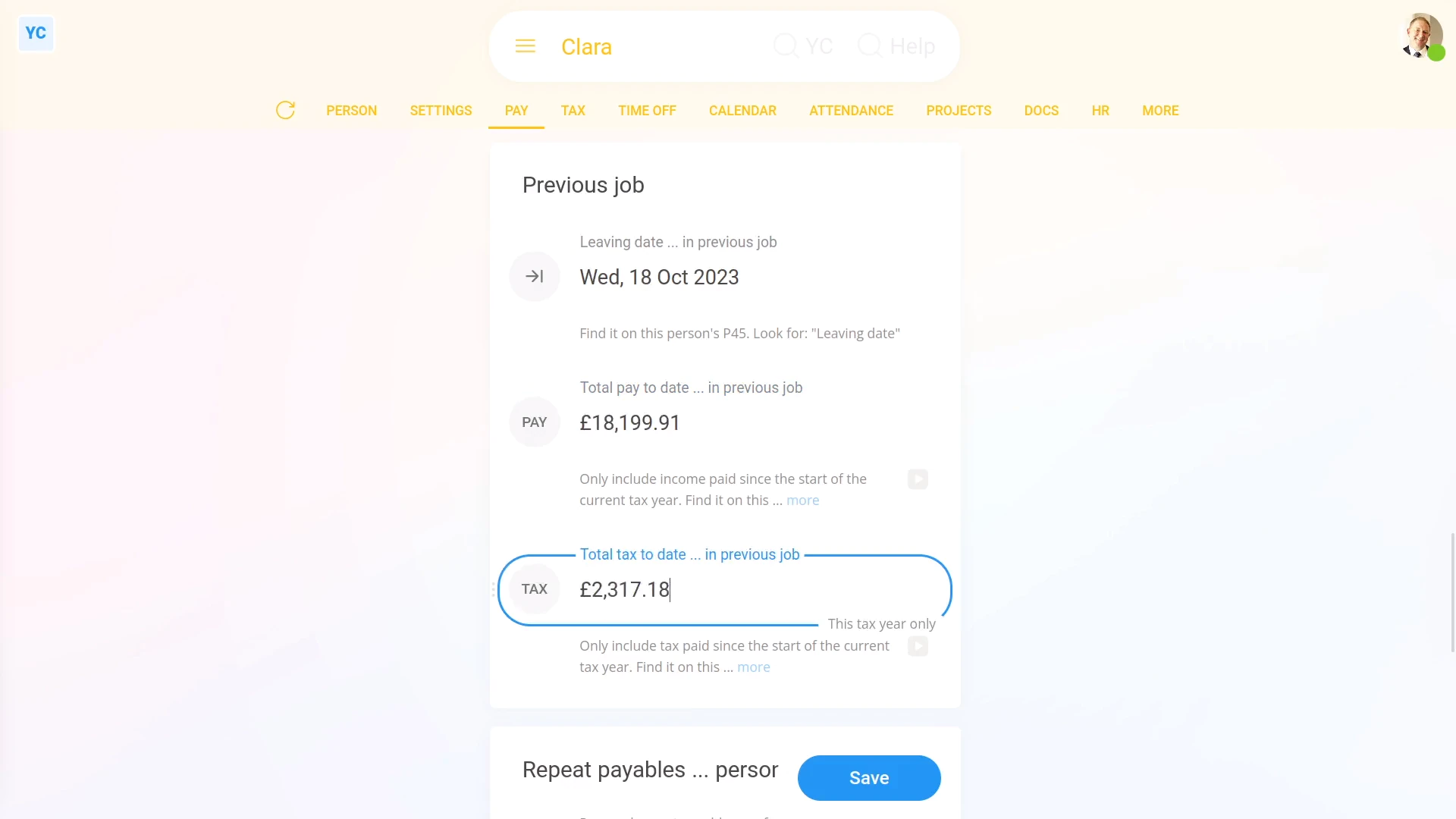
To set a person's leaving date, pay, and tax from their previous job:
- First, select the person on: "Menu", then "People"
- Then tap: "Pay", then "Pay settings"
- Then scroll down to the "Previous job" heading.
- Now, look on the paper P45 form you've been given by the person.
- And look for the "Leaving date", the "Total pay to date", and also the: "Total tax to date"
- Once you've found them on their P45, enter them one-by-one, starting with: "Leaving date ... in previous"
- Then enter their: "Total pay to date ... in previous"
- And then their: "Total tax to date ... in previous"
- And finally, tap: Save
Keep in mind that:
- HMRC expects you to include their leaving date, pay, and tax amounts from any previous job the person's worked at before joining your company.
- But only for the current tax year, starting 6th of April, until now.
- The pay and tax amounts help calculate the person's Income Tax correctly for the current tax year.
- HMRC expects you to ignore any leaving date, pay, and tax amounts from work done in previous tax years.
- Also ignore gaps of unemployment, and ignore their P45's from all previous tax years.
- In other words, if the person's joining your company today, and today's the 6th of April. And if the person worked in their last job right up until yesterday, the 5th of April.
- You'd leave their previous pay and tax amounts empty, as it's the first day of the new tax year.
Also remember that:
- If a person didn't ever have any previous job, also leave the person's leaving date, pay, and tax empty.
- Also, occasionally HMRC may send a correction, through an: "HMRC notice"
- If HMRC sends an "HMRC notice" correction, the person's details are automatically updated. You won't have to do anything.
- Any time a leaving date, pay, or tax amount is automatically updated, two emails are sent.
- One email to the person, and also one email to their payroll group's payday person. So you'll always know what's happening.
You may notice:
- Eventually today's date rolls around to the new tax year, on the 6th of April. On the beginning of the new tax year, any pay and tax amounts that were previously entered, are automatically wiped.
- Again, you won't have to do anything. But don't be concerned if one day the amounts show up empty.
And that's it! That's everything you need to know about entering a person's leaving date, pay, and tax from their previous job!
www.1st.money/uk/help/Payroll/UK_payroll/