Payday schedules
 3:15
3:15What types of payday schedules are there?
Five payday schedules include weekly, fortnightly, four-weekly, semi-monthly, monthly, and once only bridging.
 1:40
1:40How do I change how often my people get paid?
Steps to change payday schedule and payroll group settings before payslips are filed.
 5:35
5:35How do I set which dates each pay period starts and ends on?
Instructions on setting start and end dates for different payroll pay periods.
 1:40
1:40How do I set the delay for a pay period's last day to its payday?
How to set a delay between a pay period's last day and its payday in payroll settings.
1. What types of payday schedules are there?

 3:15
3:15
"What types of payday schedules are there?"
Payday schedules set when, and how often your pay gets paid.
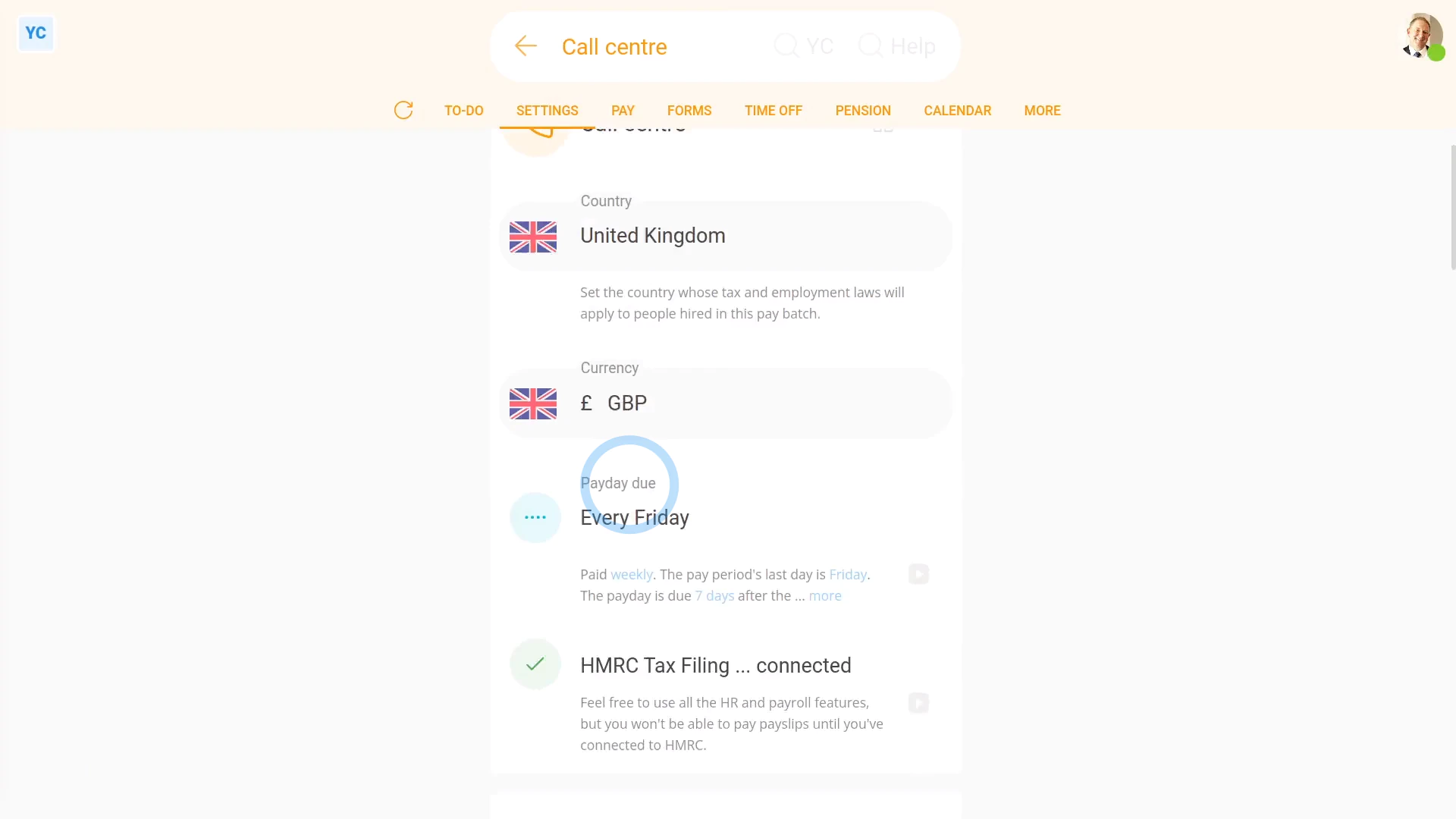
To see a payroll group's types of payday schedules:
- First, select the payroll group on: "Menu", then "Payroll groups"
- Then tap: "Settings", then "Payroll group settings"
- Then beside "Payday schedule", tap the "Edit" button:
- And finally, tap: "Pay period"
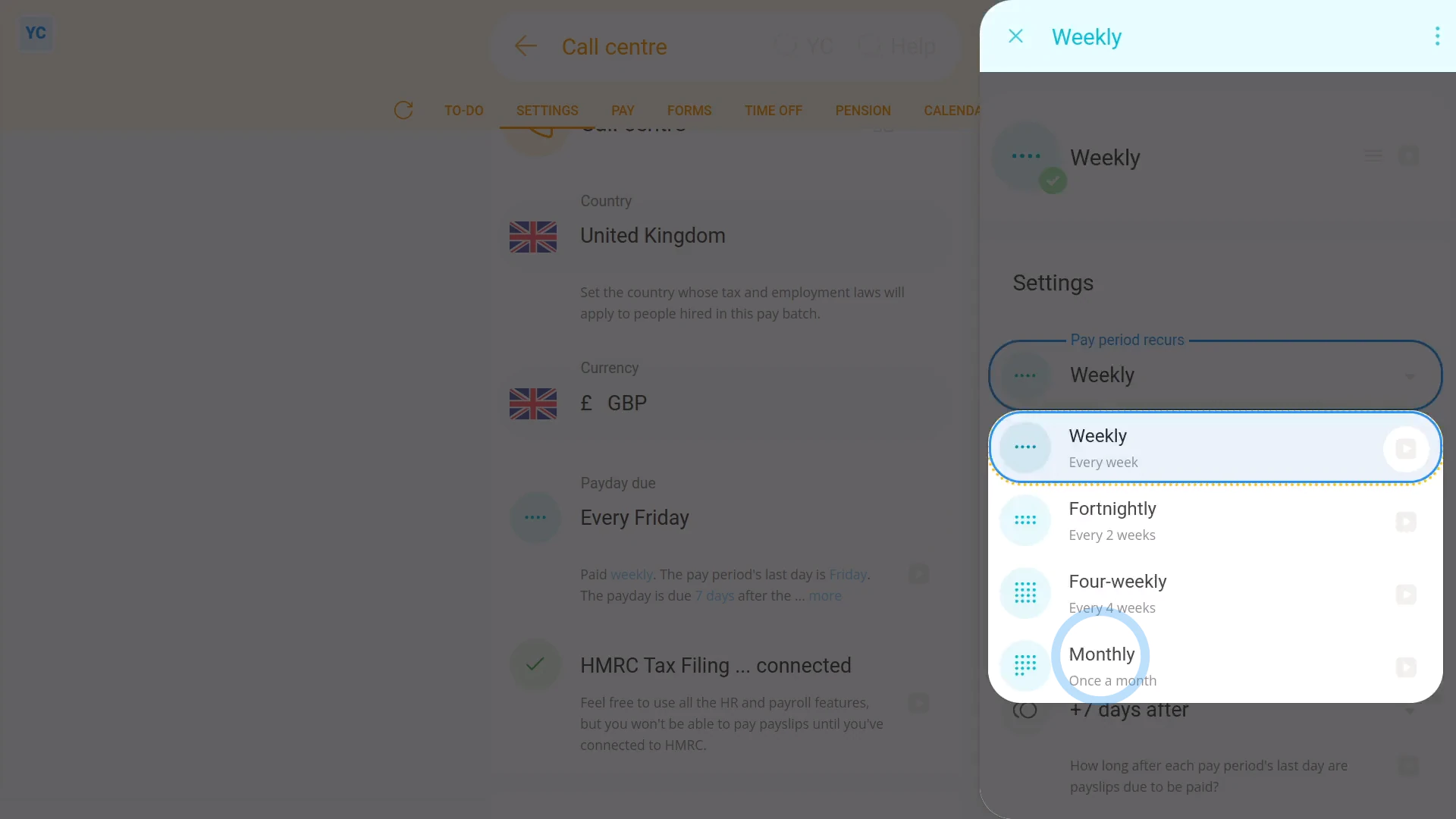
There's five types of payday schedules:
- Weekly.
- Fortnightly.
- Semi-monthly.
- Monthly.
- And once only bridging.
Weekly

Weekly payday schedules:
- Is when your people are paid on the same day of every week.
- For example, payday could be: "every Friday"
- You're free to select any day of the week as your payday.
- Weekly is a good choice if you want a day-of-week payday routine.
Fortnightly

Fortnightly payday schedules:
- Is when each pay period lasts exactly two weeks.
- For example, payday could be: "every second Friday"
- Fortnightly is a good choice if you want a day-of-week payday routine, but with half the effort of weekly.
Four-weekly

Four-weekly payday schedules:
- Is when each pay period lasts exactly four weeks.
- For example, payday could be: "every fourth Friday"
- Four-weekly is a good choice if you want a day-of-week payday routine, but with four times less effort, compared to weekly.
Semi-monthly

Semi-monthly payday schedules:
- Is when you've got two pay periods a month, each ending on the days of your choice.
- For example, payday could be: "the first and 15th of every month"
- You can pick any two ending days.
- Semi-monthly is a good choice if you want the assurance of exactly two paydays a month.
Monthly

Monthly payday schedules:
- Is when payday is on the same day of each month.
- For example, payday could be: "the 1st of every month"
- You're free to pick any day in the month that you'd like as your payday.
- Monthly is a good choice if you want to align monthly paydays with people's monthly bills, like rent, gas, and electricity.
Once only bridging

Once only bridging payday schedules:
- Are only useful when your org is switching from one pay period type to another.
- For example, switching from "Monthly" to "Weekly", and you need to pay your people for the few days gap in between.
- "Once only bridging" pay periods are very rarely used.

To learn more:
- About "Once only bridging" payday schedules, watch the video on: Bridging between payday schedules
 Bridging between payday schedules
You may notice:
- That sometimes, some of the payday schedules may not show in the list, for your country.
- If ever a payday schedule isn't available for your country, it's usually because it's not recommended, based on local tax rules.
And that's it! That's everything you need to know about payday schedule types you can pick from!
2. How do I change how often my people get paid?
 1:40
1:40
"How do I change how often my people get paid?"
Changing how often people get paid, means changing an existing payroll group's payday schedule.
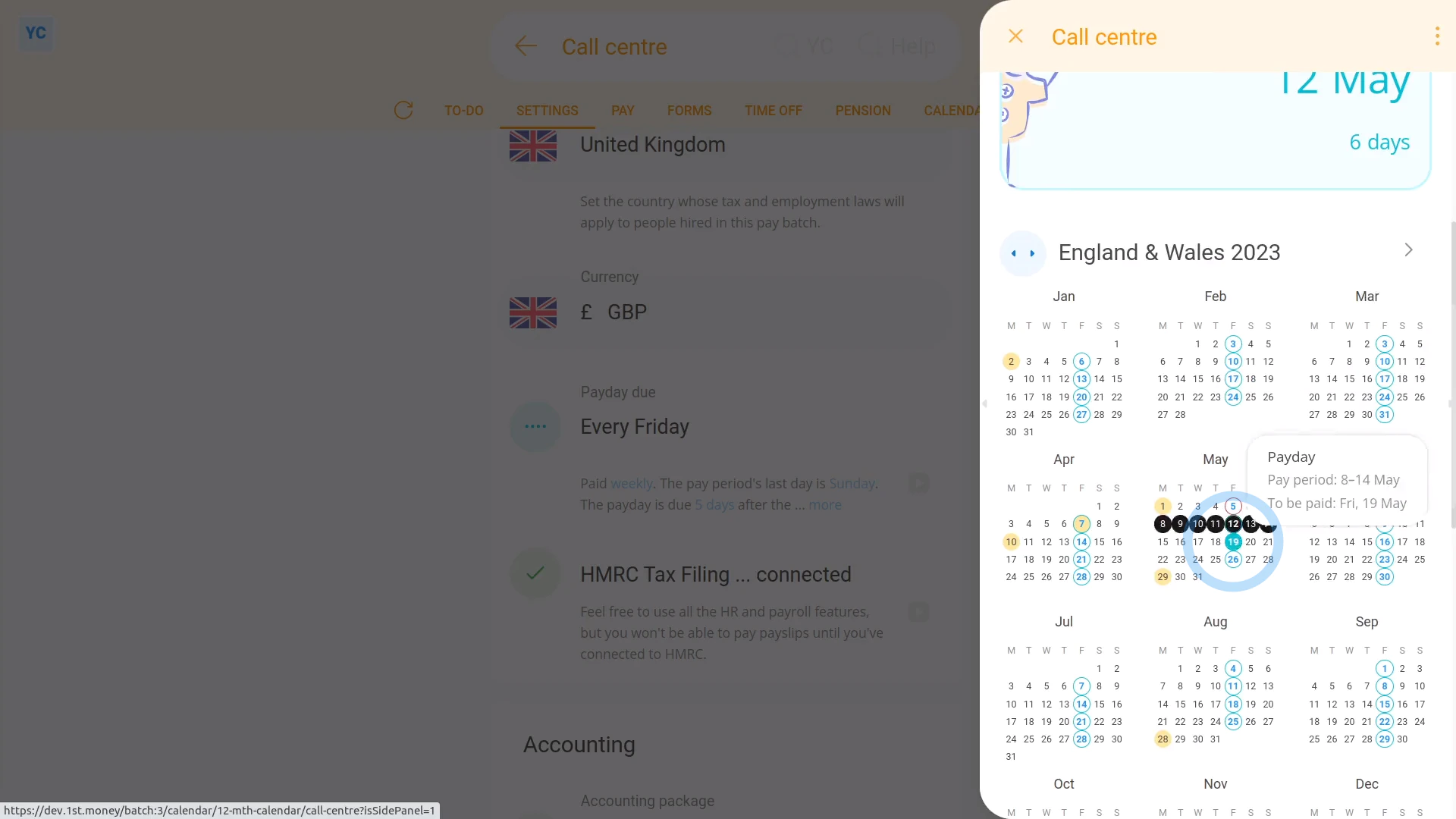
To change an existing payroll group's payday schedule:
- First, select the payroll group on: "Menu", then "Payroll groups"
- Then tap: "Settings", then "Payroll group settings"
- Then beside "Payday schedule", tap the "Edit" button:
- And tap: "Pay period"
- Next, change it to how often you want your people to be paid.
- And set the day of the week, or date of the month.
- Next, set: "Payday due"
- Then tap: Save
- To see your payday schedule changes, tap: "Calendar", then "12-month calendar"
- And finally, when you hover your mouse over a blue payday circle, you'll see black circles marking the days covered by that payday's pay period.
Keep in mind that:
- Once the payday schedule has some payslips that've been filed, a "Payday schedule locked" message shows, and it can't be changed anymore.
- However, up until payslips are filed, you can come back and make changes as many times as you want.
To learn more:
- About changing payday settings, when you've got a "Payday schedule locked" message, watch the video on: Bridging between payday schedules
And that's it! That's all you need to do to change an existing payroll group's payday schedule!
3. How do I set which dates each pay period starts and ends on?
 5:35
5:35
"How do I set which dates each pay period starts and ends on?"
Regardless of how often you pay your people, you'll need to set which days the pay period is to start and end on. Including for pay periods that're: weekly, fortnightly, semi-monthly, four-weekly, and monthly.
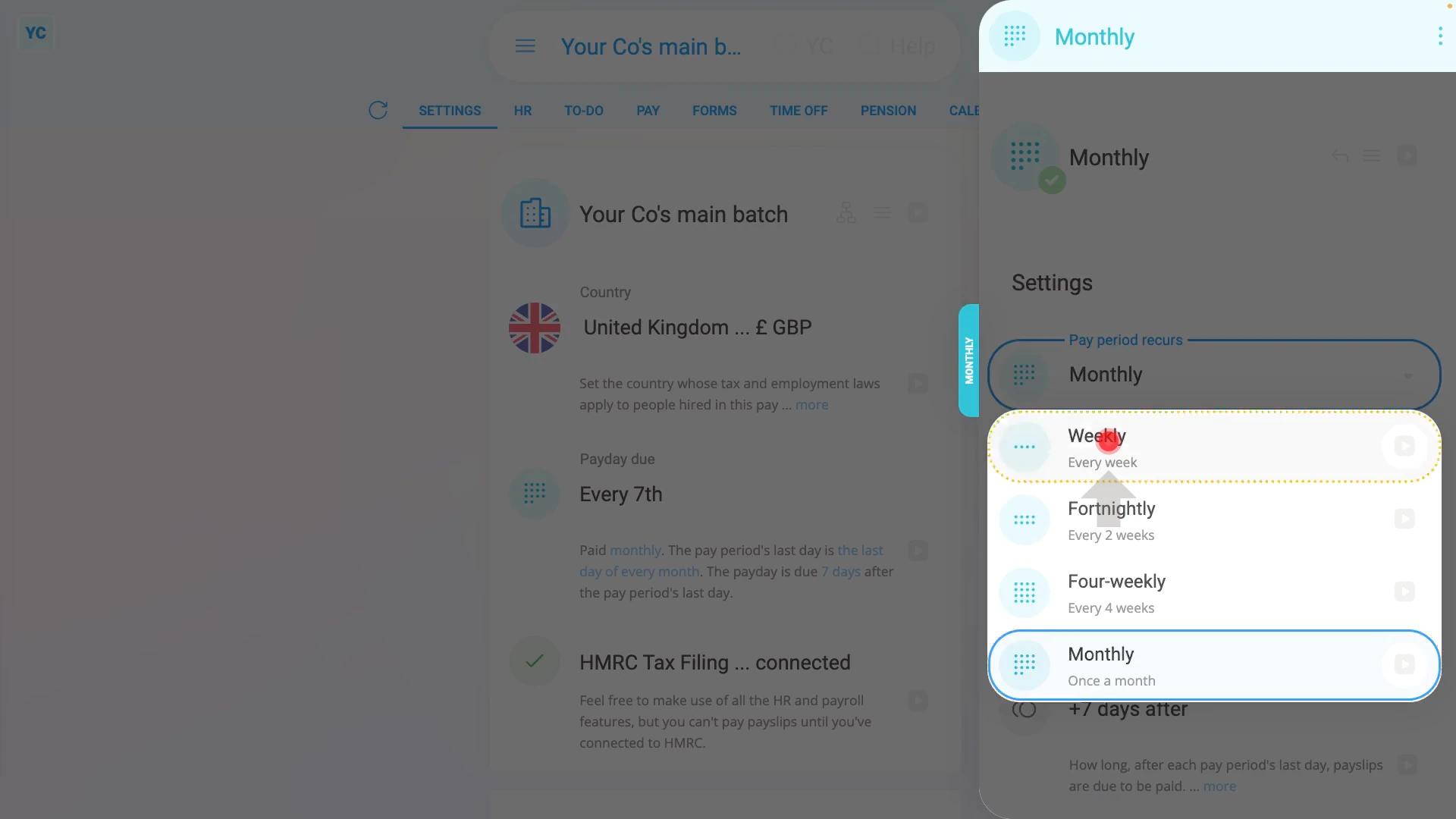
To set which day of a week, a weekly pay period is to end:
- First, select the payroll group on: "Menu", then "Payroll groups"
- Then on the "Settings", then "Payroll group settings" tab, tap: "Payday schedule"
- Once it slides out on the right, tap: "Pay period"
- And select: "Weekly"
- By default, the "Weekly" pay period is set with "Every Friday" as the: "Pay period's last day"
- Tap "Pay period's last day" and set it to the day of the week you'd like your weekly pay periods to end on.
- Then tap: Save
- And finally, you'll see that the pay periods are now weekly, and end on the day you selected.
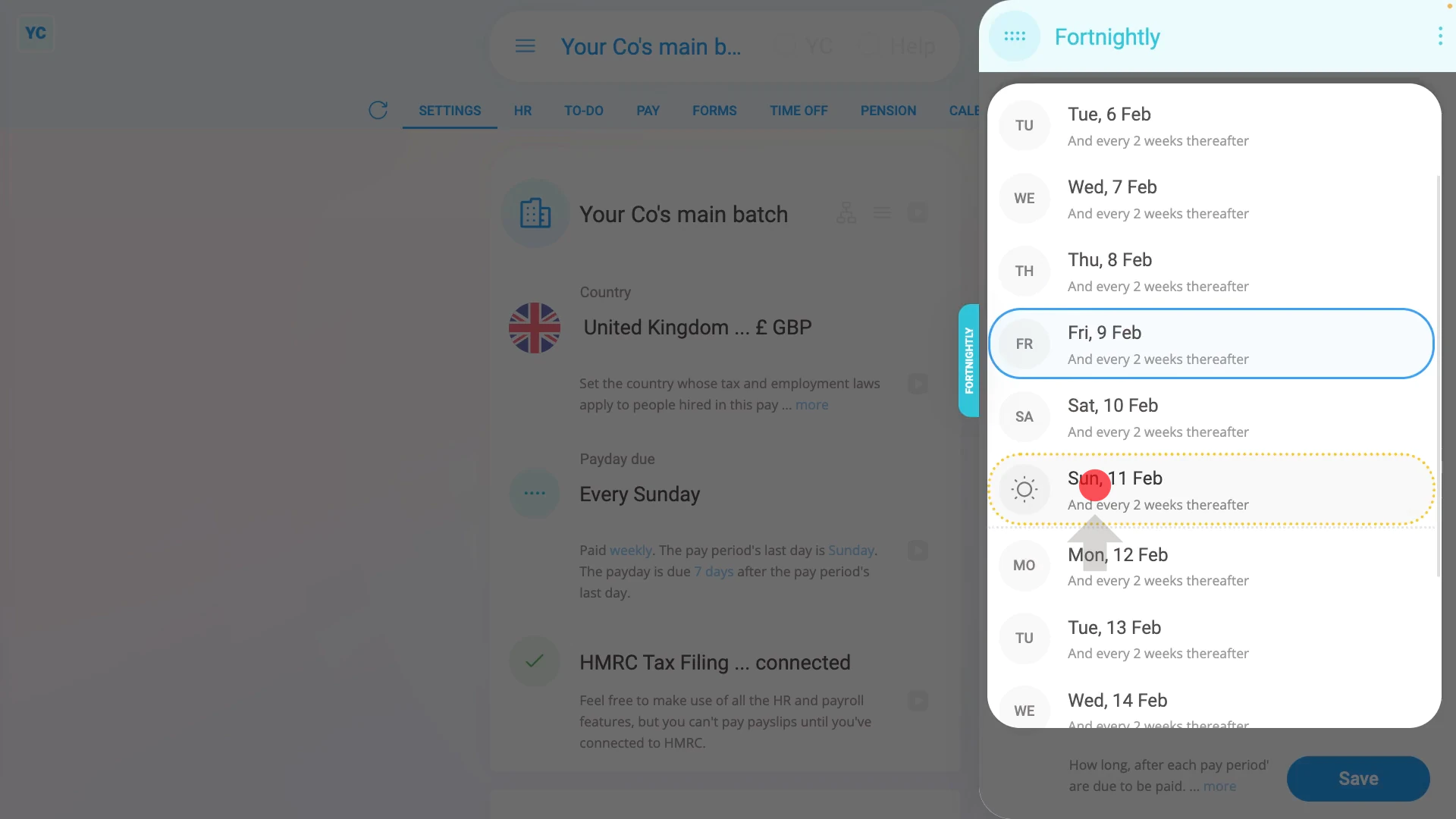
To set which day a fortnightly pay period is to end:
- First, select the payroll group on: "Menu", then "Payroll groups"
- Then on the "Settings", then "Payroll group settings" tab, tap: "Payday schedule"
- Once it slides out on the right, tap: "Pay period"
- And select: "Fortnightly"
- By default, the "Fortnightly" pay period is set with a "Friday" as the: "Pay period's last day"
- Tap "Pay period's last day" and set it to the day you'd like your next fortnightly pay period to end on, repeating every two weeks thereafter.
- Then tap: Save
- And finally, you'll see that the pay periods are now fortnightly, and repeat every two weeks from the day you selected.
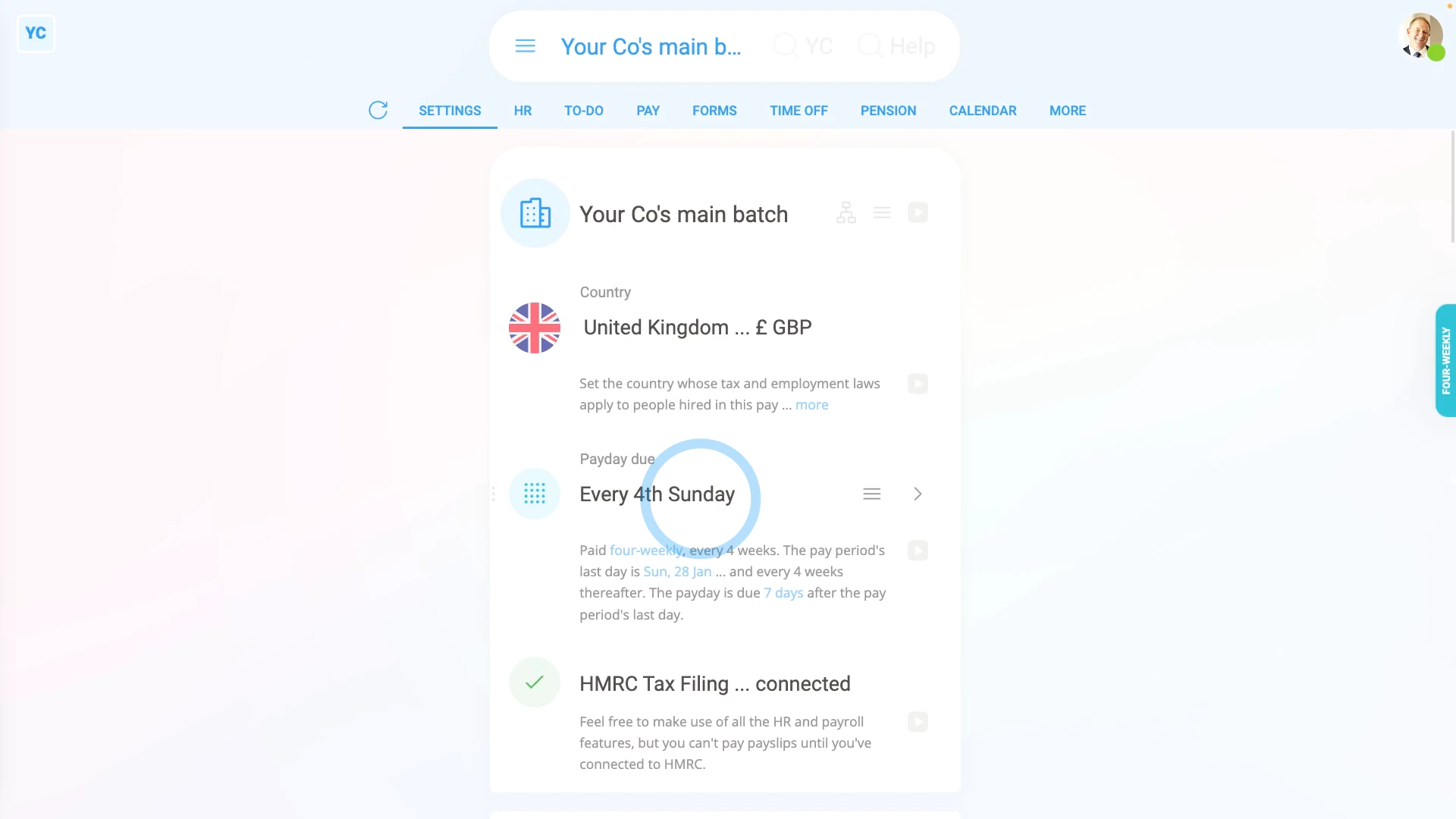
To set which day a four-weekly pay period is to end:
- First, select the payroll group on: "Menu", then "Payroll groups"
- Then on the "Settings", then "Payroll group settings" tab, tap: "Payday schedule"
- Once it slides out on the right, tap: "Pay period"
- And select: "Four-weekly"
- By default, the "Four-weekly" pay period is set with a "Friday" as the: "Pay period's last day"
- Tap "Pay period's last day" and set it to the day of the week you'd like your next four-weekly pay period to end on, repeating every four weeks thereafter.
- Then tap: Save
- And finally, you'll see that the pay periods are now four-weekly, and end on the day you selected.
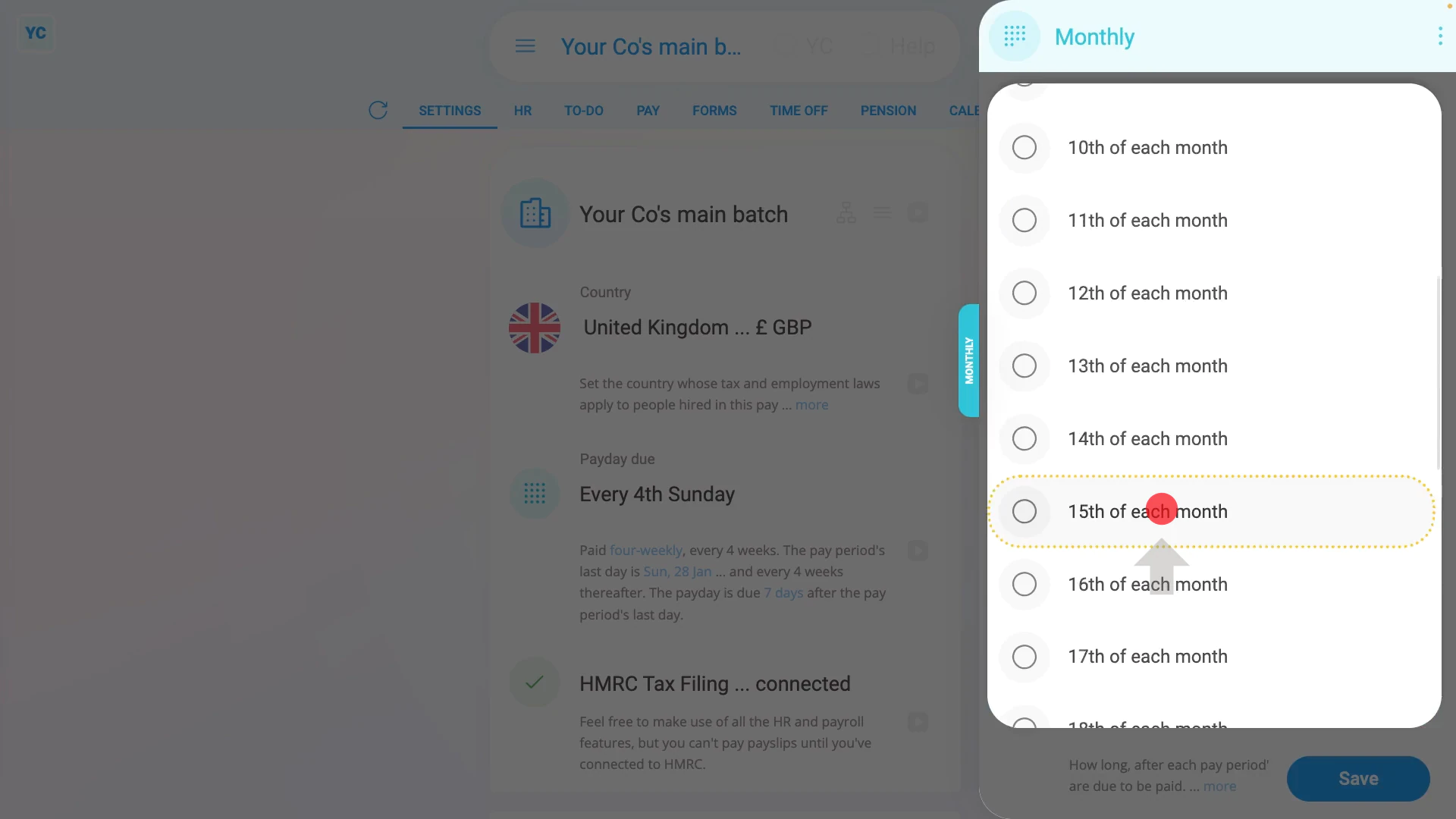
To set which date in a month, a monthly pay period is to end:
- First, select the payroll group on: "Menu", then "Payroll groups"
- Then on the "Settings", then "Payroll group settings" tab, tap: "Payday schedule"
- Once it slides out on the right, tap: "Pay period"
- And select: "Monthly"
- By default, the "Monthly" pay period is set with the "Last day of each month" as the: "Pay period's last day"
- Tap "Pay period's last day" and set it to the date of the month you'd like your next monthly pay period to end on.
- Then tap: Save
- And finally, you'll see that the pay periods are now monthly, and end on the date you selected.
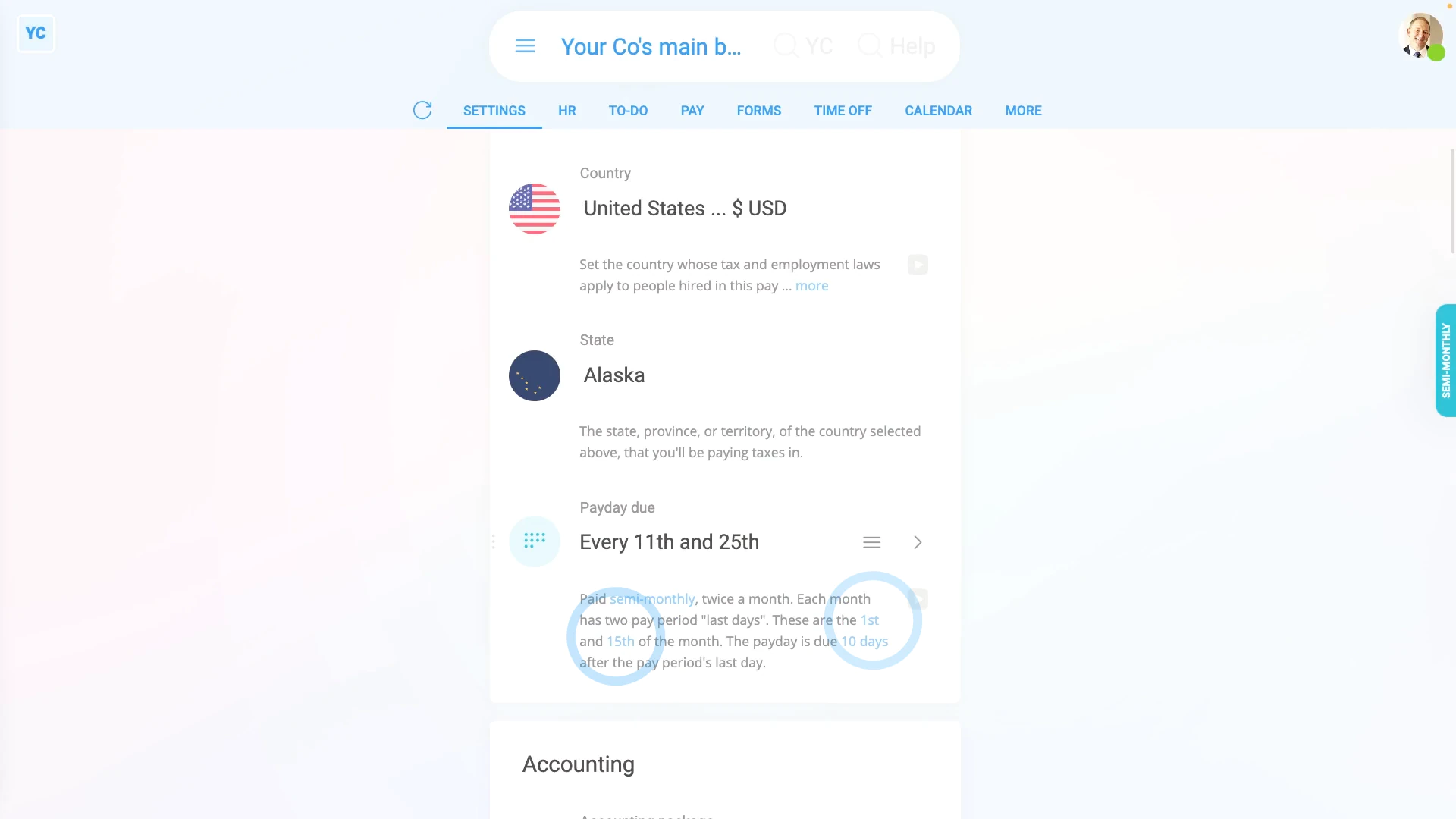
To set which days a semi-monthly pay period is to end:
- First, select the payroll group on: "Menu", then "Payroll groups"
- Then on the "Settings", then "Payroll group settings" tab, change the country to "United States", and tap: "Payday schedule"
- Once it slides out on the right, tap: "Pay period"
- And select: "Semi-monthly"
- By default, the "Semi-monthly" pay period is set with the "15th" and "Last" days of the month as the: "Pay period's last day"
- Tap and set the "Pay period's last day" to the two dates you'd like your semi-monthly pay periods to end on.
- Then tap: Save
- And finally, you'll see that the pay periods are now semi-monthly, and with the two dates you selected set as the pay period end dates.
You may notice:
- That sometimes, some of the payday schedules may not show in the list, for your country.
- For example, the "Four-weekly" pay period option only shows for the UK, and the "Semi-monthly" option shows for all countries except the UK.
- If ever a payday schedule isn't available for your country, it's usually because it's not recommended, based on local tax rules.
Keep in mind that:
- You can keep changing the pay period settings right up until the day you first pay people in the payroll group.
- However, once you start paying people, the payroll group's payday schedule becomes locked and can't be changed.
- But you can still create new payday schedules, and bridge your payroll group over to the new pay period settings.
To learn more:
- About bridging your payroll group's pay period settings, watch the video on: Bridging between payday schedules
And that's it! That's everything you need to know about setting which day a payroll group's pay period is to end on!
4. How do I set the delay for a pay period's last day to its payday?
 1:40
1:40
"How do I set the delay for a pay period's last day to its payday?"
The pay period is the days that people work. Payday is when the people are paid. In some cases, your payroll admins need a few days delay between the pay period's last working day, and the payday.
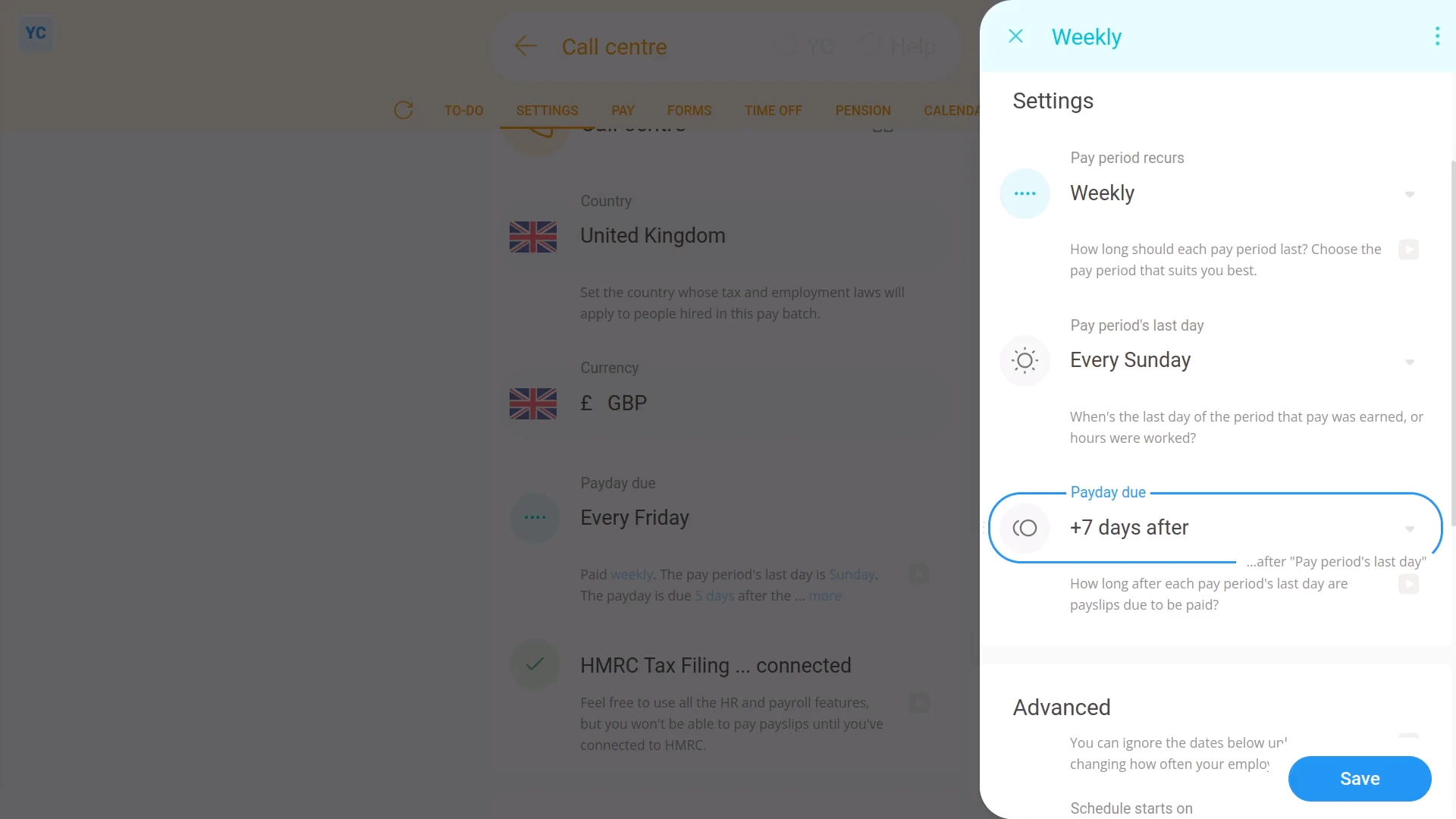
To set a delay between a pay period's last working day, and its payday:
- First, select the payroll group on: "Menu", then "Payroll groups"
- Then tap: "Settings", then "Payroll group settings"
- Then beside "Payday schedule", tap the "Edit" button:
- And look for: "Payday due"
- Now, select how many days (after the pay period ends) until your people get paid.
- Then tap: Save
- To see your payday schedule changes, tap: "Calendar", then "12-month calendar"
- And finally, when you hover your mouse over a blue payday circle, you'll see black circles marking the days covered by that payday's pay period.
Keep in mind that:
- While payroll admins may sometimes need at least a few days delay, to look at timesheets, and approve expense claims.
- However, in some countries, there's rules to limit the maximum number of days delay.
- Also, once the payday schedule has some payslips that've been filed, a "Payday schedule locked" message shows, and it can't be changed anymore.
And that's it! That's all you need to do to set a delay between a pay period's last working day, and its payday!
How do I bridge from one type of payday schedule to another?
 5:06
5:06
"How do I bridge from one type of payday schedule to another?"
Bridging closes the pay period gap that's sometimes formed when your org's switching from one pay period type to another. For example, switching from "Monthly" to: "Weekly"
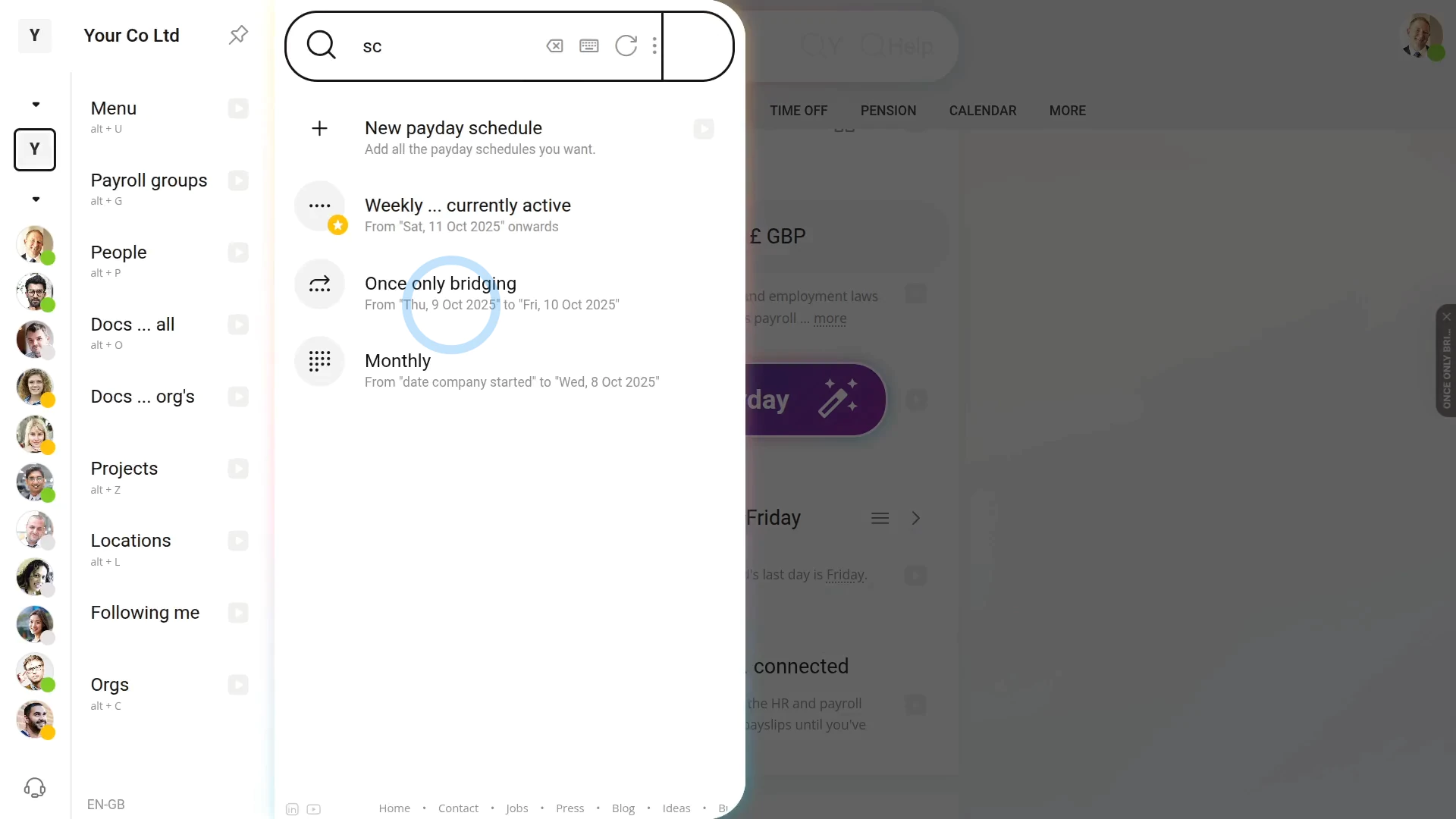
To bridge from one payday schedule to another:
- First, select the payroll group on: "Menu", then "Payroll groups"
- Then tap: "Settings", then "Payroll group settings"
- The first step:
Is opening your "currently active" payday schedule. - Which you can open if you tap its "List payday schedules" button:
- Select the payday schedule that says: "currently active" (with the yellow star)
- Then scroll down and expand the "Bridging" heading (at the bottom), and look for: "Ends ... payday schedule ends on"
- For now, you'll see a red warning about how you'll need to make a new payday schedule.
- The second step:
Is creating the new payday schedule that all your people are switching to. - So tap the "New payday schedule" link, then tap: "New payday schedule"
- Then set the "Pay period" of your new payday schedule, with what you'd like your people to switch to being paid with.
- And then set the "Pay period's last day" of your new payday schedule.
- And then expand the "Bridging" heading (at the bottom), and look for: "Starts ... payday schedule starts on"
- But before setting a start date, first you'll need to find out when the "currently active" payday schedule's paid up until.
- The third step:
Is finding out when the "currently active" payday schedule's paid up until. - So tap the "currently active" payday schedule's: "Calendar" (at the top)
- And hover your mouse over the blue payday circle of your most recently paid payday.
- Once you've hovered, you'll see grey circles covering each paid date of the recent payday's pay period.
- Next, make a note of the date of the last day of the grey circles.
- Or, in other words, that's the date that your people have been paid up until.
- The fourth step:
Is going back and setting the start date of the newly created payday schedule. - So now that you've got that date of when the "currently active" payday schedule's paid up until, go back and tap on: "Starts ... payday schedule starts on"
- And then carefully select the earliest date that's right after the date your people have been paid up until.
- Then tap: Save
- Next, you're expecting to see a red warning about a payday schedule overlap.
- The warning is a reminder that you still need to set the end date for the "currently active" payday schedule.
- Tap the link in the warning, then open the "Ends" options and select the date with the grey label that says: "current pay period ends"
- Once you select that date, it automatically saves both payday schedules.
- The fifth step:
Is checking for any days that've been missed, or aren't covered by any payday schedules. - So tap the payday schedule's: "Calendar" (at the top)
- Then tap the Reload on the calendar to see all the blue payday circles for your newly created paydays.
- Hover your mouse over each blue payday circle and check that there's a grey circle covering each day of the month.
- If there's any days that're missing a grey circle, your people may miss out on some of their pay. To avoid any missing pay, you'll need to create a: "Once only bridging"
- For example, when you hover the two blue payday circles, you can see a two-day gap that's not covered by any of the payday schedules.
- You'll want to make a note of the start and end dates of any gap.
- The final step:
Is to create a new "Once only bridging" payday schedule to cover any gap between the two payday schedules. - But you can always skip the bridging step if there weren't any days that're missing a grey circle.
- Next, tap More, then List payday schedules, then: "New payday schedule"
- Set "Pay period" to: "Once only bridging"
- Now, scroll down and look at "Starts" and: "Ends"
- It automatically suggests the recommended start and end dates.
- Make sure that the suggested start and end dates match the dates you noted earlier.
- If everything's correct, tap: Save
- The final check:
- Now, to see all your final payday schedule changes, tap the "List payday schedules" button.
- And you can now see all the start and end dates connecting without any gaps, so no one misses out on their pay.
- Alternatively, you can also tap: "Calendar" (at the top)
- And finally, when you hover the blue payday circles, you'll see that every date is covered by a grey circle.
Keep in mind that:
- It's very rare that you'll ever have to bridge payday schedules.
- Also, be sure to communicate all the payday date changes to your people.
- And, while the software gives you reminders, don't forget to pay them on each payday of the newly created payday schedules.
And that's it! That's all you need to do to bridge payday schedules!
How do I delete a payday schedule?
 2:29
2:29
"How do I delete a payday schedule?"
If you no longer need a payday schedule, under limited circumstances, you can delete it.
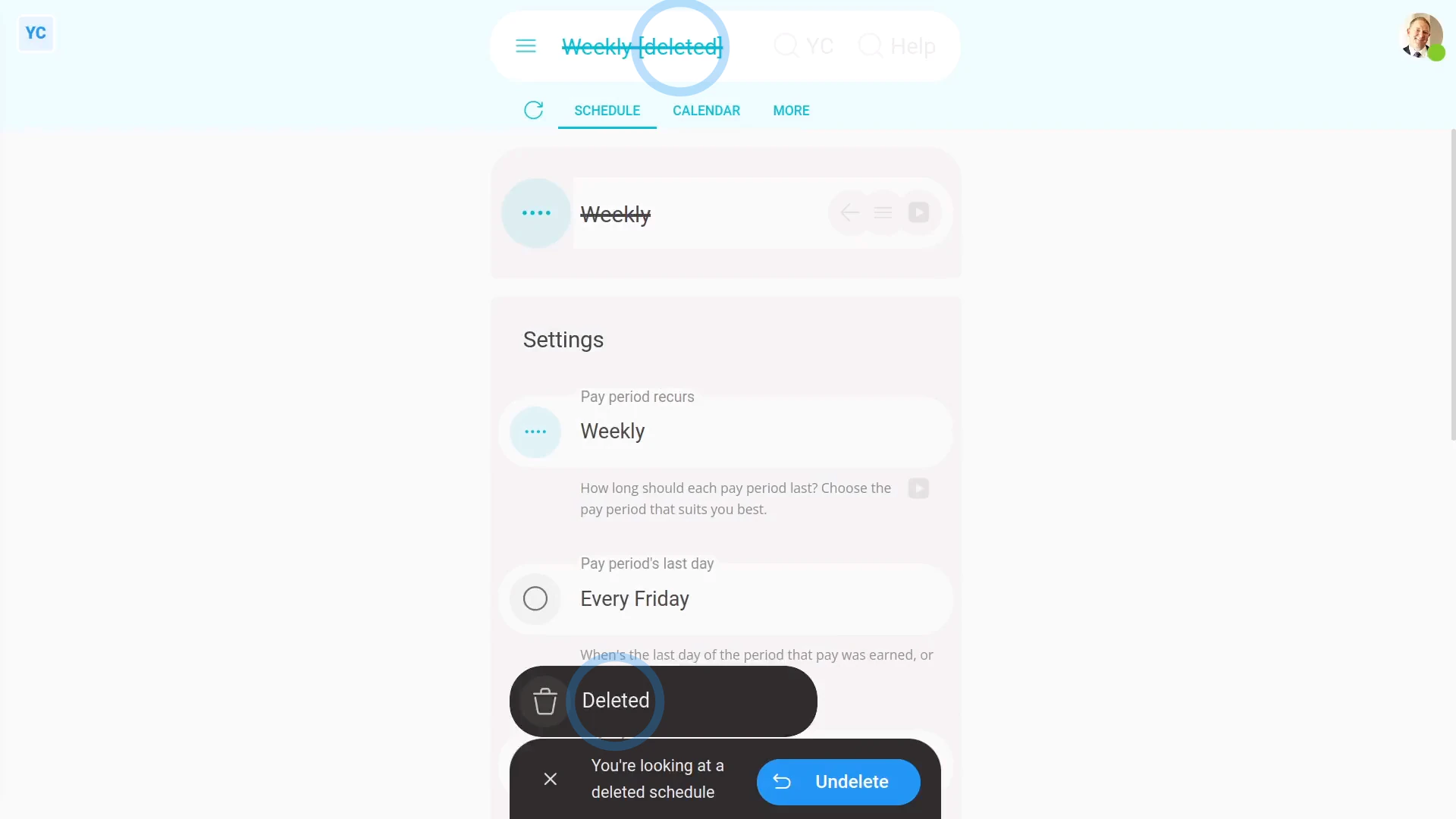
To delete a payday schedule:
- First, select the payroll group on: "Menu", then "Payroll groups"
- Then tap: "Settings", then "Payroll group settings"
- Then beside "Payday schedule", tap the "List payday schedules" button:
- And select the payday schedule you'd like to delete.
- And tap More, then: Delete
- And then tap: Yes ... delete
- Now, the payday schedule's deleted.
- The deleted payday schedule's also locked, so it can't be changed anymore.
- And finally, if you change your mind and want the payday schedule back again, tap Un-delete, and it's immediately un-deleted.
If it's been a while since you deleted a payday schedule, and you want to un-delete it, you'll first need to find it in the: "deleted bin"
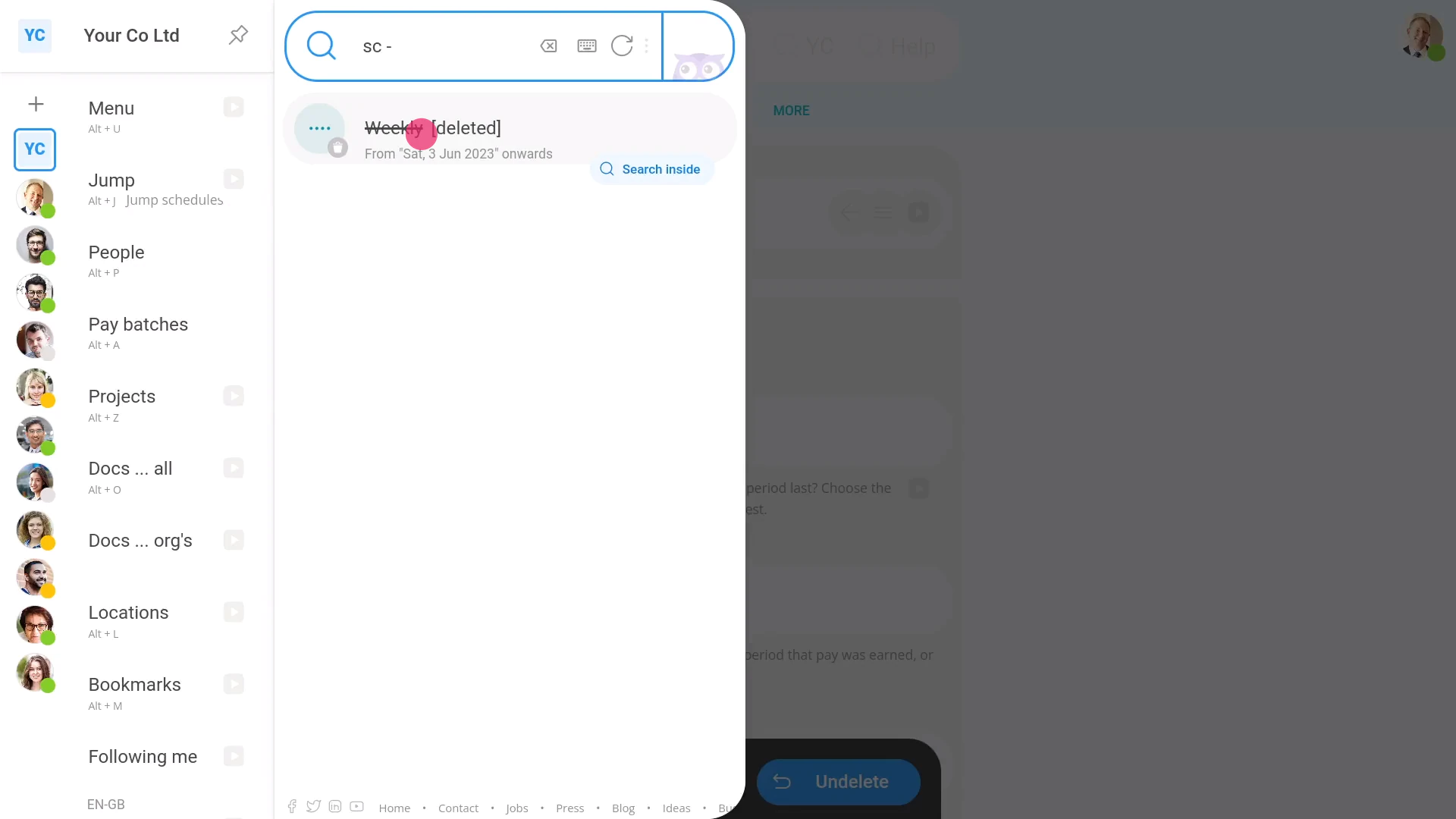
To un-delete a payday schedule from your "deleted bin":
- First, tap: "Menu", then "Deleted bin"
- Next, you'll see a category for most of the kinds of items that can be deleted. Tap: Payday schedules
- And then tap the payday schedule you'd like to un-delete.
- Next, tap: Un-delete (at the bottom)
- And finally, the previously deleted payday schedule is immediately un-deleted.
You may notice:
- Once the payday schedule's got filed payslips, a "Payday schedule locked" message shows, and it can't be deleted anymore.
- Also, you can't delete the payday schedule that's currently "active" for today's date.
- And you can't delete a payday schedule if it's the last remaining payday schedule in the payroll group.
- In reality, it's rare that you'd ever need to delete a payday schedule.
Keep in mind that:
- Only people who've got "Full payroll admin" permissions can delete or un-delete payday schedules.
- And remember that all deletes and un-deletes are always permanently recorded in: "History"
- That means any admin can always look back in time, and see who did any delete, and when the delete was done.
And that's it! That's everything you need to know about deleting or un-deleting a payday schedule!
www.1st.money/uk/help/Payroll/Payday_schedules/