Payslips

 2:48
2:48How do I understand all the sections of my payslip?
Explains how to read and navigate each section of your payslip, including net pay and year-to-date totals.
 3:59
3:59How do I check payslips before paying payroll on payday?
Steps to review and edit payslips before processing payroll on payday.
 1:20
1:20How do I see the hours worked on a payslip?
How to view and download detailed hours worked from a payslip and timesheet.
 1:32
1:32How do I check a payslip's confirmation status?
How to verify your payslip's HMRC filing confirmation via the app's calendar and payslip details.
 3:05
3:05How do I download and print my past payslips?
How to download and print past payslips using the app's menu or calendar features.

1. How do I understand all the sections of my payslip?

 2:48
2:48
"How do I understand all the sections of my payslip?"
Your payslip gives you a permanent record of your pay for each pay period.
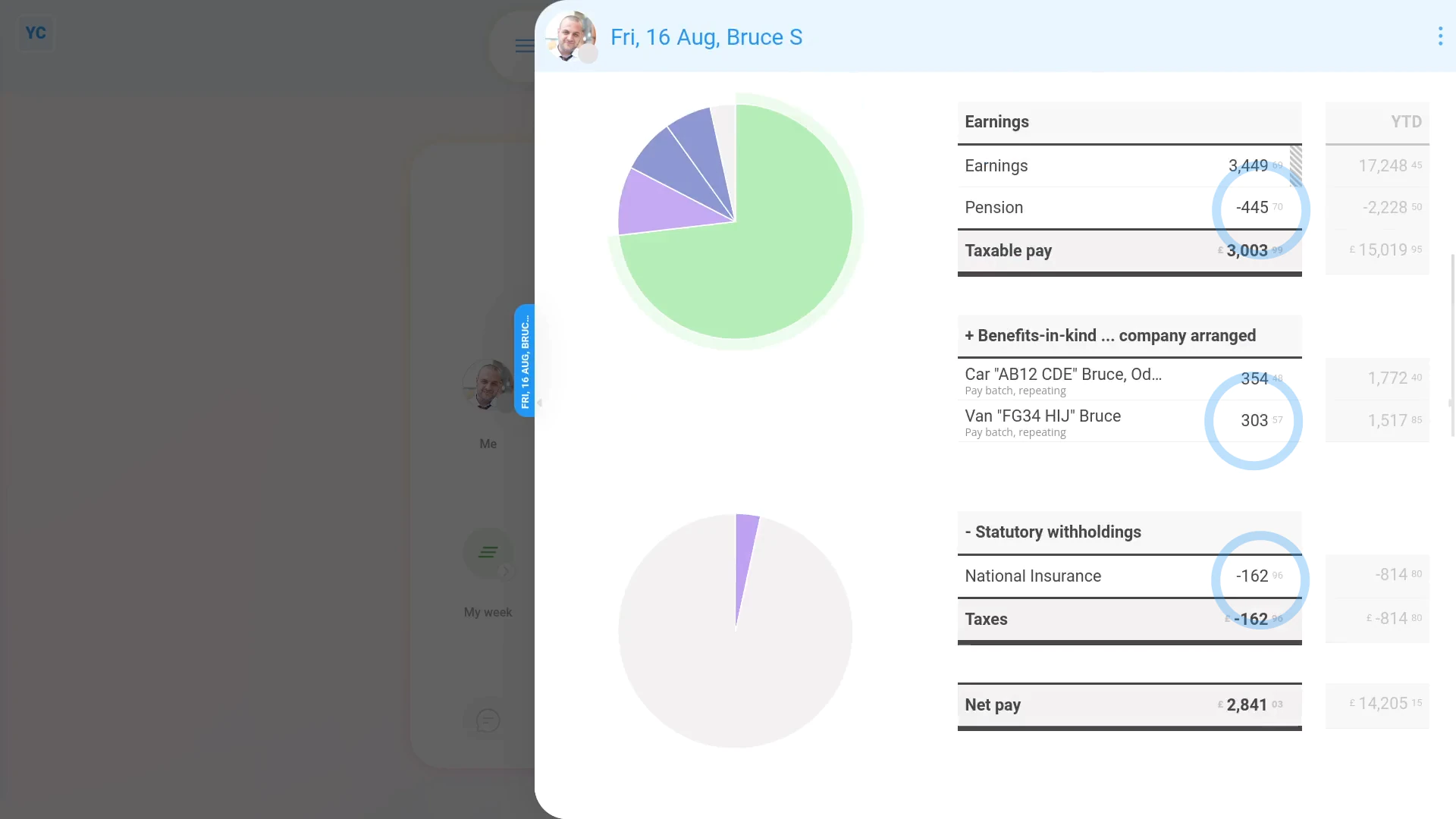
To understand each section of your payslip:
- First, to open your payslip, from your home screen, tap: "My payslip"
- And you're now looking at your most recently paid payslip.
- The first thing you'll notice is the big number (at the top).
- Which is your "Net pay", or, in other words, how much is paid into your bank account.
- Below it, you'll see notes on the start and end dates of your payroll group's pay period.
- And how often your payday is.
- If you need to go to the previous payslip, tap the left triangle, and it jumps back a payslip.
- And to go to the next payslip, tap the right triangle.
- Going down your payslip, you'll see two columns of numbers.
- The middle column of numbers shows you the money amounts for your current payslip.
- The right-hand column of numbers shows your "Year to date" money amounts. Or in other words, the total for the year, so far.
- When you hover your mouse over the money amounts in the middle column, you'll see an explanation for that amount.
- Near the bottom, you'll see other details like your "National Insurance number", your "Tax code", and the "IRmark" that serves as evidence that the payslip was filed with HMRC.
- You'll also see a summary of your banking details that your employer has on file, and the contact details of your employer's selected pension provider.
- Back up to the top. If your employer filed your payslip late, you'll see it marked in red.
- And finally, if you've ever lost the payslip PDF that was emailed to you, and need it re-downloaded, tap: Download PDF

You may notice:
- If you've set your "4-Digit doc PIN", each PDF is protected when you receive your payslip PDF by email.
- However, if you're applying for a bank loan or mortgage, you may need to submit payslip PDFs without the doc PIN protection.
- To download an unprotected payslip PDF, download it directly from inside 1st Money.
- That way, you'll get your payslip PDF, without your 4-digit doc PIN, that can then be submitted to your bank.
To learn more:
- About password protecting PDFs, watch the video on: Setting your PDF doc PIN
- To learn more about how to download a copy of your past payslips, watch the video on: Downloading & printing payslips
 Setting your PDF doc PIN
And that's it! That's everything you need to know about each section of your payslip!
2. How do I check payslips before paying payroll on payday?
 3:59
3:59
"How do I check payslips before paying payroll on payday?"
If your team's payslips frequently include timesheets and expenses, on payday, you may want to check each payslip before you tap: Process payroll
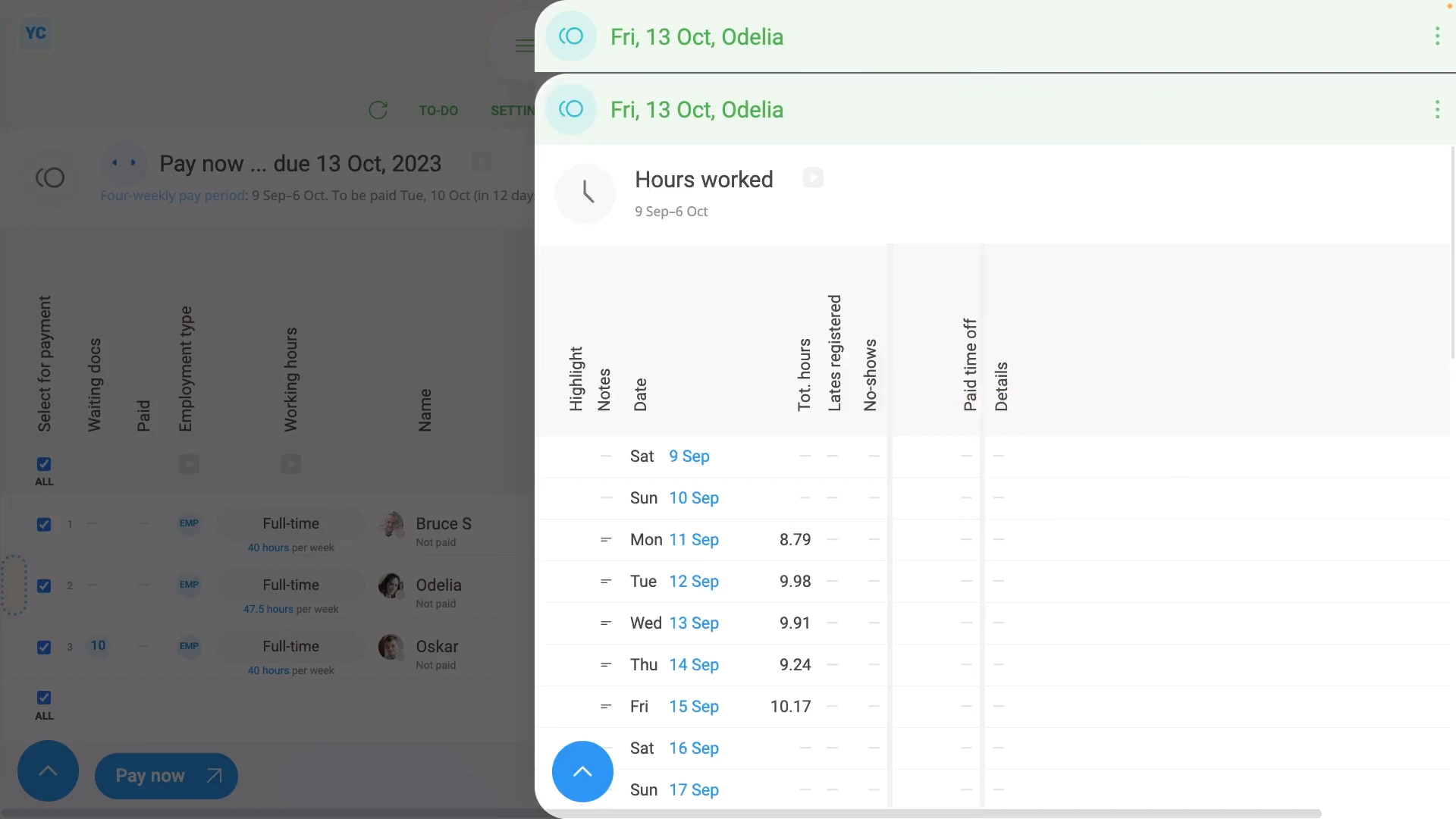
To open a payslip and check its hours worked:
- First, select the payroll group on: "Menu", then "Payroll groups"
- Then tap: "Pay", then "Process payroll"
- Next, hover your mouse over the row of the first payslip you want to check.
- And tap the "See payslip" button: (at the start of any row)
- Once their payslip slides out on the right, you can now begin checking.
- The first thing to check is the big number (at the top).
- Which is their "Net pay", or, in other words, how much is paid to their bank account.
- Make sure that it "feels" like the number you're expecting to pay.
- Then if the person does timesheets, tap Hours worked, and a list of their timesheet times slides out on the right.
- If you need to change one of the day's times done, tap it to make changes.
- Now, tap the shift on that day that you want to change, drag the slider to make your change, and tap: Save
- Once it's reloaded, you'll see that the payslip's "Earnings" number has changed.
- And finally, when you hover your mouse over the "Earnings" number, the hours to be paid has also changed.
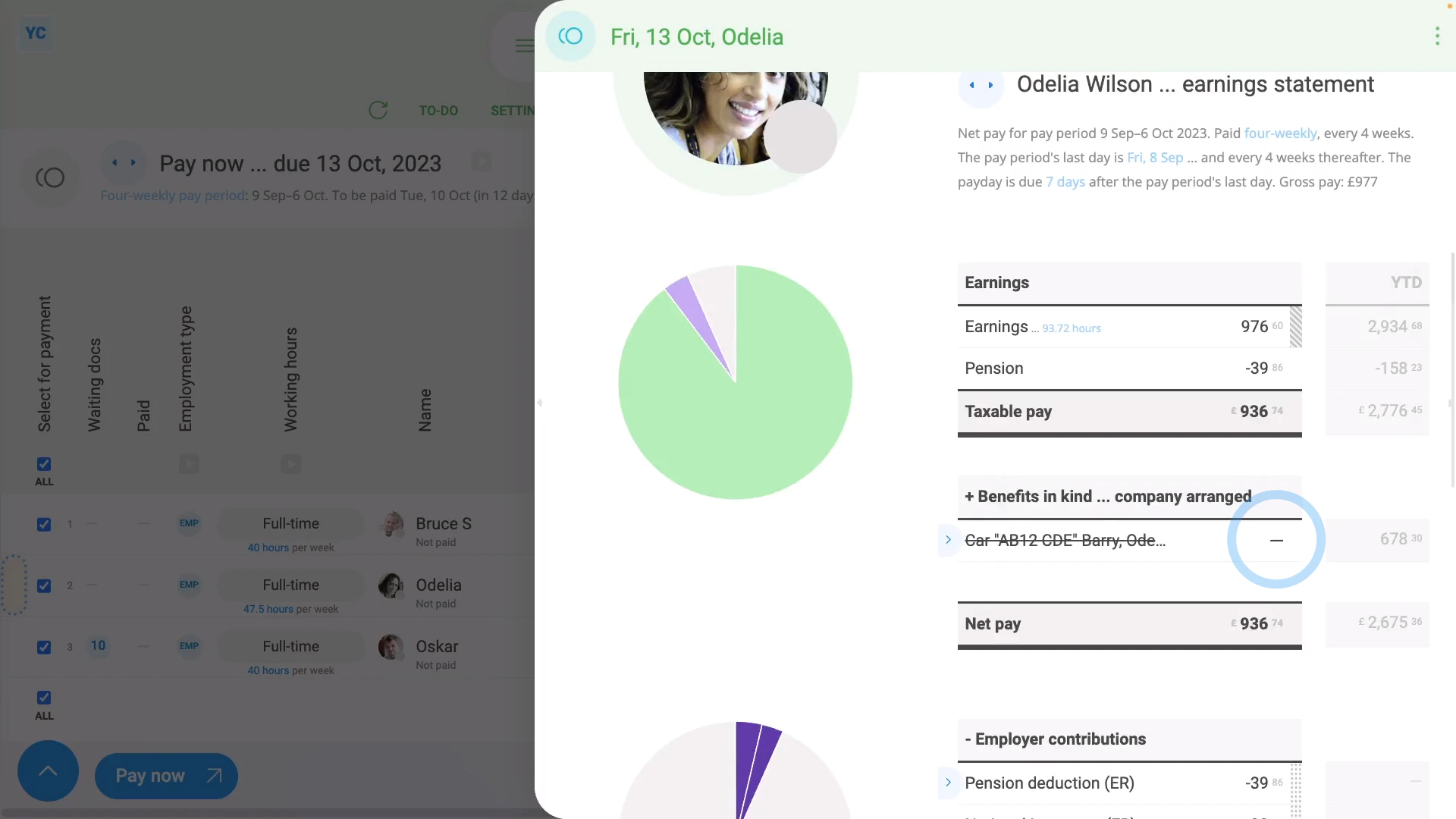
To open a payslip and check for any repeat payables to be removed, like a benefit-in-kind:
- First, select the payroll group on: "Menu", then "Payroll groups"
- Then tap: "Pay", then "Process payroll"
- Next, hover your mouse over the row of the payslip you want to open.
- And tap the "See payslip" button: (at the start of any row)
- Next, on the payslip, find the repeat payable that you'd like to remove.
- One-off removal:
To remove a repeat payable from only a single payslip, but have it still show up on all future payslips, untick the repeat payable. - Once you've unticked the repeat payable, it's removed from the current payslip as a one-off removal.
- However, it still shows up in all future payslips, as expected.
- Permanent removal:
To permanently remove a repeat payable, tap the light blue "Edit" button: (at the front of the repeat payable) - Then scroll down to "People getting it", and tap the person you'd like removed.
- Then in the person's pay settings, tap the "remove" link, and then tap: Yes ... remove
- Now that the repeat payable's reloaded, you can see that it no longer has the removed person listed.
- Then back on the payslip, tap the three dots: (in the top-right corner), and tap: Reload
- Now, on the reloaded payslip, the repeat payable's money value is set to nothing.
- The reason the row's still showing, is because it's been filed on previous payslips in the tax year.
- Because it's been previously filed, the "year to date" amount still needs to be listed.
- And finally, once you get to the next tax year, the "year to date" amount gets reset, and the repeat payable row permanently disappears.
For advanced usage:
- If you're paying lots of people, you may want to plan your payday payslip checking job out in advance.
- For example, you could share your "checking" job with others on your payroll team.
- Checking payslips could be done by multiple people, all during the same time.
- All it takes is to set up each of your payroll people with their own login.
- With "Full payroll admin" permissions each.
- And then work out who's checking who, so no one's missed.
And that's it! That's everything you need to know about checking payslips!
3. How do I see the hours worked on a payslip?
 1:20
1:20
"How do I see the hours worked on a payslip?"
For anyone who's paid hourly, the number of hours worked during the pay period is an important part of their pay calculation.
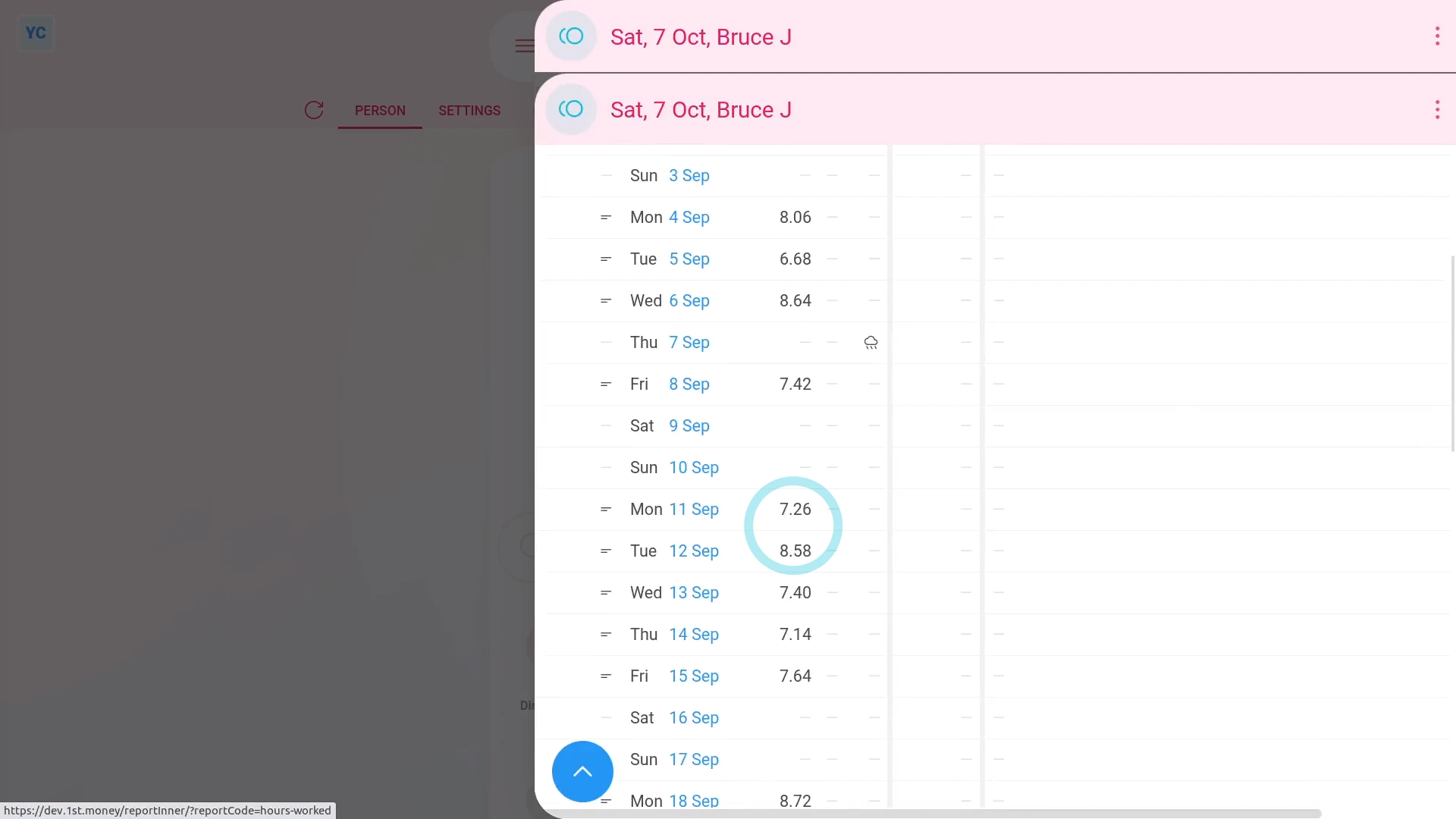
To see a payslip's list of "Hours worked":
- First, select the person on: "Menu", then "People"
- Then tap: "Pay", then "Payslip"
- Now tap "Hours worked", and a list of their timesheet times slides out on the right.
- On the payslip's "Hours worked", you can see a detailed breakdown of each day's hours.
- For each row, you can tap the link to see the timesheet for that day.
- And for days where there's timesheet notes, to see that day's notes, you can hover your mouse over the "Notes" image:
- When you scroll down, you'll see the total of hours worked (at the bottom).
- All the numbers are in decimal format to make them also work when downloaded as a spreadsheet.
- To download a payslip's hours worked as a spreadsheet, tap: Download hours
- And finally, you'll now have a spreadsheet file that you can use for your own "Hours worked" calculations.
And that's it! That's everything you need to know about seeing hours worked on a payslip!
4. How do I check a payslip's confirmation status?
 1:32
1:32
"How do I check a payslip's confirmation status?"
Sometimes, you may want to be sure that your pay and taxes have been correctly filed with HMRC.
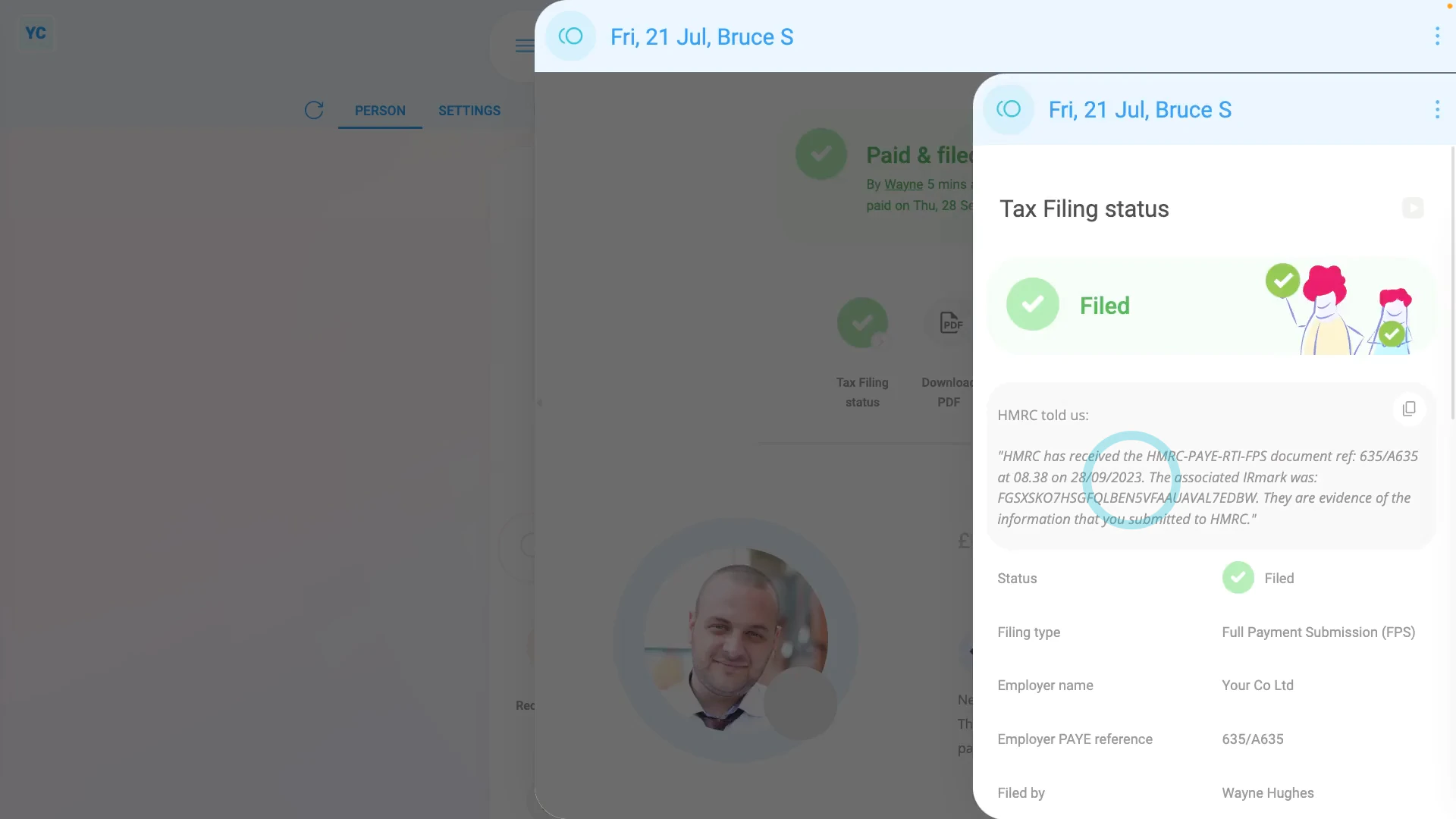
To check a payslip's confirmation status:
- First, open yourself on: "Menu", then "Me"
- Then go to your: Calendar
- Tap back through the months and look for the blue circle that matches the payday date of the payslip that you're looking for.
- Once you find the payslip you're looking for, tap the blue circle, and then tap: Payslip
- Once your payslip slides out on the right, scroll down to the bottom of your payslip.
- Near the bottom, you'll see the short confirmation of your: "HMRC receipt"
- The short confirmation of your "HMRC receipt" is always included on every one of your payslip PDFs.
- Alternatively, if you scroll to the top and tap: Filing status
- Once it slides out on the right, you'll see the full confirmation of your: "HMRC receipt"
- And finally, you can be confident that your pay and taxes have been correctly filed with HMRC.
Keep in mind that:
- Any person can check their own payslip confirmation.
- There's no special permissions required to see your own confirmation status.
And that's it! That's everything you need to know about checking your payslip's confirmation status!
5. How do I download and print my past payslips?
 3:05
3:05
"How do I download and print my past payslips?"
Sometimes, you may need to download a copy of your past payslips for printing. There's two different ways to download payslips.
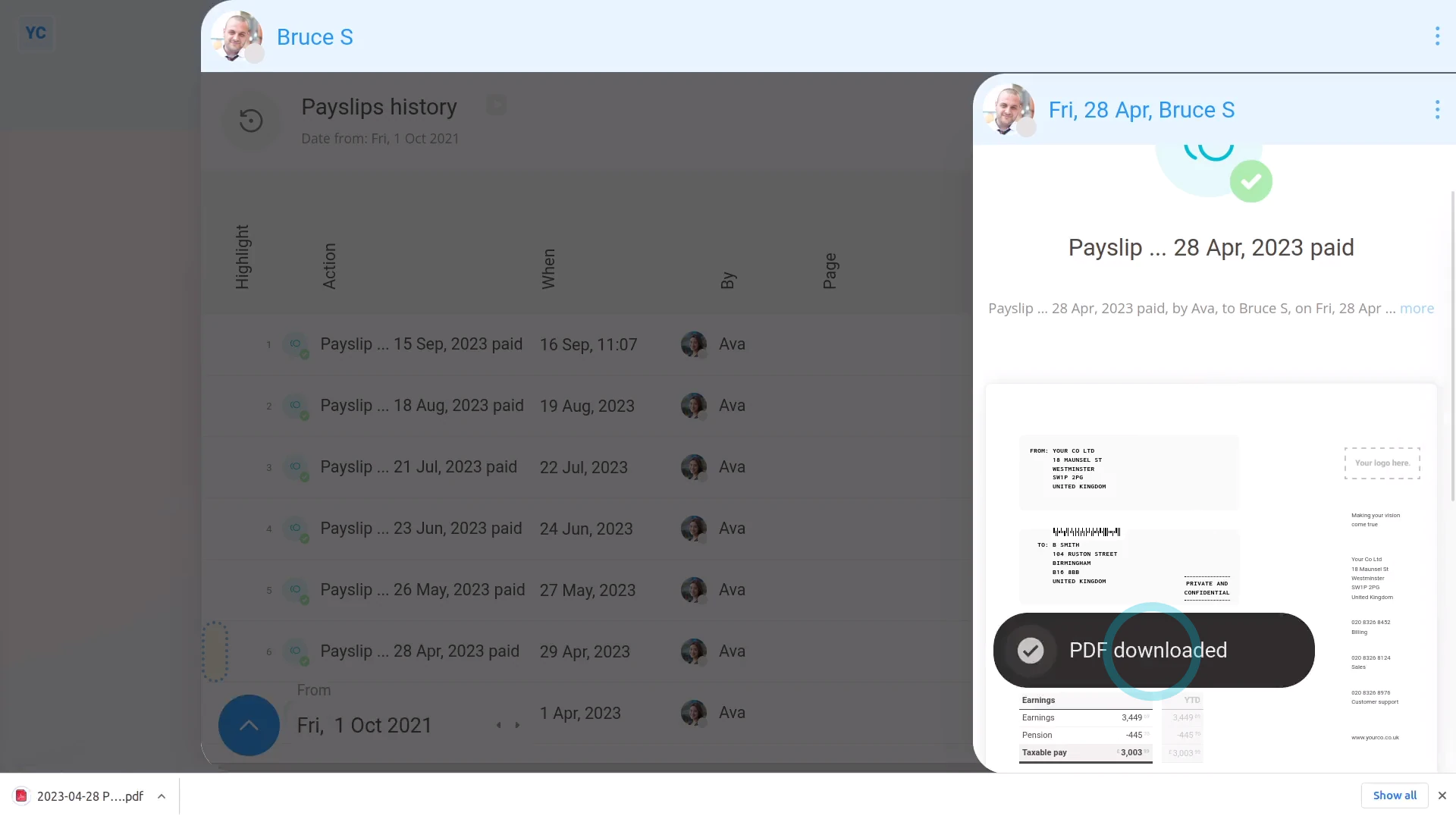
To download your payslips from a list:
- First, open yourself on: "Menu", then "Me"
- Then tap: "Pay", then "Paid payslips"
- When you hover your mouse over each row, it shows how long it's been since the payslip was filed.
- Once you've found the payslip you want, to download a PDF of it, tap the "See event" button: (at the start of the row)
- Once the payslip slides out on the right, to download the payslip, tap the "PDF" button.
- After a few seconds, your payslip PDF is downloaded.
- To open the downloaded PDF, tap it, and you're all ready to print.
- And finally, if you're downloading more than one payslip PDF, continue to open and download each one, until you've got all the PDFs you need.
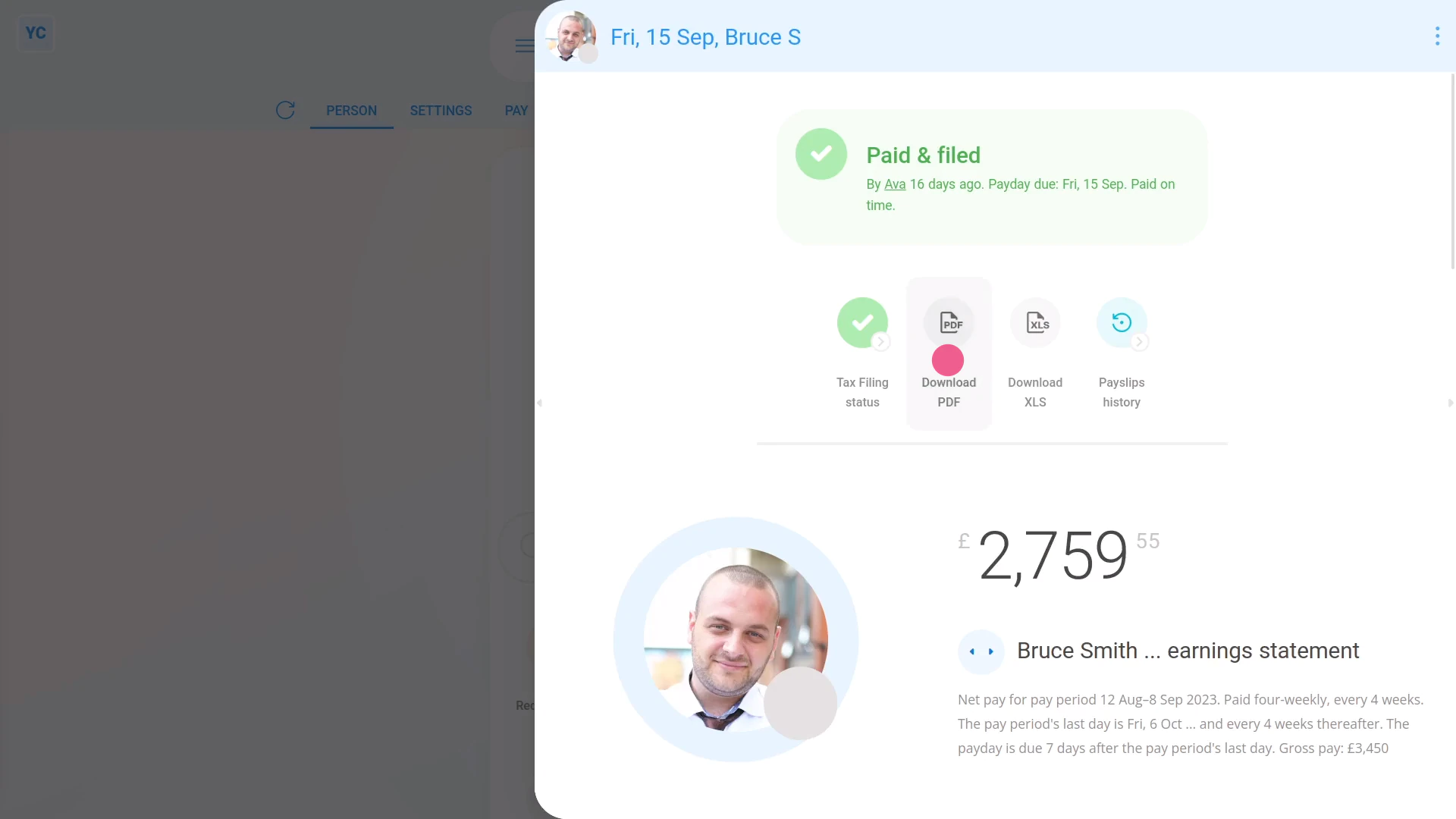
To download your payslips from your calendar:
- First, open yourself on: "Menu", then "Me"
- Then go to your: Calendar
- Tap back through the months and look for the blue circle that matches the payday of the payslip you're looking for.
- Once you find the payslip you're looking for, tap the blue circle, and then tap: Payslip
- The payslip you selected now slides out on the right.
- If you need to go to the next, or previous payslip, tap the triangles, and it jumps you to that payslip.
- Once you've found the payslip you want, tap: Download PDF
- After a few seconds, your payslip PDF is downloaded.
- To open the downloaded PDF, tap it, and you're all ready to print.
- And finally, if you're downloading more than one payslip PDF, continue using the calendar to download each one, until you've got all the PDFs you need.
Keep in mind that:
- You may need to download your past payslips to prove your earnings, if, for example, you're applying for a loan.
For advanced usage:
- Sometimes, instead, you may be after only the numbers from your payslip, perhaps so you can do your own calculations.
- If so, to download the spreadsheet version of your payslip, tap: Download XLS
To learn more:
- About how to download all the payslip PDFs of a single payday, in one go, if you've got at least "View payroll admin" permissions, watch the video on: Multi-payslip PDF
And that's it! That's everything you need to know about downloading payslips!
How do I delete a payslip?
 3:17
3:17
"How do I delete a payslip?"
Occasionally, you may have filed a payslip, and later realize there's been a mistake. Some mistakes can be fixed by first, deleting the payslip, and then paying it again in: "Process payroll"
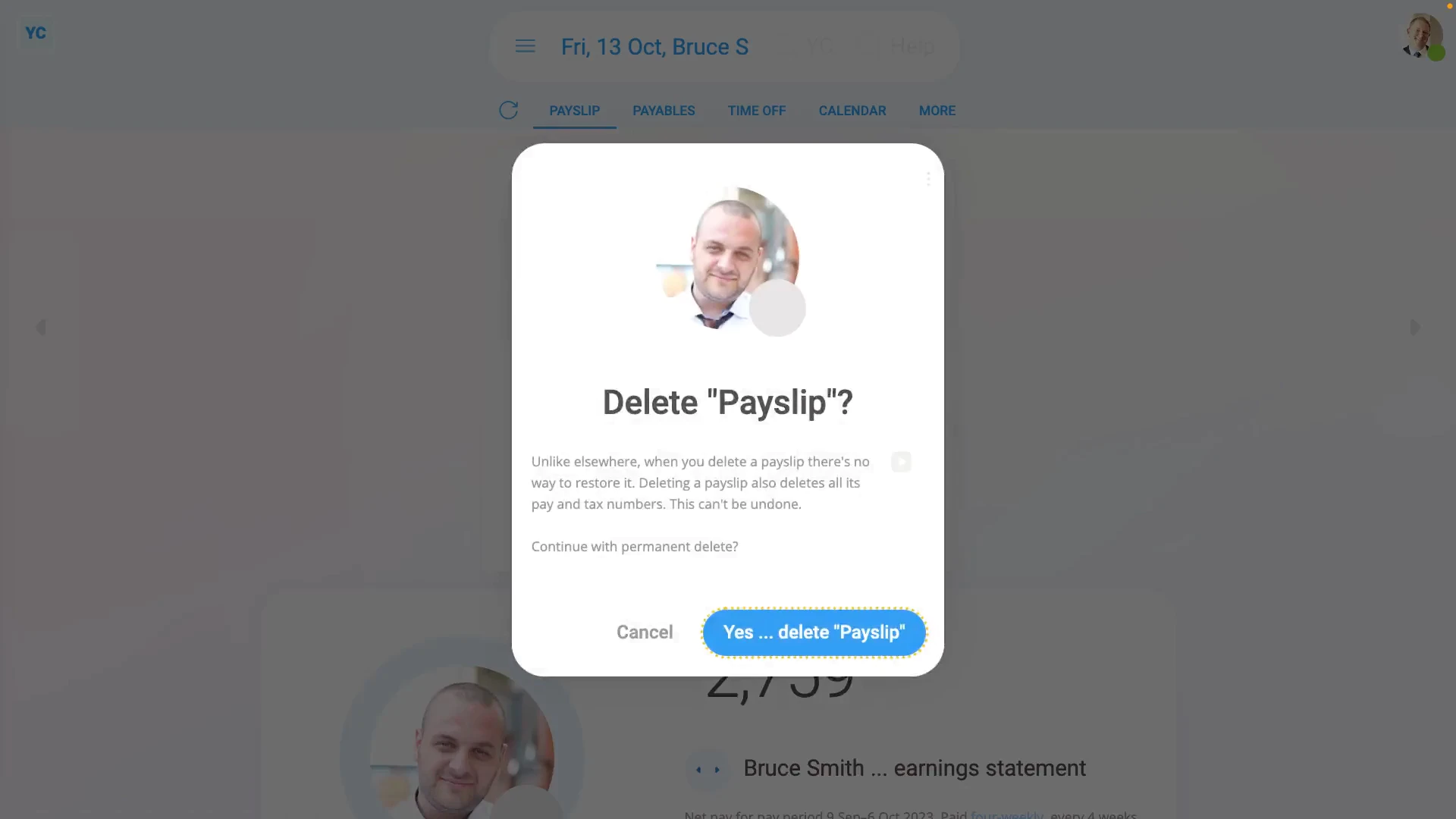
To delete a payslip:
- First, select the payroll group on: "Menu", then "Payroll groups"
- Then tap: "Pay", then "Process payroll"
- Once "Process payroll" opens, hover your mouse over the row of the payslip you want to delete.
- Then tap the "See payslip" button: (at the start of any row)
- Once the payslip slides out on the right, to open it in a new tab, tap the three dots: (in the top-right corner)
- And then tap: Open in new tab
- Now that the payslip's open in its own tab, tap: "More", then "Delete payslip"
- And then tap: Yes ... delete
- You'll now see that because the payslip's been deleted, it's back to being: "Not filed & not paid yet"
- Next, close that tab and go back to: "Process payroll"
- To update "Process payroll", tap the "Reload tab" button: (at the top)
- You'll now see that the row for the person's payslip no longer has the green "Filed" tick.
- And finally, the person's now un-filed payslip is automatically ticked and ready to be filed again.
Keep in mind that:
- Unlike elsewhere, once a payslip's been deleted, there's no way to restore it back to what was saved before.
- Whenever you pay a payslip, everything that's connected to all it's calculations gets locked.
- Including locking connected timesheets, expense claims, repeat payables, and time off.
- The locking is intended to freeze everything in place, as of the time of payslip payment, so your records remain reliable.
- However, the most common reason for wanting to delete a payslip, is in fact, to make a change to a locked timesheet, or expense claim.
For advanced usage:
- Deleting a payslip is never recommended. Making an adjustment instead, is usually the best solution.
- For example, you could make a money adjustment to the person's next payslip to cover the money difference of a previous error.
- To make an adjustment, go to the person's next payslip, and tap: Payables (at the top)
- Alternatively, if you still decide to delete a payslip, it's important that you pay that payslip again as soon as possible.
- Deleting a payslip only deletes it in your copy of the payroll.
- HMRC's copy remains as is, and becomes out-of-date, until you pay it again in: "Process payroll"
- However, once you pay the payslip you deleted again in "Process payroll", HMRC gets all your new payslip numbers, and everything's all synced up again.
To learn more:
- About making a money adjustment to a person's next payslip for a payslip correction, watch the video on: Adding & subtracting vs post & pre-tax
And that's it! That's everything you need to know about deleting a payslip!
Who can see my payslips and how do I open them?
 3:39
3:39
"Who can see my payslips and how do I open them?"
Because of the sensitivity of pay info, there's strict control over who can see your payslips.
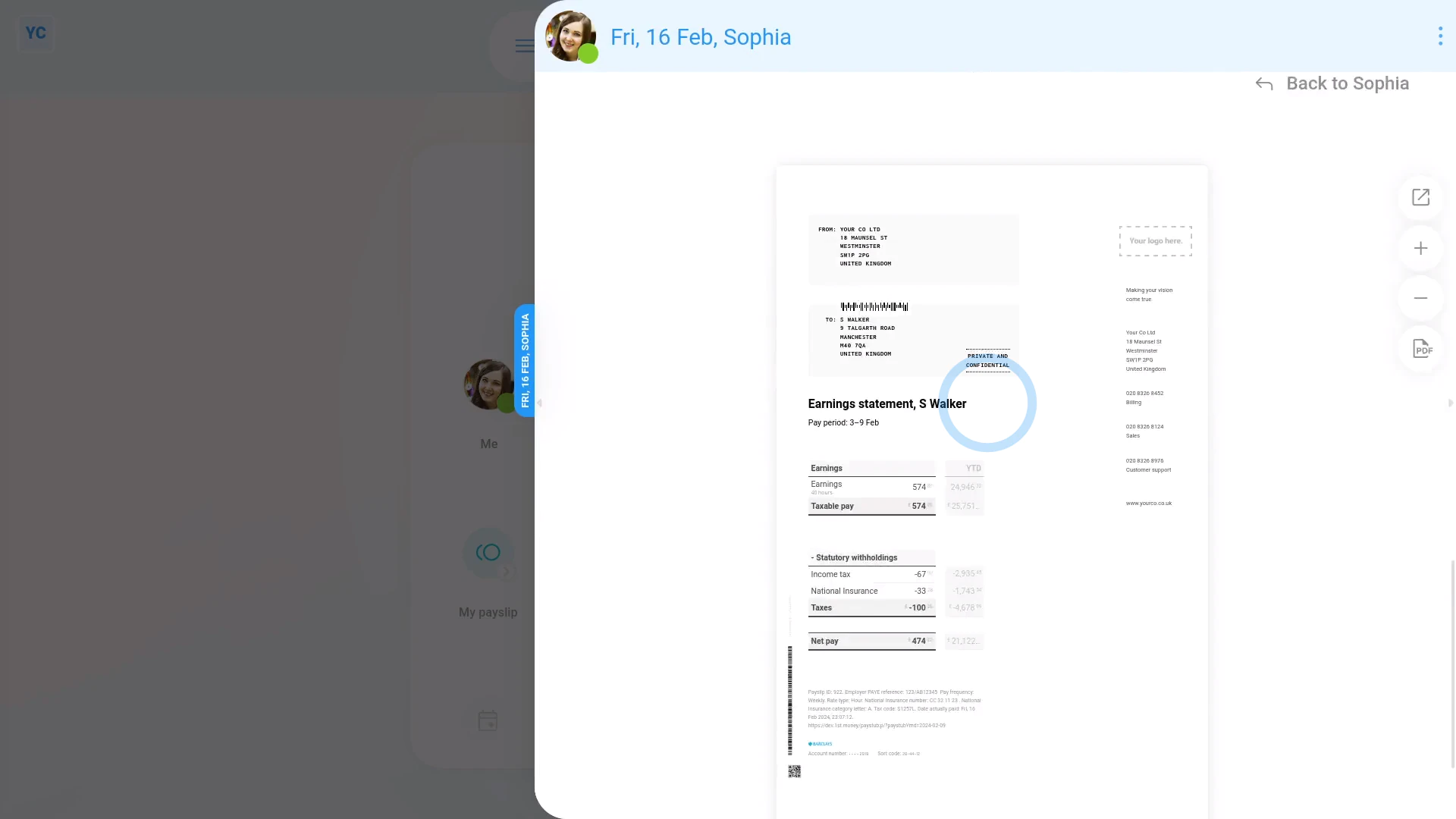
As a regular person, without any special permissions, to see your own payslips:
- First, from your home screen, tap: My payslip
- In many cases, your current payslip may not be due to be filed yet.
- If it's not filed, you'll see the "Not filed & not paid yet" message.
- To skip back a payslip to the one that's been previously filed, tap: Previous payslip
- And when you scroll to the bottom, you'll see a preview of your payslip PDF.
- And back to the top of the page, you'll see Download PDF, which you can tap to download a PDF of your payslip.
- To see a list of all your filed payslips:
Go back on your home screen, and tap: Me - Then tap: "Pay", then "Paid payslips"
- And finally, tap any of your old payslips to see it.
You're now seeing the login of a person with "Full payroll admin" permissions.
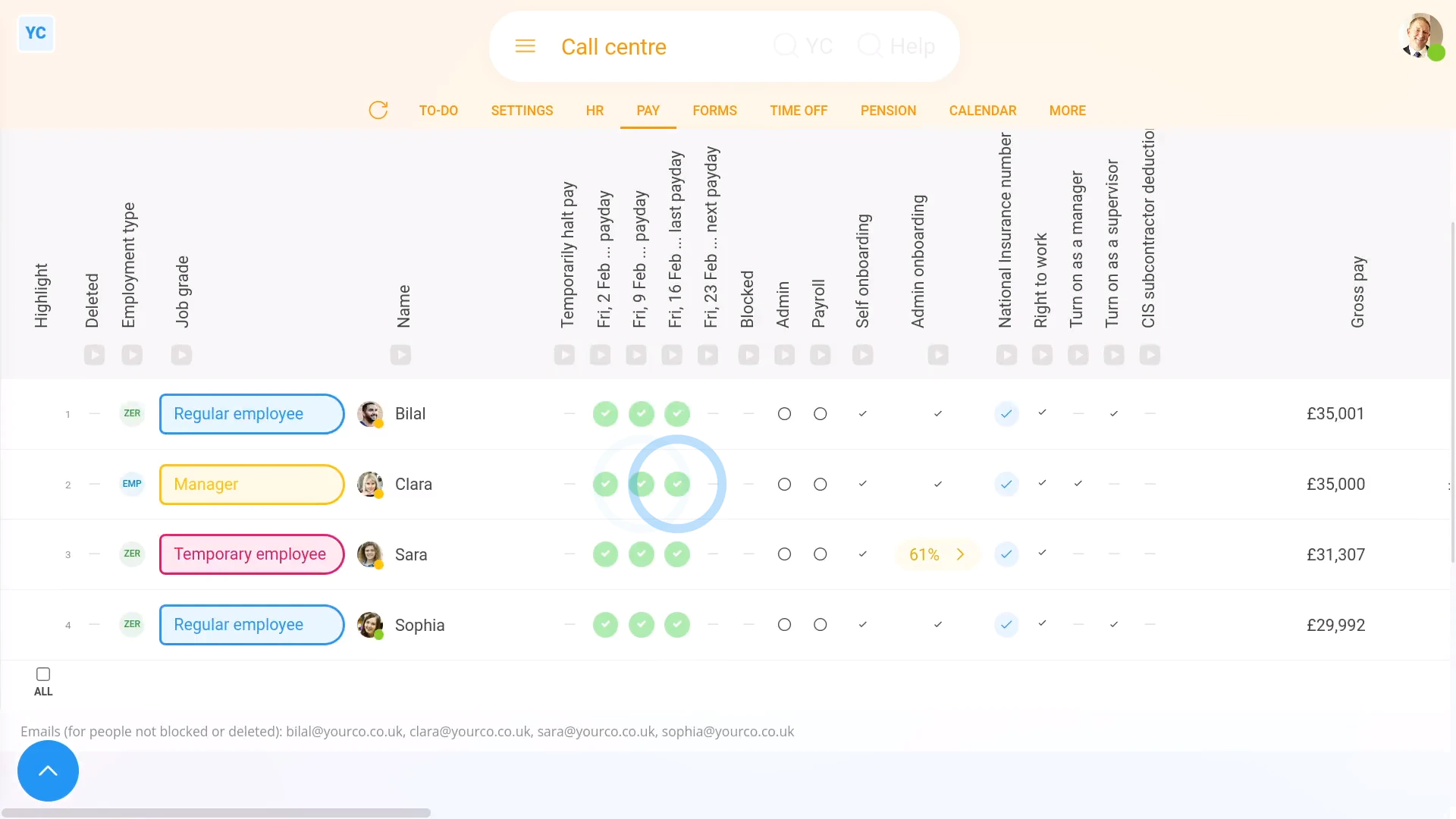
To see other people's payslips, if you've got "Full payroll admin" permissions:
- First, select the payroll group on: "Menu", then "Payroll groups"
- Then tap: "Pay", then "People"
- On the "People" report, each green circle represents a filed payslip.
- Tap on them to see that person's filed payslip for that date.
- Where there's no green circle, then that pay period's payslip hasn't been filed yet.
- If you tap where a green circle's missing, you'll see that person's un-filed payslip for that date.
- If there's a warning that's blocking the payslip from being filed, you'll see any warnings near the top.
- If there's no warnings, then to file it now, scroll down and tap: Go to "Process payroll"
- The person's payslip is automatically selected, so to process it, tap Process payroll, and then: Yes ... process it
- It usually takes about 10 seconds for HMRC to finish processing the payslips and send back confirmation that it's been received.
- Once it's been filed successfully, you'll see a green tick beside the payslips that you've filed.
- Then back on the "People" report, tap the "Reload tab" button: (at the top), to update the newly filed green circles.
- And finally, you'll now see the recently filed payslips are now also marked with a green circle, meaning it's been filed and confirmed by HMRC.
Keep in mind that:
- All regular people, including those without any special permissions, can always see their own filed payslips.
- However, only people with at least "View payroll admin" permissions can see the payslips of other people.
- To see the people in your org who've got "Full payroll admin" permissions, tap: "Menu", then "List payroll admins"
- And you'll now see the people in your org with "Full payroll admin" permissions.
And that's it! That's everything you need to know about who can see your payslips and how to open them!
www.1st.money/uk/help/Payroll/Payslips/