How do I overwrite planned times with done times?
 2:21
2:21
"How do I overwrite planned times with done times?"
Sometimes done times don't match planned times.
In most cases, the mismatch is because of an employee absence. If so, watch the video on: Excusing absences
 Excusing absences
However, sometimes there's a business reason for the mismatch, like a power-cut, or a change in plans. If so, a useful way to have planned times matching done times is to try: "Overwrite planned with done"
To overwrite planned times with done times:
- First, select the person on: "Menu", then "People"
- Then tap: Calendar
- Next, tap the date on the calendar you'd like to "Overwrite planned with done" for.
- Once it slides out on the right, to open it in a new tab, tap the three dots: (in the top-right corner)
- Then tap: Open in new tab
- Now that the timesheet's open in its own window, tap: "More", then "Overwrite planned with done"
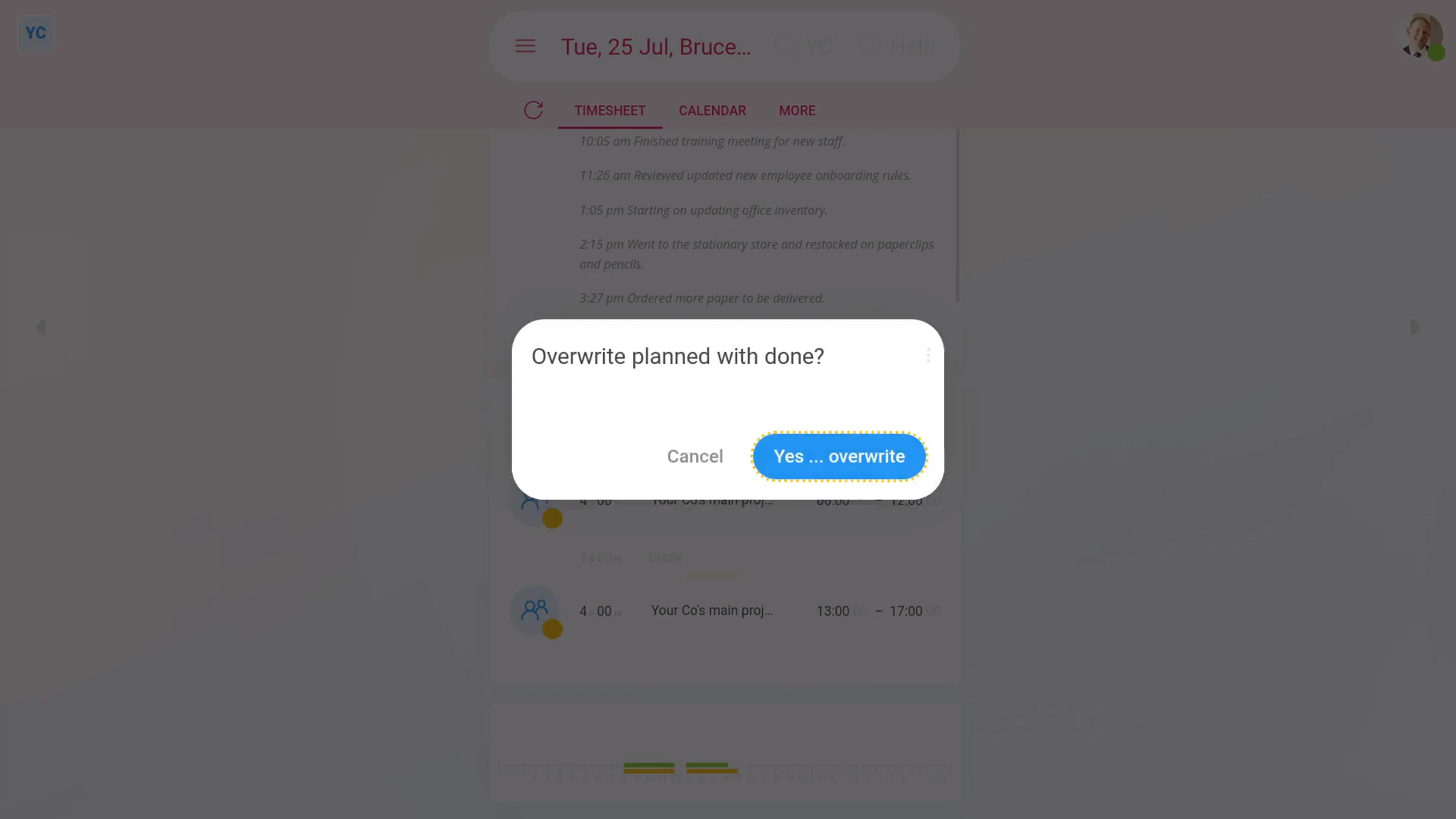
- Next, tap: Yes ... overwrite
- And finally, the planned times have now instantly changed to match the done time, and the absence warning's disappeared.

Keep in mind that:
- Only admins or managers can ever change any planned time on any timesheet.
- Also, if you ever need them, the original times that were overwritten, are still stored in history.
- Also, if "Overwrite planned with done" isn't showing under the "More" menu, it means your org hasn't turned on "Show planned times" yet.
If a feature's not showing:
- If the timesheets feature isn't showing, it means your org hasn't turned on the timesheets feature yet.
- To turn on the timesheets feature, watch the video on: Turning on timesheets
To learn more:
- About how to turn on "Show planned times", watch the video on: Turning on planned times
- And to learn how to excuse an absence, watch the video on: Excusing absences
And that's it! That's everything you need to know about overwriting planned times with done times!
www.1st.money/help/Timesheets/How_do_I_overwrite_planned_times_with_done_times