Student loan repayments

1. How do I set up student loan repayments?

 6:22
6:22
"How do I set up student loan repayments?"
Student loans are a deduction that's automatically deducted from a person's pay, and then marked for onward payment to HMRC.
There's three ways to set up a person's student loan repayments:
- First, during onboarding, when you enter the person's P45 details.
- Second, when the student loan repayments are set up by you manually.
- Or third, when it's automatically set up by HMRC through an: "HMRC notice"
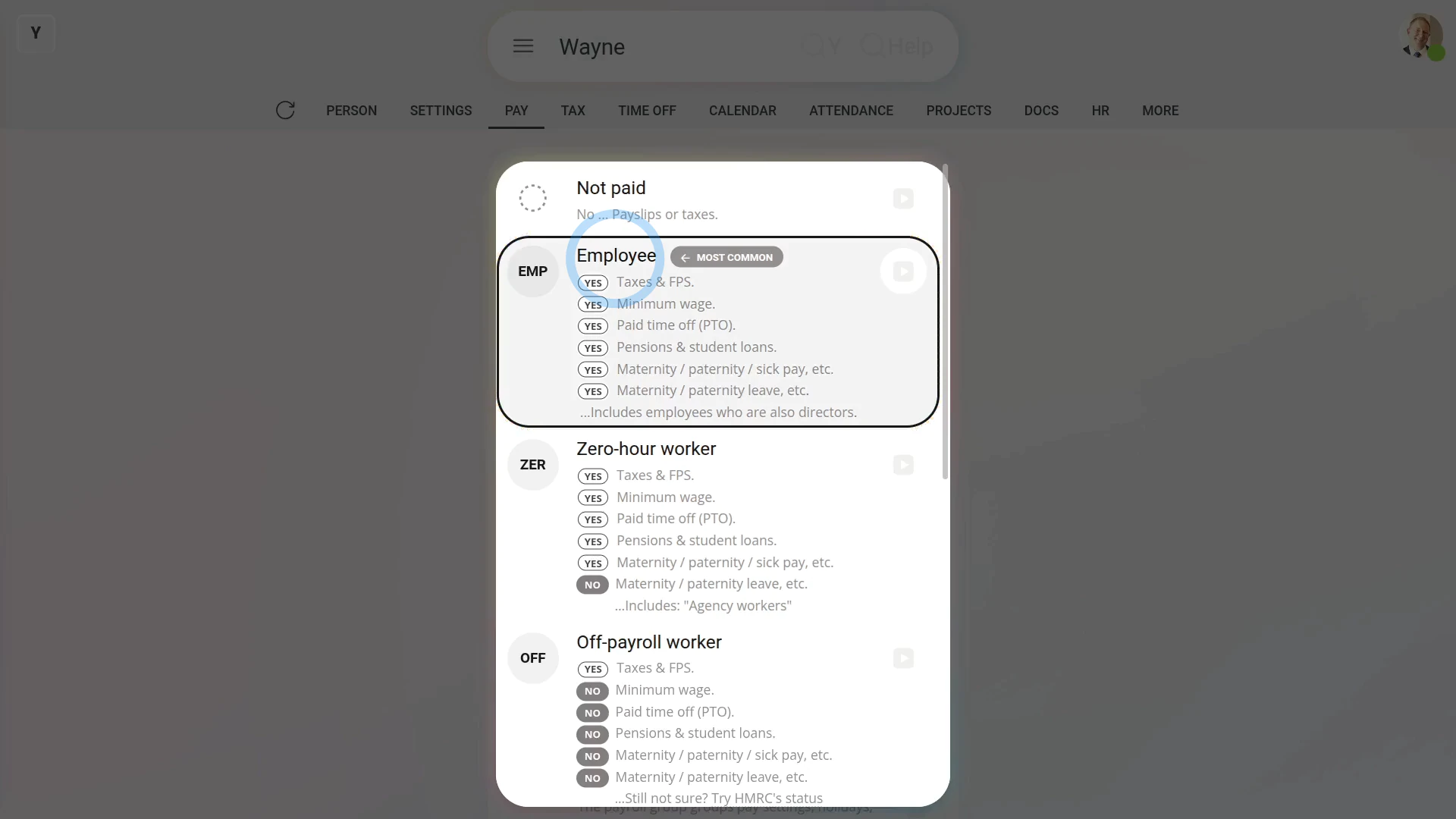
Before starting, it's important to note that student loan repayments only apply to the employment types of: "Employees" and: "Zero-hour workers"
The first way to add a student loan repayment ... is during onboarding:
- First, to start the normal onboarding process, tap: "Menu", "People", then "Invite a person"
- And enter the person's email and tap: Next
- Next, fill in the person's name, and tap: Next
- Normally, you'd fill in all the onboarding details, but for the example, you can skip through the setup.
- Then when asked about their P45, tap: Yes
- And enter, from their P45, their "Leaving date" from their previous job, and tap: Next
- Then also from their P45, enter the "Employee's National Insurance number", and tap: Next
- Now set their "Title" and "Middle name", and tap: Next
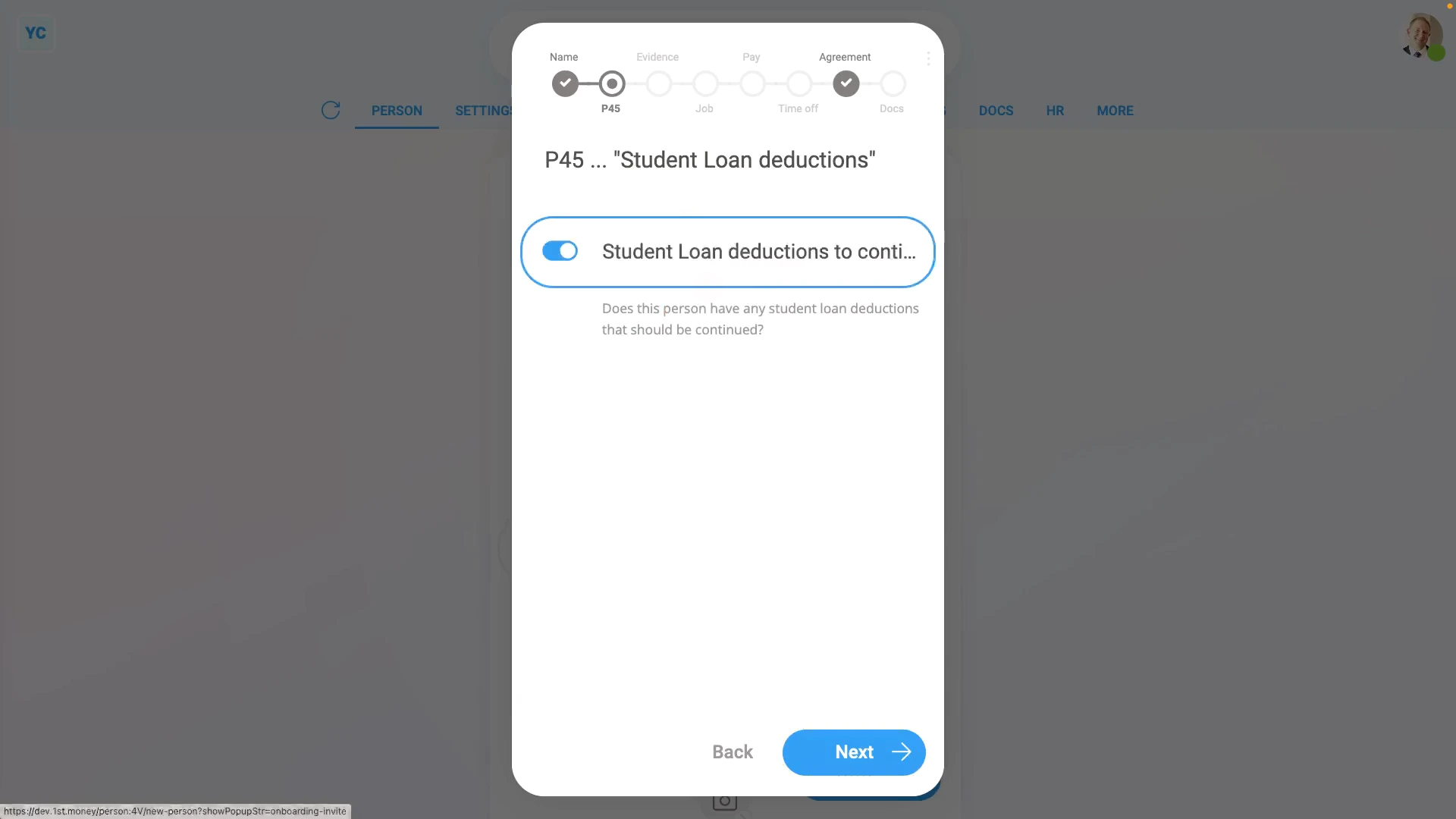
- And then turn on their "Student loan deductions", and tap: Next
- Normally, you'd continue by filling in all the onboarding details, but for the example, you can tap off the popup to close the onboarding process.
- And now, to see that their student loan repayments have been correctly added, go to: "Pay", then "Pay settings"
- And scroll down to the "Repeat payables ... personal" heading.
- By default, you'll see it's added a "Plan 2" student loan.
- If however, you want to manually change the student loan plan number, tap the student loan.
- Then tap the "Change type" button: (at the top)
- You're welcome to manually change the student loan plan number. For example, to "Plan 1", "Plan 4", or: "Plan 5"
- However, once HMRC receives your first payroll submission for the person, HMRC sends an "HMRC notice" to change the person to the correct student loan plan. Which happens in the background automatically.
- And finally, once you've decided your new student loan plan number, the student loan repayment calculations update to the new plan type.
The second way to add a student loan repayment ... is manually:
- First, select the person who's getting the student loan repayment added on: "Menu", then "People"
- And then go to: "Pay", then "Pay settings"
- And scroll down to the "Repeat payables ... personal" heading.
- Then tap: New repeat payable
- Next, tap: Deduct from pay
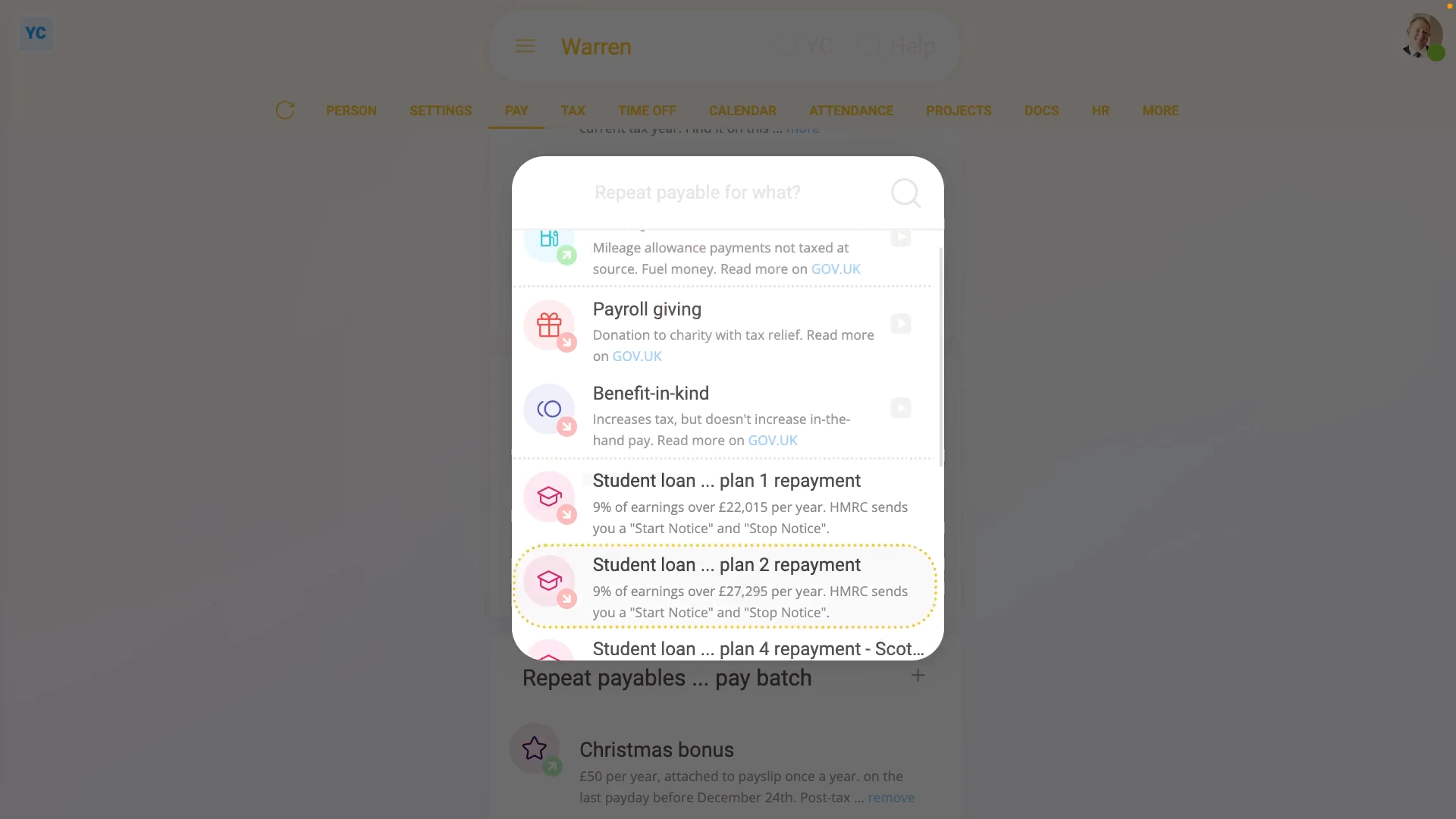
- And select: Student loan, plan 2 repayment
- For 99% of student loan repayments, all the defaults are now already correct.
- Including the "Payee", which is the bank account that the student loan repayments are paid to. The payee is automatically set to HMRC and can't be changed.
- You can now tap off, and you'll see that the person's student loan repayments are all set up.
- If you're curious to see how the student loan repayments look on the person's payslip, tap the "see on payslip" link.
- You'll now see a payslip amount showing under: "Deductions"
- And if you hover your mouse over the amount, you'll see a breakdown of the student loan repayment calculation.
- And finally, if you scroll up and tap the "Next payslip" circle, you'll see the same amount repeated on every payday, as expected.
The third way a student loan repayment is added ... is when it's automatically set up, or modified, by HMRC through an "HMRC notice":
- First, to see the "HMRC notices", select the payroll group on: "Menu", then "Payroll groups"
- Then tap: "Forms", then "HMRC notices"
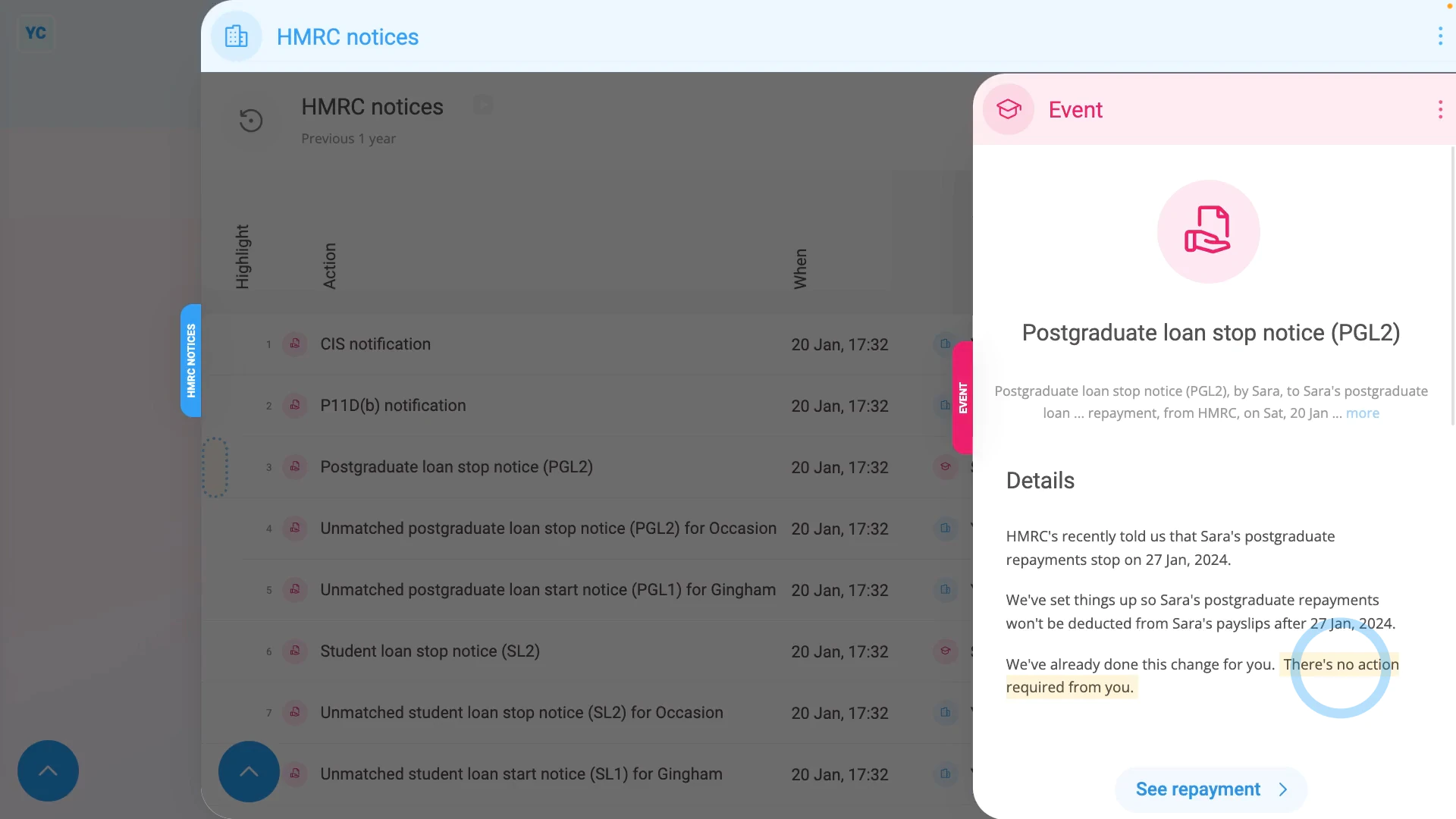
- You'll now see all your payroll group's HMRC notices from over the last year.
- Examples of "HMRC notice" actions include: starting or stopping a student loan repayment, or modifying the student loan repayment type.
- To see an HMRC notice's full message, tap the "See event" button: (at the start of any row)
- As long as the "HMRC notice" can be matched to a person, the action is auto-scheduled to be carried out by 1st Money.
- So in most cases: "There's no action required from you."
- Also, for every auto-scheduled change that involves a person, two copies of an HMRC notice are emailed out.
- And finally, one is emailed to the person involved, and the other to the payroll group's payday person, so everyone knows what's happened.

Keep in mind that:
- If the option for student loan repayments doesn't show up in the list, check that the person's employment type is one of: "Employee" and: "Zero-hour worker"
- Which are the only two employment types that're eligible for student loans.
To learn more:
- About "HMRC notices", watch the video on: HMRC notices
- To learn about deleting or un-deleting a student loan repayment, watch the video on: Deleting a repeat payable
 HMRC notices
And that's it! That's all you need to do to set up a student loan repayment!
2. How do I set up postgraduate loan repayments?
 4:25
4:25
"How do I set up postgraduate loan repayments?"
Like student loans, postgraduate loans are a deduction that's automatically deducted from a person's pay, and then marked for onward payment to HMRC.
There's two ways to set up a person's postgraduate loan repayments:
- First, when the postgraduate loan repayments are set up by you manually.
- Or second, when it's automatically set up by HMRC through an: "HMRC notice"
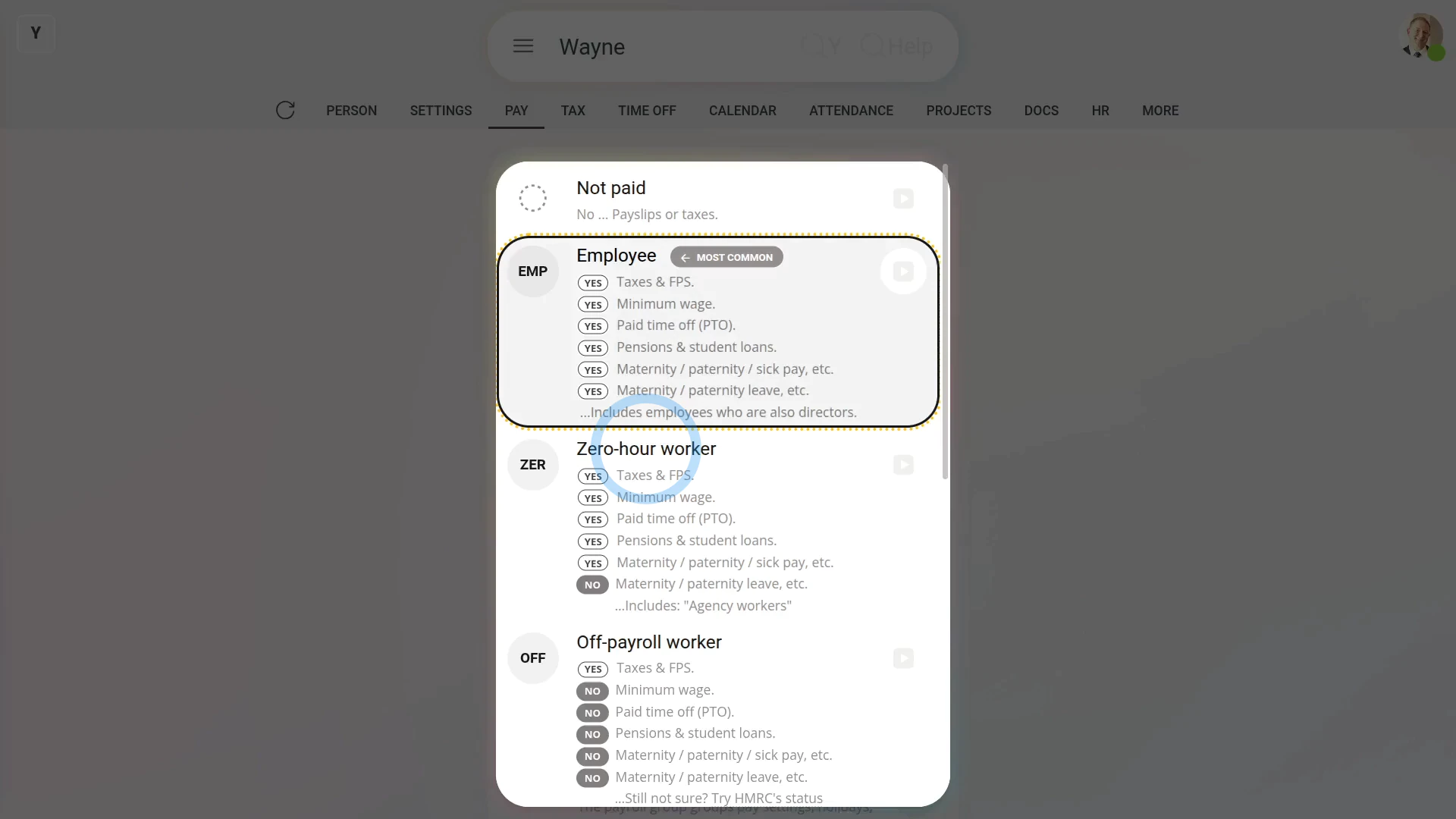
Before starting, it's important to note that postgraduate loan repayments only apply to the employment types of: "Employees" and: "Zero-hour workers"
The first way to add a postgraduate loan repayment ... is manually:
- First, select the person who's getting the postgraduate loan repayment added on: "Menu", then "People"
- And then go to: "Pay", then "Pay settings"
- And scroll down to the "Repeat payables ... personal" heading.
- Then tap: New repeat payable
- Next, tap: Deduct from pay
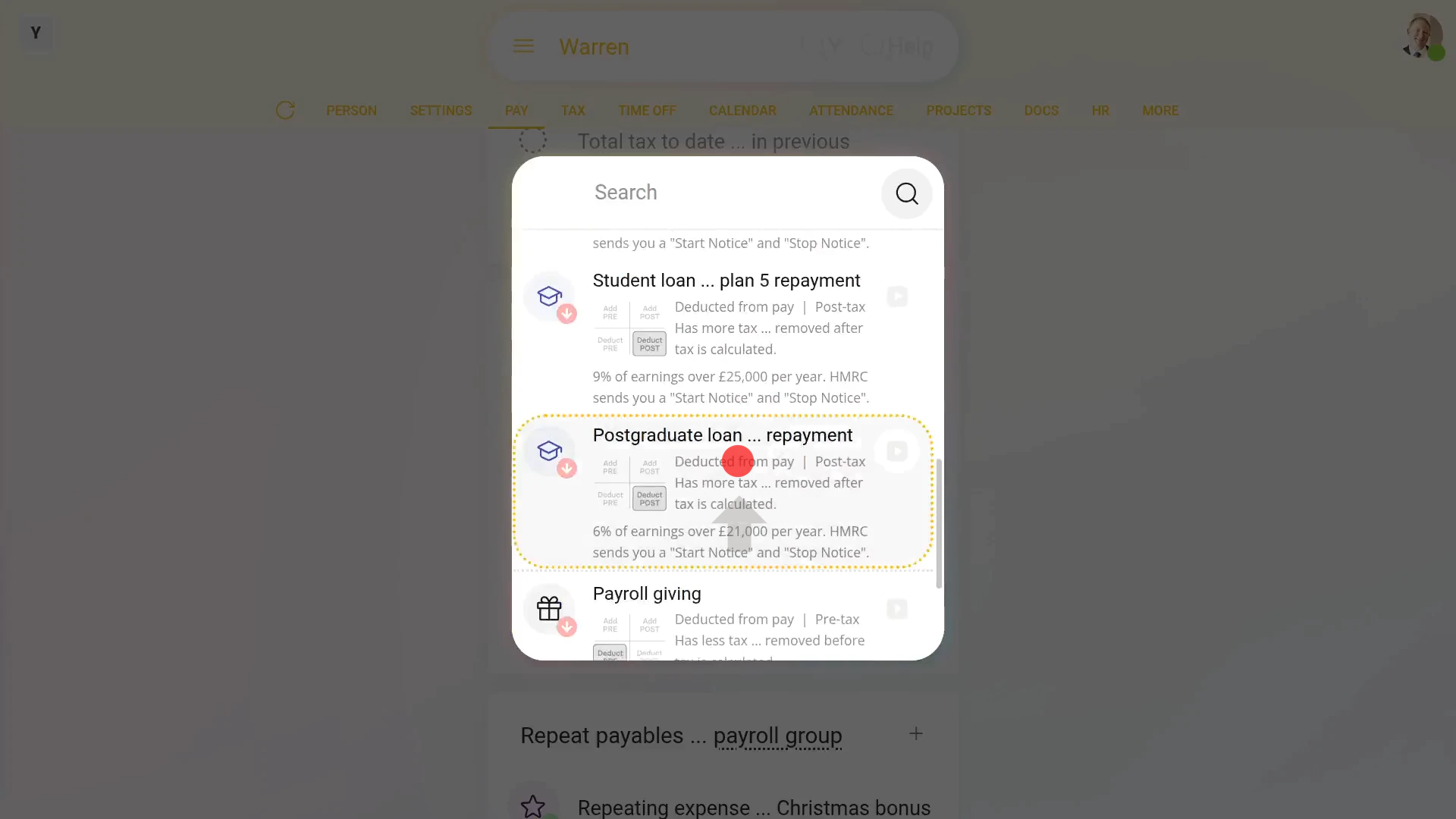
- Then select: Postgraduate loan, repayment
- For 99% of postgraduate loan repayments, all the defaults are now already correct.
- Including the "Payee", which is the bank account that the postgraduate loan repayments are paid to. The payee is automatically set to HMRC and can't be changed.
- You can now tap off, and you'll see that the person's postgraduate loan repayments are all set up.
- If you're curious to see how the postgraduate loan repayments look on the person's payslip, tap the "see on payslip" link.
- You'll now see a payslip amount showing under: "Deductions"
- And if you hover your mouse over the amount, you'll see a breakdown of the postgraduate loan repayment calculation.
- Also, if a person already has student loan repayments, it's quite normal for them to also have postgraduate loan repayments side-by-side. Having two loans is quite common if the person's gone on to do postgraduate studies.
- And finally, if you scroll up and tap the "Next payslip" circle, you'll see the same amount repeated on every payday, as expected.
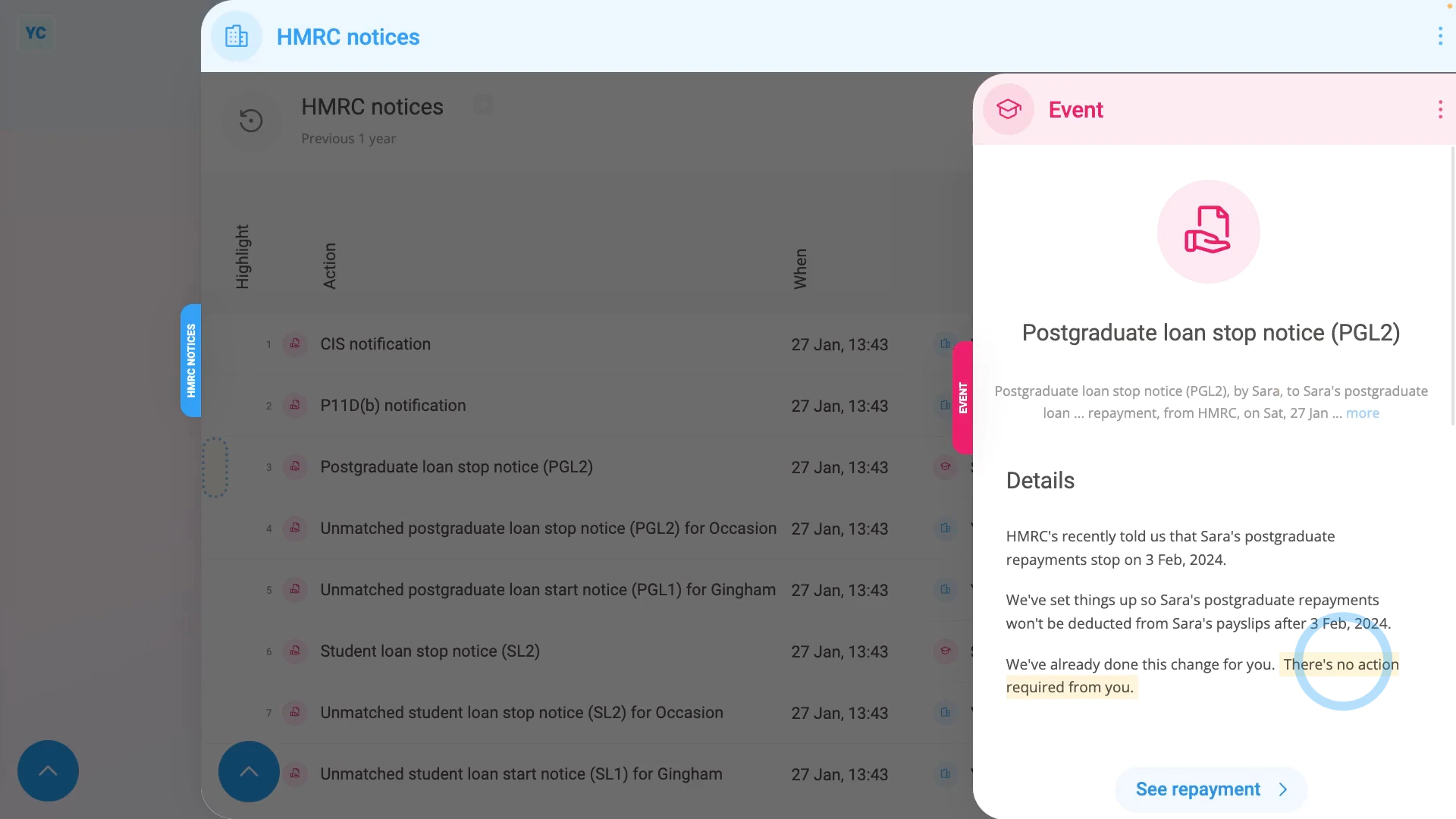
The second way a postgraduate loan repayment is added ... is when it's automatically set up, or modified, by HMRC through an "HMRC notice":
- First, to see the "HMRC notices", select the payroll group on: "Menu", then "Payroll groups"
- Then tap: "Forms", then "HMRC notices"
- You'll now see all your payroll group's HMRC notices from over the last year.
- Examples of "HMRC notice" actions include: starting or stopping a postgraduate loan repayment, or modifying the postgraduate loan repayment type.
- To see an HMRC notice's full message, tap the "See event" button: (at the start of any row)
- As long as the "HMRC notice" can be matched to a person, the action in the notice is auto-scheduled to be carried out by 1st Money.
- So in most cases: "There's no action required from you."
- Also, for every auto-scheduled change that involves a person, two copies of an HMRC notice are emailed out.
- And finally, one is emailed to the person involved, and the other to the payroll group's payday person, so everyone knows what's happened.
Keep in mind that:
- If the option for postgraduate loan repayments doesn't show up in the list, check that the person's employment type is one of: "Employee" and: "Zero-hour workers"
- Which are the only two employment types that're eligible for postgraduate loans.
- Also, postgraduate loans can only be set up manually because postgraduate loans don't automatically show up as an option during onboarding.
To learn more:
- About "HMRC notices", watch the video on: HMRC notices
- To learn about deleting or un-deleting a postgraduate loan repayment, watch the video on: Deleting a repeat payable
And that's it! That's all you need to do to set up a postgraduate loan repayment!
www.1st.money/uk/help/Expenses/Student_loan_repayments/