Expense claims
 1:49
1:49How do I submit an expense claim?
Steps to submit and get approval for an expense claim with receipts and notes.
 1:08
1:08How do I resubmit an expense claim if it's declined?
Steps to resubmit a declined expense claim and get it approved.
 2:17
2:17How do I approve or decline an expense claim?
Instructions for approving or declining expense claims via email or payday process.
1. How do I submit an expense claim?

 1:49
1:49
"How do I submit an expense claim?"
When you spend your personal money to buy something for your employer, you can claim the cost back by submitting an expense claim.
To submit an expense claim:
- First, tap: "Menu", then "Add expense claim"
- If you've got an image, like a receipt, that you'd like to include, you can upload, or take a photo of it.
- Then tap: Next
- Then add a note to help your payday person know why you're requesting the expense.
- You can either type your own note directly, or you can select one from the list.
- Then tap: Next
- Type in the amount you're requesting.
- And tap: Next
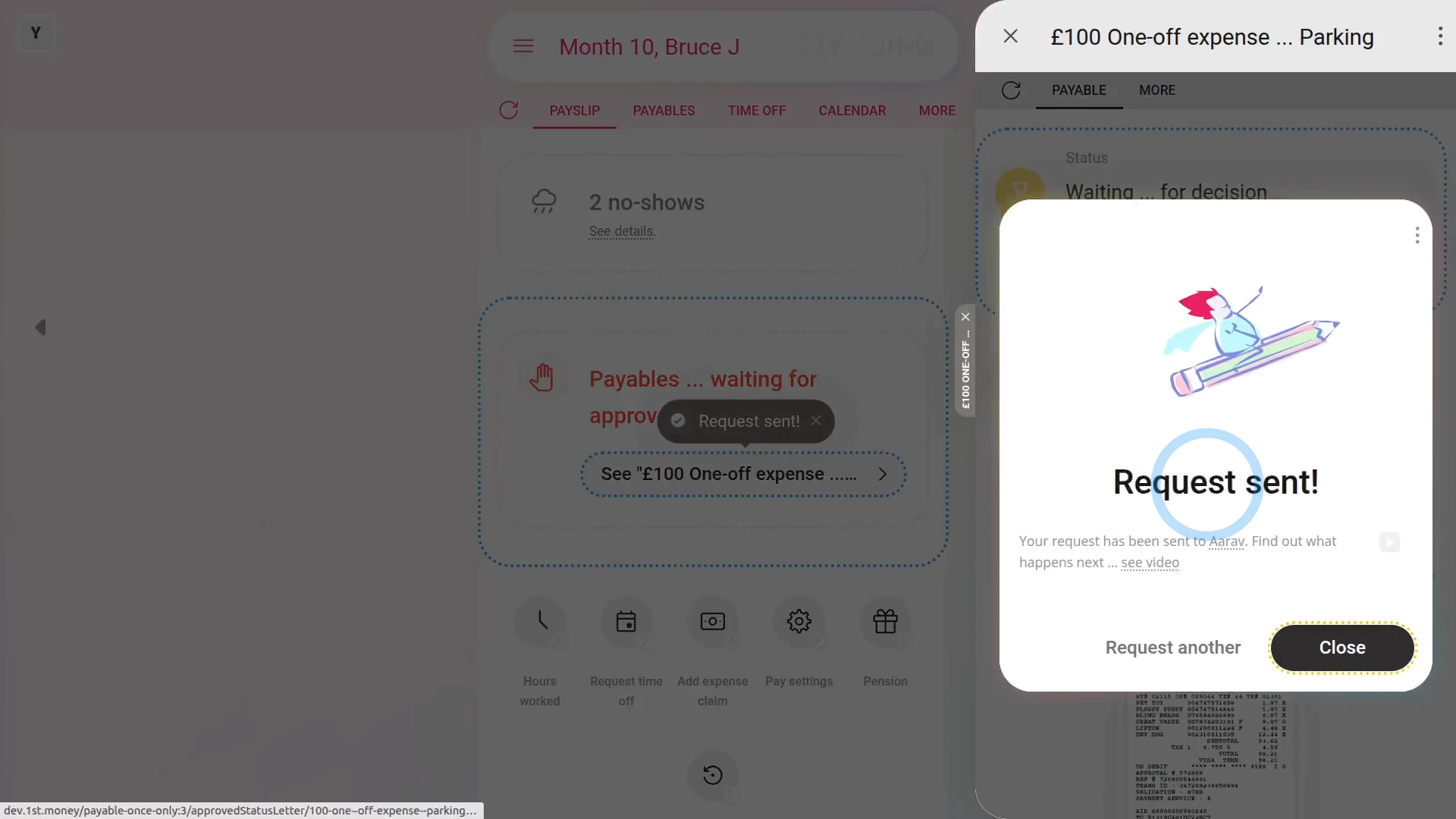
- And now you're all done submitting your expense.
- If you want to submit another one, tap: Request another
- Otherwise, tap: Close
- And then tap your recently created expense claim to review it.
- And in the background, an email's been sent to your payday person to approve your expense claim.
- Once your payday person's approved your expense, you'll get an email.
- From the email, tap: See expense
- And you'll see the green tick showing that it's been approved.
- And finally, when you scroll down you'll see (at the bottom) the date of the payslip that it's to be paid with.

Keep in mind that:
- Any expense claim payment that's paid back to you is paid free of any tax deductions.
- Once approved, your expense claim is paid back to you along with your normal payslip.
And that's it! That's everything you need to know about submitting an expense claim!
2. How do I resubmit an expense claim if it's declined?
 1:08
1:08
"How do I resubmit an expense claim if it's declined?"
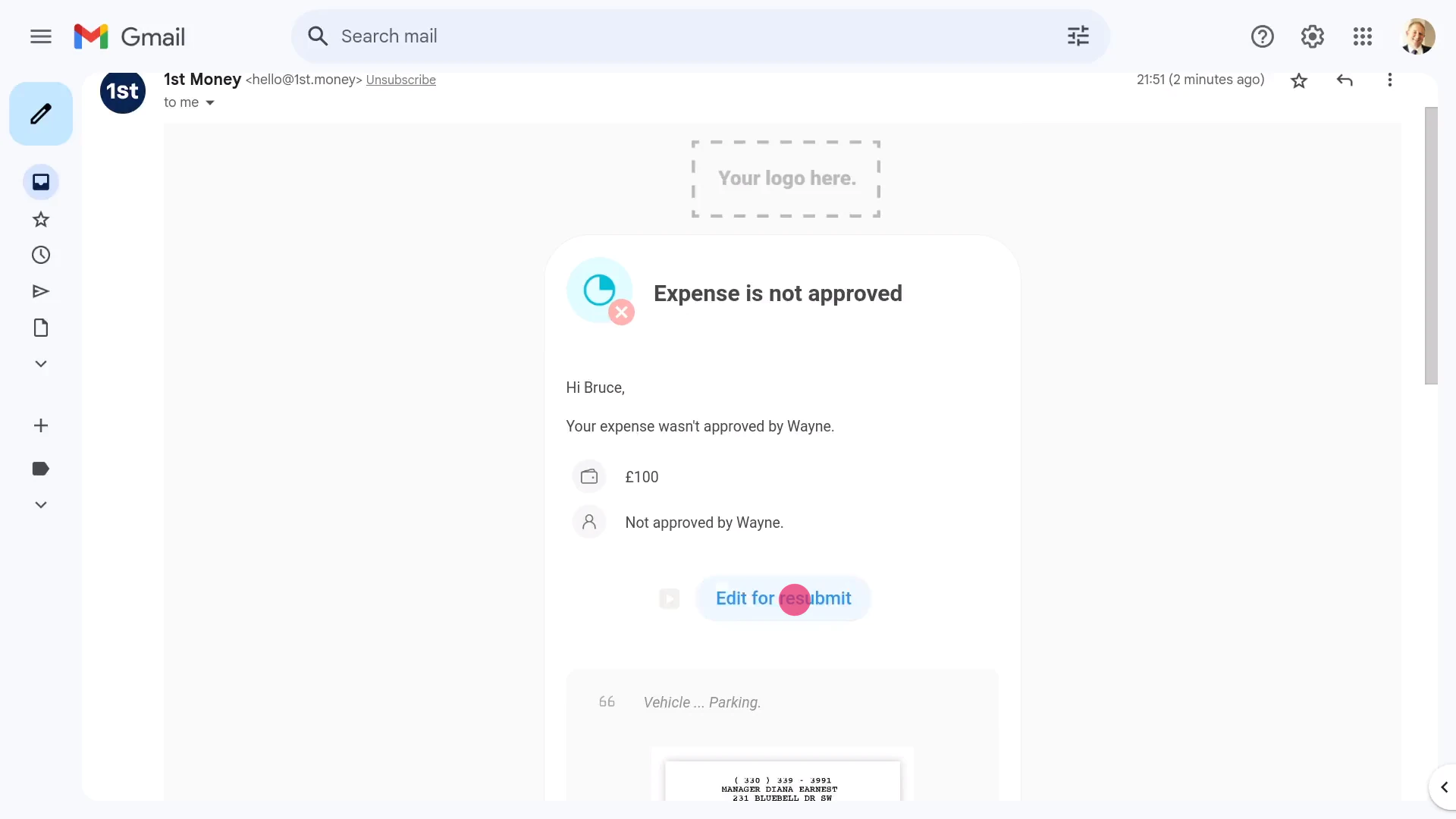
If your payday person declined one of your expense claims, you'll get an email letting you resubmit it.
To resubmit a declined expense claim:
- First, tap: Edit for resubmit
- Then type more notes in the box explaining why your payday person might reconsider approving your expense claim.
- And when you're finished, tap: Save
- Then in the background, another email's now sent to your payday person, again asking them to approve your expense claim.
- Once your payday person's approved your resubmitted expense, you'll get an email.
- From the email, tap: See expense
- And you'll see the green tick showing that it's now been approved.
- And finally, when you scroll down you'll see (at the bottom) the date of the payslip that it's to be paid with.
And that's it! That's everything you need to know about resubmitting an expense claim!
3. How do I approve or decline an expense claim?
 2:17
2:17
"How do I approve or decline an expense claim?"
When a person requests an expense claim, you'll get an email asking you to approve it, as their payday person.
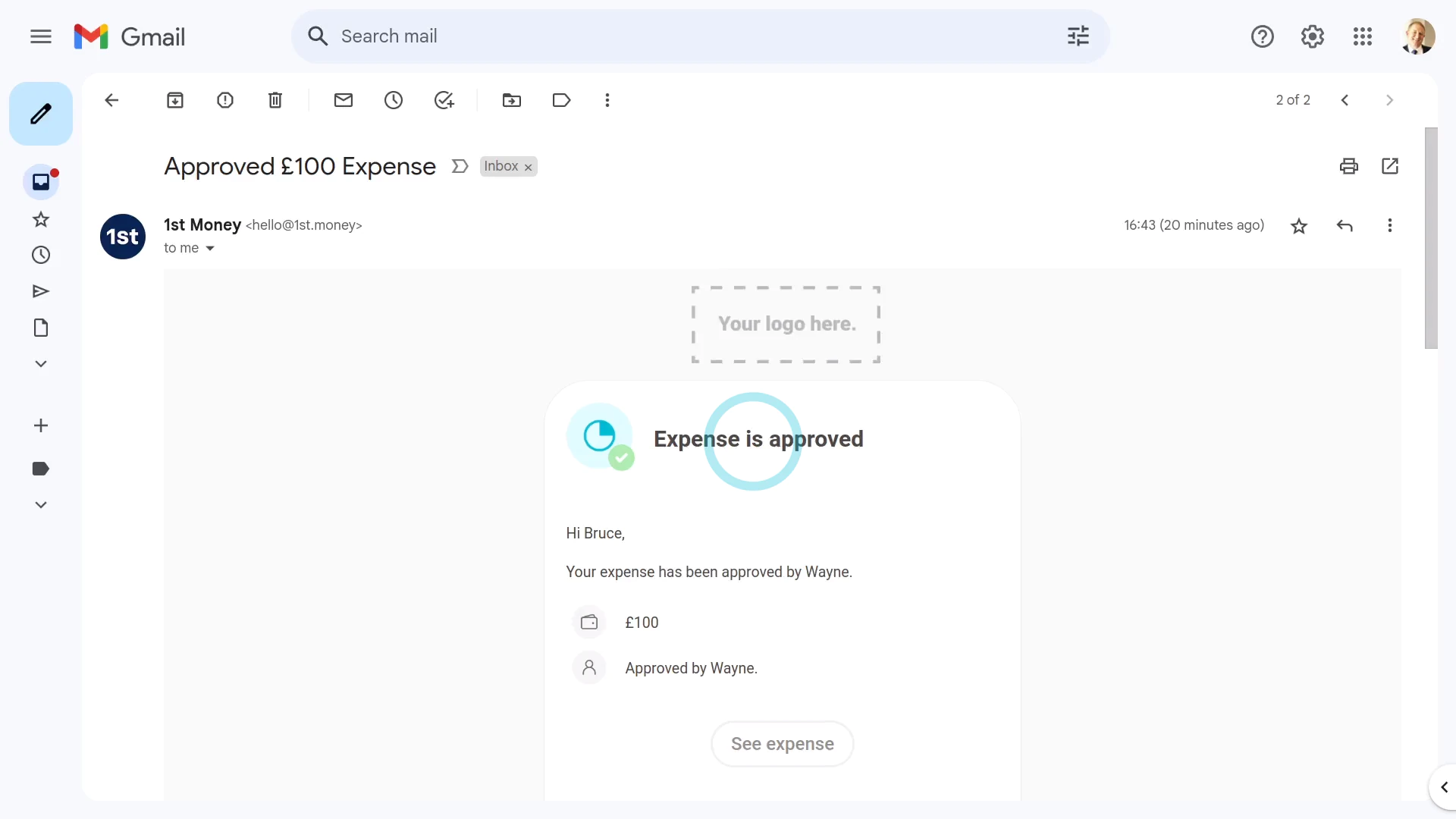
To approve or decline a submitted expense claim:
- First, as their payday person, you'll be the one to receive expense claim emails.
- Approving from your email:
If you'd like to change the request, or you're not sure if you're ready to approve it, tap the "Edit request" link. - In some cases, if you don't approve of the expense, tap: Declined
- In most cases, however, to approve the expense, tap: Approved
- Which is all you need to do to see the "Expense approved" confirmation.
- Also, in the background, an approval email's sent to the person.
- What the requesting person sees:
When the requesting person opens their email inbox, the person sees an email letting them know that their expense has been approved. - Then from the "Approved" email, the person can tap See expense to see more details.
- Alternatively, when it's been declined, the person sees an email letting them know that their expense hasn't been approved.
- Then from the declined email, the person can tap: Edit for resubmit
- Approving on payday:
Another place to approve expense claims is on payday, in: "Process payroll" - On payday, if there's any expense claims that have been missed, or haven't been approved, those expense claims are highlighted for you in orange. The expense claims are labelled as payables.
- To complete expense claims on the spot, while finishing the payday, tap the orange circle.
- Then tap: See expense
- And then tap Approved or: Declined
- Next, back on "Process payroll", to reload the page, tap the "Reload tab" button: (at the top)
- And finally, now that all the expense claims have been dealt with, you can tap Process payroll to complete the Payroll Payments.
And that's it! That's everything you need to know about approving expense claims!
4. How do I set an expense claim to be paid on a specific date?
 2:13
2:13
"How do I set an expense claim to be paid on a specific date?"
To have an expense claim paid on a specific date, you'll need to add it to a specific payslip of the person.
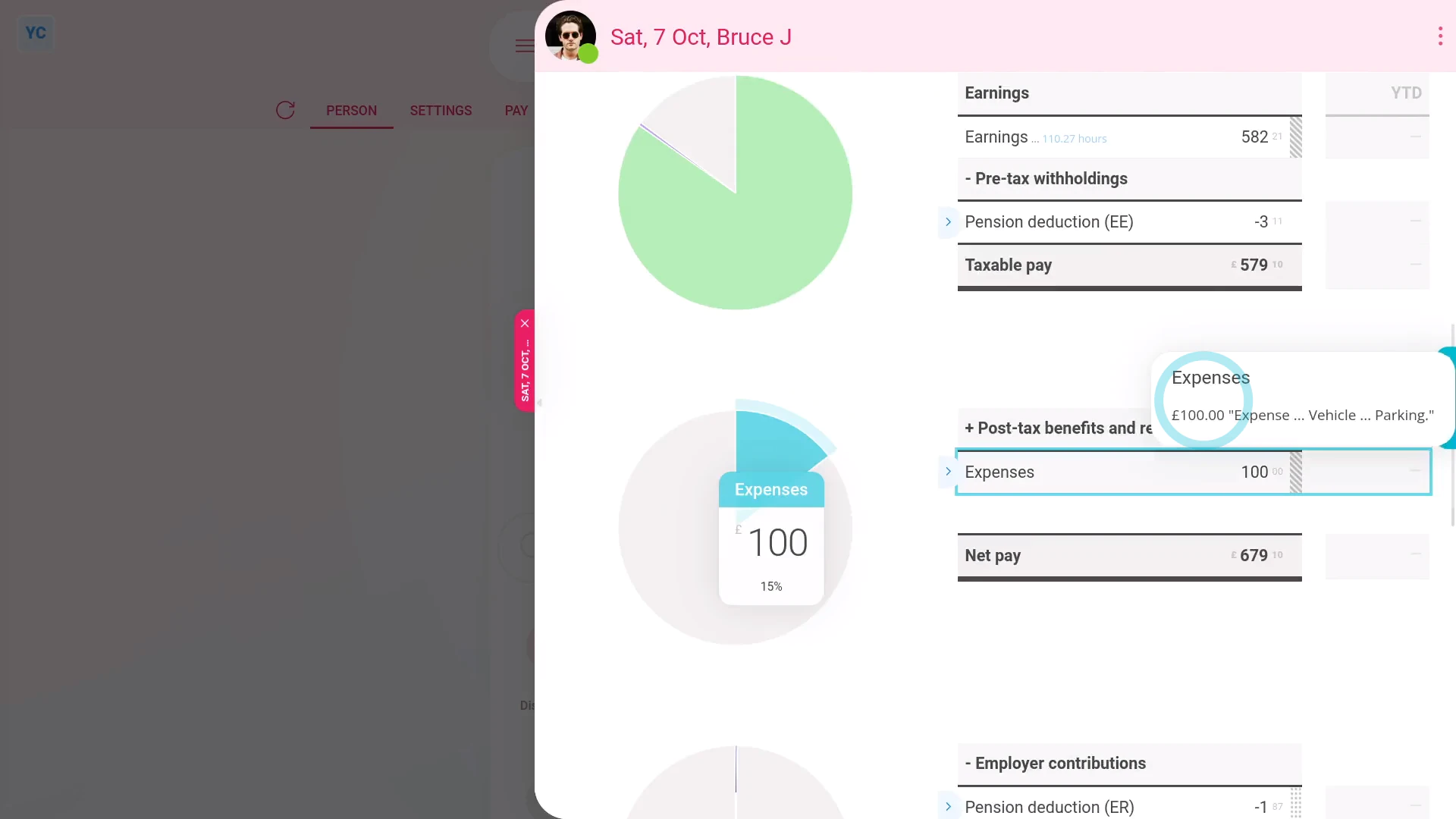
To add an expense claim to a payslip that's paid on a specific date:
- First, open the person who you'd like to pay the expense claim to, on: "Menu", then "People"
- Then go to the person's: Calendar
- Tap back through the months and look for the blue circle that matches the payday date. Which is the payslip that you'd like to pay the expense claim on.
- Once you find the payslip you're looking for, tap the blue circle, and then tap: Payslip
- Now that you're on the payslip you want it paid with, tap Add expense claim, and select: Expense
- Enter the expense details, like attaching an image, setting the amount, and adding a description.
- And when it's a payroll admin who's entering it, the expense is automatically approved.
- When you tap back to the payslip, and hover your mouse over the "Expenses" amount, you'll see the details.
- And finally, when you scroll to the top of the payslip, you'll see the date that the payslip's expected to be paid.
Keep in mind that:
- Expense claims, by default, are always attached to the next payslip that's due to be filed.
- Which means that expense claims are generally paid relatively quickly.
- Also, any person can attach an expense claim to a specific payslip. No special permissions are required to attach to a specific date.
- However, only payroll admins can approve expense claims.
You may notice:
- If a payslip's already been filed, the payslip's locked and you can't attach your expense claim.
- If it's locked, look for the next un-filed payslip to attach it to instead.
And that's it! That's everything you need to know about adding expense claims on a specific date!
5. How do I delete an expense claim?
 2:21
2:21
"How do I delete an expense claim?"
If you've got an approved, but unpaid, expense claim, and you no longer want it paid out, you're welcome to delete it whenever you like.
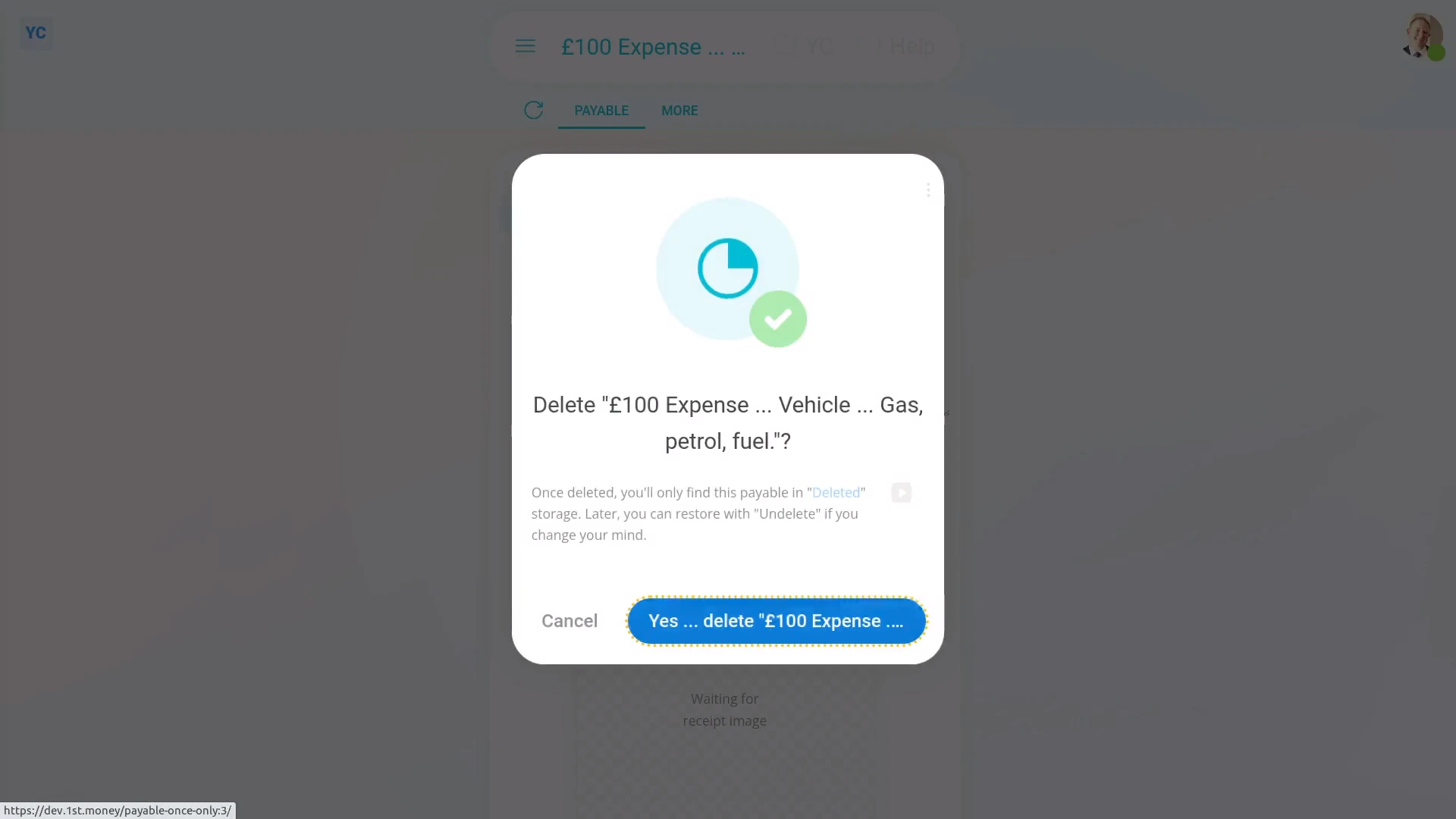
To delete a person's expense claim:
- First, open the person who's got the expense claim you'd like to delete, on: "Menu", then "People"
- Then tap: "Pay", then "Payslip"
- Then scroll down and tap the expense claim you'd like to delete.
- Then tap More, then: Delete
- Then tap: Yes ... delete
- Now that the expense claim's deleted, it no longer shows on the payslip.
- And finally, it won't be included in the payslip payment, even if it'd been approved.
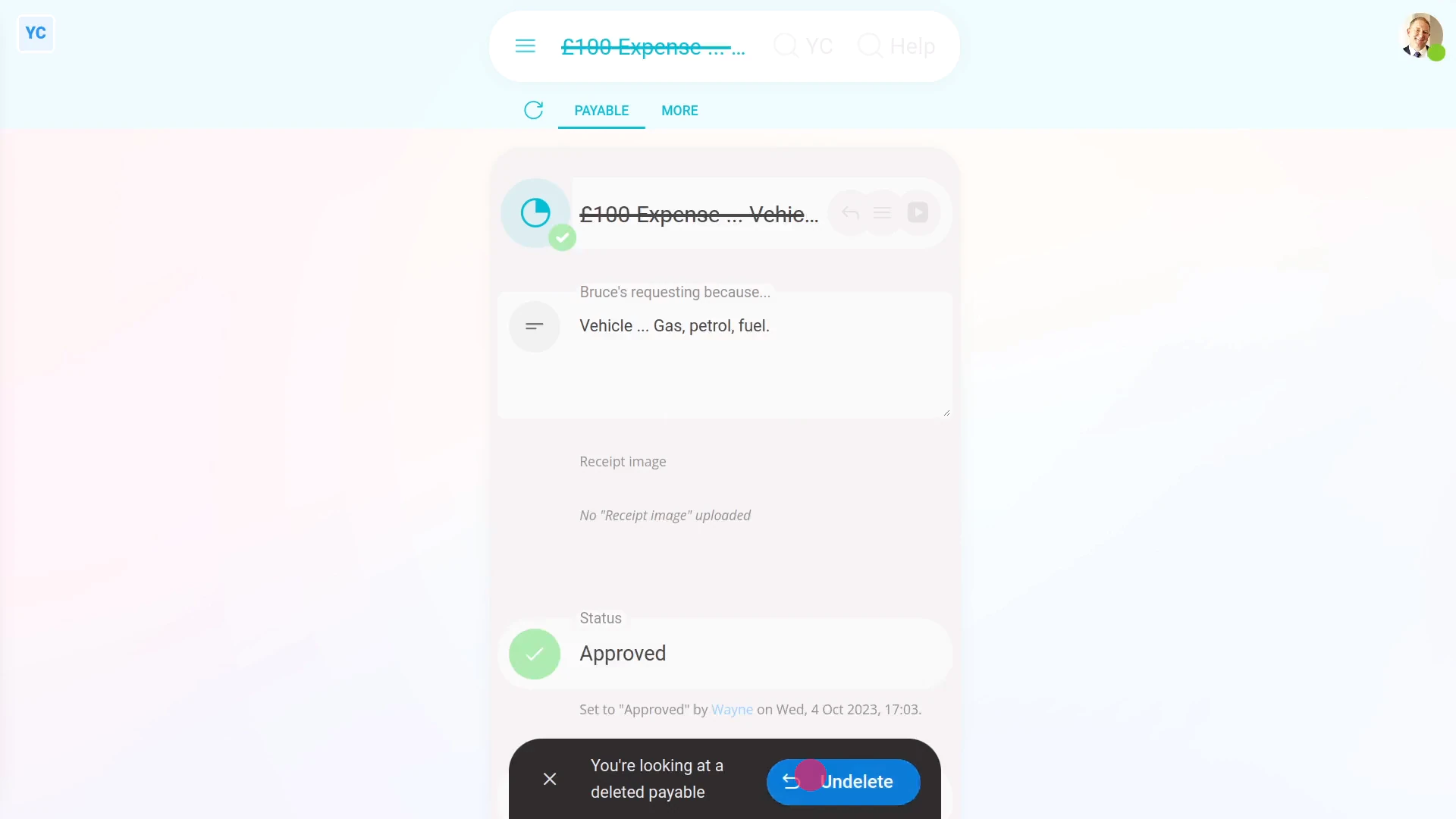
To un-delete an expense claim:
- First, open the person who's got the expense claim you'd like to un-delete, on: "Menu", then "People"
- Then go to the person's: Calendar
- Tap back through the months and look for the blue circle that matches the payday date. Which is the payslip that you'd like to un-delete.
- Once you find the payslip you're looking for, tap the blue circle, and then tap: Payday
- Then tap More, then: Deleted payables
- And then tap the expense claim you'd like to un-delete.
- Next, tap: Un-delete (at the bottom)
- And the deleted expense claim is immediately un-deleted.
- And finally, to see the un-deleted expense claim on the person's payslip, tap the "See on payslip" link.
Keep in mind that:
- Deleting an expense claim has the same effect as denying approval.
- Also, only people who've got "Full payroll admin" permissions can delete or un-delete expense claims.
- And remember that all deletes and un-deletes are always permanently recorded in: "History"
- That means any payroll admin can always look back in time, and see who did any delete, and when the delete was done.
And that's it! That's everything you need to know about deleting or un-deleting an expense claim!
www.1st.money/uk/help/Expenses/Expense_claims/