1. How do I submit an expense claim?
 1:49
1:49
"How do I submit an expense claim?"
When you spend your personal money to buy something for your employer, you can claim the cost back by submitting an expense claim.
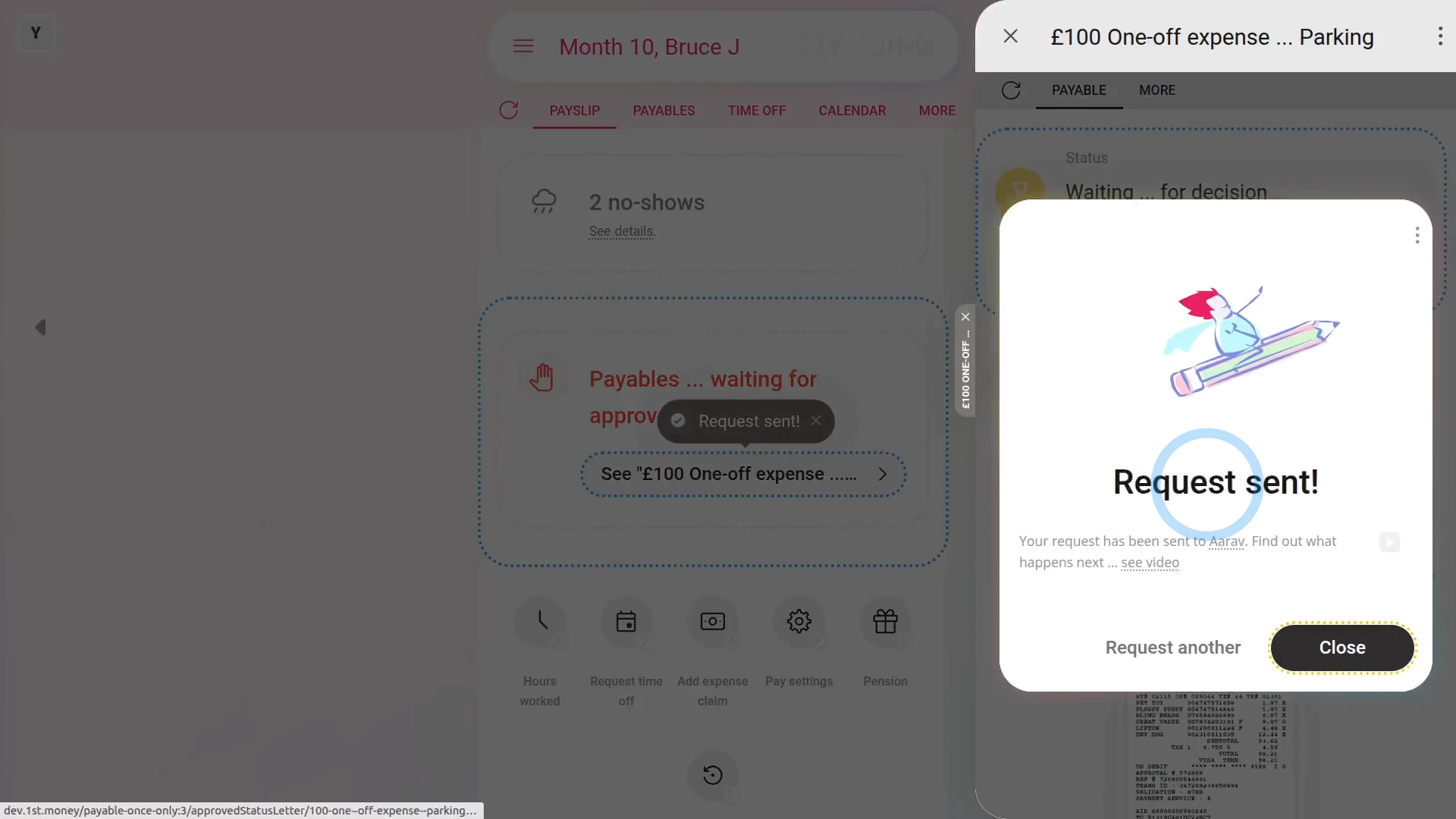
To submit an expense claim:
- First, tap: "Menu", then "Add expense claim"
- If you've got an image, like a receipt, that you'd like to include, you can upload, or take a photo of it.
- Then tap: Next
- Then add a note to help your payday person know why you're requesting the expense.
- You can either type your own note directly, or you can select one from the list.
- Then tap: Next
- Type in the amount you're requesting.
- And tap: Next
- And now you're all done submitting your expense.
- If you want to submit another one, tap: Request another
- Otherwise, tap: Close
- And then tap your recently created expense claim to review it.
- And in the background, an email's been sent to your payday person to approve your expense claim.
- Once your payday person's approved your expense, you'll get an email.
- From the email, tap: See expense
- And you'll see the green tick showing that it's been approved.
- And finally, when you scroll down you'll see (at the bottom) the date of the payslip that it's to be paid with.

Keep in mind that:
- Any expense claim payment that's paid back to you is paid free of any tax deductions.
- Once approved, your expense claim is paid back to you along with your normal payslip.
And that's it! That's everything you need to know about submitting an expense claim!
www.1st.money/uk/help/Expenses/Expense_claims/1._How_do_I_submit_an_expense_claim