Cat. F-G. Cars and vans, and car and van fuel
 4:19
4:19How do I set up a company vehicle benefit for private use?
How to set up and manage company vehicle benefits for private use in payroll.
 1:23
1:23How do I find a company vehicle benefit so I can make changes?
How to locate and edit company vehicle benefits in payroll group or individual settings.
 2:32
2:32How do I add or remove people from a company vehicle benefit?
How to add or remove people sharing a company vehicle benefit in payroll settings.
 1:54
1:54How do I update a vehicle benefit payslip deduction?
How to set up and update payslip deductions for private use of a company vehicle.

1. How do I set up a company vehicle benefit for private use?

 4:19
4:19
"How do I set up a company vehicle benefit for private use?"
When a company vehicle is used for personal purposes, add it to the person's pay as a company vehicle benefit.
To add a repeating company vehicle benefit to a person's pay:
- First, select the payroll group of the people using the company vehicle, on: "Menu", then "Payroll groups"
- To make a new repeat payable, tap: "Pay", then "Repeat payables"
- Then tap: "New repeat payable"
- Next, tap: Add to pay
- And select: Company vehicle ... private use
- If the vehicle is a van, then tap Vehicle type, and select: Van
- Next, enter the vehicle's: "Make and model"
- Next, type in your vehicle's: "Number plate"
- Then enter the vehicle's: "Purchase + accessories price"
- And: "Date first registered"
- Next, select the: "Fuel type"
- If the vehicle's hybrid or electric, enter the: "Electric max. range"
- If you know your vehicle's "CO2 emissions", enter it.
- Otherwise, to look it up, tap the "Lookup CO2 emissions" link.
- On the GOV.UK site, type in your vehicle's number plate, then tap Continue, then Yes, then Continue again.
- Scroll down, and copy the "CO2 emissions" number.
- Then back in 1st Money, type it in.
- Next, to add the people who'll be using the vehicle, scroll down and tap: "Add people"
- And select the people to add. Multiple people can be added.
- Then tap Save, and the vehicle benefit is shared with the selected people, as a percentage each.
- To see a vehicle benefit on a person's payslip, tap the vehicle benefit again.
- And scroll down to the people section.
- Then hover your mouse over the person, and tap the "See on payslip" link.
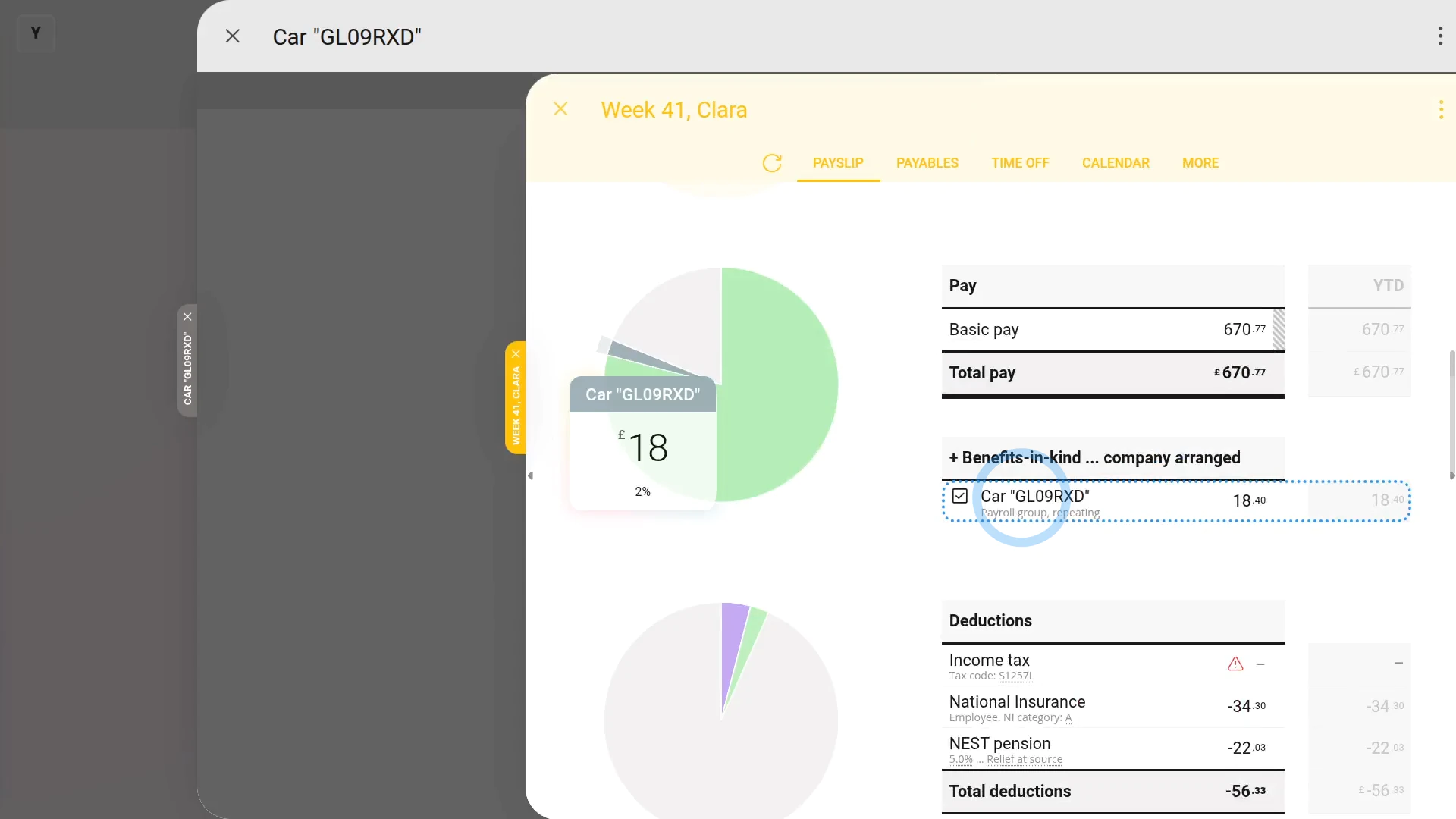
- And you'll see the vehicle benefit showing under: "Benefits-in-kind ... company arranged"
- And finally, if you hover your mouse over the benefit amount, you'll see a breakdown of the calculation.
To delete a repeating company vehicle benefit:
- First, to find the vehicle benefit you want to delete, tap: "Menu", then "Payroll groups"
- Then: "Pay", then "Repeat payables"
- And tap the one you'd like to delete.
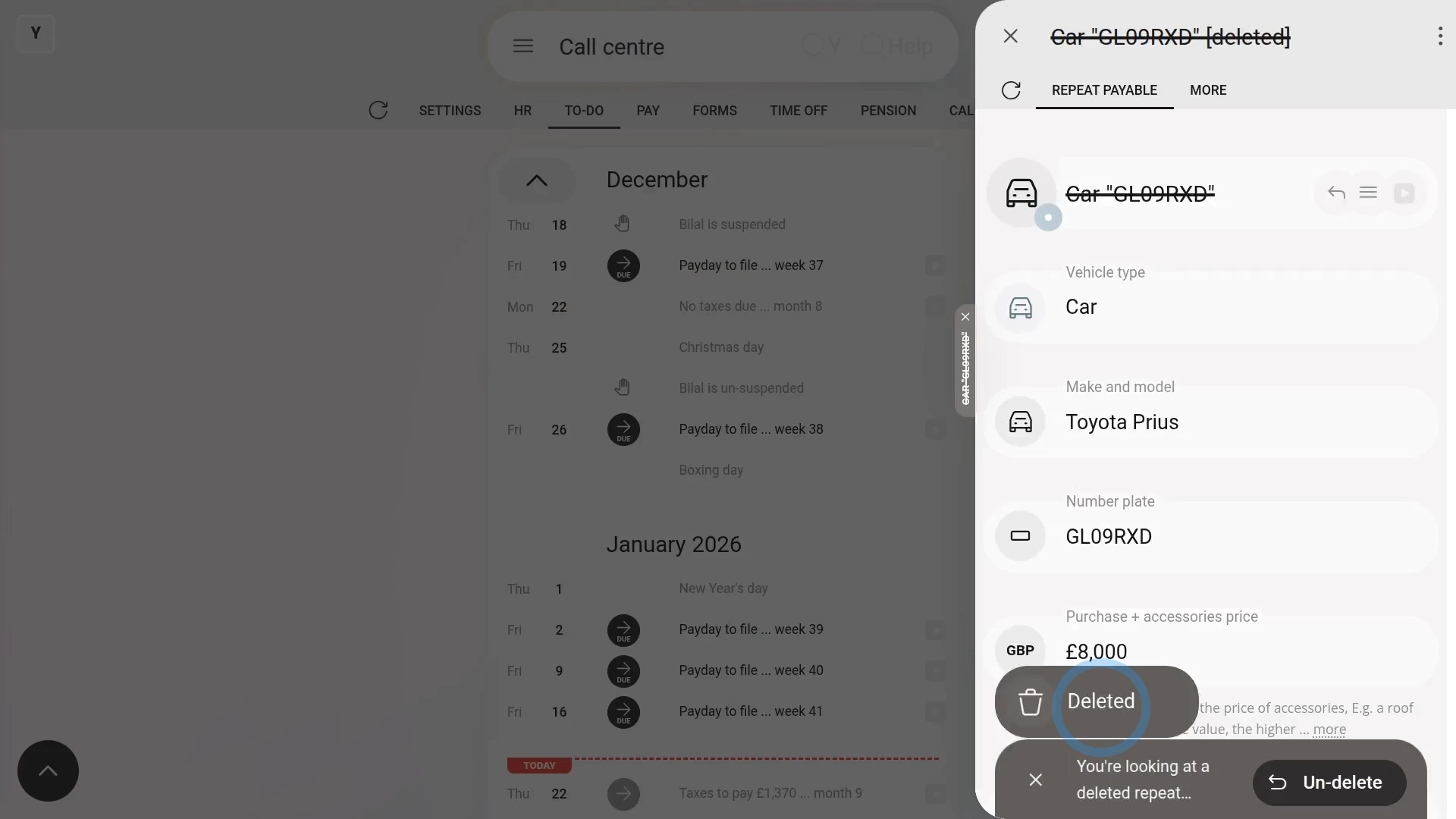
- Then once the vehicle benefit's open, tap More, then: Delete
- And then tap: Yes ... delete
- Now, the repeating company vehicle benefit is deleted, including removing it from any people's un-filed payslips.
- So, from now on, for any payslip that's yet to be filed and paid, the vehicle benefit never shows up again.
- And finally, for any payslip that's already filed and paid, all previous vehicle benefit payments remain on the payslip unaffected.

Keep in mind that:
- A "Benefit-in-kind" increases the person's taxable pay, and doesn't increase the person's in-the-hand pay.
- Also, a new vehicle benefit shows up on each person's next un-filed payslip.
- And it won't affect any of their previously filed payslips.
- Also, for both when you create or delete a repeating company vehicle benefit, 1st Money automatically notifies HMRC on the person's next FPS submission.
To learn more:
- About when an employer pays for private fuel costs, watch the video on: Private fuel
- To learn more about sharing a company vehicle between people, watch the video on: Sharing a vehicle
- And to learn more about deleting or un-deleting a repeat payable, watch the video on: Deleting a repeat payable
 Private fuel
And that's it! That's everything you need to know about setting up a company vehicle benefit!
2. How do I find a company vehicle benefit so I can make changes?
 1:23
1:23
"How do I find a company vehicle benefit so I can make changes?"
Sometimes you may want to make changes to an existing company vehicle benefit.
To find a vehicle benefit in a payroll group:
- First, select the payroll group on: "Menu", then "Payroll groups"
- Then tap: "Settings", then "Payroll group settings"
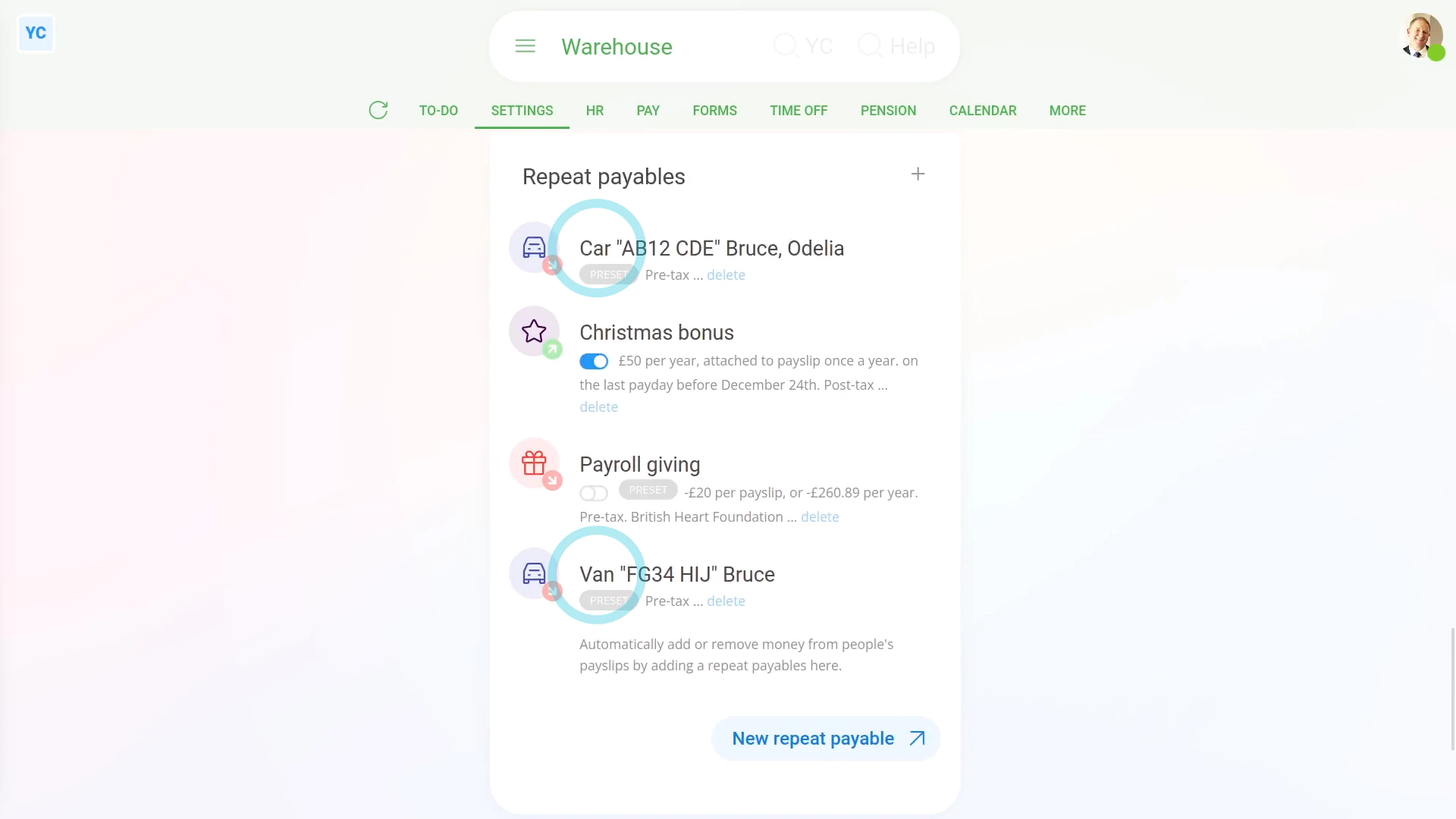
- Then scroll to the bottom and look for the "Repeat payables" heading.
- And all the payroll group's repeat payables, including vehicle benefits, are listed.
- And finally, when you tap one, you'll see all the vehicle benefit settings.
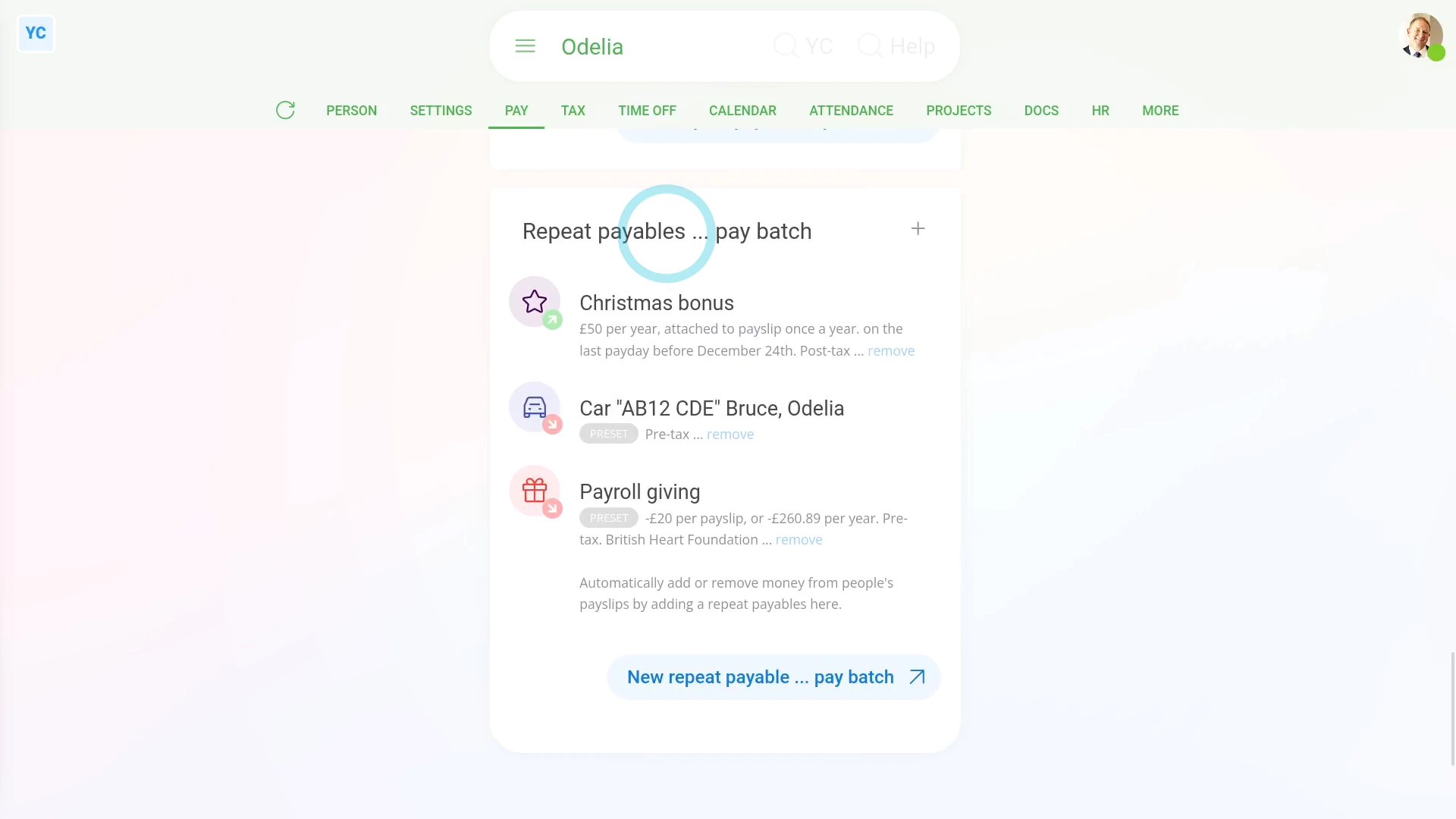
To find a person's vehicle benefit:
- First, select the person using the vehicle on: "Menu", then "People"
- Then tap: "Pay", then "Pay settings"
- And scroll down to the bottom, and look for the "repeat payables ... payroll group" heading.
- And all the person's repeat payables, including vehicle benefits, are listed.
- And finally, when you tap one, you'll see all the vehicle benefit settings.
And that's it! That's everything you need to know about finding a vehicle benefit to make changes!
3. How do I add or remove people from a company vehicle benefit?
 2:32
2:32
"How do I add or remove people from a company vehicle benefit?"
When you share a vehicle between people, the benefit is split equally on each person's payslip.
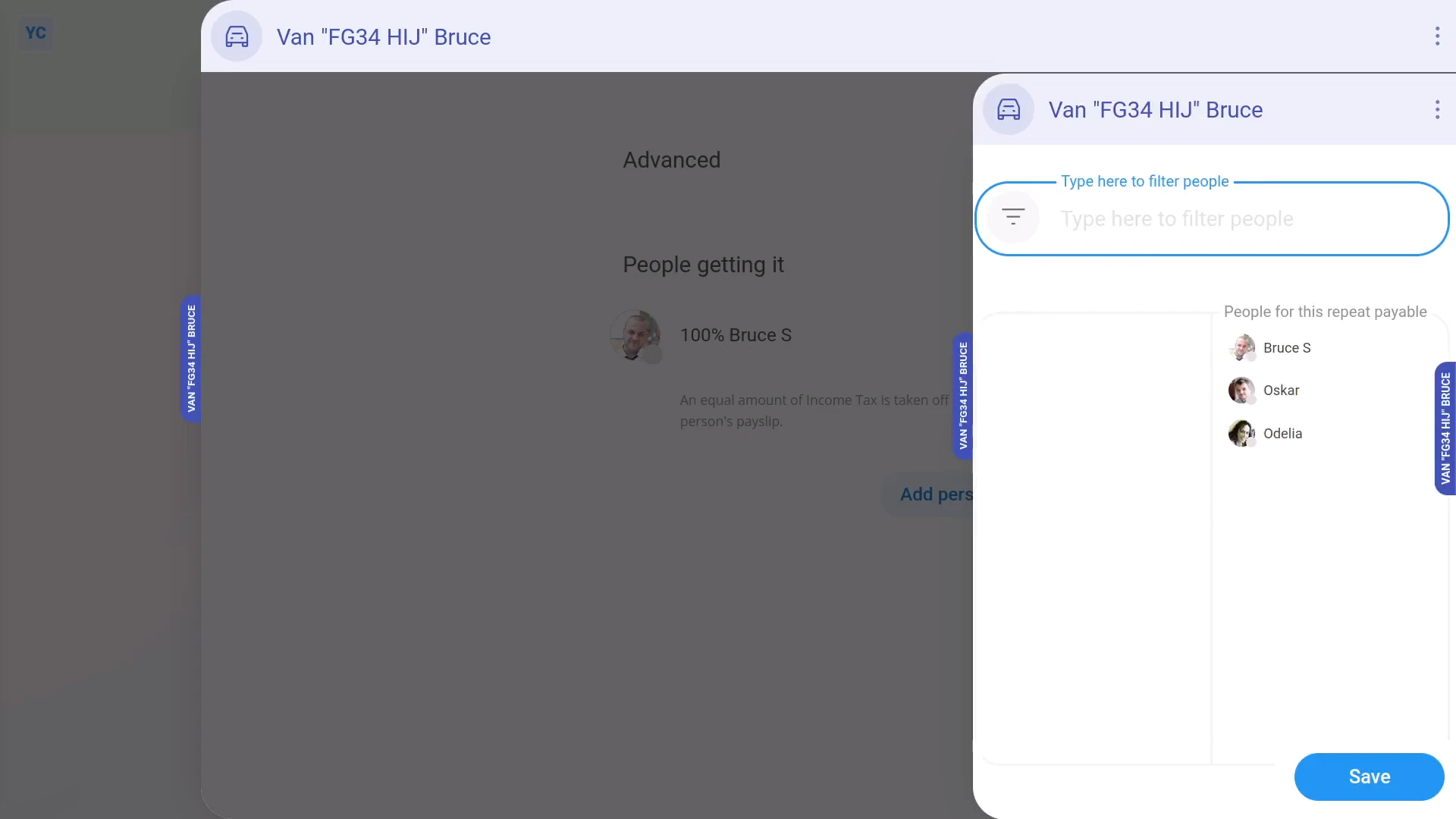
To add multiple people to an existing company vehicle benefit:
- First, select the payroll group on: "Menu", then "Payroll groups"
- Then tap: "Settings", then "Payroll group settings"
- Then scroll to the bottom and look for the "Repeat payables" heading.
- And tap the company vehicle benefit you'd like to add people to.
- To add people, scroll down and tap: "Add people"
- Add as many people as you want, to equally share the vehicle between them, then tap: Save
- And your selected people now share the vehicle equally.
- To see the money value of the vehicle sharing, tap the first vehicle sharing person.
- Then hover your mouse over the vehicle benefit, and tap the "See on payslip" link.
- And you'll see the vehicle benefit showing under: "Benefits-in-kind ... company arranged"
- And finally, when you hover your mouse over the benefit amount, you'll see a breakdown of the sharing calculation between your selected people.
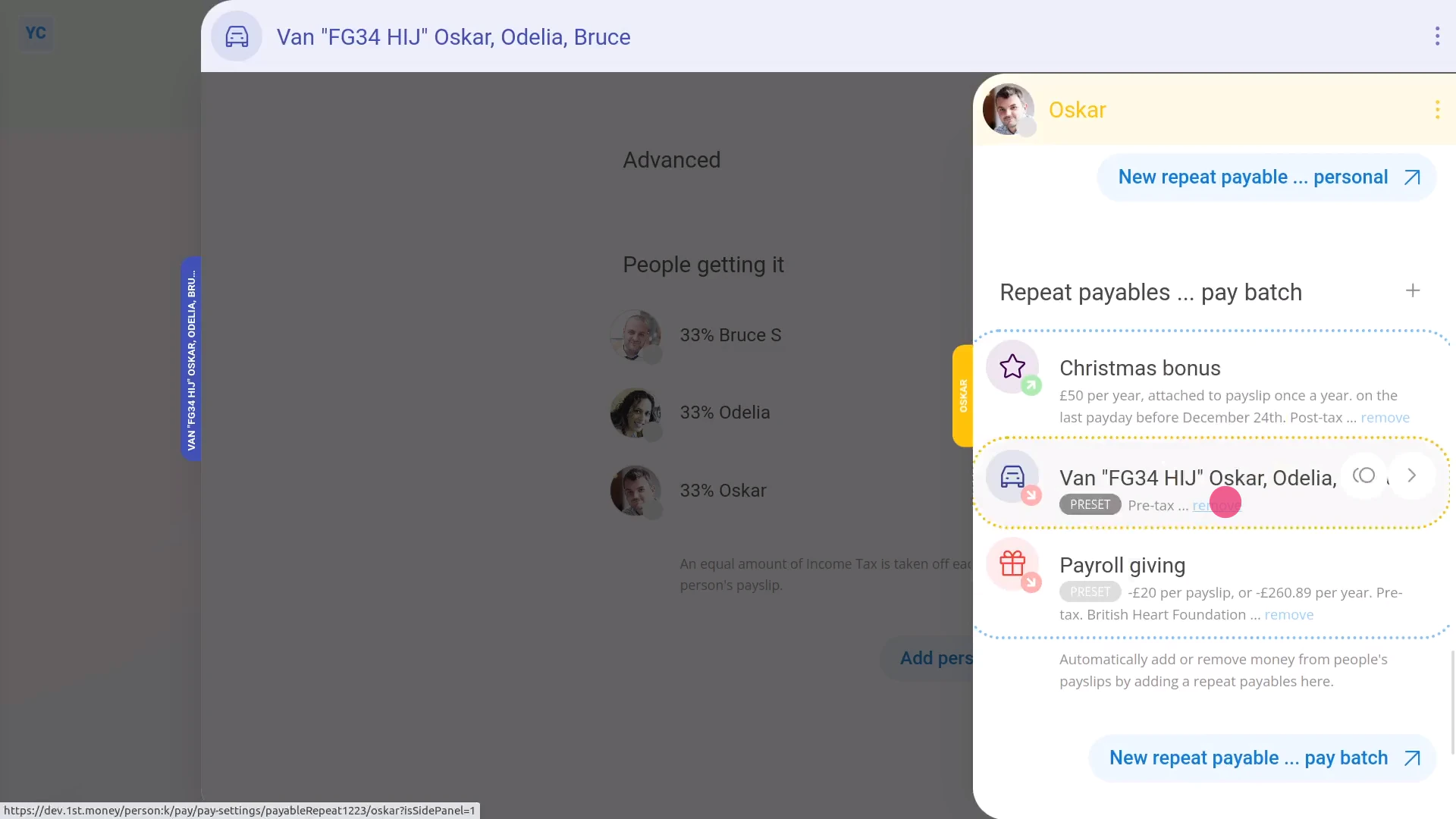
To remove a person from an existing shared company vehicle benefit:
- First, select the payroll group on: "Menu", then "Payroll groups"
- Then tap: "Settings", then "Payroll group settings"
- Then scroll to the bottom and look for the "Repeat payables" heading.
- And tap the company vehicle benefit you'd like to remove people from.
- To remove people, scroll down to the list of existing people.
- And tap the person you'd like to remove.
- Then tap the "remove" link, and tap: Yes ... remove
- And finally, now that the person's been removed, only the names of your remaining people are left.
Keep in mind that:
- A company vehicle benefit is always shared equally between the listed people. There's no way to manually adjust the percentages.
- Also, the change of adding or removing a person shows up on each person's next un-filed payslip.
- And it won't affect any of their previously filed payslips.
And that's it! That's all you need to do to add or remove people from your company vehicle benefits!
4. How do I update a vehicle benefit payslip deduction?
 1:54
1:54
"How do I update a vehicle benefit payslip deduction?"
When a company vehicle is used for personal purposes, and the person's agreed to have money automatically deducted, you'll need to update the company vehicle benefit.
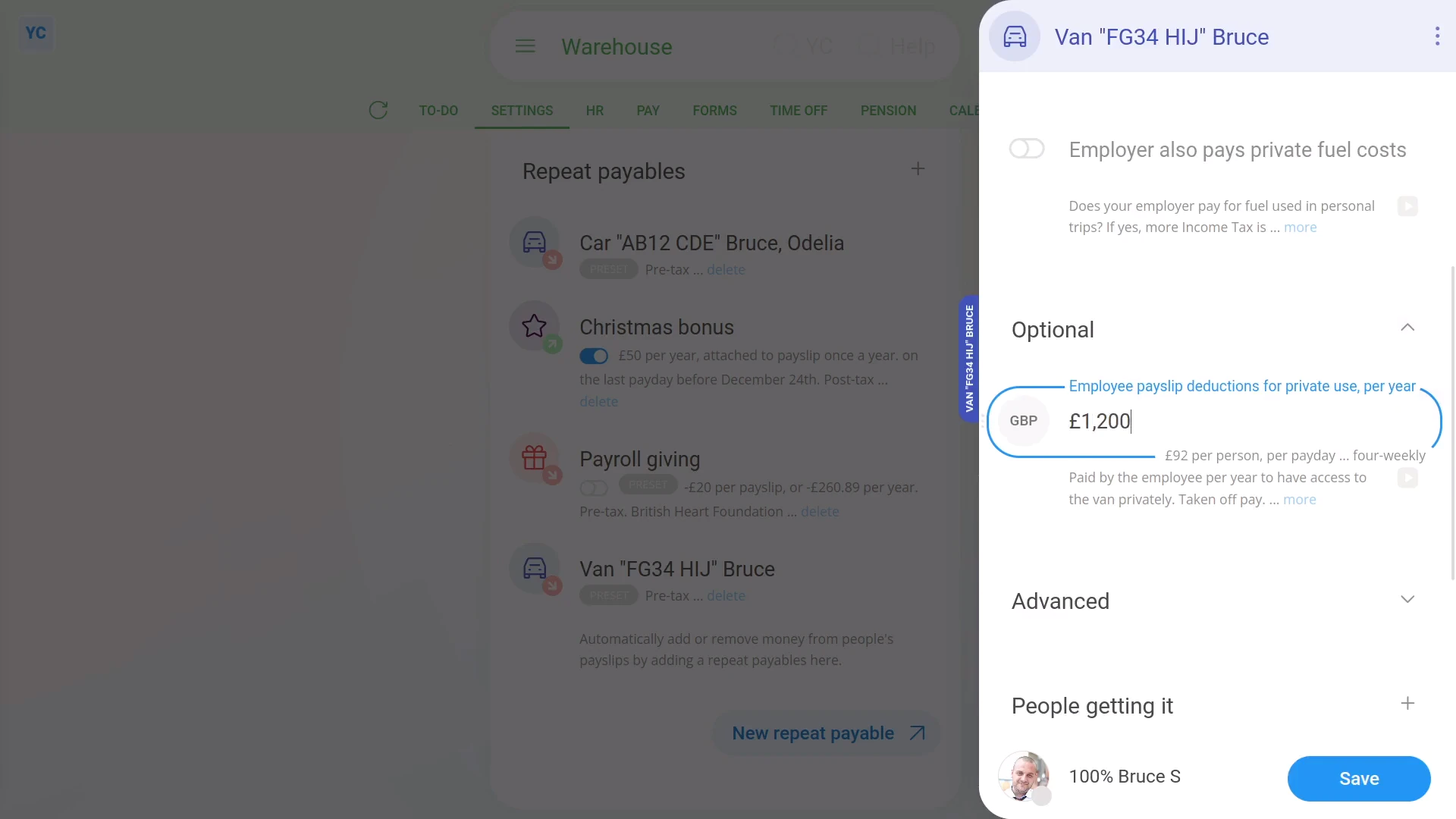
To set up a payslip deduction for a person's private use of a company vehicle:
- First, select the payroll group on: "Menu", then "Payroll groups"
- Then tap: "Settings", then "Payroll group settings"
- Then scroll to the bottom and look for the "Repeat payables" heading.
- And tap the company vehicle benefit you'd like to set up a "vehicle private use" deduction for.
- Then scroll down and expand the "Optional" heading.
- Then in "Employee payslip deductions for private use", enter how much is to be deducted, every year, to drive the vehicle for private use.
- Next, tap Save, and the "vehicle private use" deduction is added to the payslips of the people using the vehicle.
- To see the "vehicle private use" deduction on the people's payslips, tap the company vehicle benefit again.
- Next, scroll down, then tap the person.
- Then hover your mouse over the vehicle benefit, and tap the "See on payslip" link.
- And you'll see the "vehicle private use" showing under: "Deductions"
- And finally, when you hover your mouse over the benefit amount, you'll see a breakdown of the "vehicle private use" calculation.
Keep in mind that:
- The change of adding or removing "vehicle private use" shows up on each person's next un-filed payslip.
- And it won't affect any of their previously filed payslips.
And that's it! That's everything you need to know about deducting for private use of a company vehicle!
5. How do I update a vehicle benefit to cover private fuel use?
 2:12
2:12
"How do I update a vehicle benefit to cover private fuel use?"
When a company vehicle is used for personal purposes, and the fuel is covered by the company, you'll need to update the company vehicle benefit.
To update a payroll group's vehicle benefit to include private fuel use:
- First, select the payroll group on: "Menu", then "Payroll groups"
- Then tap: "Settings", then "Payroll group settings"
- Then scroll to the bottom and look for the "Repeat payables" heading.
- And tap the company vehicle benefit you'd like to include private fuel use for.
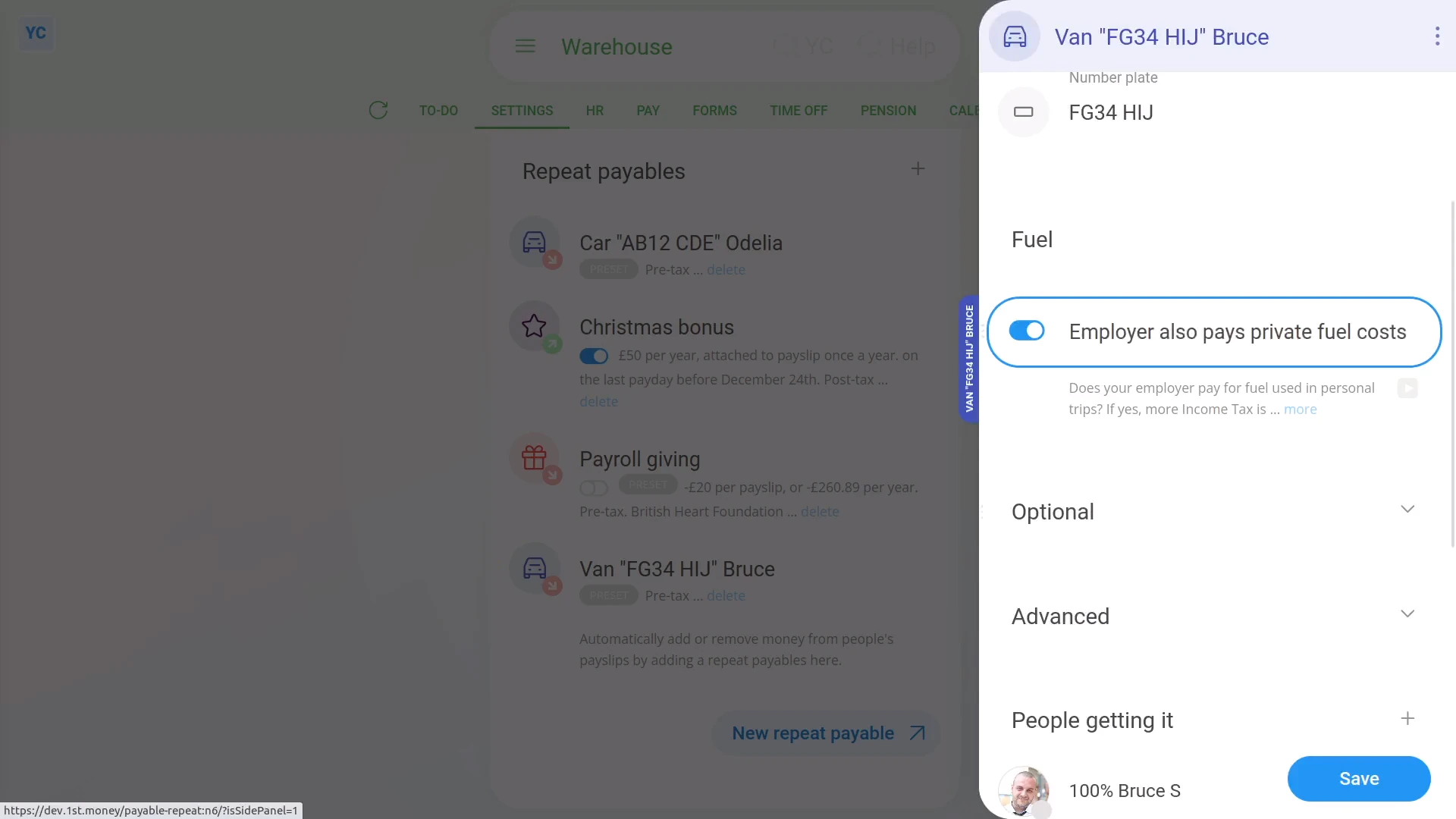
- Then scroll down to the "Fuel" heading.
- And turn on: "Employer also pays private fuel costs"
- Next, tap Save, and the private fuel use is added to the payslips of the people using the vehicle.
- To see the private fuel use on the people's payslips, tap the company vehicle benefit again.
- Then scroll down, and expand the "Advanced" heading.
- And you'll see the yearly private fuel "Benefit-in-kind" cash equivalent.
- And you'll also see that it's been added to the vehicle benefit's: "Total yearly cash equivalent"
- Next, scroll down, then tap the person.
- Then hover your mouse over the vehicle benefit, and tap the "See on payslip" link.
- And you'll see the vehicle benefit showing under: "Benefits-in-kind ... company arranged"
- And finally, when you hover your mouse over the benefit amount, you'll see a breakdown of the calculation which now includes the private fuel use amount.
Keep in mind that:
- The change of adding or removing private fuel use shows up on each person's next un-filed payslip.
- And it won't affect any of their previously filed payslips.
- And to learn more about deleting or un-deleting a repeat payable, watch the video on: Deleting a repeat payable
And that's it! That's all you need to do, to update a vehicle benefit if your company covers a person's cost of fuel!
6. How can an employee part-pay a company car's cost?
 2:05
2:05
"How can an employee part-pay a company car's cost?"
When a person's agreed to pay for part of the purchase cost of a company car, you'll need to update the company vehicle benefit.
To update a vehicle benefit if a person's agreed to pay for part of a company car's purchase cost:
- First, select the payroll group on: "Menu", then "Payroll groups"
- Then tap: "Settings", then "Payroll group settings"
- Then scroll to the bottom and look for the "Repeat payables" heading.
- And tap the company vehicle benefit you'd like to store an "Employee payment towards car" for.
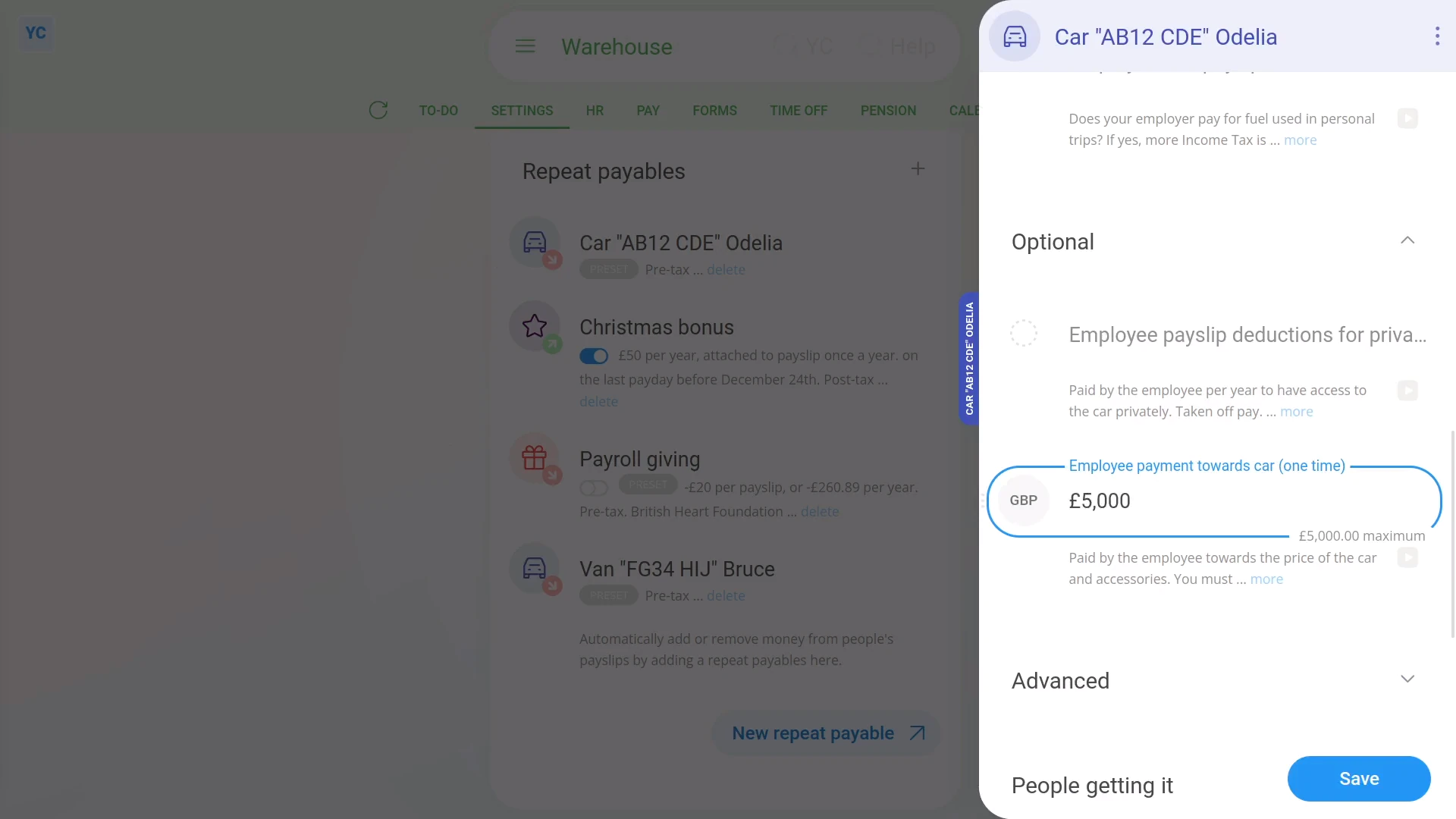
- Then scroll down and expand the "Optional" heading.
- Then in "Employee payment towards car", enter how much the employee is paying, one-off.
- The amount of the one-off payment isn't automatically deducted by 1st Money from any payslip.
- Read the note which explains how you must separately arrange the payment.
- Next, tap: Save
- To see how the "Employee payment towards car" affects people's payslips, tap the company vehicle benefit again.
- Next, scroll down, then tap the person.
- Then hover your mouse over the vehicle benefit, and tap the "See on payslip" link.
- And you'll see the vehicle benefit showing under: "Benefits-in-kind ... company arranged"
- And finally, when you hover your mouse over the benefit amount, you'll see the breakdown. In the breakdown the "per year" amount is now lower because of the: "Employee payment towards car"
Keep in mind that:
- The "Employee payment towards car" option doesn't show if the "Vehicle type" is set to: "Van"
- Also, the money deducted, to pay for part of the purchase cost of a company car is sometimes also known as: "capital contributions"
And that's it! That's all you need to do, if a person's agreed to pay for part of a company car's purchase cost!
www.1st.money/uk/help/Expenses/Cat._F-G._Cars_and_vans,_and_car_and_van_fuel/