Repeat payables

 1:48
1:48How do I make a new repeat payable?
How to set up repeat payables to add or deduct money from a person's pay regularly.
 4:07
4:07When would I use a personal vs a payroll group repeat payable?
Use personal repeat payables for individuals and specialist types; payroll group for multiple employees.
 5:15
5:15How do I delete or un-delete a repeat payable?
How to delete, un-delete, or manage repeat payables in payroll settings.
 2:10
2:10How do I set the start and end dates on a repeat payable?
How to set start and end dates for repeat payables in payroll group settings.
 5:02
5:02How do I set the amount time frame of a repeat payable?
Set repeat payable amounts by choosing time frames like per payslip, week, month, year, or hours worked.
 2:27
2:27How do I set how often a repeat payable's added?
How to set how often a repeat payable is added to payslips with flexible timing options.
 1:55
1:55How do I understand added vs deducted on repeat payables?
Added increases pay, deducted decreases pay in repeat payables for each payday.
 2:33
2:33How's a Christmas bonus or other yearly repeat payable set?
How to set up a yearly Christmas bonus as a repeat payable in payroll settings.
 1:53
1:53How can I remind myself to come back and update a repeat payable?
How to set up and manage email reminders for repeat payables in payroll groups.
 1:17
1:17How do I add a description to a repeat payable?
Steps to add a description to repeat payables for clarity in payroll groups.
 2:13
2:13How do I add many people, or auto-add new people, to repeat payables?
How to bulk add or auto-add repeat payables to many or new payroll group members.

1. How do I make a new repeat payable?

 1:48
1:48
"How do I make a new repeat payable?"
Repeat payables allow you to add or deduct money from a person's pay on a repeating basis. Like every month, or every payday.
To add or deduct money from a person's pay every payday:
- First, select the person on: "Menu", then "People"
- And then go to: "Pay", then "Pay settings"
- And scroll down to the "Repeat payables ... personal" heading.
- Then tap: New repeat payable
- Next, select if you're adding or deducting from the person's pay.
- Then select the type.
- Next, select the sub-type, or tap "Other", and type in your own description.
- And enter the amount payable.
- By default, when repeating the amount, it's set to: "Per payslip"
- But you can select any repeating option you like.
- And finally, tap Save, and your new repeat payable is now saved for a single person.

To learn more:
- To learn about deleting or un-deleting a repeat payable, watch the video on: Deleting a repeat payable
- To see more about the different repeating time frames, watch the video on: Repeat payable amount time frame
- And to see different types of "post-tax" and "pre-tax" examples, watch the video on: Adding & subtracting vs post & pre-tax
 Deleting a repeat payable
And that's it! That's all you need to do to add or deduct from a person's salary on a repeating basis!
1. When would I use a personal vs a payroll group repeat payable?
 4:07
4:07
"When would I use a personal vs a payroll group repeat payable?"
Repeat payables can either be stored under a single person, or stored under a payroll group.
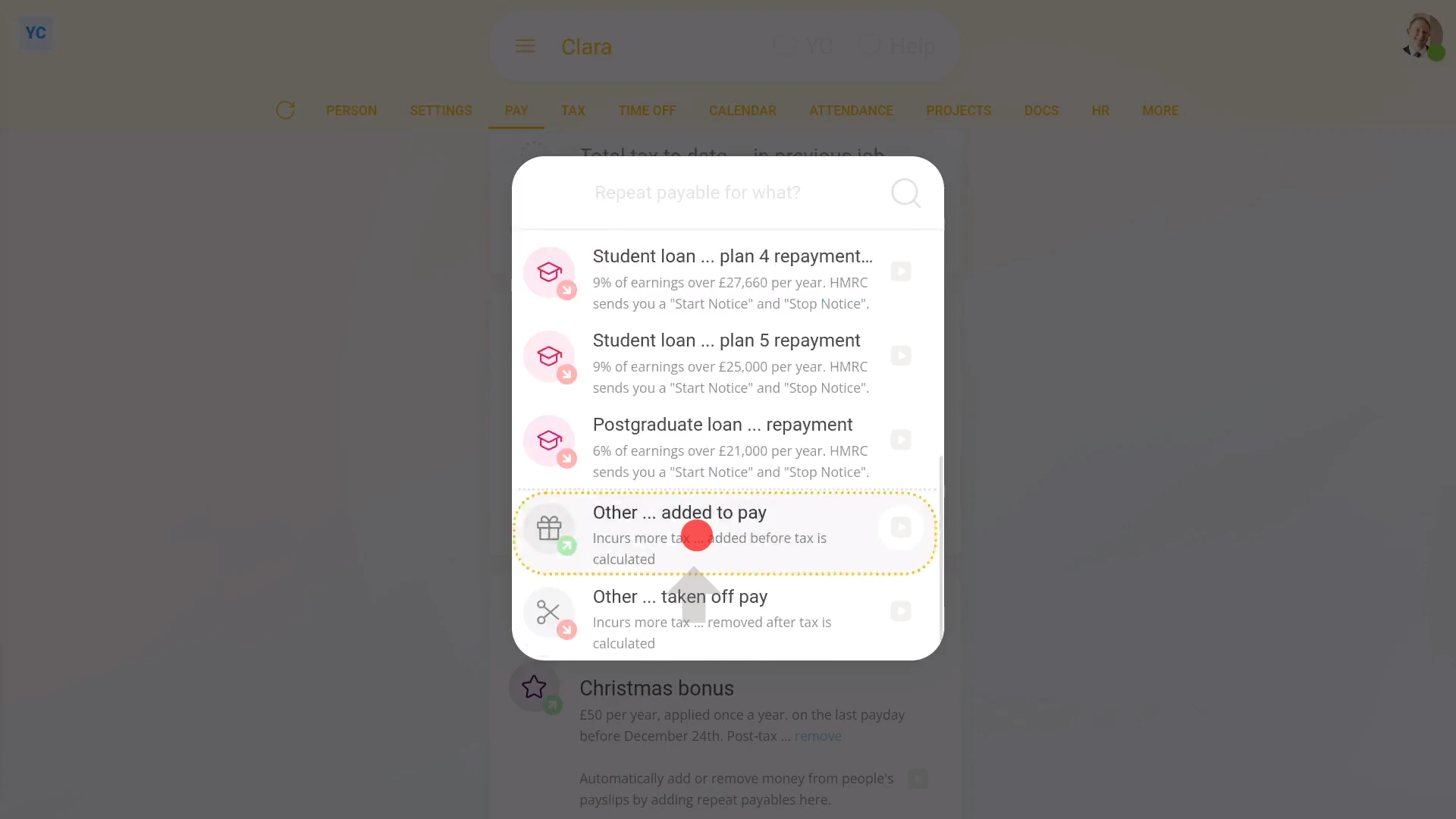
To store a repeat payable under a single person:
- First, select the person on: "Menu", then "People"
- And then go to: "Pay", then "Pay settings"
- And scroll down to the "Repeat payables ... personal" heading.
- Then tap: New repeat payable
- Next, tap: Add to pay
- And select the type.
- Then decide from the repeating incentive suggestions, or tap "type directly" (at the top) to type in your own short description of the repeating incentive.
- And type in the value of the repeating incentive.
- And tap Next
- Next, select the payslip time frame: "Amount type"
- And finally, tap Save, and your new repeat payable is now saved for a single person.
You may notice:
- That a personal repeat payable can only be added to a single person. There's no option to add it to more than one person.
- Besides being limited to a single person, the personal repeat payable has all the other features of a payroll group repeat payable.
- However, some specialist types of repeat payable are only available as personal repeat payables. Including: mileage allowance, benefit-in-kind, and student loan repayments.
To instead store a repeat payable under a payroll group:
- First, select the payroll group on: "Menu", then "Payroll groups"
- And then go to: "Pay", then "Repeat payables"
- Then tap: "New repeat payable"
- Next, tap: Add to pay
- And select the type.
- Then decide from the repeating incentive suggestions, or tap "type directly" (at the top) to type in your own short description of the repeating incentive.
- And type in the value of the repeating incentive.
- And tap Next
- Next, select the payslip time frame: "Amount type"
- Now, so that anyone who joins the payroll group from now on also automatically gets the repeat payable, tap Advanced and turn on: "Auto-add to all new people"
- Next, tap Add people and add the people you want to receive the repeat payable, then tap: Save
- And finally, your new repeat payable is now set up for a payroll group, and has been added to some people in that payroll group.
You may also notice:
- That a payroll group repeat payable can be added to as many people in the payroll group as you want. But it can't be added to people outside the payroll group.
- Also, with the "Auto-add to all new people" switch turned on, new people automatically get the repeat payable as your company adds more people.
- However, some specialist types of repeat payable are only available as payroll group repeat payables, like: Company vehicles.
- Besides those small differences, personal and payroll group repeat payables are very similar.
For advanced usage:
- You may have a situation where you want many people to receive the same repeat payable, but have one person who's paid a different amount.
- For example, where everybody receives a monthly bonus, but one person's paid double the monthly bonus.
- In that case create a payroll group repeat payable of the standard bonus amount, and add everyone to it.
- Next, take the person who's paid double out of the standard payroll group repeat payable.
- And make a personal repeat payable of double the monthly bonus, for them only.
And that's it! That's everything you need to know about choosing between personal repeat payables and payroll group repeat payables!
2. How do I delete or un-delete a repeat payable?
 5:15
5:15
"How do I delete or un-delete a repeat payable?"
If you no longer need a repeat payable, you're welcome to delete it whenever you like.
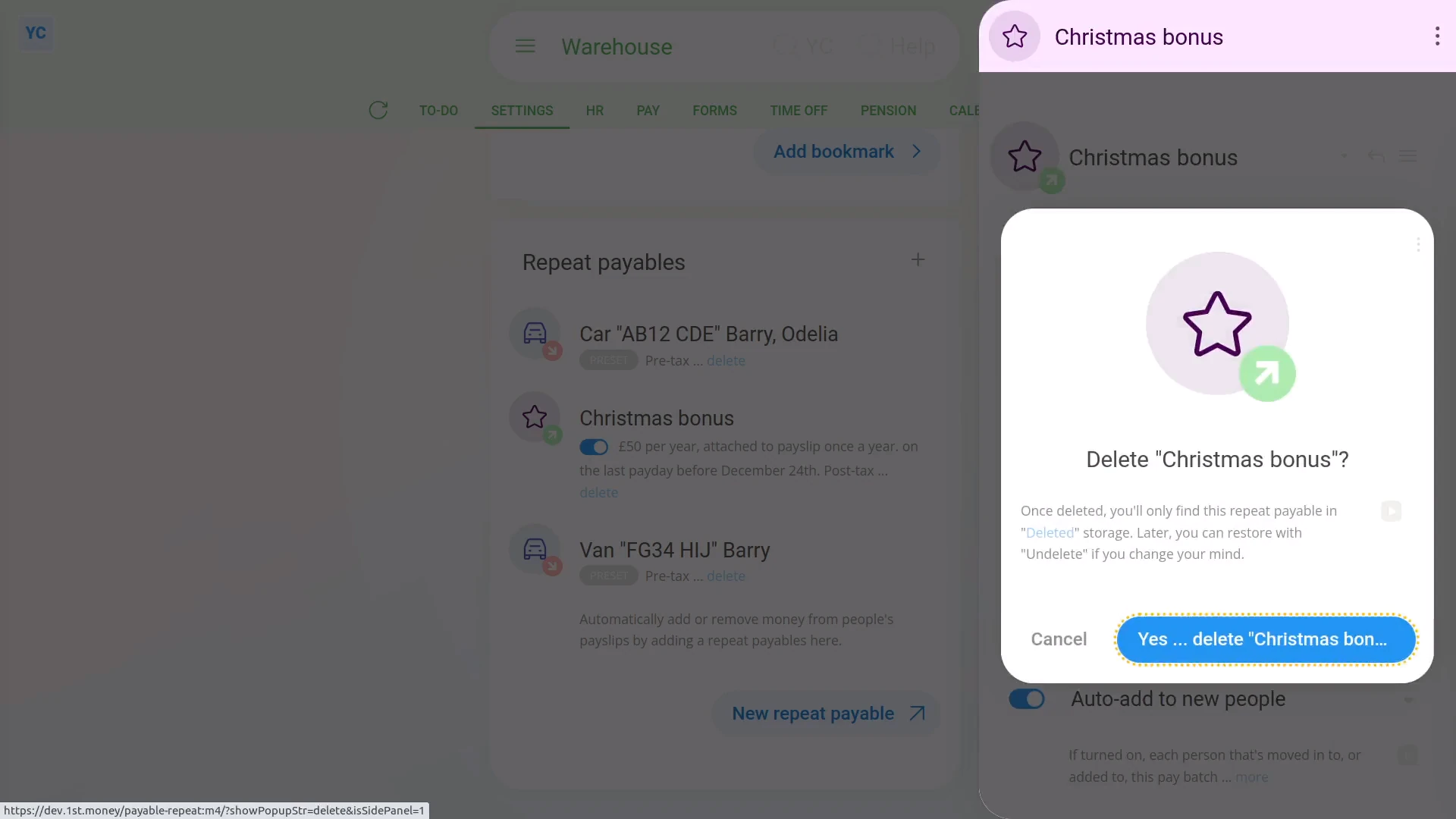
To delete a repeat payable:
- First, select the payroll group on: "Menu", then "Payroll groups"
- Then tap: "Settings", then "Payroll group settings"
- Then scroll right down to "Repeat payables" and find the one you'd like to delete.
- Then tap the "delete" link.
- Once it slides out on the right, tap: Yes ... delete
- Now, the repeat payable's deleted, including removing it from any people's un-filed payslips.
- So, from now on, for any payslip that's yet to be filed and paid, the repeat payable never shows up again.
- And finally, for any payslip that's already filed and paid, all previous repeat payable payments remain on the payslip unaffected.
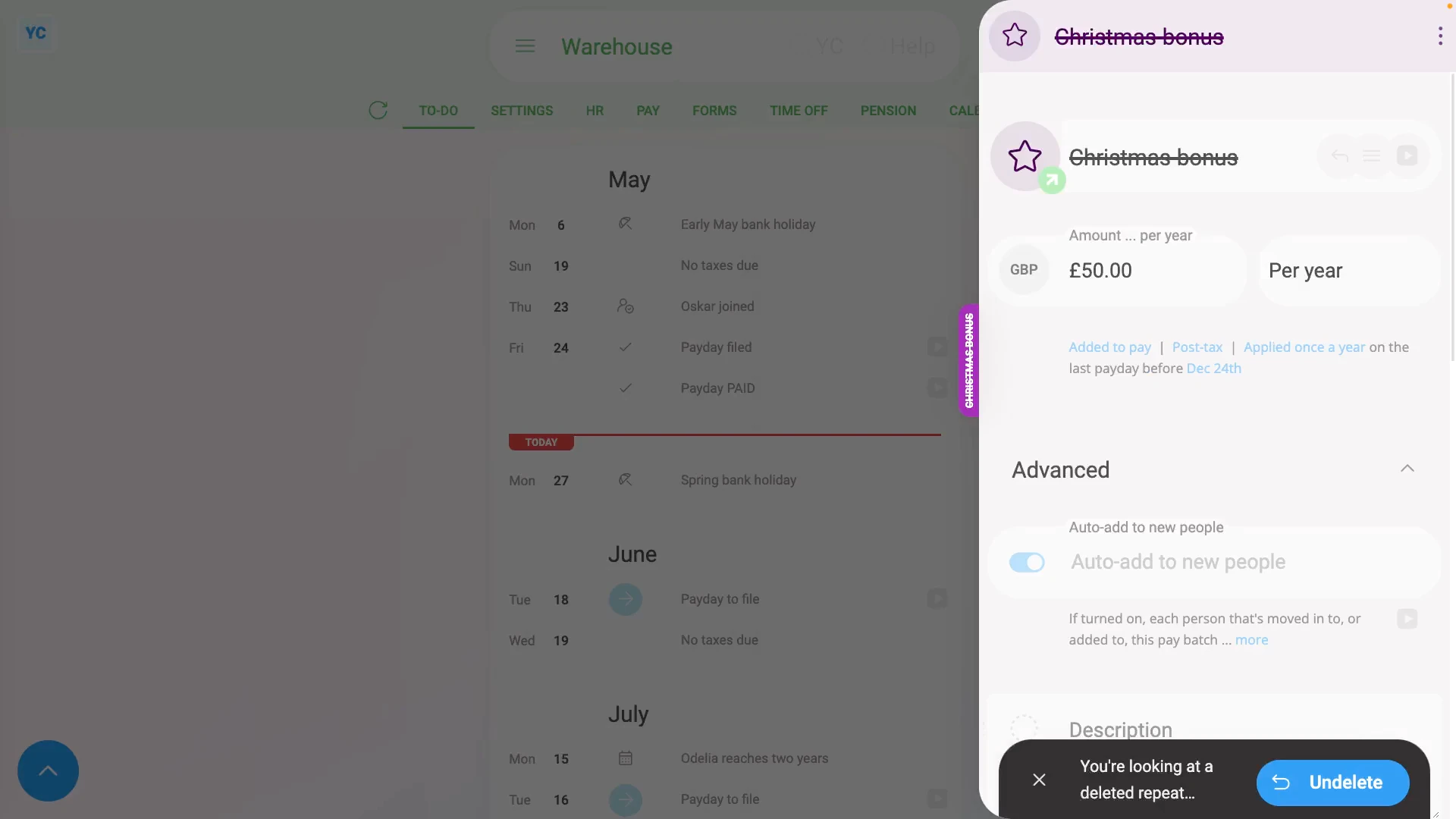
To un-delete a repeat payable:
- First, select the payroll group on: "Menu", then "Payroll groups"
- Then tap More, then: Deleted repeat payables
- And then tap the repeat payable you'd like to un-delete.
- Next, tap: Un-delete (at the bottom)
- And the deleted repeat payable is immediately un-deleted.
- However, you'll still need to manually add it back to each person that you'd like to start getting the repeat payable again.
- And finally, as soon as you've added it to a person, the repeat payable immediately shows on that person's next unpaid payslip.
Sometimes, to avoid deleting a repeat payable, you can remove all the people from the repeat payable instead.
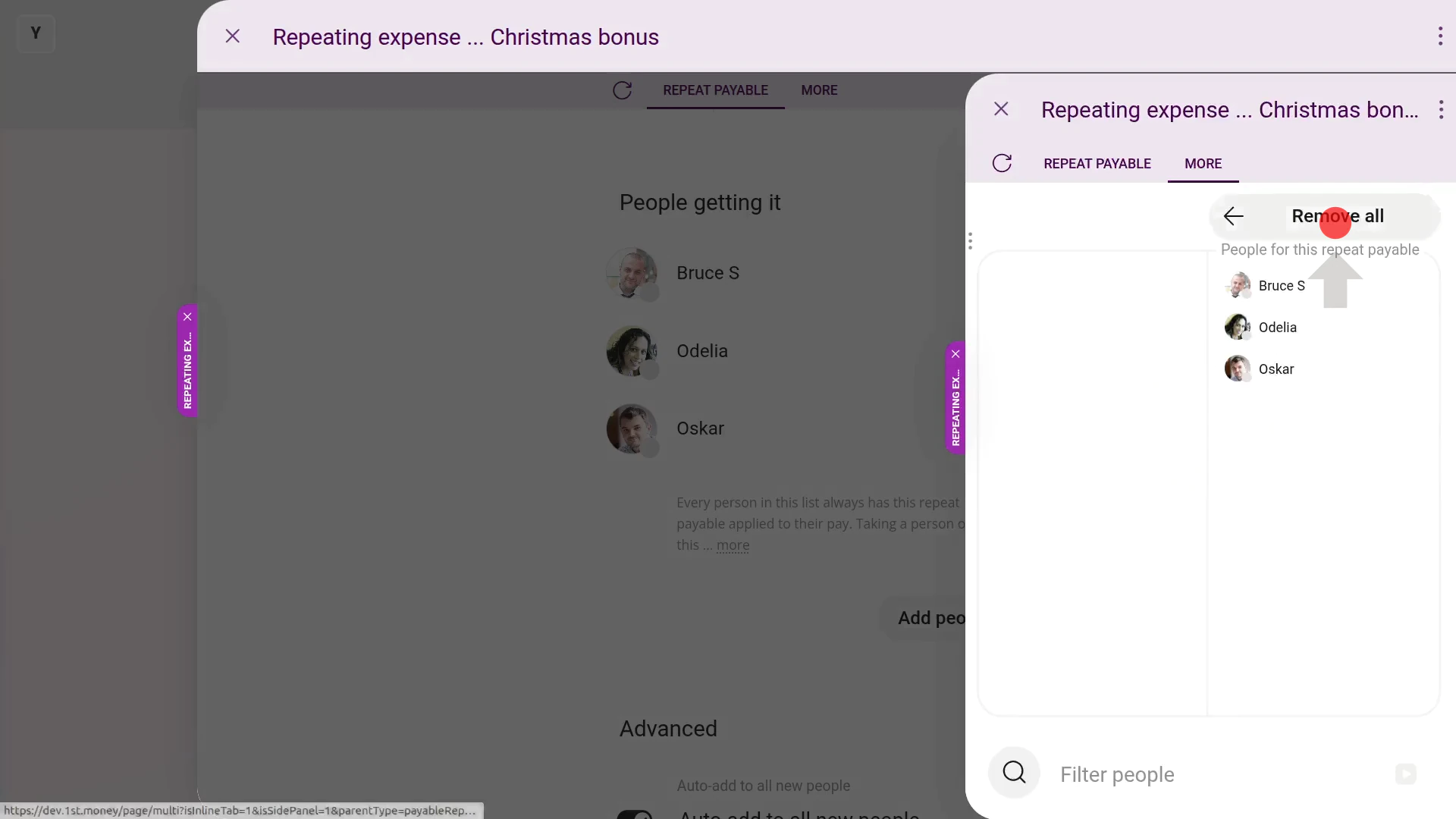
To remove all people from a repeat payable:
- First, select the payroll group on: "Menu", then "Payroll groups"
- Then tap: "Settings", then "Payroll group settings"
- Then scroll right down to "Repeat payables" and find the one you'd like to remove all the people from.
- Once it's open, scroll down and tap: Add people
- Once it slides out on the right, hover your mouse over the right hand side, and tap: Remove all
- Then tap: Save
- And now you'll see that it now says: "No people found"
- Then if auto-add's turned on, it's recommended to also turn off: "Auto-add to all new people"
- If it warns you that you're saving a repeat payable without any people, tap: Save without
- And finally, from now on, the repeat payable won't show up again on any payslip that's yet to be filed.
Alternatively, to avoid deleting or removing all the people, you can set the repeat payable's "Ends on" date instead.
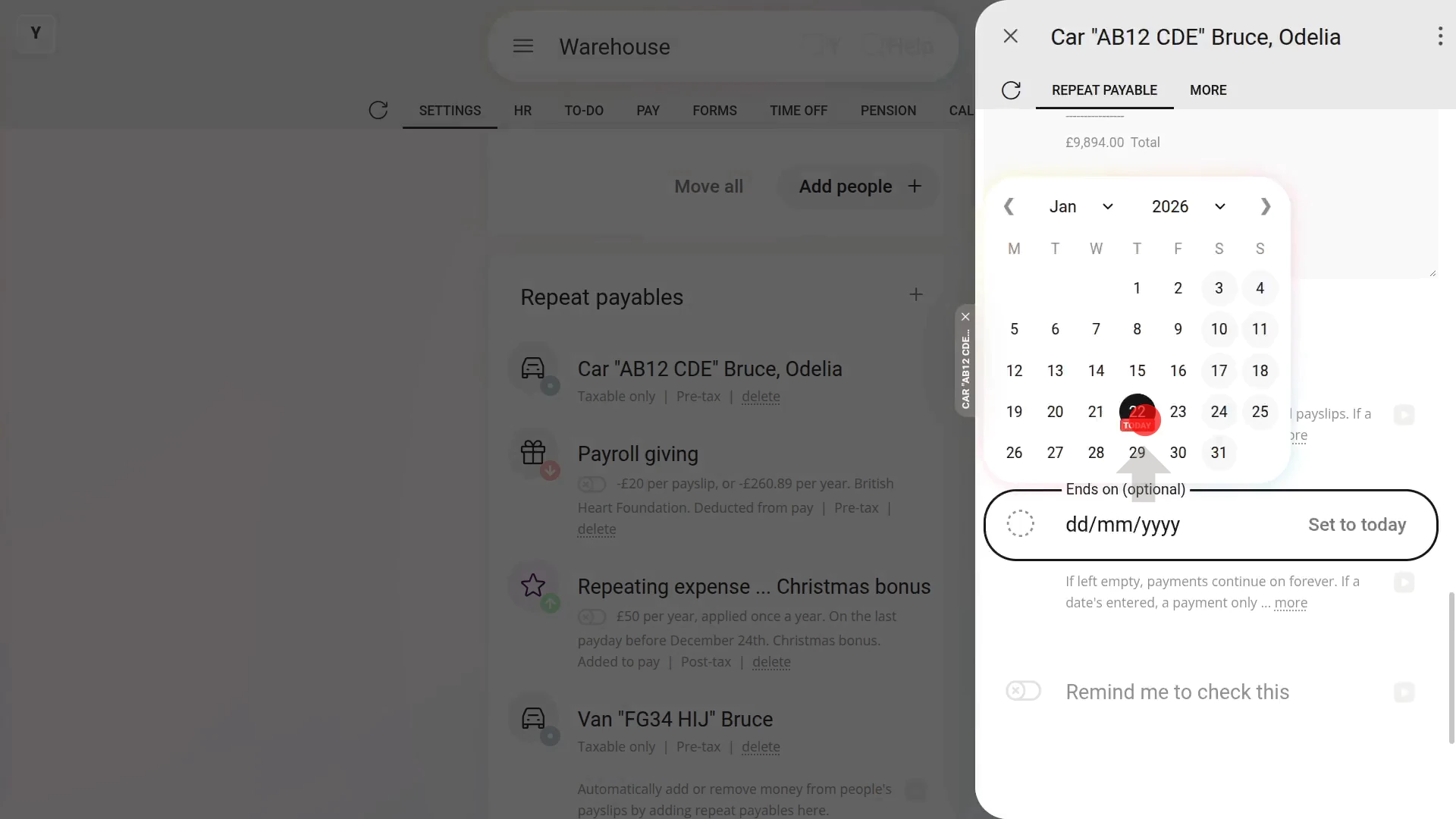
To set an "Ends on" date for a repeat payable:
- First, select the payroll group on: "Menu", then "Payroll groups"
- Then tap: "Settings", then "Payroll group settings"
- Then scroll right down to "Repeat payables" and find the one you'd like to remove all the people from.
- Once it's open, scroll down and tap the "Advanced" heading (to expand it).
- Next, set the "Ends on" date.
- Then tap: Save
- And finally, from now on, the repeat payable won't show up again on any payslip that's after the "Ends on" date you selected.
Sometimes, however, you want to turn off a repeat payable for only one person, and on only one payslip.
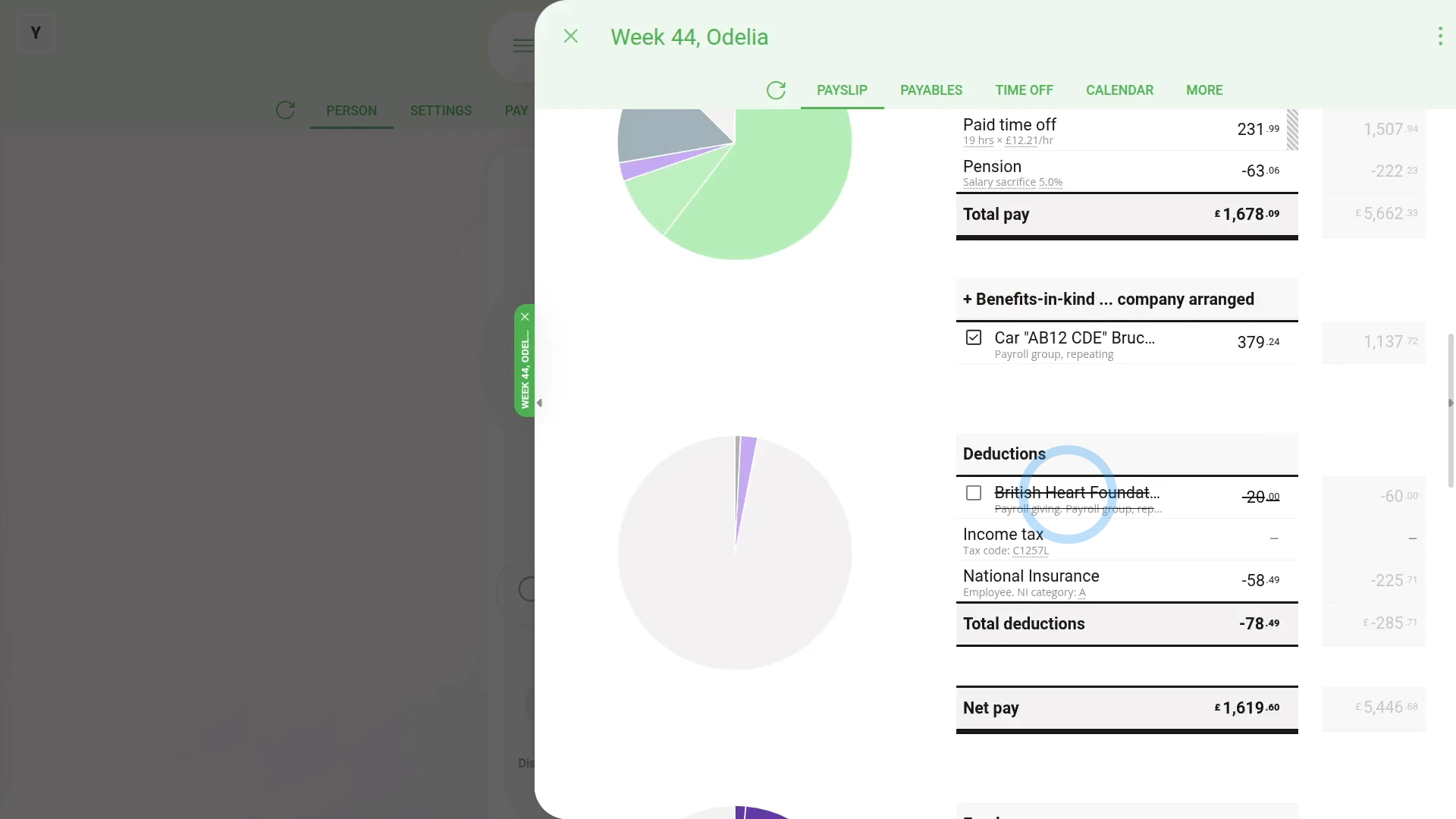
To turn off a repeat payable for only one person, and on only one payslip:
- First, select the person on: "Menu", then "People"
- Then tap: "Pay", then "Payslip"
- Then scroll down and turn off the repeat payable you'd like to remove.
- The payslip then takes a second to recalculate, and now you'll see the repeat payable crossed out.
- But the cross out is only applied to a single payslip.
- If you tap over to next payday's payslip for the person, you'll see the next payday's repeat payable isn't crossed out.
- And finally, when it's payday, all crossed out repeat payables won't be included in the payslip's calculations.
Keep in mind that:
- Only people who've got "Full payroll admin" permissions can delete or un-delete repeat payables.
- And remember that all deletes and un-deletes are always permanently recorded in: "History"
- That means any payroll admin can always look back in time, and see who did any delete, and when the delete was done.
To learn more:
- About the fastest way to add lots of people to a repeat payable, watch the video on: Adding everyone to a repeat payable
And that's it! That's everything you need to know about deleting or un-deleting a repeat payable!
3. How do I set the start and end dates on a repeat payable?
 2:10
2:10
"How do I set the start and end dates on a repeat payable?"
Sometimes, you may want to set the start or end dates for a repeat payable's payments to only be paid between.
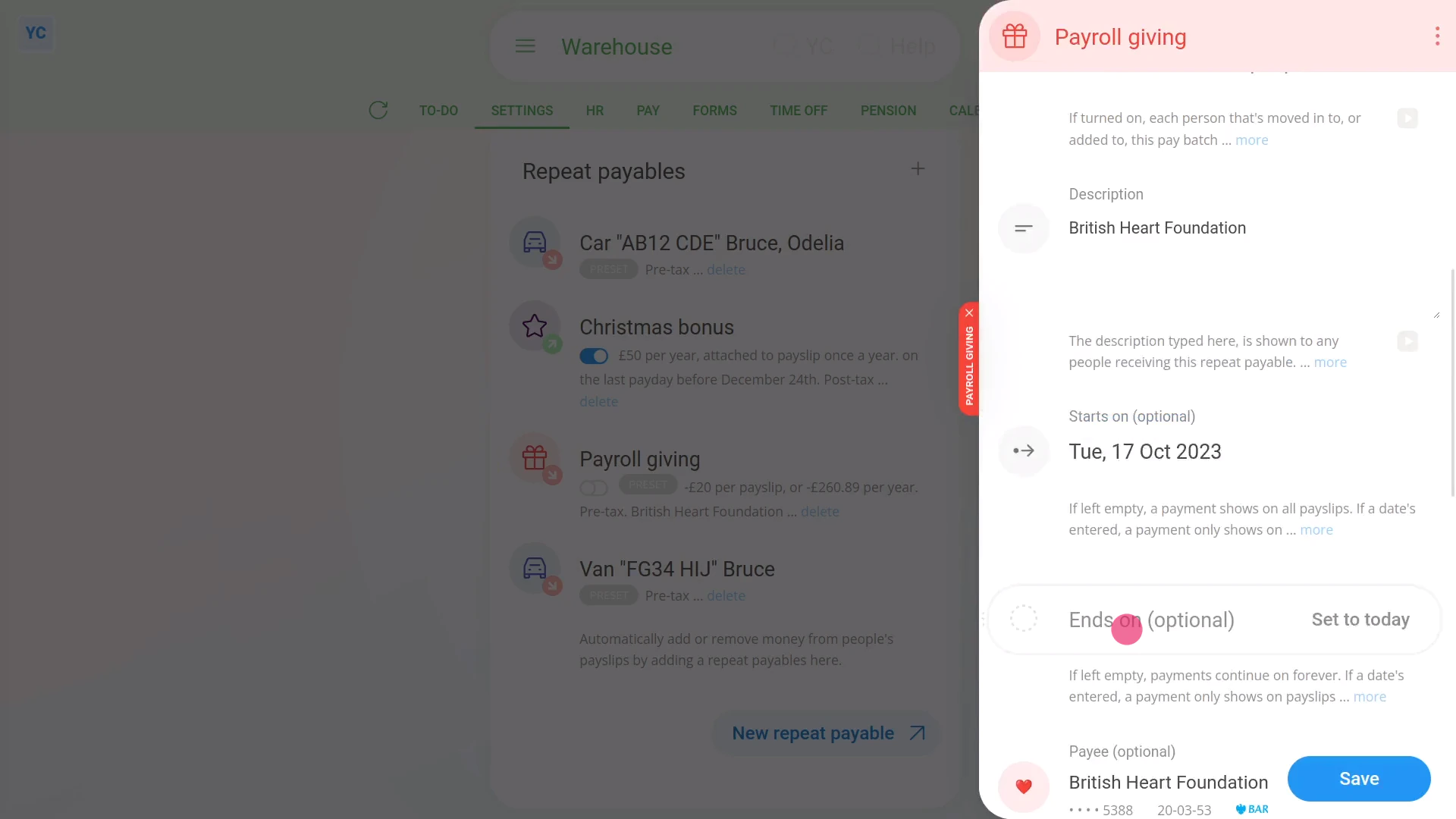
To set start or end dates for a repeat payable:
- First, select the person or payroll group on: "Menu", then "Payroll groups"
- Then tap: "Settings", then "Payroll group settings"
- Then scroll right down to "Repeat payables" and find the one you'd like to set the start or end dates for.
- Once it slides out on the right, look for the "Advanced" heading.
- And pick your date for "Starts on" and then your date for "Ends on".
- Then tap: Save
- To see the change on a person's payslip, open it again, scroll to the bottom, and tap one of the people getting it.
- Then on the repeat payable, tap the "see on payslip" link.
- If the repeat payable isn't showing on the payslip, check the "pay period" dates under the heading.
- In some cases, depending on the start date, you may have to tap through to the next payslip to see it.
- And finally, once it's showing, if you hover your mouse over the amount, you'll see a breakdown of the calculations.
You may notice:
- The start or end can be set to any date that at least covers some part of the pay period's dates.
- However, if it's fully outside the pay period, then that repeat payable won't be included in that payslip.
Keep in mind that:
- You don't have to set both start and end dates.
- If you only set a start date, or only set an end date, it still works fine.
- If you set neither a start nor end date, then the repeat payable appears on all payslips, from now on, until it's deleted.
And that's it! That's everything you need to know about setting a start or end date for repeat payables!
4. How do I set the amount time frame of a repeat payable?
 5:02
5:02
"How do I set the amount time frame of a repeat payable?"
The amount time frame gives you a lot of flexibility when it comes to setting payment amounts. The payment amount can then be added or removed from each payslip.
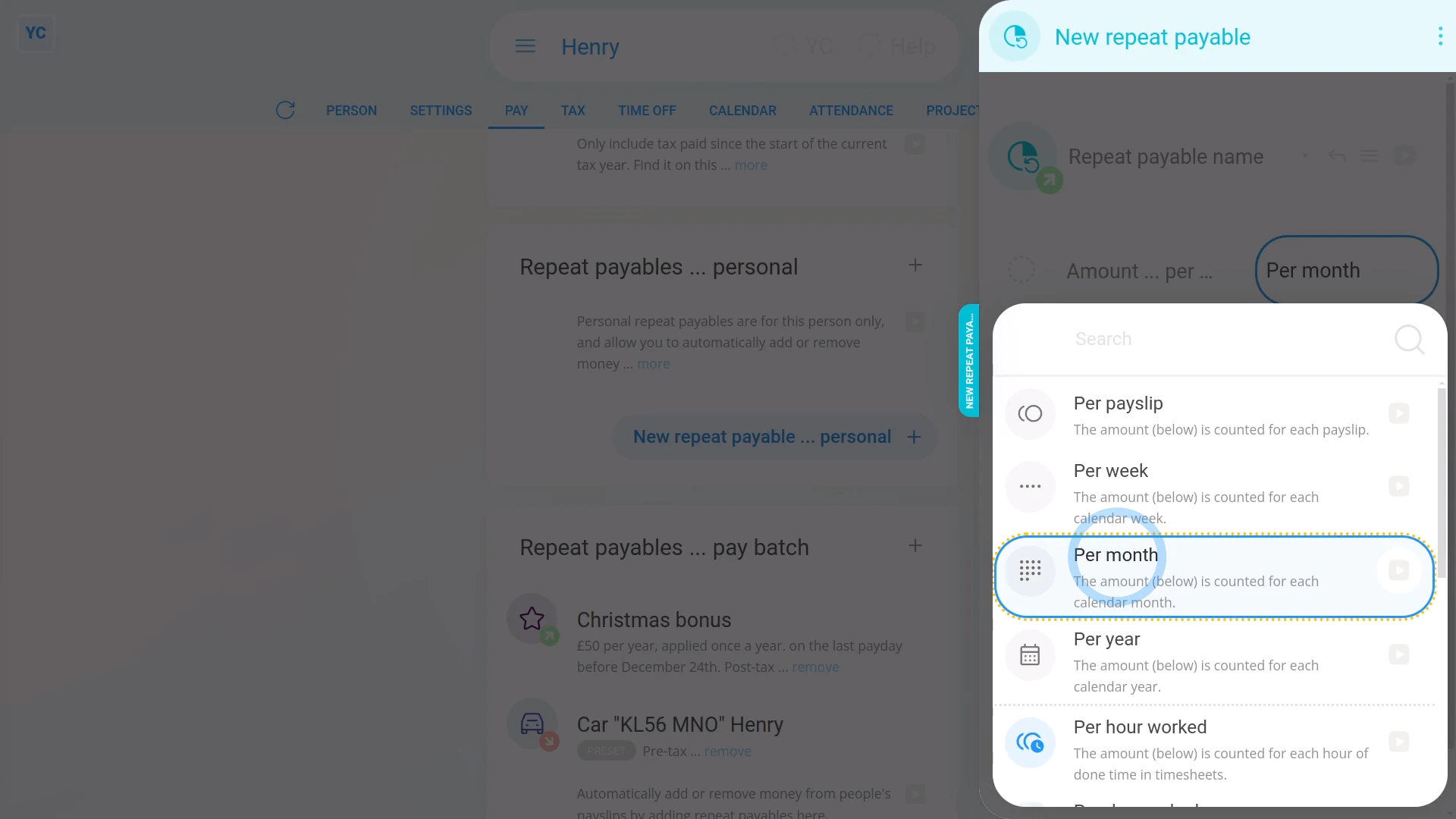
To see a repeat payable's amount time frames:
- First, open: "Menu", then "People"
- And then go to: "Pay", then "Pay settings"
- And scroll down to the "Repeat payables ... personal" heading.
- Then tap: New repeat payable
- Next, tap: Add to pay
- And select the type.
- Then decide from the repeating incentive suggestions, or tap "type directly" (at the top) to type in your own short description of the repeating incentive.
- And type in the value of the repeating incentive.
- And tap Next
- And finally, you'll now see the repeat payable's time frame options.
Per payslip: Lets you add or remove an exact amount of pay per payslip. For example, if you enter an amount of 100, then exactly 100 is added or removed from each payslip.
Per week: Lets you multiply the amount by the number of weeks in the person's pay period. For example, if you enter an amount of 10 a week, and the person's paid every two weeks. In that case, 10 is multiplied by 2 weeks, so 20 is added or removed from each payslip.
Per month: Lets you divide the amount by the number of months in the person's pay period. For example, if you enter an amount of 100 a month, and the person's paid twice a month. In that case, 50 is added or removed from each payslip.
Per year: Lets you set an annual amount, and the software works out how much to add or remove for each payslip. For example, if you enter an amount of 120 a year, and the person's paid monthly. In that case, 10 is added or removed from each monthly payslip.
Per hour worked: Lets you multiply the amount by the number of hours of done time the person had in that pay period. For example, if you enter an amount of 10 an hour, and the person had 200 hours of done time in the pay period. In that case, 2000 is added or removed from each payslip. The option only applies if your people do timesheets each day.
Per day worked: Lets you multiply the amount by the number of days, that have any done time, that a person had in that pay period. For example, if you enter an amount of 10 a day, and the person had 20 days with any done time in the pay period. In that case, 200 is added or removed from each payslip. Again, the option only applies if your people do timesheets each day.
Per month ... hours worked: Lets you set a monthly amount based on the person working 100% of their target hours. If the person works less than 100% of their target, the person gets a proportion of the monthly amount, per hour worked, relative to their target. The option only applies if your people do timesheets each day, and the person's got target hours set. If the person works more than their target, the person gets the 100% amount (and no more).
Per month ... days worked: Lets you set a monthly amount based on the person working 100% of their target days. If the person works less than 100% of their target, the person gets a proportion of the monthly amount, per day worked, relative to their target. The option only applies if your people do timesheets each day, and the person's got target hours set. Again, if the person works more than their target, the person gets the 100% amount (and no more).
Per year ... hours worked: Lets you set a yearly amount based on the person working 100% of their target hours. If the person works less than 100% of their target, the person gets a proportion of the yearly amount, per hour worked, relative to their target. The option only applies if your people do timesheets each day, and the person's got target hours set. Like above, if the person works more than their target, the person gets the 100% amount (and no more).
Per year ... days worked: Lets you set a yearly amount based on the person working 100% of their target days. If the person works less than 100% of their target, the person gets a proportion of the yearly amount, per day worked, relative to their target. The option only applies if your people do timesheets each day, and the person's got target hours set. Like the others, if the person works more than their target, the person gets the 100% amount (and no more).
Keep in mind that:
- You can select any of the options, but "Per payslip" is the most common.
And that's it! That's everything you need to know about using amount time frames!
5. How do I set how often a repeat payable's added?
 2:27
2:27
"How do I set how often a repeat payable's added?"
The "paid every" option gives you a lot of flexibility when it comes to choosing how often a repeat payable's added to each payslip.
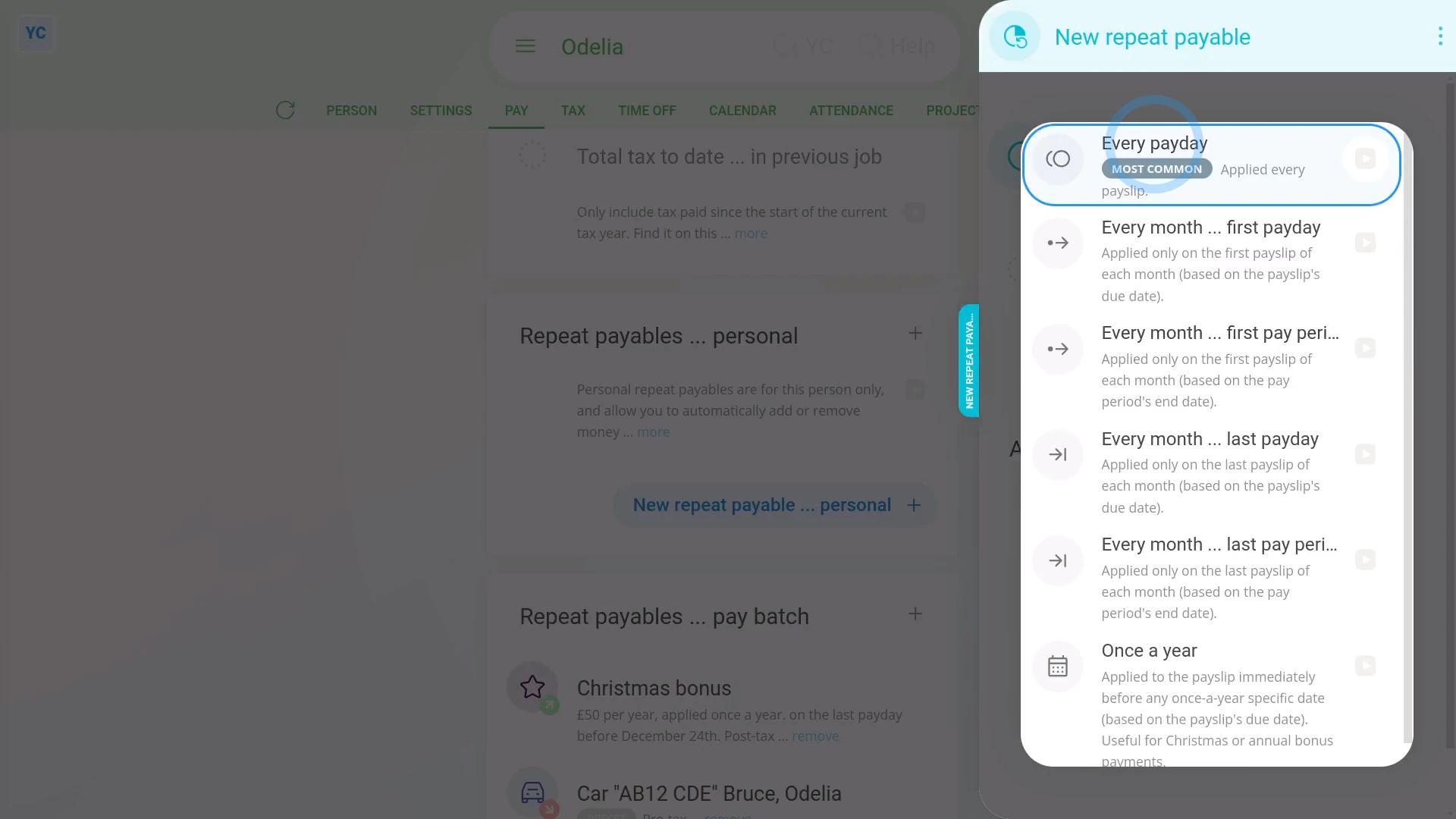
To see a repeat payable's "paid every" options:
- First, open: "Menu", then "People"
- And then go to: "Pay", then "Pay settings"
- And scroll down to the "Repeat payables ... personal" heading.
- Then tap: New repeat payable
- Next, tap: Add to pay
- And select the type.
- Then decide from the repeating incentive suggestions, or tap "type directly" (at the top) to type in your own short description of the repeating incentive.
- And type in the value of the repeating incentive.
- Next, select the time frame for the: "Amount type"
- Then tap the "Applied every payday" link.
- And finally, you'll now see the repeat payable's repeat period options.
Every payday: Lets you add the repeat payable to every payslip. The "Every payday" option is the most common option.
The first payday ... every month: Lets you add the repeat payable to the first payday of each calendar month, based on the payslip's due date.
The first pay period ... every month: Lets you add the repeat payable to the first pay period of each calendar month, based on the pay period's end date.
The last payday ... every month: Lets you add the repeat payable to the last payday of each calendar month, based on the payslip's due date.
The last pay period ... every month: Lets you add the repeat payable to the last pay period of each calendar month, based on the pay period's end date.
Once a year: Lets you add the repeat payable to only one payslip in the year, by setting the payslip date. The "Once a year" option is useful when paying Christmas or annual bonus payments.
To learn more:
- About setting Christmas or annual bonus payments, watch the video on: Yearly repeat payables & Christmas bonus
And that's it! That's everything you need to know about repeat payable's "paid every" option!
6. How do I understand added vs deducted on repeat payables?
 1:55
1:55
"How do I understand added vs deducted on repeat payables?"
The repeat payable's "added" vs "deducted" options let you control how much a person gets paid every payday, on top of their salary.
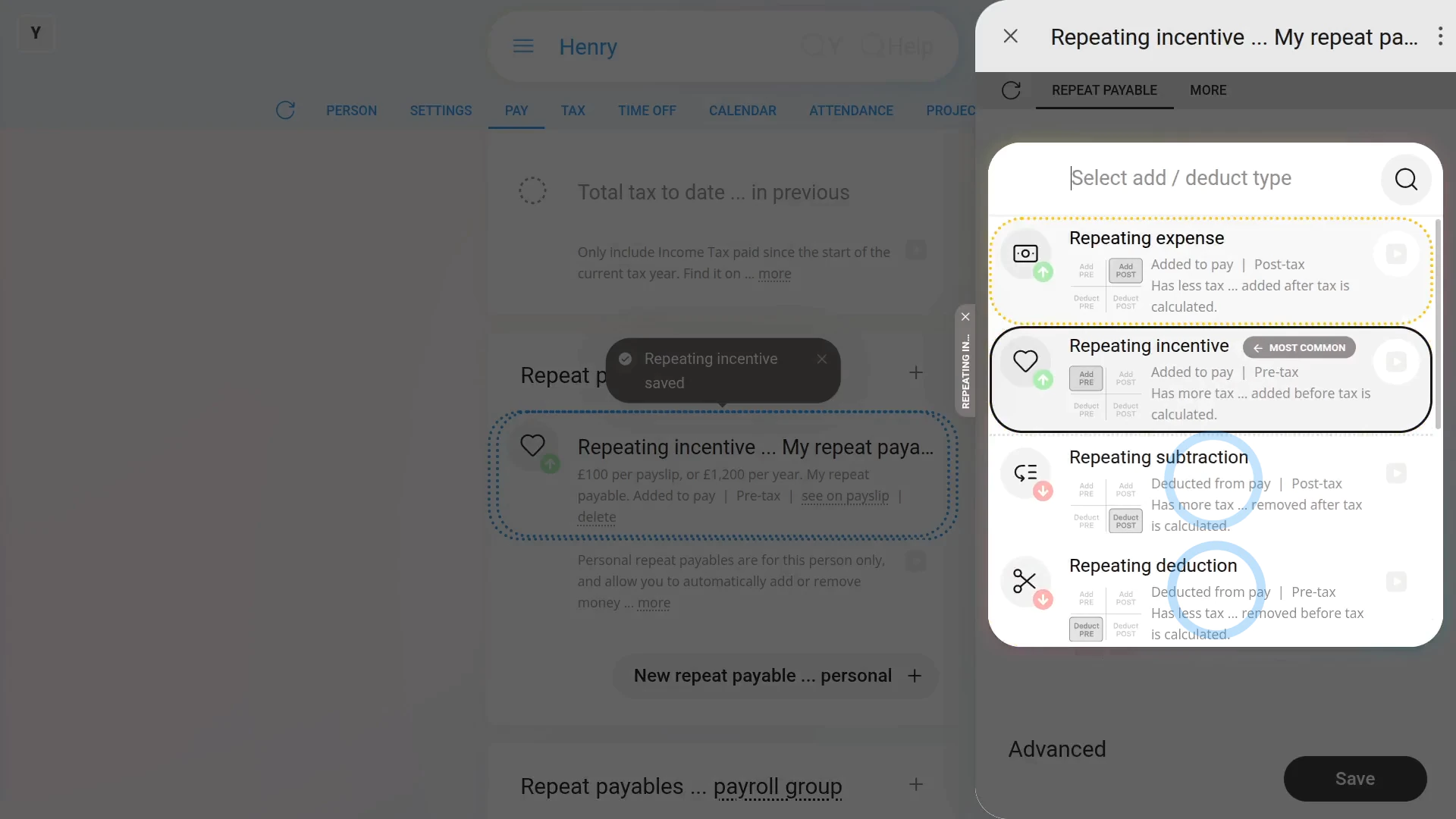
To see a repeat payable's "added" vs "deducted" options:
- First, open: "Menu", then "People"
- And then go to: "Pay", then "Pay settings"
- And scroll down to the "Repeat payables ... personal" heading.
- Then tap: New repeat payable
- Next, tap: Add to pay
- And select the type.
- Then decide from the repeating incentive suggestions, or tap "type directly" (at the top) to type in your own short description of the repeating incentive.
- And type in the value of the repeating incentive.
- Next, select the time frame: "Amount type"
- Then tap the "Added to pay" link.
- Now you can select between "Added to pay" vs: "Deducted from pay"
- If you select "Added to pay" an amount is added to the person's pay.
- Select "Added to pay" if you're setting up a repeating bonus, or a regularly scheduled payment.
- Once selected, you'll notice a green up arrow (at the top) to remind you that you're adding to their pay.
- If you select "Deducted from pay" an amount is deducted from the person's pay.
- Select "Deducted from pay" if you're removing an amount every payday, perhaps for paying back an advance.
- And finally, once selected, you'll notice a down arrow (at the top) to remind you that you're taking money off their pay.
And that's it! That's everything you need to know about a repeat payable's "added" vs "deducted" options!
How's a Christmas bonus or other yearly repeat payable set?
 2:33
2:33
"How's a Christmas bonus or other yearly repeat payable set?"
Yearly repeat payables, or Christmas bonuses, are a payment that's automatically added to a person's pay once a year.
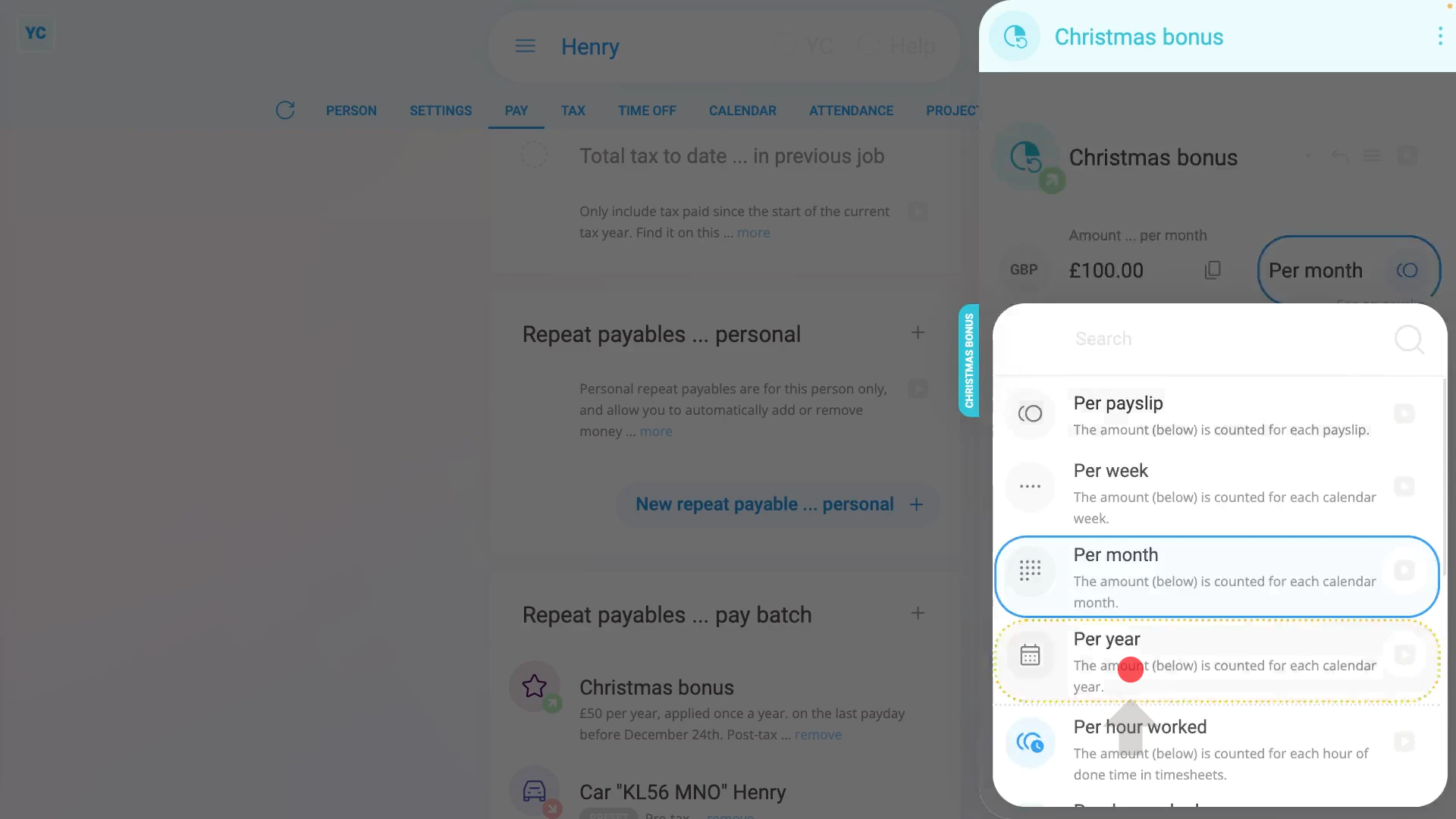
To set up a yearly repeat payable, or Christmas bonus:
- First, select the person who's getting the yearly repeat payable, or Christmas bonus, on: "Menu", then "People"
- And then go to: "Pay", then "Pay settings"
- And scroll down to the "Repeat payables ... personal" heading.
- Then tap: New repeat payable
- Next, tap: Add to pay
- Then select: Repeating incentive
- Next, give the new repeat payable a name.
- And enter the yearly amount payable.
- And set the time frame to: "Per year"
- Keep in mind that the time frame setting doesn't set how often it's paid, rather it sets over what time frame the amount's calculated.
- And because it's a bonus, check it's set to: "pre-tax"
- Once you've set the amount, you're then free to decide how often it's to be added to their pay.
- Next, change it from "every payday" to: "Once a year"
- And don't forget to set the date for the Christmas bonus to be paid. For example, 10 days before Christmas.
- Now that the payment amount and frequency are set, tap See on payslip to see the payslip that it's paid with.
- And scroll to the top, to check that the "Payday due" date is before Christmas.
- Now, when you close it, you'll see a summary of the yearly repeat payable, or Christmas bonus.
- And finally, to see it on the payslip one last time, tap the "See on payslip" link.
Keep in mind that:
- Because it's a repeat payable, the payment continues to be paid every year from now on, as long as the person's otherwise getting a payslip.
- You can stop it anytime by deleting it.
To learn more:
- To learn about deleting or un-deleting a repeat payable, watch the video on: Deleting a repeat payable
And that's it! That's all you need to do to set up a repeat payable, or Christmas bonus, to be paid into a person's salary every year!
How can I remind myself to come back and update a repeat payable?
 1:53
1:53
"How can I remind myself to come back and update a repeat payable?"
Setting up an email reminder is a convenient way to remind you to come back and check on something later.
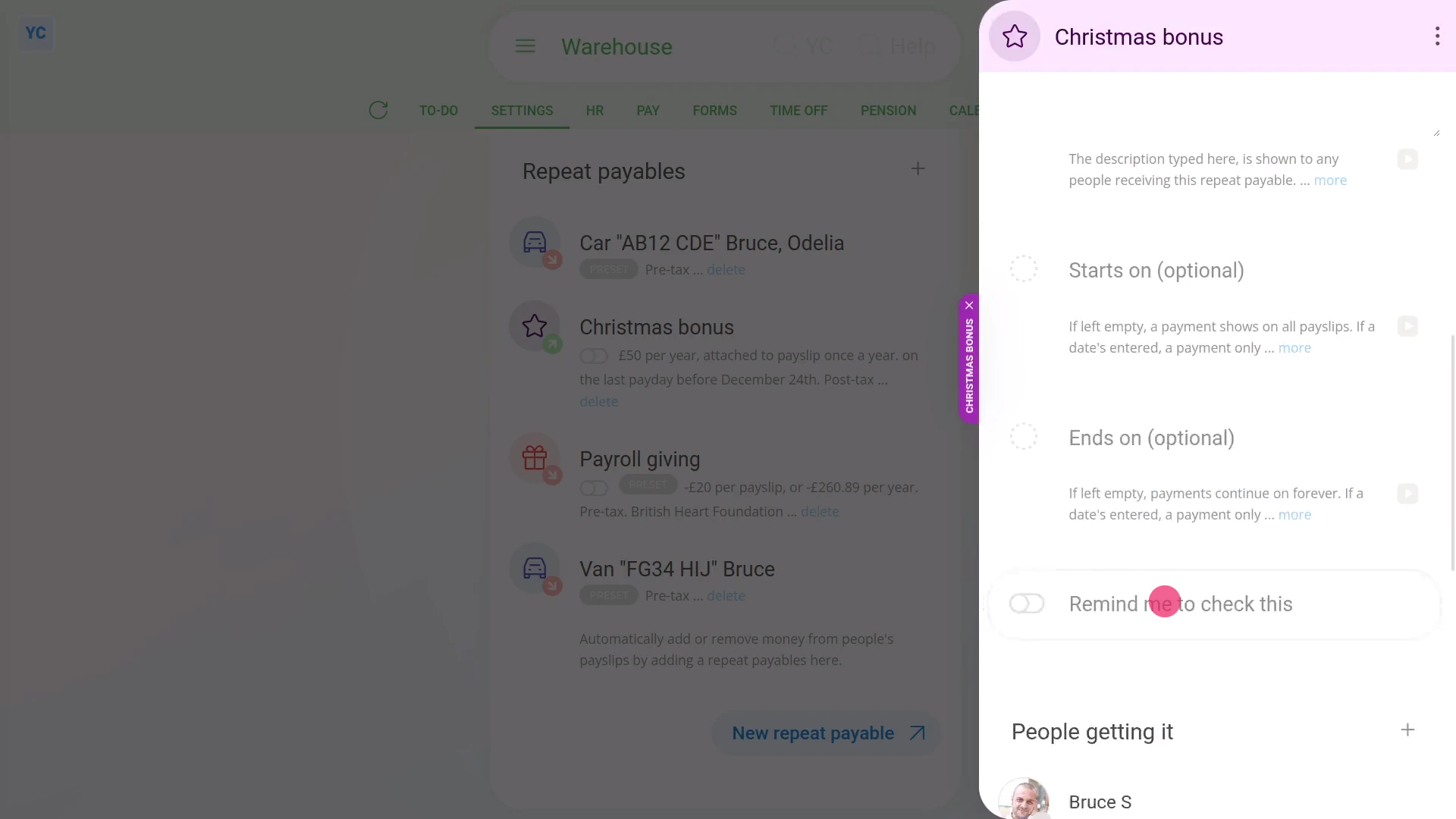
To turn on an email reminder for a repeat payable:
- First, select the payroll group on: "Menu", then "Payroll groups"
- Then tap: "Settings", then "Payroll group settings"
- Then scroll right down to "Repeat payables" and find the one you'd like to set an email reminder for.
- Once it slides out on the right, tap the "Advanced" heading.
- The scroll down and turn on: Remind me to check this
- Then pick the date you'd like to be emailed the reminder.
- Once you tap Save, your email reminder's all set up.
- On the date of your reminder, you'll get the email reminder.
- Once you get an email reminder, tap the button to re-open your repeat payable.
- And finally, you'll be taken right back to the repeat payable that you asked to be reminded about.
You may notice:
- Once you return back, that the reminder's now been automatically turned off. It's turned off because the reminder's already been sent.
- Once set, reminders are only ever sent once, and always sent to the email of the person who turned it on.
- If you need another reminder, you can always turn on the reminder again.
Keep in mind that:
- If the payday person for the payroll group is a different person, a copy of the email reminder is also sent to the payday person.
And that's it! That's everything you need to know about turning on an email reminder for a repeat payable!
How do I add a description to a repeat payable?
 1:17
1:17
"How do I add a description to a repeat payable?"
Sometimes, you may want to add a description to your repeat payables.
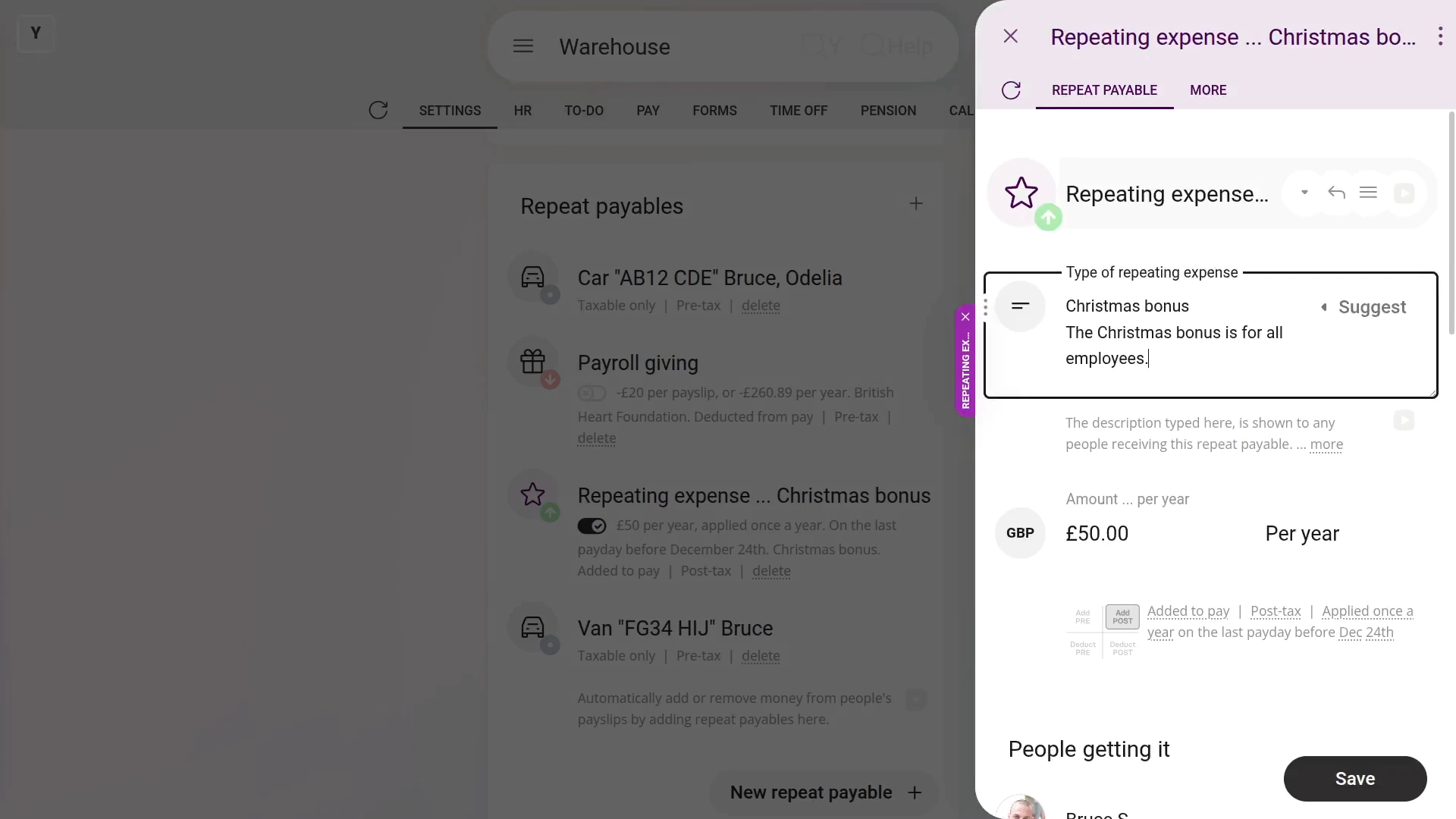
To add a description to a repeat payable:
- First, select the person or payroll group on: "Menu", then "Payroll groups"
- Then tap: "Settings", then "Payroll group settings"
- Then scroll right down to "Repeat payables" and find the one you'd like to add a description to.
- Once it slides out on the right, type in your description.
- Then tap: Save
- And finally, you'll see the description that you typed, which can now also be seen by your people.
You may notice:
- The description can be seen by all the people who get the repeat payable.
- Which can be a useful way to help them understand what the repeat payable is for.
Keep in mind that:
- The description option is available for most personal and payroll group repeat payables.
And that's it! That's everything you need to know about adding a description to a repeat payable!
How do I add many people, or auto-add new people, to repeat payables?
 2:13
2:13
"How do I add many people, or auto-add new people, to repeat payables?"
Sometimes you've recently created a brand new repeat payable, and you're looking for the fastest way of adding it to lots of your existing people.
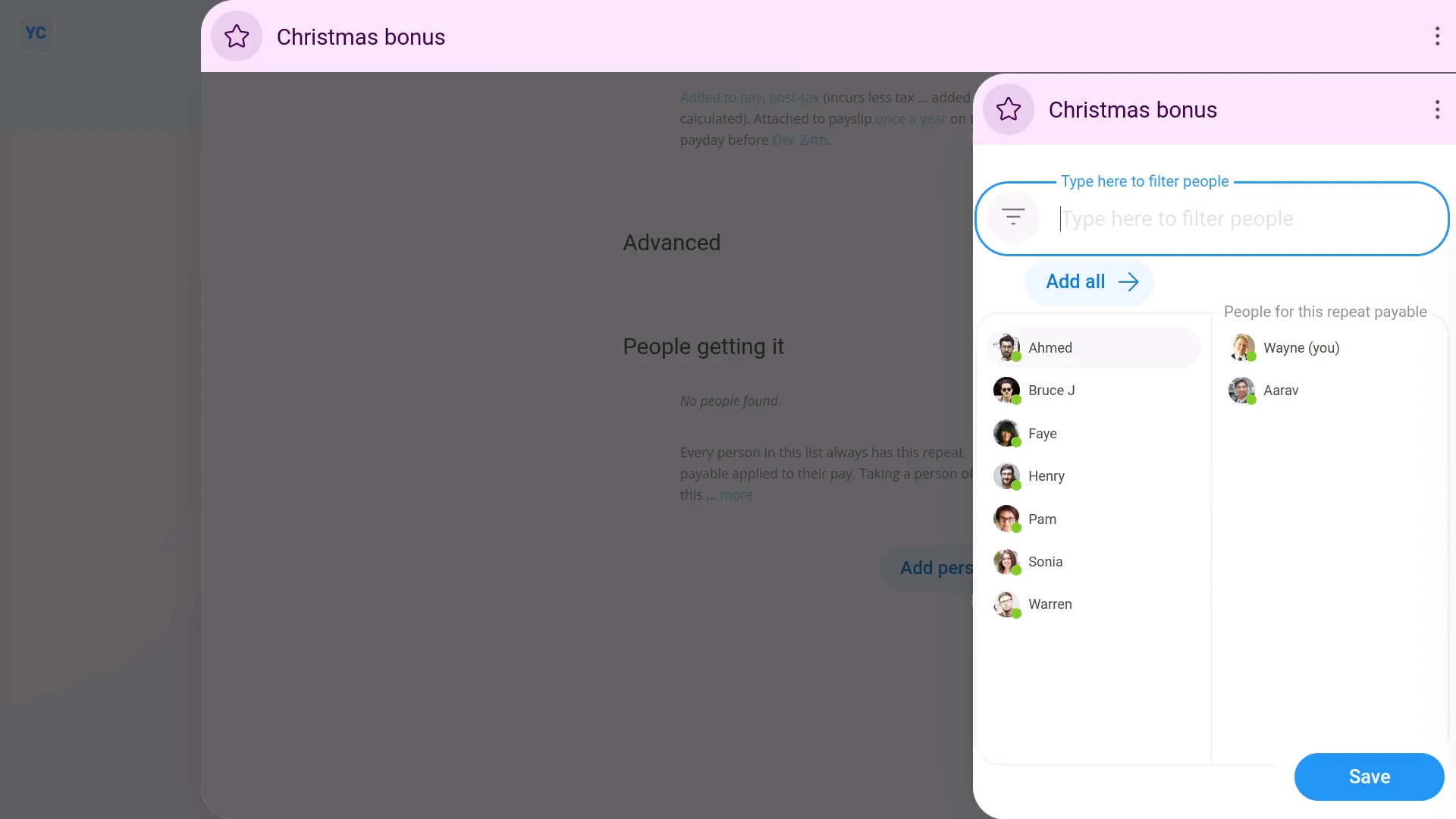
To add a repeat payable to lots of people:
- First, select the payroll group on: "Menu", then "Payroll groups"
- Then tap: "Settings", then "Payroll group settings"
- Then scroll right down to "Repeat payables", and for the one you're adding people to, tap the "Edit" button:
- Once it slides out on the right, scroll down and tap: Add people
- Now, when it again slides out on the right, tap each person you want to add.
- Alternatively, to add the repeat payable to everyone, tap: Add all (that shows when you hover)
- Then tap: Save
- Now, you'll now see all the people you added listed (at the bottom).
- And finally, when you tap any of the people you've added, you'll see the repeat payable included for each of them.
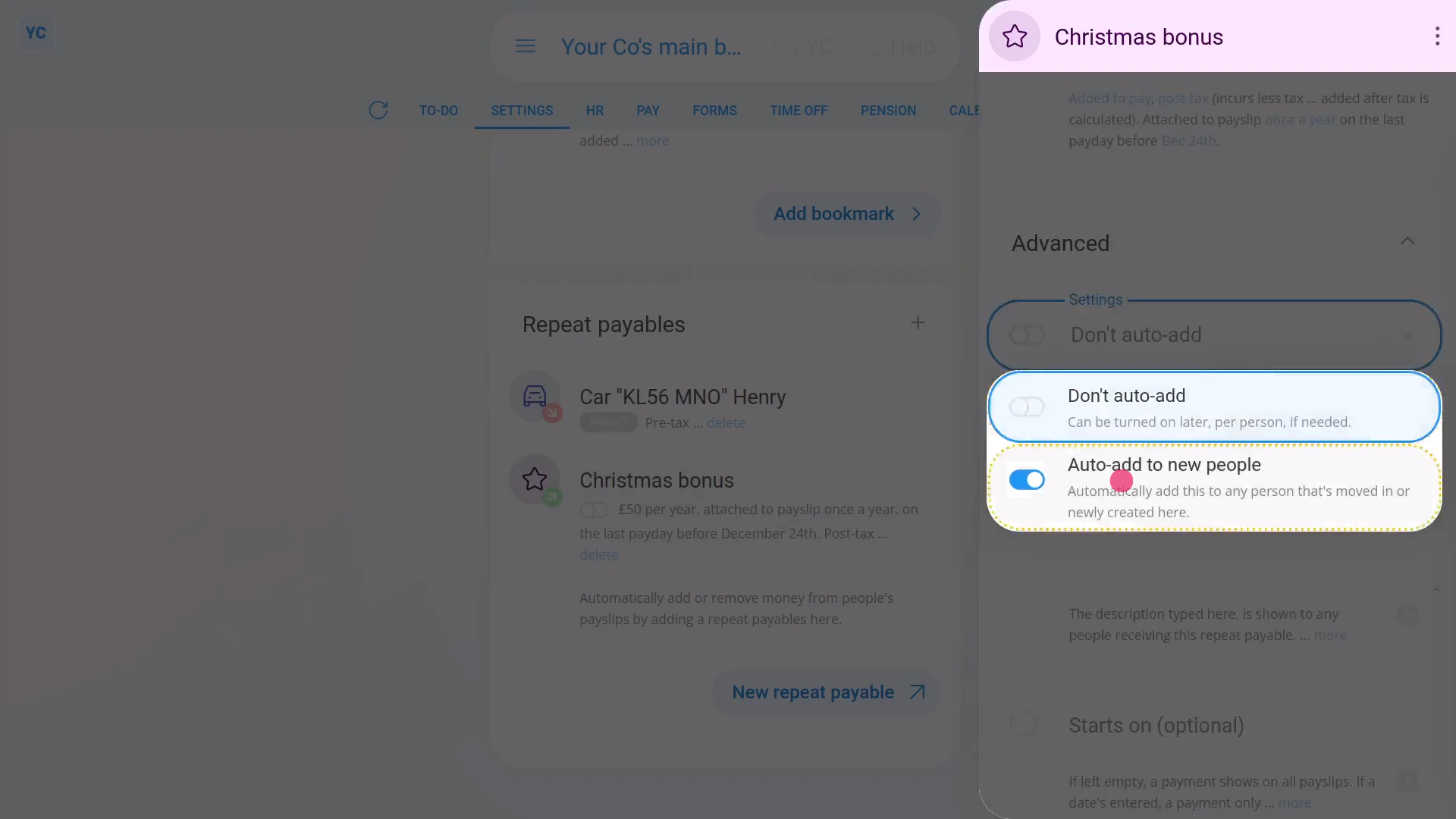
To set a repeat payable so that it's auto-added to any new person who's added to a payroll group:
- First, select the payroll group on: "Menu", then "Payroll groups"
- Then tap: "Settings", then "Payroll group settings"
- Then scroll right down to "Repeat payables", and for the one you're setting auto-add, tap the "Edit" button:
- Once it slides out on the right, tap the "Advanced" heading.
- Then turn on: "Auto-add to all new people"
- And tap: Save
- And finally, for any new people you add or move into the payroll group, the repeat payable's auto-added to them all, from now on.
You may notice:
- Besides every newly created person automatically having the repeat payable added to their pay.
- Additionally, every existing person that's moved into the payroll group, also automatically gets the repeat payable added to their pay.
And that's it! That's all you need to do to add lots of people to any repeat payable!
How do I set a bank to pay a repeat payable to, and payroll giving?
 2:58
2:58
"How do I set a bank to pay a repeat payable to, and payroll giving?"
Adding a payee to a repeat payable allows the deducted amount to be onward paid into a bank account.
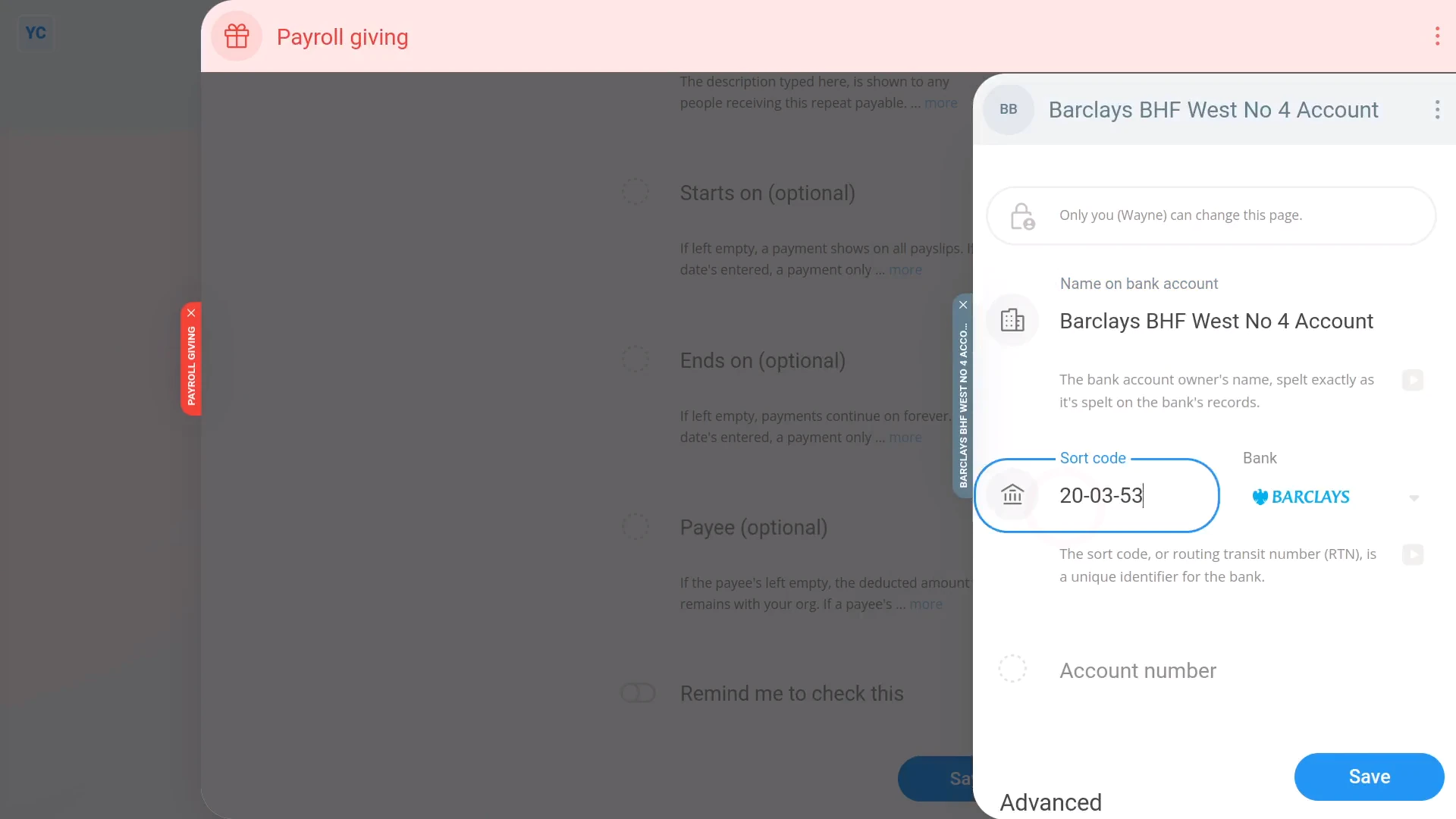
To create a new repeat payable, and set a new payee who'll have an amount deducted:
- First, select the person or payroll group that you're setting the payee for, on: "Menu", then "People"
- Next, go to: "Pay", then "Pay settings"
- And scroll down to the "Repeat payables ... personal" heading.
- Then tap: New repeat payable
- Next, tap: Deduct from pay
- Then select either Payroll giving or: Repeating deduction
- Type in the amount to be deducted each payday.
- Next, select the time frame.
- Then tap the "Advanced" heading, and scroll down to: "Payee"
- If the payee that you're looking for isn't in the list, tap New to make a new one.
- Next, type in all the payee's details, including their bank account details.
- Then tap: Save
- And the payee's all set up.
- Now, to see how it shows up on the person's payslip, below the repeat payable, tap the "see on payslip" link.
- And finally, if you hover your mouse over the amount, you'll see a breakdown of the calculations.
You may notice:
- If you use "Payroll giving", the amount deducted is "Pre-tax". In other words, the person pays less tax by using: "Payroll giving"
- Also, setting a payee is an option that only shows for repeat payables where you take an agreed amount off a person's payslip.
Keep in mind that:
- The payee option is available for both person and payroll group repeat payables where money is deducted.
- Also, if no payee is set, the money is still deducted from the person's payslip, but thereafter it stays in the employer's account.
- And with no payee set, the employer is then responsible to onward pay the money manually.
To learn more:
- About payroll giving, go to GOV.UK.
- And to learn more about deleting or un-deleting a repeat payable, watch the video on: Deleting a repeat payable
And that's it! That's everything you need to know about setting a bank account to pay agreed salary deductions to!
How do I set up a CCJ to be paid out every month?
 4:40
4:40
"How do I set up a CCJ to be paid out every month?"
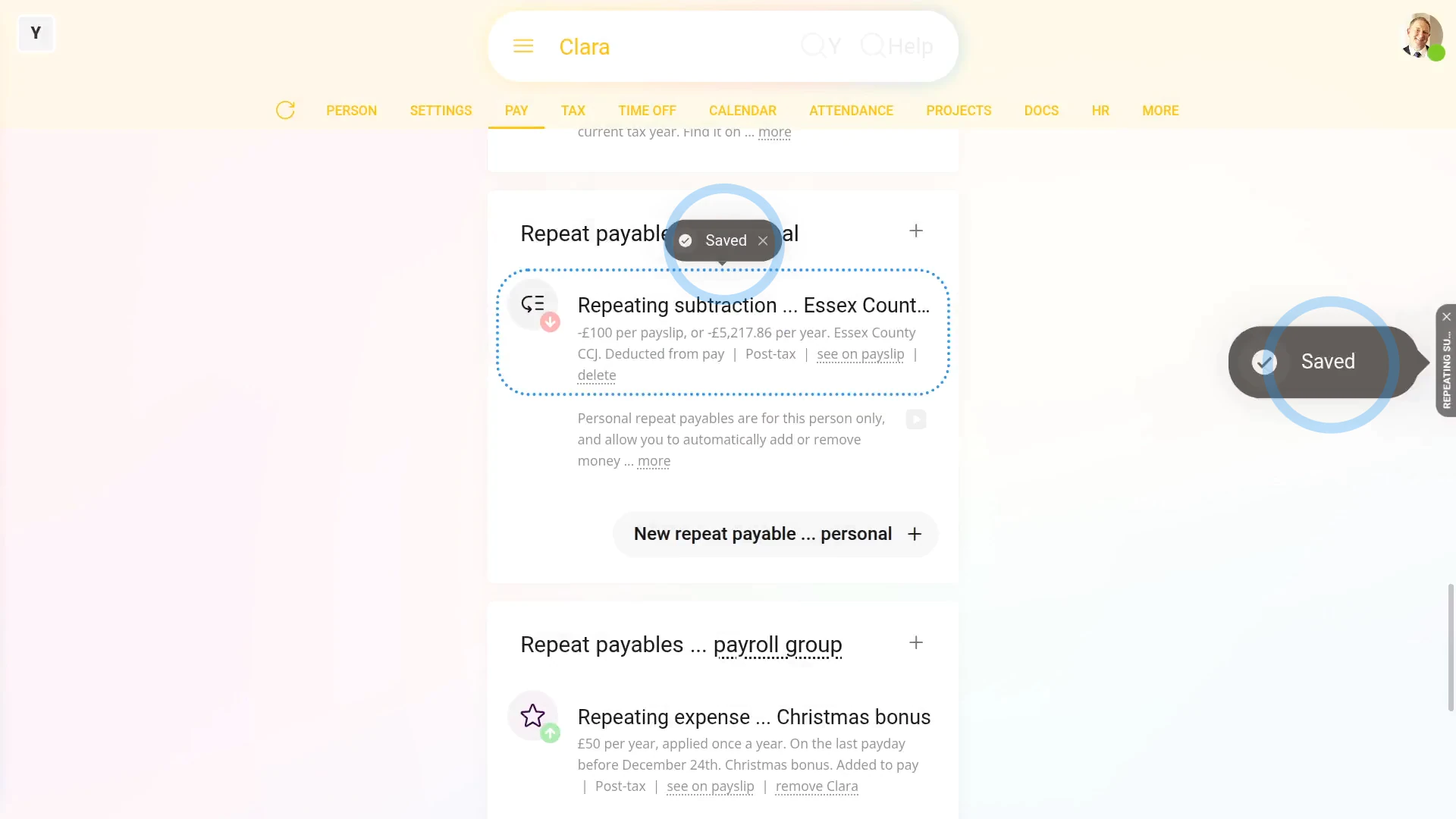
Monthly repeat payables, or CCJs, are a deduction that's automatically deducted from a person's pay every month, and then marked for onward payment.
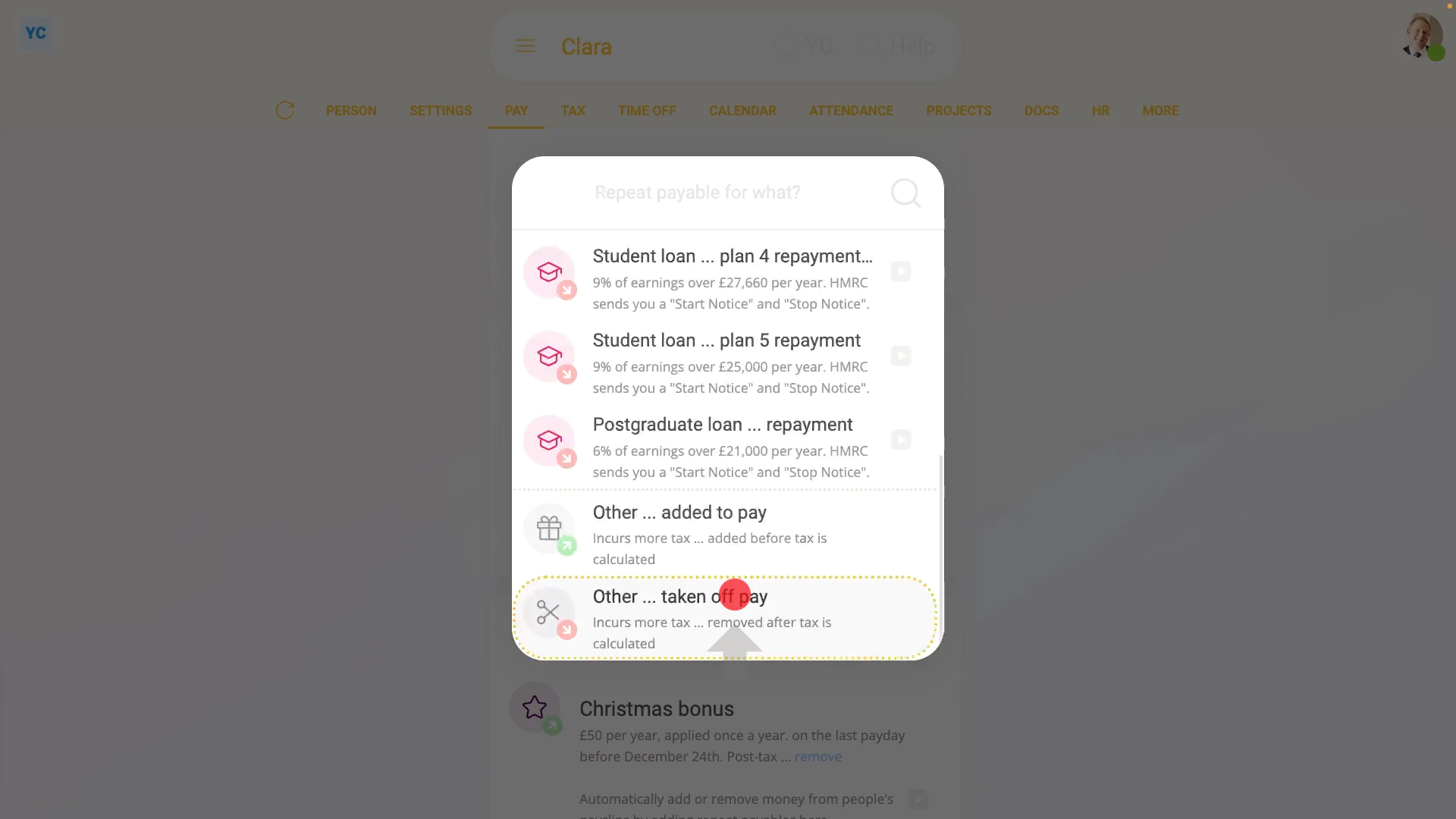
To set up a monthly repeat payable, or CCJ:
- First, select the person who's getting the monthly repeat payable, or CCJ on: "Menu", then "People"
- And then go to: "Pay", then "Pay settings"
- And scroll down to the "Repeat payables ... personal" heading.
- Then tap: New repeat payable
- Next, tap: Deduct from pay
- Then select: Repeating subtraction
- Next, give the new repeat payable a name.
- And enter the monthly amount payable.
- By default, when repeating the amount, it's set to: "Per payslip"
- Keep in mind that the time frame setting doesn't set how often it's paid, rather it sets over what time frame the amount's calculated.
- For example, if you set the amount to a larger "per year" amount and then set how often it's deducted to "every month ... last payday". It'd then deduct 1/12th of the yearly amount every month.
- Now, to see the monthly deduction, tap the "See on payslip" link.
- However, it's recommended to deduct "Every payday" so that the deductions get spread evenly over the person's pay.
- For people that're paid weekly, it now cuts the monthly amount to something close to a 1/4 sized weekly amount. Tap the "See on payslip" link again to see it.
- Now that the deduction amount and frequency are set, tap Advanced to set the remaining options.
- Setting "starts on" and "ends on" dates gives you more control over when deductions start and stop.
- In most cases, leave "starts on" as empty, as it automatically starts from today. Then set "ends on" to the date the deduction is to stop.
- And, you can add more notes in the description.
- In some cases, the Court judgement document may give you a bank account to pay the deduction to. If so, enter those details as a new: "Payee"
- Also be sure to tap Advanced and type in the "Bank reference" from the Court judgement document.
- And also change the "Account type" to "Business", and then tap: Save
- Now the payee for the deduction's all set, and you'll see a summary of the monthly repeat payable, or CCJ, including the description that you entered.
- And finally, to see it on the payslip one last time, tap the "See on payslip" link.
Keep in mind that:
- If a person's paid monthly, you won't see "Per month" listed as an amount time frame, so instead select the "Per payslip" option.
- Also watch out for when a person's paid weekly, but you set it to only deduct from the last payslip of each month. In which case, you may need to tap through a few payslips before you see the deduction.
- In some cases, the CCJ may not supply bank details, or for any other reason, you didn't set the payee. In that case, the amount's still deducted from the person's pay and remains in the company's bank account.
- It's now up to you, as the employer, to make sure the onward payment is made, using whatever payment details the CCJ gave you.
Also remember that:
- A CCJ, or County Court judgement, is where you, as the employer, are issued with a legal notice to deduct pay from a person.
- The deduction is then required to be onward paid to the county court or some other debt collection agency.
- A CCJ enables the court system to collect fines or debt repayments directly from an employee's salary, at source.
- The payment collection is enforced by the law, and can't be refused.
To learn more:
- To learn about deleting or un-deleting a repeat payable, watch the video on: Deleting a repeat payable
And that's it! That's all you need to do to set up a repeat payable, or CCJ, to be paid out from a person's salary every month!
www.1st.money/uk/help/Expenses/Repeat_payables/