5. How do I delete an expense claim?
 2:21
2:21
"How do I delete an expense claim?"
If you've got an approved, but unpaid, expense claim, and you no longer want it paid out, you're welcome to delete it whenever you like.
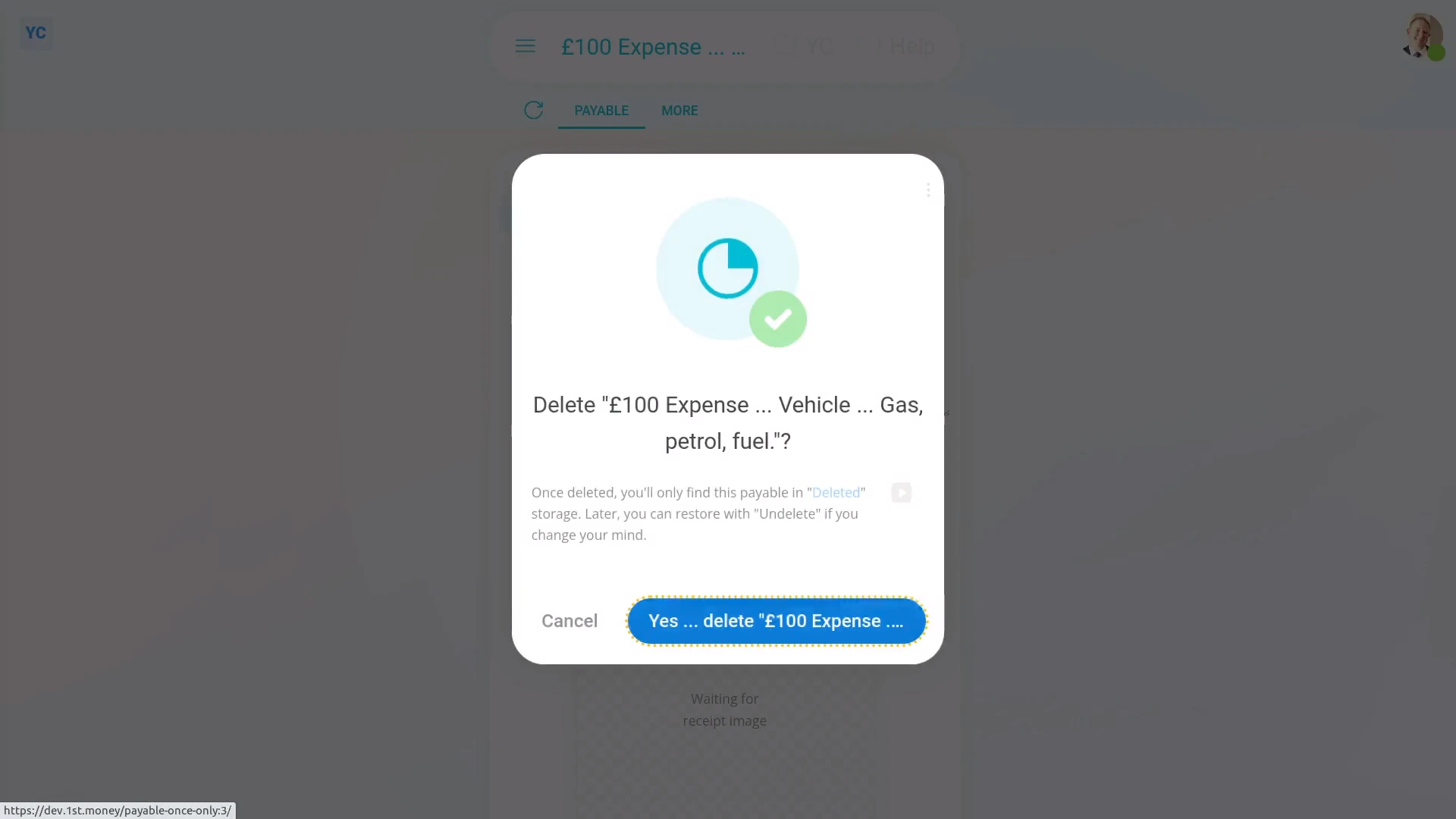
To delete a person's expense claim:
- First, open the person who's got the expense claim you'd like to delete, on: "Menu", then "People"
- Then tap: "Pay", then "Payslip"
- Then scroll down and tap the expense claim you'd like to delete.
- Then tap More, then: Delete
- Then tap: Yes ... delete
- Now that the expense claim's deleted, it no longer shows on the payslip.
- And finally, it won't be included in the payslip payment, even if it'd been approved.
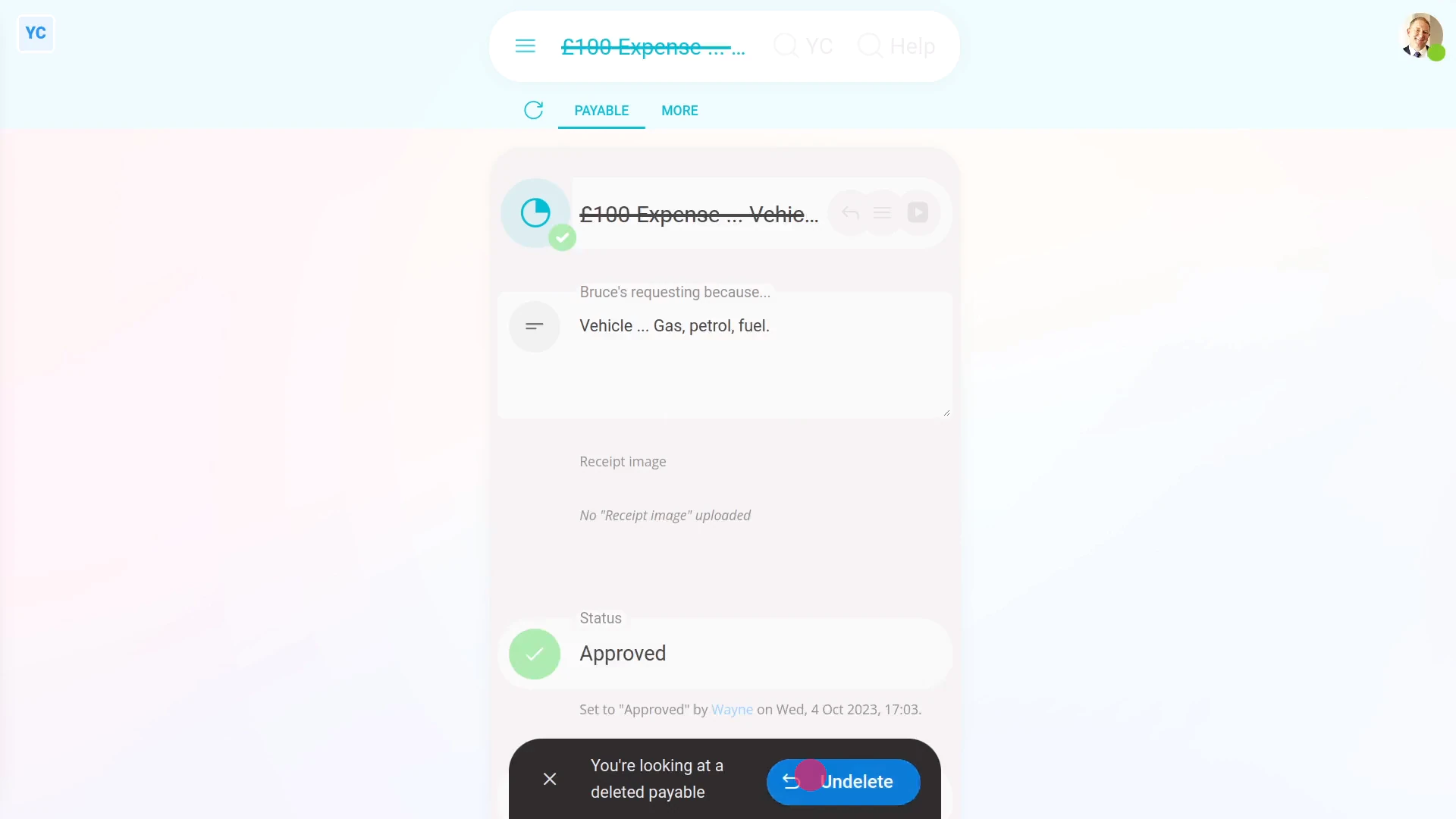
To un-delete an expense claim:
- First, open the person who's got the expense claim you'd like to un-delete, on: "Menu", then "People"
- Then go to the person's: Calendar
- Tap back through the months and look for the blue circle that matches the payday date. Which is the payslip that you'd like to un-delete.
- Once you find the payslip you're looking for, tap the blue circle, and then tap: Payday
- Then tap More, then: Deleted payables
- And then tap the expense claim you'd like to un-delete.
- Next, tap: Un-delete (at the bottom)
- And the deleted expense claim is immediately un-deleted.
- And finally, to see the un-deleted expense claim on the person's payslip, tap the "See on payslip" link.

Keep in mind that:
- Deleting an expense claim has the same effect as denying approval.
- Also, only people who've got "Full payroll admin" permissions can delete or un-delete expense claims.
- And remember that all deletes and un-deletes are always permanently recorded in: "History"
- That means any payroll admin can always look back in time, and see who did any delete, and when the delete was done.
And that's it! That's everything you need to know about deleting or un-deleting an expense claim!
www.1st.money/uk/help/Expenses/Expense_claims/5._How_do_I_delete_an_expense_claim