How do I use the 'People' report?
 3:17
3:17
"How do I use the "People" report?"
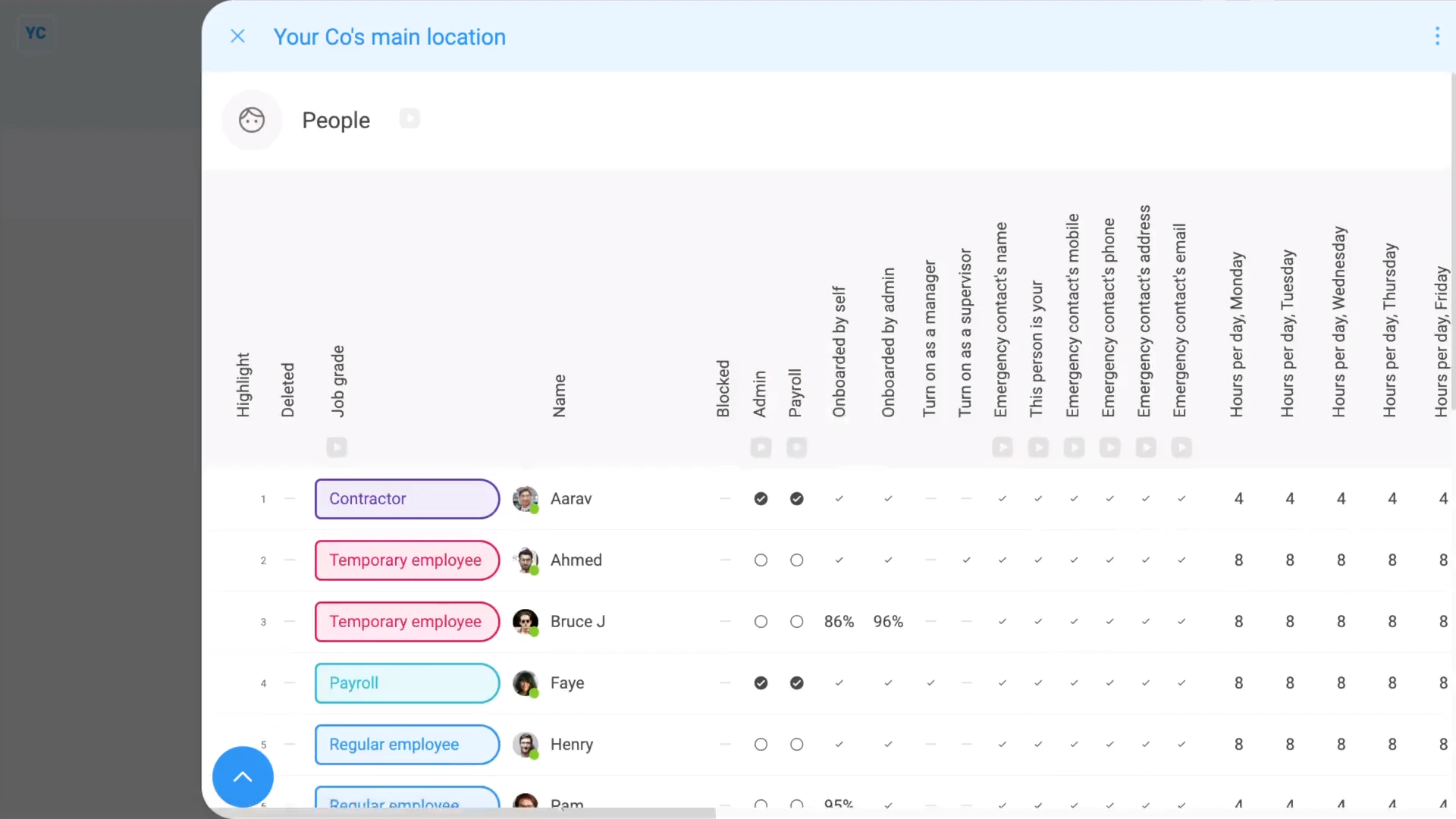
The "People" report shows you a one page summary of all your people in a location, a payroll group, or even your whole org.
To see a "People" report:
- First, go to a location, a payroll group, or to your org.
- Then tap: "Reports", then "People"
- Once it's open, you'll see a list of people.
- You may prefer to tap the tick boxes (at the start of any row).
- With the highlight turned on, it's easier to keep track of rows as you scroll across.
- And finally, as you scroll across the "People" report, you'll see info about each person, like their permissions, working hours, job title, and employment dates.
To update something about a person from a "People" report:
- First, go to a location, a payroll group, or to your org.
- Then tap: "Reports", then "People"
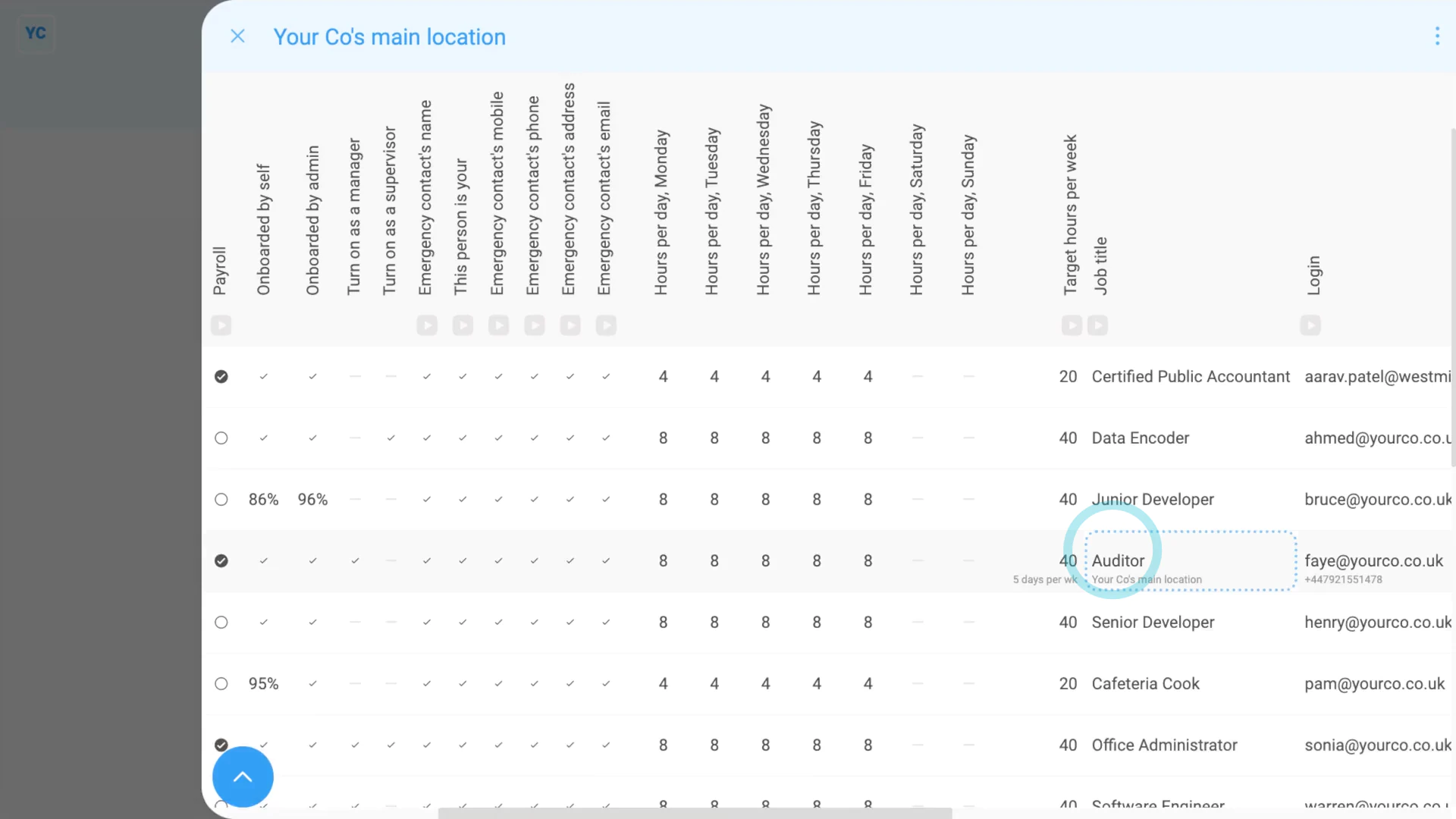
- Next, tap the cell you want to change.
- Once it slides out on the right, make your change.
- Then tap: Save
- And finally, you'll now see that the "People" report's automatically updated, as you save each change.
To only list people under a specific manager or supervisor on a "People" report:
- First, go to a payroll group, or to your org.
- Then tap: "HR", then "People"
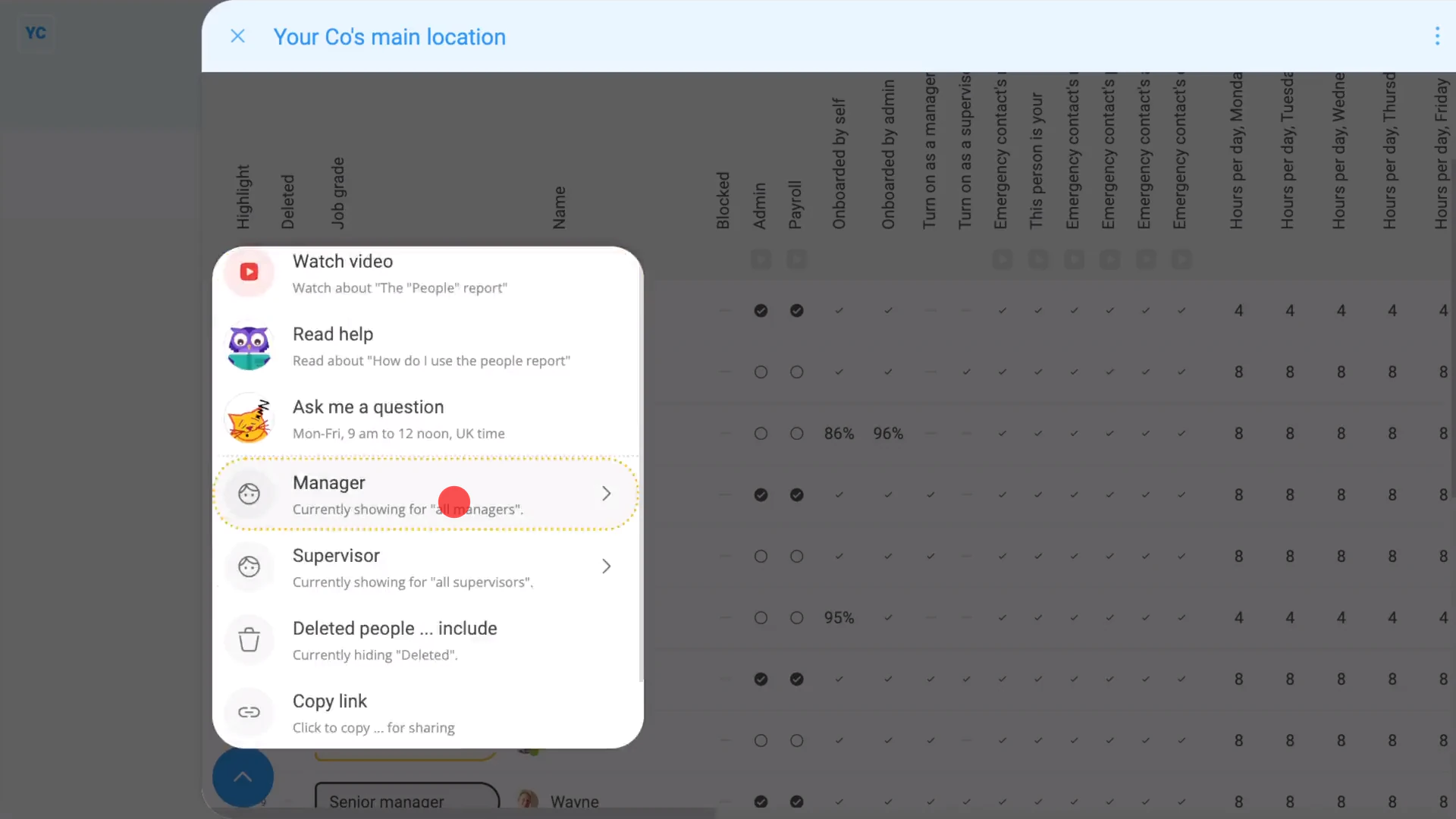
- And select a manager or supervisor on:
" Show settings", then "Manager" - Now you'll only see the people under the selected manager or supervisor.
- And finally, to return back to listing all of a payroll group's people, tap:
" Show settings", "Manager", then "All managers"
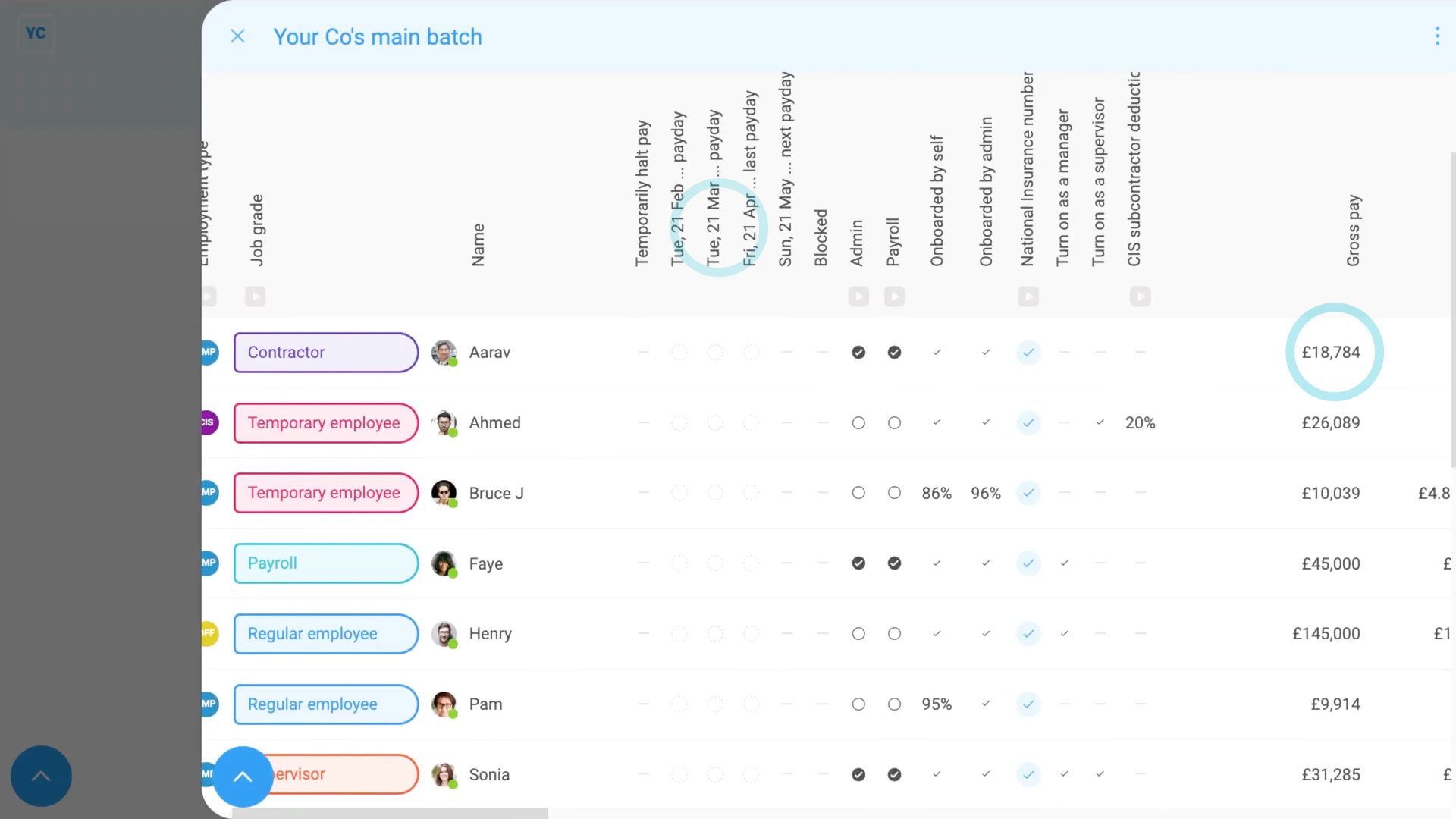
To see some additional payroll columns on a payroll group's "People" report:
- First, select the payroll group on: "Menu", then "Payroll groups"
- Then tap: "Pay", then "People"
- And finally, in the payroll group version of the "People" report you'll see even more info. You'll see the status of recent payslips, their pay rate, their employment agreement, and more.

Keep in mind that:
- Your org and location "People" reports are only available to people with at least "View org admin" permissions.
- However, the payroll group "People" report, because it includes pay info, is only available to people with at least "View payroll admin" permissions.
And that's it! That's everything you need to know about using "People" reports!
www.1st.money/uk/help/General/How_do_I_use_the_'People'_report