What's search inside, and how do I use it?

 2:33
2:33
"What's search inside, and how do I use it?"
Sometimes it's hard to remember where a setting's found. Search inside lets you use the search box to find any setting inside any item. For example, you could use it to quickly find the join date of a person, if you'd forgotten which menu tab it was on.
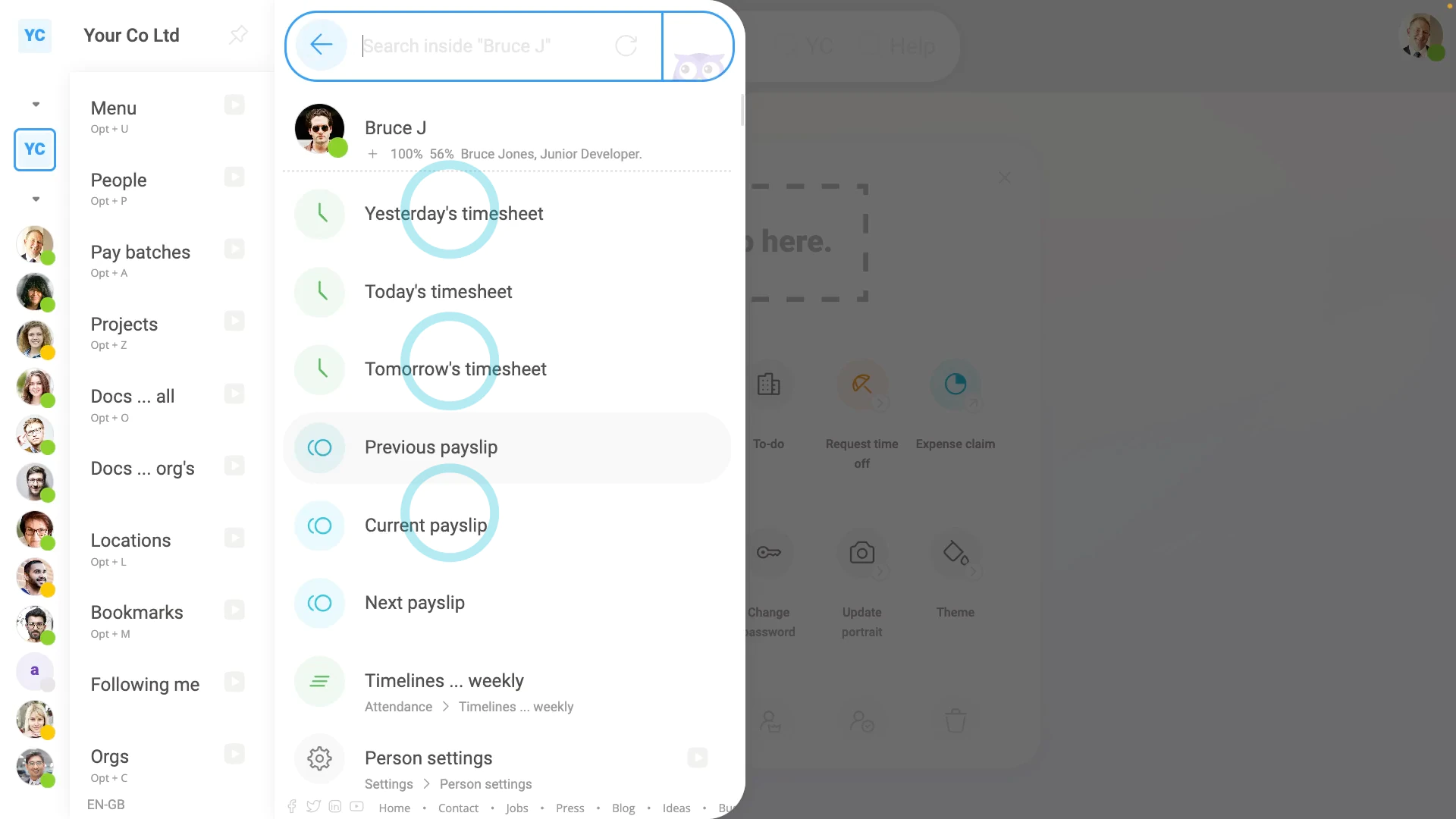
To find a setting inside a person, payroll group, project, or location, using "Search inside":
- First, open the menu to the item you want to search inside of, on: "Menu", then "People"
- While hovering over the item, for example, a person, tap: Search inside
- Now that you're in "Search inside" mode, you'll see a list of all the info found inside the item.
- Next, using your keyboard, type the name of the info you're looking for.
- Which filters the list down to a few matching rows.
- Then use your arrow keys to go down to the exact row you want, and press: Enter
- And finally, you'll see that you've been taken to exactly the place in the software, for the item. And do so without having to remember how to tap there the usual way.

Keep in mind that:
- In most cases, it's a person that you'll want to search inside of.
- The person "Search inside" can also be done from the person tab.
- To find it, go to the person tab, and you'll see the "Search inside" box directly below their portrait.
- Doing "Search inside" from the person tab works exactly the same as doing it from anywhere else.
For advanced usage:
- If you hover your mouse over the "Search inside" button, you'll see that it's shortcut is the Tab key.
- If you combine the "Search inside" shortcut, with other shortcuts, like your arrow keys and Enter, you can search for anything in your org, using only your keyboard.
- Also, to go back up a level, and out of "Search inside", press the Backspace key.
- Give "Search inside" a try. It makes moving around 1st Money really fast, especially if you combine it with: "Global search"
 Installing on your smartphone or laptop
And that's it! That's everything you need to know about "Search inside", and how to search with it!
www.1st.money/uk/help/General/What's_search_inside,_and_how_do_I_use_it