How do I send a person's agreement doc?
 3:52
3:52
"How do I send a person's agreement doc?"
The agreement doc, while optional, helps you to record, in writing, the terms of work between the company and the person.
To send an agreement doc to a person for signing:
- First, select the person who you're sending the agreement doc to, on: "Menu", then "People"
- Then tap: "Docs", then "Agreement"
- Selecting the agreement doc:
Now select the agreement doc that you'd like the person to sign. - To see a full preview of each agreement doc, tap the "View" button: (on the side of each doc)
- The preview shows you exactly how the text is customised for the person.
- Once you've decided on one, tap it, to set it as the person's agreement doc.
- Now that you've selected an agreement doc, you'll see the agreement start and end date boxes appear.
- Setting the start date's required. Set it to the date you intend the agreement to start from.
- In some cases, you can tap: Set to today
- The agreement end date's optional. In most cases, you can leave it empty if you intend for the work agreement to continue indefinitely.
- However, if it's a fixed length contract, set the end date now, and 1st Money helps you to manage the expiry, and possible renewal.
- For now, you can see the agreement doc status is set to: "Agreement never sent"
- Sending the agreement doc:
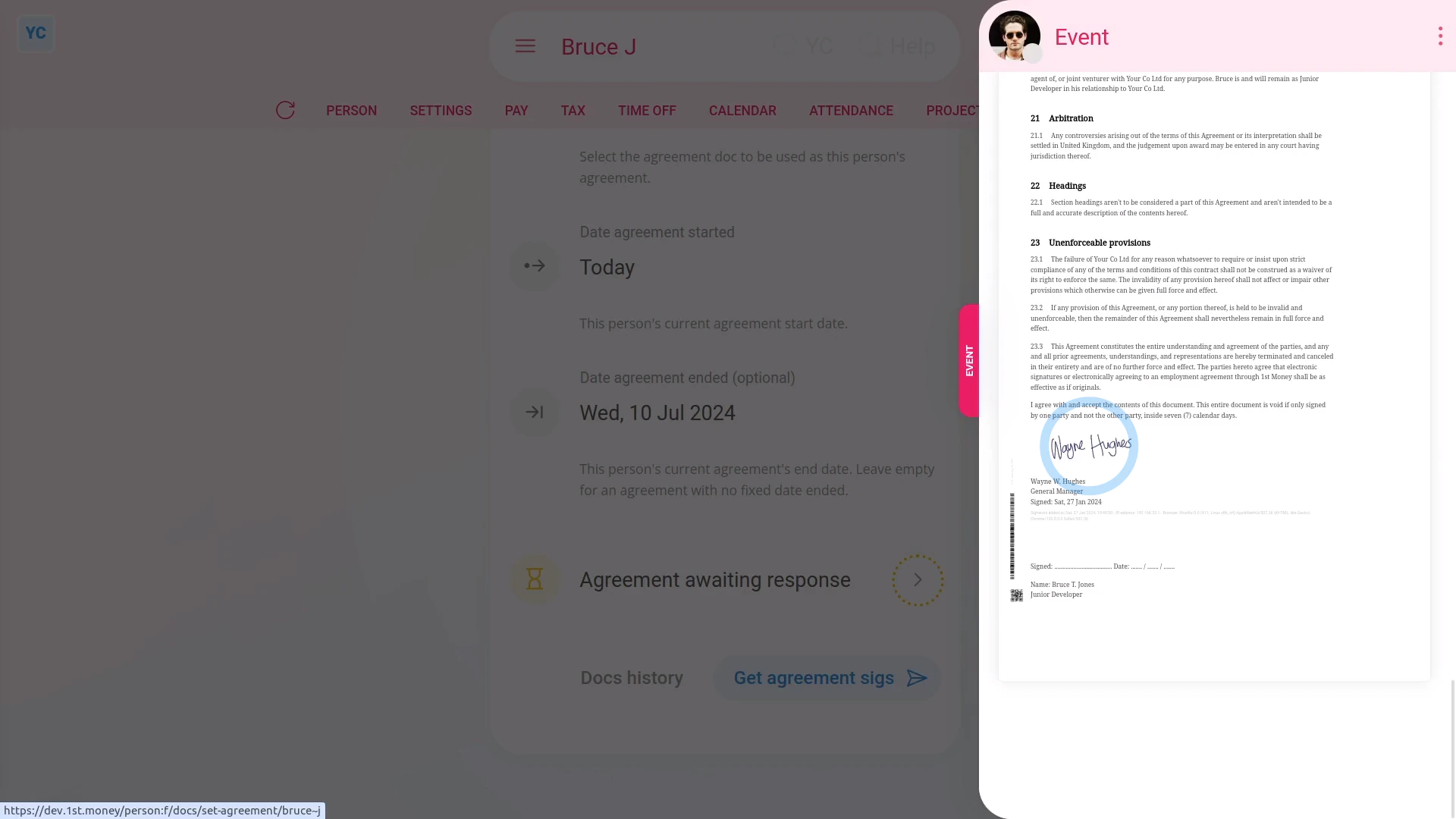
To send the agreement doc to the person, tap: Get agreement sigs - Once it slides out on the right, you'll see a final preview of the agreement doc.
- All agreement docs need to be signed by both an admin (or manager), and also by the person themself.
- As you'll be signing, on behalf of the company, you may want to read through the doc before continuing.
- And to make any changes, tap: Show editor
- Then once you're ready, tap Get it signed by, and then: I accept & electronically sign
- And now that it's been sent to the person as an email, tap: Close
- Seeing the agreement doc's status:
You'll now see that the agreement doc's status has changed to: "Agreement awaiting response" - To see a copy of the sent agreement doc, tap the "View" button: (at the end of the row)
- And you'll later see the doc's status change, once the person gets their agreement doc email, and signs the doc.
- But, for now, if you scroll to the bottom of the doc, you'll see that your signature's been added to the doc.
- And finally, once the person's signed their agreement doc, you'll see their signature there as well.

Keep in mind that:
- Agreement docs are optional. It's OK to not use the feature. Everything else still works fine.
You may notice:
- That many of a person's terms of work are already stored in 1st Money. For example, their pay, work hours, job title, etc.
- Sending it out for signing, as an agreement doc, improves the chance that if anything's wrong with a person's terms of work, the errors are spotted.
To learn more:
- About how it looks for the person to receive and sign their agreement doc, watch the video on: Agreement doc setup
 Agreement doc setup
If a feature's not showing:
- If the "Docs" menu isn't showing, it means your org hasn't turned on the docs feature yet.
- To turn on the docs feature, watch the video on: Turning on HR Docs
And that's it! That's everything you need to know about sending a person's agreement doc!
How do I remind a person to finish their onboardingHow do I set the default rate time frame when onboarding a new hire
www.1st.money/uk/help/Onboarding/How_do_I_send_a_person's_agreement_doc