How do I add my own employment agreement templates?
 3:58
3:58
"How do I add my own employment agreement templates?"
By default, 1st Money already includes a few general purpose employment agreement templates. But you can always add your own to match your exact needs.
To add your own employment agreement template:
- First, tap: "Menu", "Docs ... all", then "New doc"
- Then tap: "New doc"
- Once it slides out on the right, type in the document name as the type of employment agreement you'd like.
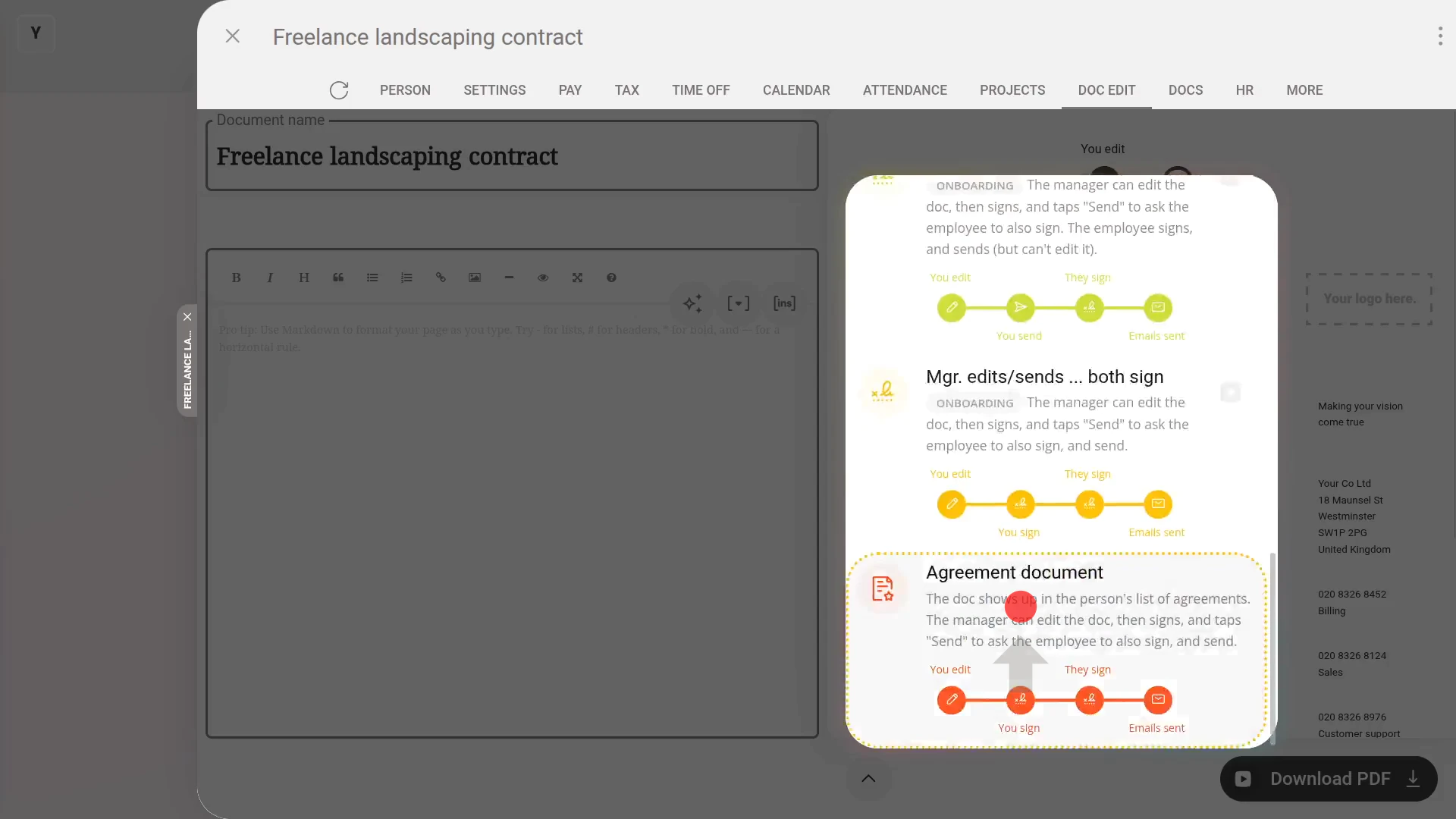
- Next, to set it as an agreement, open the bottom menu:
- Then scroll down and tap: Agreement document
- Once you've entered your document name, and set it as an agreement, a useful way to create the agreement body is to tap the round "Copy for AI" button (at the top)
- Then copy the AI prompt and go to your preferred AI site, like ChatGPT, and paste what's copied.
- Feel free to type in more info to tell ChatGPT more about what you want.
- But keep the note about "markdown format" on the end.
- Once ChatGPT's generated your doc body, tap: Copy
- And then back in 1st Money, paste it into the doc body.
- Now, be sure to review the text and make changes so it's suitable from your employment situation.
- As you make changes, you'll see it instantly update the preview on the right.
- Then optionally, tap the image circle and set the doc's colour and image.
- Next, to make it available to your whole team, tap Me only, and set it to: Everyone
- And finally, tap: Save and: Close
To send your new agreement template to an employee:
- First, select the person who you're sending the agreement doc to, on: "Menu", then "People"
- Then tap: "Docs", then "Agreement"
- And select your newly added "Agreement doc" from the list.
- To see a full preview of your new doc, tap the "View" button:
- The preview shows you exactly how the text is customised for the person.
- Once you've selected the agreement doc, you'll see the agreement start and end date boxes appear.
- Setting the start date's required. In some cases, you can tap: Set to today
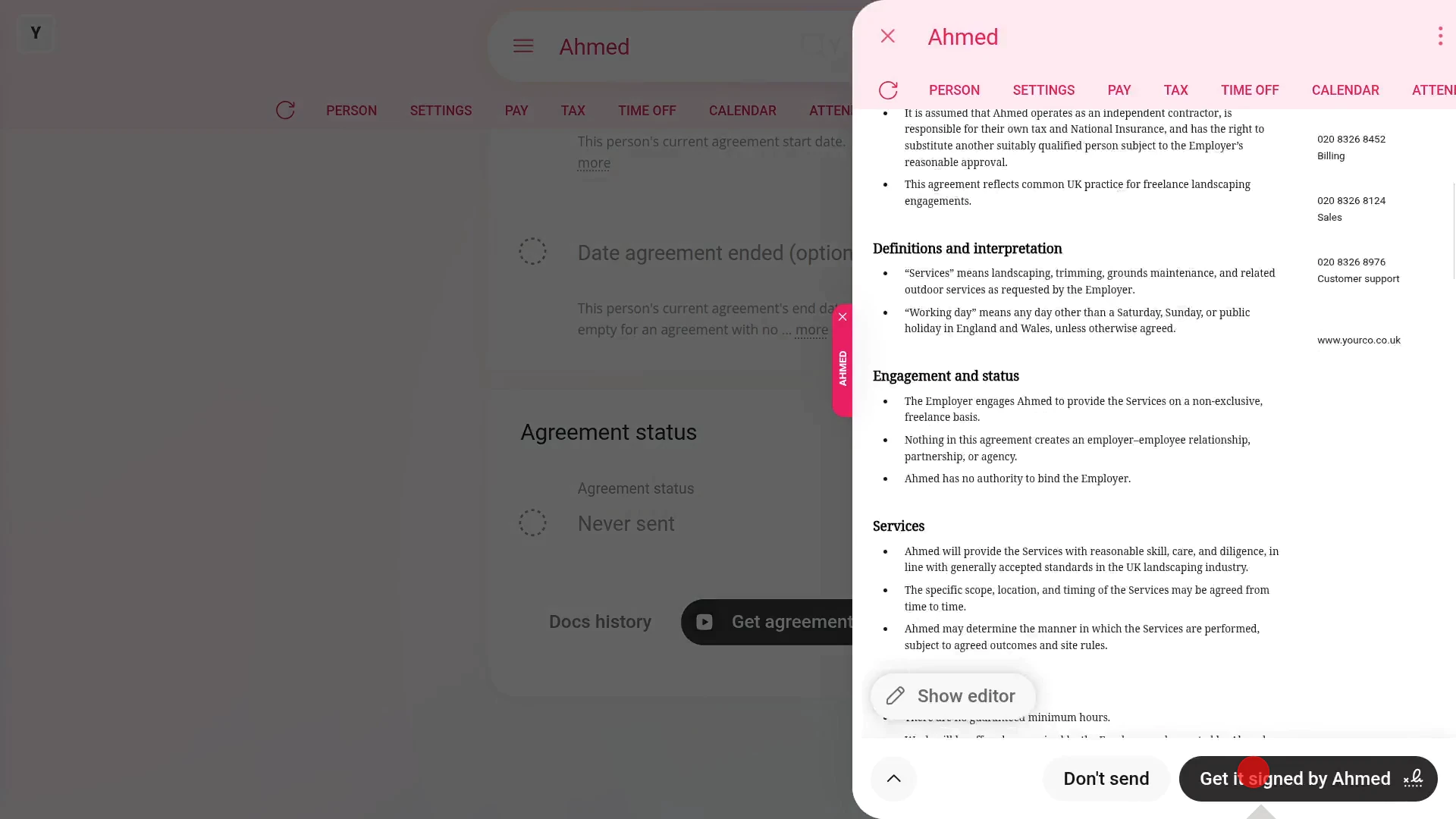
- Then to send the agreement doc to the person, tap: Get agreement sigs
- And, once it slides out on the right, after a final review, tap Get it signed by, and then: I accept & electronically sign
- And finally, you'll see the agreement doc status change to: "Awaiting response"

To learn more:
- About how it looks for the person to receive and sign their agreement doc, watch the video on: Agreement doc setup
- About tracking which of your people have an up-to-date and signed agreement doc, watch the video on: Managing agreement docs
- To learn more about seeing all of a person's signed agreement docs, watch the video on: Docs history
 Agreement doc setup
If a feature's not showing:
- If "Docs" isn't showing in the menu, it means your org hasn't turned on the docs feature yet.
- To turn on the docs feature, watch the video on: Turning on HR Docs
And that's it! That's everything you need to know about adding your own employment agreement templates!
How do I add history and signature features to a doc or letterHow do I change who I'm sending a doc to
www.1st.money/uk/help/HR_Docs/How_do_I_add_my_own_employment_agreement_templates