How do I set the default rate time frame when onboarding a new hire?

 2:22
"How do I set the default rate time frame when onboarding a new hire?"
Each time you onboard a new hire, you'll be asked what time frame to set the new hire's rate to. For example, per year, per hour, etc. However, you can instead set a default once, and then never have to set it again.
To set a new hire's default rate time frame for a payroll group:
- First, select the payroll group on: "Menu", then "Payroll groups"
- Then tap: "HR", then "Docs ... payroll group onboarding"
- And scroll down to the "Onboarding defaults" heading.
- And select your preferred default rate time frame by changing: "Default "Rate amount" time frame"
- Then tap: Save
- Next, to see it in action by adding a new person, tap: "Menu", "People", then "Invite a person"
- Once it's open, tap Add a new person, enter the person's email, and tap: Invite
- Next, fill out the person's name, and then set the payroll group to the one you've set the default rate time frame for.
- Then tap: Next
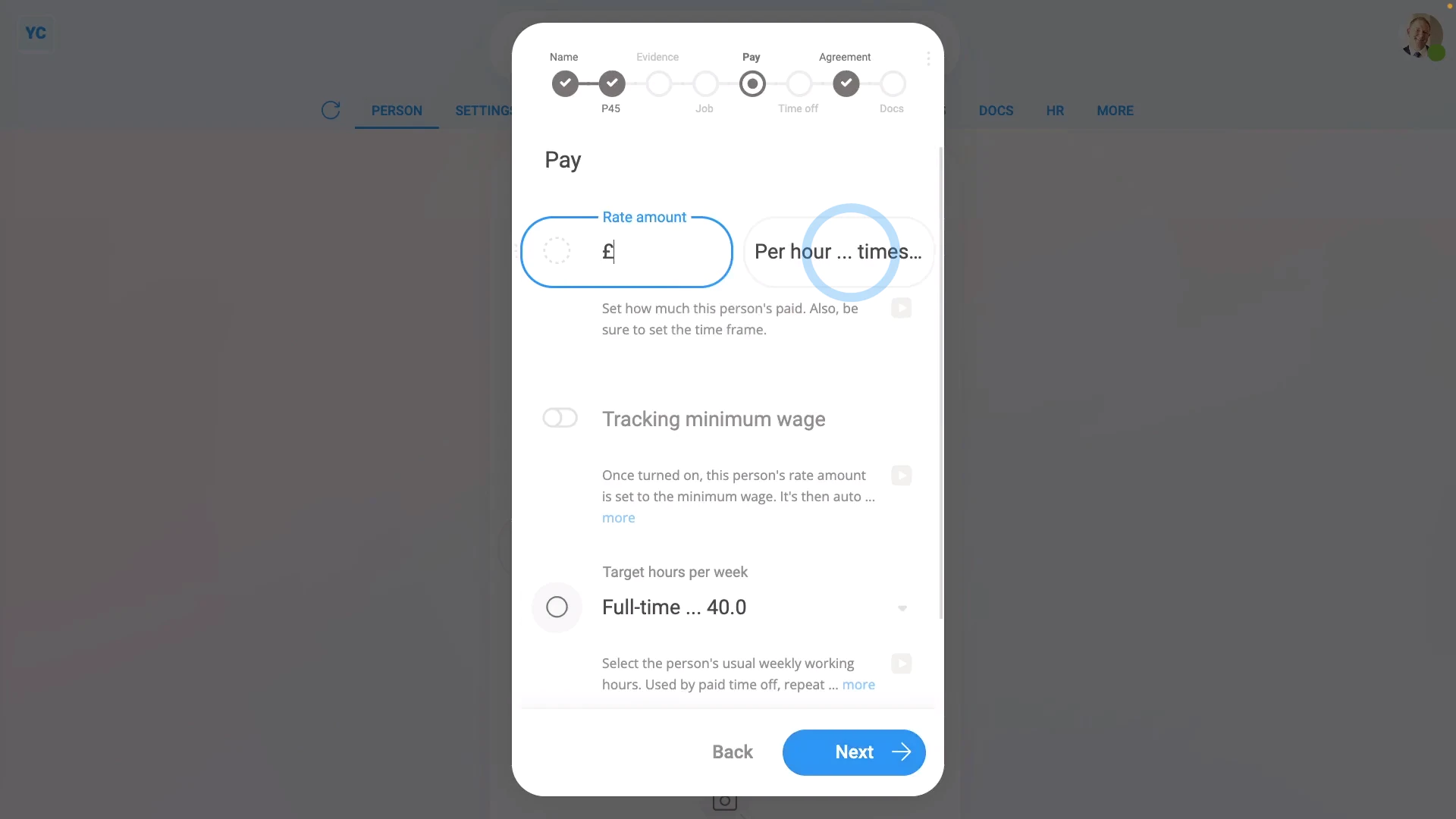
- Normally, you'd fill out all the onboarding details, but for the example, skip your way through to the "Pay" settings page.
- And finally, you'll see it's correctly set the new hire's rate time frame, using the default. So now you only need to type in their rate money amount.

Keep in mind that:
- You're still welcome to change each new hire to a different rate time frame, one-by-one, as you add them.
- Also, if you later change your mind, you can also change the default at any time.
- Plus, each payroll group can have a different default, to exactly match how you pay different people, in different locations.
To learn more:
- About the different rate time frames, watch the video on: Per year, per month, or per hour
 Per year, per month, or per hour
And that's it! That's everything you need to know about setting a new hire's default rate time frame!
www.1st.money/help/Onboarding/How_do_I_set_the_default_rate_time_frame_when_onboarding_a_new_hire