How do I use the 'History ... actions' report?

 2:18
2:18
"How do I use the "History ... actions" report?"
The "History ... actions" report shows you who's been doing what in your org, including creates, saves, deletes, un-deletes, and log ins.
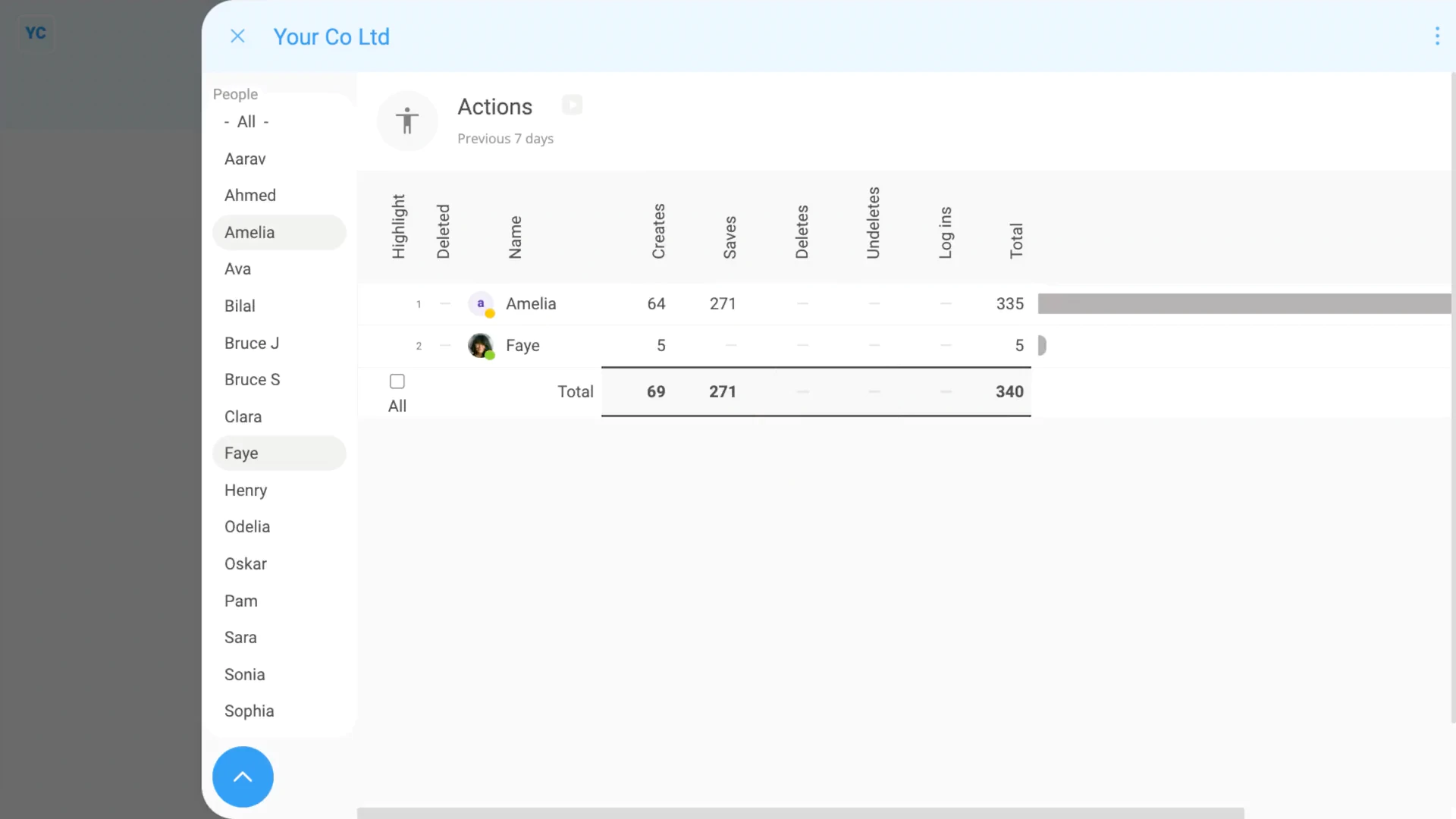
To see an "History ... actions" report:
- First, go to your org on: "Menu", then "Orgs"
- Then tap: "History", then "Actions"
- At first, you'll see a pie chart showing all actions by everyone in your org, over the last 30 days.
- When you hover your mouse over the pie chart, you'll see the numbers of each person's actions, by action type. The numbers help you to quickly see who's doing what.
- Then when you tap any pie chart segment, it slides out on the right, showing a drill-through to all the actions the person did.
- When you tap a person's pie segment, in the history list you see the most recent 25 of their actions.
- You can tap through to more pages of results (at the bottom of the page). More pages of results lets you see all of the person's actions over the last 30 days.
- When you tap a row, you'll see even more details.
- To only see actions that happened in the last 7 days, tap:
" Show settings", "Dates", then "Previous 7 days" - To see any actions from only a set of selected people, tap:
" Show settings", then "Show people" - Then Control + tap the people you want to see actions for.
- To see a table of numbers instead of a pie chart, tap:
" Show settings", then "Show grid" - And finally, to see a count of only one type of action, like "Saves", tap:
" Show settings", "Actions", then "Saves"
There's a lot of settings that you can adjust, to help you find exactly the info you're looking for.

Keep in mind that:
- The "History ... actions" report is only available to people with at least "View org admin" permissions.
And that's it! That's everything you need to know about using "History ... actions" reports!
www.1st.money/uk/help/Org/How_do_I_use_the_'History_..._actions'_report