3. How do I set a person's target hours?

 2:10
2:10
"How do I set a person's target hours?"
A person's target hours sets how many hours, each day, a person usually works.
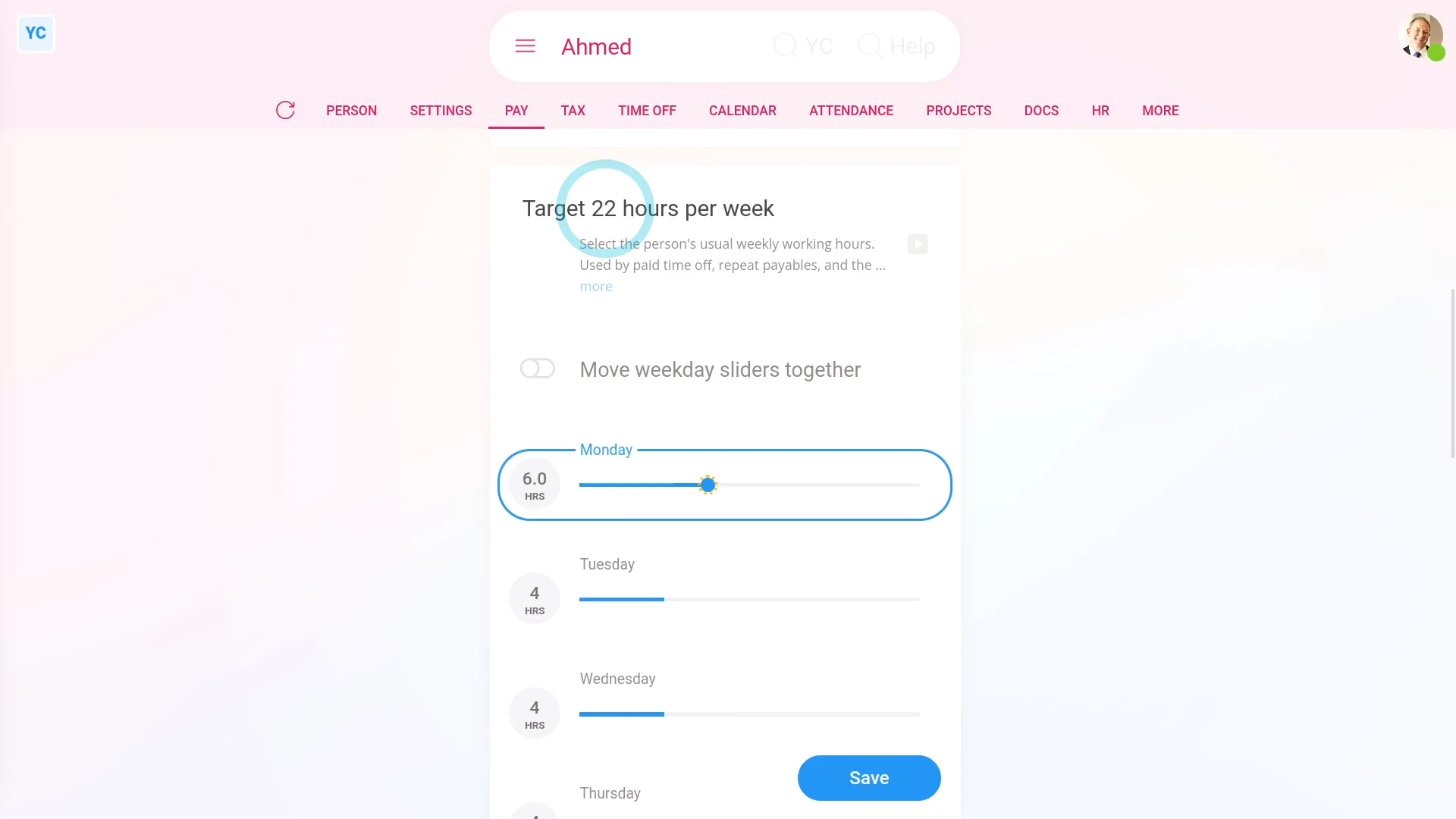
To change a person's target hours:
- First, select the person on: "Menu", then "People"
- Next, go to their: "Pay", then "Pay settings"
- Then scroll down to the "Target hours per week" heading.
- And you'll see the person's current target hours a day, and total hours a week.
- To change the person's target hours, drag one of the blue sliders.
- You'll see that all the Monday to Friday sliders have moved together, and that the total hours per week has updated.
- To change each day individually, turn off: Move weekday sliders together
- Now you can drag each slider individually.
- And again, the total hours per week has updated.
- And finally, once you tap Save, the person's target hours are applied to every unpaid payday thereafter.

Keep in mind that:
- When you invite a new person, the new person's set to the default target hours.
- The default target hours are: eight hours a day, Monday to Friday, or 40 hours a week.
- Target hours matter, for all employees, because target hours are used to calculate time off.
- If, for example, a person's target hours was 8 hours on Monday, and 4 hours on Tuesday.
- If the person took Monday off, the person would get 8 hours of time off.
- However, if the person took Tuesday off, the person would only get 4 hours of time off, because of their target hours.
Also remember that:
- Target hours are used for hourly paid people, when calculating estimates on pay and taxes.
- Also, target hours are occasionally used by a very small number of advanced repeat payables that're tied to an estimate of a person's weekly working hours.
And that's it! That's everything you need to know about setting a person's target hours!
2. What's the 'Per year', 'Per month' or 'Per hour' pay rate settingHow do I get a printable PDF of filed payslips
www.1st.money/uk/help/Payroll/3._How_do_I_set_a_person's_target_hours