5. How do I see payslips that've already been filed?

 3:24
3:24
"How do I see payslips that've already been filed?"
The "Paid payslips" history shows you all filed payslips for the payroll group, over any time frame.
To see payslips that've already been filed:
- First, select the payroll group on: "Menu", then "Payroll groups"
- Then tap: "Pay", then "Paid payslips"
- Now, you'll see a list of payslips that were filed in the last month.
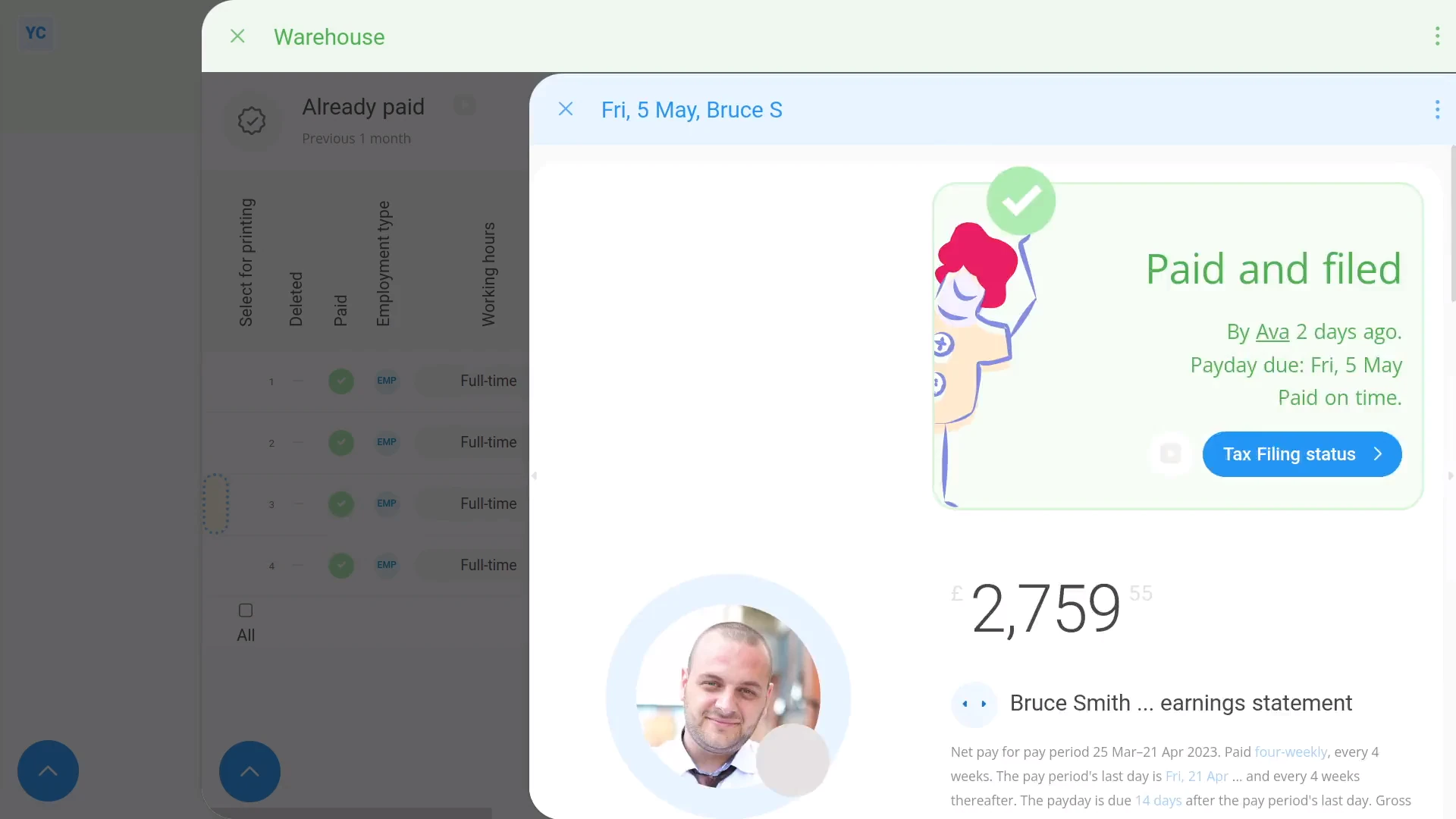
- To see more details about a payslip, tap the "See payslip" button: (at the start of any row)
- And you'll see the payslip open out (on the side).
- As you scroll across the "Paid payslips" history, you'll see info about each filed payslip, like net pay, taxable pay, etc.
- If you tap an amount, it opens the payslip, and highlights the amount you tapped.
- And finally, on some amounts in the payslip, you can mouse over the amount, and you'll see an explanation of how it's calculated.
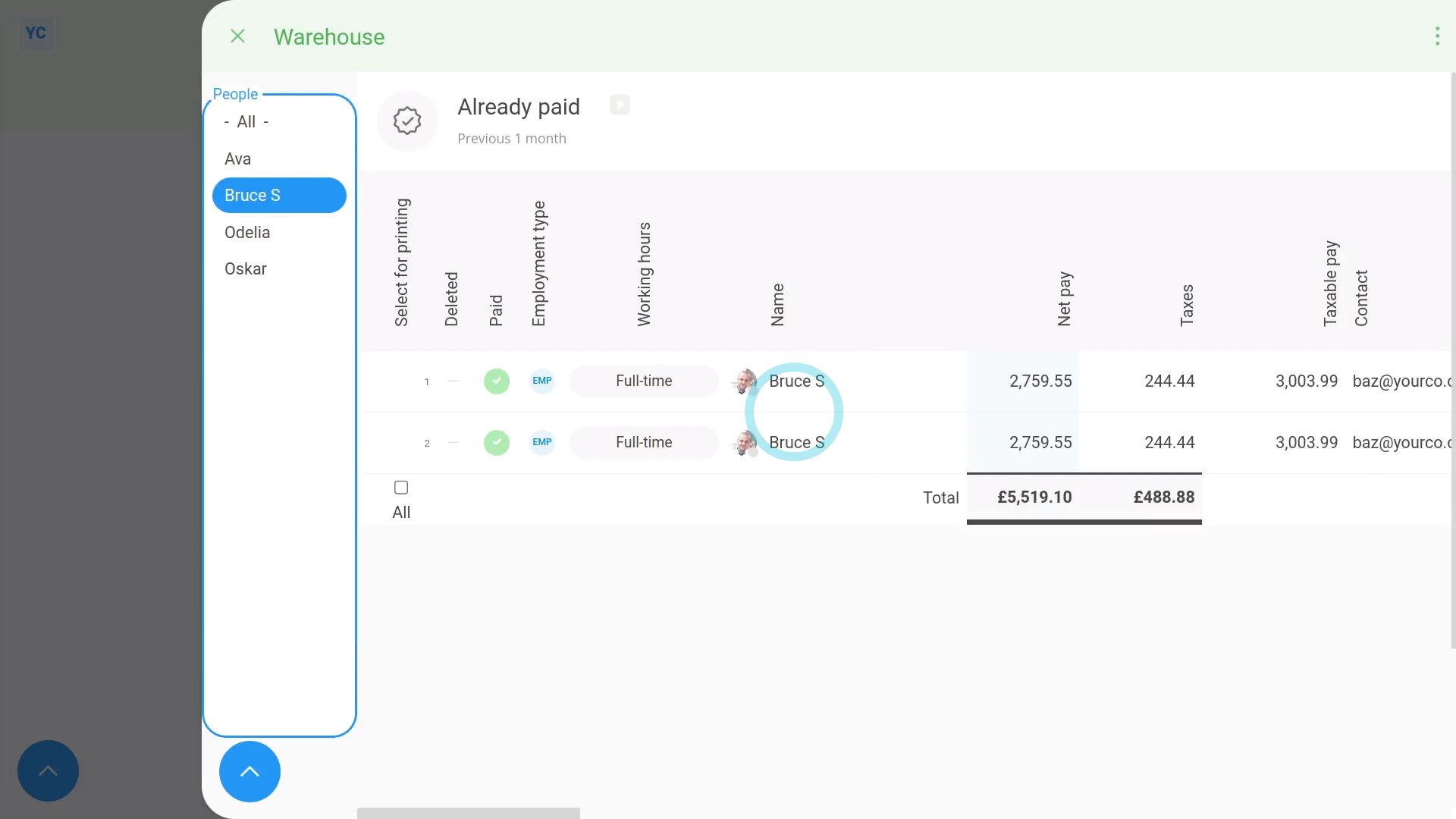
To see filed payslips for only a set of selected people:
- First, tap:
" Show settings", then "Show people" - Then Control + tap the people you want to see filed payslips for.
- Now it's only listing filed payslips for the people you chose.
- And finally, it's also showing the totals for only the selected people.
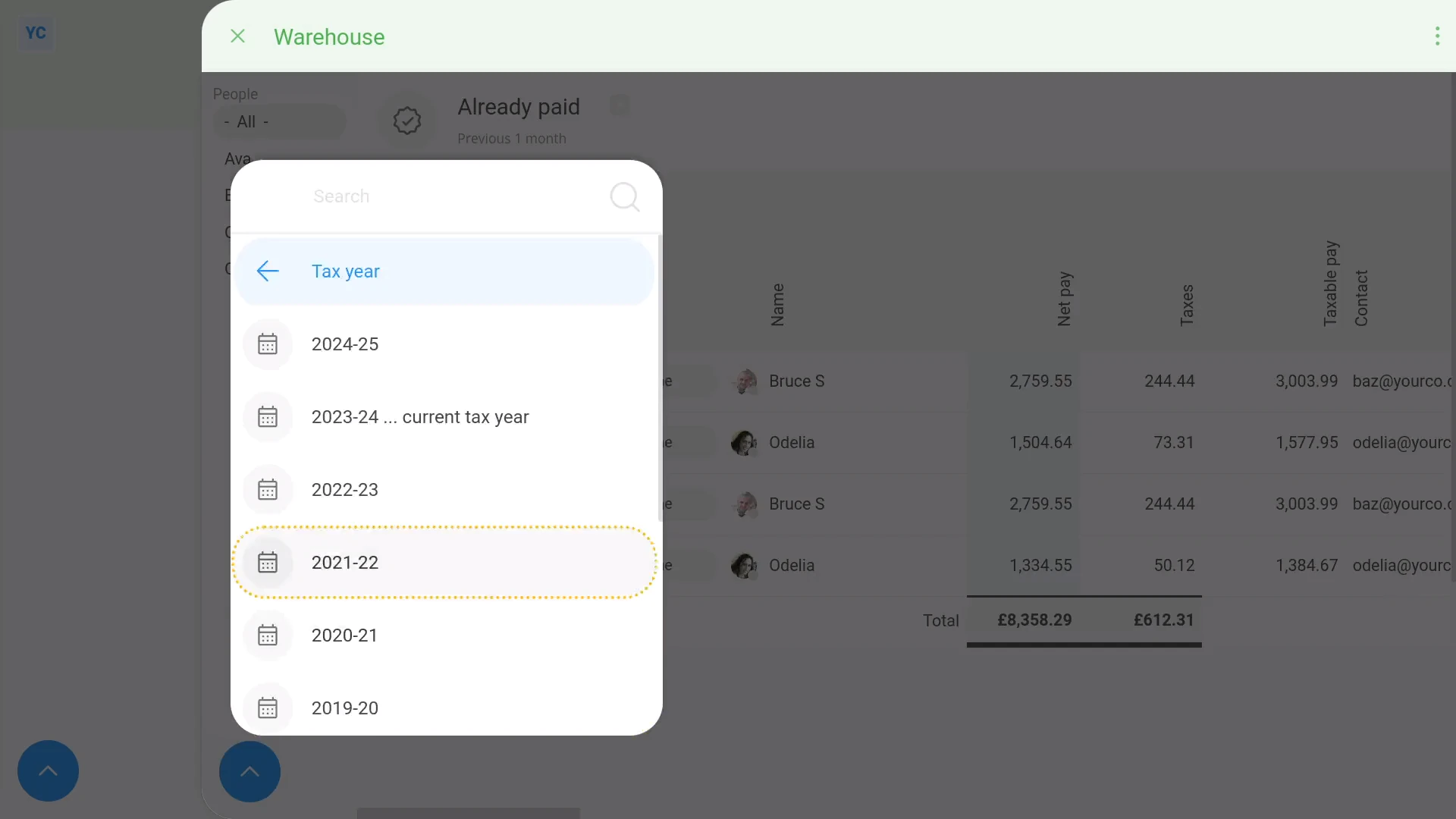
To show all of a payroll group's filed payslips for a single tax year:
- First, tap:
" Show settings", "Dates", then "Tax year" - Then select your tax year.
- And finally, you're now looking at all the payslips for the entire tax year.
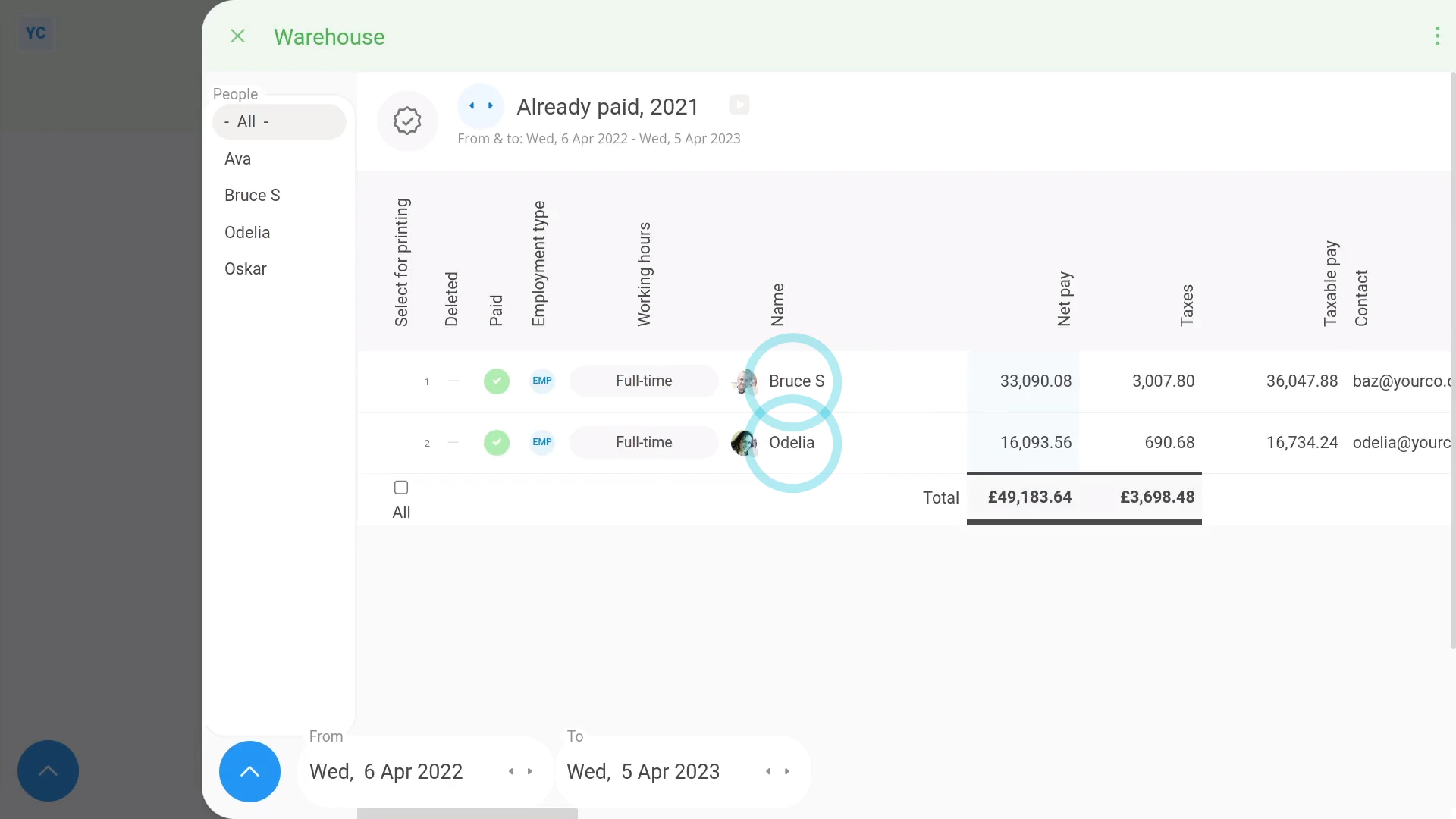
To show only one row of filed payslip summed amounts for each person:
- First, tap:
" Show settings", then "Combine payslips by person" - Now there's only one row for each person.
- And finally, you'll see the sum of each person's payslip amounts over the entire tax year.
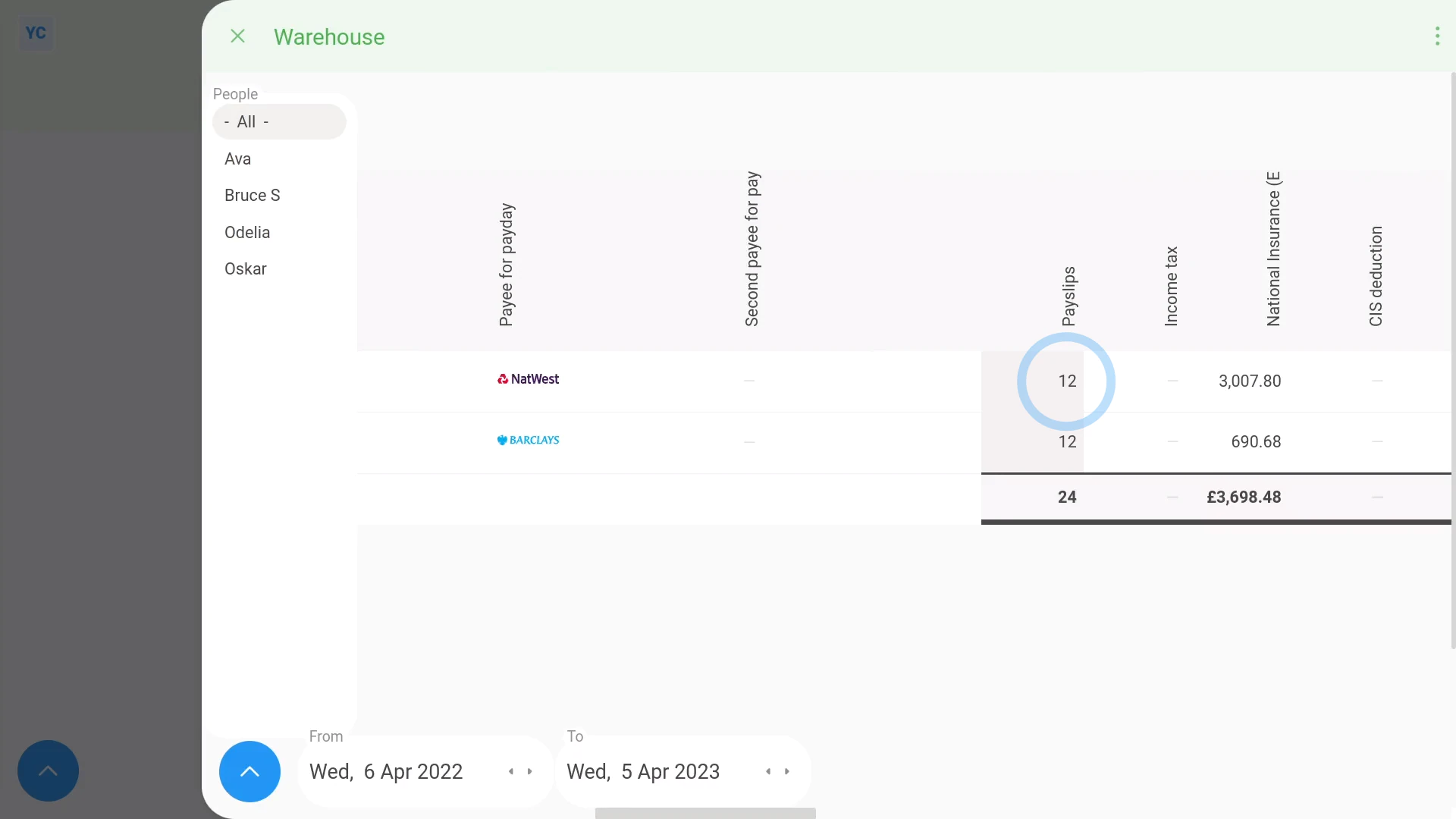
To check that filed payslip amounts cover all of a year's payslips:
- First, scroll over to the "payslips" column.
- If the people were paid monthly, make sure it says: "12"
- If a person joined part-way through the year, the amount may be less than twelve.
- And finally, if a person was paid weekly, the amount would be more like 52, or 53.
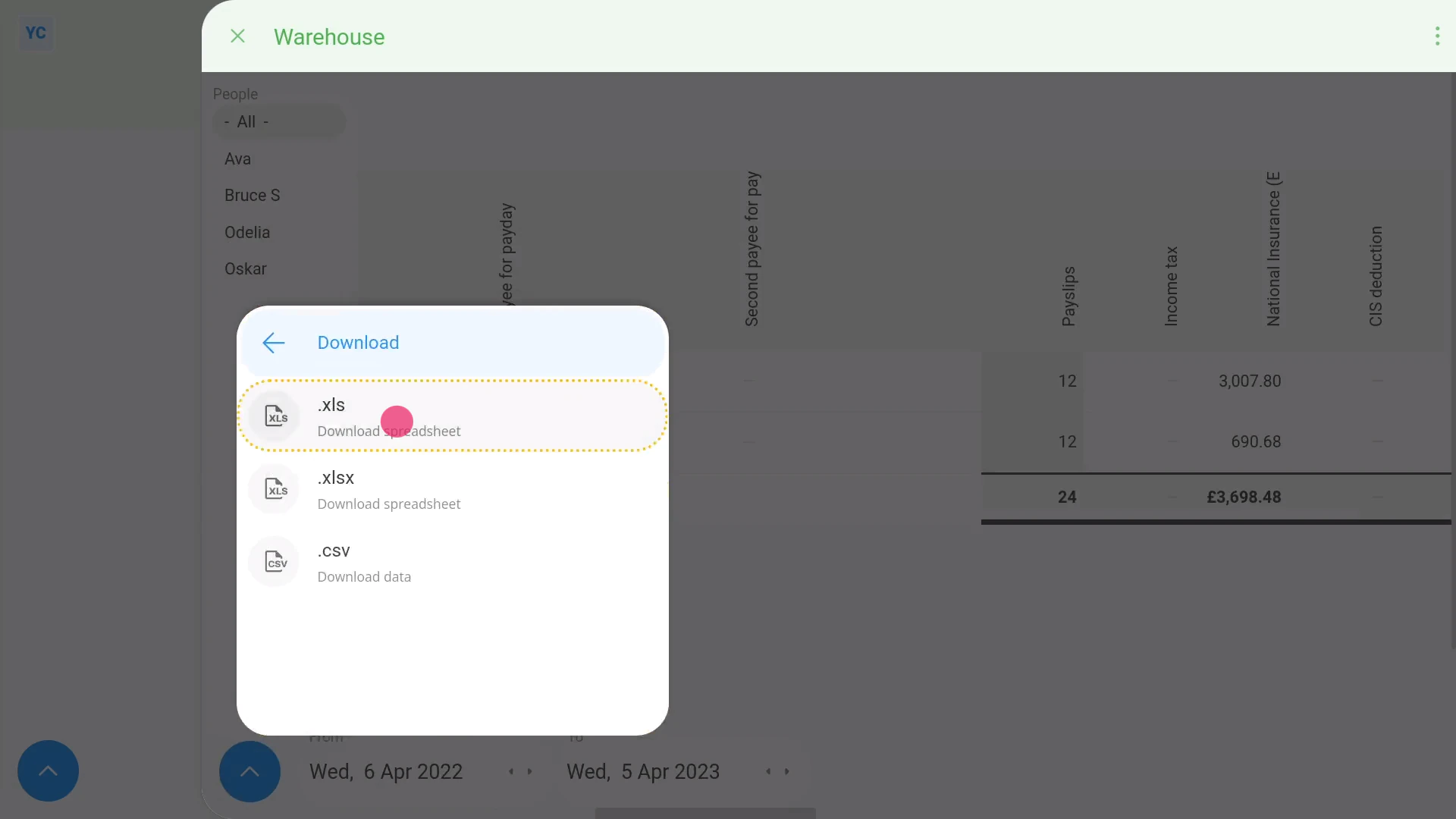
To download filed payslip amounts to an XLS file:
- First, get all your date filters set.
- Then to download the amounts to an XLS file, tap:
" Show settings", "More", "Download", then ".xls" - And finally, you've now got an XLS file for your own filed payslips calculations.

Keep in mind that:
- The "Paid payslips" history is only available to people with at least "View payroll admin" permissions.
To learn more:
- About how to download a printable PDF of a set of filed payslips, watch the video on: Multi-payslip PDF
 Multi-payslip PDF
And that's it! That's everything you need to know about using your payroll group's "Paid payslips" history!
www.1st.money/uk/help/Payroll_groups/5._How_do_I_see_payslips_that've_already_been_filed