What's the project summary for?
 1:57
1:57
"What's the project summary for?"
A useful place to see the people on the project is on the project's summary.
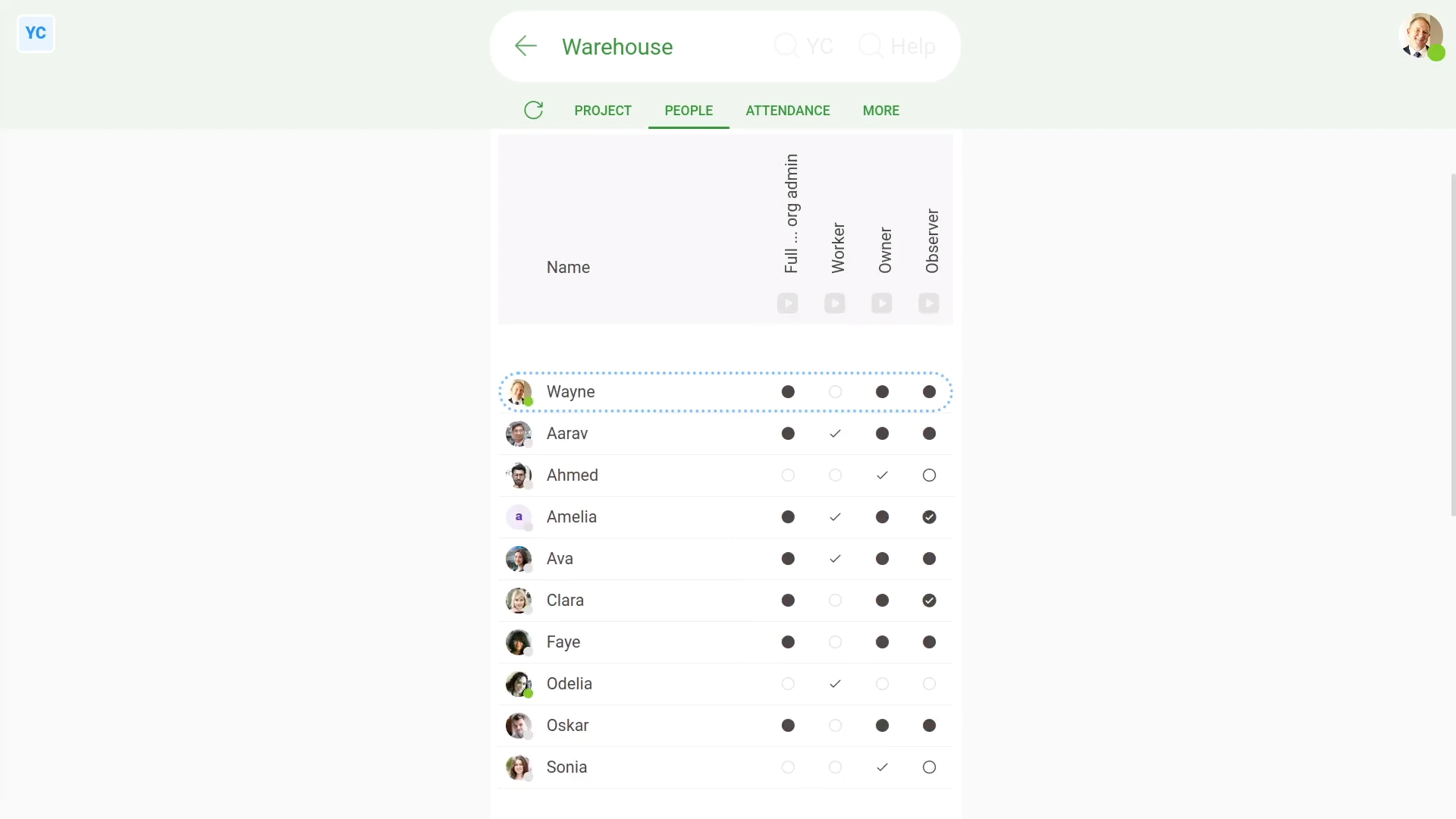
To see a project's summary:
- First, select the project on: "Menu", then "Projects"
- Then tap: "People", then "Summary"
- And finally, you'll see a full summary of everyone who's got access to the project.
A project's summary includes:
- What access each person's got in the project.
- And how each person got that access.
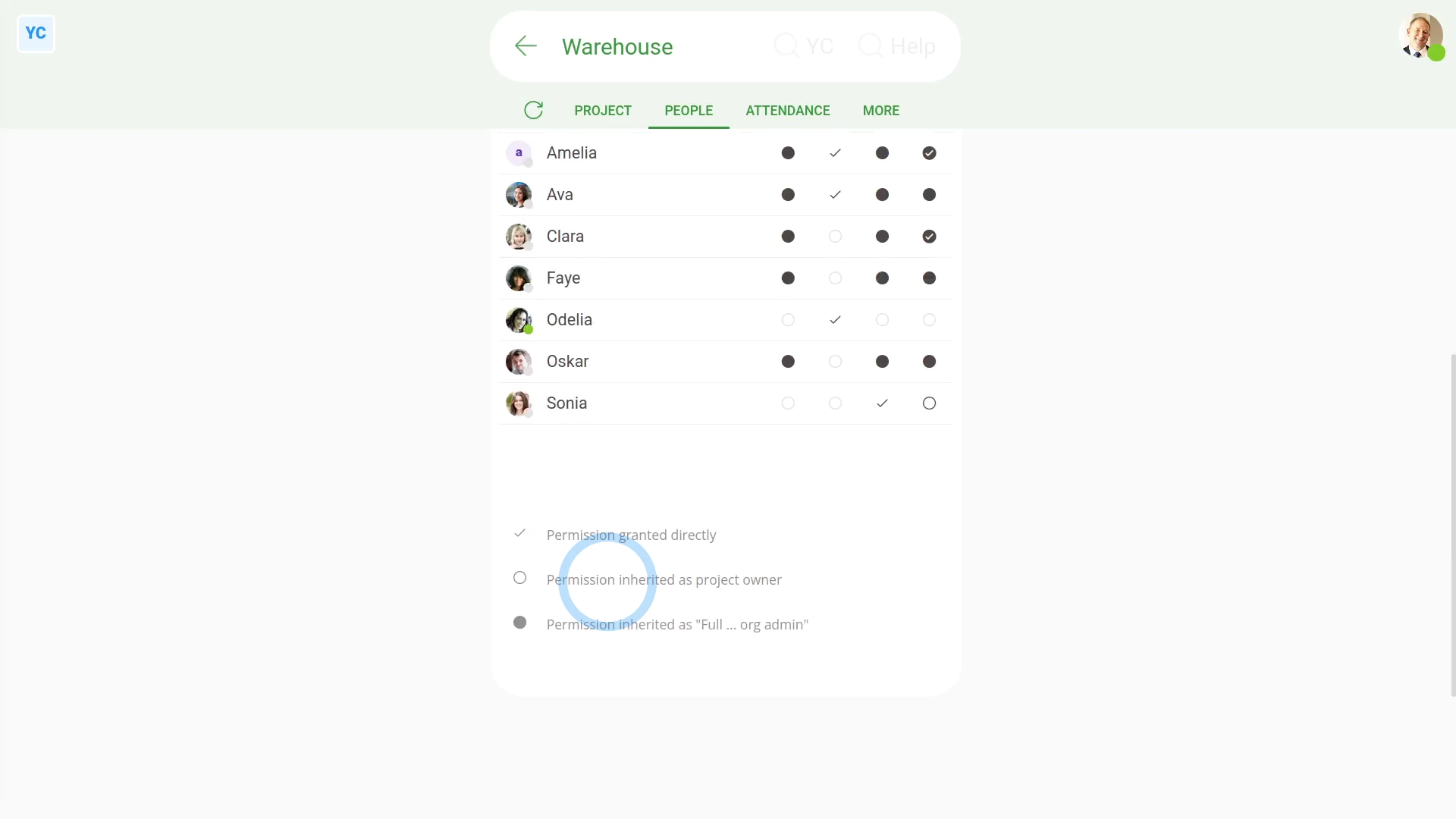
To understand what each tick and circle on a project's summary means:
- First, scroll down to see the legend (at the bottom).
- And finally, read through the legend to understand what each circle or tick means.
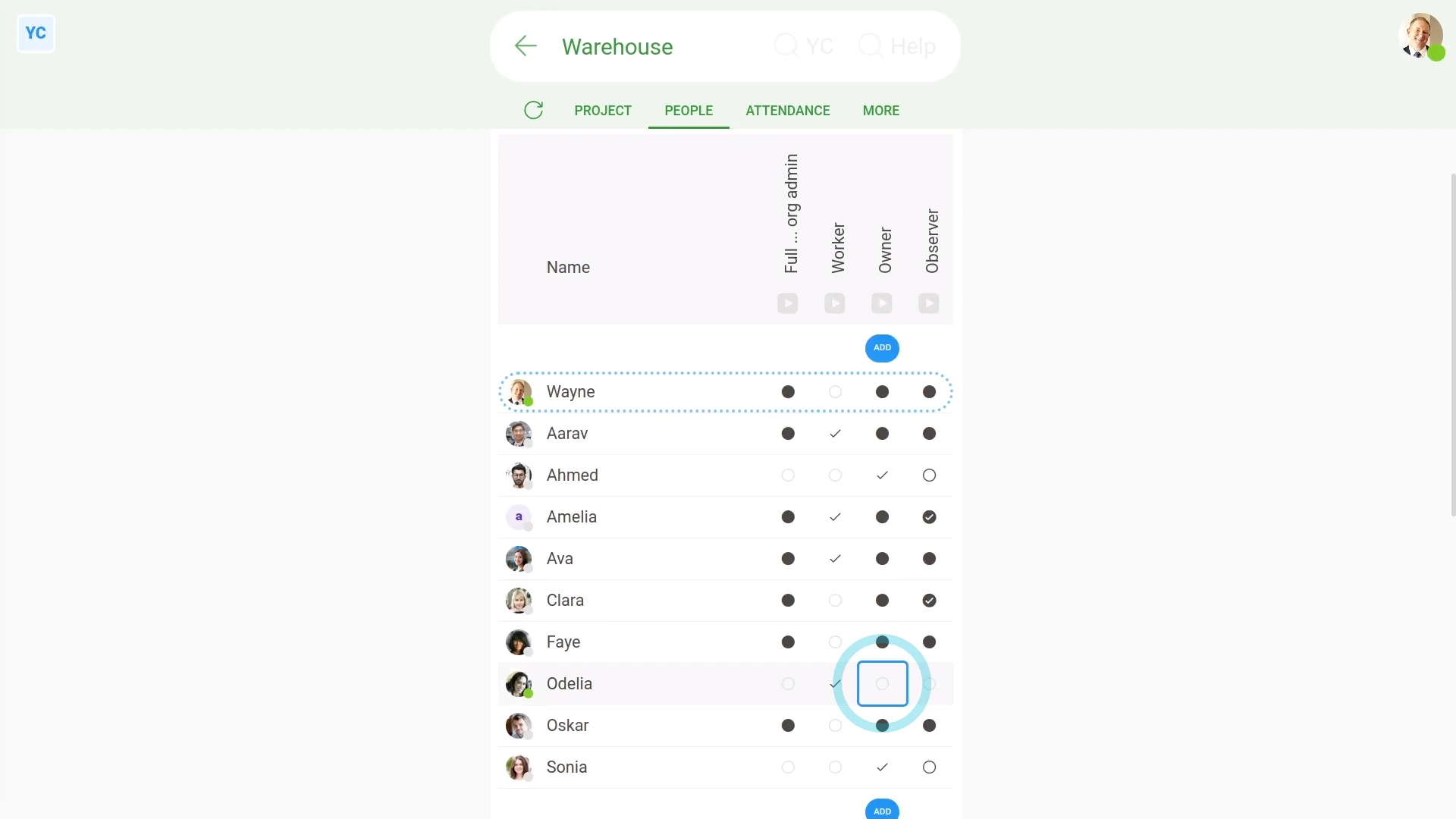
As an admin, you can use a project's summary to:
- Add more people. To do it, tap Add (at the top of each column)
- Also, when you hover your mouse over any part of the summary, you can tap that part to make a change directly.
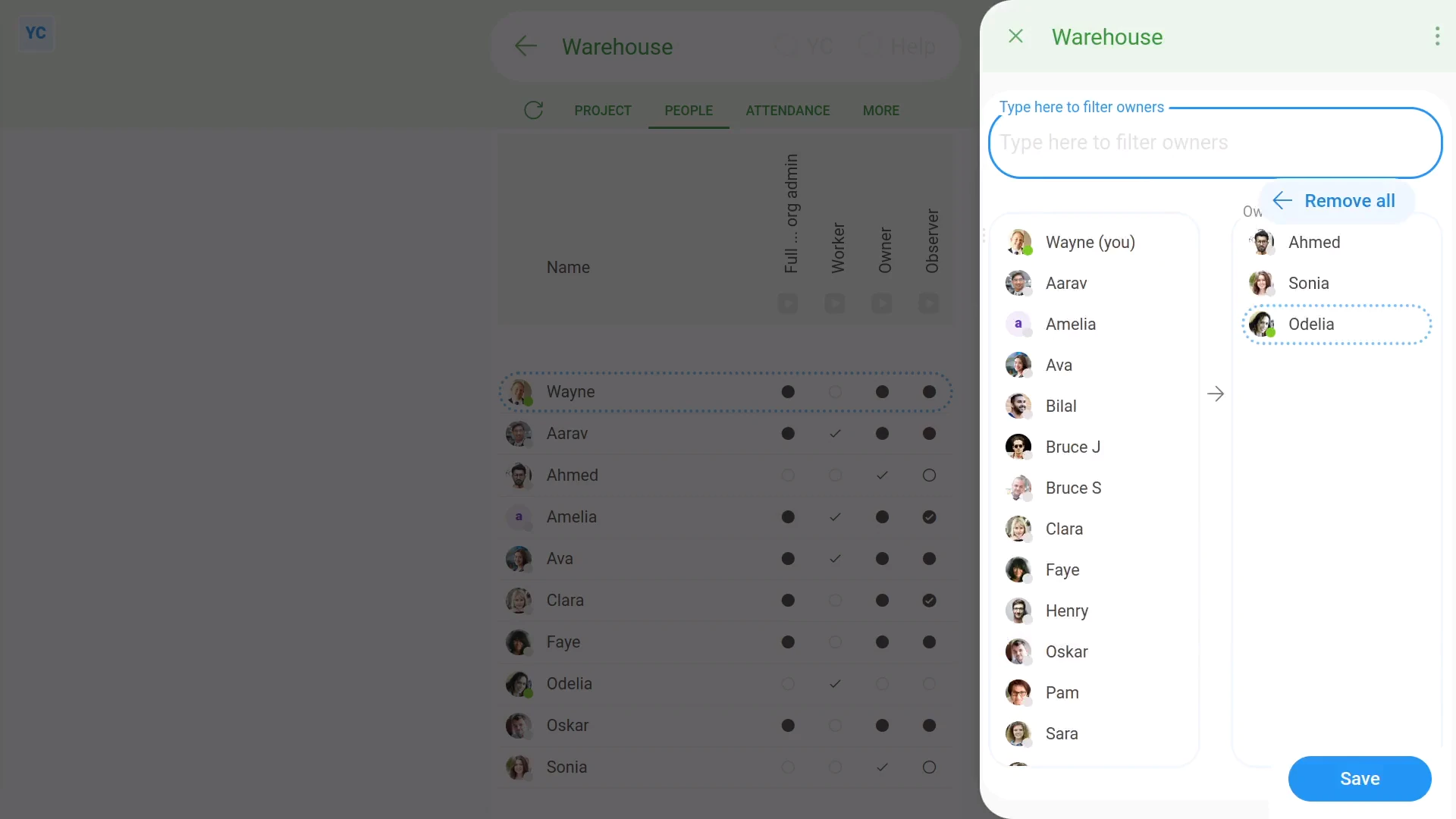
To add a person to a project, from a project's summary:
- First, tap the person in the column you want to add them.
- Once it slides out on the right, tap the person where it's highlighted, to push them over to the selected people list.
- Then tap: Save
- And finally, you'll see a tick confirming that the person's been added.

If a feature's not showing:
- If "Projects" isn't showing in the menu, it means your org hasn't turned on the timesheets feature yet.
- To turn on the timesheets feature, watch the video on: Turning on timesheets
 Turning on timesheets
And that's it! That's everything you need to know about a project's summary!
www.1st.money/uk/help/Projects/What's_the_project_summary_for