1. How do I request time off for myself?

 5:39
5:39
"How do I request time off for myself?"
Requesting time off is the first step in getting your time off approved.
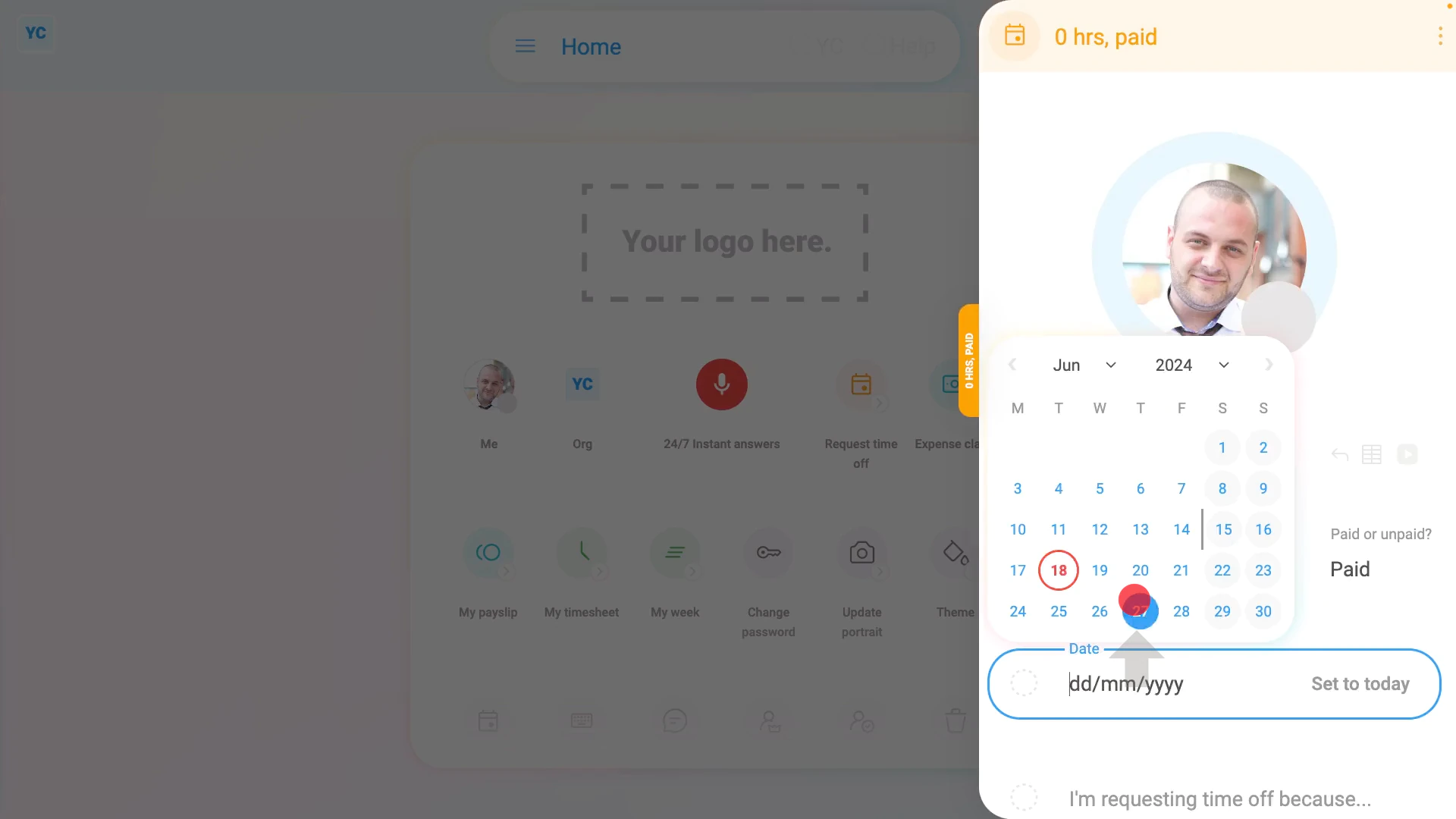
To request some time off for yourself:
- First, tap: "Request time off"
- Once it slides out on the right, select the date you'd like to take off.
- By default, it's set to a "Paid" time off request.
- To change it from "Paid" to "Unpaid" tap it.
- However, for salaried employees, time off is usually only ever "Paid", so the "Unpaid" option may be disabled.
- But hourly employees always get both the "Paid" and "Unpaid" options.
- Next, by default, your request's set to a "One day, whole day" time off.
- To request "Only a few hours" or "Multiple days", tap "Duration" and change it.
- If requesting "Only a few hours"
Drag the sliders to the exact start and end times of the day you'd like to request off. To the nearest 30 minutes. - Below, you'll see notes on your "PTO balance available" hours, both before, and after your request.
- If requesting "Multiple days"
You'll be prompted to also add the date of the time off's last day. - Again, you'll see your remaining hours, both before, and after your request.
- Next, you'll need to enter the reason for your time off request.
- You can type your reason directly, if you want, but most people select from the list.
- Near the bottom, you'll see your manager's name listed as the person who'll be asked to approve your time off request.
- Once everything's all set, tap: Send request
- And finally, in the background, an email's been sent to your manager to approve your time off.
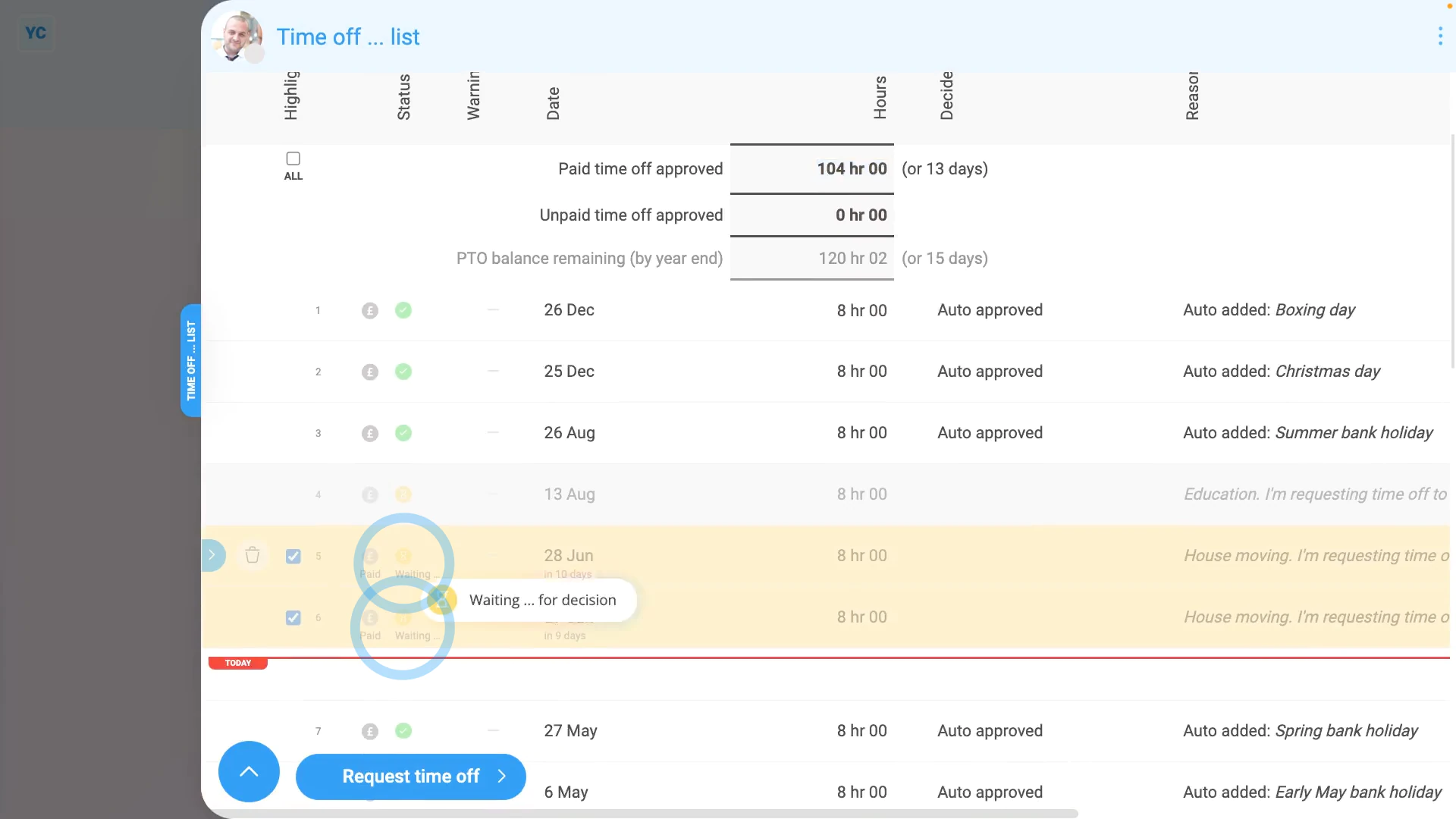
To see your recently requested time off, waiting for approval:
- First, open yourself on: "Menu", then "Me"
- Then tap: "Time off", then "Time off ... list"
- You'll see your recently requested time off marked as: "Waiting" (for approval by your manager)
- You'll also see your approved time offs, with a green tick.
- And finally, you'll see your total "PTO balance available" by year-end.
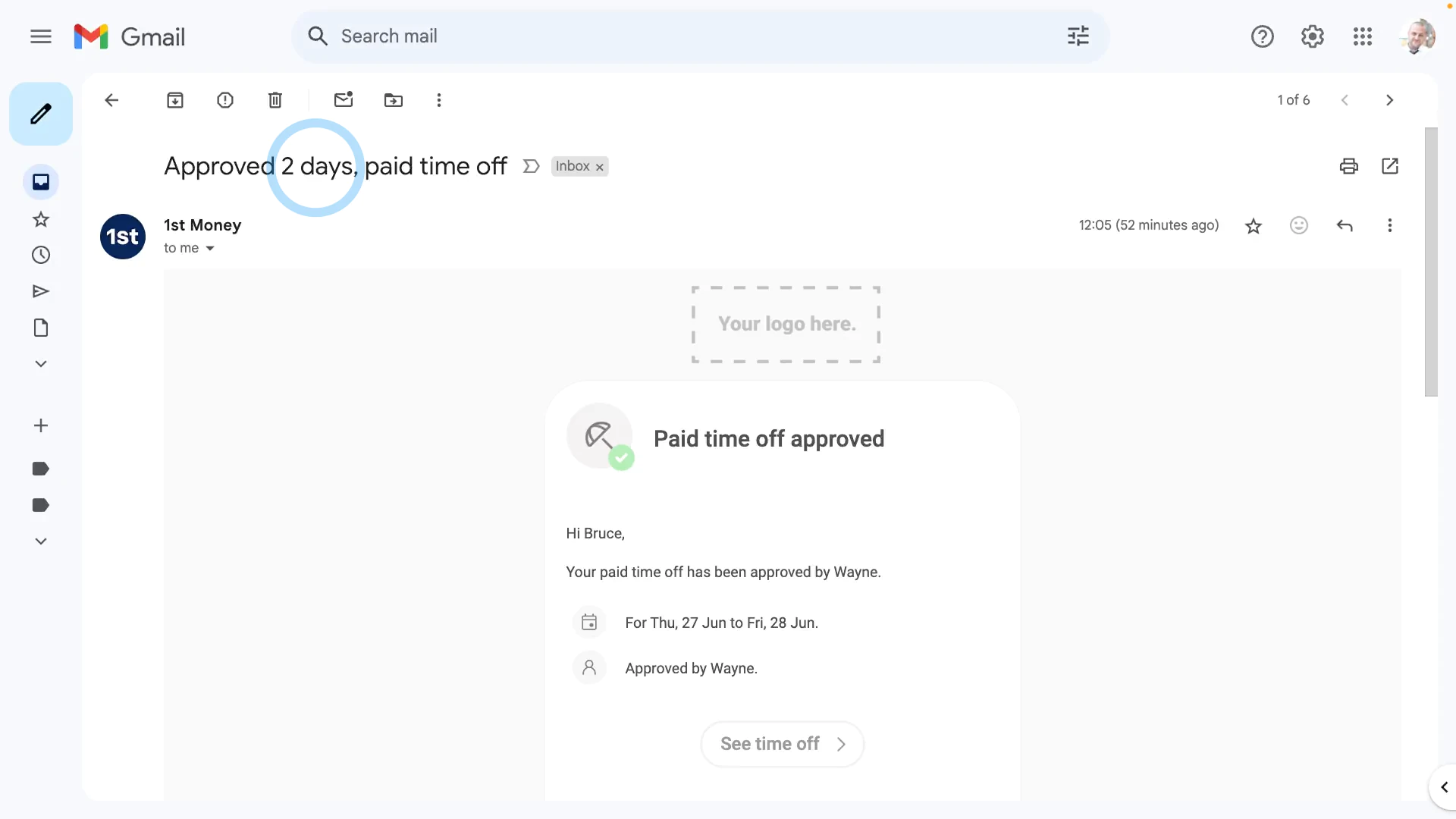
To see your time off email, once it's approved:
- First, once your manager's approved your time off, you'll get an email.
- From the email, tap: See time off
- And finally, you'll see the green tick showing that your time off's been approved.
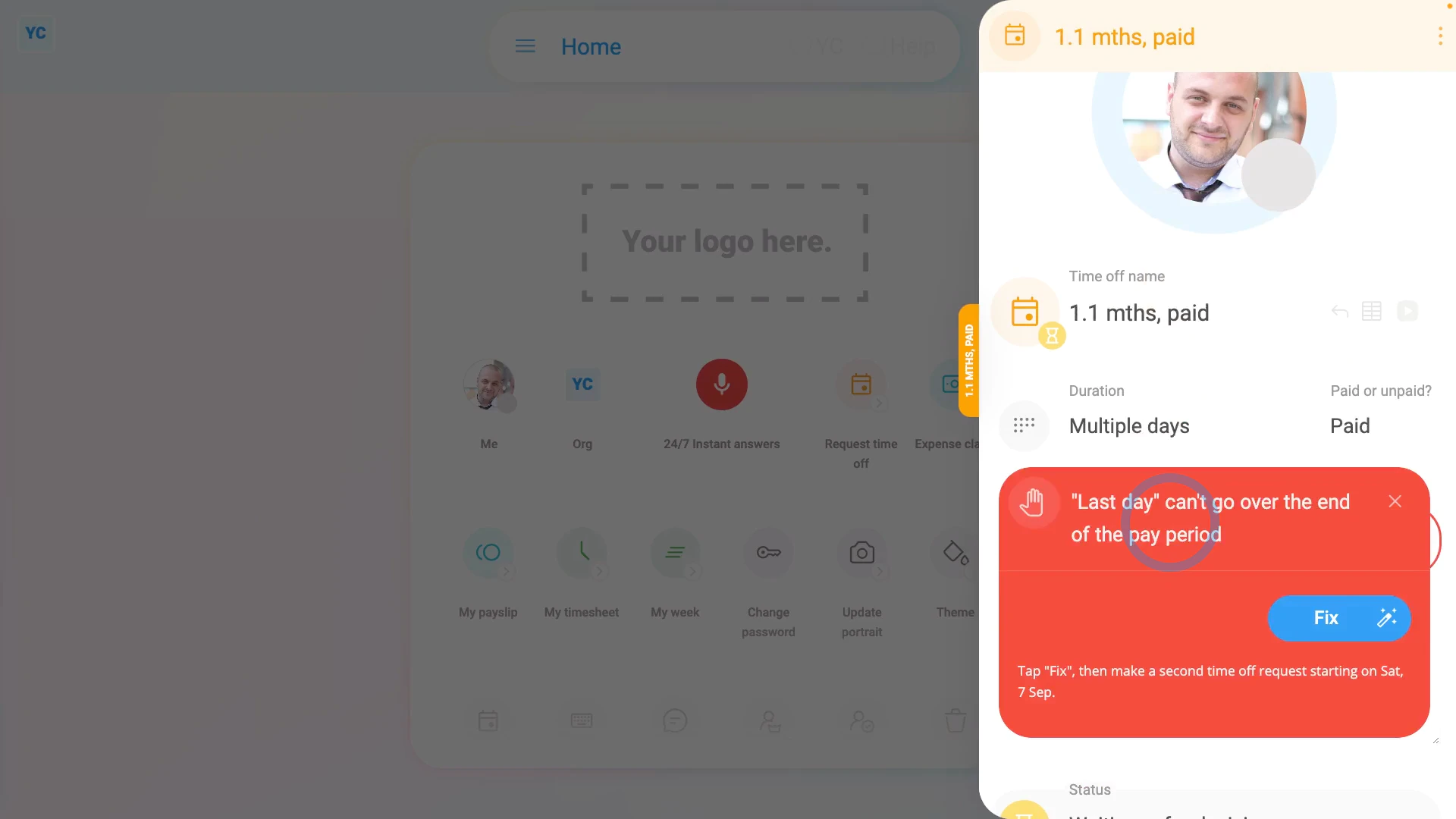
To see all five safeguards that guide your time off requests:
- First, tap: "Request time off"
- Once it slides out on the right, select the date you'd like to take off.
- Safeguard 1. Non-working days:
If you select a non-working day, which for most people is a Saturday or Sunday, you'll be warned to: "Try another date"
- Safeguard 2. Already approved days:
If you select a day that's already been approved as time off, you'll be warned to: "Try another date"
- Safeguard 3. Requests that go over the end of a pay period:
If you request paid time off that goes over the end of a pay period (shown by the grey line), you'll be warned that the: ""Last day" can't go over the end of the pay period" - When you get that warning, tap Fix, and it automatically sets the "Last day" of your request to the last day in the pay period.
- But please note, once you've sent the first request, next, send a second request for the remaining days of your intended time off.
- Safeguard 4. Requesting more than your "PTO balance available":
If you request more paid time off than's in your "PTO balance available", you'll be warned that you're over. - If you close the warning, and scroll down, you'll see the days, in red, that are over your: "PTO balance available"
- And above those, you'll see the last date that's an allowable: "Last day"
- Now, if you scroll up, and set it to that "Last day", the warning goes away, and you're back within your: "PTO balance available"
- Safeguard 5. Requesting time off when there's planned times:
If you request time off on days that a timesheet's got planned times, you'll be warned: "Timesheet has planned times" - The warning, however, doesn't stop you from sending your request.
- You're free to send your request, as your manager is also shown the warning and asked to change your planned times.
- And finally, that's all five of the safeguards that guide your time off requests.

Keep in mind that:
- Once approved, if you later need a time off to be changed or deleted, you can't do it yourself.
- Instead, you'll need to ask your manager or a person with "Full org admin" permissions to do it for you.
To learn more:
- About how it looks for a manager to approve a time off request, watch the video on: Approving & declining time off
- To learn more about allowing "Unpaid" time off for salaried people, watch the video on: Unpaid time off when salaried
- To learn more about setting which days are working versus non-working days, watch the video on: Target hours
 Approving & declining time off
And that's it! That's everything you need to know about requesting time off for yourself!
www.1st.money/uk/help/Time_Off/1._How_do_I_request_time_off_for_myself