2. How do I approve or decline time off?

 3:42
3:42
"How do I approve or decline time off?"
When a person requests time off, you'll get an email asking you to approve it, as their manager.
To approve or decline a requested time off:
- First, as their manager, you'll be the one to receive time off emails from the people you manage.
- Approving from your email:
If you'd like to change the request, or you're not sure if you're ready to approve it, tap the "Edit request" link. - In those cases where you don't approve of the time off, tap: Declined
- In most cases, however, to approve the time off, tap: Approved
- Which is all you need to do to see the "Time off approved" confirmation.
- Also, in the background, an approval email's sent to the person.
- What the requesting person sees:
When the requesting person opens their email inbox, the person sees an email letting them know that their time off has been approved. - Then from the "Approved" email, the person can tap See time off to see more details.
- Alternatively, when it's been declined, the person sees an email letting them know that their time off hasn't been approved.
- Then from the declined email, the person can tap: Edit for resubmit
- Approving from the "Time off list":
Another place to approve time off is on the person's: "Time off list" - To see the person's "Time off list", tap: "Menu", then "People"
- Then tap: "Time off", then "Time off ... list"
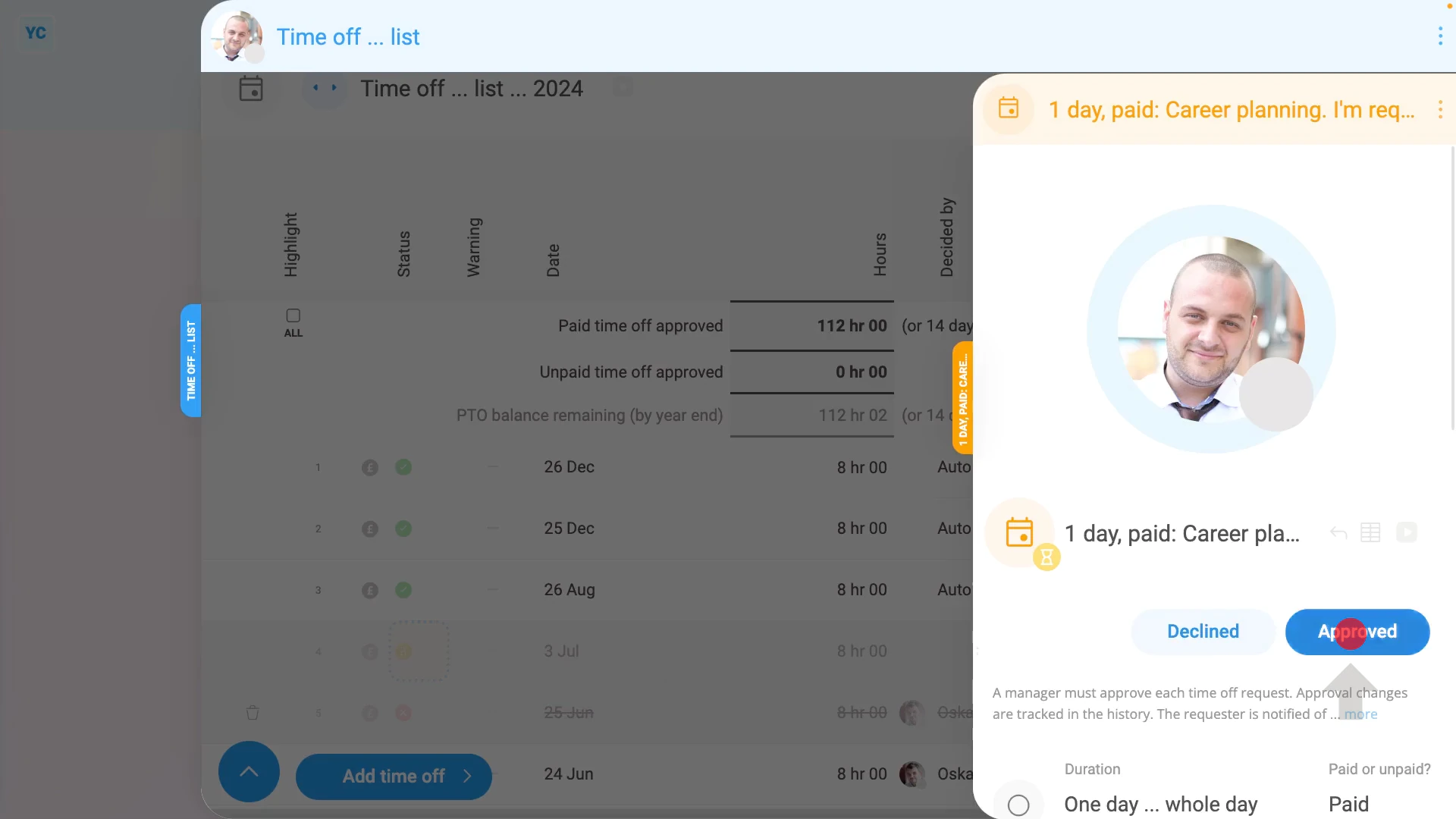
- If there's any time off that hasn't been approved, those time off rows have a yellow "Waiting for decision" circle.
- To approve the time off, tap the yellow circle.
- And then tap: Approved
- And finally, back on the "Time off list", you'll see the time off now has a green "Approved" circle, and an email's been sent.
To approve a requested time off on a day that's also got planned times:
- First, to see the person's "Time off list", tap: "Menu", then "People"
- Then tap: "Time off", then "Time off ... list"
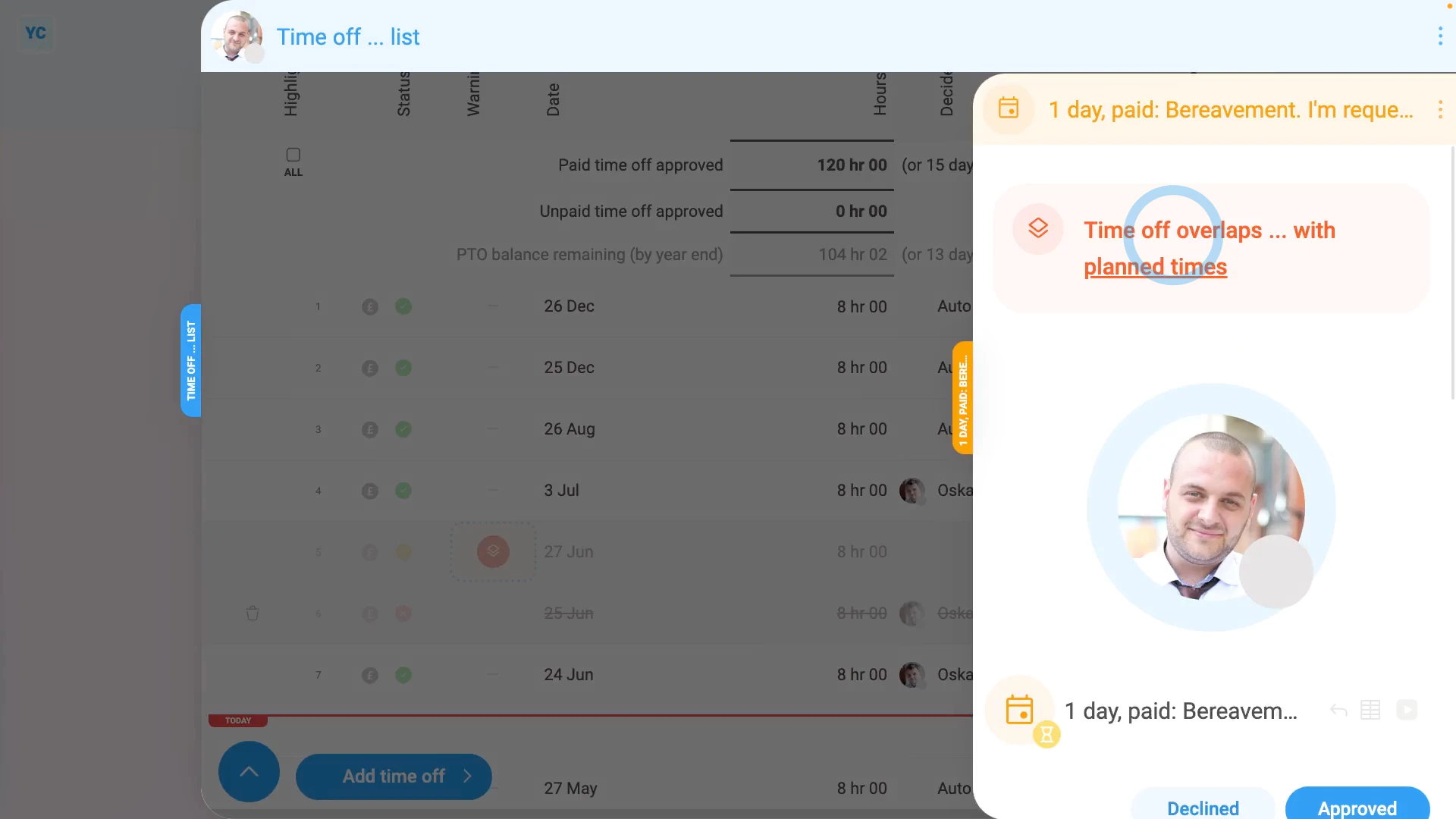
- Any time offs that overlap planned times have an orange warning circle, saying: "Timesheet has planned times"
- The warning, however, doesn't stop you from approving the time off.
- And once it slides out on the right, near the top you'll again see a big orange warning, saying: "Time off overlaps with planned times"
- Then when you tap Approved, the time off's approved, and an email's sent.
- However, you'll again be shown a warning about the overlap, with a link to the planned time's timesheet.
- It's highly recommended to delete the planned time now, or assign it to a different person.
- That way, when the person takes their time off, there won't be a gap in your time planning.
- To delete the planned time, tap the timesheet link, then tap the yellow planned time.
- And tap: Delete
- And finally, now when you update the other pages, the orange warnings have all gone away.

Keep in mind that:
- Time offs can be approved or declined by any person with "Full org admin" permissions.
- Time offs can also be approved or declined by the person's direct manager, even if the manager doesn't have "Full org admin" permissions.
- Supervisors, however, can't approve or decline time offs.
And that's it! That's everything you need to know about approving time off!
www.1st.money/uk/help/Time_Off/2._How_do_I_approve_or_decline_time_off