5. What's the paid time off top up?

 3:49
3:49
"What's the paid time off top up?"
The "PTO top up" is the number of hours that's added to a person's paid time off "PTO allowance" per month.
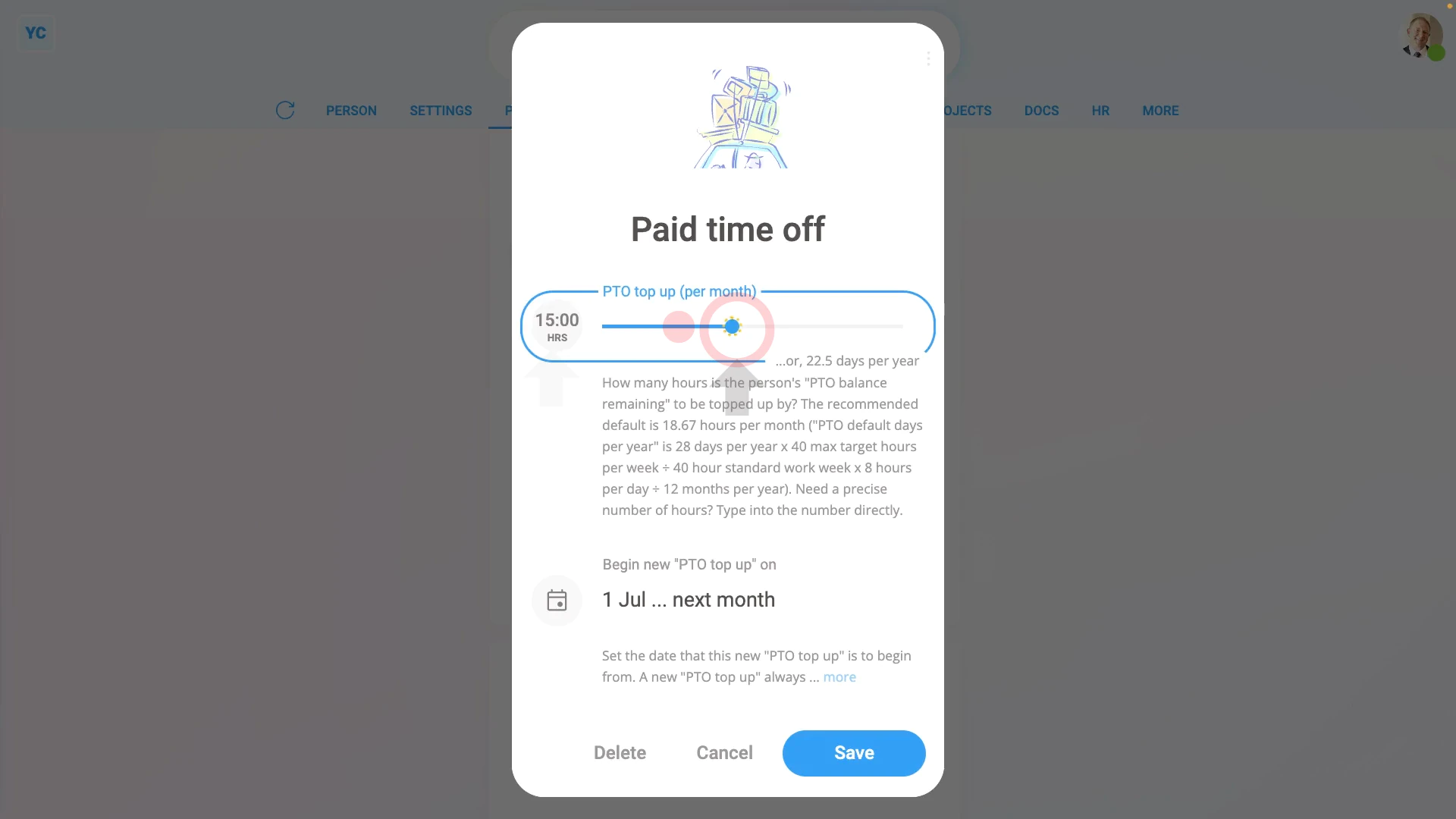
To set a person's "PTO top up":
- First, select the person on: "Menu", then "People"
- Next, go to their: "Time off", then "Time off settings"
- And tap: "PTO top up (per month)"
- In most cases, the person's "PTO top up" matches the payroll group's "PTO default days per year", after it's converted to an hours per month number.
- To see notes on how the payroll group's "PTO default days per year" is converted to hours per month, tap the "more" link.
- To set "PTO top up", you can either drag the slider, or type in the number of hours directly.
- As soon as you drag the slider, or type in the hours, you'll see the estimated "days per year" instantly update.
- Next, to set when the new "PTO top up" is to begin, tap "Begin new "PTO top up" on", and select the beginning date.
- Because PTO's topped up on the 1st of each month, only dates that are the 1st of each month can be selected.
- You can opt to schedule the new "PTO top up" to begin months into the future. But the earliest you can select is the 1st of next month.
- And when you're ready, tap: Save
- And you'll now see the new "PTO top up" hours are scheduled to begin on the 1st of the month you selected.
- Once the first "PTO top up" is scheduled, if you want to optionally schedule a second, tap the "Add another" link.
- And once you've set the second "PTO top up" hours and begin date, tap: Save
- And you'll now see the second "PTO top up" hours also scheduled.
- You can add as many scheduled "PTO top up" hours as you need, up to 24 months into the future.
- Or to delete one, tap its link, and tap: Delete
- And finally, the second scheduled top up is instantly removed, and you're only left with the first scheduled top up.

You may notice:
- That every person's "PTO top up" is set as an hours per month amount.
- However, not everyone has their "PTO top up" actually added to their "PTO allowance" on the 1st of each month.
- Some people can be set to receive 12 months worth of "PTO top up" on the first day of each year, on January 1st.
- To learn more about when each person's "PTO top up" is added to their "PTO allowance", watch the video on: PTO top-ups
 PTO top-ups
Keep in mind that:
- The "PTO top up" setting only shows for people whose "Employment type" is "Employee" or: "Zero-hour worker"
- To check the "Employment type" of the person, scroll up to the "Pay settings" heading.
- And tap: "Employment type" (at the top)
- You'll see that the employment types are all listed as "No" for "Paid time off", except for "Employee" and: "Zero-hour worker"
For advanced usage:
- If you need a number bigger than the slider can be dragged to, type into the number directly.
- The maximum it can handle is 200 hours per month, which is about 300 days per year.
To learn more:
- About how to set a payroll group's "PTO default days per year", watch the video on: Paid time off settings
And that's it! That's everything you need to know about how to set a person's "PTO top up"!
4. Where can I see all the time off for a person, all in one placeHow's time off set when switching from a previous payroll platform
www.1st.money/uk/help/Time_Off/5._What's_the_paid_time_off_top_up