How do I use the 'Time off totals' report?

 1:50
1:50
"How do I use the "Time off totals" report?"
The "Time off totals" report shows you a one-page summary of all the time off for your people in a payroll group.
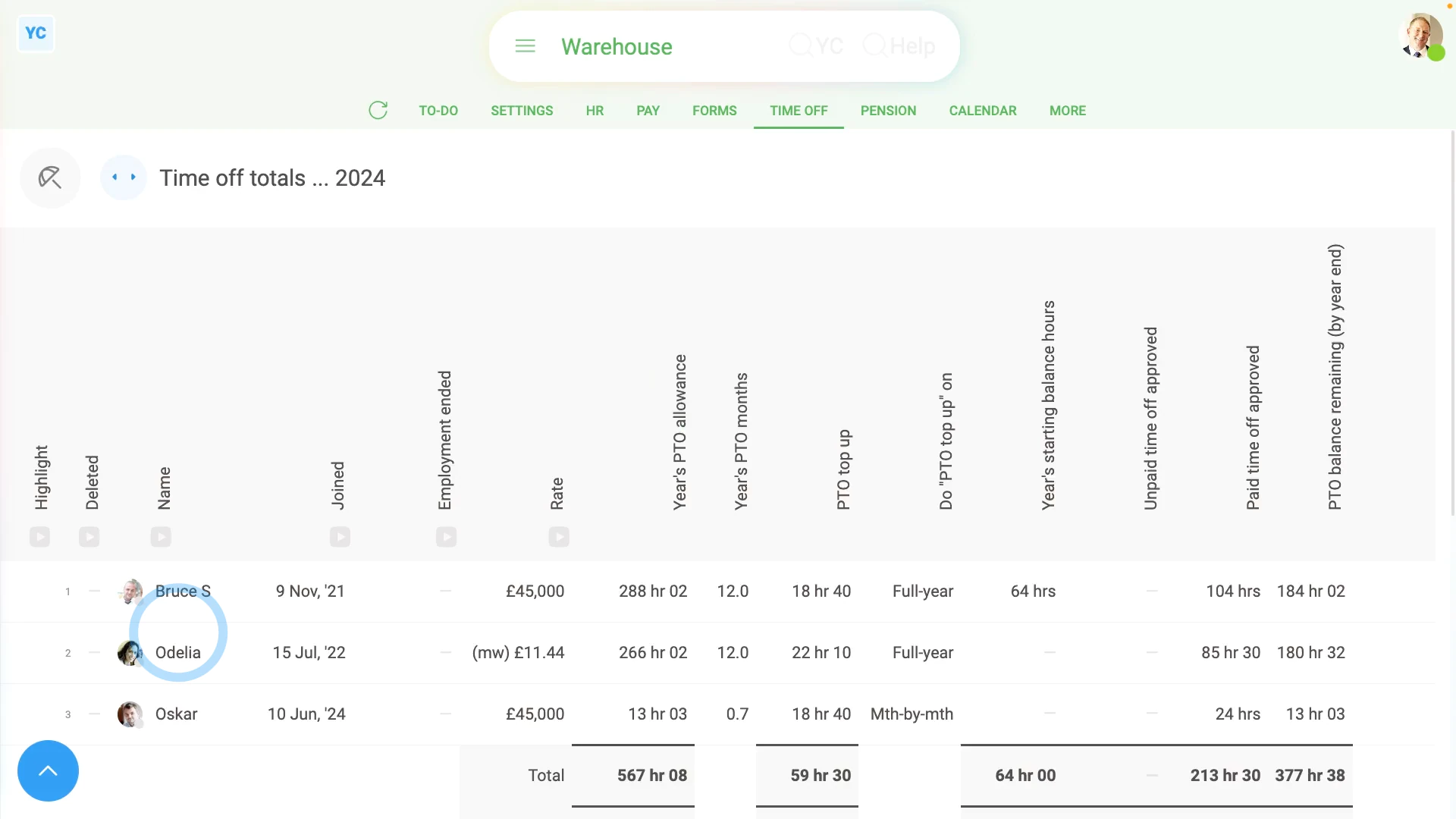
To see a payroll group's "Time off totals" report:
- First, select the payroll group on: "Menu", then "Payroll groups"
- Then tap: "Time off", then "Time off totals"
- Once it's open, you'll see a list of people.
- With info about each person, like their:
- "Date joined"
- "Rate amount"
- The total allowance of PTO each person's got for the year.
- The number of months worth of PTO each person's got for the year.
- How much additional PTO each person gets topped up with per month.
- When each person gets their: "PTO top up (per month)"
- How much PTO each person carried over from the previous year.
- How much unpaid and paid time off each person's taken so far in the current year.
- And how much PTO balance each person's got remaining.
- By default, the "Time off totals" report shows the current year.
- To go back or forward a year, tap: Previous year and Next year (at the top)
- To update something about a person from the "Time off totals" report:
tap the cell you want to change. - Once it slides out on the right, make your change.
- Then tap: Save
- And finally, you'll now see that the "Time off totals" report's automatically updated, as you save each change.
And that's it! That's everything you need to know about using "Time off totals" reports!
How do I turn on unpaid time off for my salaried peopleWhat's the 'PTO year's starting allowance hours' for in time off
www.1st.money/uk/help/Time_Off/How_do_I_use_the_'Time_off_totals'_report