4. How do I download my letter or doc as a PDF, and print it?

 1:57
"How do I download my letter or doc as a PDF, and print it?"
One of the main benefits of creating letters or docs is downloading them as a PDF, and printing them.
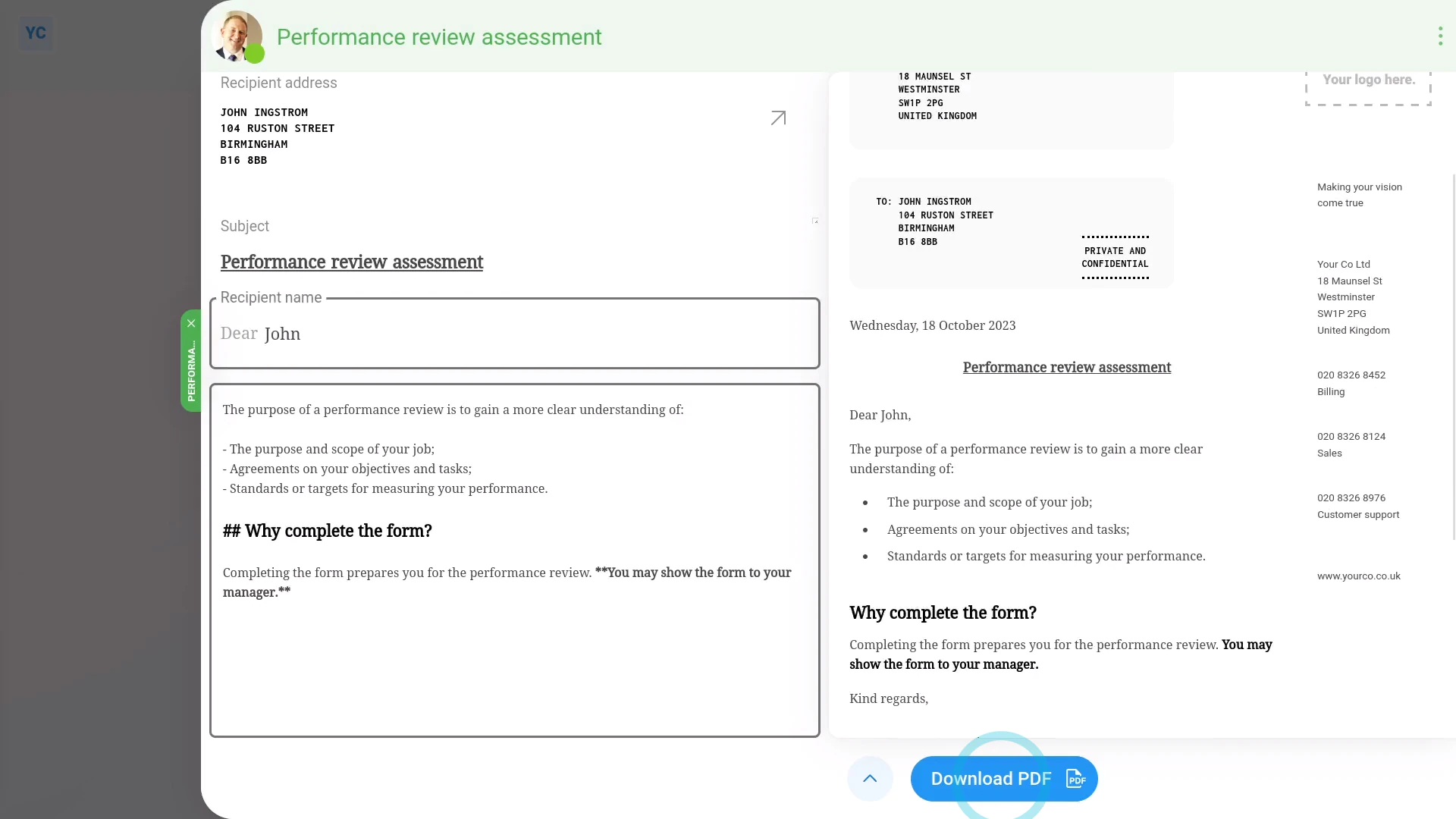
To download your letter or doc as a PDF, and then print it:
- First, tap: "Menu", "Docs ... all", then "New doc"
- Then decide between "New letter" and: "New doc"
- Once it slides out on the right, you can set the "Document name" and contents of your doc to whatever you like.
- Then to download a doc as a PDF, tap: Download PDF (at the bottom)
- You can also find Download PDF in the bottom menu:
- The download takes a few seconds while it generates a PDF that includes your company's letterhead on the side of the first page.
- Once it's downloaded, tap the downloaded PDF to see it.
- And finally, to print your downloaded PDF, tap the "Print" button: (in the top-right corner)

You may notice:
- That for both A4 and letter paper sizes, when printed, the "To" address is perfectly positioned for windowed envelope mailing.
To learn more:
- About how to change the "PDF paper size", watch the video on: Changing PDF paper size
 Changing PDF paper size
Keep in mind that:
- If docs aren't showing, it means your org hasn't turned on the docs feature yet.
- To turn on the docs feature, watch the video on: Turning on HR Docs
And that's it! That's everything you need to know about downloading a letter or doc as a PDF, and then printing it!
3. How do I format the contents of my letter or doc5. How do I email a letter or doc with recipient confirmation
www.1st.money/help/HR_Docs/4._How_do_I_download_my_letter_or_doc_as_a_PDF,_and_print_it