How can workers adjust their own timesheet times?

 3:27
3:27
"How can workers adjust their own timesheet times?"
Sometimes timesheet times are entered wrong and need to be adjusted.
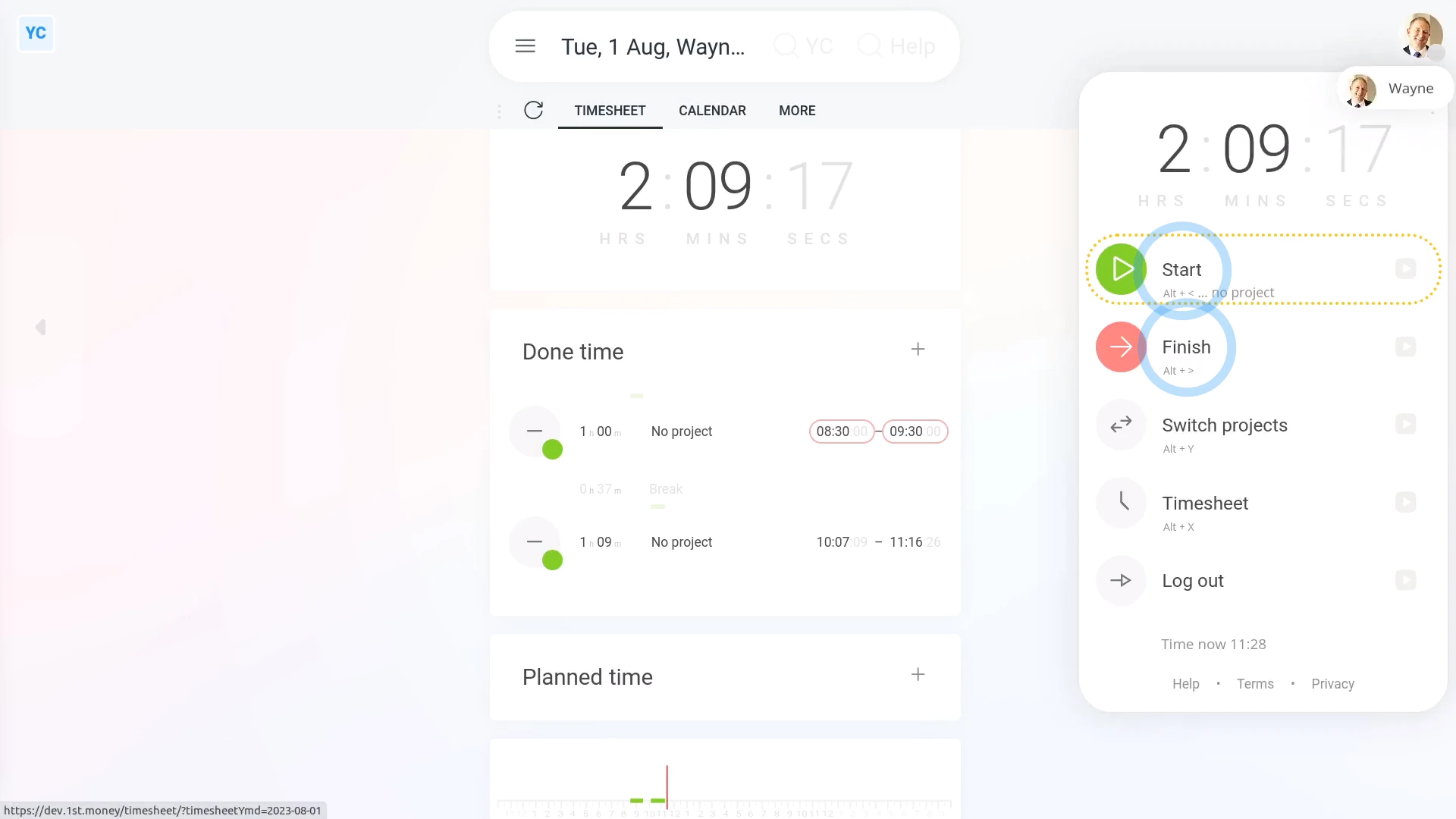
There's two ways to set timesheet done times:
- The first is where people clock-in timesheet time starts and stops throughout their working day. Each clocked-in timesheet time stores exact start or stop times to the second.
- The other is "manual adjustments", set directly on the timesheet, usually by admins or managers. Manual adjustments are always highlighted with a red warning border, and only store their start or stop times to the nearest minute.
To reduce false hours and timesheet fraud, the people who can do timesheet "manual adjustments", by default, are limited to only admins or managers.
Some orgs, however, may prefer to bypass the default, and allow every person to manually adjust their own timesheet times directly.
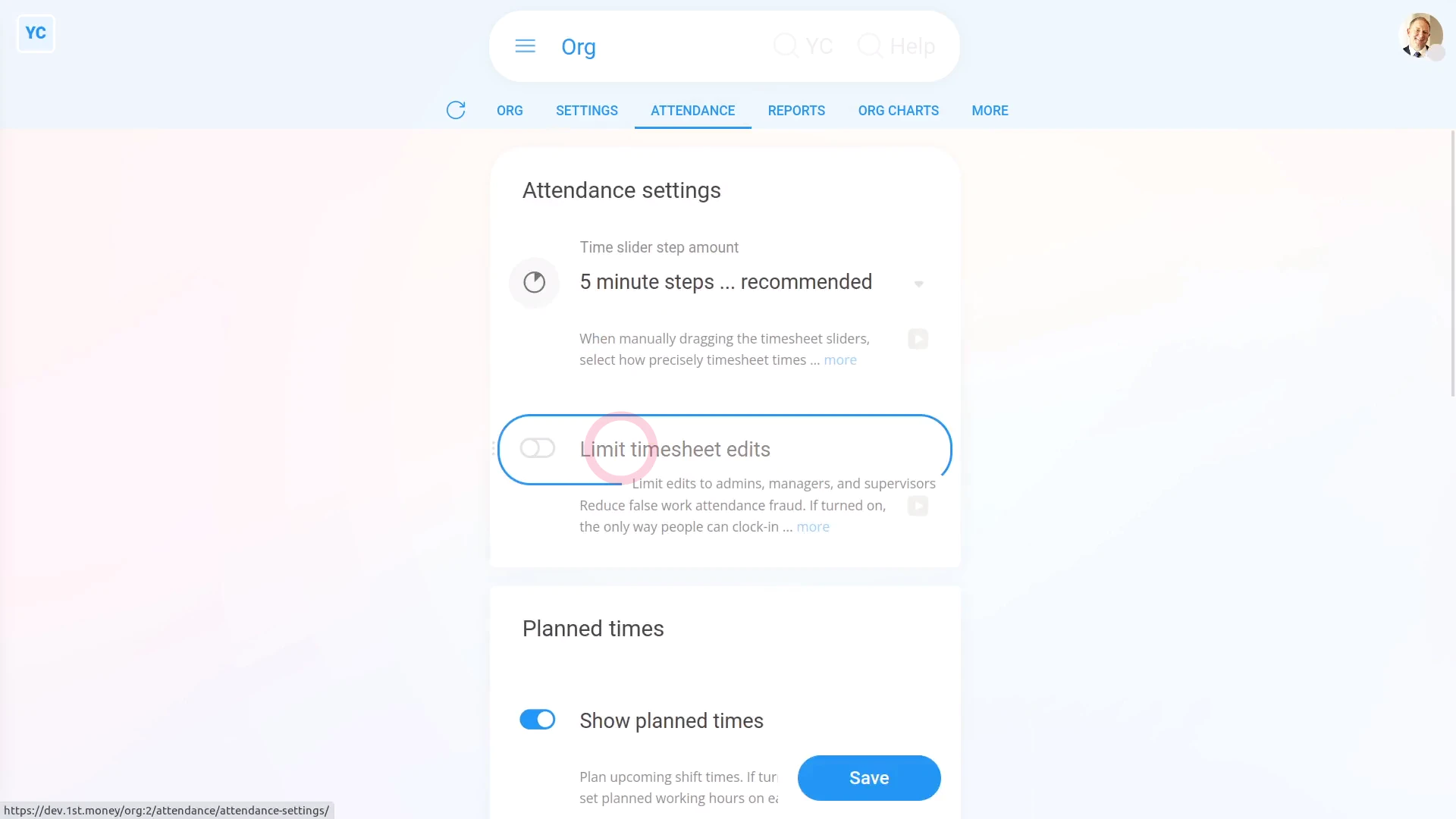
To allow everyone to manually adjust their own timesheet times:
- First, go to your org on: "Menu", then "Orgs"
- Then tap: "Attendance", then "Attendance settings"
- Next, turn off: "Limit timesheet edits"
- Then tap: Save
- And finally, now everyone in your org can change their own timesheets.
When "Limit timesheet edits" is set to "Off":
- Each person is free to manually adjust their own done time for up to 5 days after the date of the timesheet.
- Each person can change their timesheet themself.
- Each person doesn't need to go to an admin or manager to change their timesheet.
- "Manual adjustments" are always highlighted with a red warning border.
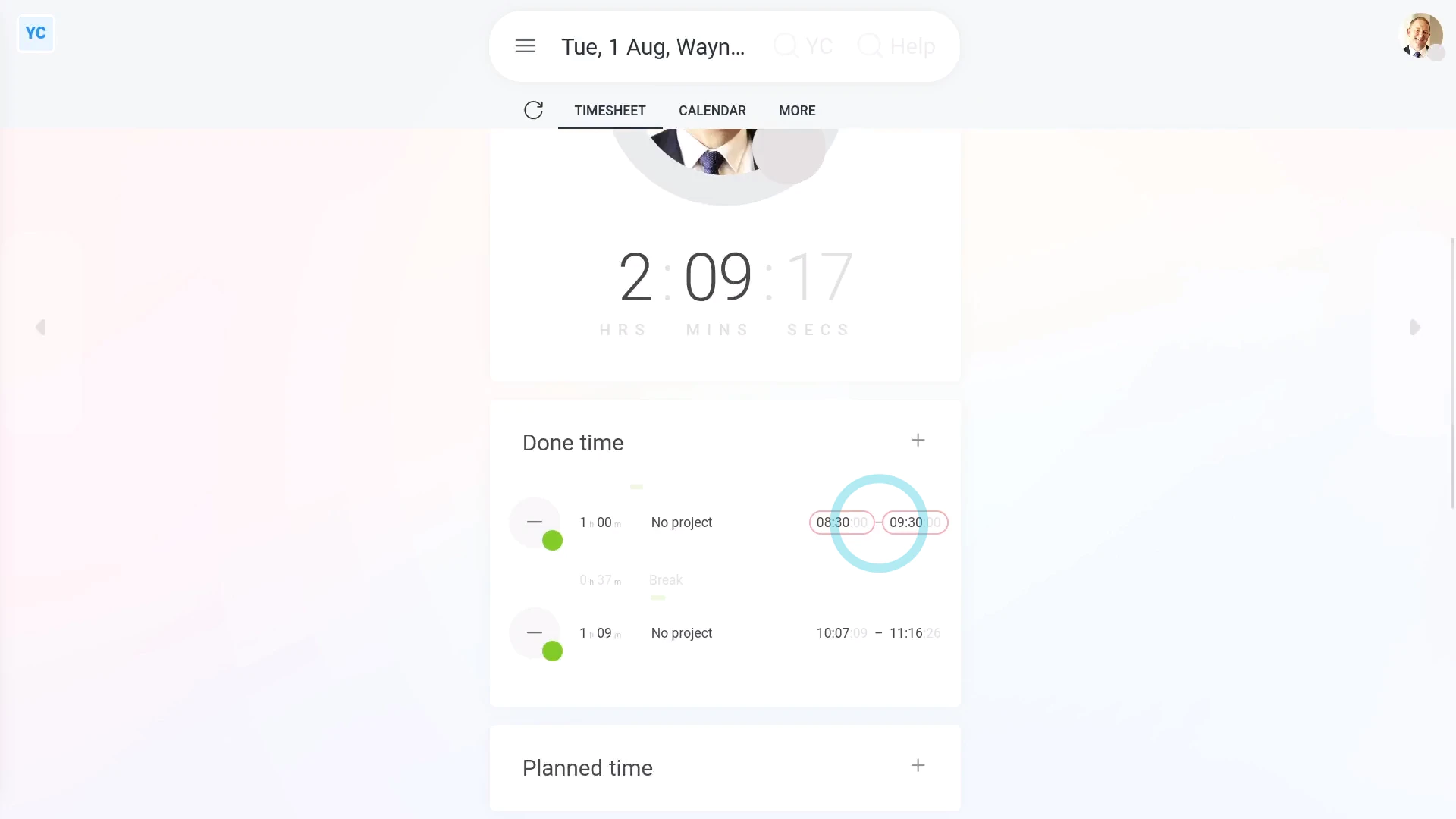
To see if a timesheet time's been set by "manual adjustment":
- First, to go to your timesheet, tap: "Work-time menu", then "Timesheet"
- Next, to open it in a new tab, tap the three dots: (in the top-right corner)
- Then tap: Open in new tab
- Look for the red warning border indicating a: "manual adjustment"
- And finally, if you spot one, tap "More", then "Changes" to see further details, like who set the: "manual adjustment"

Keep in mind that:
- Setting planned times is unaffected by the "Limit timesheet edits" setting.
- Only admins or managers can ever change any planned time on any timesheet.
- And only admins or managers can change the "Limit timesheet edits" setting.
You may notice:
- The "Limit timesheet edits" setting applies to every person in your org.
- If you want only a selected group of people, but not everyone, to change their timesheets, you could instead set those selected people as org admins.
- Now, as org admins, those selected people can then directly change their own timesheet times.
If a feature's not showing:
- If the timesheets feature isn't showing, it means your org hasn't turned on the timesheets feature yet.
- To turn on the timesheets feature, watch the video on: Turning on timesheets
 Turning on timesheets
And that's it! That's everything you need to know about allowing workers to adjust their own timesheets!
www.1st.money/uk/help/Timesheets/How_can_workers_adjust_their_own_timesheet_times