How do I turn on the planned times feature?
 2:38
2:38
"How do I turn on the planned times feature?"
Setting planned times allows you to schedule, publish, and track upcoming shift hours for your people.
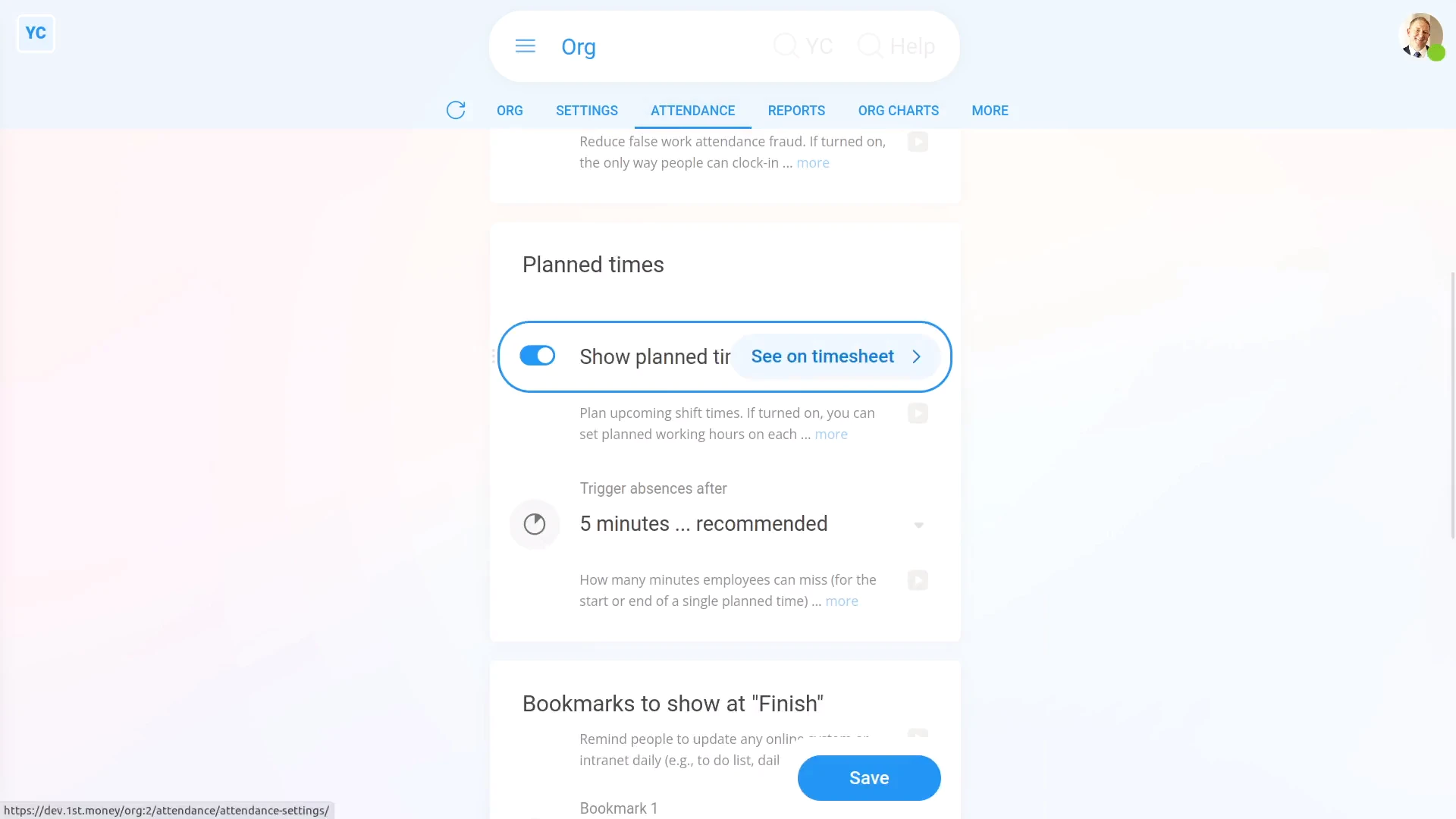
To turn on "Show planned times":
- First, go to your org on: "Menu", then "Orgs"
- Then tap: "Attendance", then "Attendance settings"
- And turn on: "Show planned times"
- Then tap: Save
- And finally, "Show planned times" is now turned on.
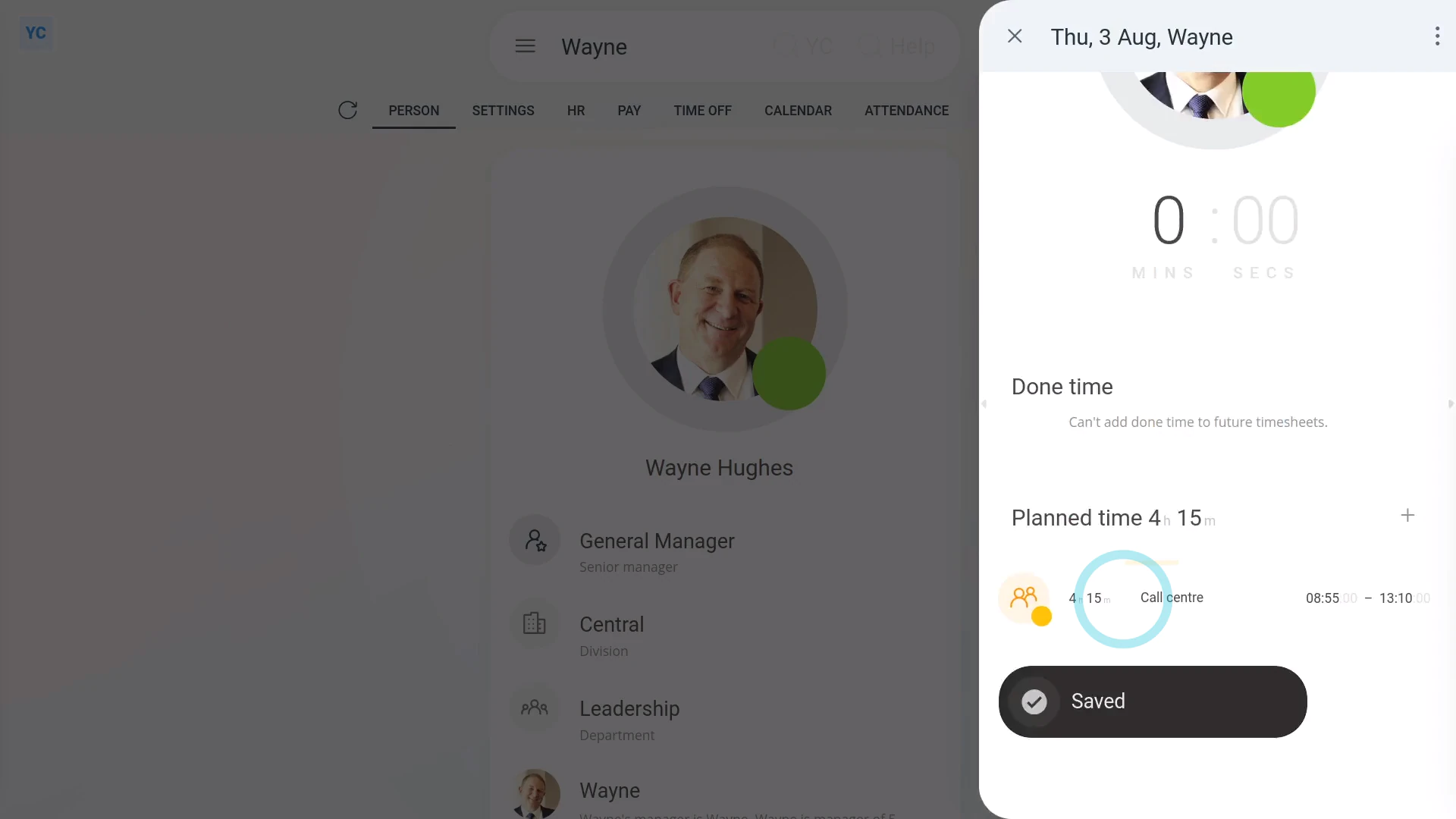
To set a planned time for a person:
- First, go to a person.
- Then tap: Calendar
- Next, tap the date on the calendar you'd like to set a planned time for.
- Once it slides out on the right, beside the "Planned time" heading, tap the "Add" button:
- Drag the sliders to set the planned time's start and stop times.
- Optionally, you can also select the project that you'd like the planned time to be saved into.
- Then tap: Save
- Now, you'll see the new planned time saved to the timesheet.
- And finally, when the person opens their "Work-time menu" (top-right), the person can now see the new planned time as one of their: "Upcoming times"

Keep in mind that:
- Planned times is an optional feature.
- It's useful for jobs that require people to be on shift at fixed times of the day. For example: call centres, restaurants, and retail.
- If all you need is to track your people's actual hours worked, you can keep planned times turned off. Time tracking continues to work fine, even without planned times.
- Also keep in mind that only admins or managers can change the "Show planned times" setting.
You may notice:
- The "Show planned times" setting applies to every person in your org.
- If you've got some people that don't need "Show planned times", but others that do, turn it on anyway.
- You can then use the "Show planned times" feature for those that do need it, and ignore it for those that don't.
If a feature's not showing:
- If the timesheets feature isn't showing, it means your org hasn't turned on the timesheets feature yet.
- To turn on the timesheets feature, watch the video on: Turning on timesheets
 Turning on timesheets
And that's it! That's all you need to do to turn on planned times, and add a planned time!
How do I set the number of minutes it takes to trigger an absenceHow do I understand the attendance averages
www.1st.money/uk/help/Timesheets/How_do_I_turn_on_the_planned_times_feature