How do I use a project's 'Timelines ... daily' report?
 2:46
2:46
"How do I use a project's "Timelines ... daily" report?"
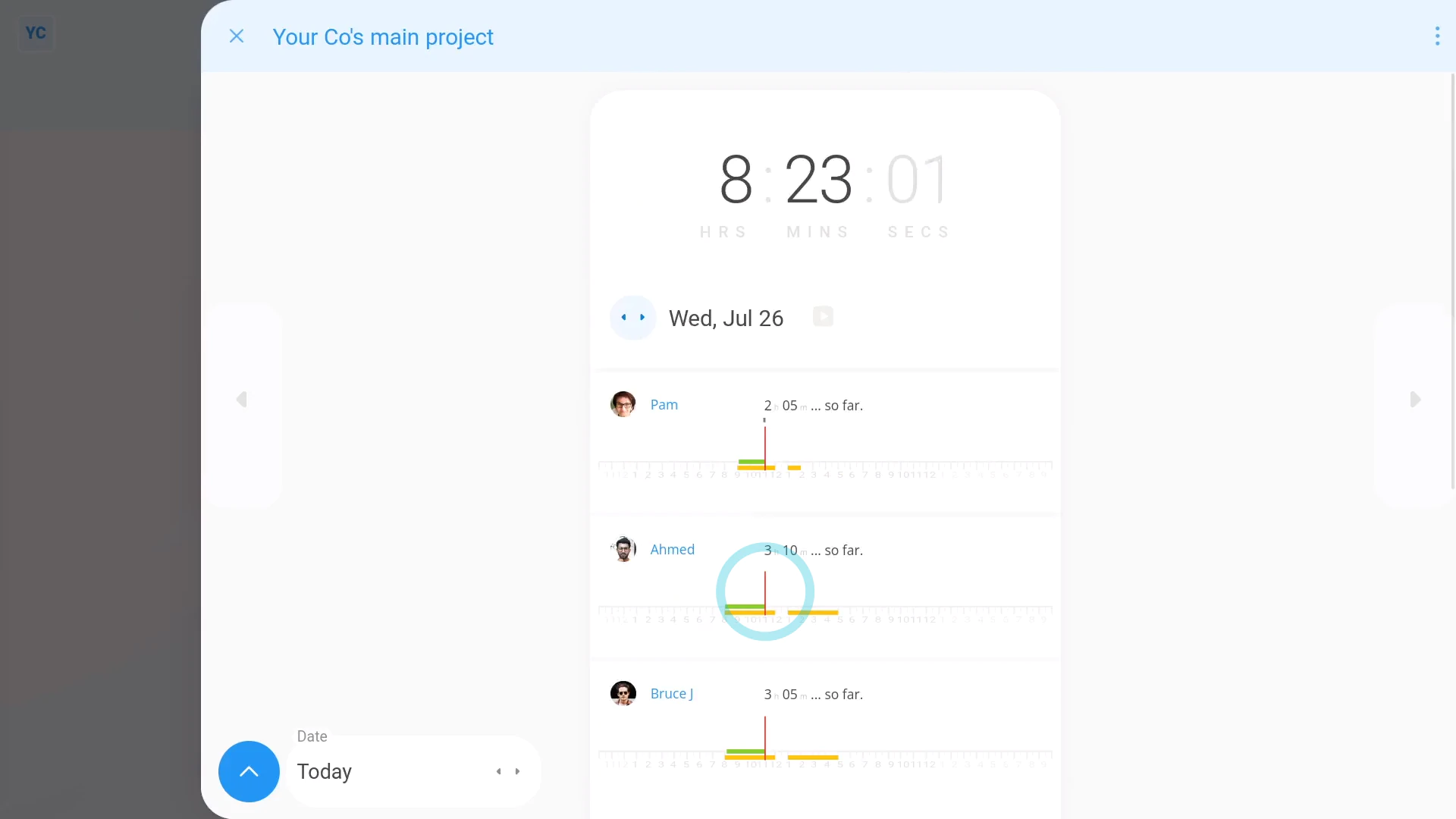
The "Timelines ... daily" report shows you a one page summary of all of a project's timesheets for a single working day.
The "Timelines ... daily" report, and all other "Attendance" reports, are available to be opened by:
- Anyone with at least "View org admin" permissions.
- And also a project's owners and observers.
To see a project's "Timelines ... daily" report:
- First, select the project on: "Menu", then "Projects"
- Then tap: "Attendance", then "Timelines ... daily"
- Once it opens, you'll see a list of timesheets for people who worked in the project for today.
- The red line shows the time right now. In other words, you can see the real-time status of all the people in the project, all on one page.
- To go to a specific date, you can pick a day on the calendar.
- And finally, you can go backwards or forwards, a day at a time, when you tap the triangles. Including the heading triangles, the side triangles, and the date triangles.

You may notice:
- The "Timelines ... daily" report includes the total hours done, by everyone (at the top).
- And then as you scroll down, you can see each person's total hours done.
- As well as their feeling, upon reaching the end of their day.
- And notes that the person's written throughout their day.
For advanced usage:
- When you scroll to the bottom of the page you'll see a useful summary of all hours worked in the project for that day.
To compare a set of selected project people's timelines:
- First, tap:
" Show settings", then "Show people" - Then Control + tap the people you want to compare.
- You'll now see multiple timesheets for the selected people, and the summary (at the bottom) is now only showing the selected people also.
- And finally, to return back to everyone, tap: All
If a feature's not showing:
- If the "Timelines ... daily" report isn't showing in the menu, it means your org hasn't turned on the timesheets feature yet.
- To turn on the timesheets feature, watch the video on: Turning on timesheets
 Turning on timesheets
To learn more:
- About the "Timelines ... weekly" report, watch the video on: The "Timelines ... weekly" report
And that's it! That's everything you need to know about using a project's "Timelines ... daily" report!
www.1st.money/uk/help/Timesheets/How_do_I_use_a_project's_'Timelines_..._daily'_report