How do I use the 'Absences list' report?
 3:41
3:41
"How do I use the "Absences list" report?"
The "Absences list" report shows you a list of every absence for the selected person, project, or even your whole org.
A person or project's "Absences list" report, and all other "Attendance" reports, are available to be opened by:
- Each person, to see their own "Absences list" report.
- The person's direct manager and supervisors.
- Also anyone with at least "View org admin" permissions.
- And also a project's owners and observers.

You may notice:
- When you go to a project and look on the Attendance menu, it may not show the "Absences list" report.
- If not, it means your org hasn't turned on "Show planned times" yet.
To learn more:
- About how to turn on "Show planned times", watch the video on: Turning on planned times
 Turning on planned times
To see a project's "Absences list" report:
- First, select the project on: "Menu", then "Projects"
- Then tap: "Attendance", then "Absences ... list"
- And finally, once it opens, you'll see a list of every absence of every person in the project, over the last 30 days.
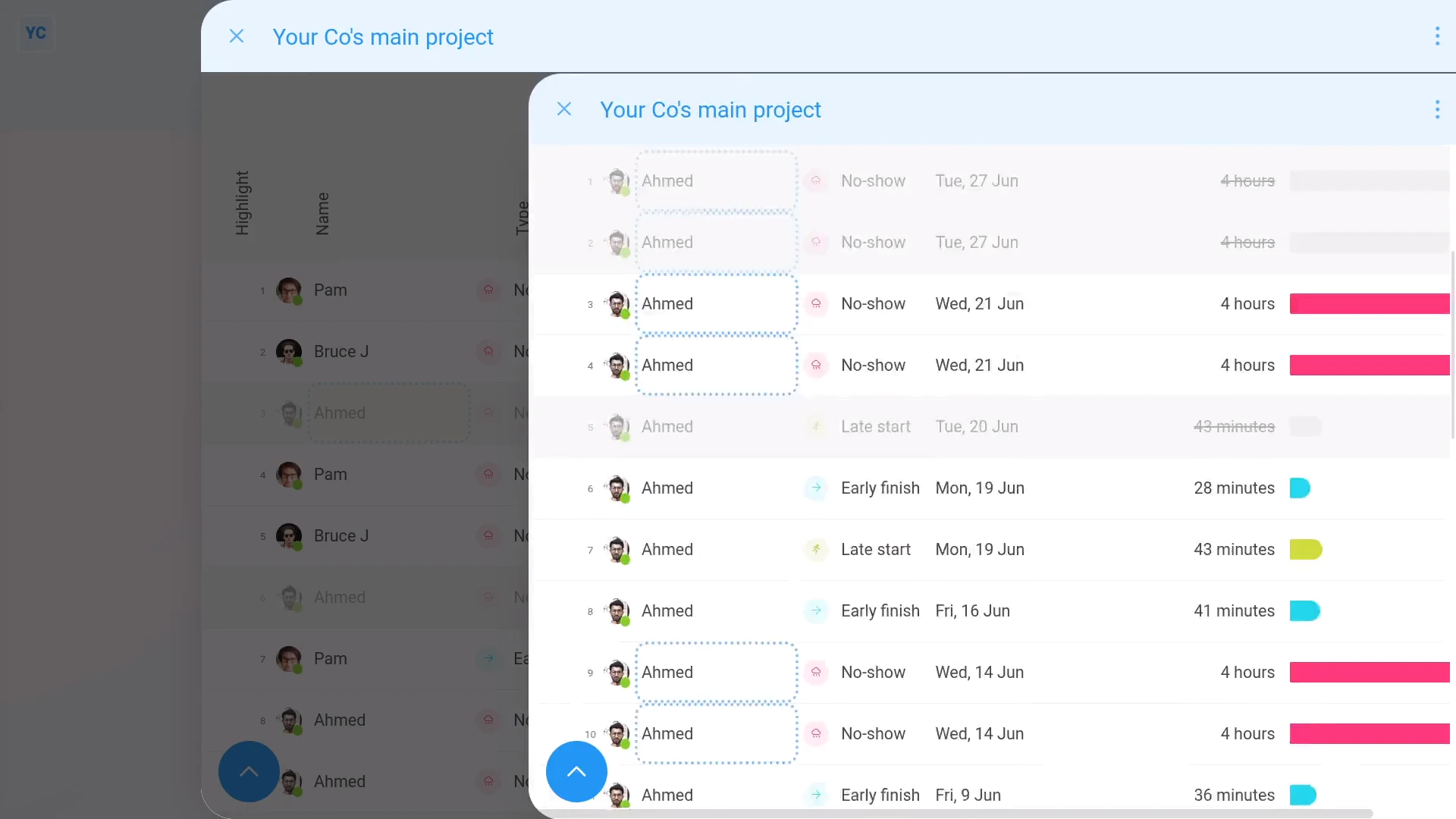
To only see all absences of a single person:
- First, tap their name.
- And finally, it slides out on the right, showing absences for only that person.
To understand all three kinds of absences:
- First, there's "Late starts" in red, where a person started later than their planned start time.
- Then there's "Early finishes" in grey, where a person finished earlier than their planned finish time.
- And finally, there's "No-shows" in black, where a person didn't show up at all.
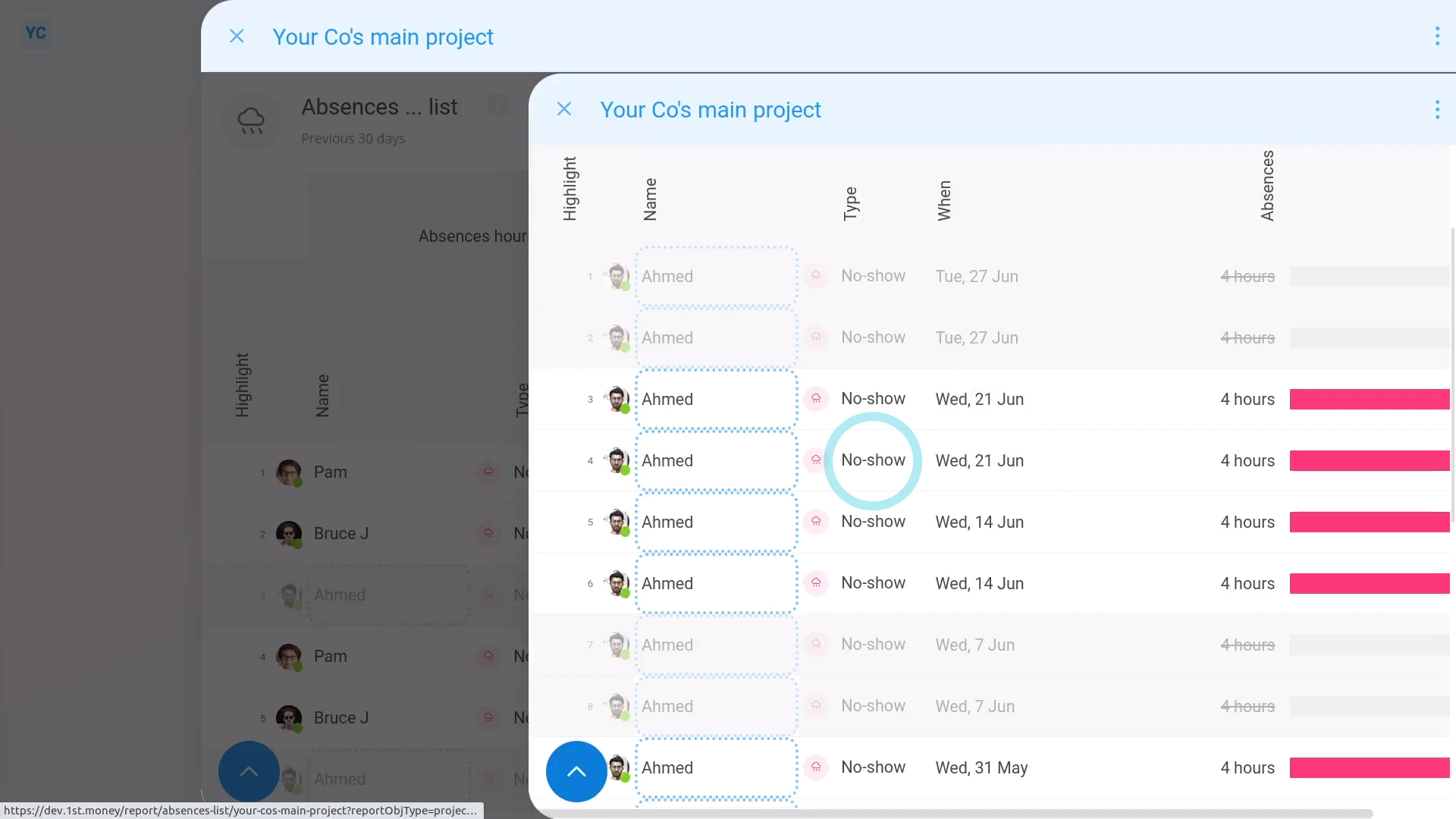
To see an "Absences list" report with only "no-shows":
- Tap:
" Show settings", "Filter", then "No-shows only"
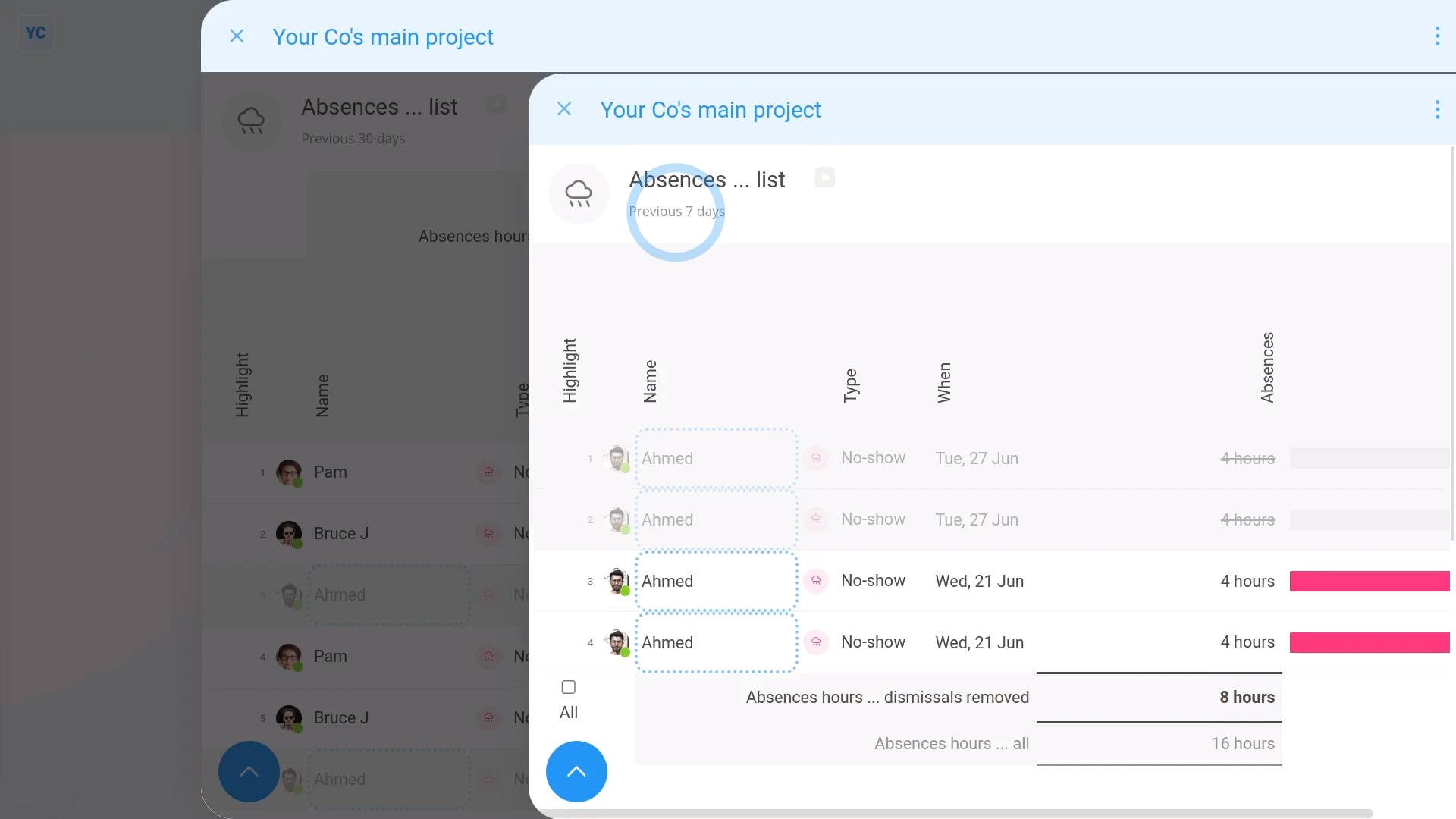
To see an "Absences list" report of your last 7 days:
- Tap:
" Show settings", "Dates", then "Previous 7 days"
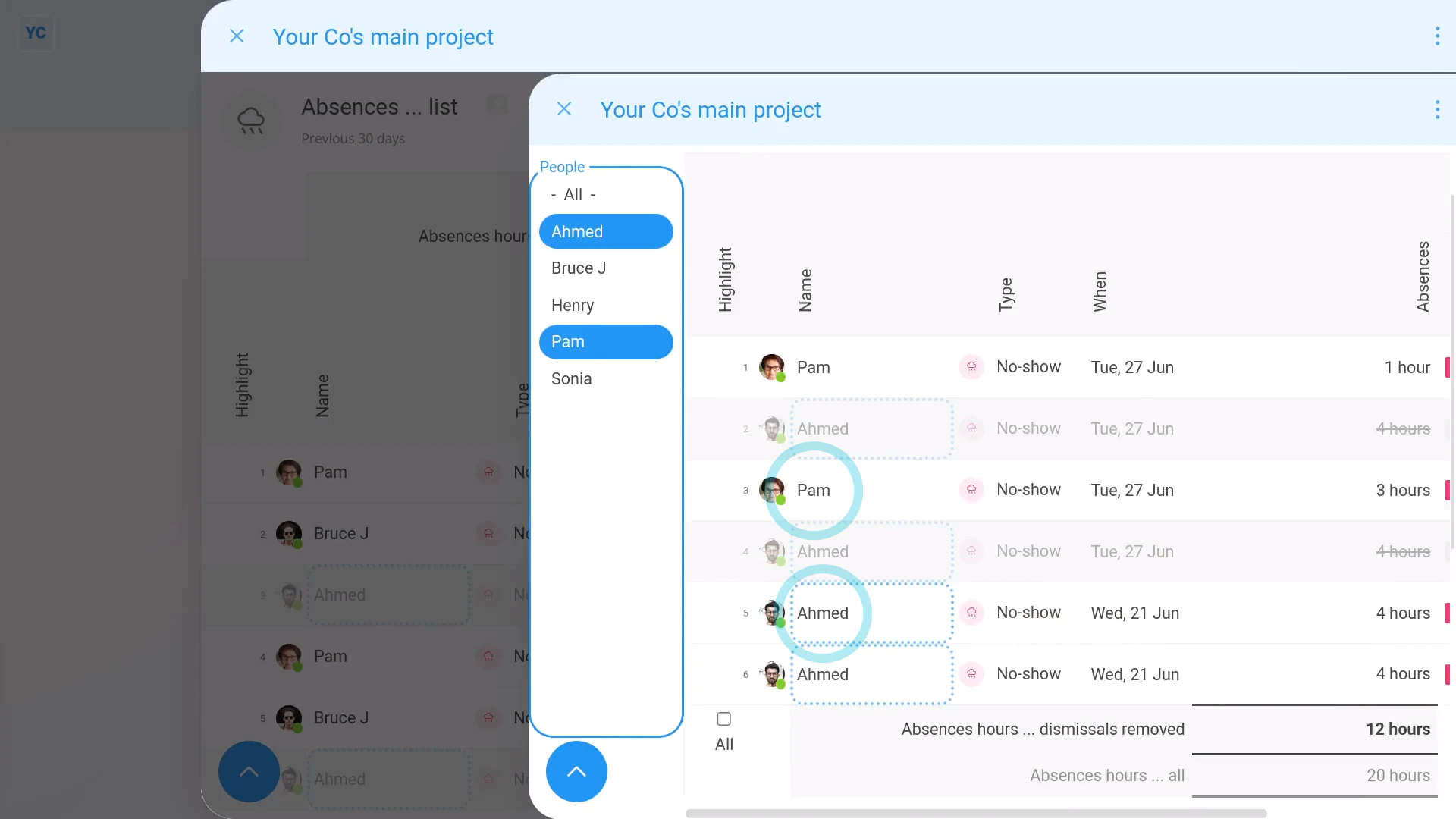
To compare a set of selected people on an "Absences list" report:
- First, tap:
" Show settings", then "Show people" - Then Control + tap the people you want to compare.
- You'll now only see no-show absences for the selected people, over the last 7 days.
- You can see (at the bottom), the total of all absences hours.
- You can also see that after removing excused absences, there's less hours of absences.
- That's because the absence was excused, so it now shows in grey, and doesn't count towards the total.
- When you mouse over each excused row, you'll see the explanation added by the manager who excused the absence.
- And finally, to see the "excuse options", tap any row.
If a feature's not showing:
- If the "Absences list" report isn't showing in the menu, it means your org hasn't turned on the timesheets feature yet.
- To turn on the timesheets feature, watch the video on: Turning on timesheets
And that's it! That's everything you need to know about using "Absences list" reports!
www.1st.money/uk/help/Timesheets/How_do_I_use_the_'Absences_list'_report