How do I use the 'Feeling' report?
 3:03
3:03
"How do I use the "Feeling" report?"
The "Feeling" report shows you how your people are feeling upon reaching the end of their working day.
A person or project's "Feeling" report, and all other "Attendance" reports, are available to be opened by:
- Each person, to see their own "Feeling" report.
- The person's direct manager and supervisors.
- Also anyone with at least "View org admin" permissions.
- And also a project's owners and observers.
To see a "Feeling" report:
- First, select the project on: "Menu", then "Projects"
- Then tap: "Attendance", then "Feeling"
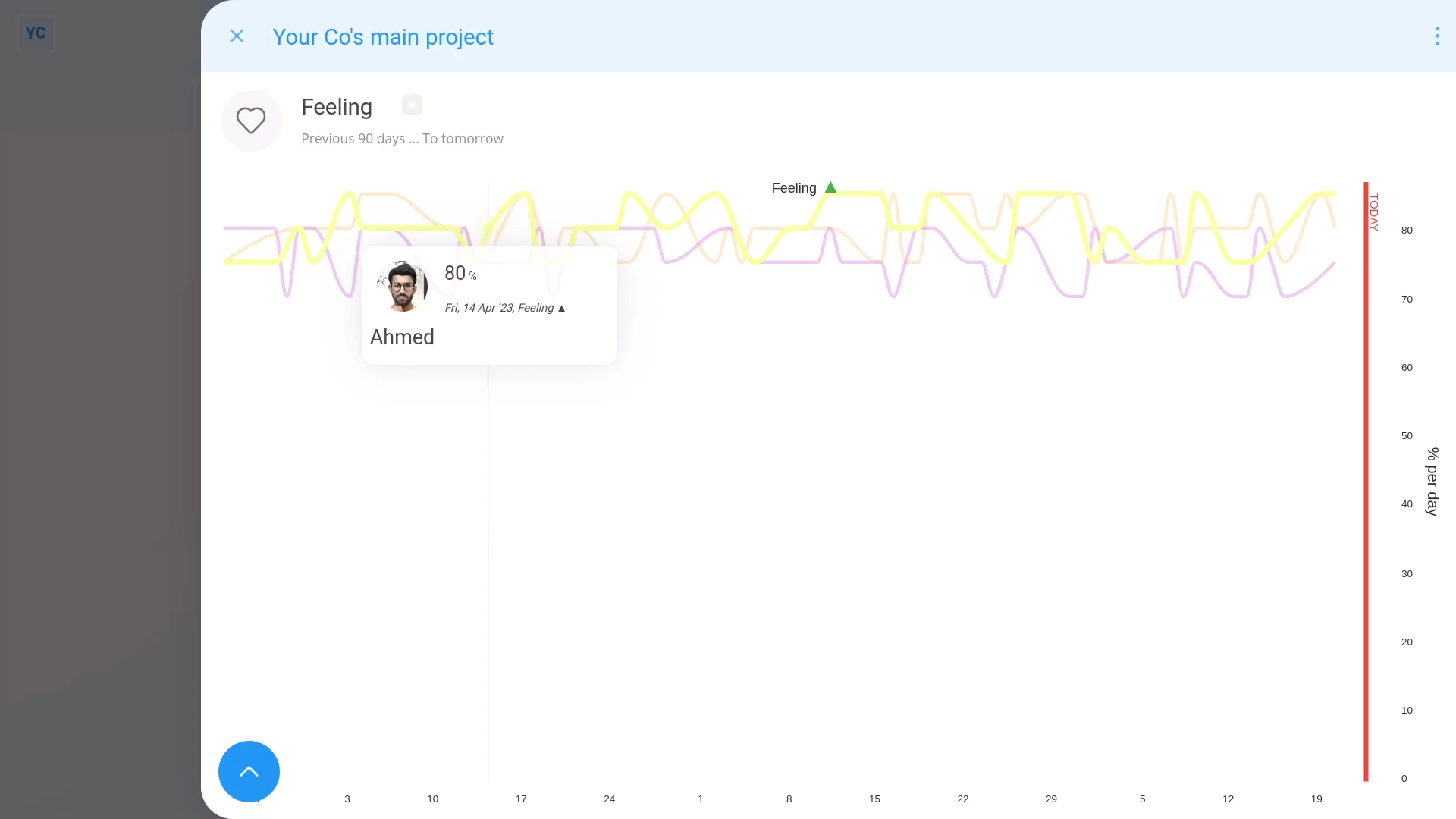
- Once it opens, you'll see lines representing the feelings of everyone in the project, over the last 90 days.
- And finally, when you hover your mouse over each line, you'll see additional details. You'll see details like who that line's for, and what their feeling is, as a percent.
To see a "Feeling" report of your last 7 days:
- Tap:
" Show settings", "Dates", "From", then "Previous 7 days"
Now, switching back to 90 days.
To compare a set of selected people on a "Feeling" report:
- First, tap:
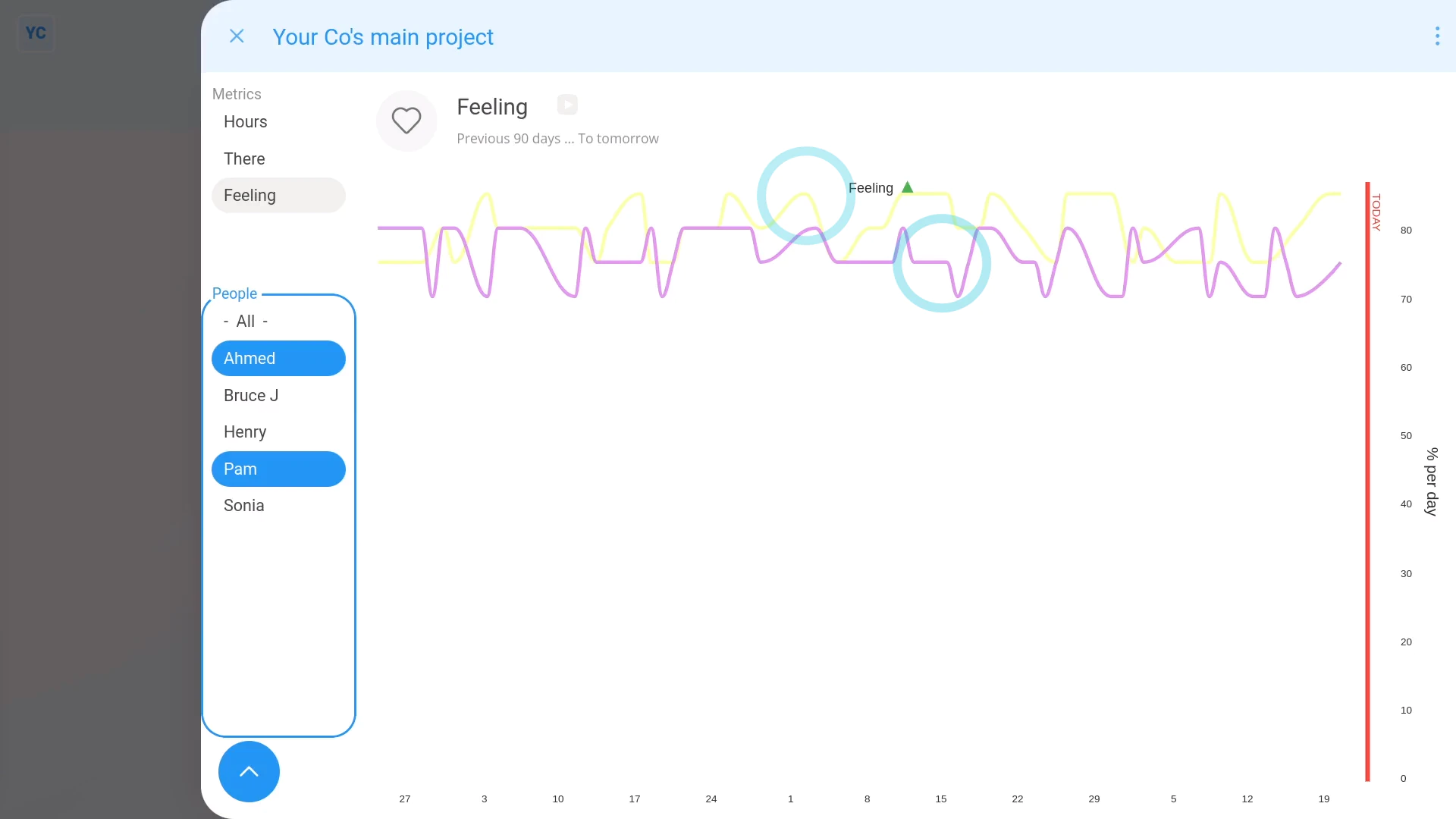
" Show settings", then "Side settings ... show" - Then find the People in the list.
- Then Control + tap the people you want to compare.
- You'll now see a line for each of your selected people.
- Because each line's a different colour, you can compare each person.
- And finally, when you tap any point on a line, it slides out on the right, showing that day's timesheet for that person. The timesheet gives you much more info about their working day.
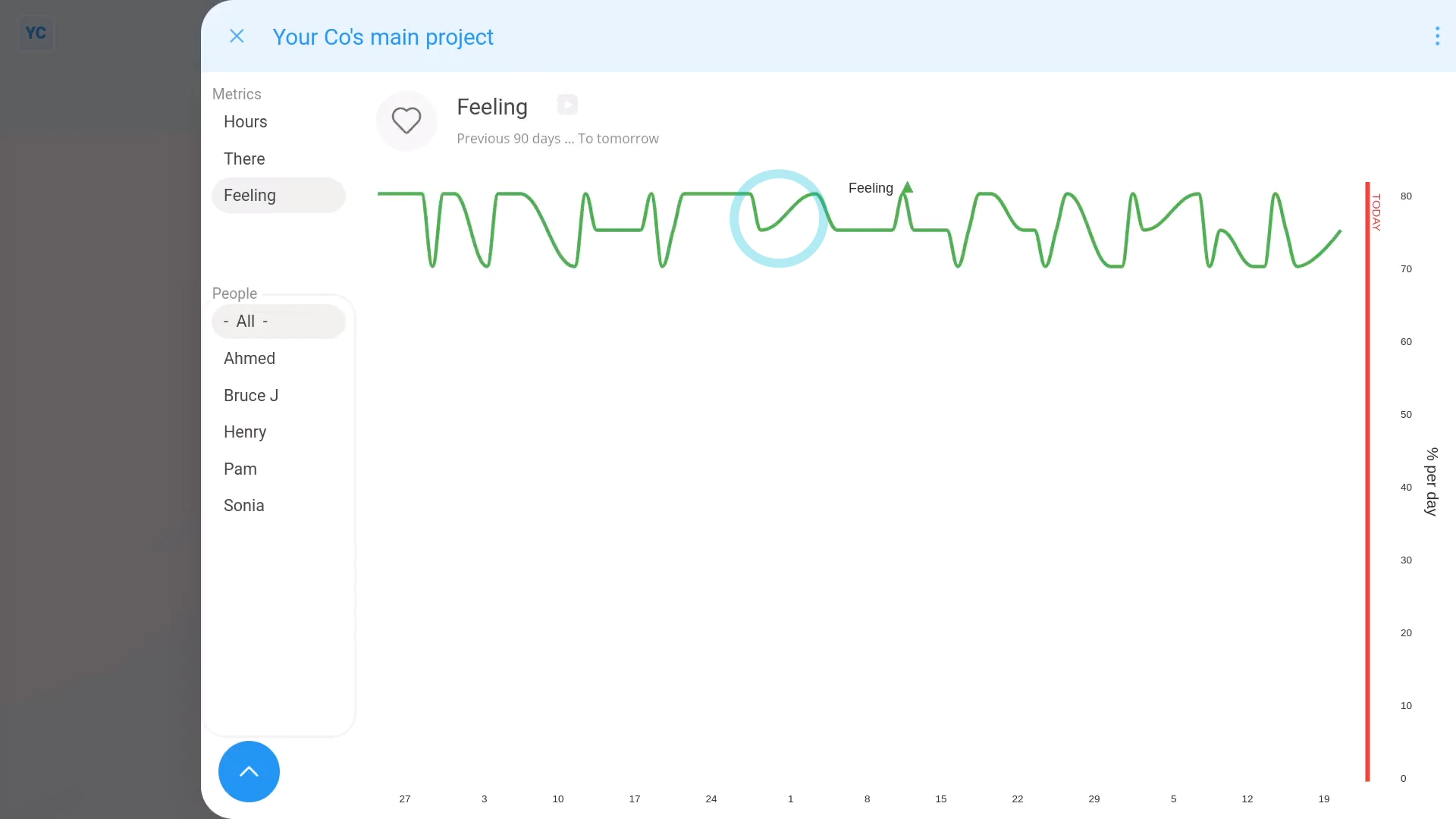
To show a single line averaging everyone's feelings in a project:
- First, tap back to All people.
- And finally, tap:
" Show settings", "Line type", then "Combine into 1 line"
Now, switching back to: "Show each person"
To see all feelings in a number format:
- Tap:
" Show settings", then "Show grid"
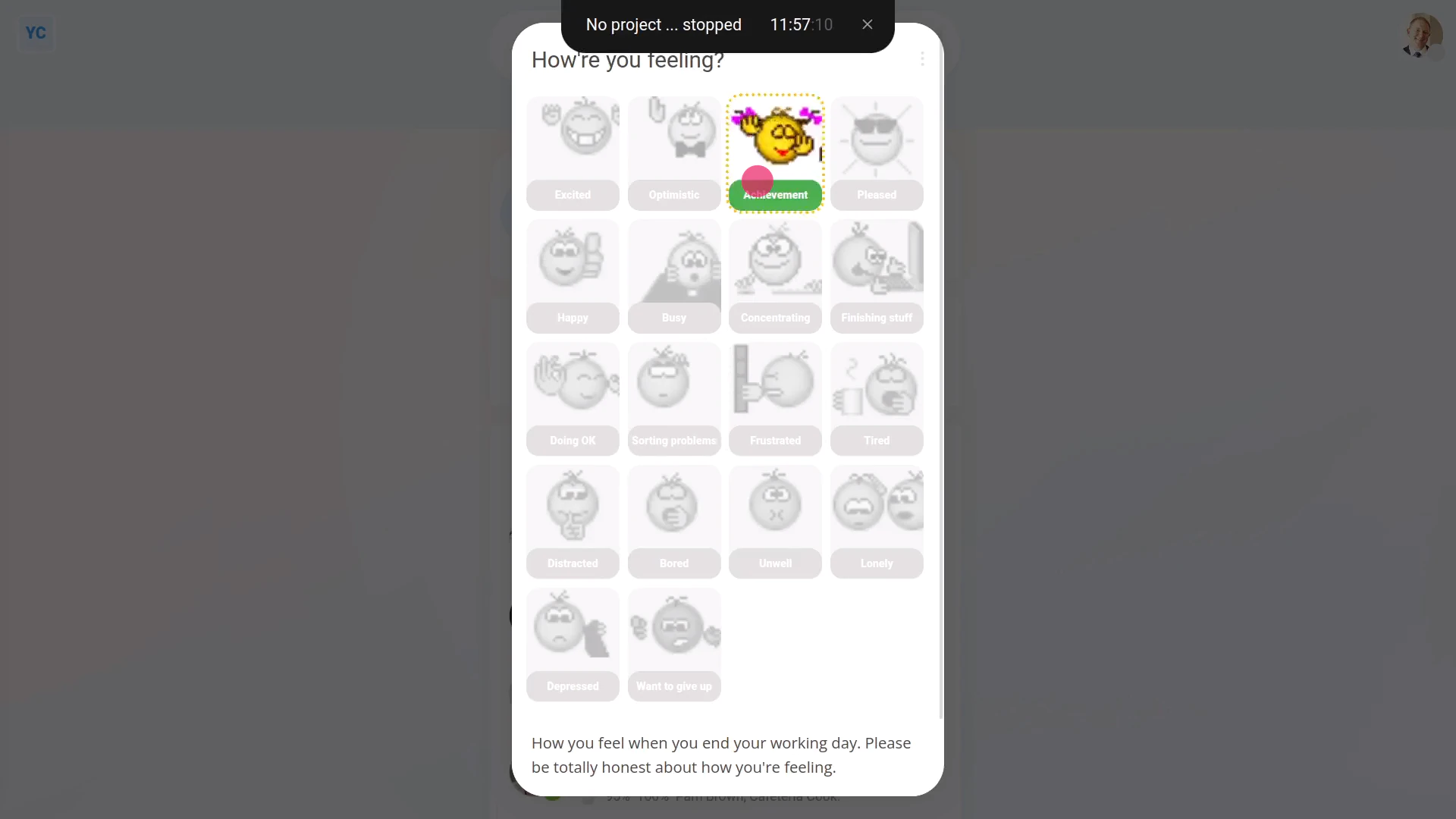
To remind your people to share their feeling upon reaching their end to each day:
- First, remind them to select a feeling when your people tap: "Work-time menu", then "Finish"
- Encourage them to select any one of the feelings.
- Remind them to be honest in choosing their feeling.
- And finally, their selected feeling also shows up in the daily timesheets email, and near the bottom of each timesheet.

If a feature's not showing:
- If the "Feeling" report isn't showing in the menu, it means your org hasn't turned on the timesheets feature yet.
- To turn on the timesheets feature, watch the video on: Turning on timesheets
 Turning on timesheets
And that's it! That's everything you need to know about using "Feeling" reports!
www.1st.money/uk/help/Timesheets/How_do_I_use_the_'Feeling'_report