1. How do I set my contact details?
 1:35
1:35
"How do I set my contact details?"
Adding your contact details makes it easier for people in your team to contact you.
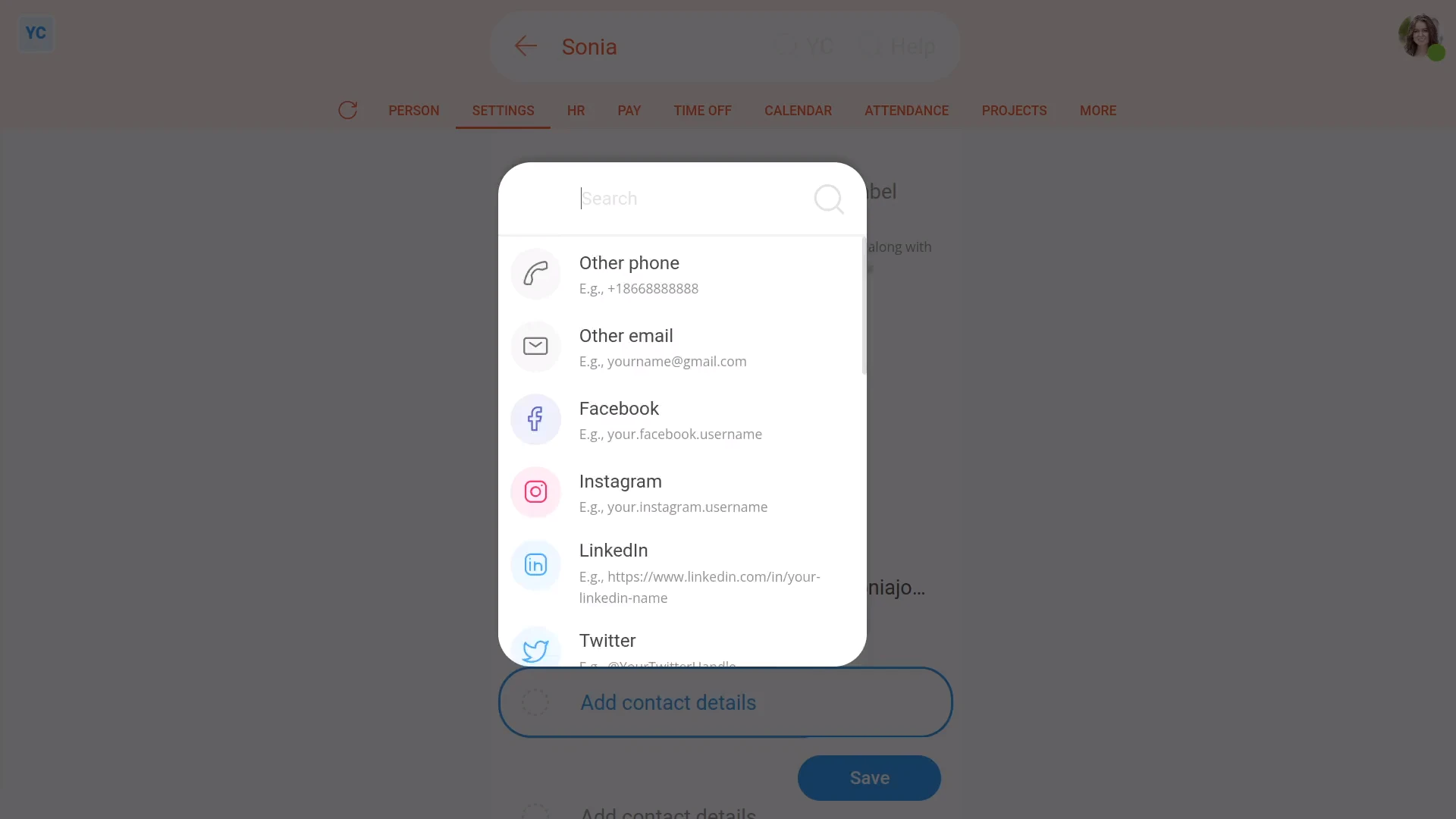
To add your contact details:
- First, open yourself on: "Menu", then "Me"
- Then tap: "Settings", then "Person settings"
- You'll see that in addition to your mobile number, there's other spaces for you to add more contact details.
- Each time you add a contact detail, first set the type of contact, then add the detail.
- Each type of contact has a different format, so you'll see hints on how to enter them.
- Only enter contact details that you don't mind being shared with nearby people in your org. Such as your manager, the admins, or with people you manage.
- And take care to enter them correctly.
- And finally, when you're finished, tap: Save

You may notice:
- When you tap back to the Person tab, and tap the "Reload tab" button: (at the top)
- You'll see all your newly saved contact details.
For advanced usage:
- Adding contact details also allows you to have your contact details show on your email signature.
- To learn more, watch the video on: Using email signatures
 Using email signatures
And that's it! That's everything you need to know about setting your contact details!
www.1st.money/uk/help/People/1._How_do_I_set_my_contact_details