How do I delete a person?
 2:04
2:04
"How do I delete a person?"
When you delete a person, there's checks on the person's settings, to make sure the person's employment is properly ended.
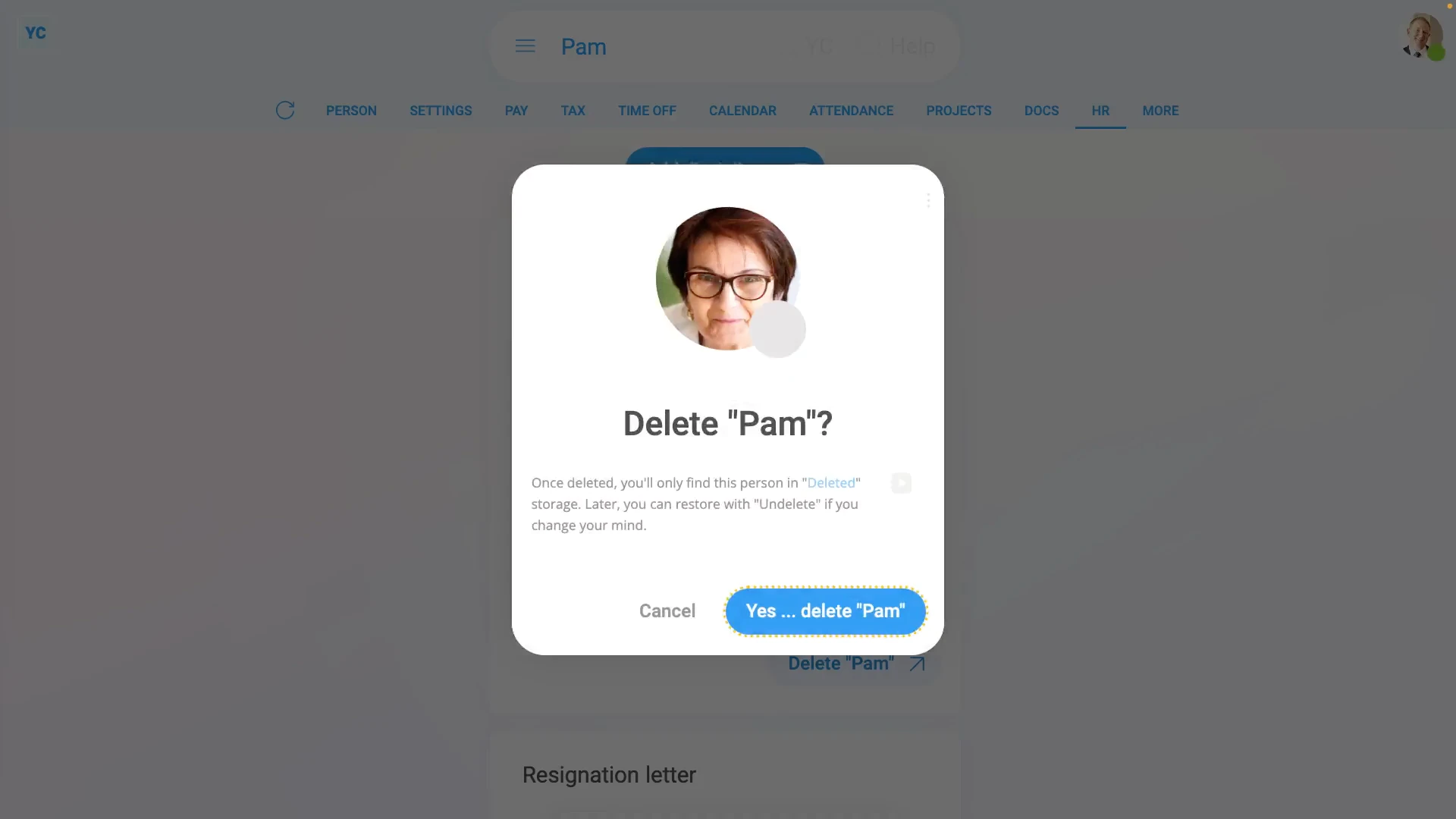
To delete a person:
- First, select the person on: "Menu", then "People"
- Then tap: "HR", then "End settings"
- And set their: "Date employment ended"
- If the person does timesheets, you can tap the link to set their end date to the date of their last timesheet.
- Next you'll be asked why you're ending the person.
- Normally, you'd tap Help me pick one to end the person properly.
- However, to instead skip the step, tap the three dots: (in the top-right corner)
- Then tap: Close
- Now, tap: Delete
- And then tap: Yes ... delete
- And finally, you'll now see that the person's been deleted.

Keep in mind that:
- Because a deleted person remains in the "Deleted bin", you can still retrieve their old employment info, like filed payslips, and leaving documents, like their P45.
- If the person's paid a salary, the person continues to be paid up until their: "Date employment ended"
- If the person's paid hourly, the person's only paid for their clocked-in timesheet time up until their: "Date employment ended"
You may notice:
- Once a person's deleted, the person can't log in anymore, and can't clock-in timesheet time anymore, either.
- However, if you change your mind and want them back again, tap: Un-delete (at the bottom)
To learn more:
- About alternatives to deleting a person, watch the videos on: Temporarily blocking access and: Temporarily halting pay
 Temporarily blocking access
And that's it! That's everything you need to know about deleting a person!
www.1st.money/uk/help/People/How_do_I_delete_a_person